Drawer
The DRAWER LOGS report allows managers and owners to review employee activity related to the POS cash drawer during a selected date range.
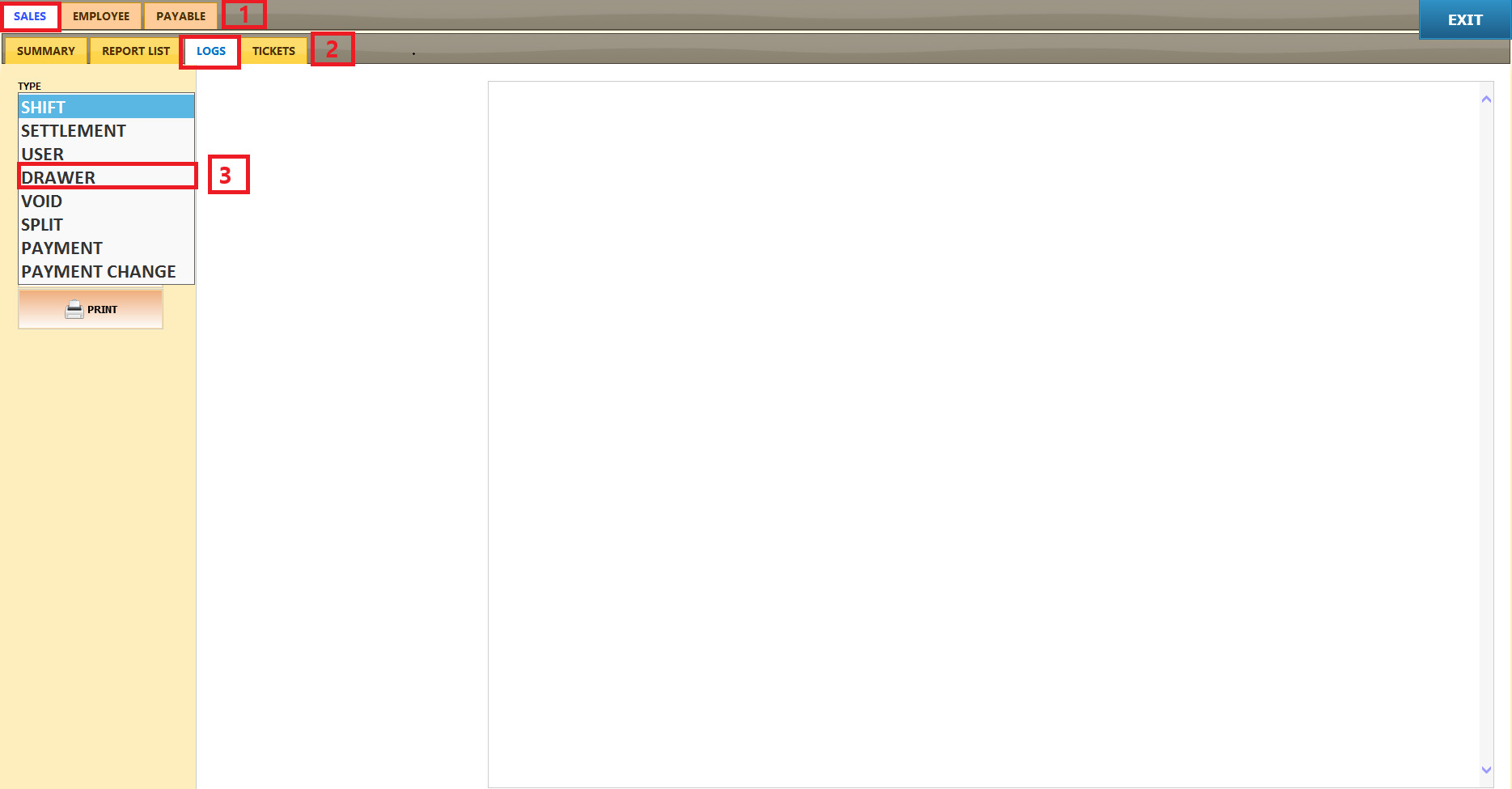
Main Screen > MENU > REPORTS > SALES > LOGS > TYPE > DRAWER
From the Main Screen, click MENU, then select REPORTS.

Under the SALES tab, select LOGS. In the TYPE dropdown menu, select DRAWER.
Click the START DATE field.
Select the desired month and year using the dropdown menus at the top of the calendar.
Select the desired day from the calendar.
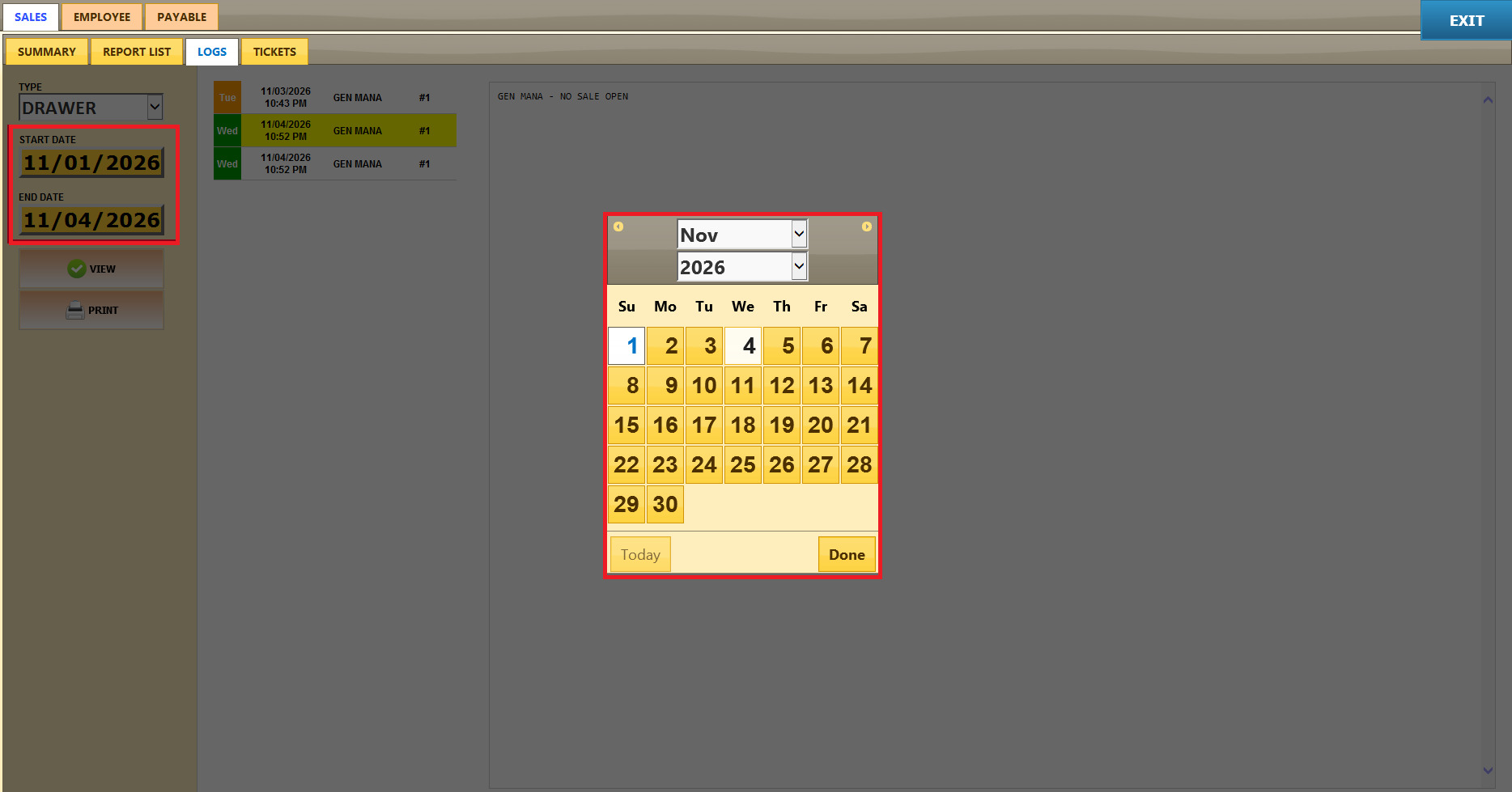
Click the END DATE field. Select the desired month and year.
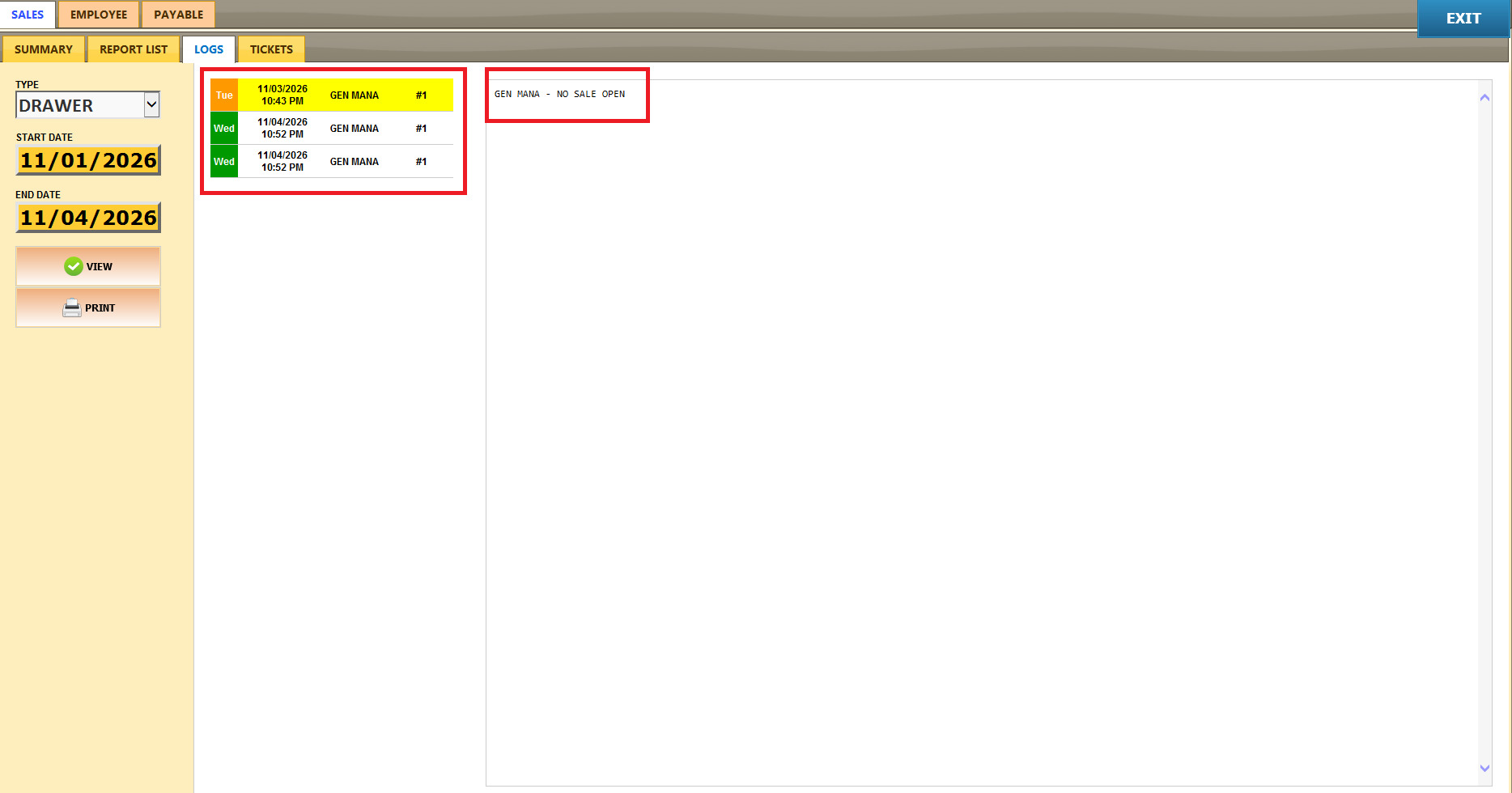
After clicking VIEW, the recorded activities will appear in the list on the left side of the screen.
The report table displays cash drawer activity records with the following columns:
Day: The day of the week when the activity occurred.
Date / Time: The date and time the activity was recorded.
Employee Name: The employee who performed the action.
POS Number: The terminal where the action was performed.
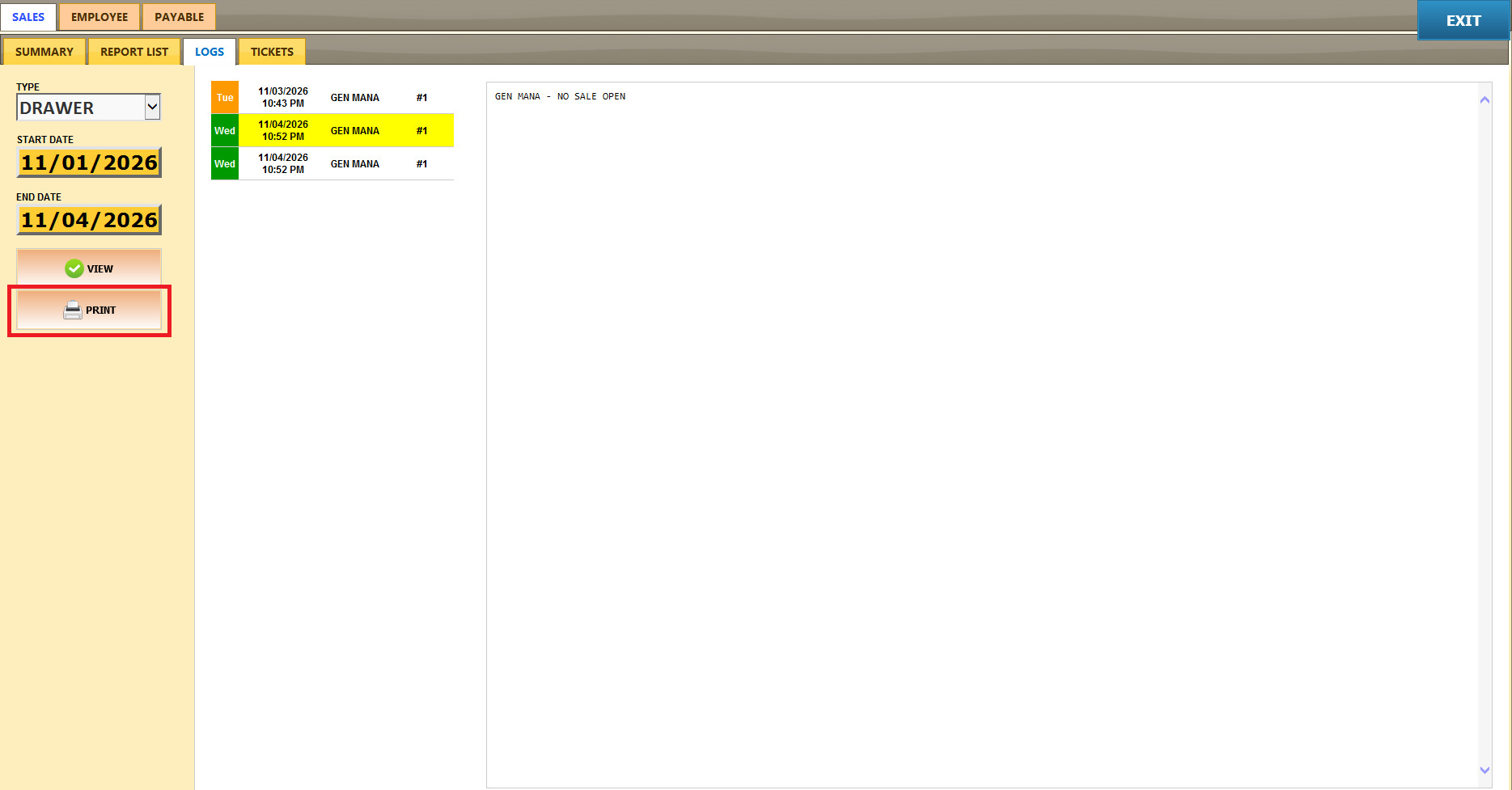
Click PRINT to print the report currently displayed on the screen.