Blacklist
The Blacklist security setting lets the store block customers from placing online orders. Customers are identified by their phone number, and the store can check, add or remove phone numbers from the blacklist.
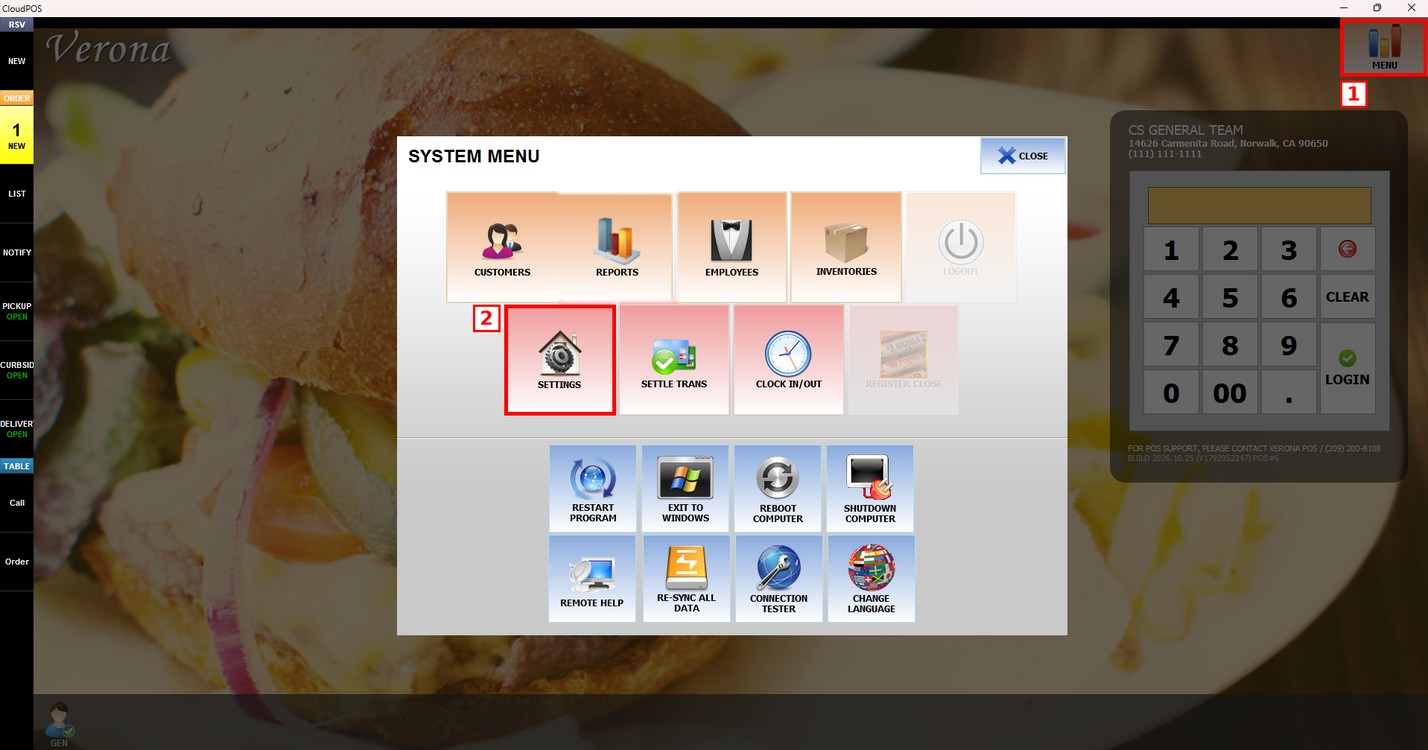
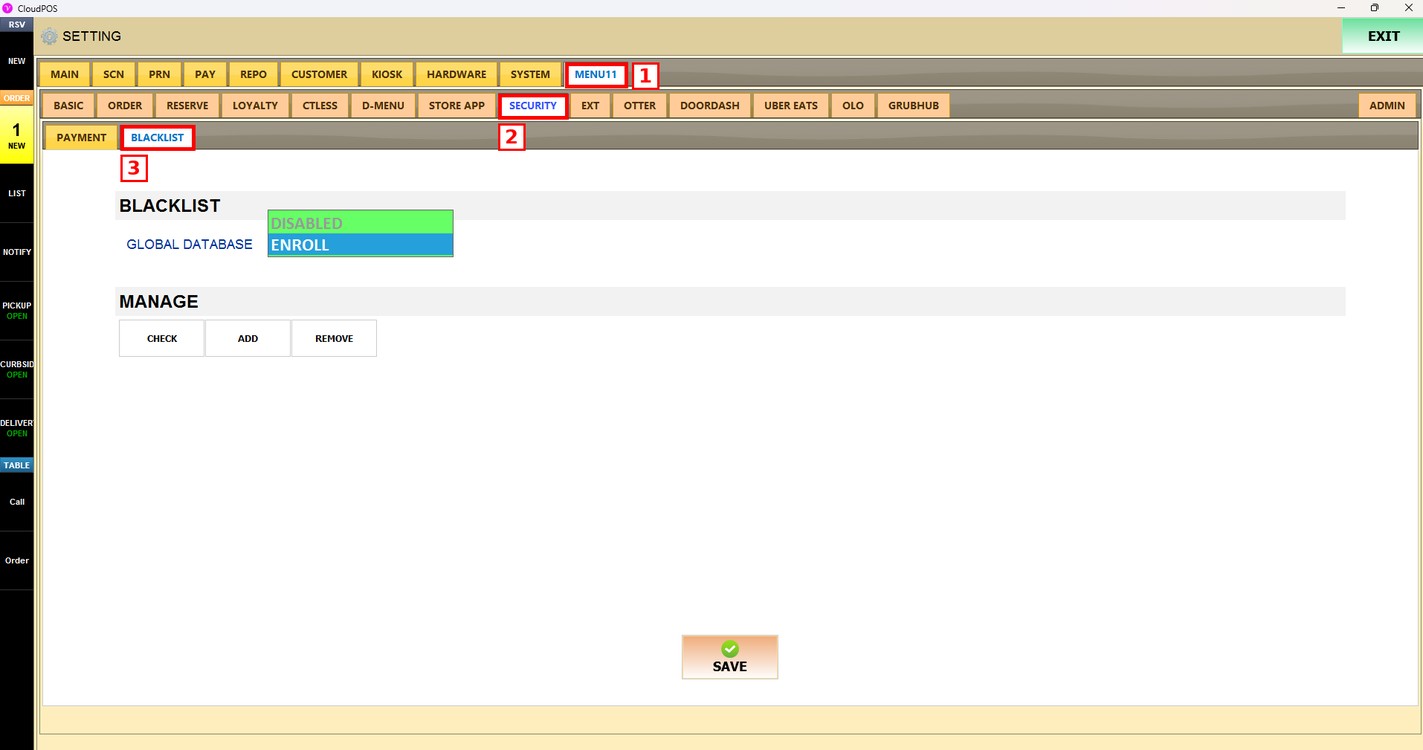
MENU> SETTINGS> MENU11> SECURITY> BLACKLIST
Go to MENU and press SETTINGS.
Press the MENU11 tab, then the SECURITY subtab and then BLACKLIST.
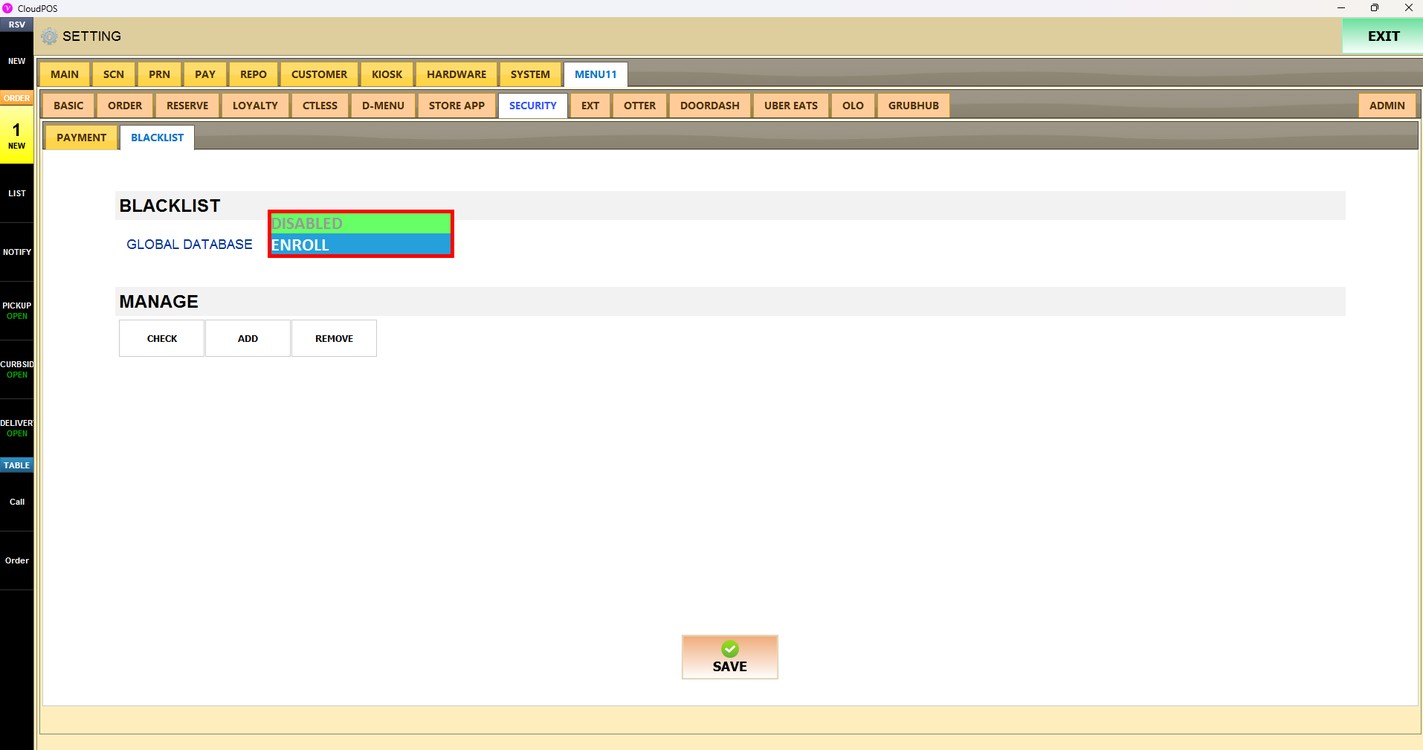
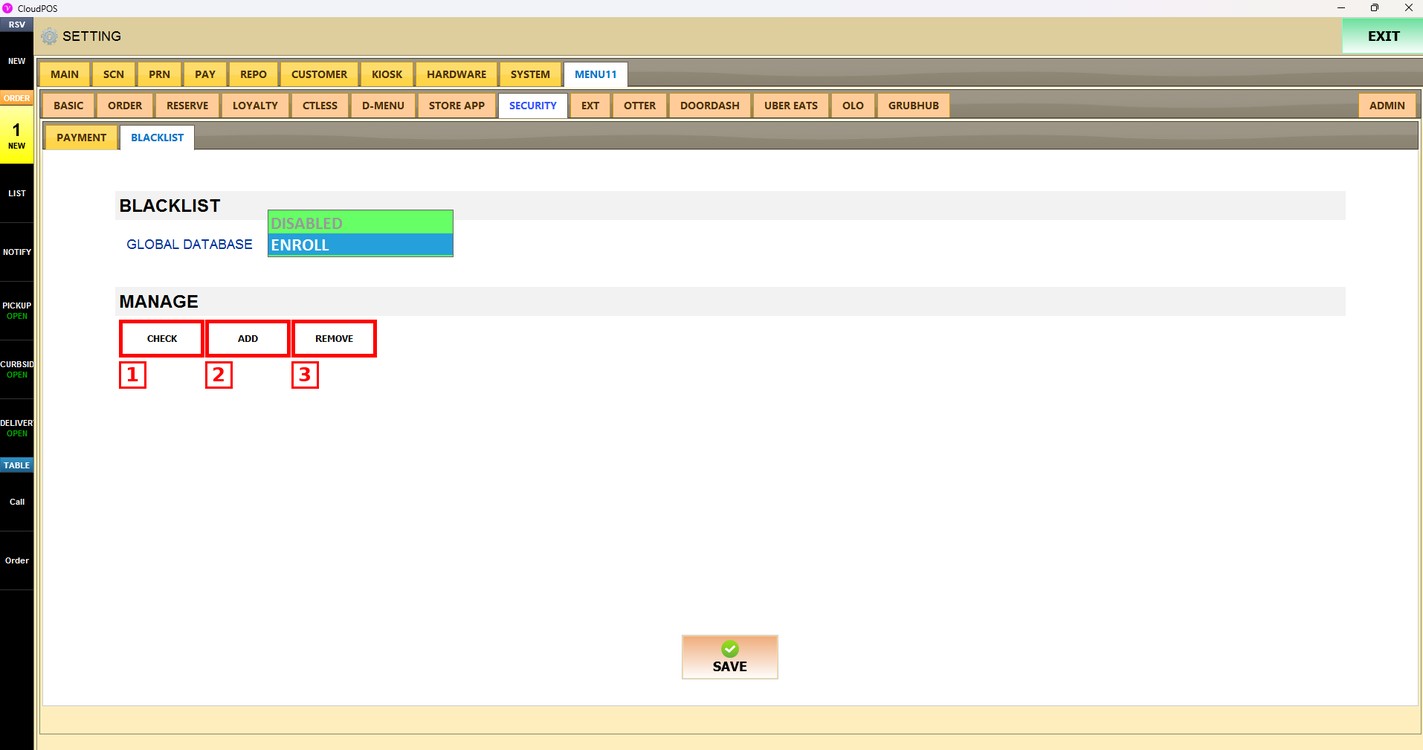
Global Database:
Sets whether the store uses the global blacklist database.
1. DISABLED: The store does not use the global blacklist database.
2. ENROLL: The store is enrolled in the global blacklist database.
Manage:
The MANAGE section has three buttons to manage the phone numbers on the blacklist:
1. CHECK: Checks if a phone number is on the blacklist.
2. ADD: Adds a phone number to the blacklist.
3. REMOVE: Removes a phone number from the blacklist.
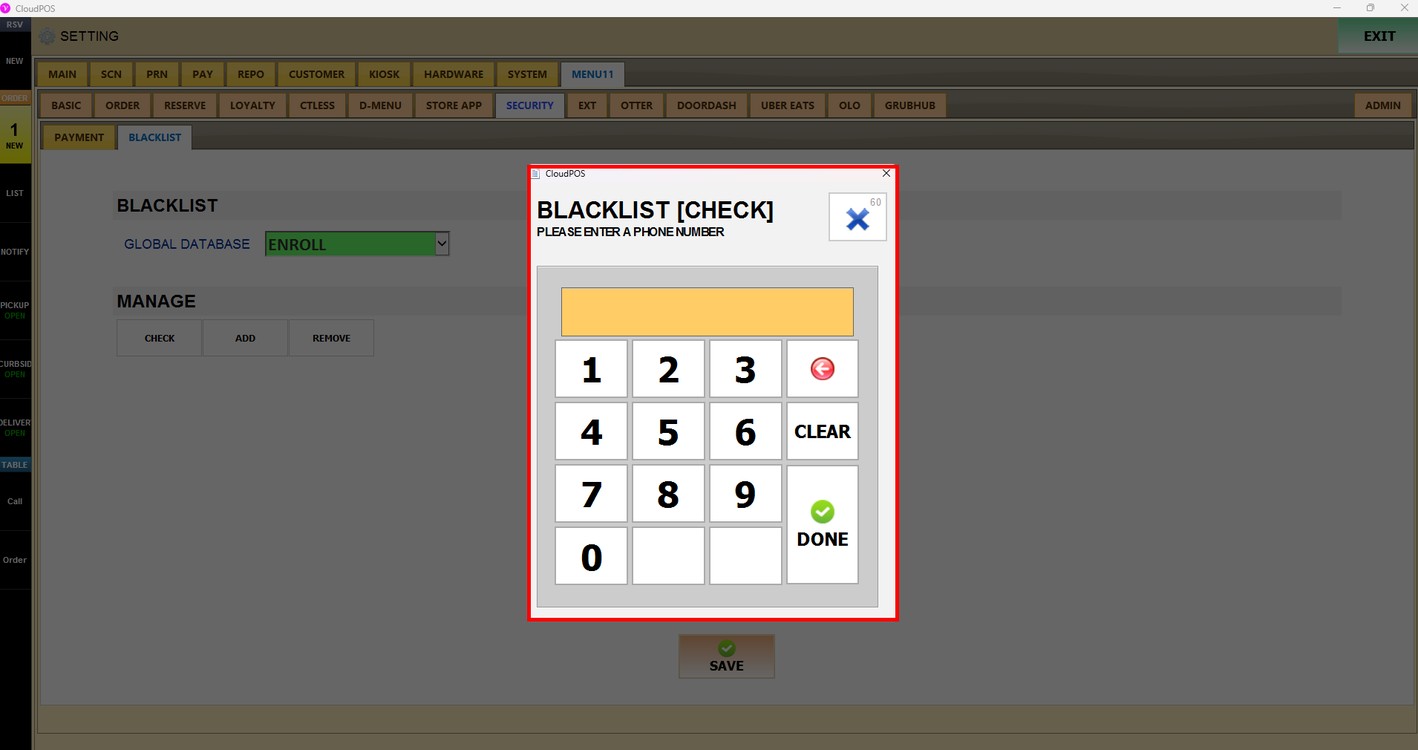
Check:
Press CHECK. In the BLACKLIST [CHECK] window, enter the phone number and press DONE.
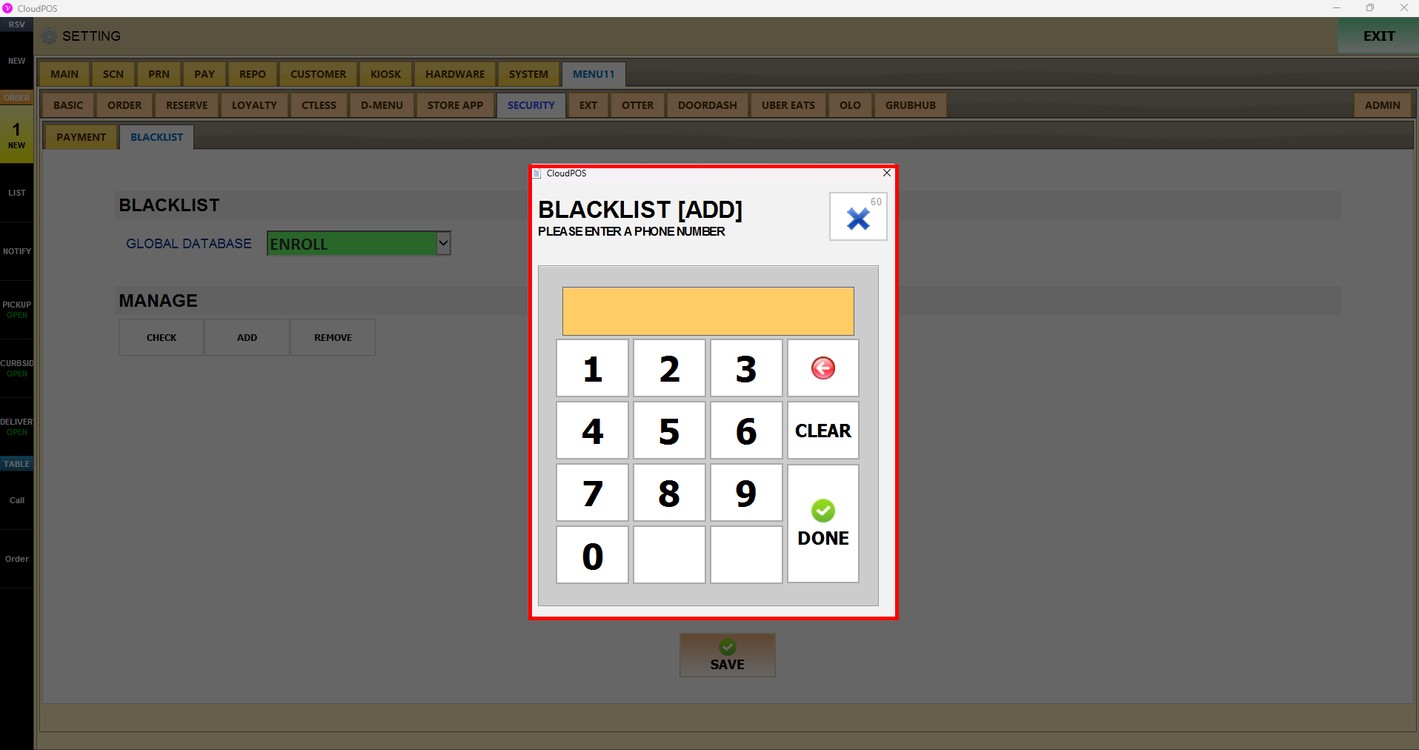
Add:
Press ADD. In the BLACKLIST [ADD] window, enter the phone number of the customer to block and press DONE.
Remove:
Press REMOVE. In the BLACKLIST [REMOVE] window, enter the phone number to remove from the blacklist and press DONE.
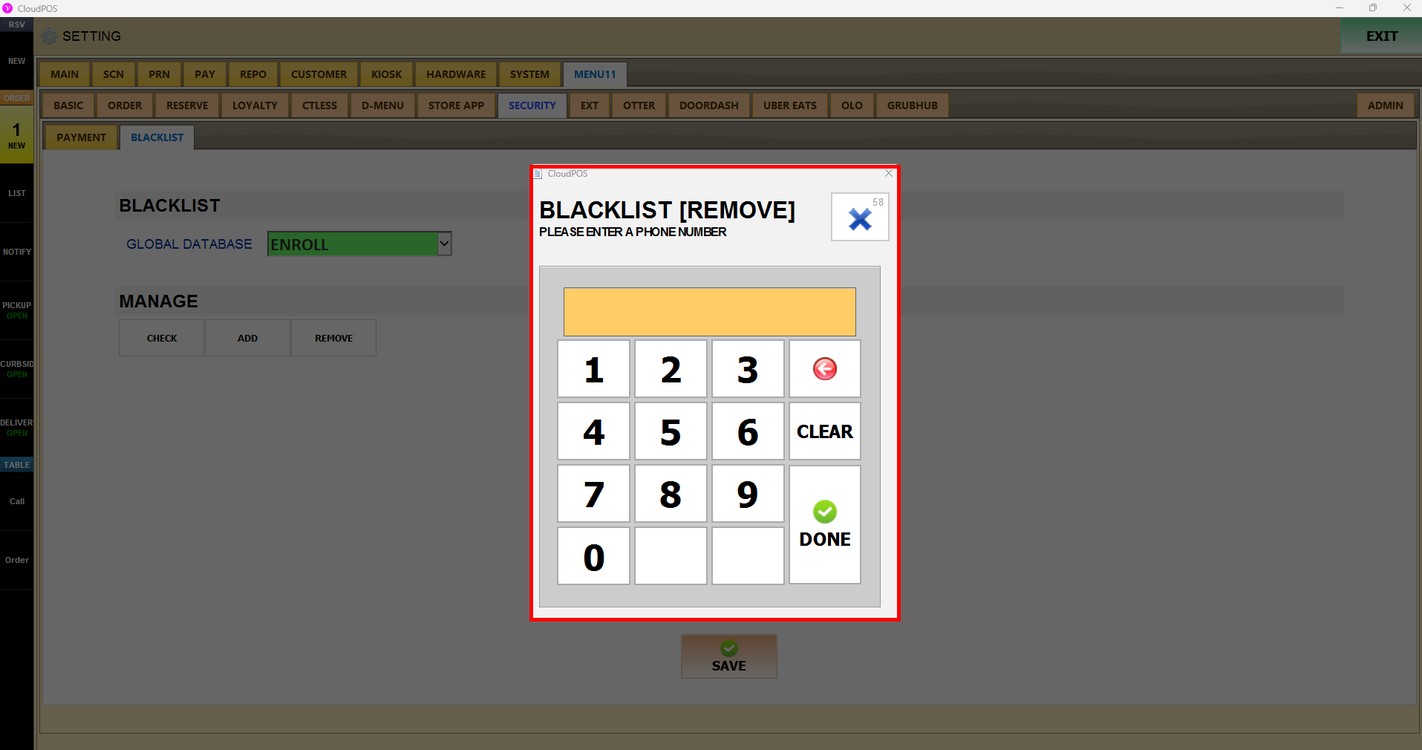
Use CLEAR to delete the number entered, or the red arrow to delete the last digit.
Press SAVE to apply the changes.
Publish the changes:
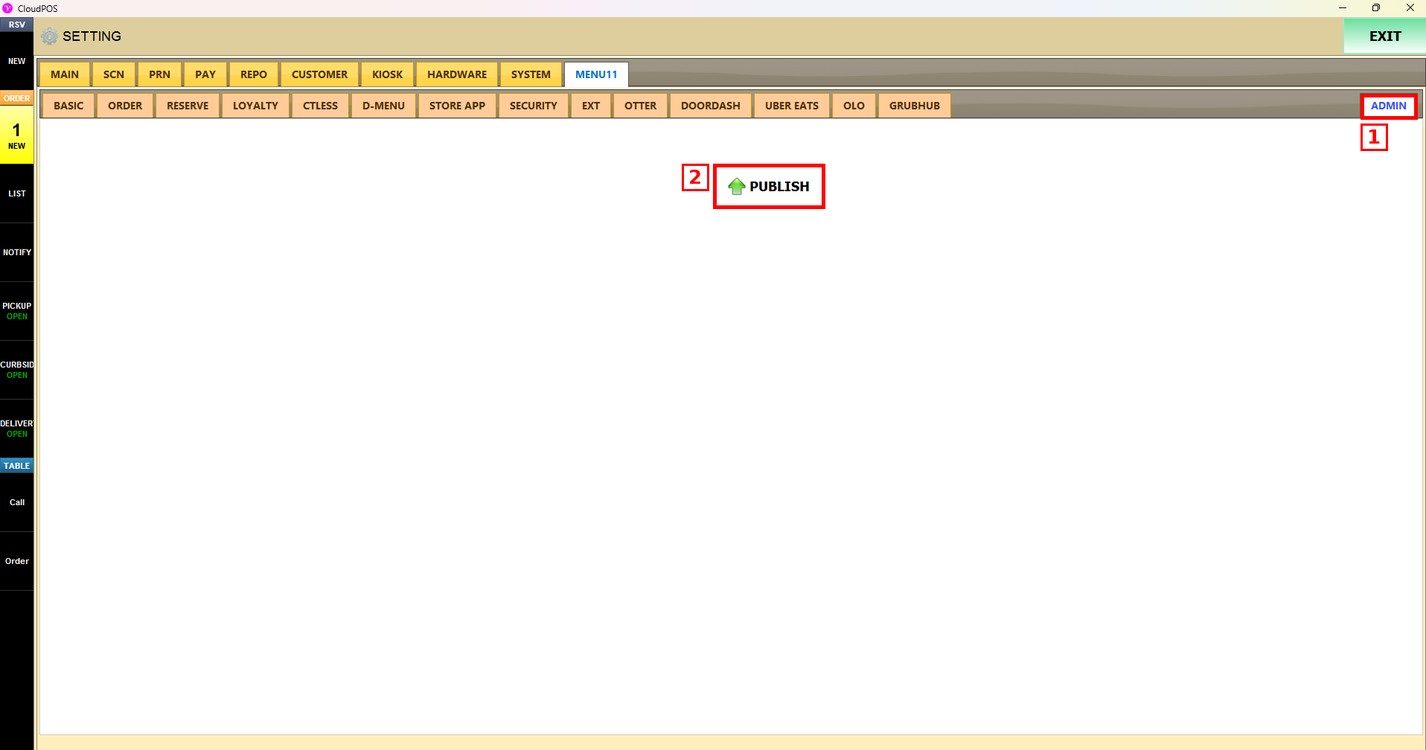
After saving, press the ADMIN tab and press PUBLISH. The changes are updated only after they are published.