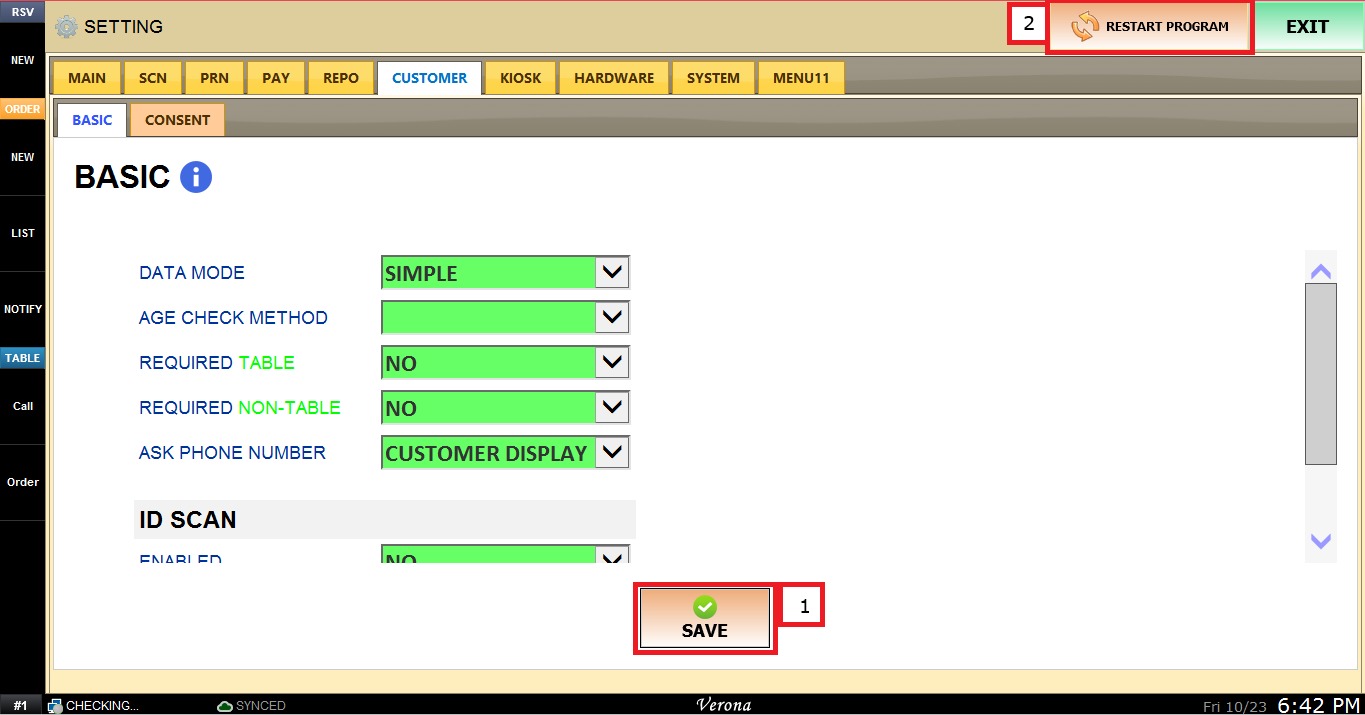
Basic
This tab allows the user to configure how customer information is collected and required in the system, including data entry mode, age verification, and ID scanning.
Main Screen> MENU> SETTINGS> CUSTOMER> BASIC
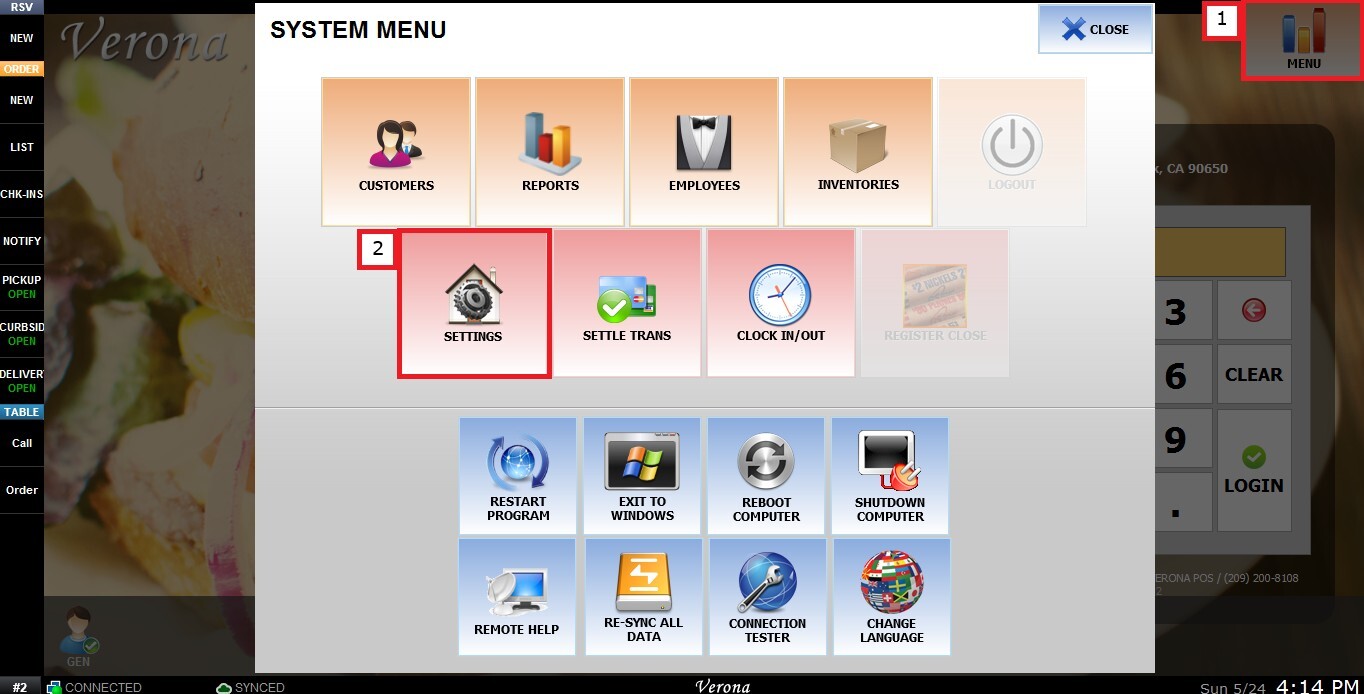
From the Main Screen, click MENU, then select SETTINGS.
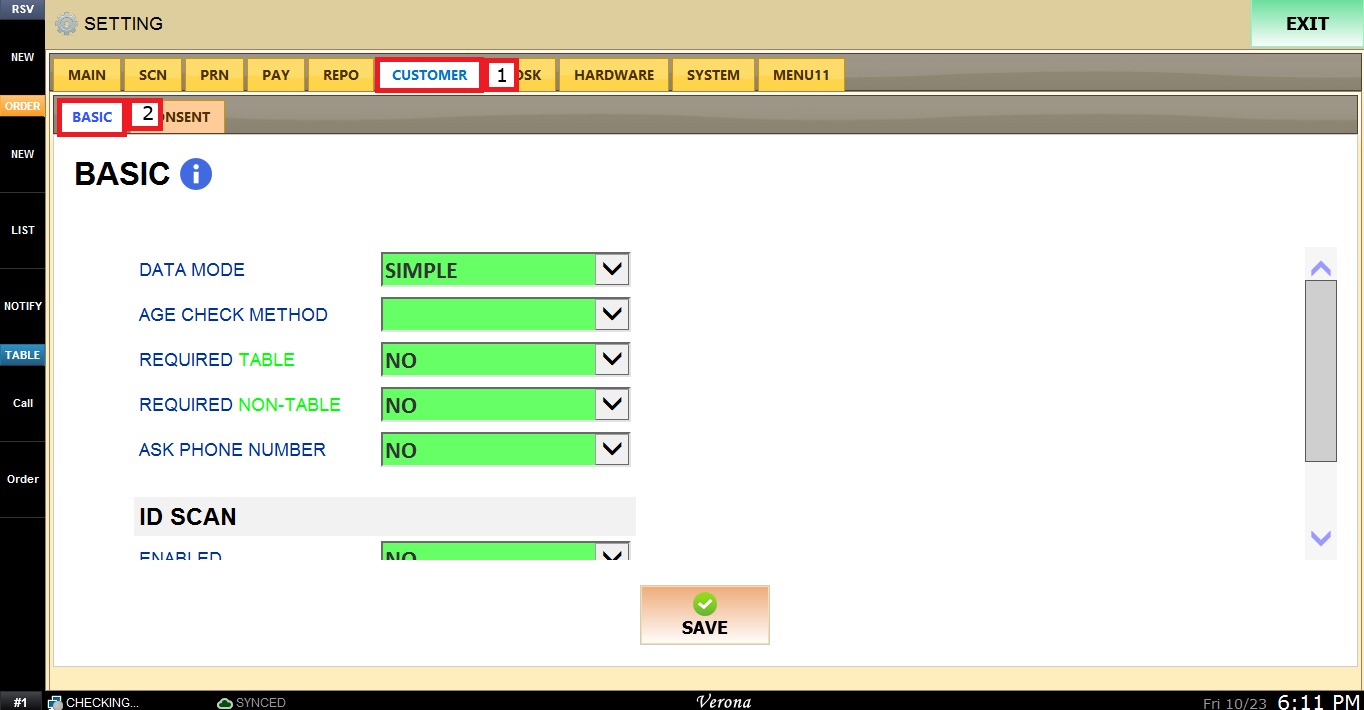
Navigate to the CUSTOMER tab, then select BASIC.
Data Mode
This setting allows the user to choose whether to enter only the customer’s name or the customer’s full details.
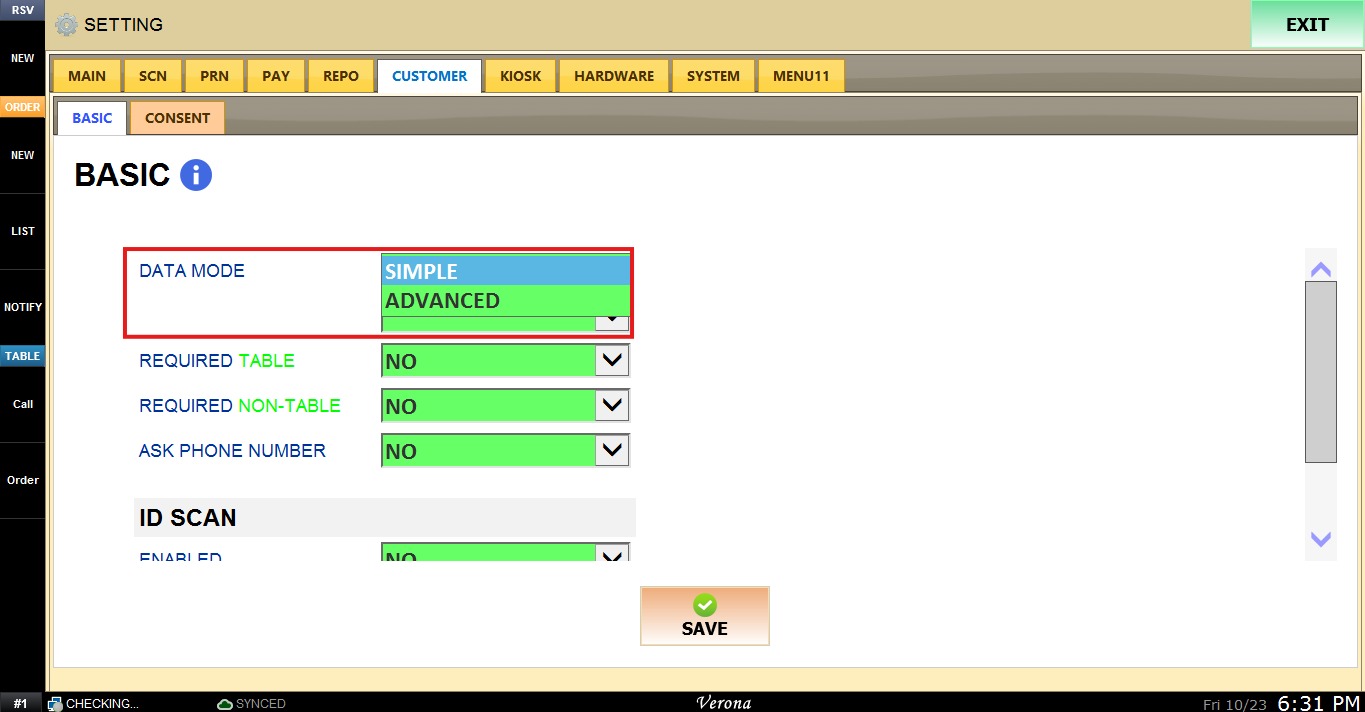
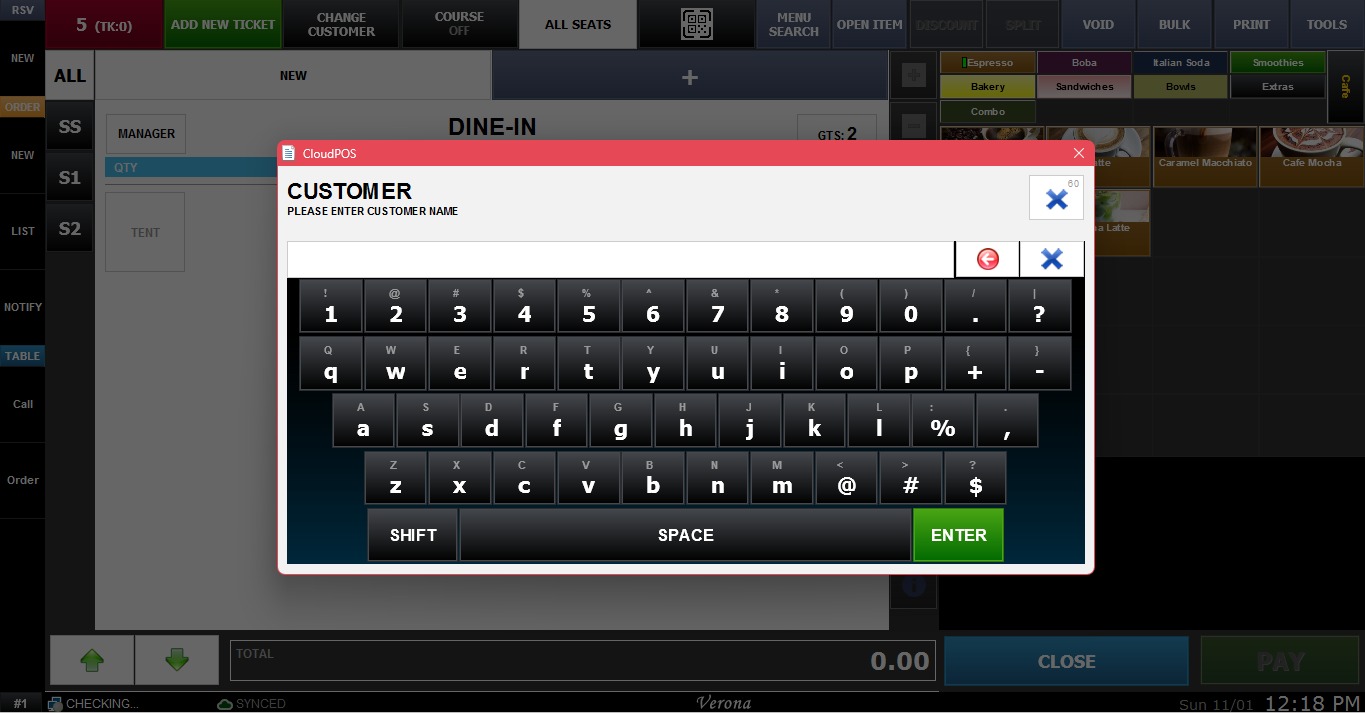
1. SIMPLE: The system asks only for the customer’s name when the user enters customer information.
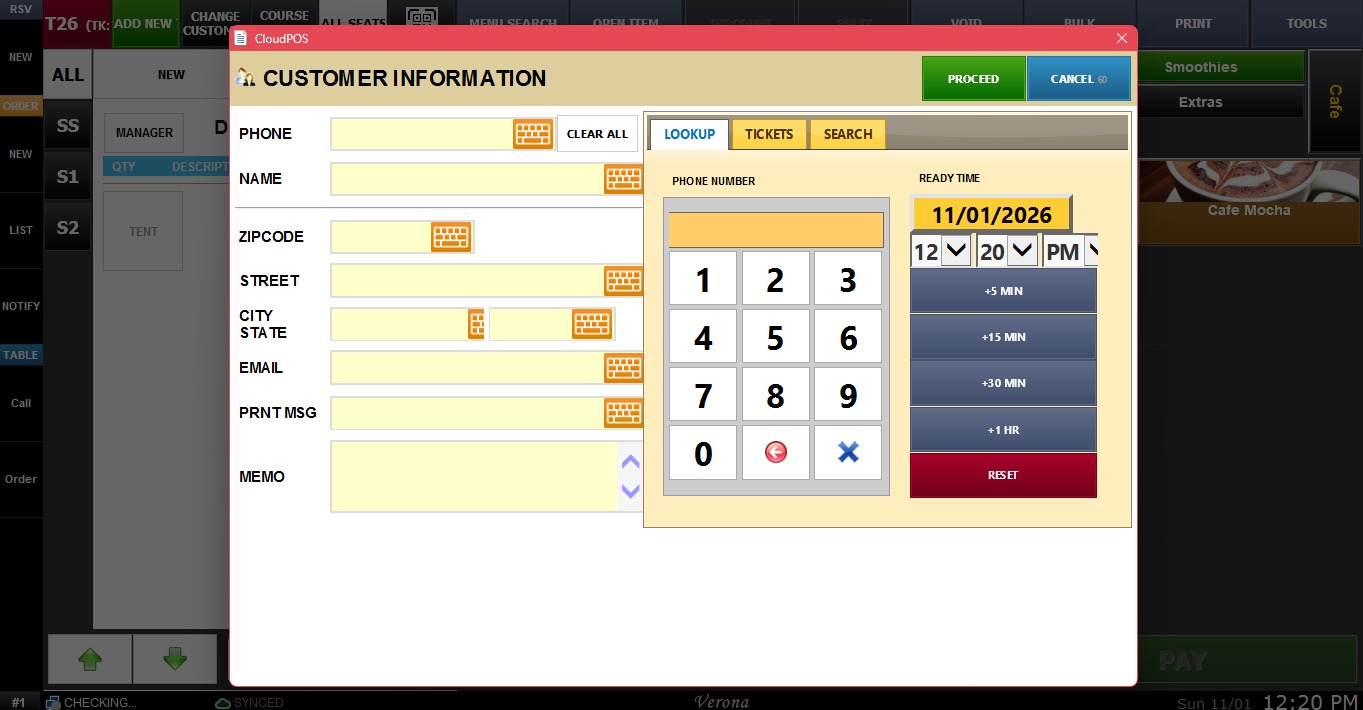
2. ADVANCED: The user can enter additional information, such as the customer’s phone number, address, and memo. The system saves the customer record using the phone number, so the next time the user enters that number, the system finds the customer and fills in the information automatically.
AGE CHECK METHOD
This Dropdown Menu sets how the system verifies the customer's age.
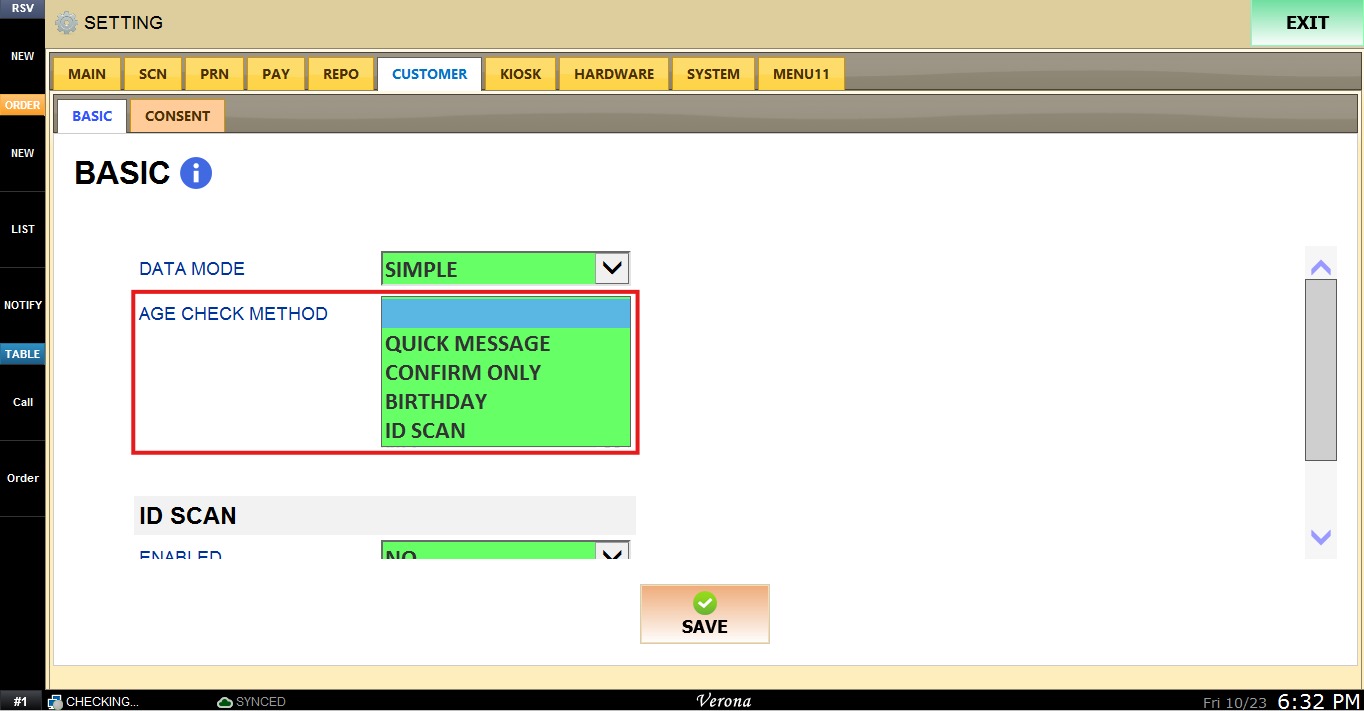
1. (BLANK): No age check method is applied.
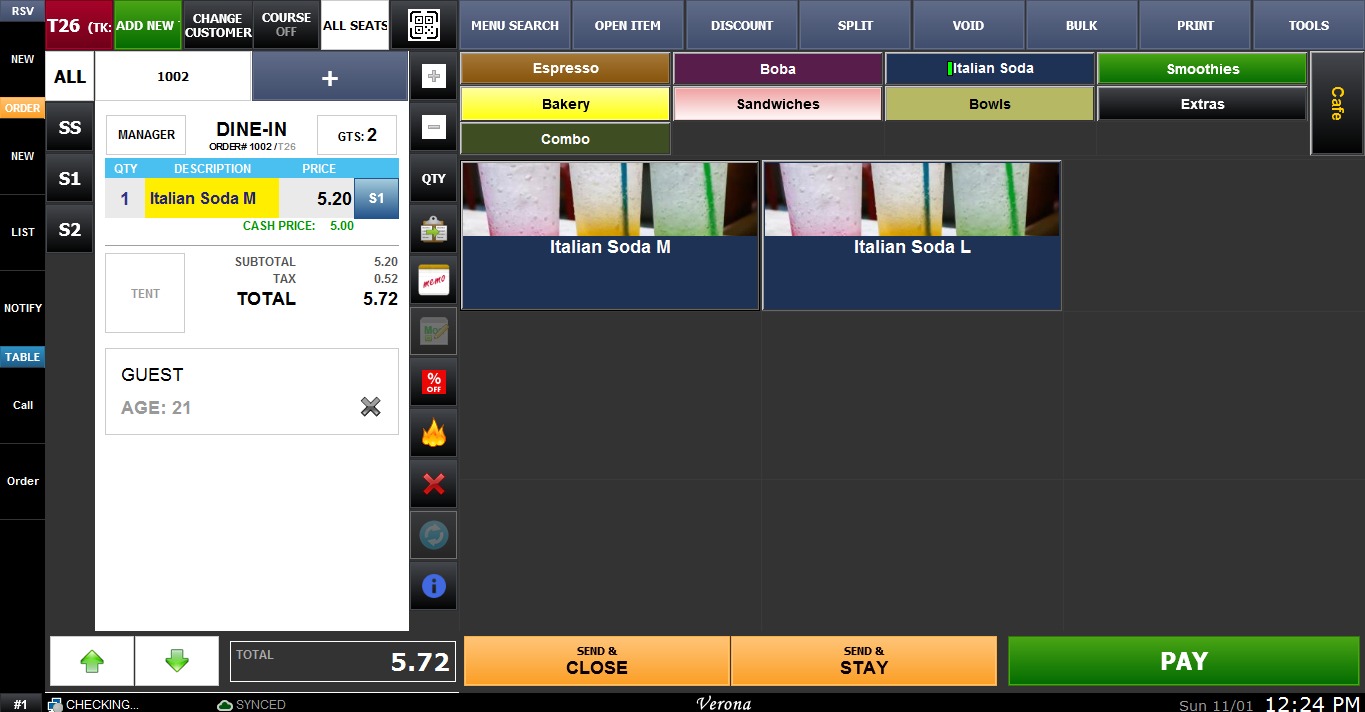
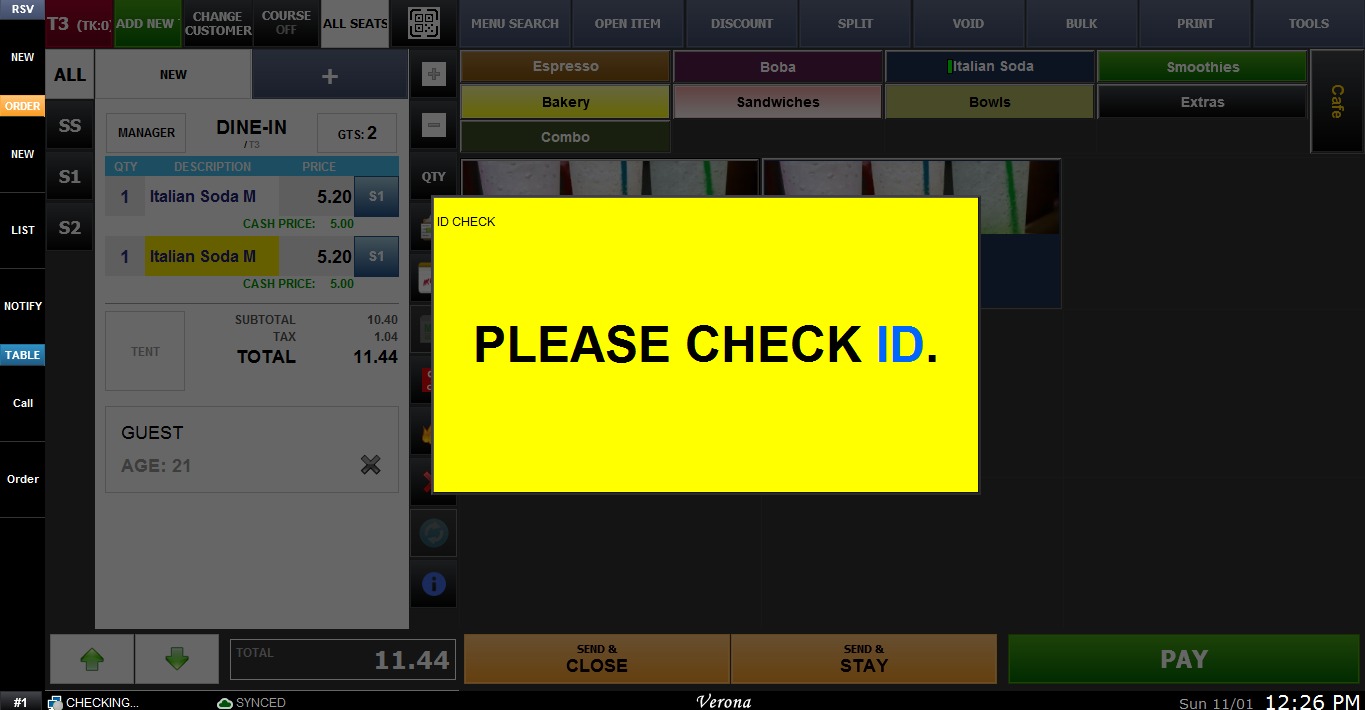
2. QUICK MESSAGE: Displays a message to remind the cashier to check the customer's age.
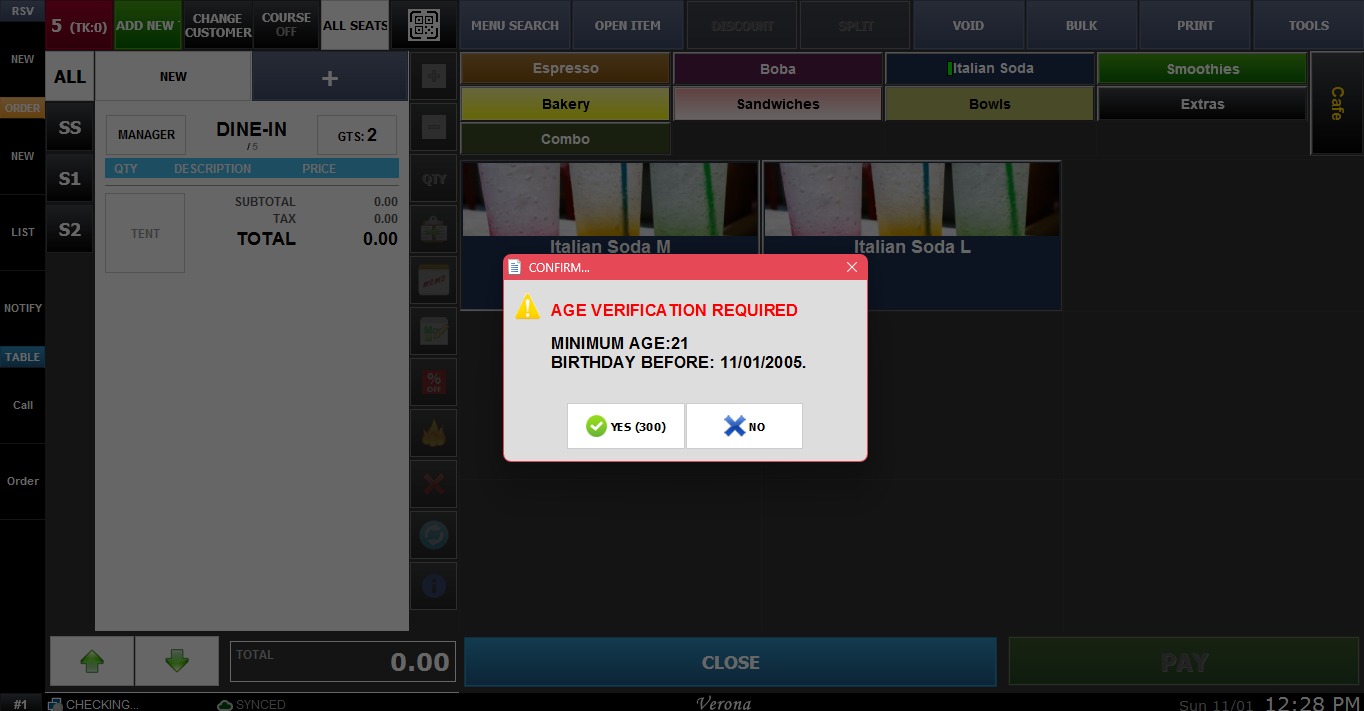
3. CONFIRM ONLY: Asks the cashier to confirm that the customer meets the age requirement.
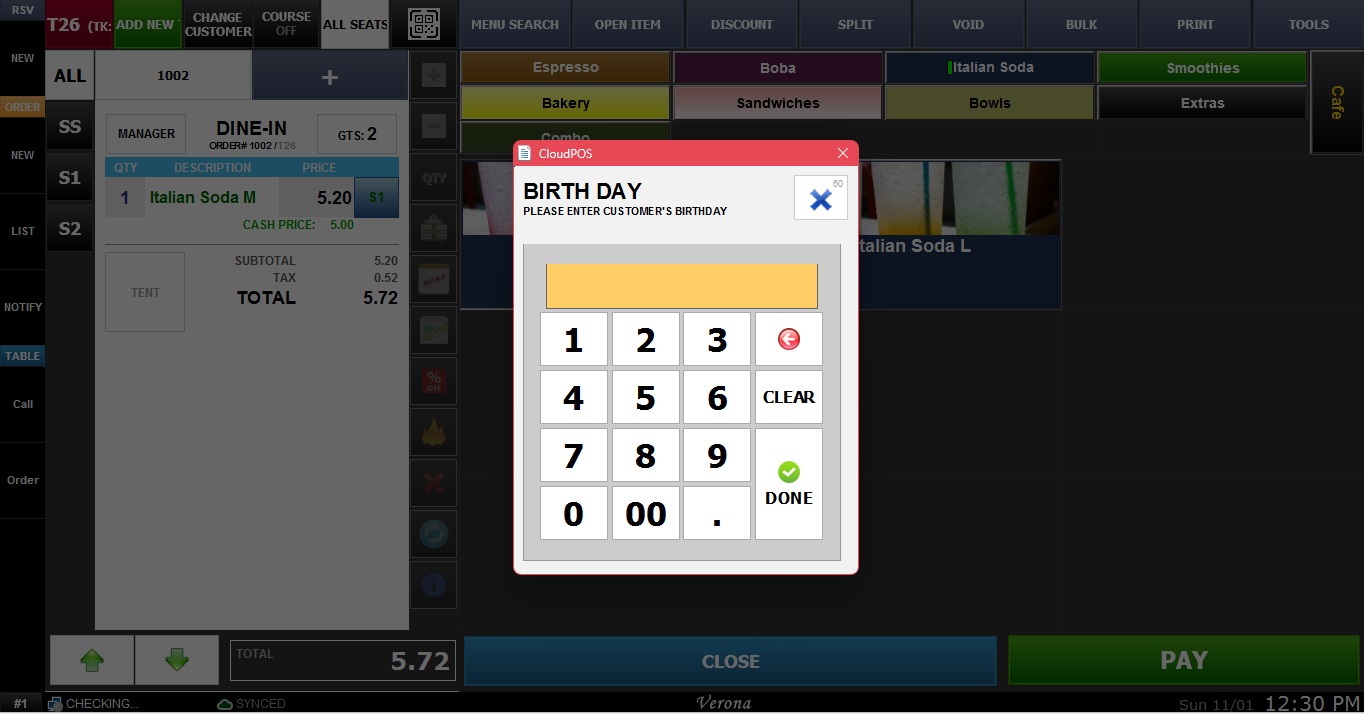
4. BIRTHDAY: Requires the customer's birthday to verify age.
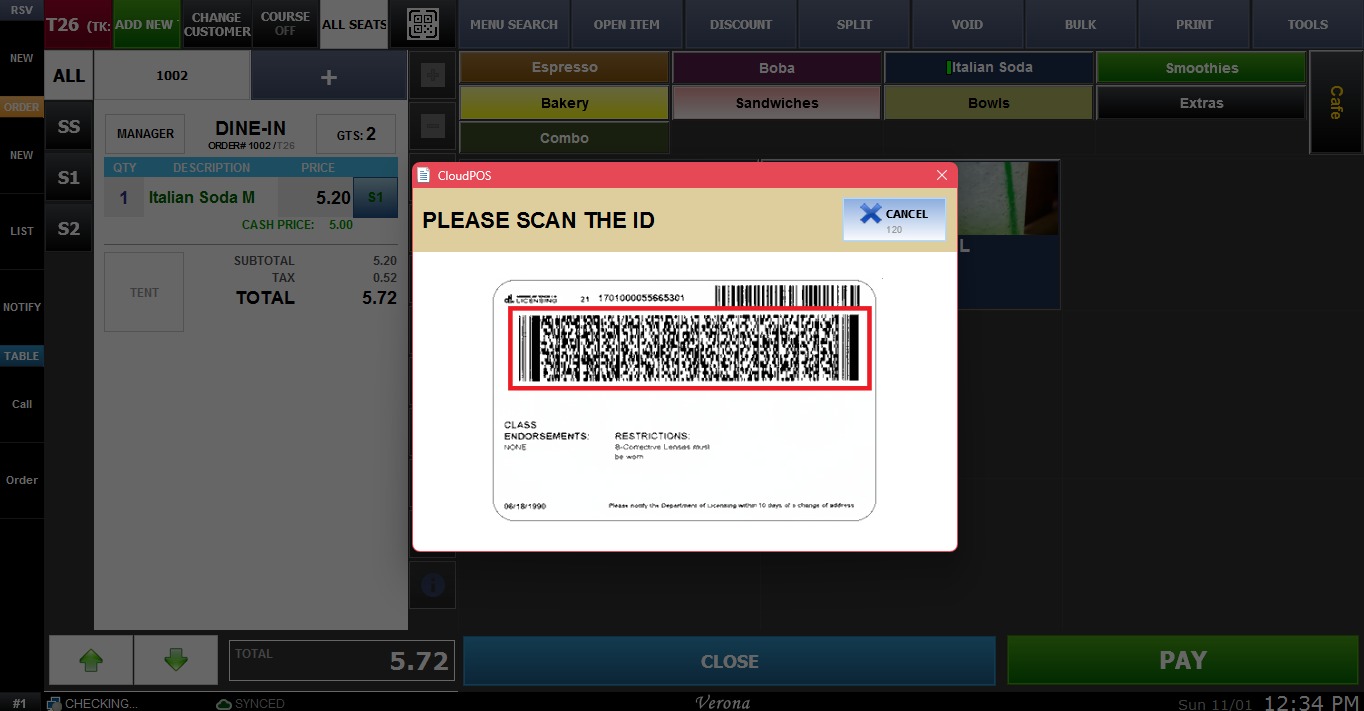
5. ID SCAN: Verifies the customer's age by scanning an ID. The scanning ID option has to be enabled for this option to work.
REQUIRED TABLE
This Dropdown Menu sets whether customer information is required on table orders and at what point of the Order.
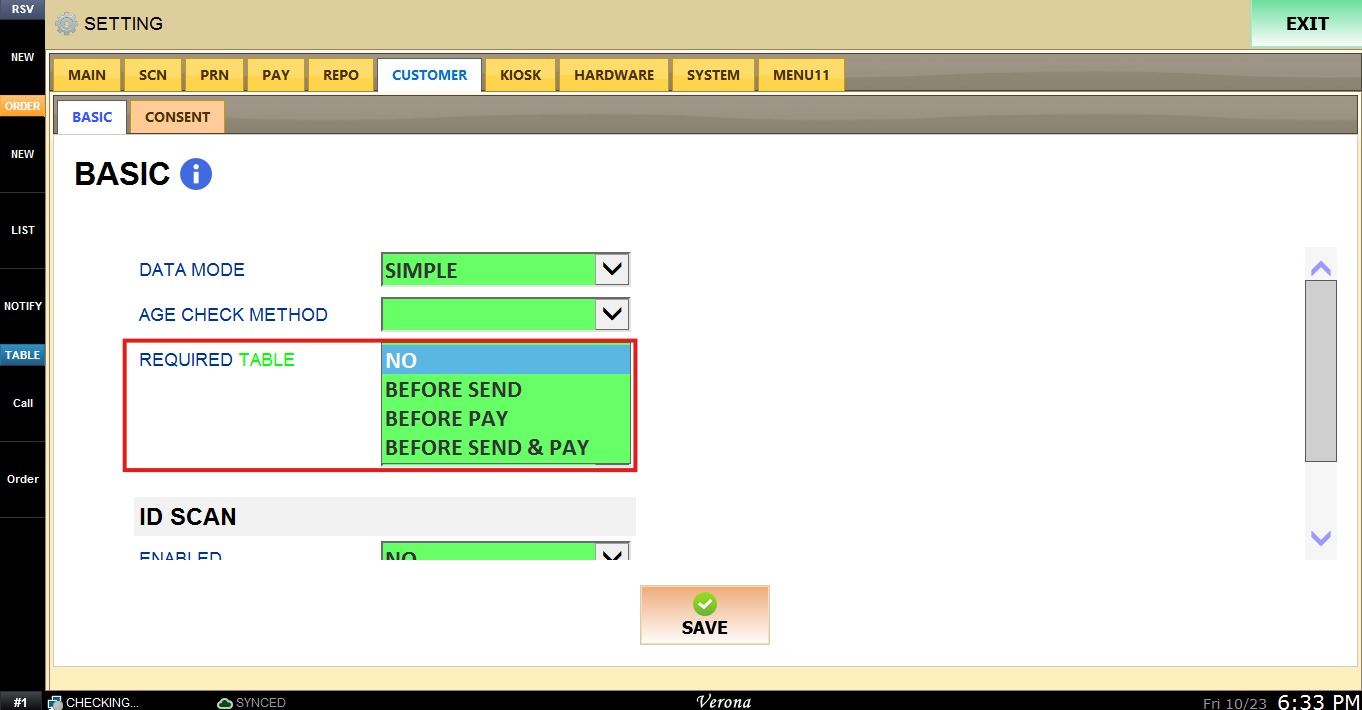
1. NO: Customer information is not required.
2. BEFORE SEND: Customer information must be entered before the Order is sent.
3. BEFORE PAY: Customer information must be entered before the Order is paid.
4. BEFORE SEND & PAY: Customer information is required when clicking the button Send & Pay on QSR.
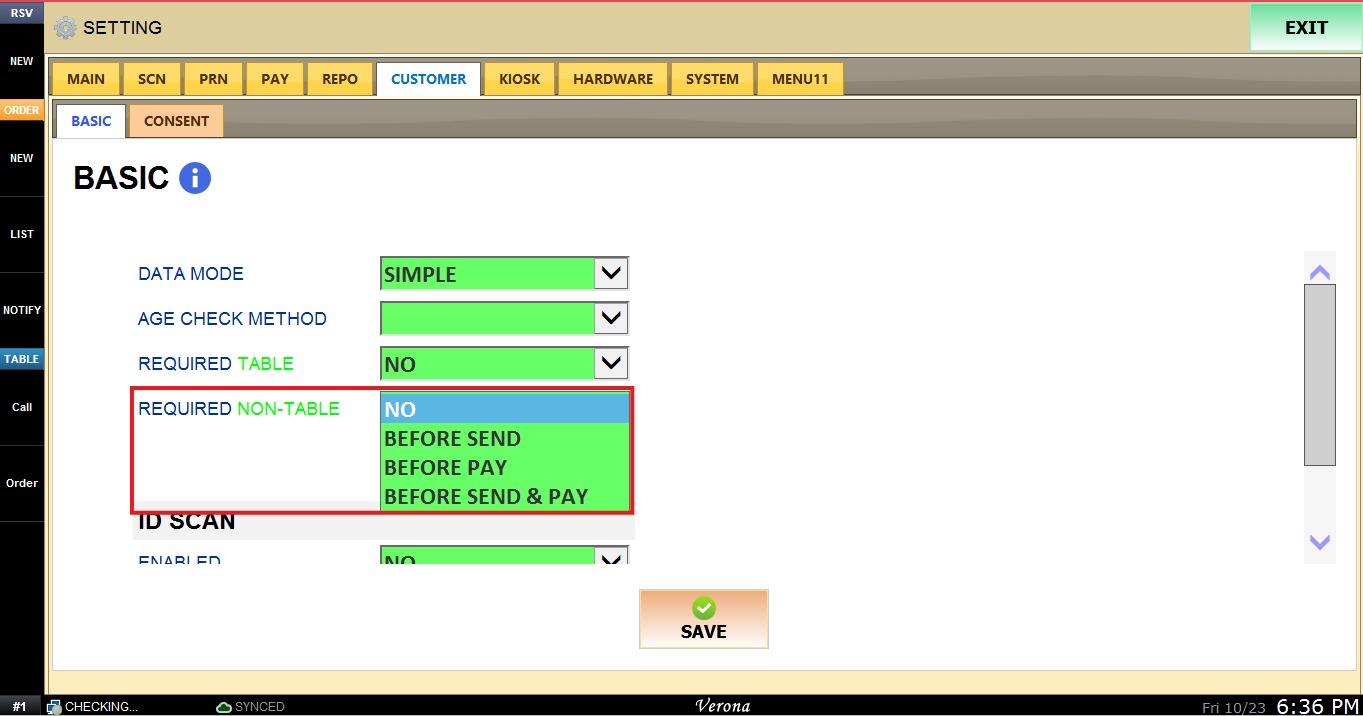
REQUIRED NON-TABLE
This Dropdown Menu sets whether customer information is required on non-table orders. Its options NO, BEFORE SEND, BEFORE PAY and BEFORE SEND & PAY work the same way as in REQUIRED TABLE.
ASK PHONE NUMBER
This Dropdown Menu sets whether the system asks for the customer's phone number.
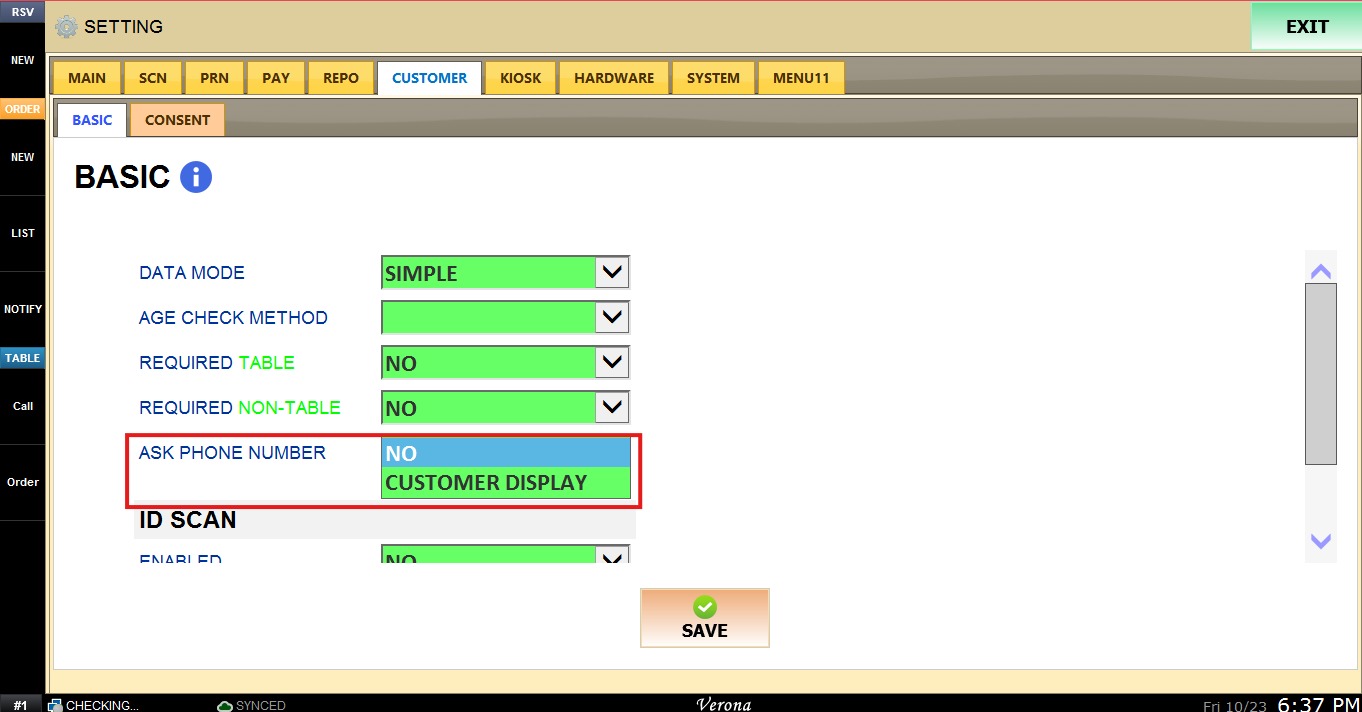
1. NO: The system does not ask for the phone number.
2. CUSTOMER DISPLAY: The customer is asked to enter the phone number on the customer display.
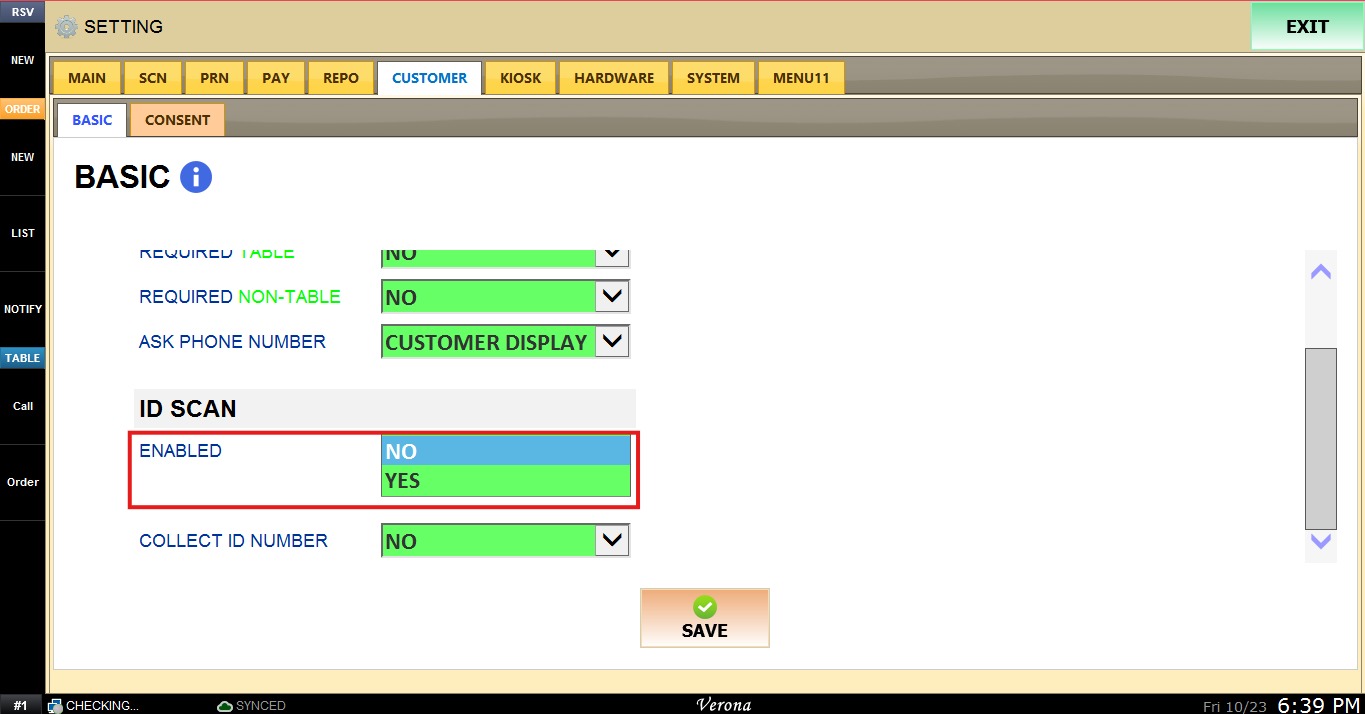
ID SCAN
This section controls ID scanning for customers.
ENABLED: Select YES to turn on ID scanning or NO to turn it off.
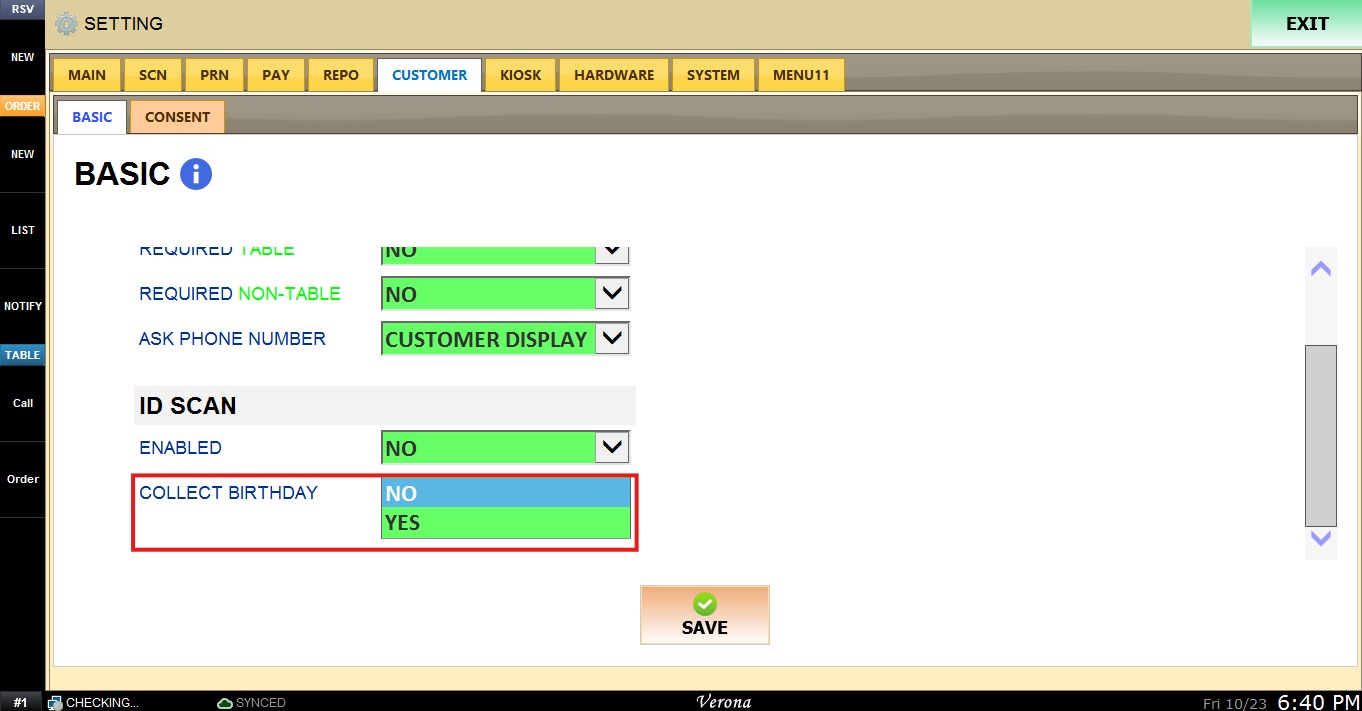
COLLECT BIRTHDAY: Select YES to save the customer's birthday from the scanned ID.
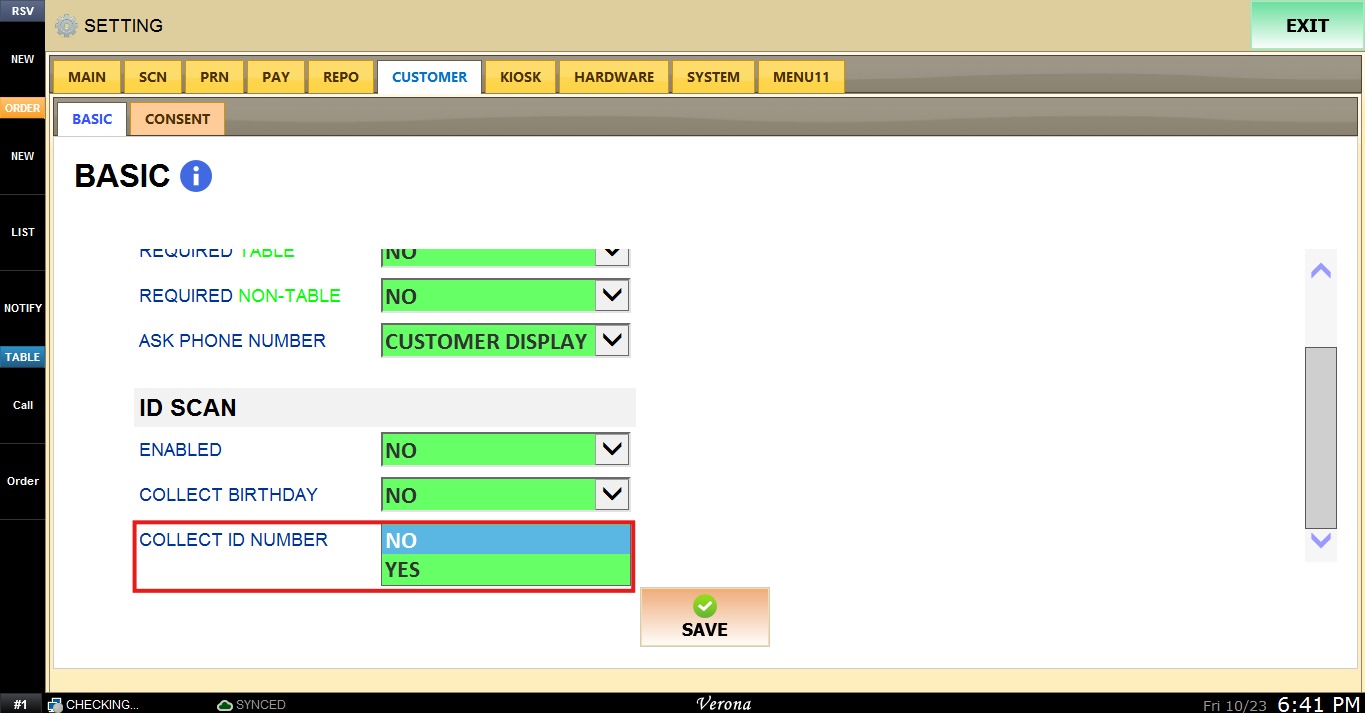
COLLECT ID NUMBER: Select YES to save the ID number from the scanned ID.
Click SAVE, then click RESTART PROGRAM to apply the changes.