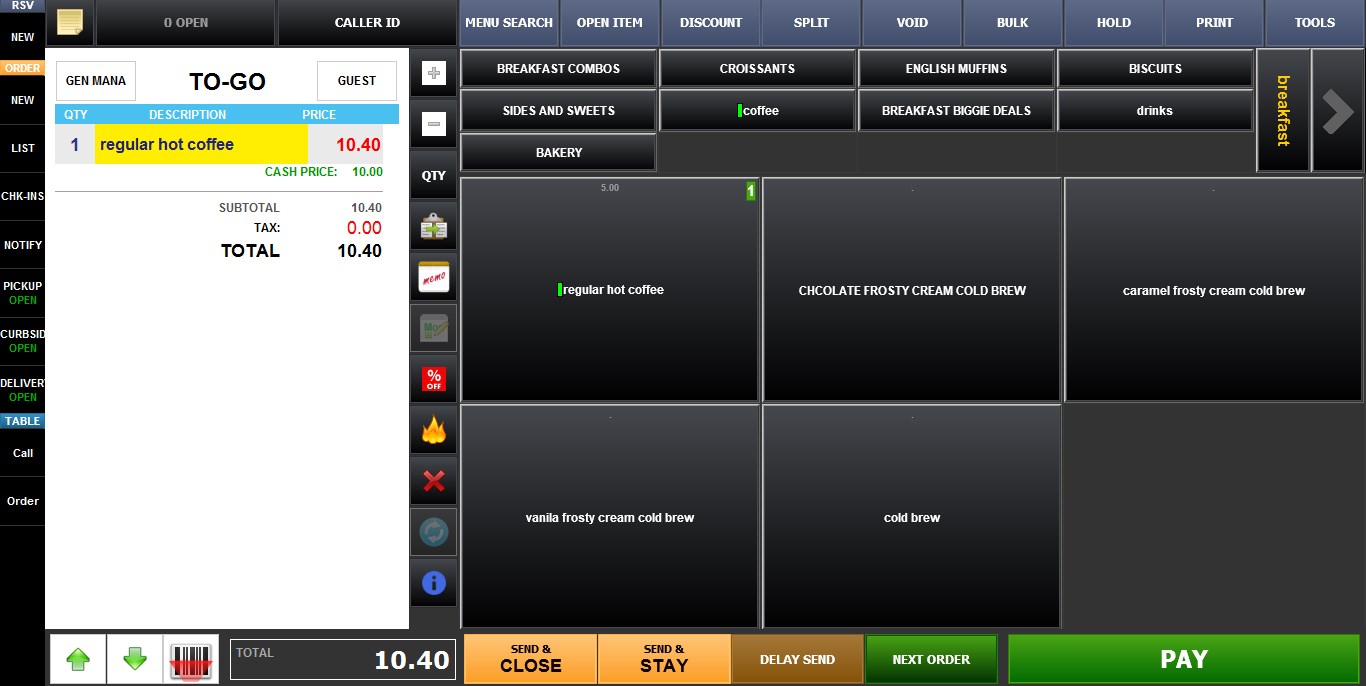
Price Level
This feature allows menu items to automatically use different prices based on a combination of Hour Availability schedules and Origin/Destination settings. This makes it possible to create dynamic pricing rules for dine-in, takeout, delivery, lunch specials, happy hour pricing, and other service-based scenarios without manually changing item prices.
Main Screen > MENU > SETTINGS > REPO > EDIT > ITEM > PRICE LEVEL
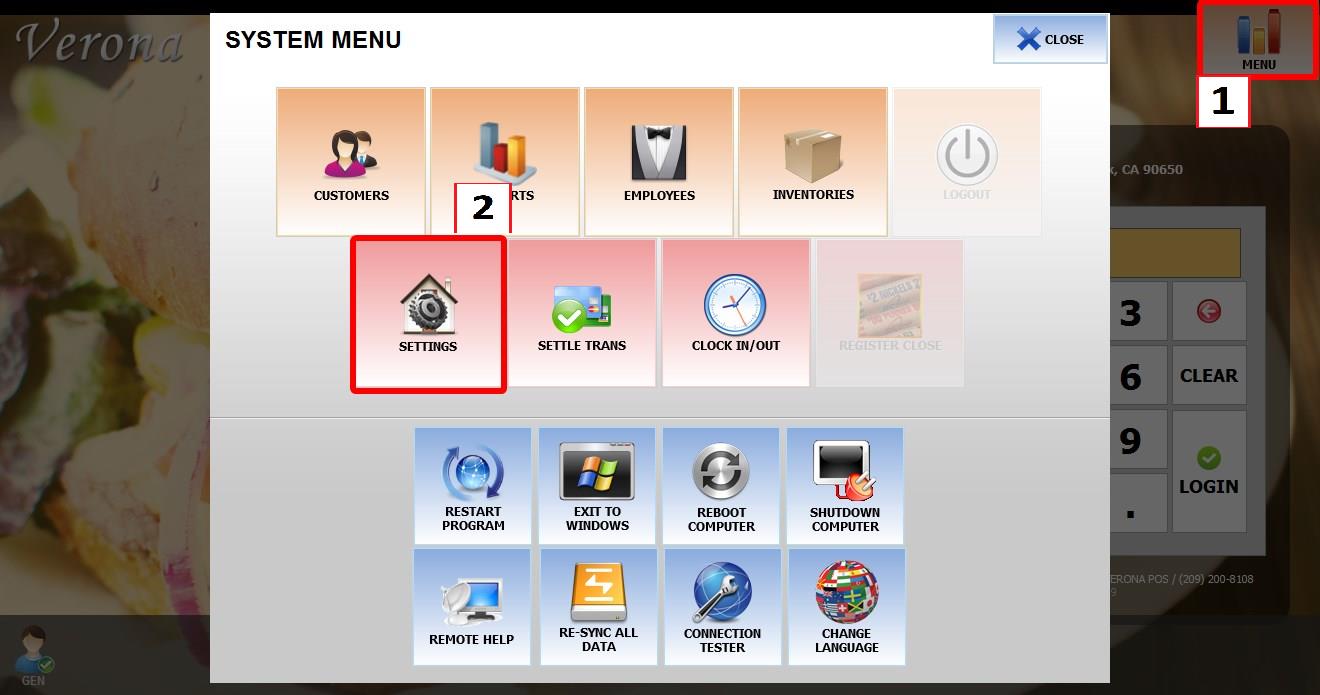
Go to MENU, then SETTINGS.
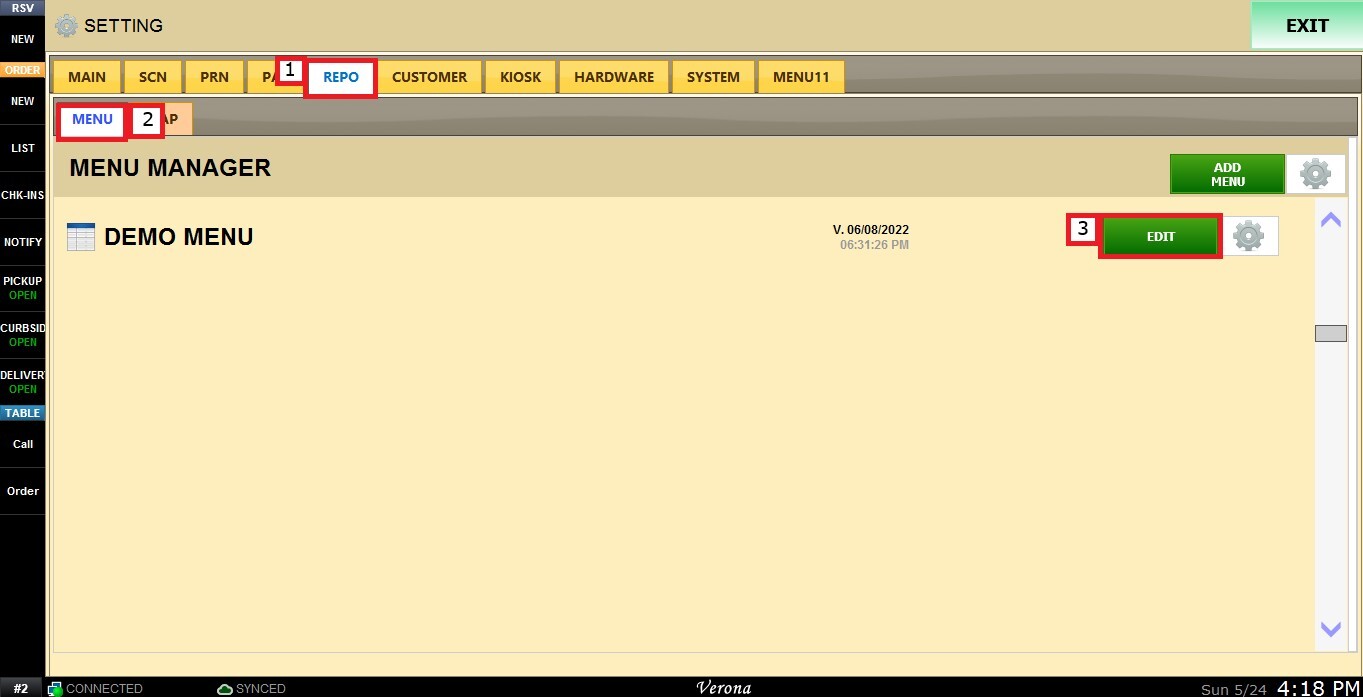
Open the REPO tab, select MENU to locate your menu, then click EDIT.
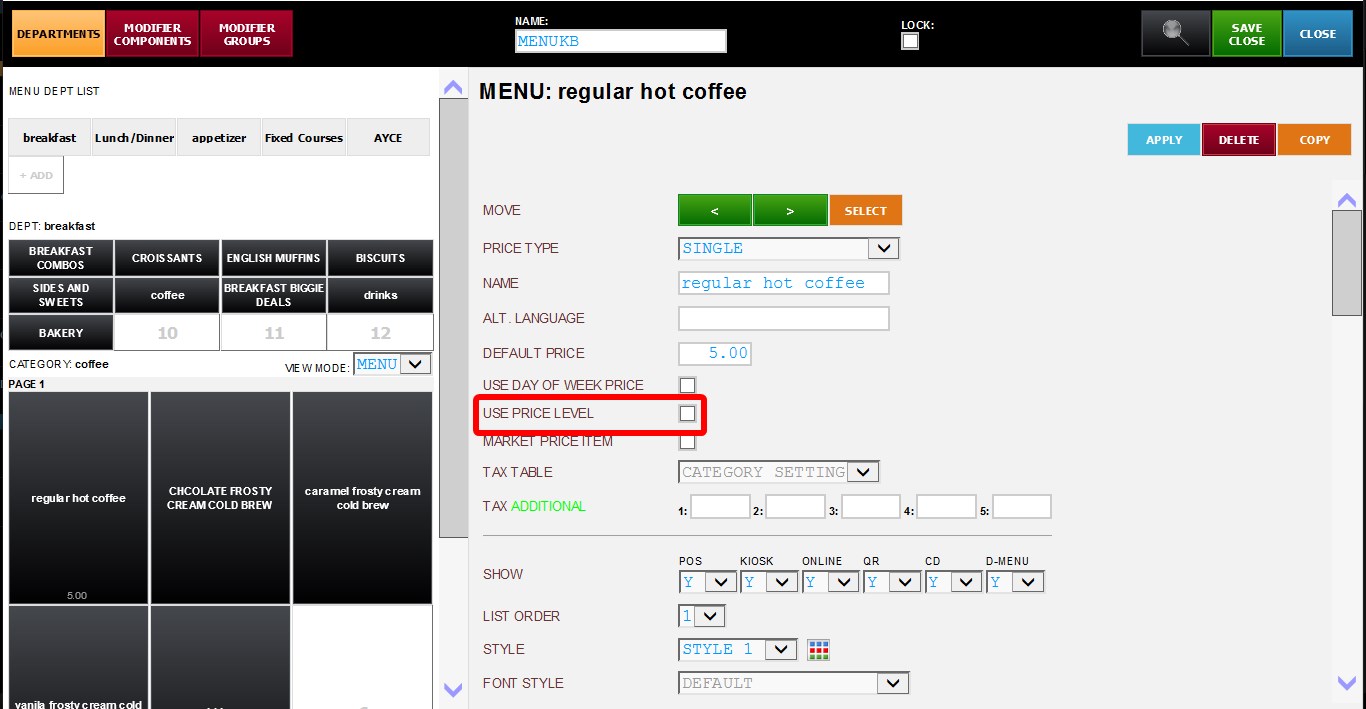
Select the item you want to configure. Scroll down through the item settings until you find the PRICE LEVEL checkbox. To enable the feature, click on the box.
Once enabled, a pricing table with multiple rows and columns will appear.
UNDERSTANDING THE PRICE LEVEL TABLE.
The pricing table is divided into:
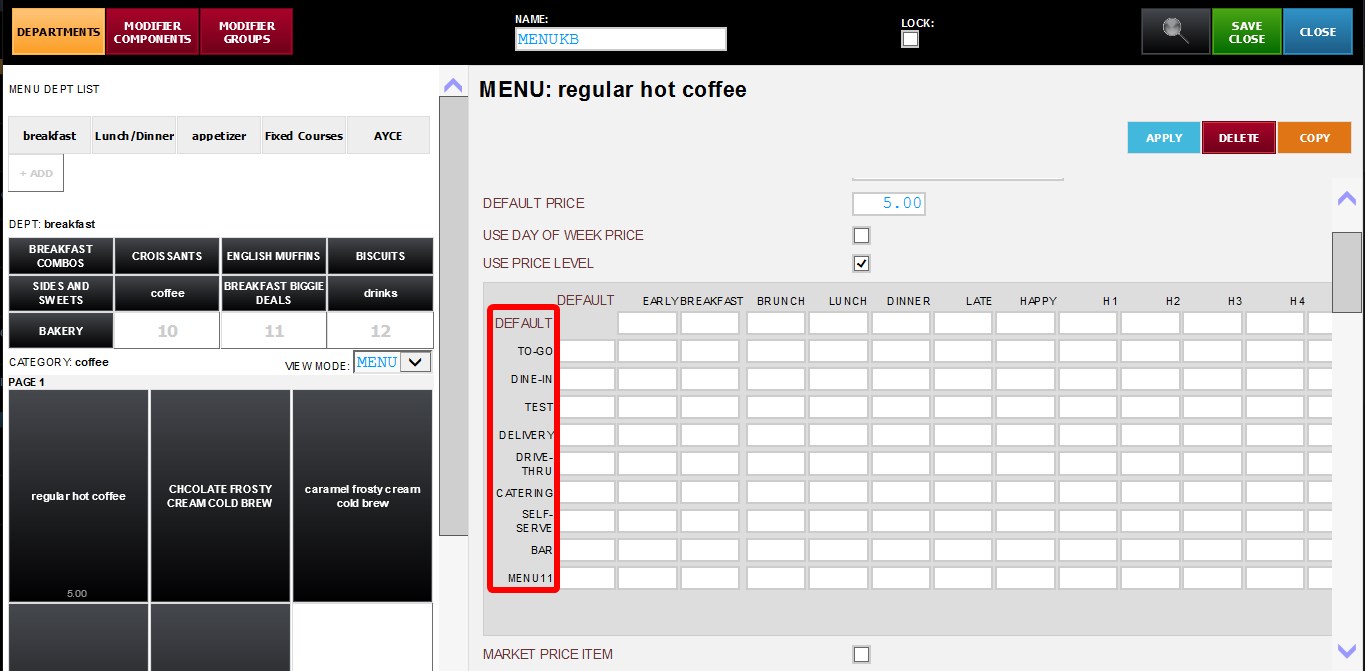
1. ROWS: Based on Origin/Destination configurations
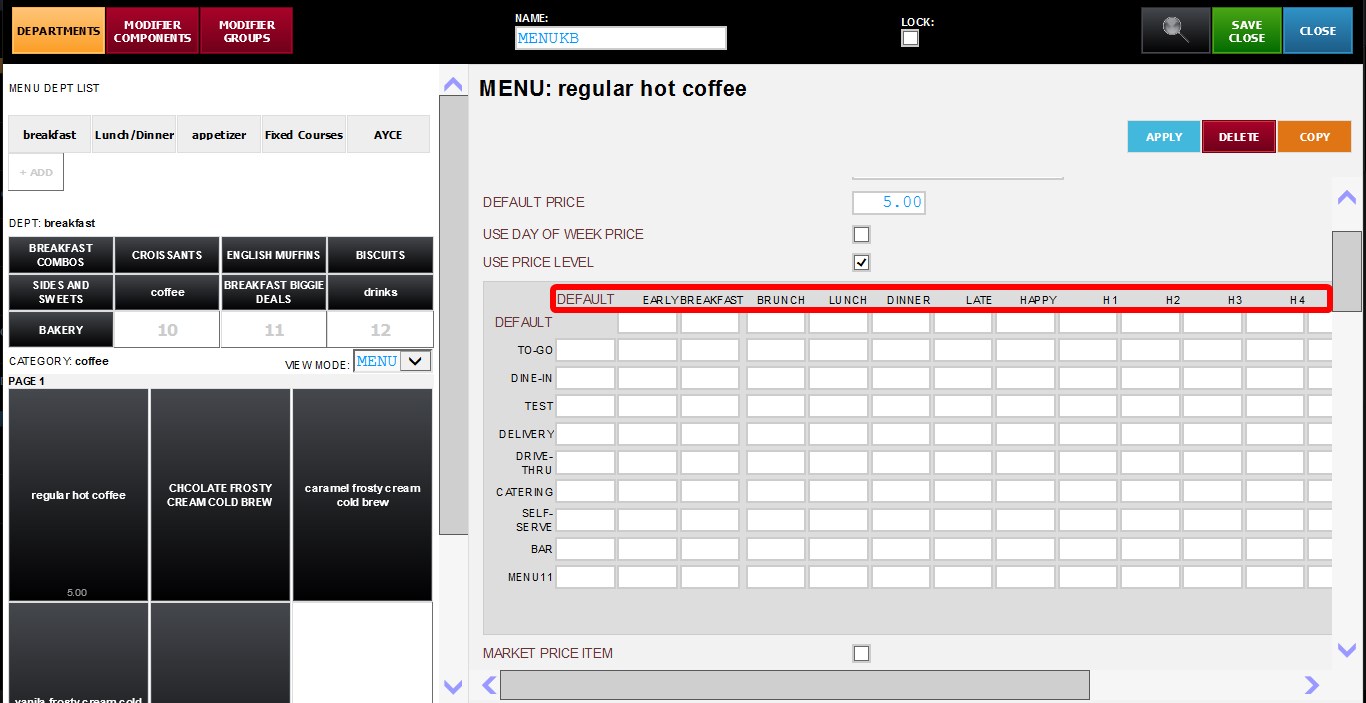
2. COLUMNS: Based on Hour Availability configurations.
Each field inside the table represents a specific combination of both settings.
For example, a value entered under TO-GO + LUNCH will only apply when the item is ordered as TO-GO during the configured LUNCH hour range.
SET CUSTOM PRICES
Enter the desired prices into the applicable fields of the pricing table, and configure only the combinations that require special pricing.
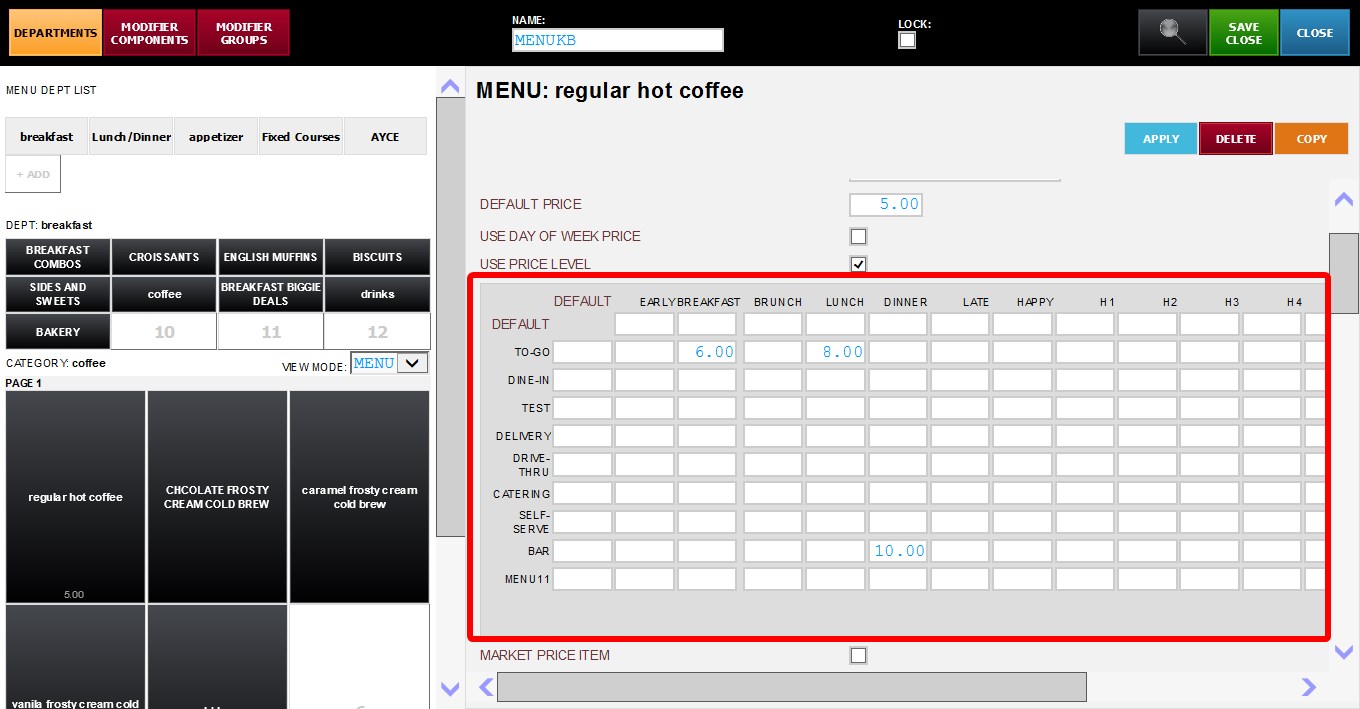
Hint: If a field is left blank, the system will automatically use the item’s configured DEFAULT PRICE instead.
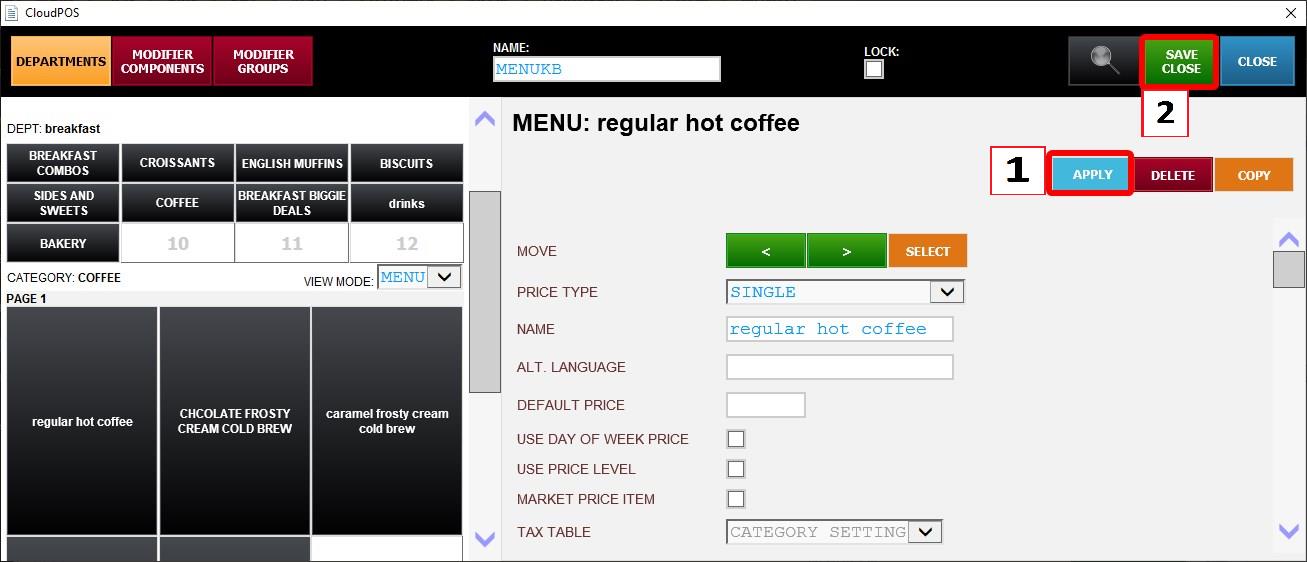
Click APPLY, then SAVE & CLOSE, to apply the changes.
When the item is ordered, the system will automatically apply the configured price based on the current Origin/Destination and Hour Availability combination.