Item Ring Up
The Sales Screen allows you to quickly add items to a customer's order by selecting them from the menu or scanning their barcode. Depending on your operation type, you may need to open a table before you can begin adding items.
Number Pad> Password> Sales Screen> Item
Enter your personal password using the number pad to access the system.
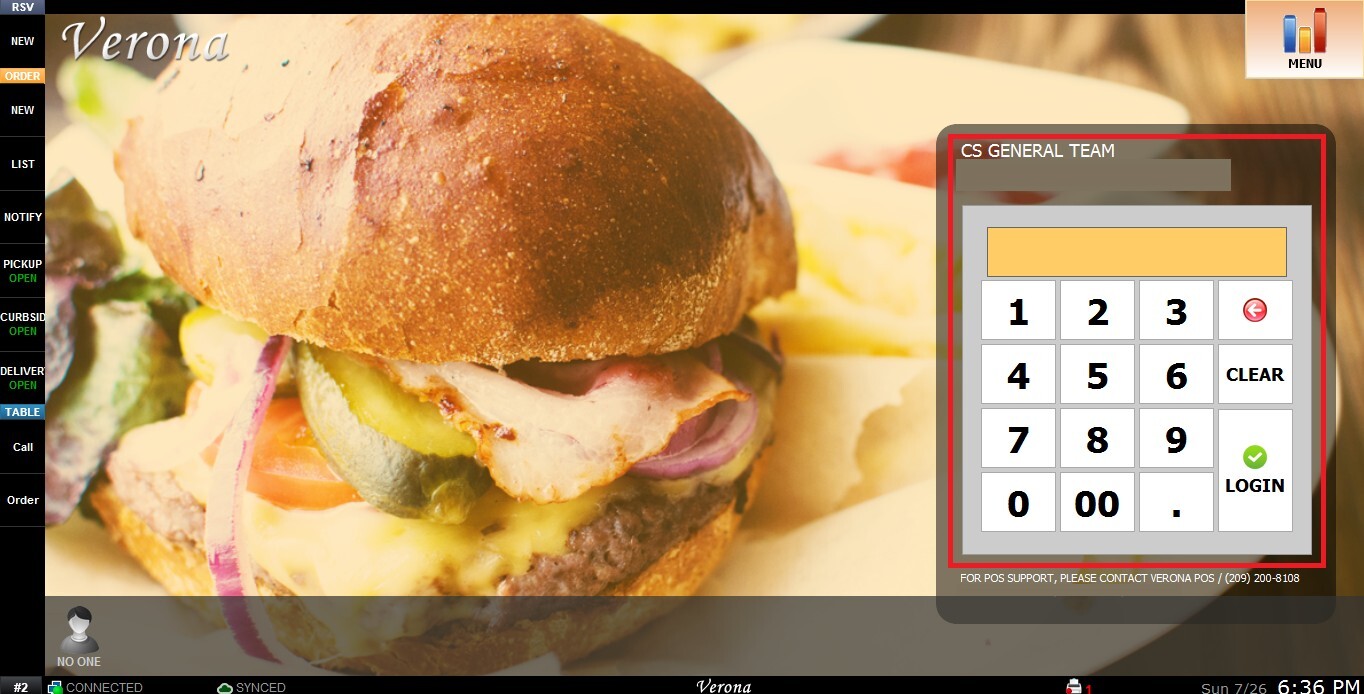
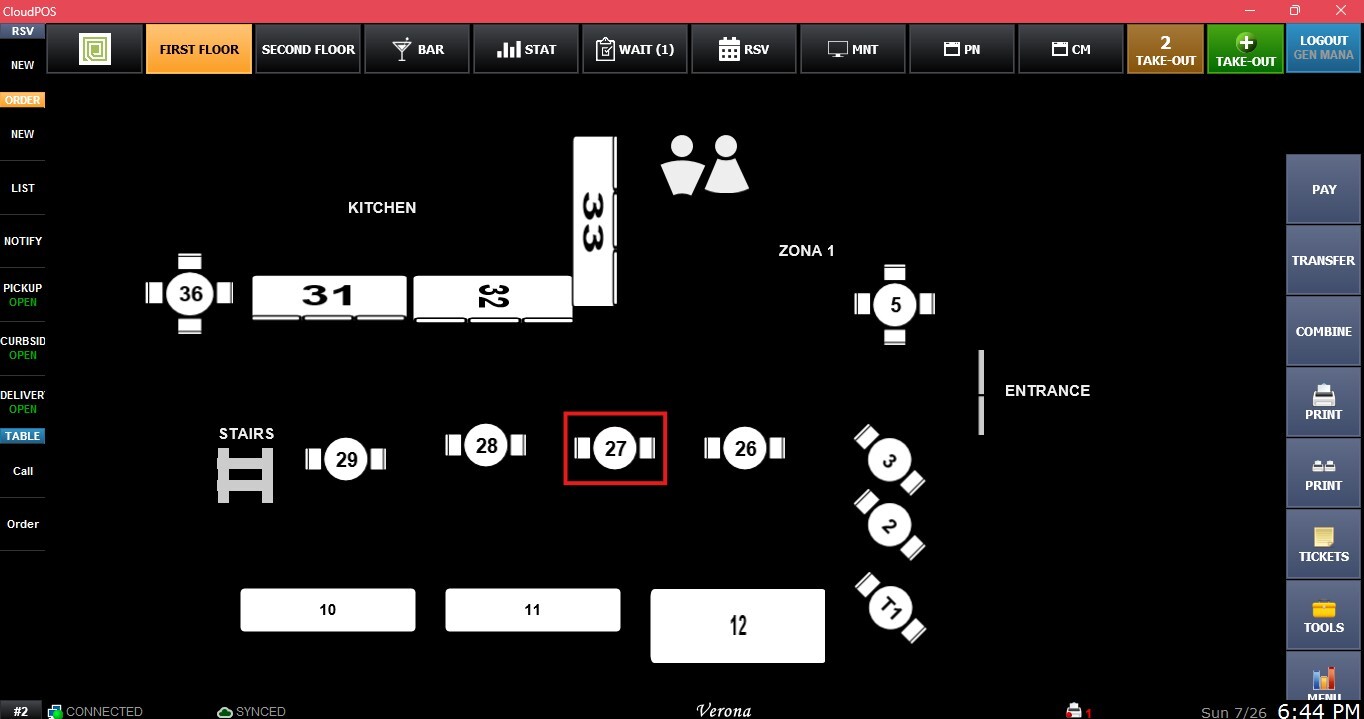
1. FINE DINING:You will be taken to the Map Screen.
2. QSR: You will be taken directly to the Sales Screen.
Fine Dining Only: Select an available table to open it before ringing up item.
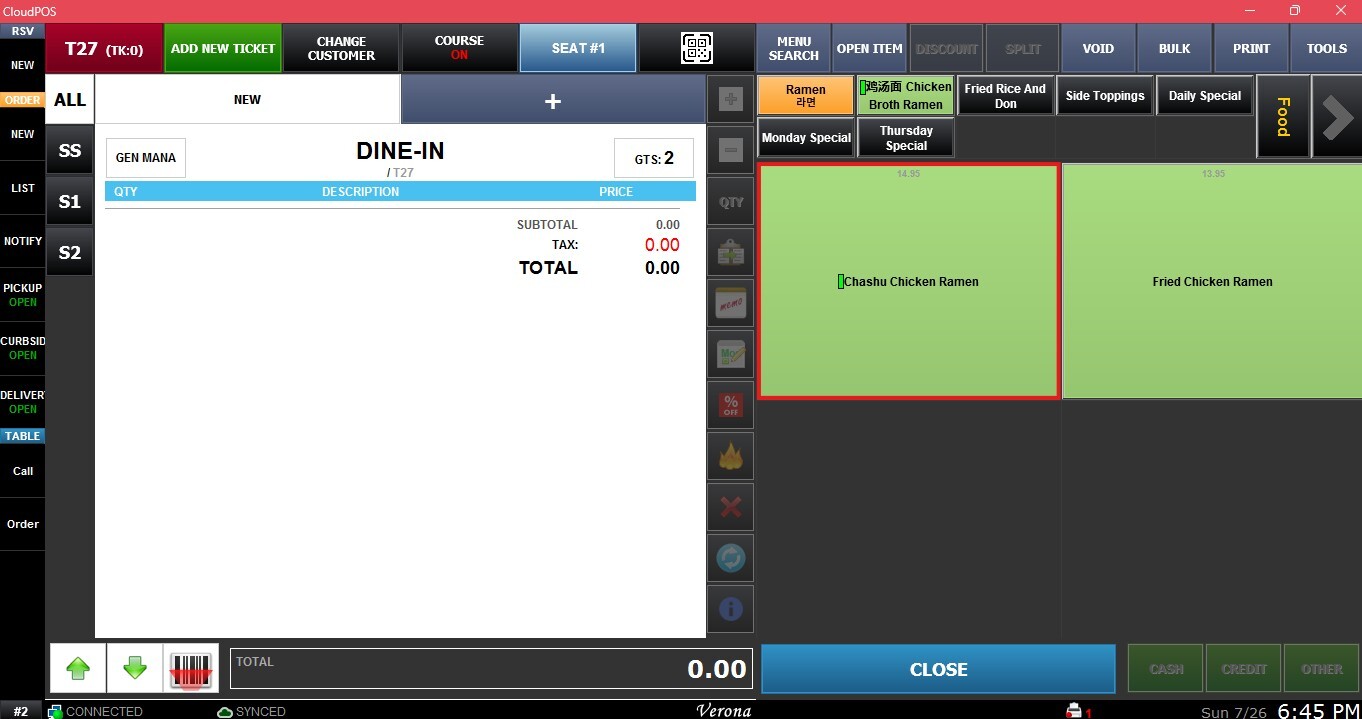
On the Sales Screen, locate the menu on the right side of the screen.
Click the item you want to add to the order.
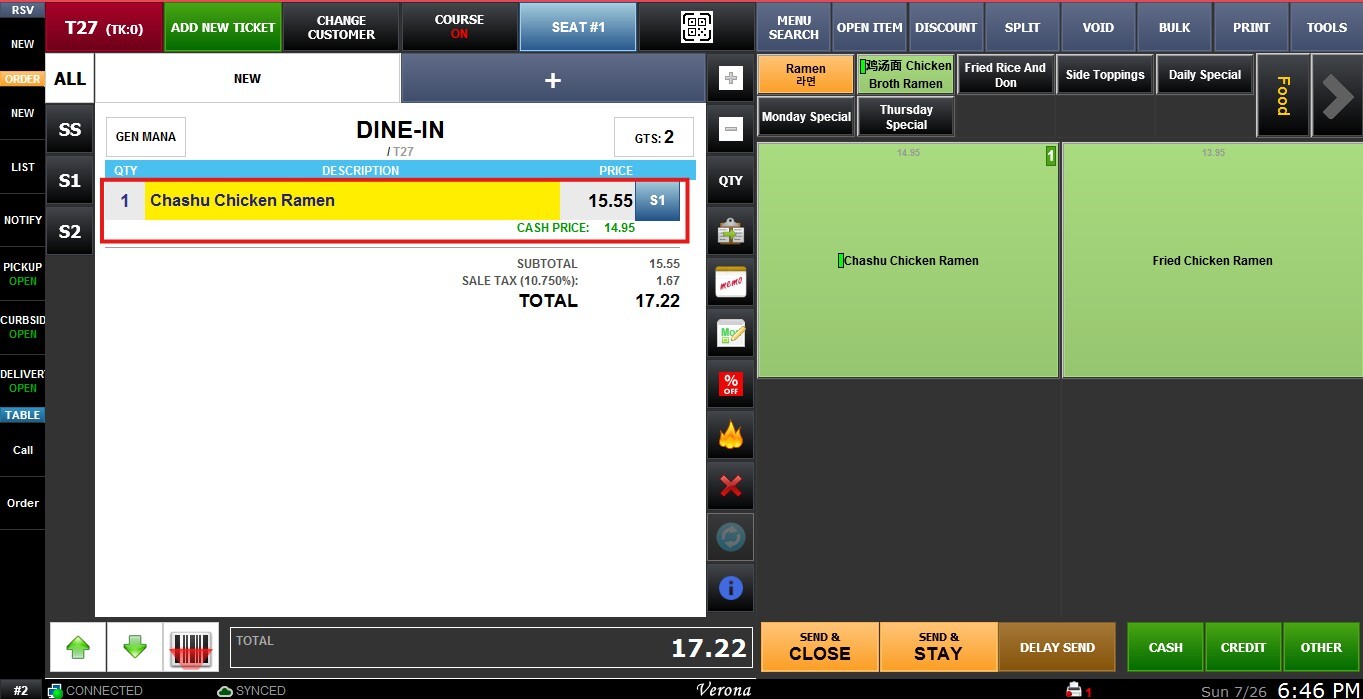
The selected item will appear on the left side of the screen and will be highlighted in yellow, indicating it has been added to the current order.
If your items use barcodes, you can also add them by clicking the BARCODE icon and scanning the item's barcode.
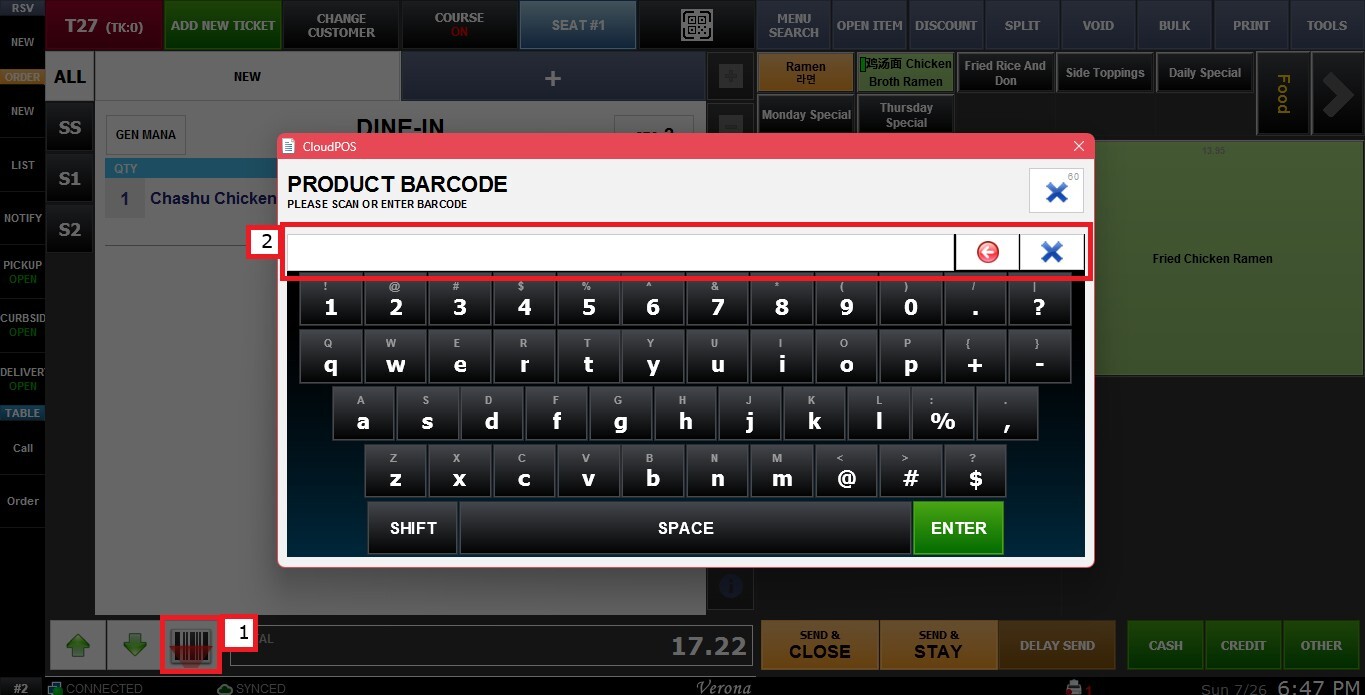
Note: If the Barcode icon is not displayed, refer to the Barcode Scan KB in the Main Sales section to learn how to enable it.