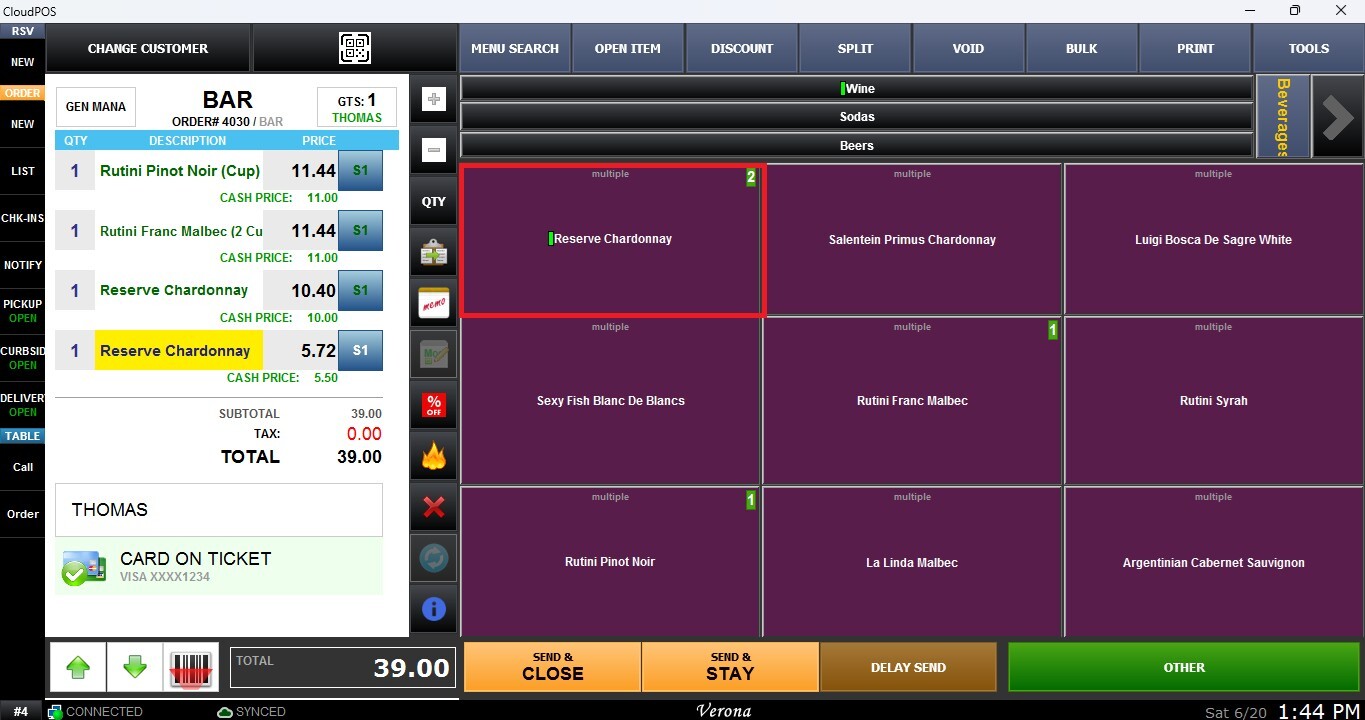
Managing Bar Tabs
This section explains how to manage existing bar tabs and provides the available tools to organize and access open customer tabs efficiently.
Main Screen > Number Pad > Table Screen > BAR
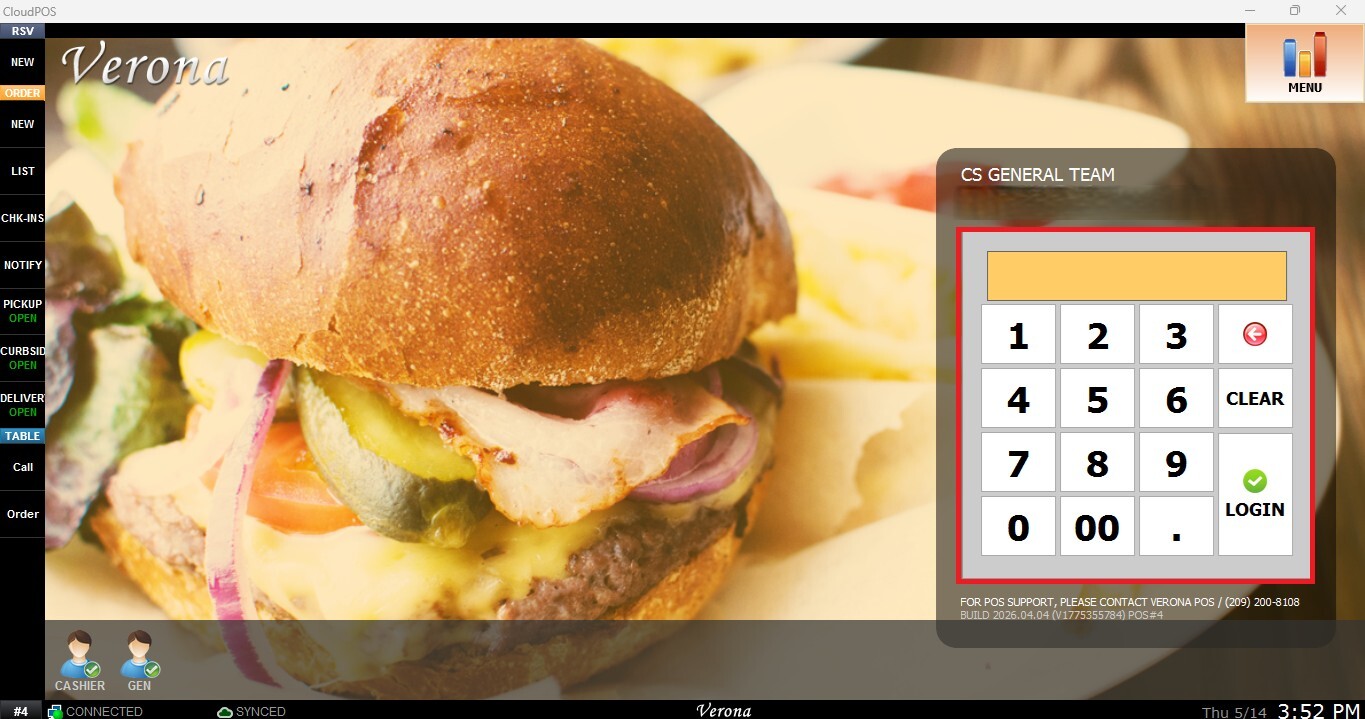
From the Main Screen, use the number pad and enter the assigned employee's password to log in.
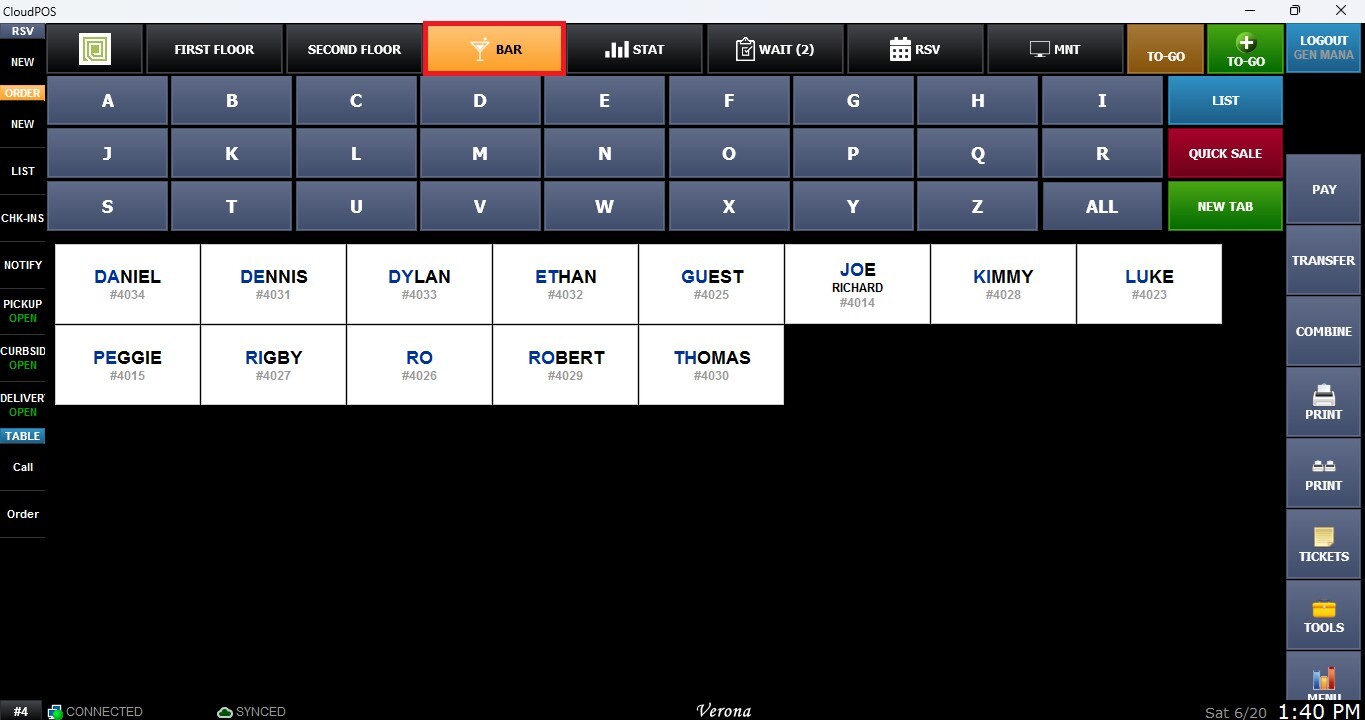
From the Table Map, click on BAR.
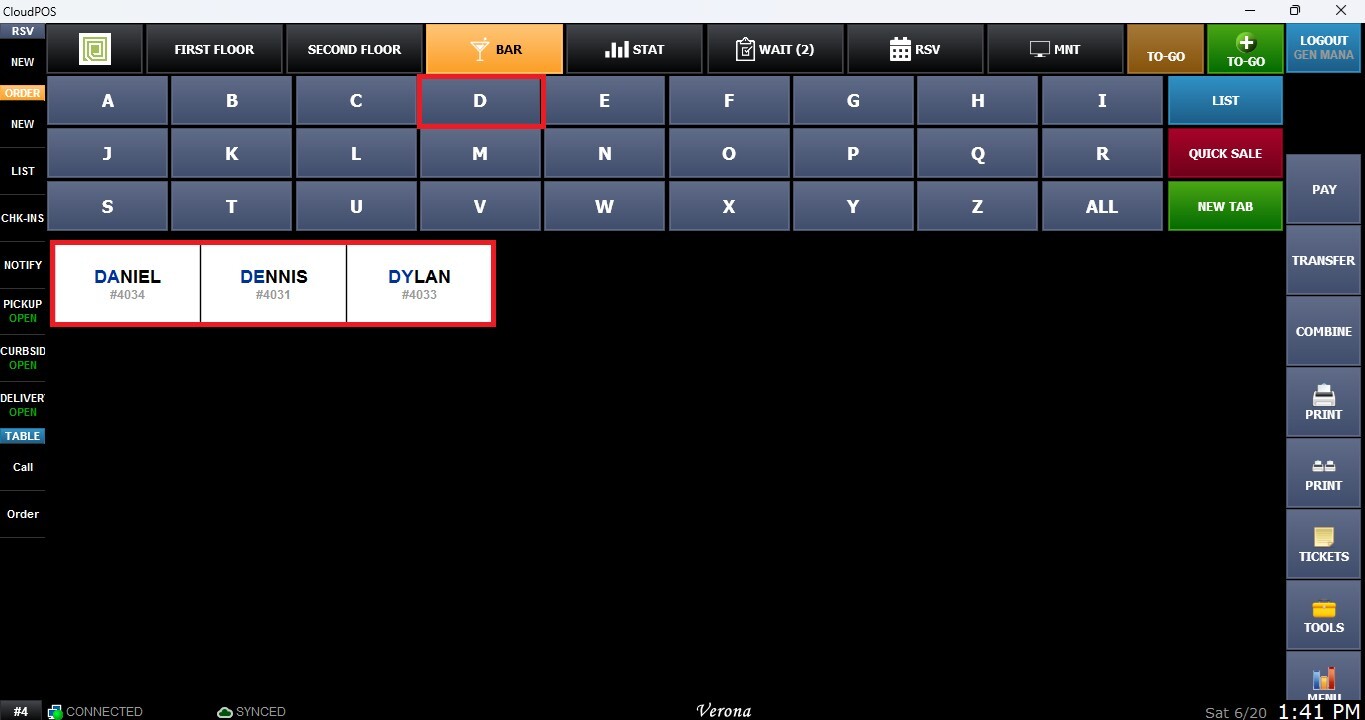
Letter Search
Allows users to filter open tabs by selecting a specific letter. This helps quickly locate tabs based on the customer’s name. Selecting All will display all open tabs at once.
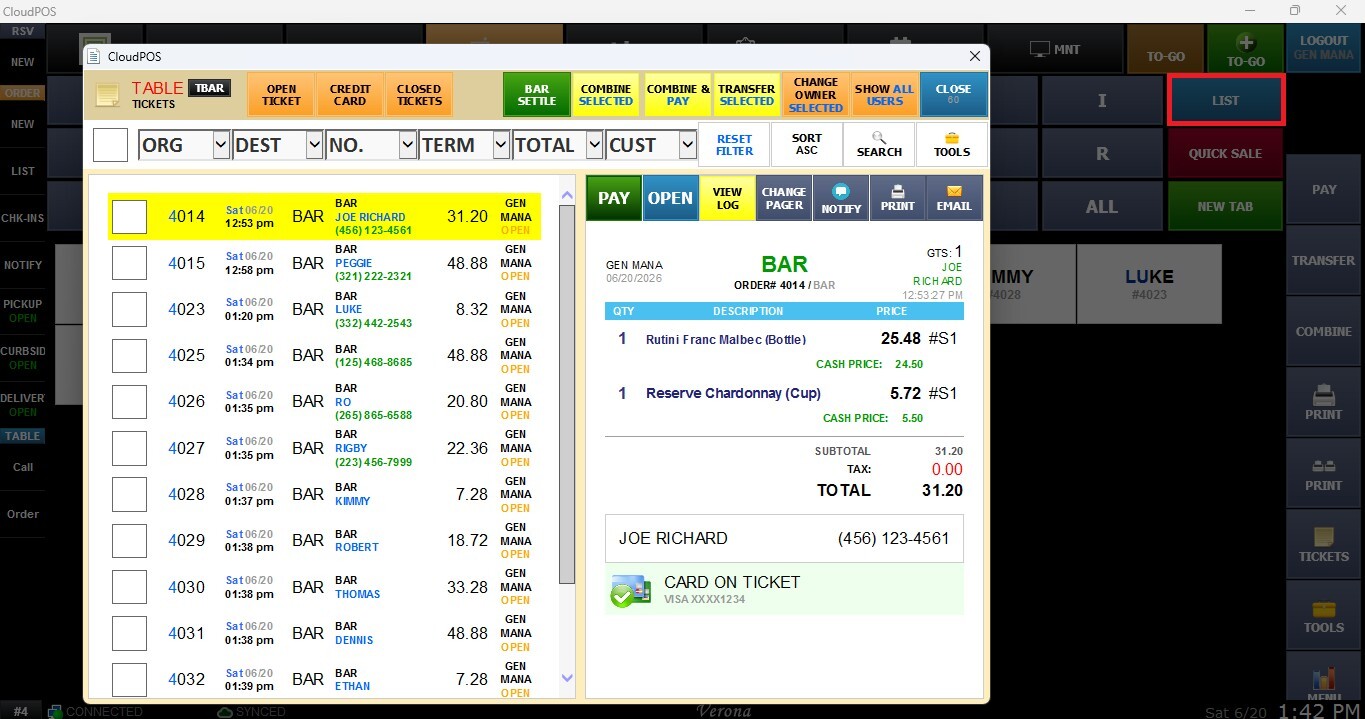
List
Opens the table tickets under the BAR section, where users can manage active tickets as needed. For more information on managing open tickets, please refer to OPEN TICKETS.
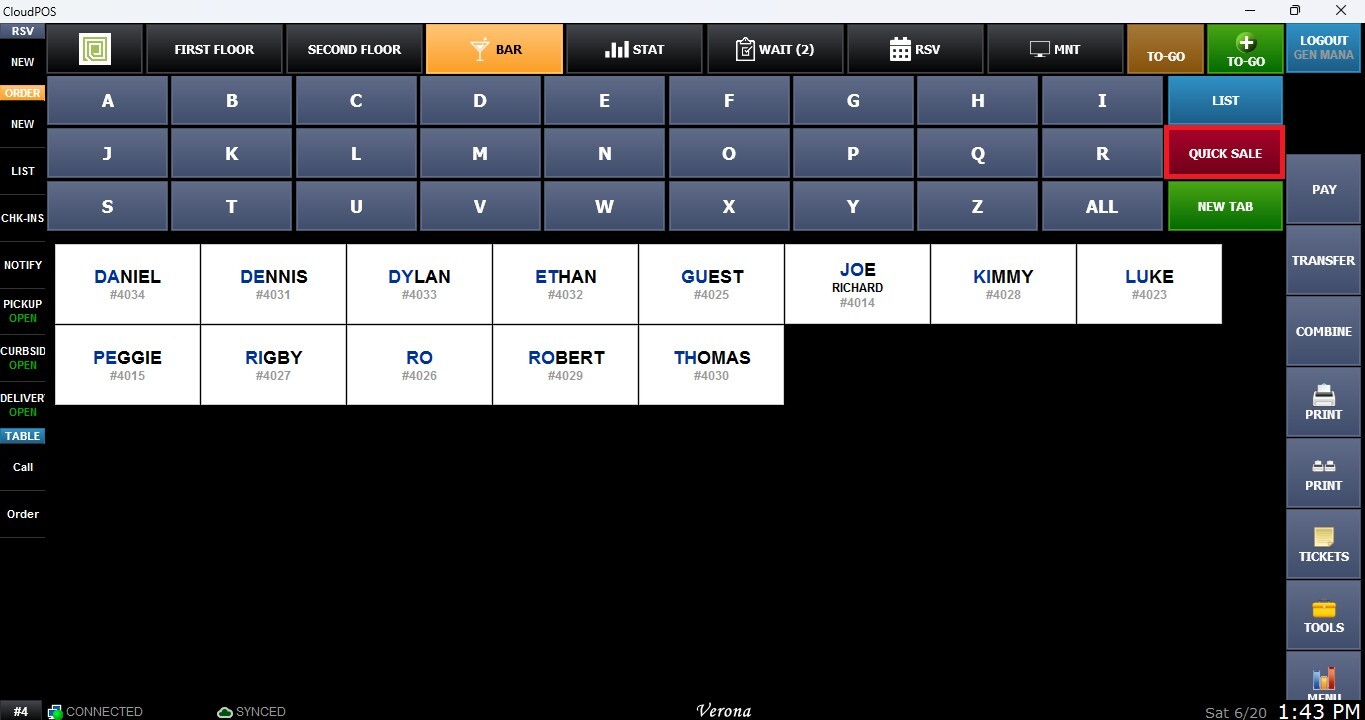
Quick Sale
Opens the Sales Screen directly for a fast transaction without requiring a customer name or credit card entry.
Tabs
Displays all currently open tabs below the letter filter buttons, allowing users to select and manage them as needed.
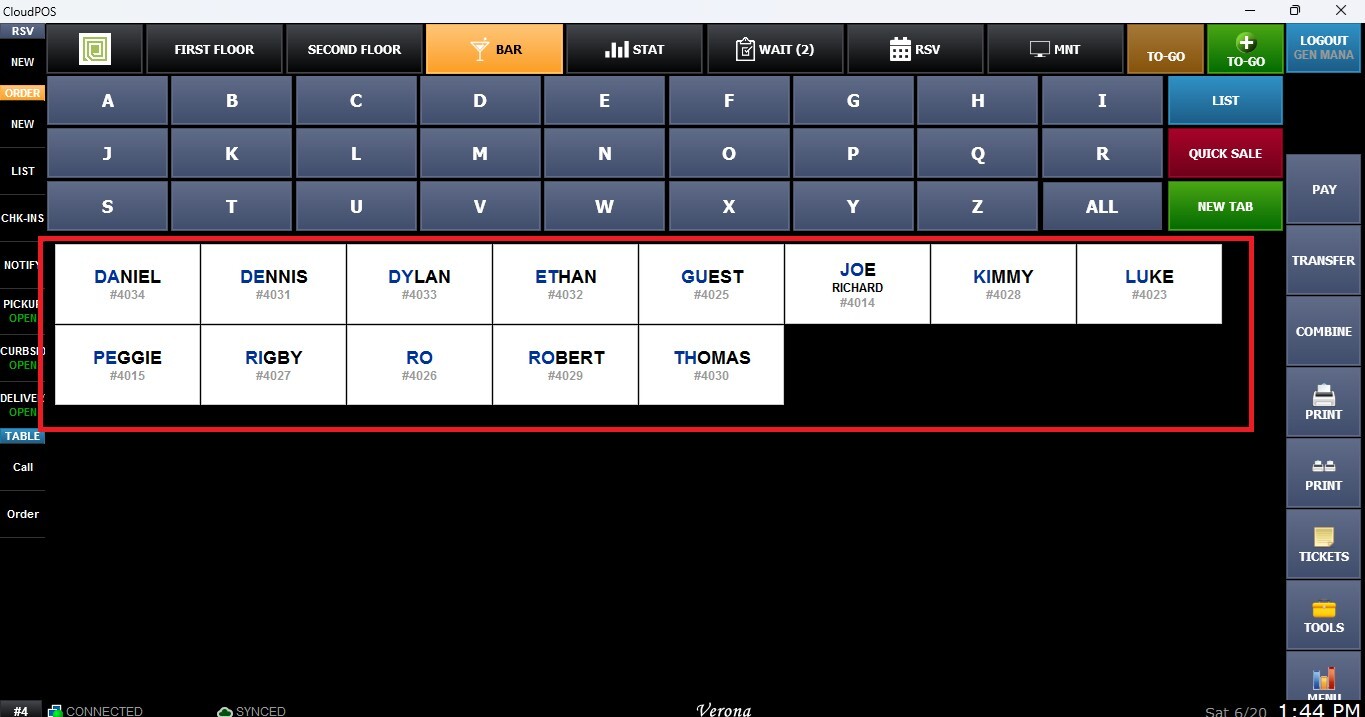
From here, items can be added, updated, or payments can be processed when the customer is ready to close the tab.