Tax Free and Service Fee
The Tax Free and Service Fee tools change the charges of the ticket on the sales screen. Tax Free removes the sales tax from the ticket, and Service Fee adds or removes a service charge, as a percent or a fixed amount. The ticket totals update right away.
Sales Screen> TOOLS> TAX FREE / SERVICE FEE
Tax Free:
Tax Free removes the sales tax from the ticket, for example for a customer that is tax exempt.
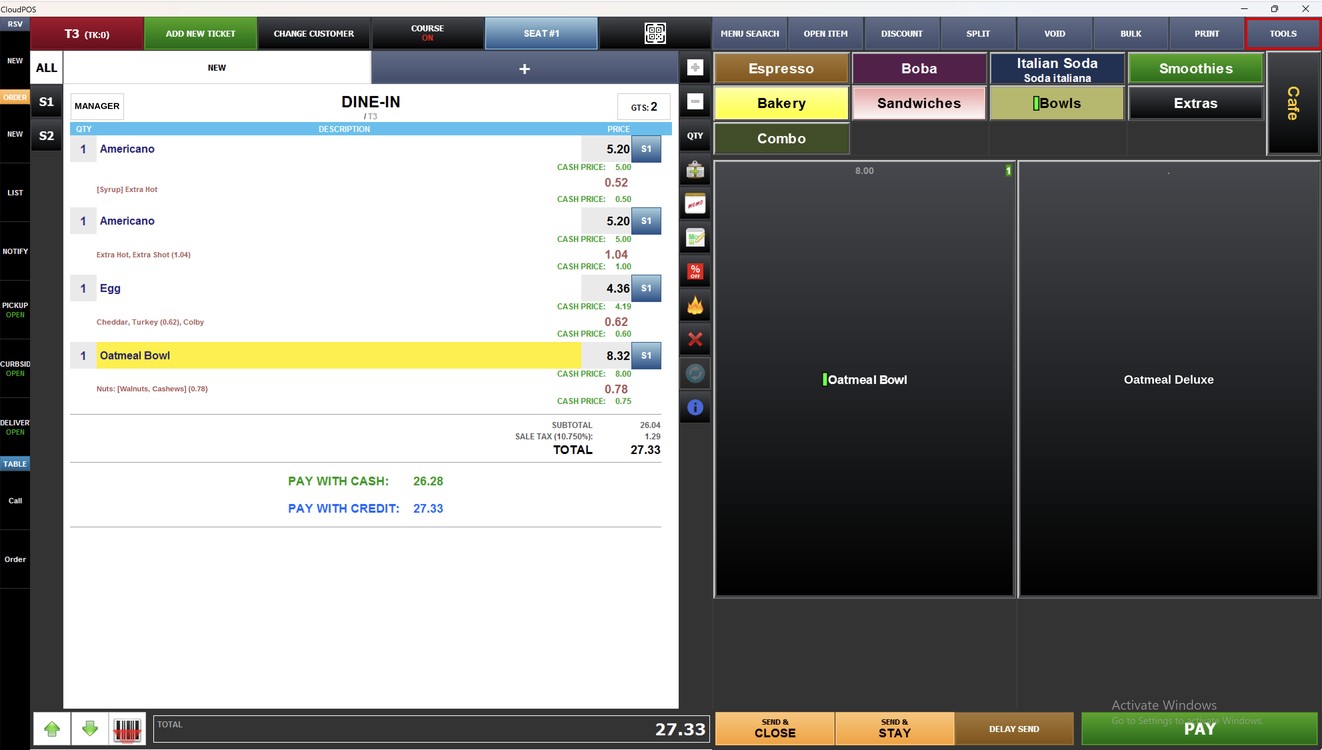
With the ticket open on the sales screen, press TOOLS.
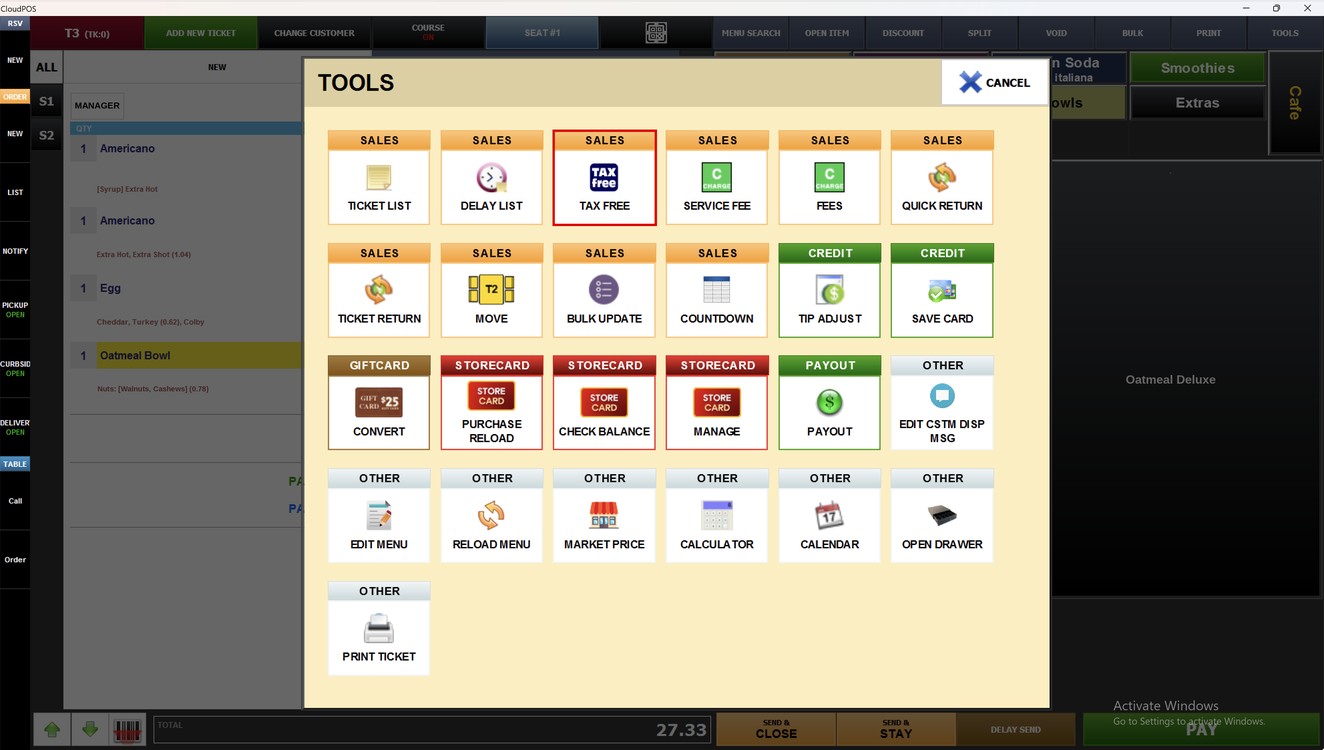
In the TOOLS window, press TAX FREE.
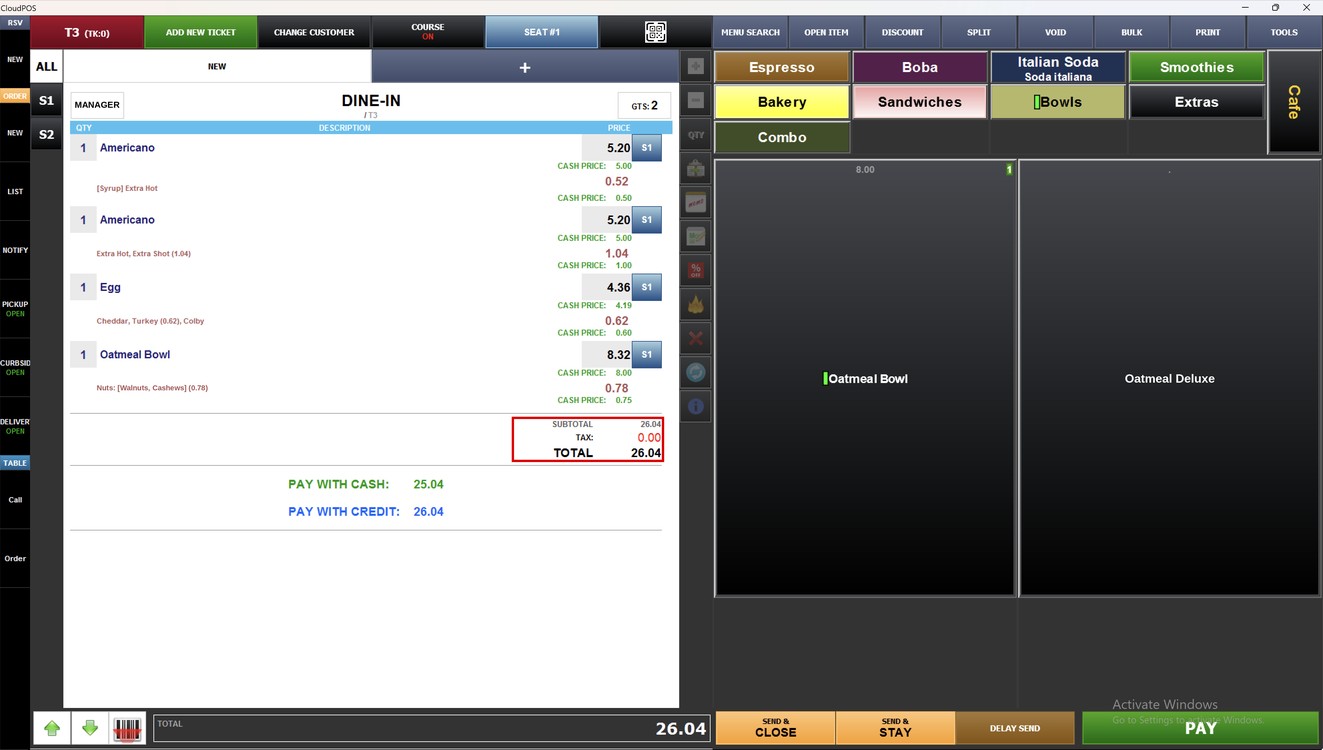
Result:
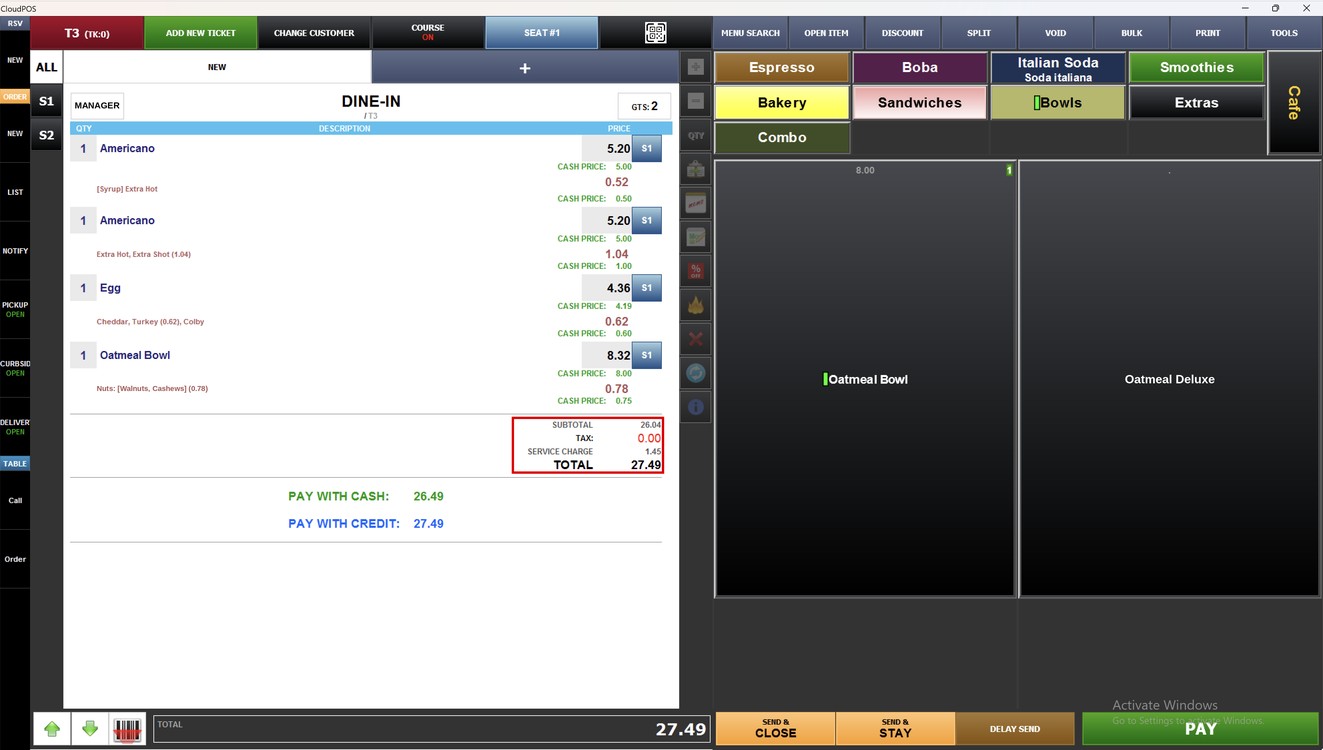
The TAX of the ticket changes to 0.00 and the total is updated.
Service Fee:
Service Fee adds, changes or removes the service charge of the ticket.
With the ticket open on the sales screen, press TOOLS.
In the TOOLS window, press SERVICE FEE.
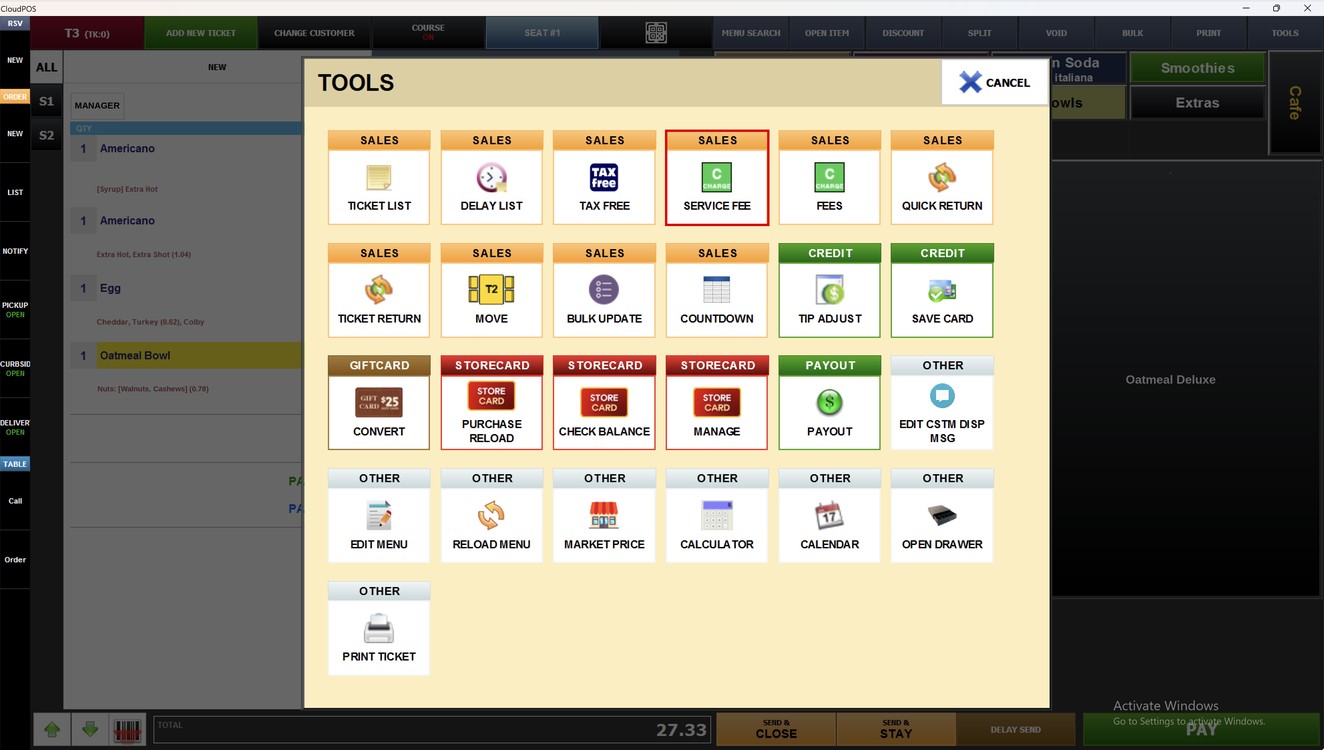
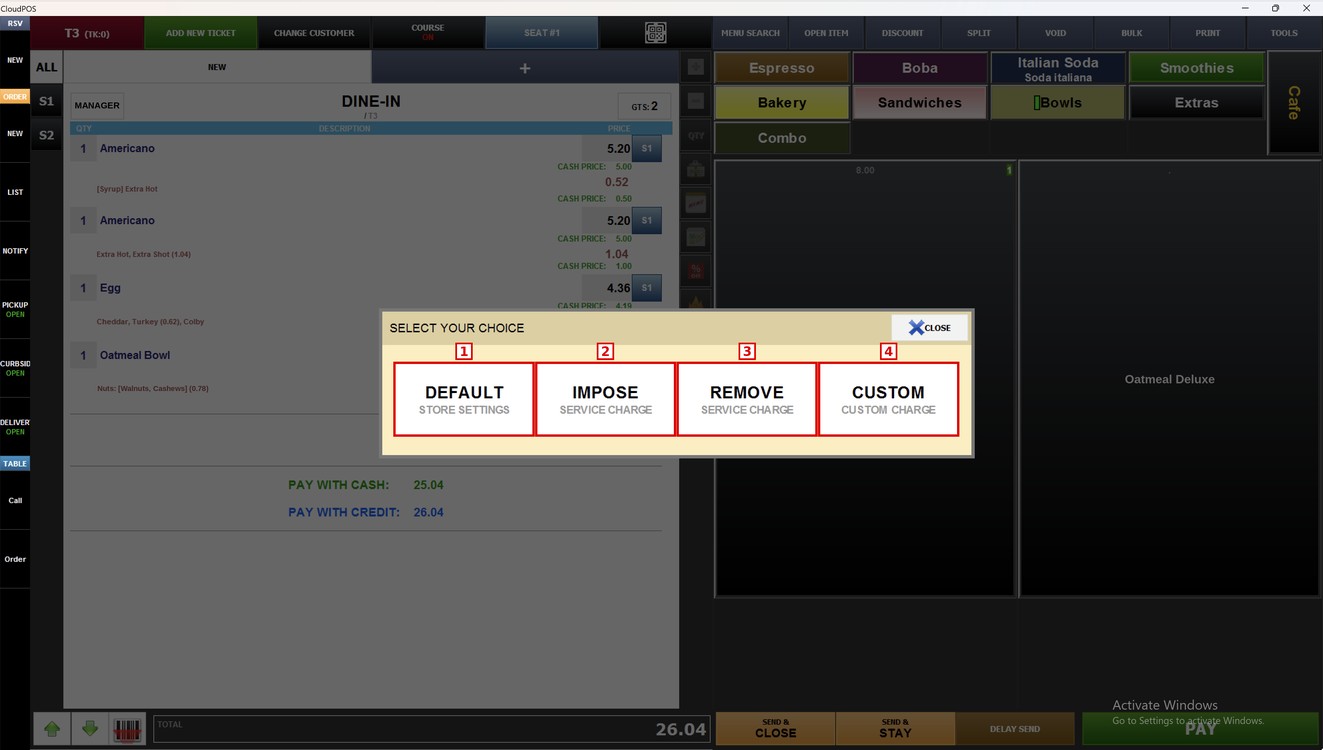
The SELECT YOUR CHOICE window opens.
1. DEFAULT: Applies the service charge set in the store settings.
2. IMPOSE: Adds the service charge to the ticket.
3. REMOVE: Removes the service charge from the ticket.
4. CUSTOM: Adds a service charge with a percent or an amount you enter.
Default:
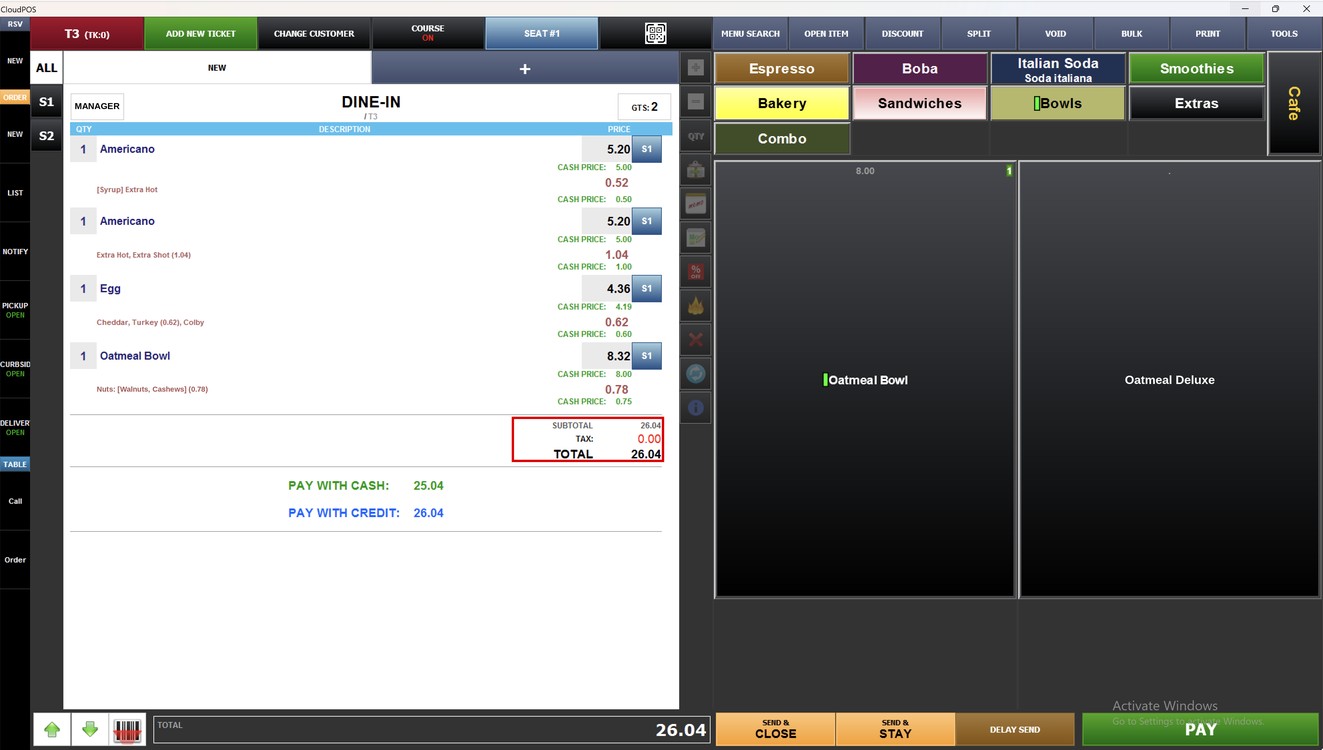
Press DEFAULT. The ticket uses the service charge of the store settings. In this example the store has no service charge, so the ticket does not change.
Impose:
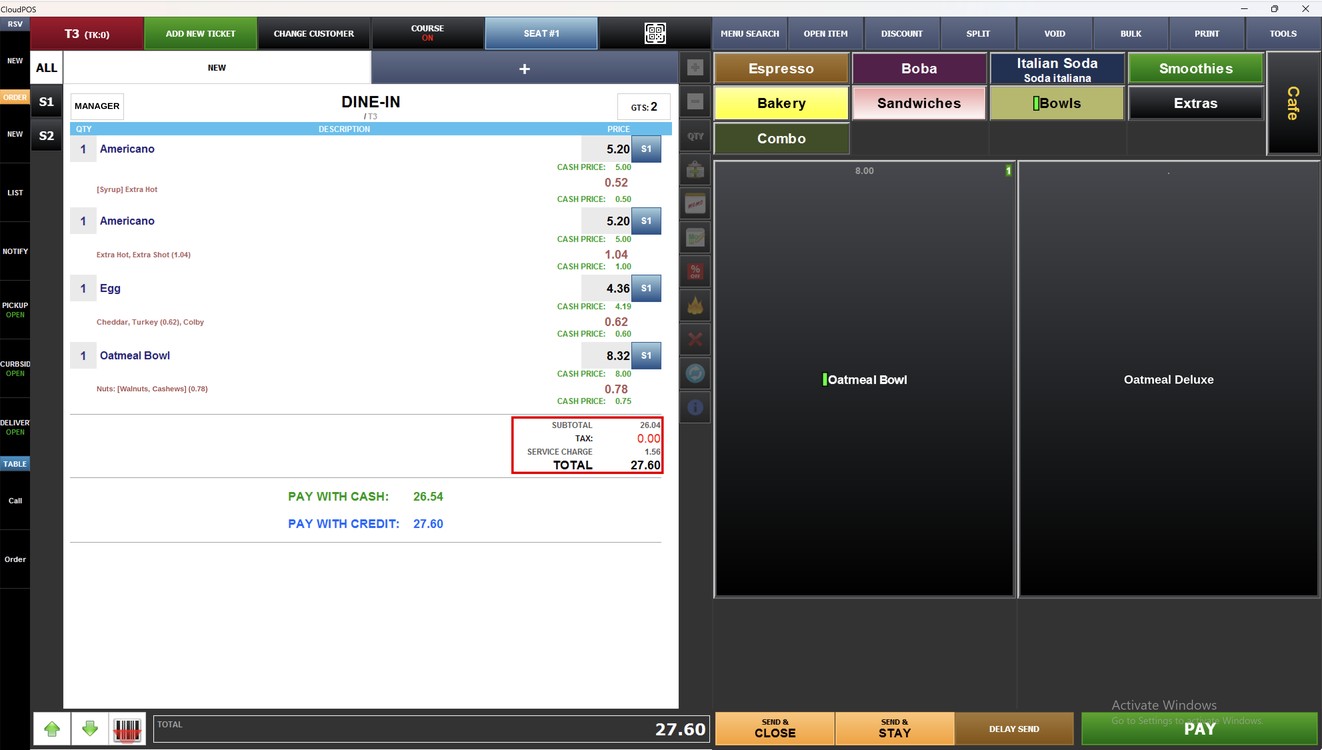
Press IMPOSE. The SERVICE CHARGE line is added to the ticket and the total is updated.
Remove:
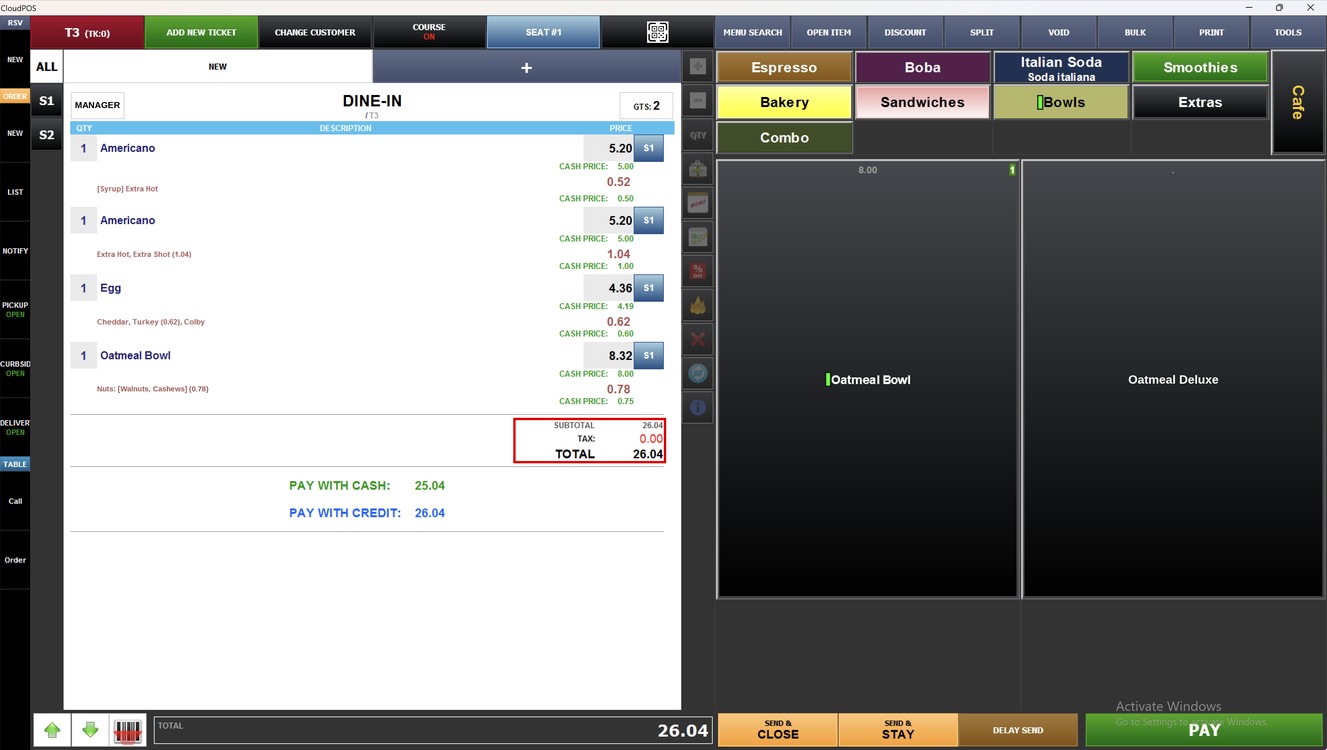
Press REMOVE. The SERVICE CHARGE line is removed and the total goes back to the ticket amount.
Custom:
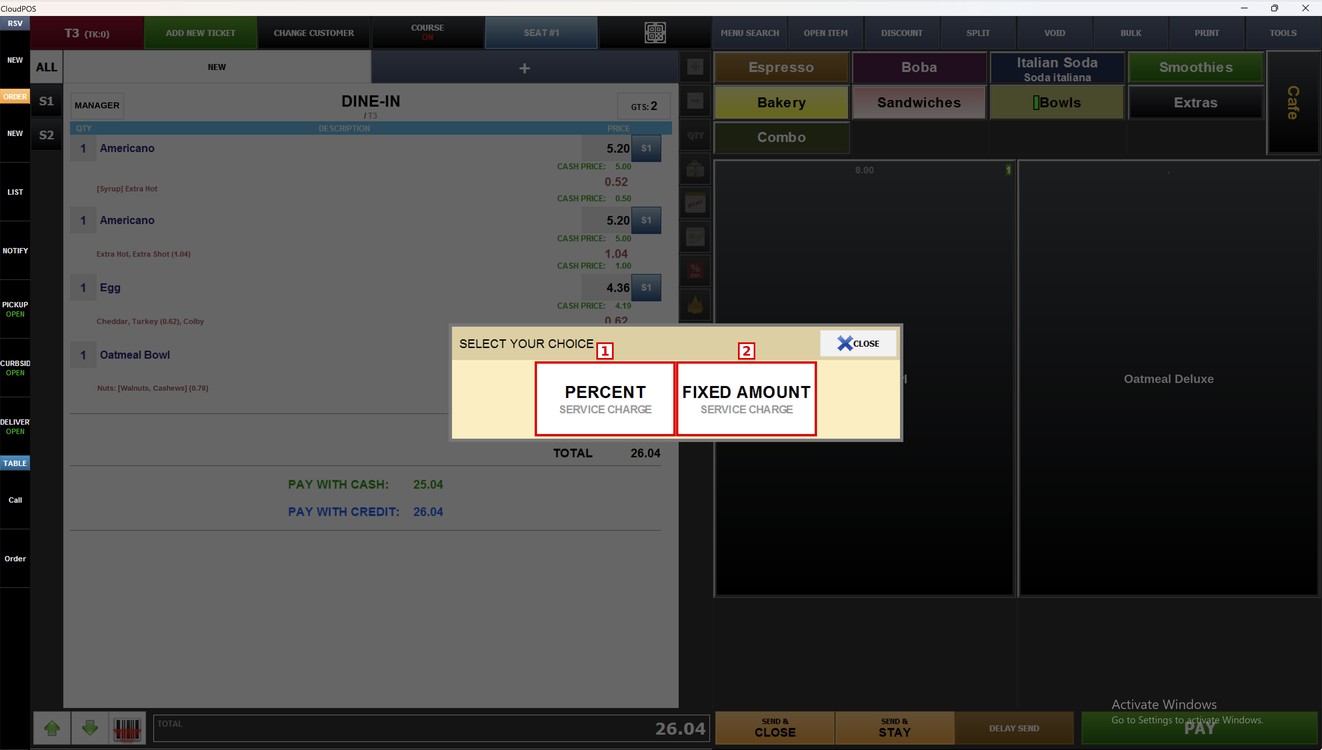
Press CUSTOM and choose how to enter the service charge.
1. PERCENT: The service charge is a percent of the subtotal.
2. FIXED AMOUNT: The service charge is a fixed amount in dollars.
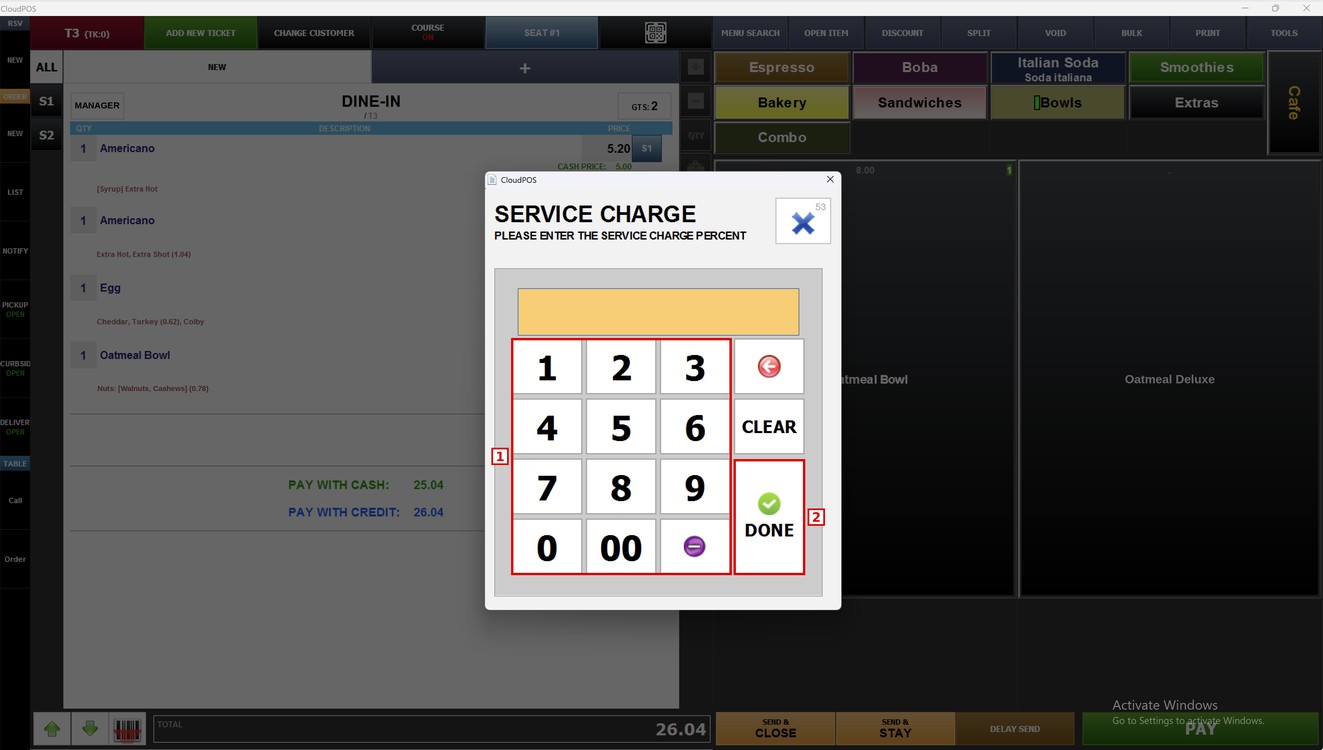
For PERCENT, enter the percent with the number pad (1) and press DONE (2).
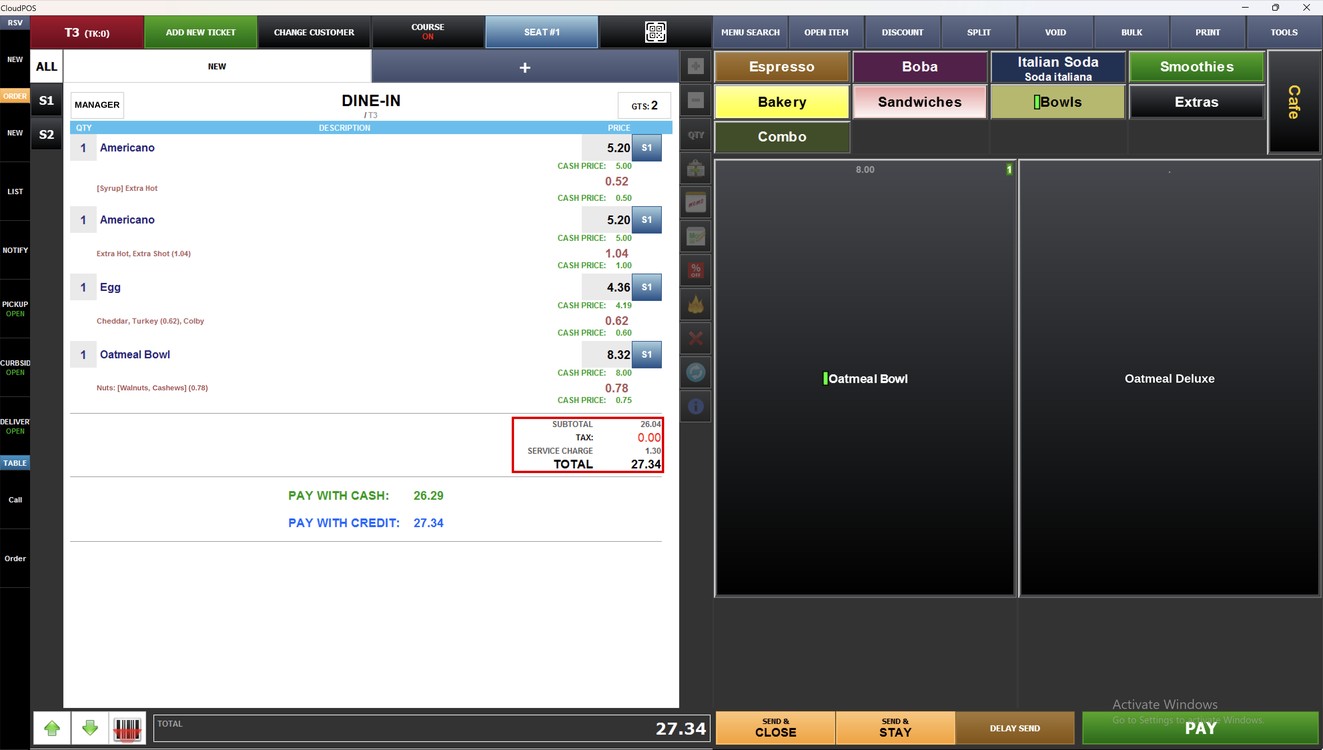
In this example, 5 percent of the subtotal 26.04 adds a service charge of 1.30.
For FIXED AMOUNT, enter the amount with the number pad (1) and press DONE (2).
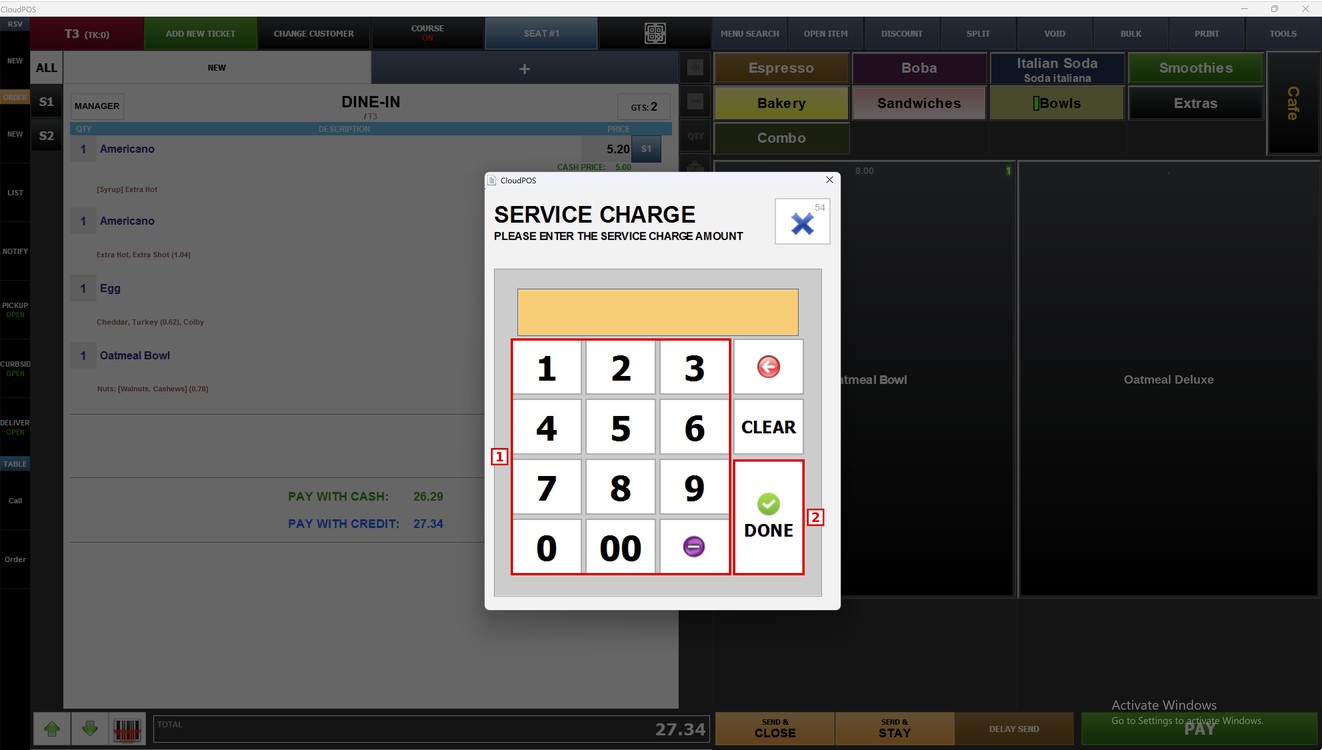
Hint: Press the red arrow to delete the last number or CLEAR to delete all. Press the X to close the window without changes.
In this example, a fixed amount of 1.45 is added as the service charge.
To learn about the other sales tools, please refer to the Sales Tools Guide.