Hours Details by day
The Hours Total Details by Day report displays employees worked hours grouped by day. Use this report to review clock in/out times, paid and unpaid breaks, regular hours, overtime, and total worked hours for each day.
MAIN SCREEN > MENU > REPORTS > USER > REPORT LIST
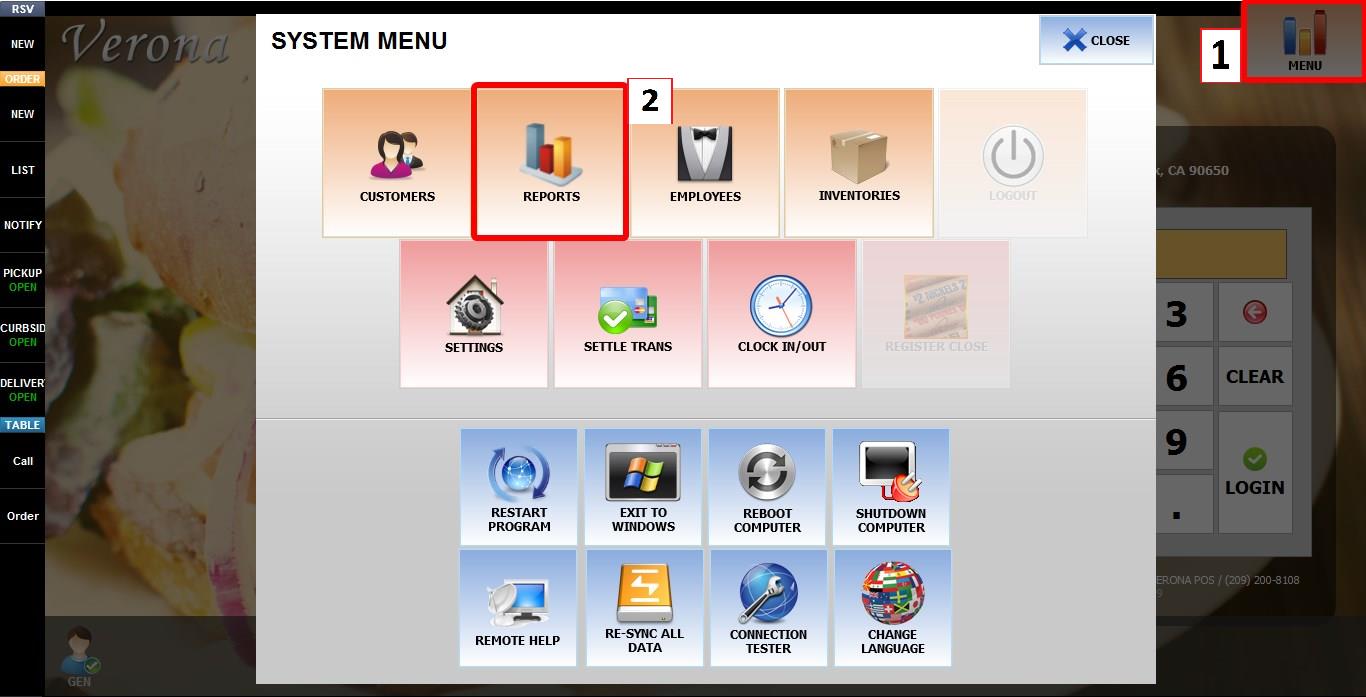
From the MAIN SCREEN, click MENU, then select REPORTS.
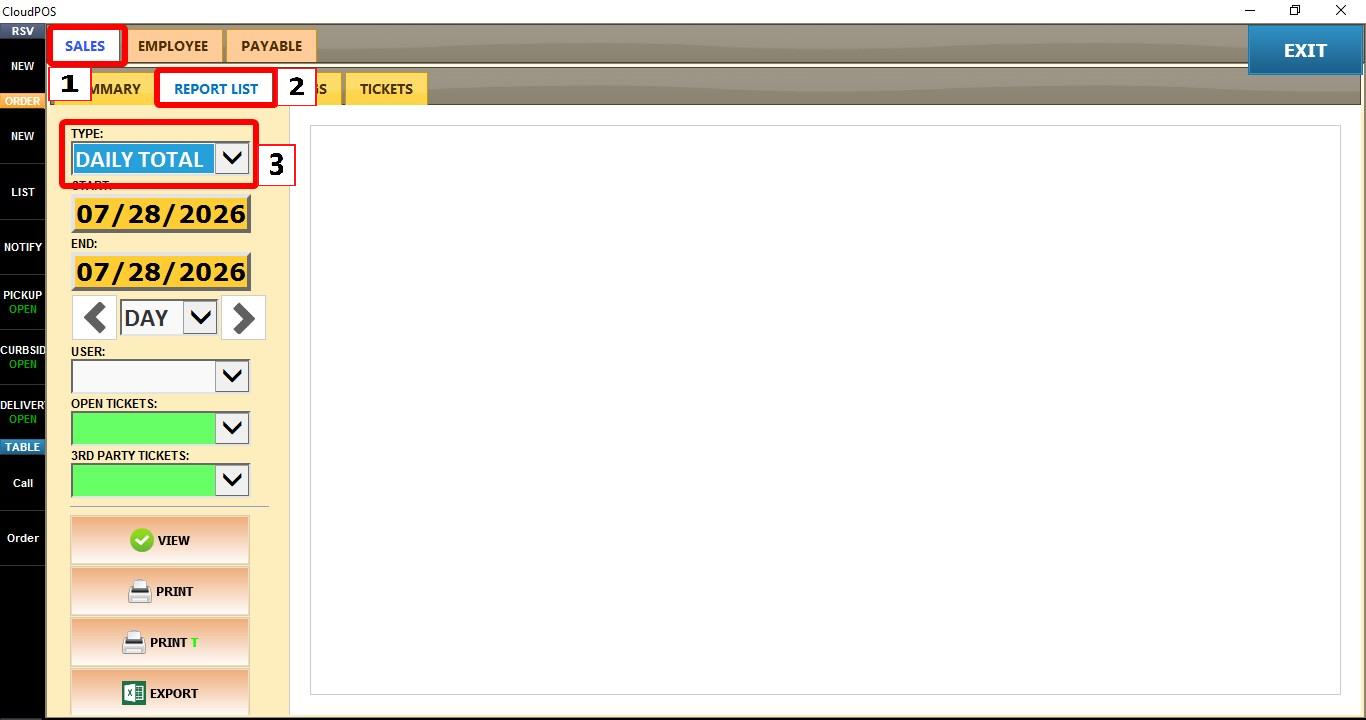
Open the SALES tab, then click REPORT LIST. Click the TYPE dropdown.
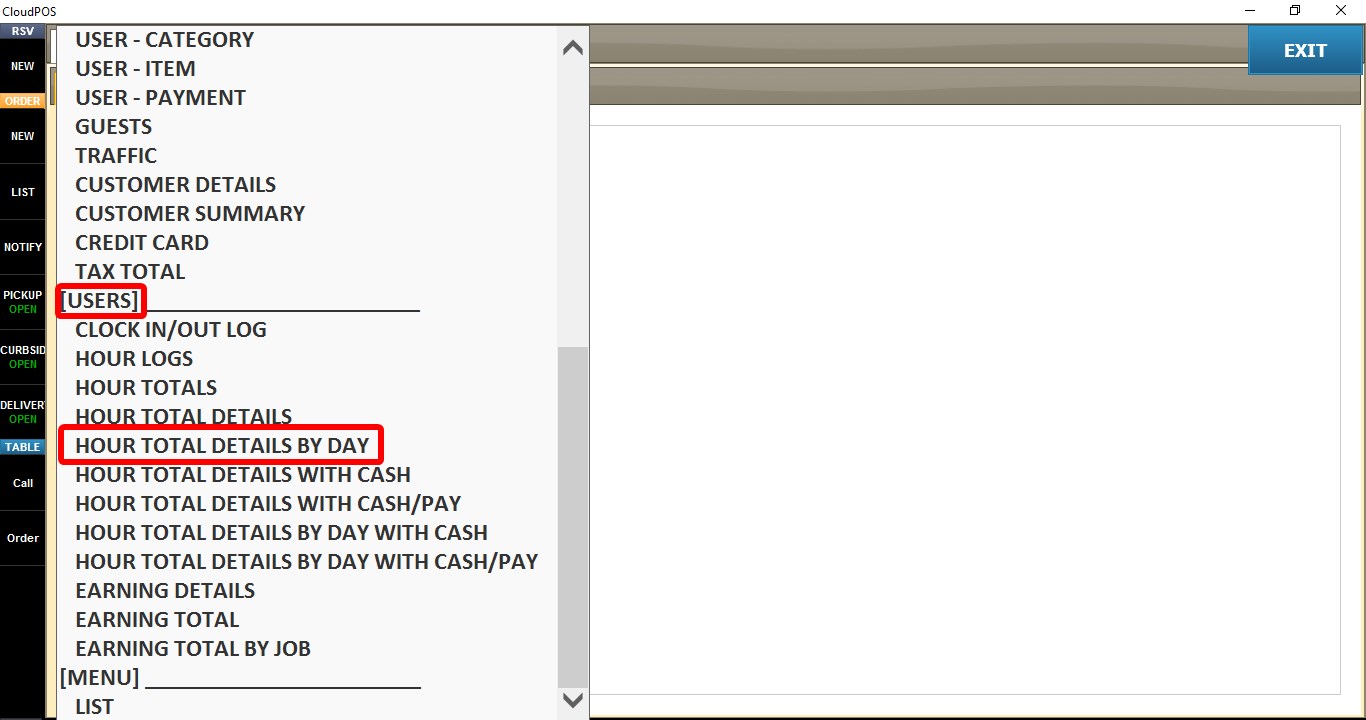
Select HOURS TOTAL DETAILS BY DAY.

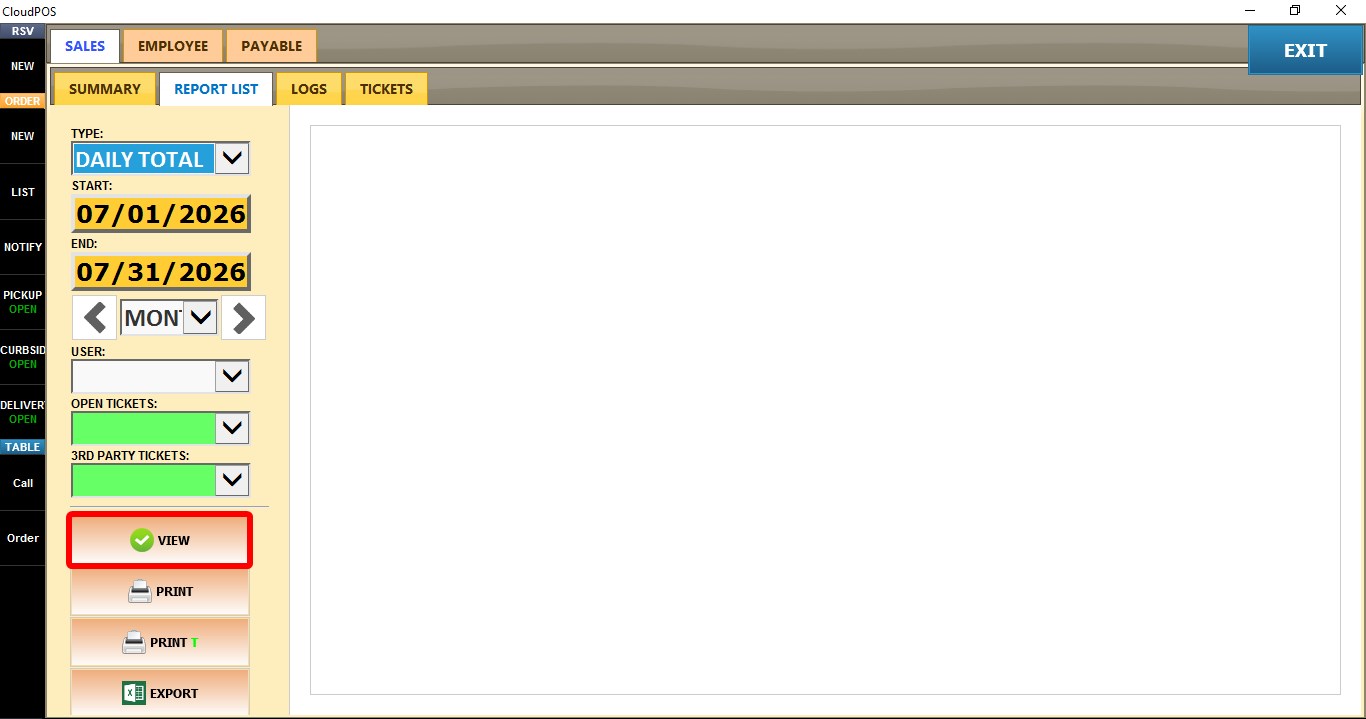
Click VIEW to display the report or after changing any filters to refresh the results.
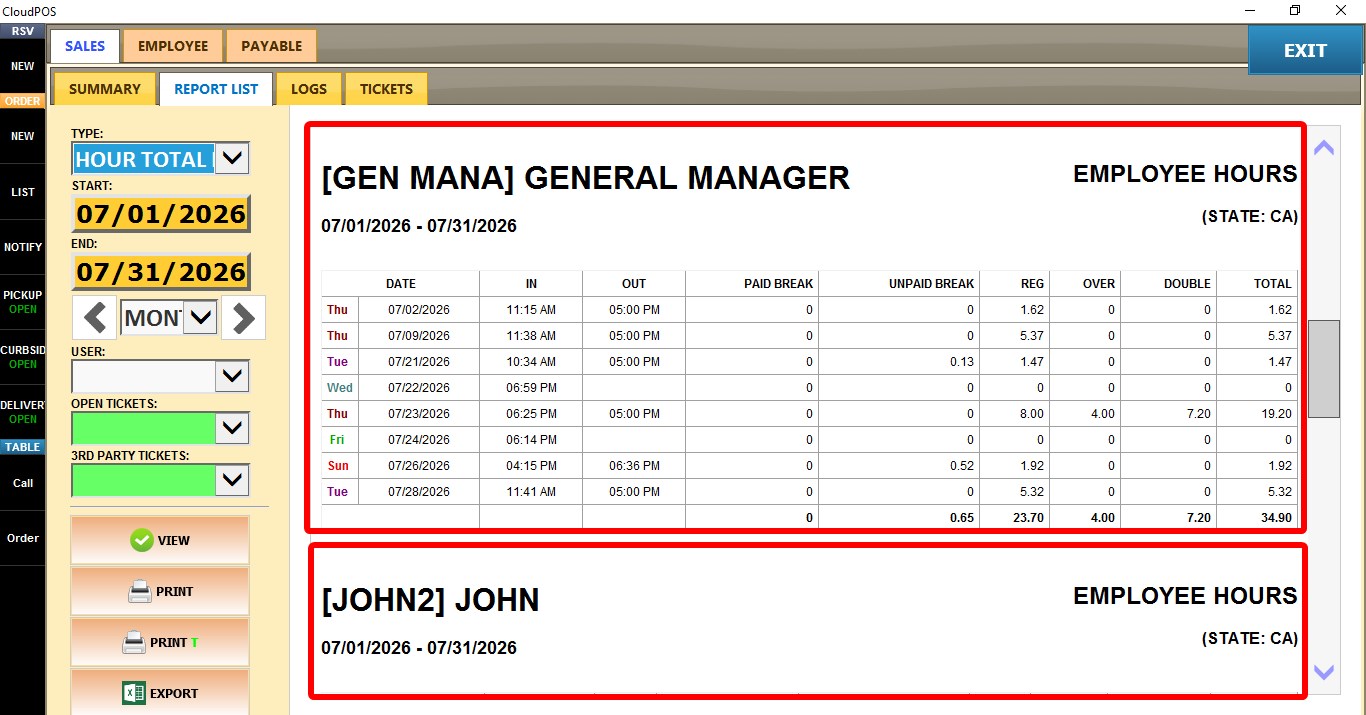
DATE
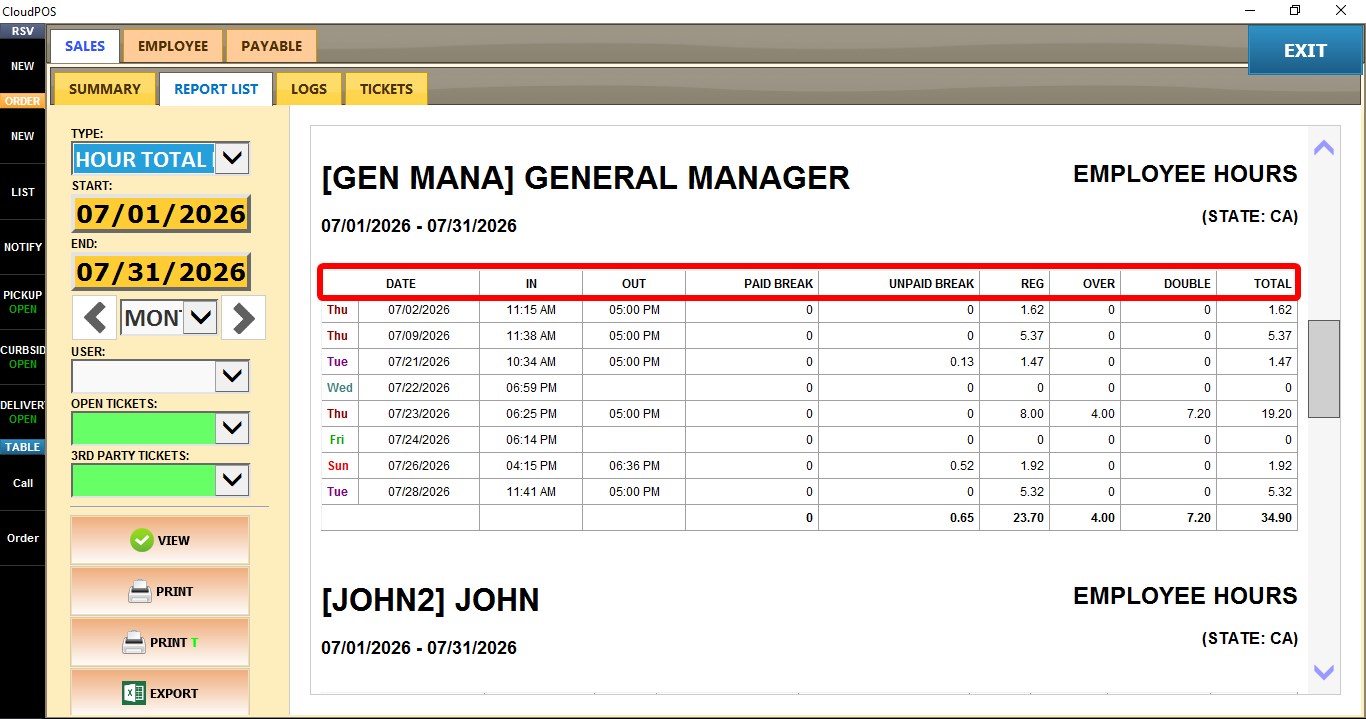
Displays the work date.
IN / OUT
Displays the employee's first and final clock-in time for the day.
PAID BREAK / UNPAID BREAK
Displays the total paid and unpaid break time recorded for the day.
REG
Displays the total regular hours worked.
OVER
Displays the total overtime hours worked.
DOUBLE
Displays the total double-time hours worked.
TOTAL
Displays the total hours worked for the day, including all applicable hour types.
FILTERS
START / END
Allows you to select a custom date range for the report.
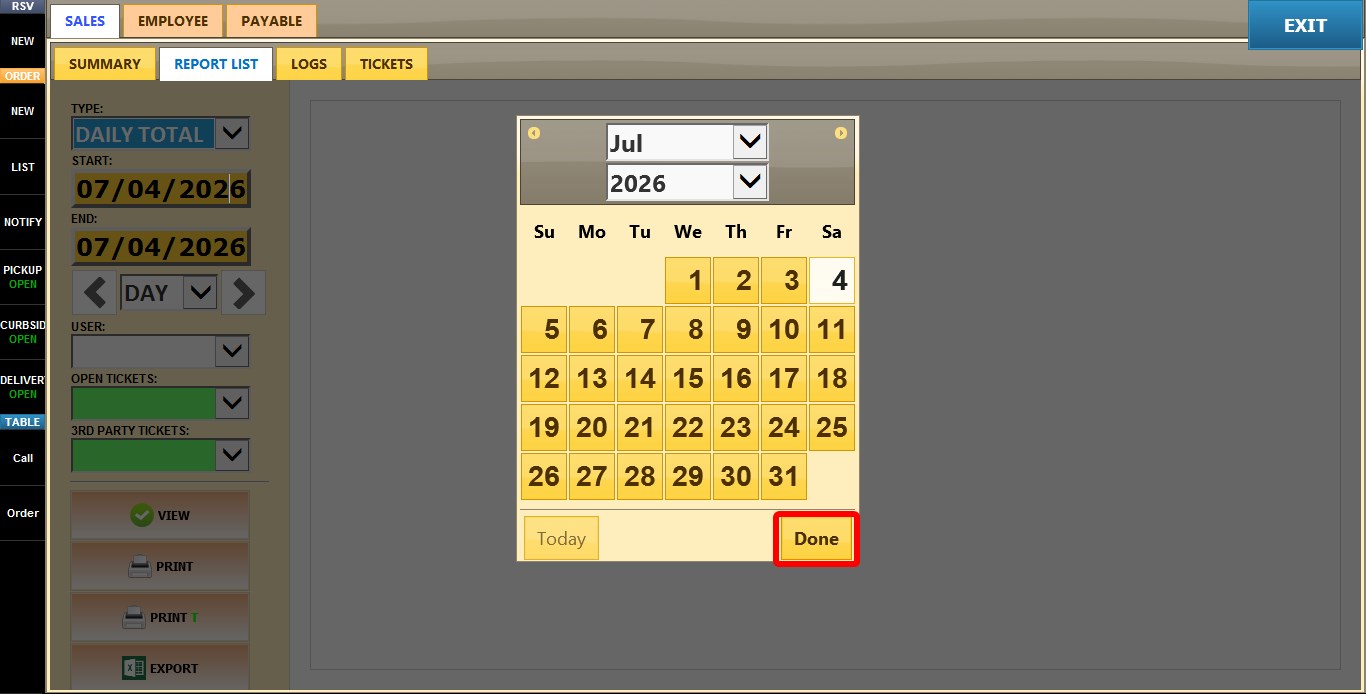
Click either START or END to open the calendar.
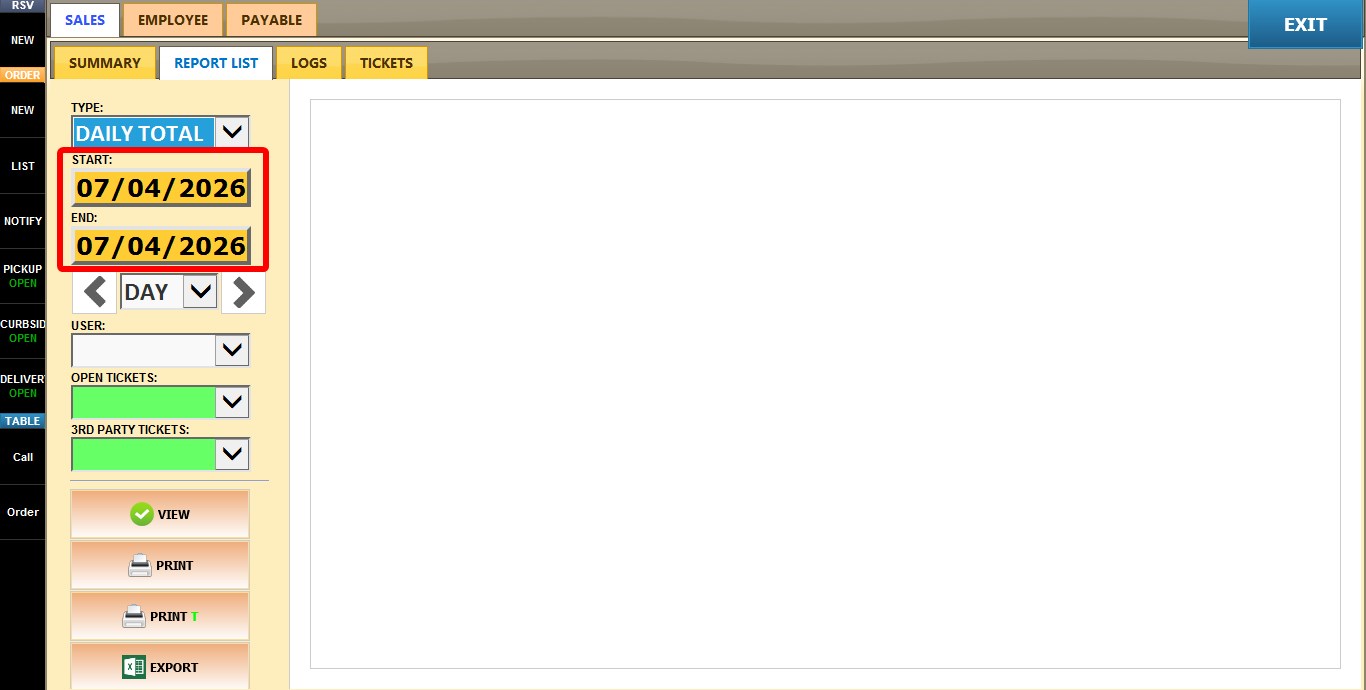
Select the desired date and click DONE.
TIME FRAME
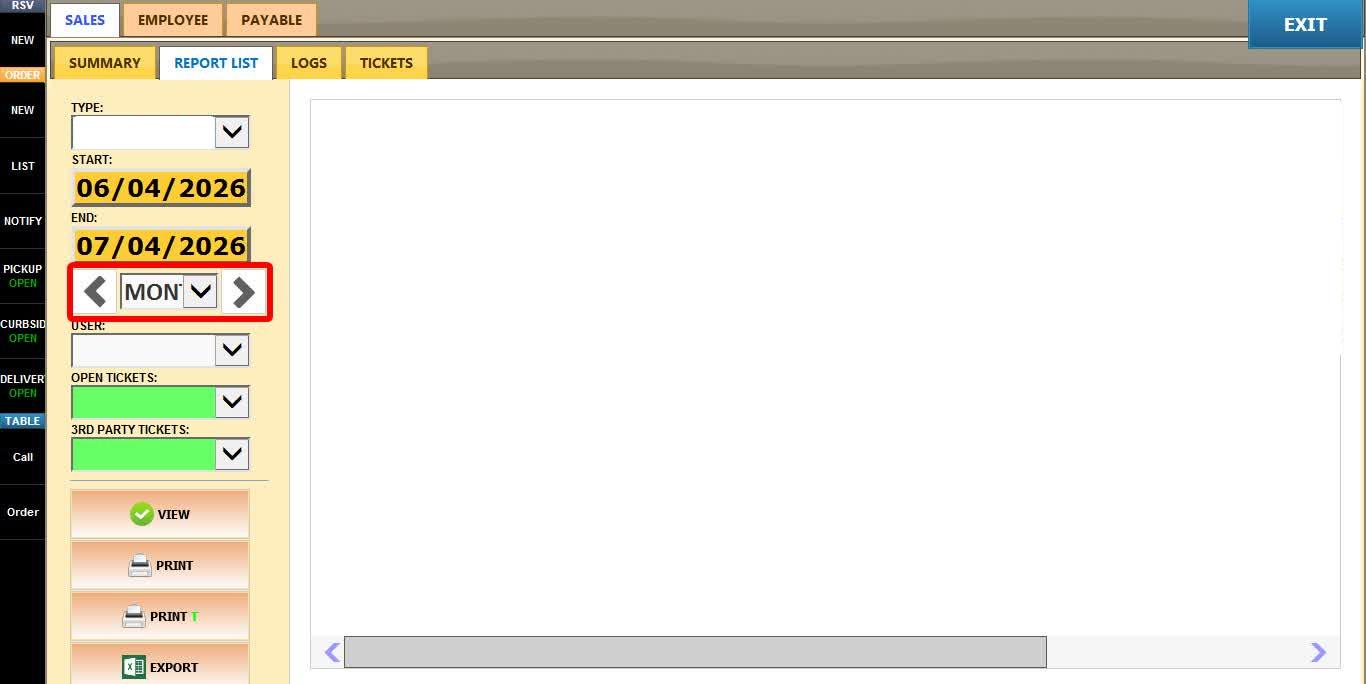
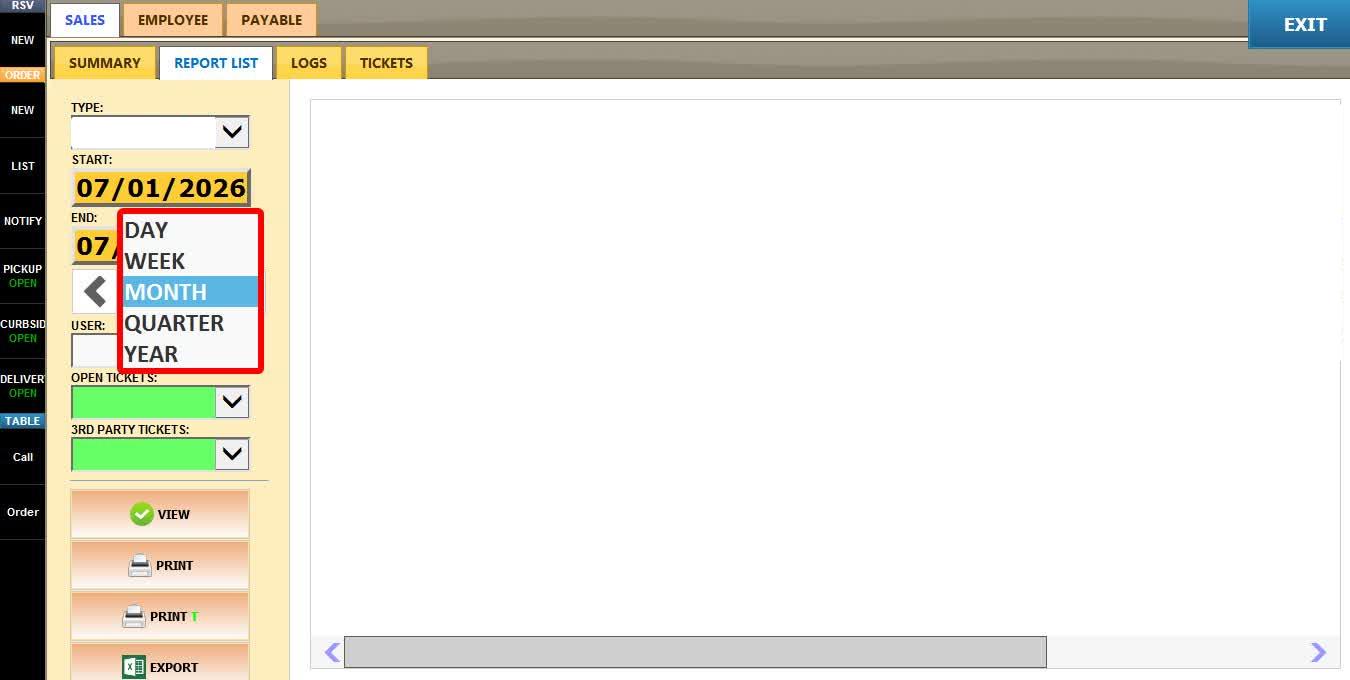
Allows you to quickly filter the report using predefined time periods.
Use the LEFT and RIGHT arrows to move backward or forward through the selected period.
USER
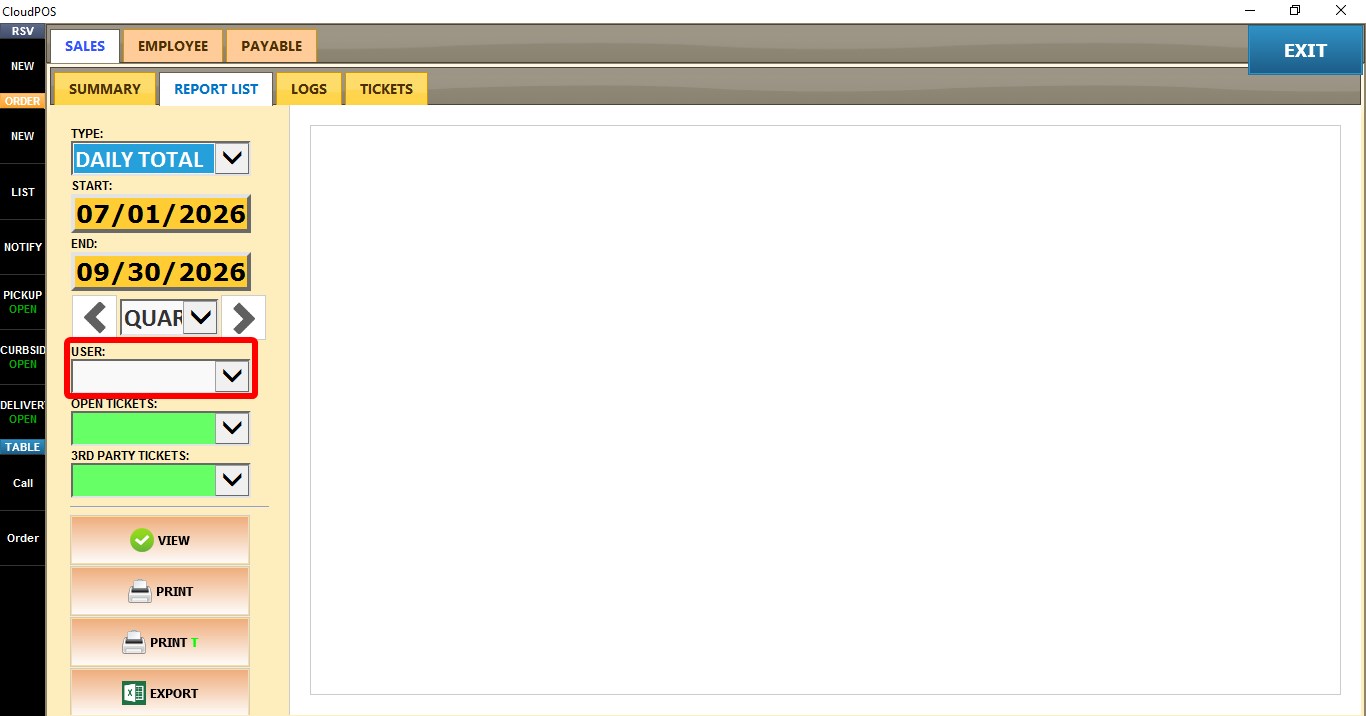
Displays hours for a specific employee.
Leave the field blank to include all employees, or select an employee from the dropdown.
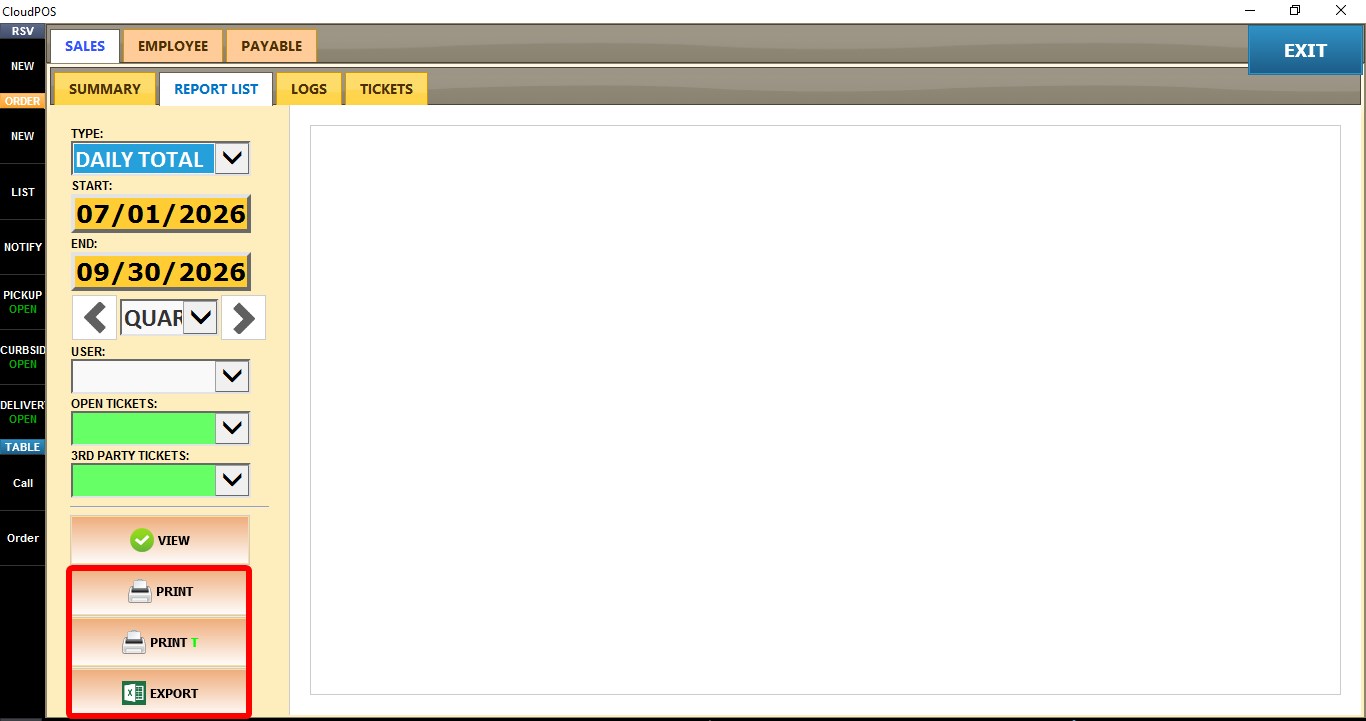
You can also PRINT, PRINT T, EXPORT, or EMAIL the report for record keeping, sharing, or further analysis.