Kitchen Printer and Print Order
The Kitchen Printer and Kitchen Print Order settings allow you to control how modifier components are routed to kitchen printers and how they are organized on the kitchen ticket.
Main Screen > MENU > SETTINGS > REPO > MENU > EDIT > Select a Modifier Component
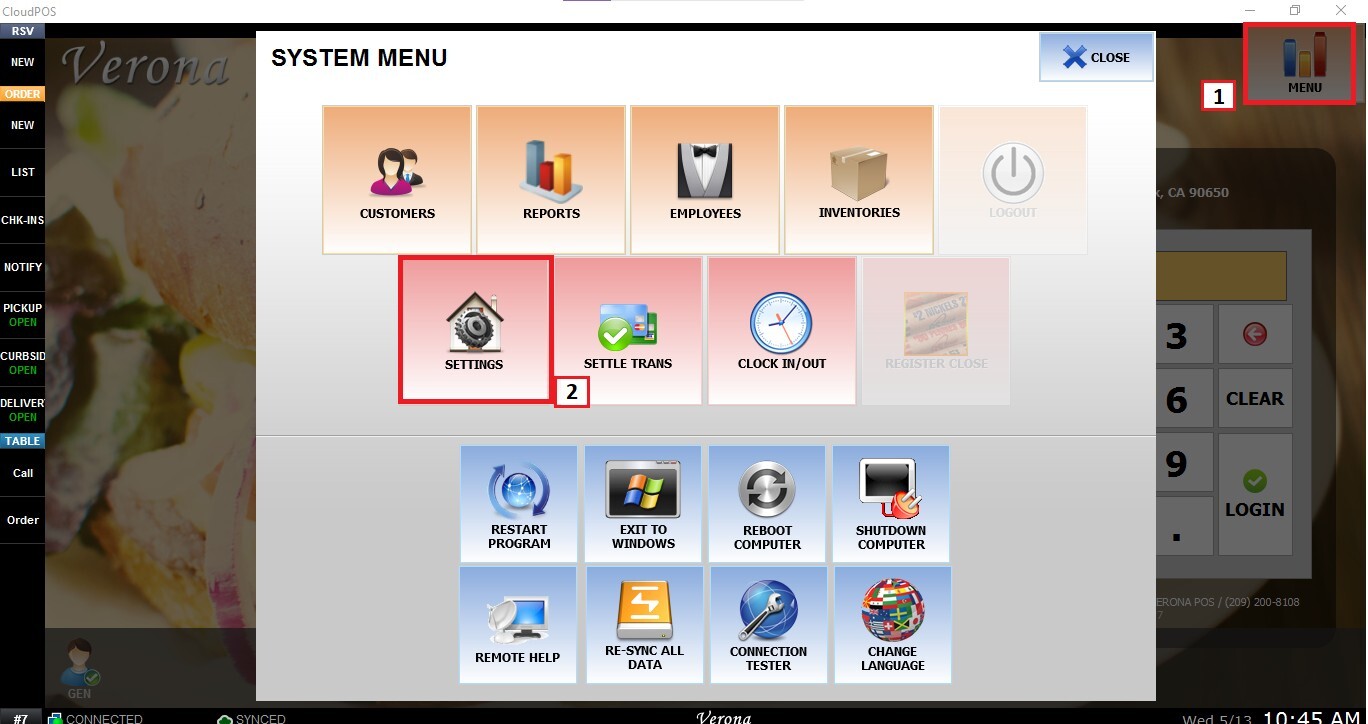
From the Main Screen, select MENU and then SETTINGS.
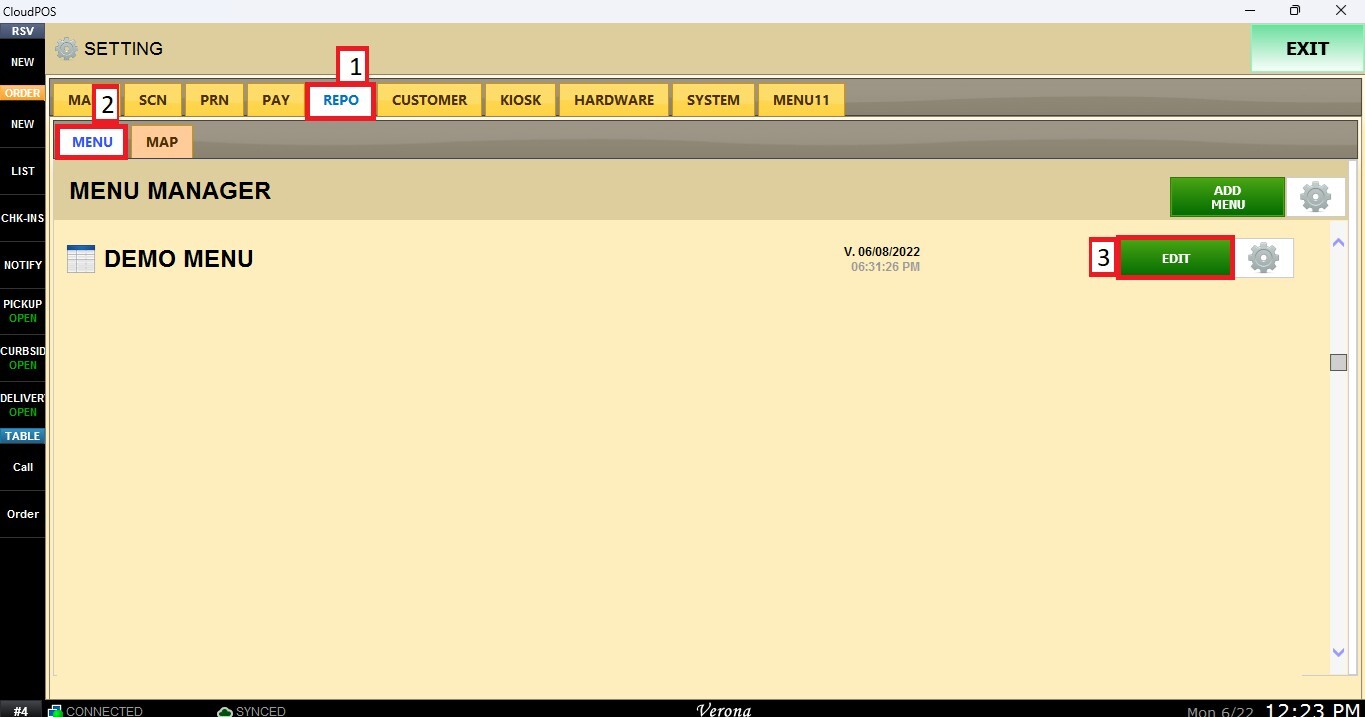
Navigate to REPO, then MENU, locate your menu, and click EDIT.
Select a Modifier Component
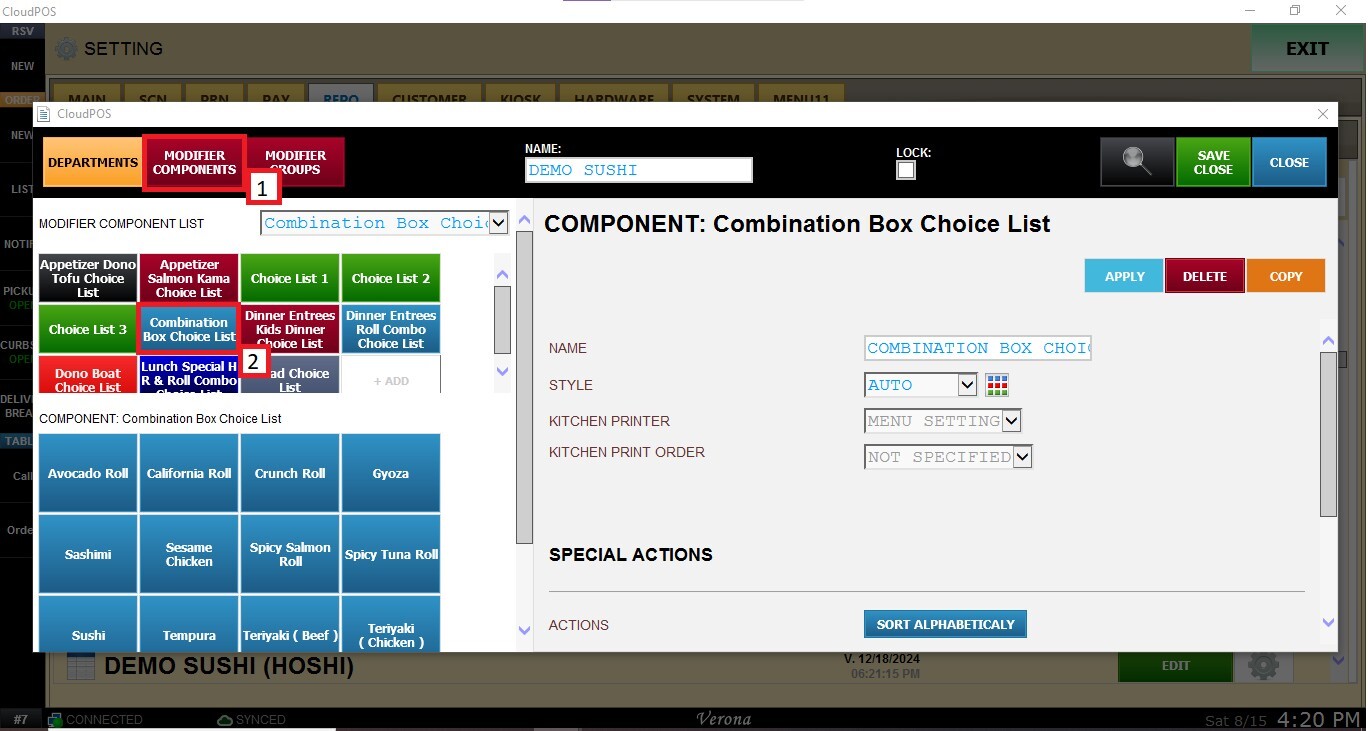
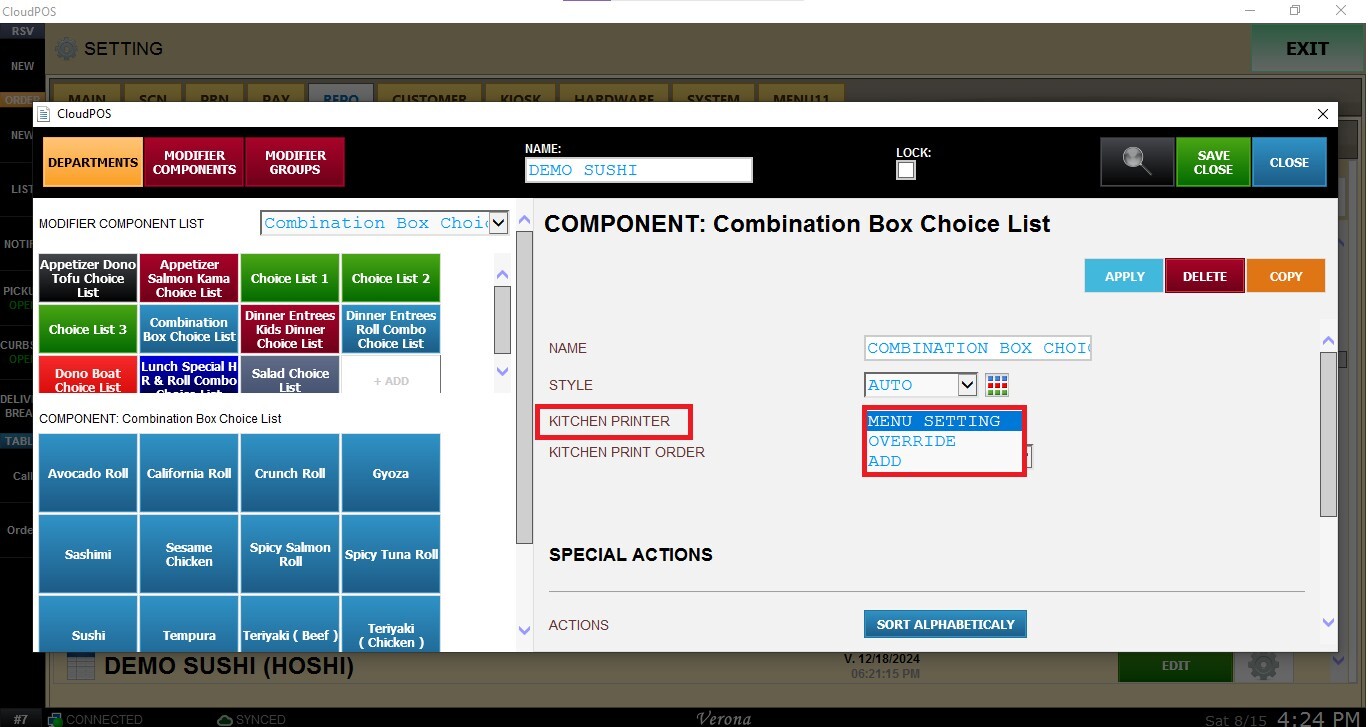
The KITCHEN PRINTER setting determines how the selected modifier component uses the kitchen printer assigned to its parent menu item.
- MENU SETTING (Default): Uses the same kitchen printer assigned to the main menu item.
- OVERRIDE: Ignores the main item's printer assignment and routes the modifier component to a different kitchen printer. After selecting OVERRIDE, specify the printer where the component should be printed.
- ADD: Keeps the main item's assigned printer and also sends an additional ticket to another specified kitchen printer.
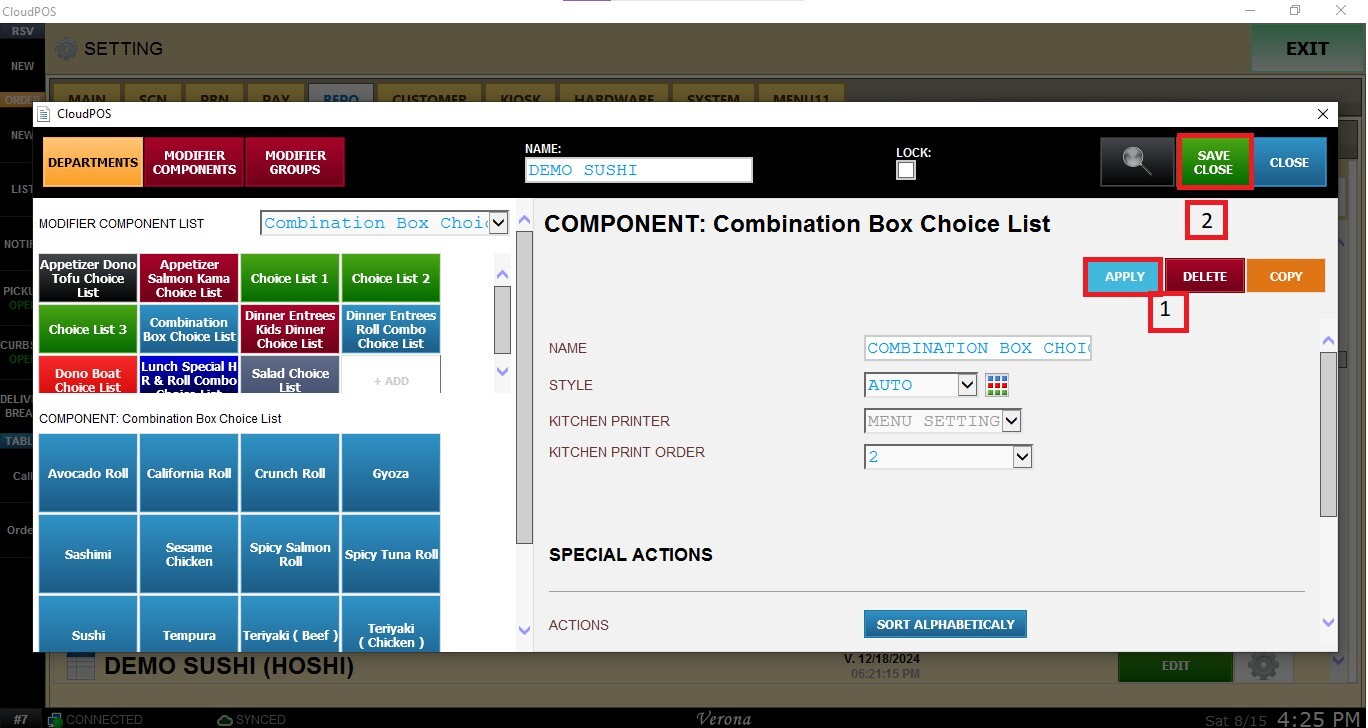
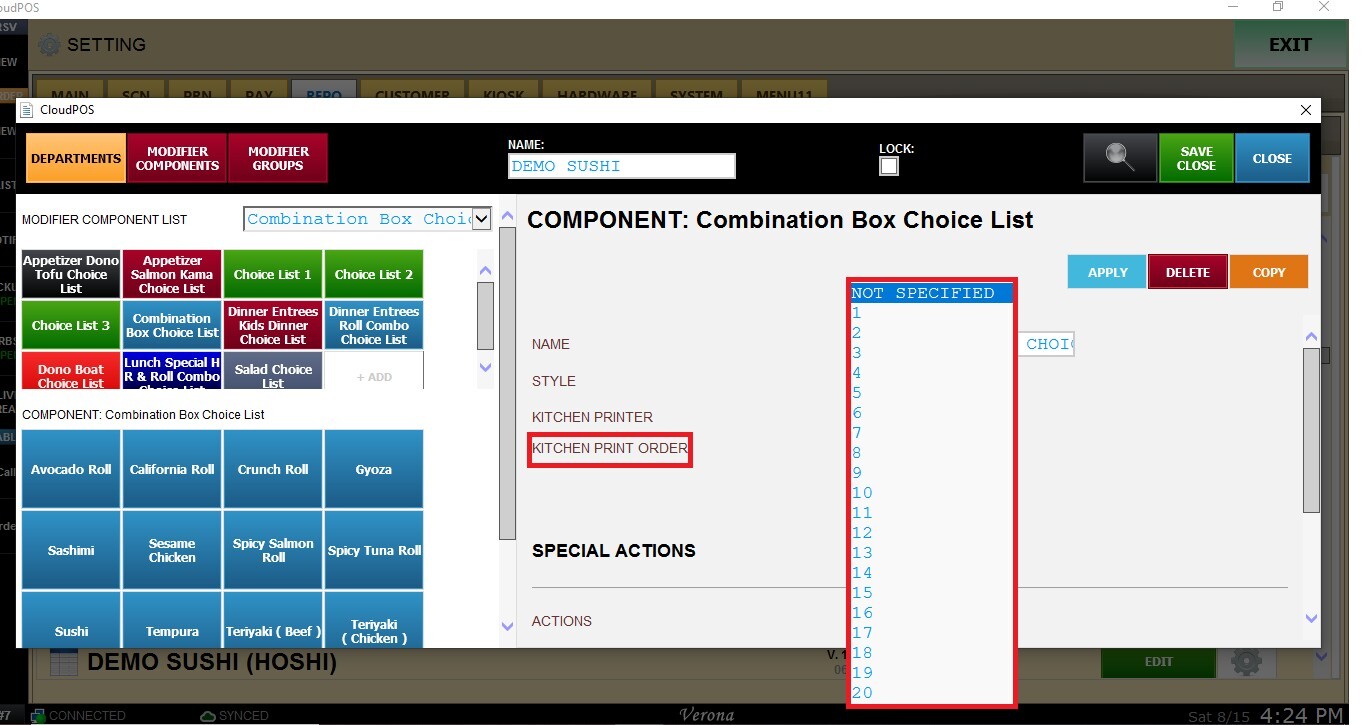
The KITCHEN PRINT ORDER setting determines the sequence or priority in which the item or modifier component appears on the kitchen ticket. Select the appropriate option from the available choices to control the printing order.
After configuring, click APPLY, then SAVE CLOSE.