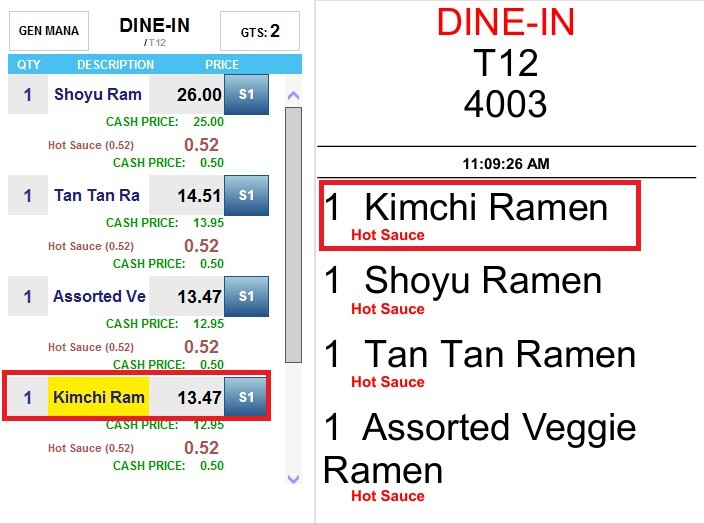
Kitchen Printer and Print Order
The Kitchen Printer feature allows individual items to be assigned to specific kitchen printers. By default, items inherit the kitchen printer configuration from their category, but this can be overridden when a different printer assignment is required for a specific item. This helps ensure items are routed to the appropriate preparation station.
Main Screen > MENU > SETTINGS > REPO > EDIT> CATEGORY> Selected Item> KITCHEN PRINTER/KITCHEN PRINT ORDER.
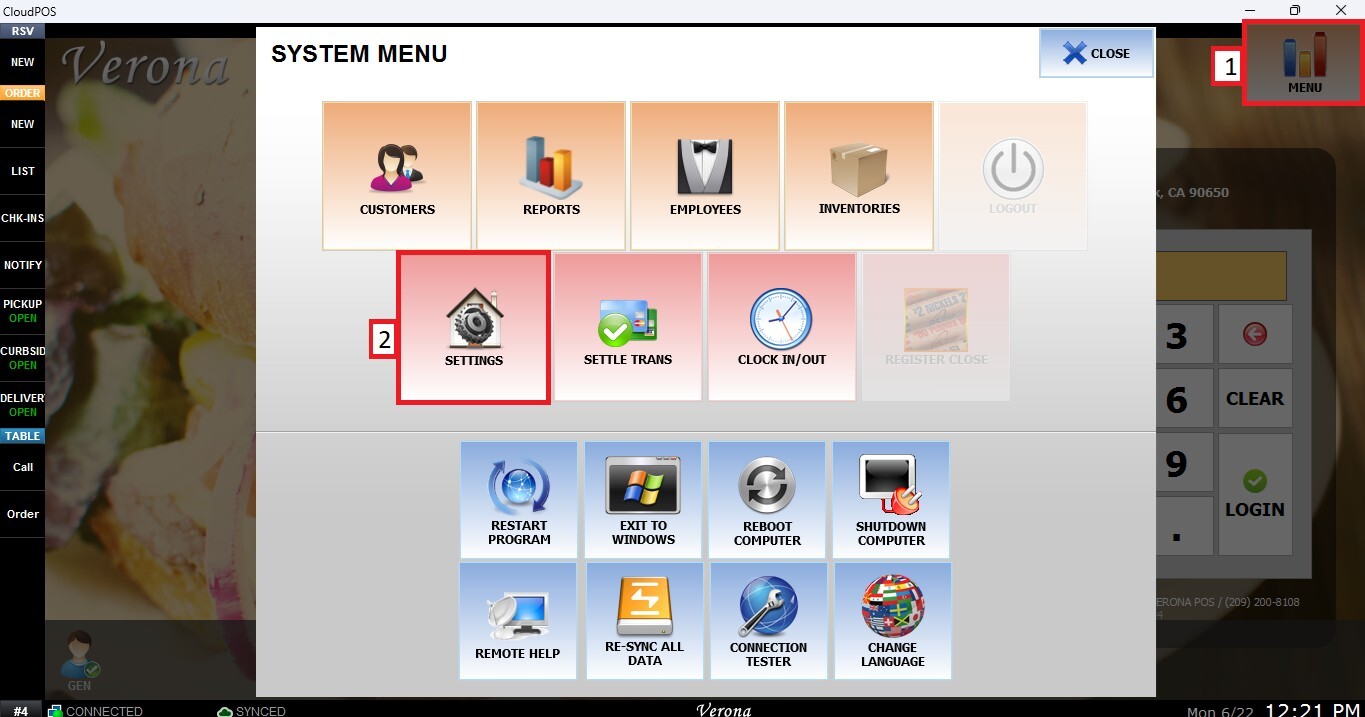
Go to MENU, then SETTINGS.
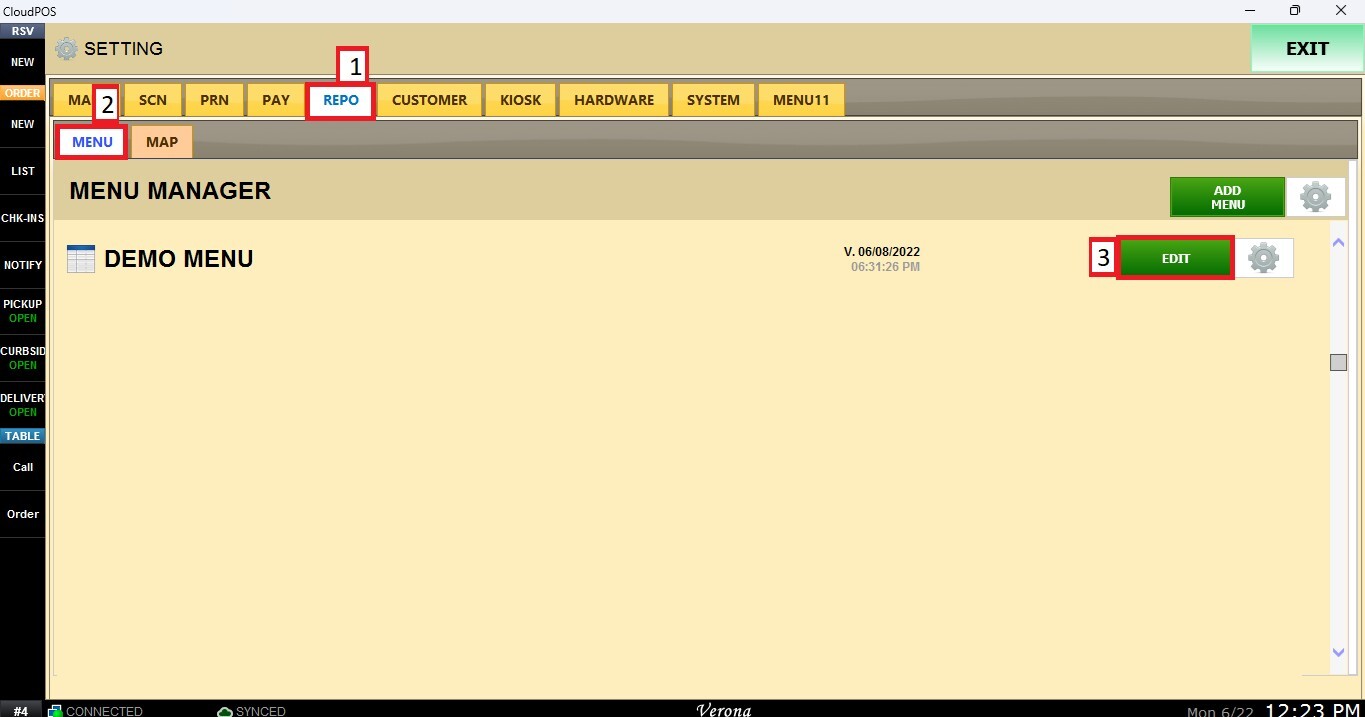
Open the REPO tab, select MENU to locate your menu, and click EDIT.
Click on the category that contains the item you want to configure. Then, select the item and scroll down through the item settings until you reach the Kitchen Printer/ Kitchen Print Order section.
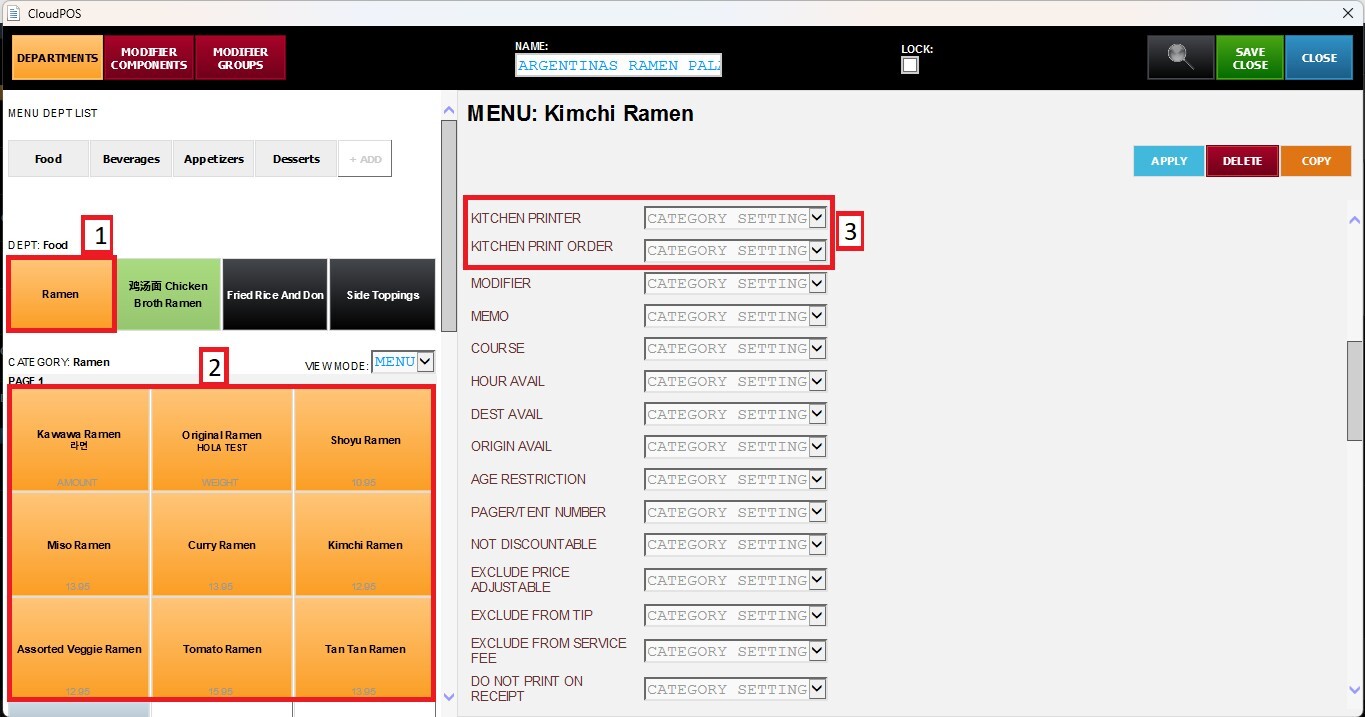
CONFIGURE KITCHEN PRINTERS
On the Kitchen Printer dropdown menu, select the desired option for the item.
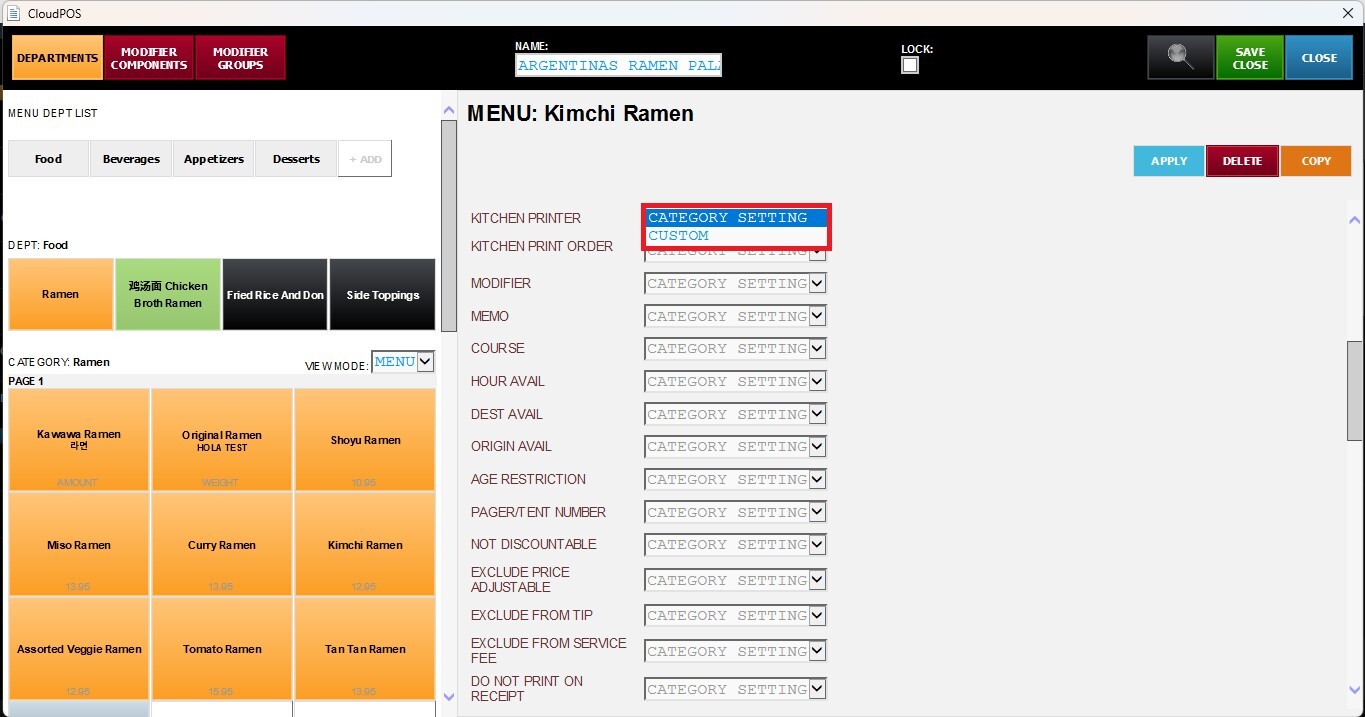
Category Setting: The item inherits and applies the Kitchen Printer settings configured for its category by default.
CUSTOM: Enables additional Kitchen printer configuration options.
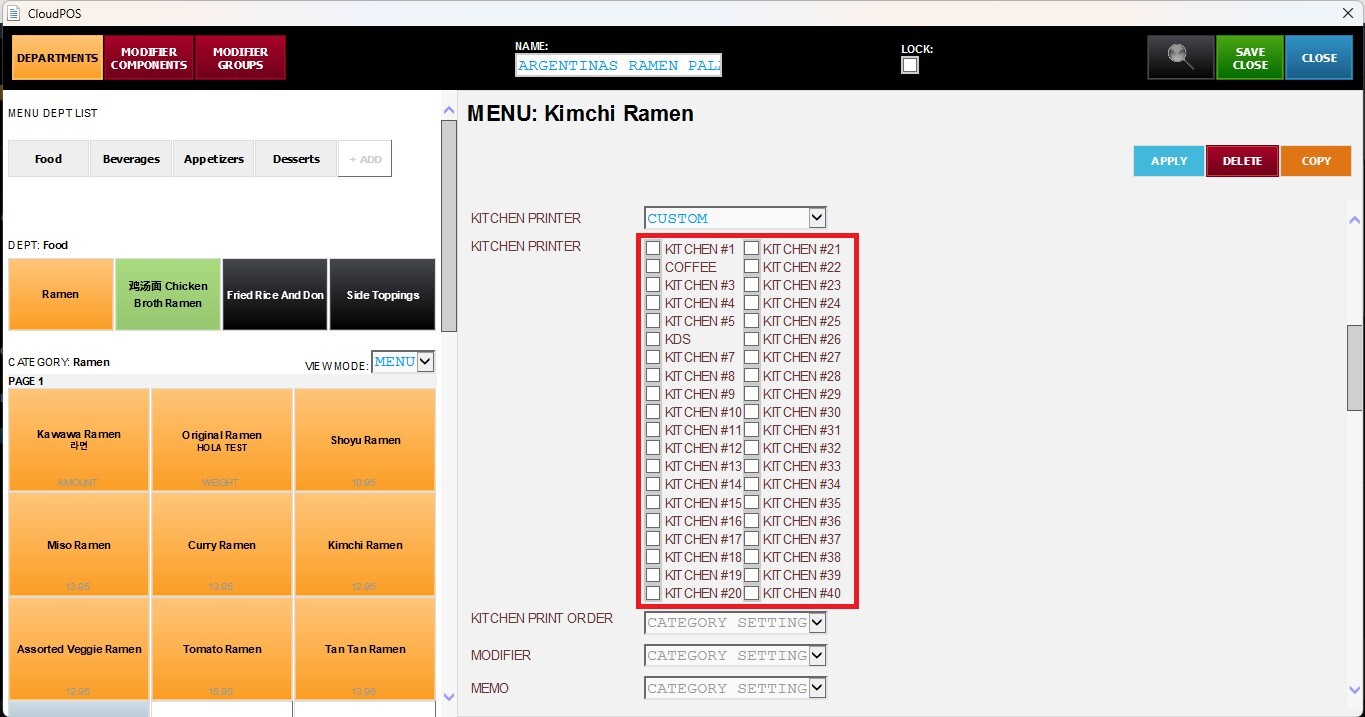
For a detailed explanation of the Kitchen Printer and Print Order options, please refer to: Assigning a Category to a Kitchen Printer.
KITCHEN PRINT ORDER
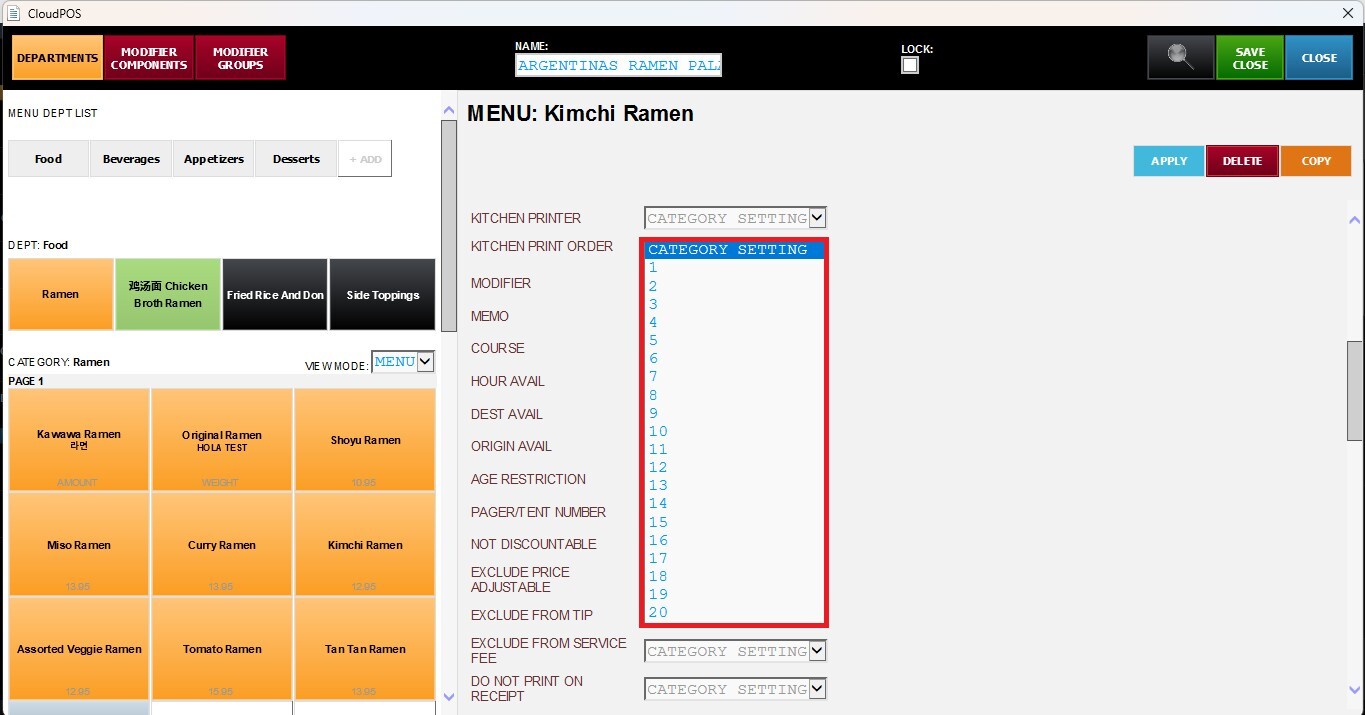
The Kitchen Print Order setting controls the order in which an item is printed on kitchen tickets. By default, items inherit this setting from their category, but it can be overridden for an individual item.
From the Kitchen Print Order dropdown menu, select the desired print order for the item.
After making all the changes, press APPLY and SAVE and CLOSE to save the configuration.
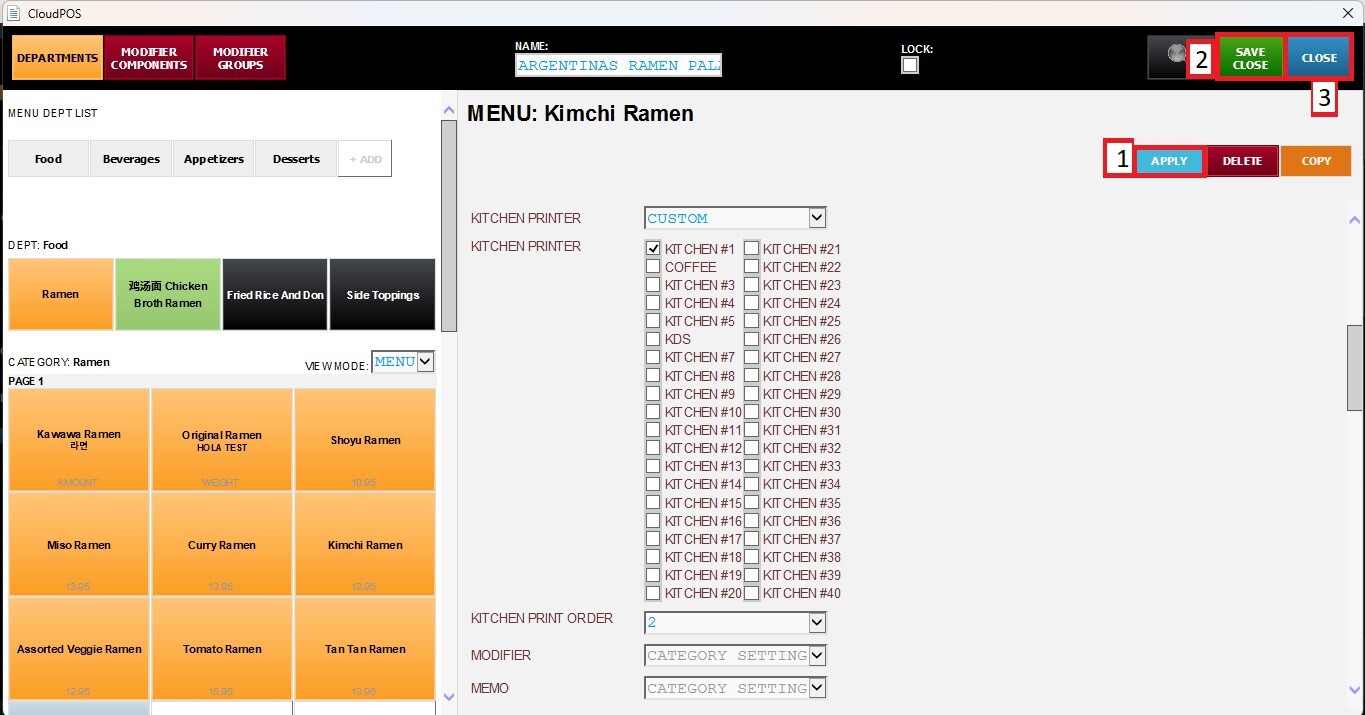
Result
The item will be printed according to the selected Kitchen Print Order.