Modifier Component Kitchen Printer
This setting determines how a selected modifier component is routed to the kitchen printer when an order is placed. A modifier component can be assigned to a specific kitchen printer so that the kitchen staff can receive the modifier information at the appropriate preparation station.
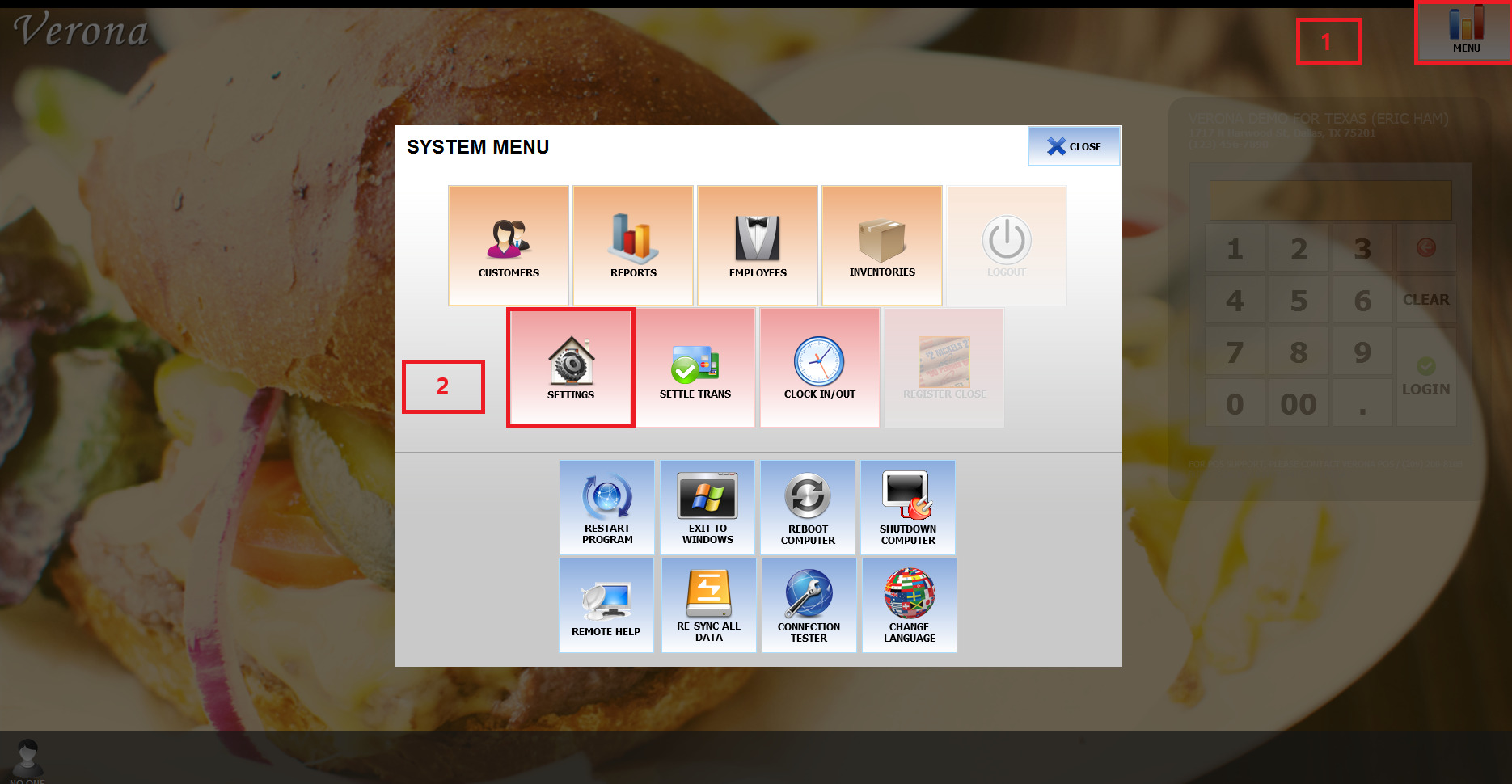
Main Screen> MENU> SETTING > REPO > MENU
From the Main Screen, click MENU and then SETTINGS
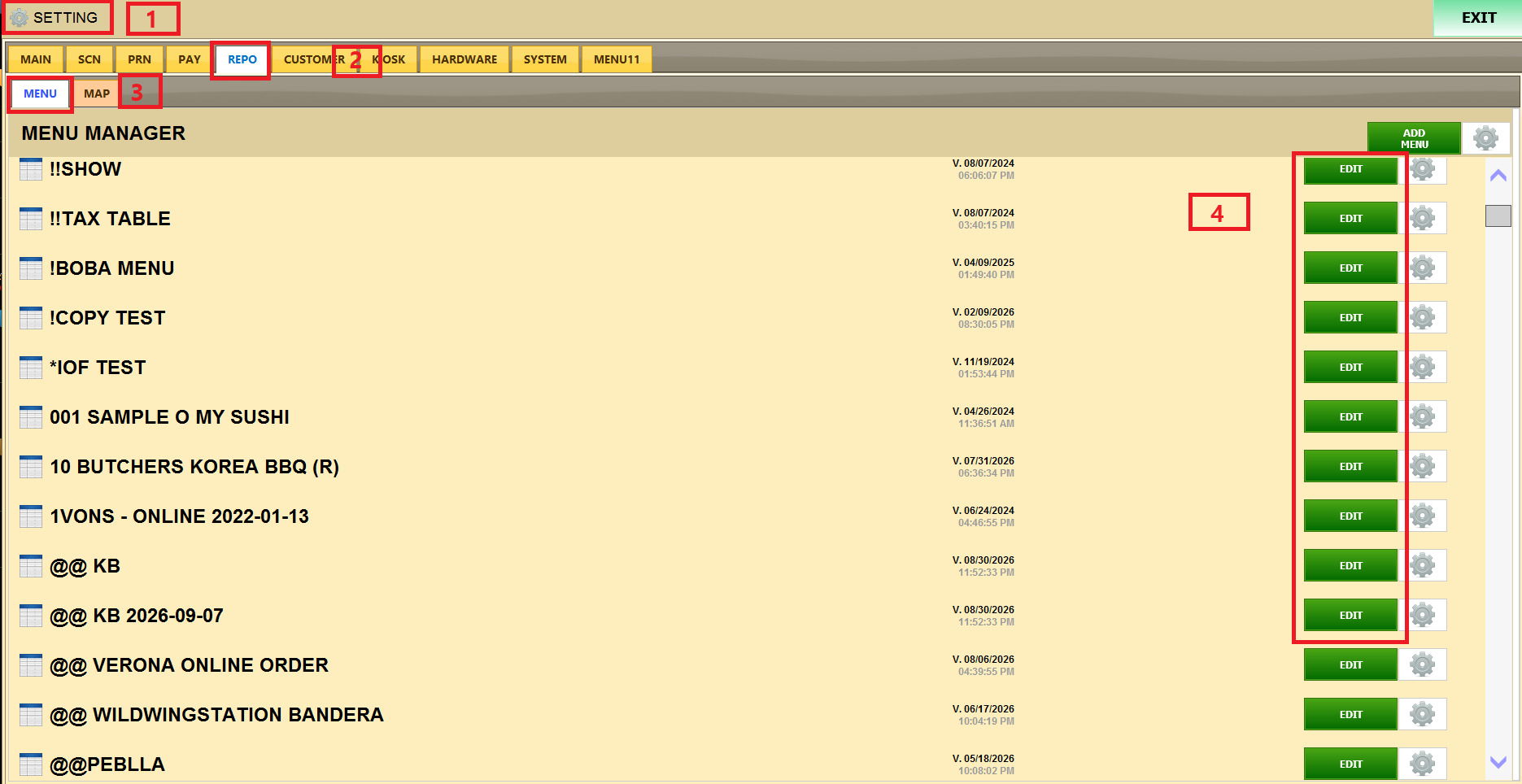
Navigate to REPO and open the MENU tab. Select the desired menu and click EDIT.
From the Menu Edit Screen, click MODIFIER COMPONENTS and select a component.
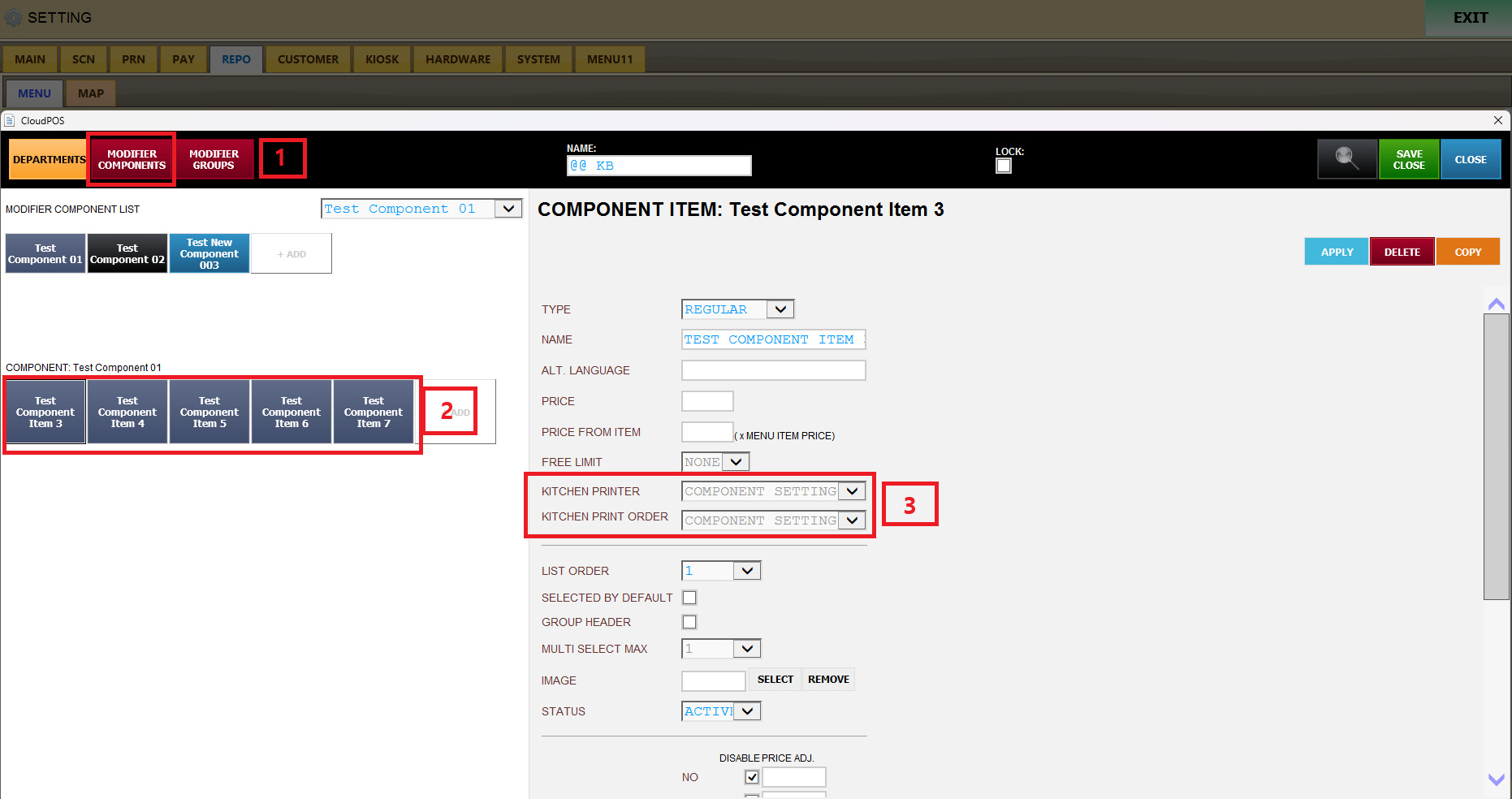
KITCHEN PRINTER
Explain the feature
The available options are:
OVERRIDE: replaces the existing Kitchen Printer setting with the printer assigned to the current modifier component.
Use this option when the current modifier component should be routed to a different kitchen printer instead of following the previous printer setting.
ADD: keeps the existing Kitchen Printer setting and adds another printer to it.
Use this option when the modifier information needs to be printed to an additional kitchen printer while still being printed to the existing printer.
ONLY: limits the modifier component to the selected Kitchen Printer.
It is used when the modifier information should be printed only to a specific printer and should not follow other existing printer settings.
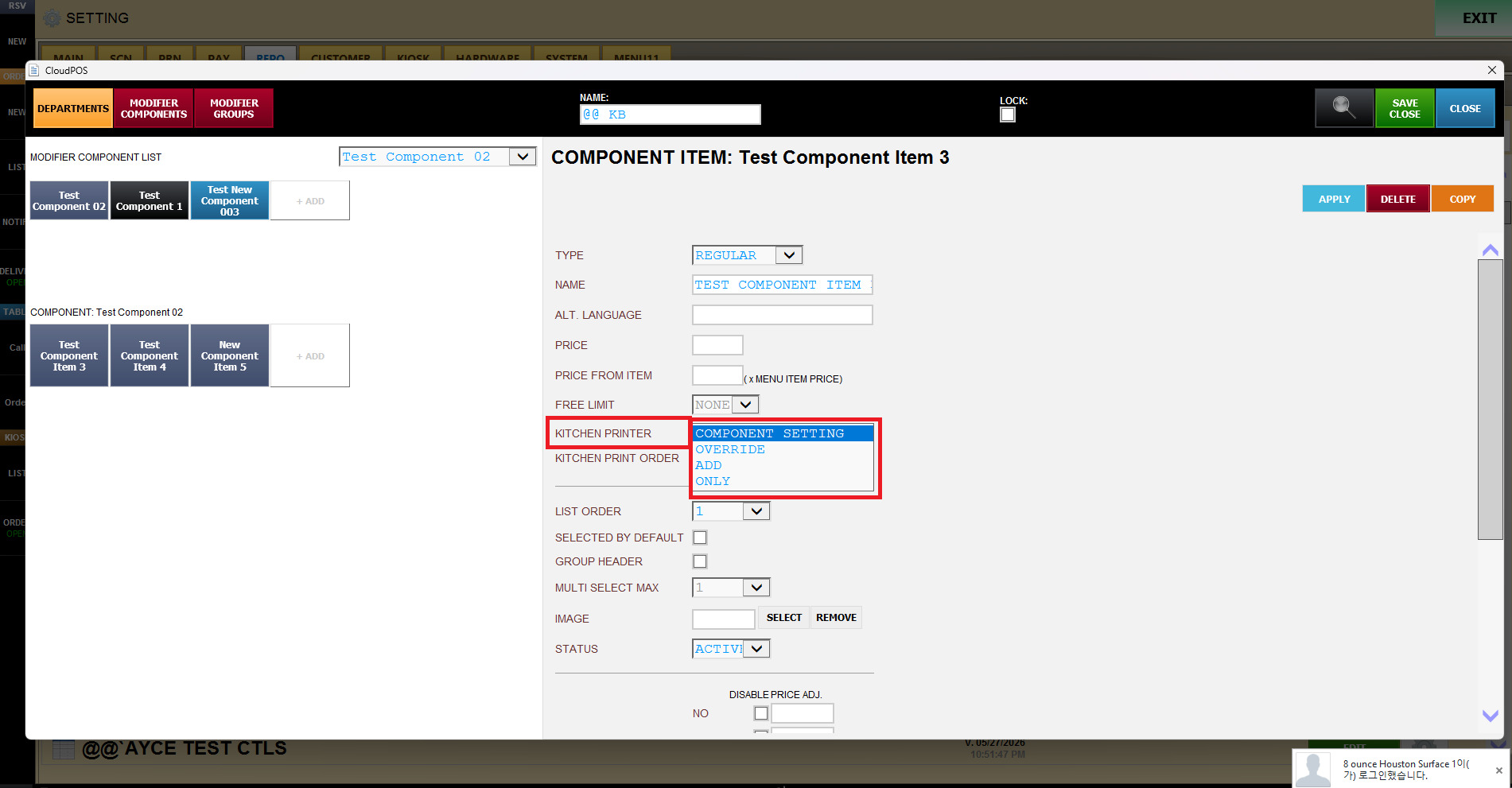
These options determine how the kitchen printer setting for the modifier component will be applied.
KITCHEN PRINT ORDER
Determines the printing sequence of Modifier Components on the kitchen printer.
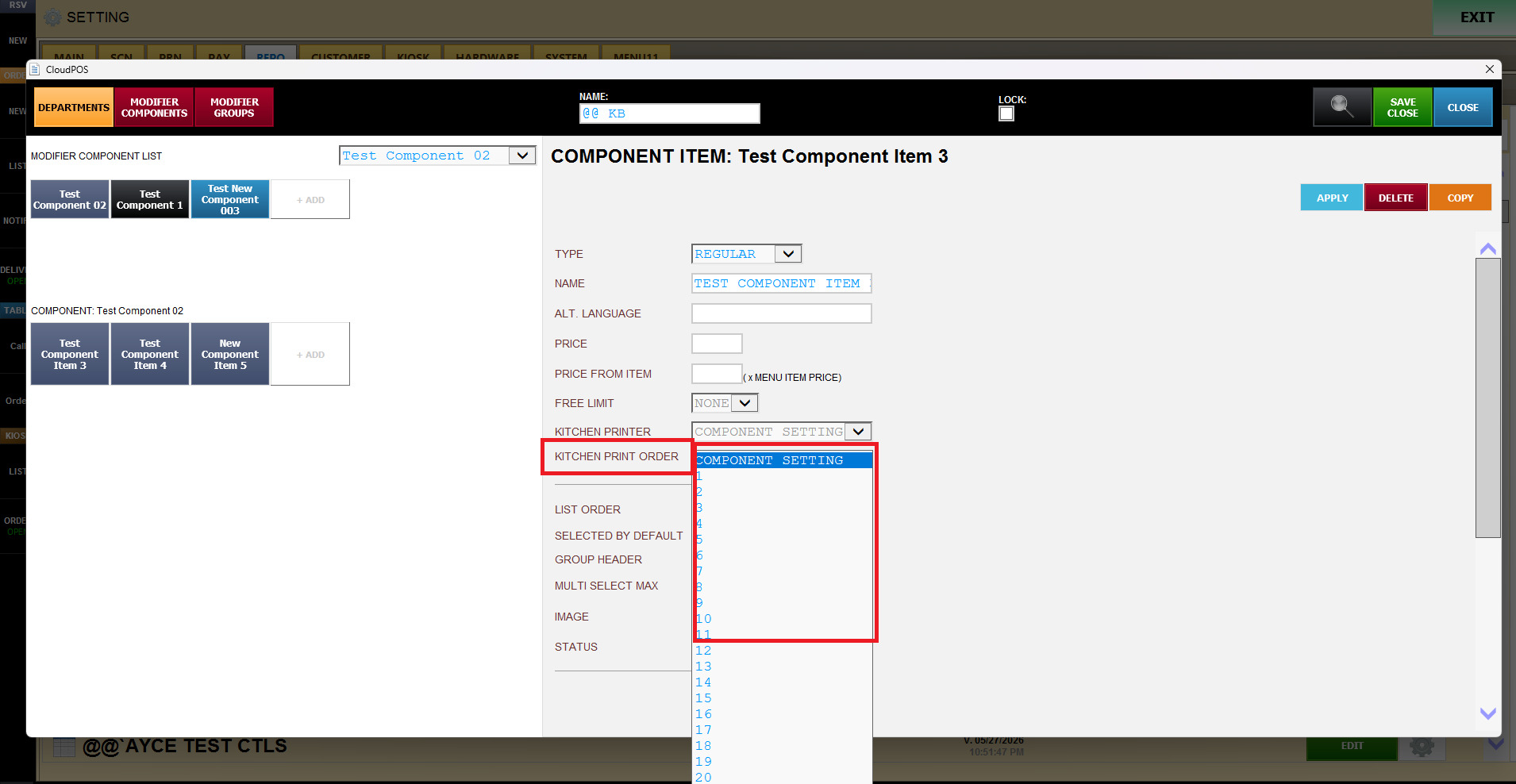
When a menu item has multiple Modifier Components, each component can be assigned a print order number.
This allows the kitchen ticket to print the modifier information in the desired sequence.