Order
The OLO Order settings control how the orders that come from OLO are received on the POS, how they are shown in the sales report, and how their items are printed in the kitchen.
MENU> SETTINGS> MENU11> OLO> ORDER
Go to MENU and press SETTINGS.
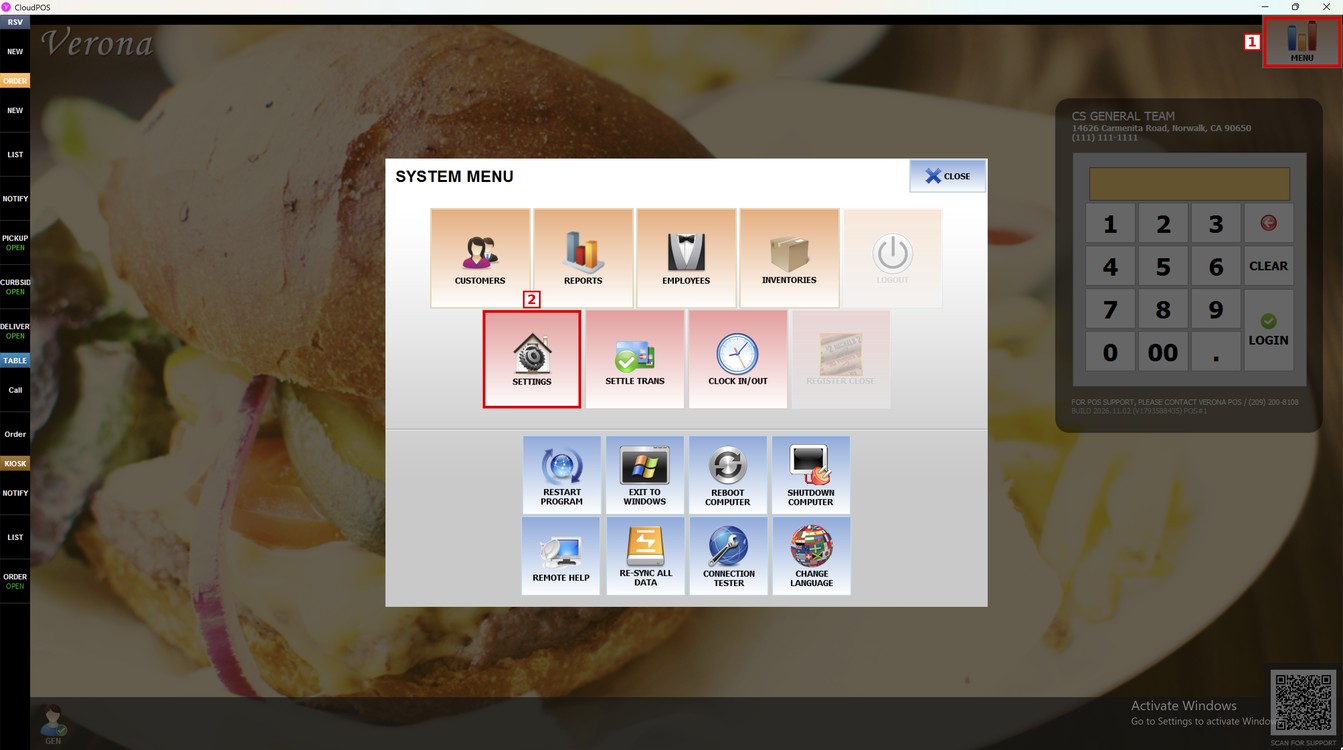
Press the MENU11 tab, then the OLO subtab, and then ORDER.
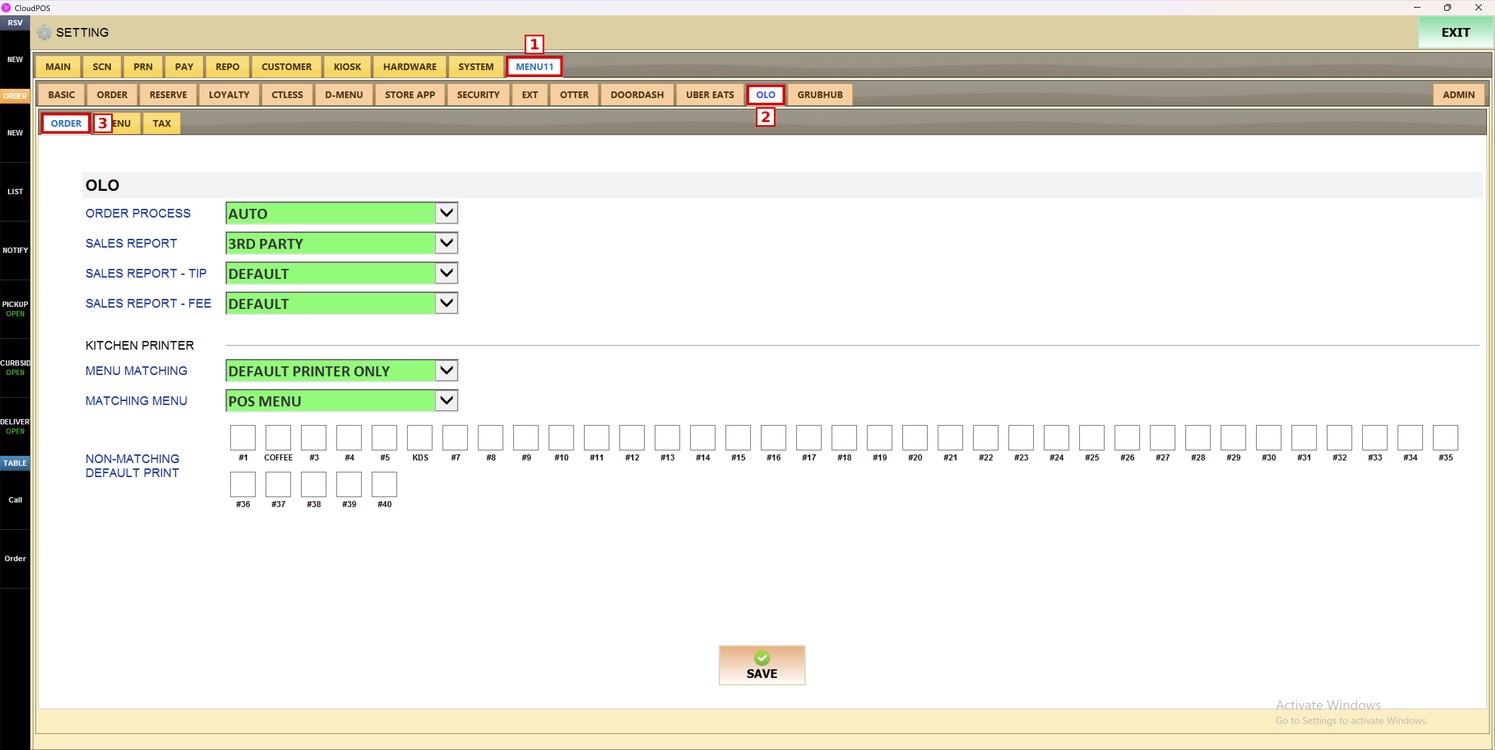
Order Process:
Sets how the OLO orders are received on the POS.
1. DISABLED: The POS does not receive OLO orders.
2. CONFIRMATION: The OLO orders must be accepted on the POS before they are processed.
3. AUTO: The OLO orders are accepted automatically.
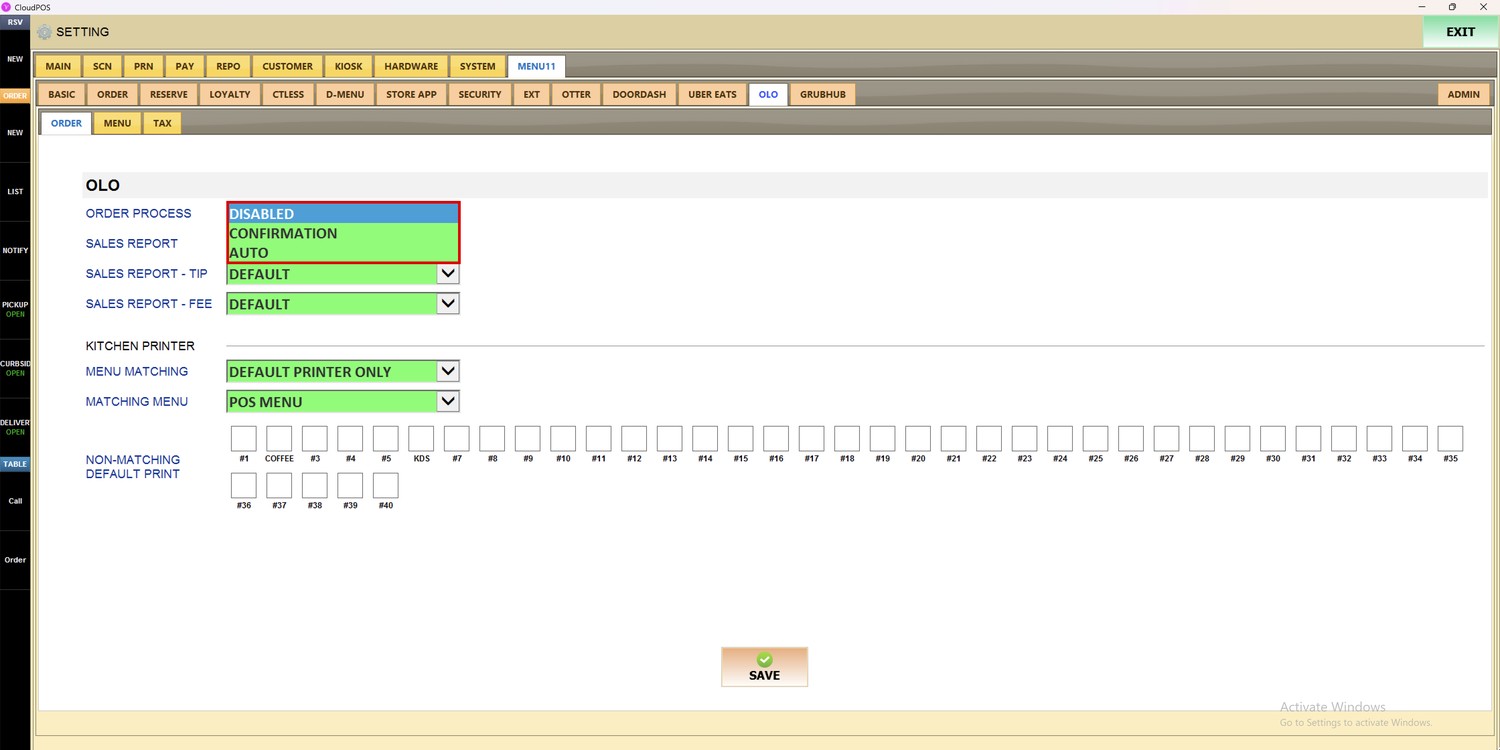
Sales Report:
Sets how the OLO sales are shown in the sales report.
1. DEFAULT: The OLO sales are reported like the other sales of the store.
2. ZERO OUT: The OLO sales are shown with a zero amount in the sales report.
3. 3RD PARTY: The OLO sales are reported as third-party sales.
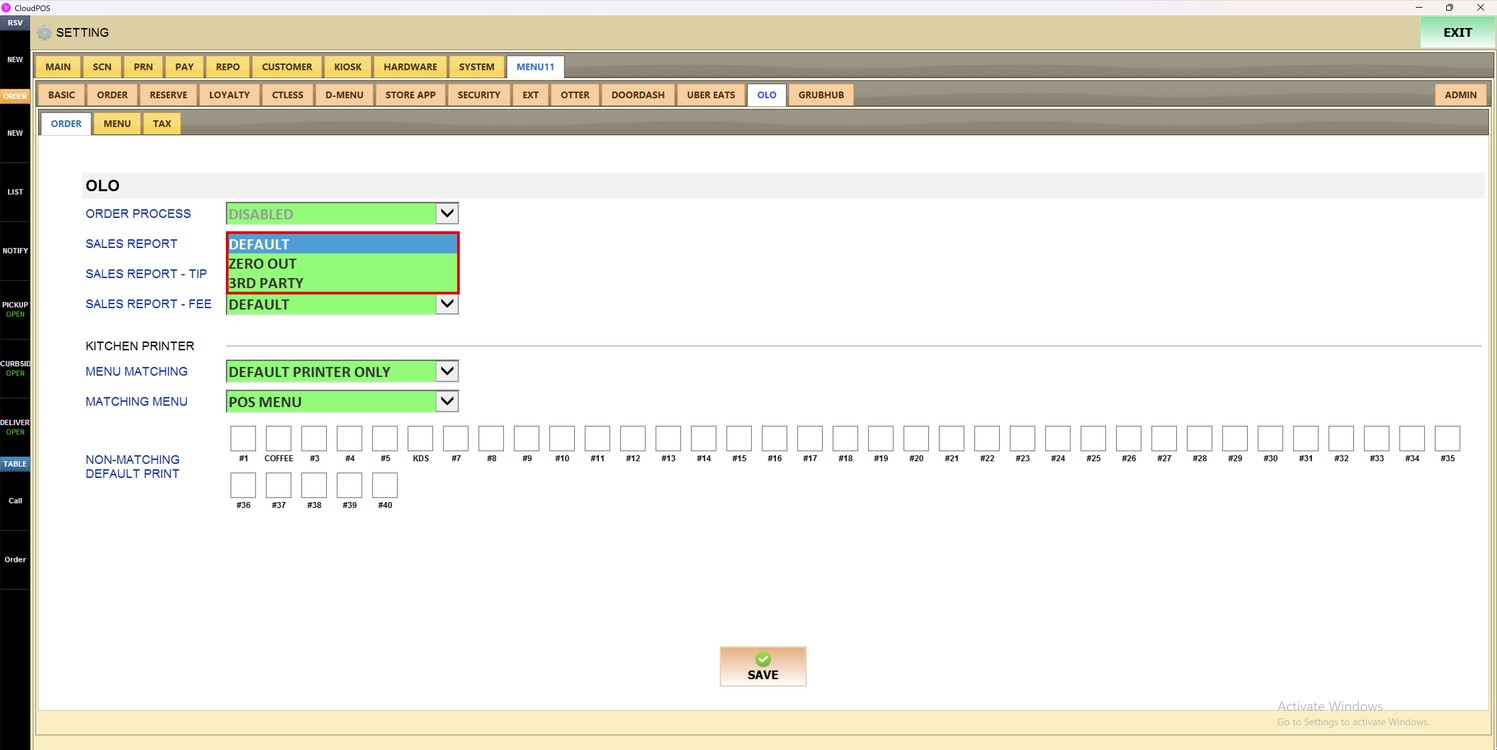
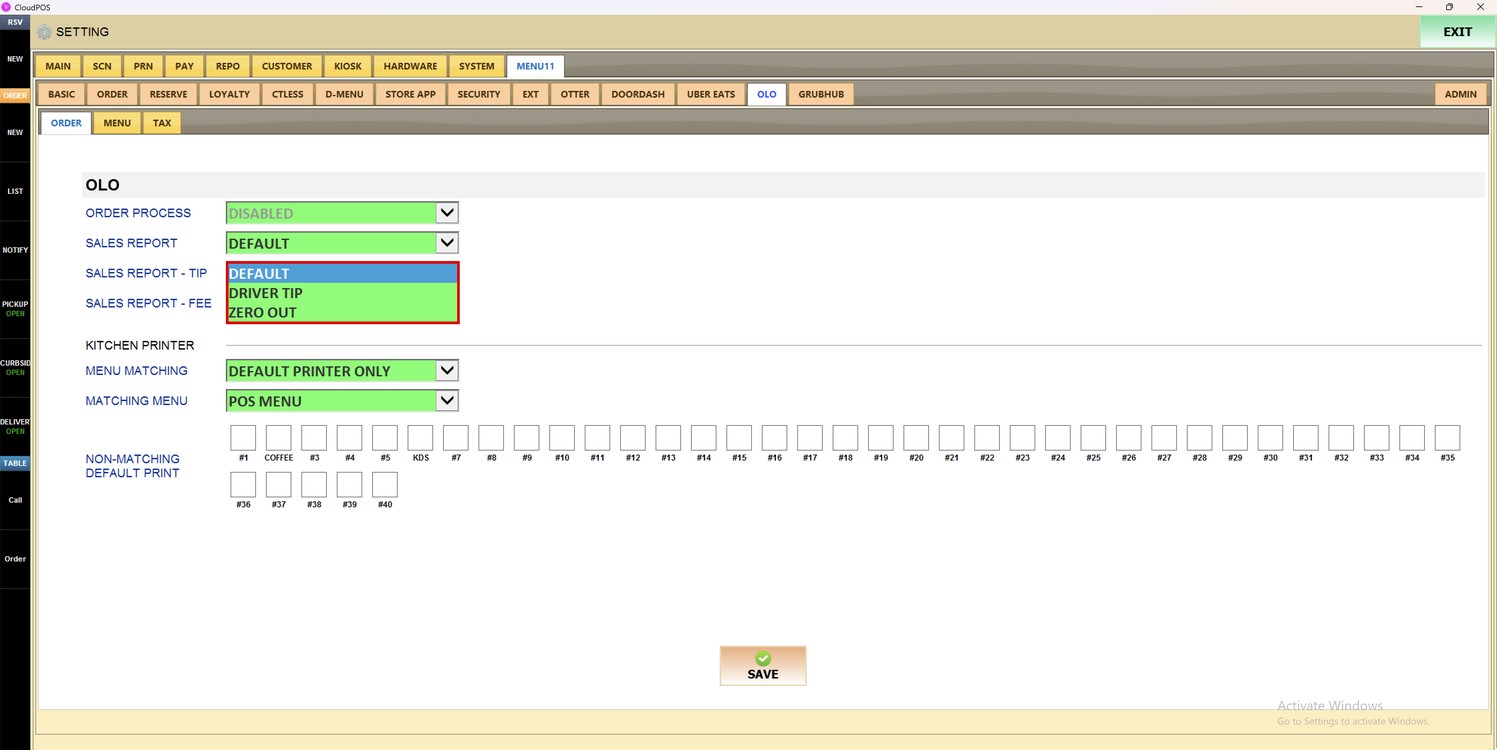
Sales Report - Tip:
Sets how the tips of the OLO orders are shown in the sales report.
1. DEFAULT: The tips are reported like the other tips of the store.
2. DRIVER TIP: The tips are reported as driver tips.
3. ZERO OUT: The tips are shown with a zero amount in the sales report.
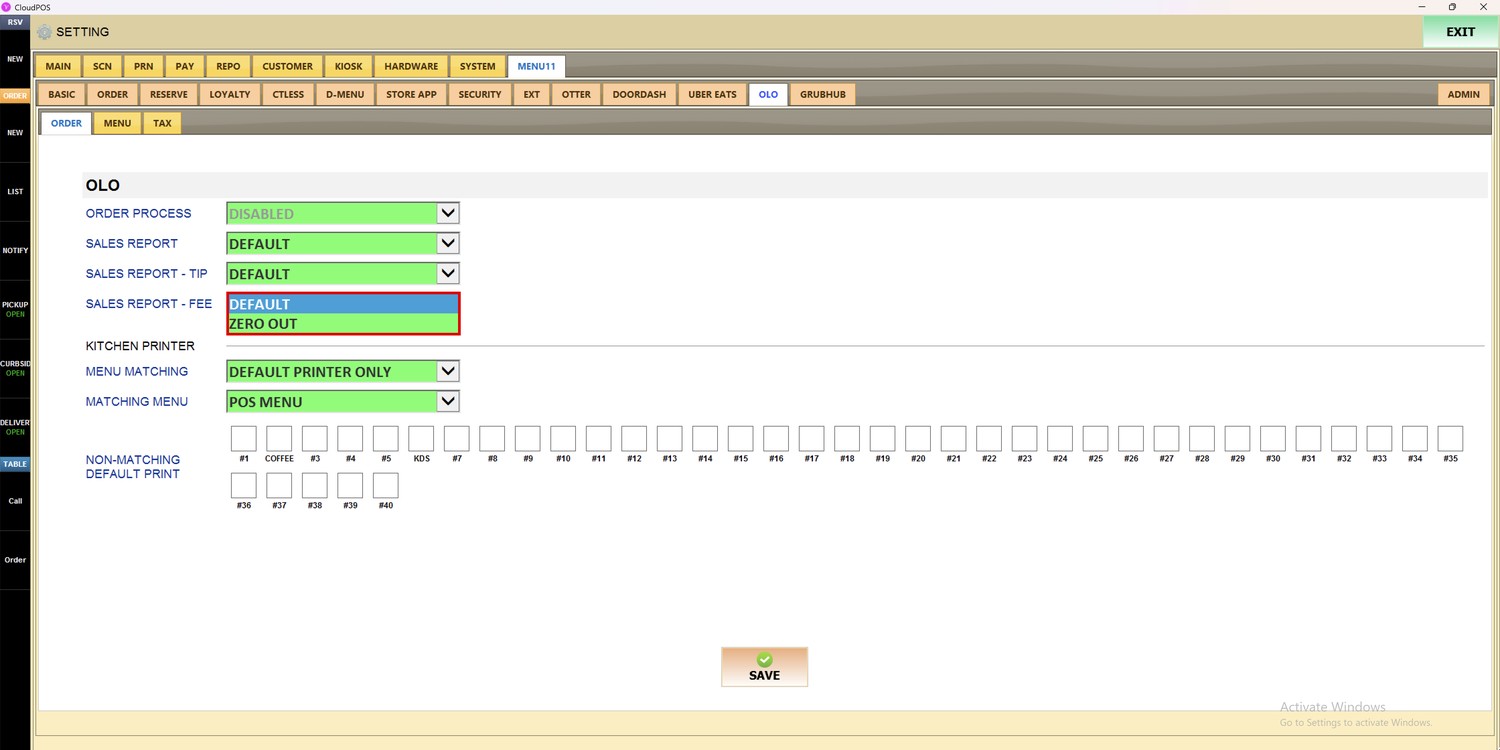
Sales Report - Fee:
Sets how the fees of the OLO orders are shown in the sales report.
1. DEFAULT: The fees are reported like the other fees of the store.
2. ZERO OUT: The fees are shown with a zero amount in the sales report.
Kitchen Printer
These settings control how the items of the OLO orders are printed in the kitchen.
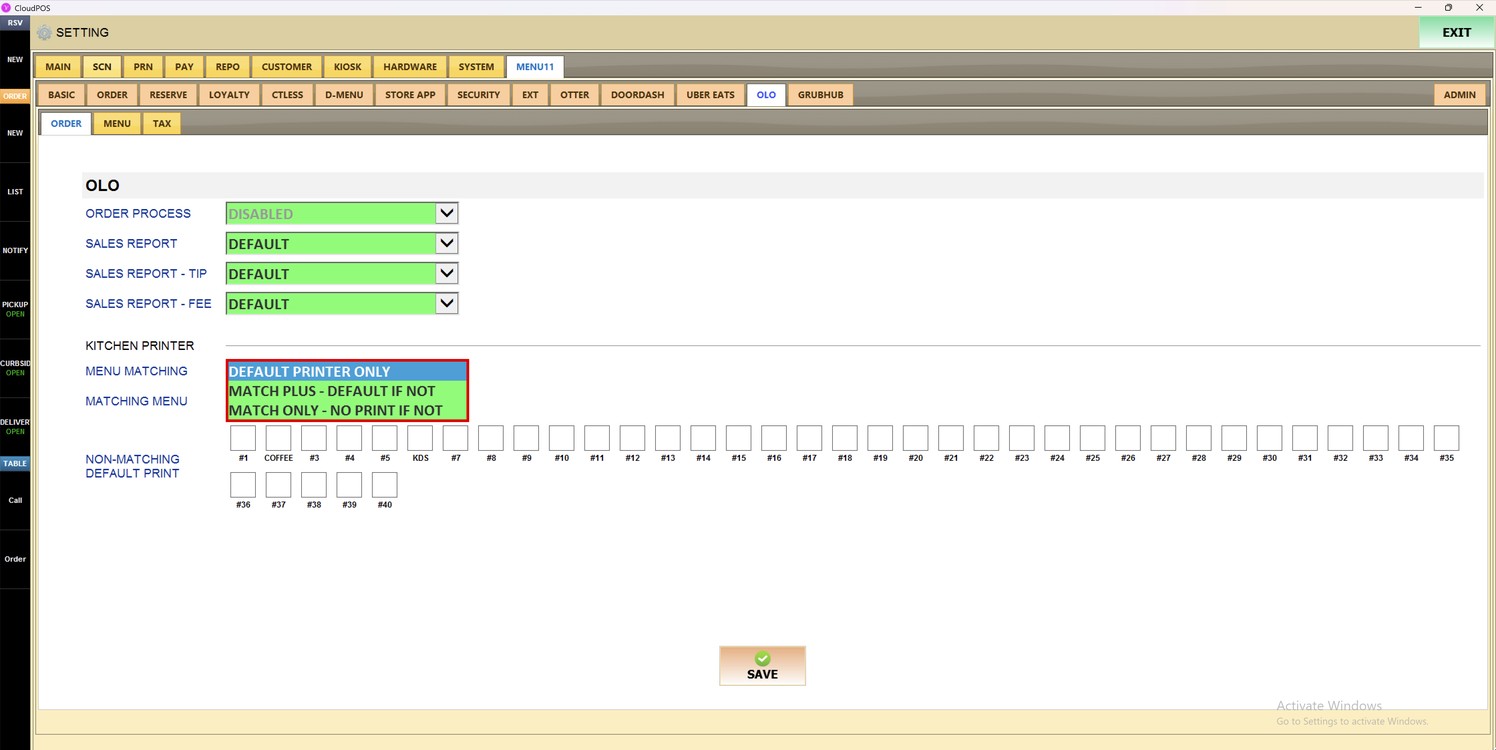
Menu Matching:
Sets how the OLO items are sent to the kitchen printers.
1. DEFAULT PRINTER ONLY: All the items are printed on the default printers selected in NON-MATCHING DEFAULT PRINT.
2. MATCH PLUS - DEFAULT IF NOT: The items that match an item of the POS menu are printed on the printers of that item. The items that do not match are printed on the default printers.
3. MATCH ONLY - NO PRINT IF NOT: Only the items that match an item of the POS menu are printed. The items that do not match are not printed.
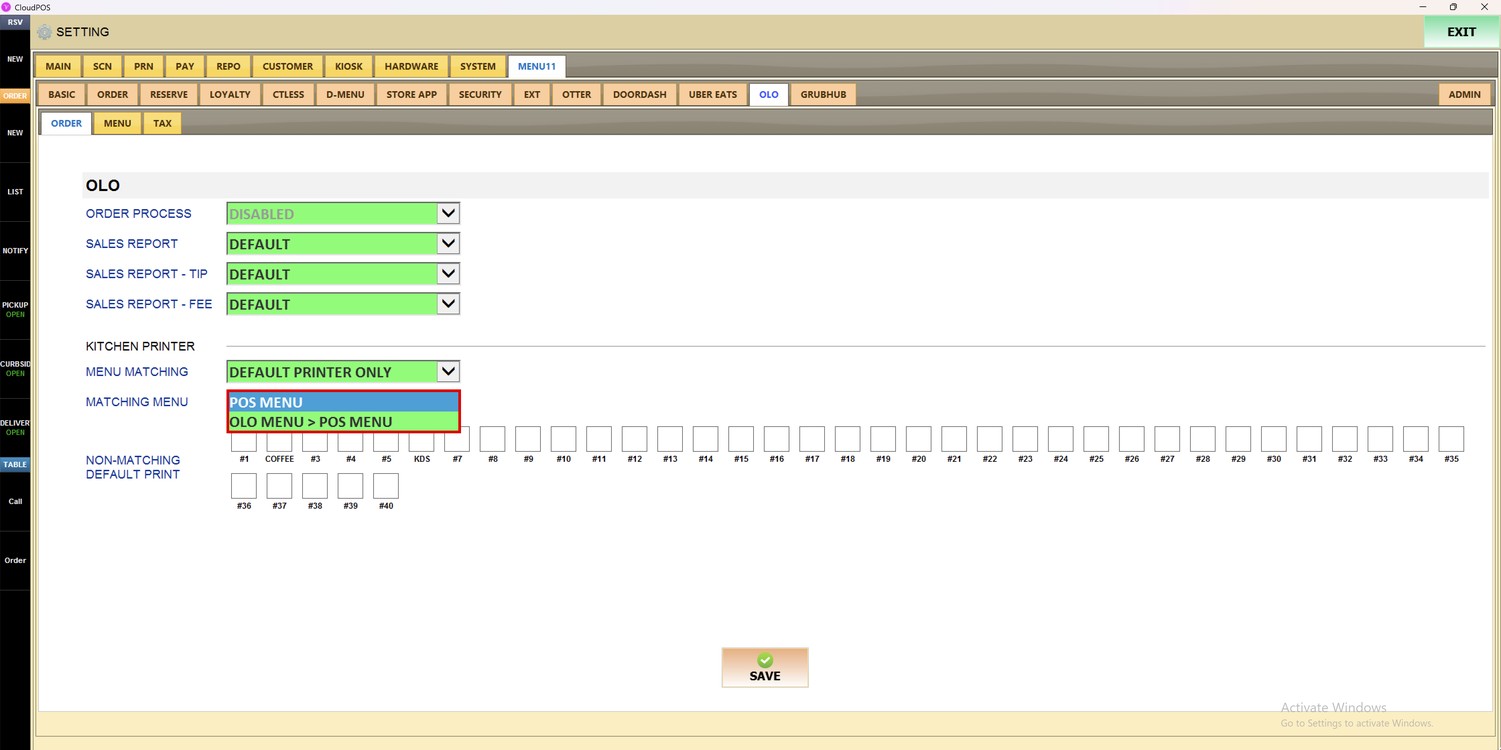
Matching Menu:
Sets the menu used to match the OLO items with the items of the POS.
1. POS MENU: The OLO items are matched with the POS menu.
2. OLO MENU > POS MENU: The OLO menu is matched with the POS menu.
Non-Matching Default Print:
Select the printers where the items that do not match an item of the POS menu are printed. Each box is a printer, from #1 to #40.
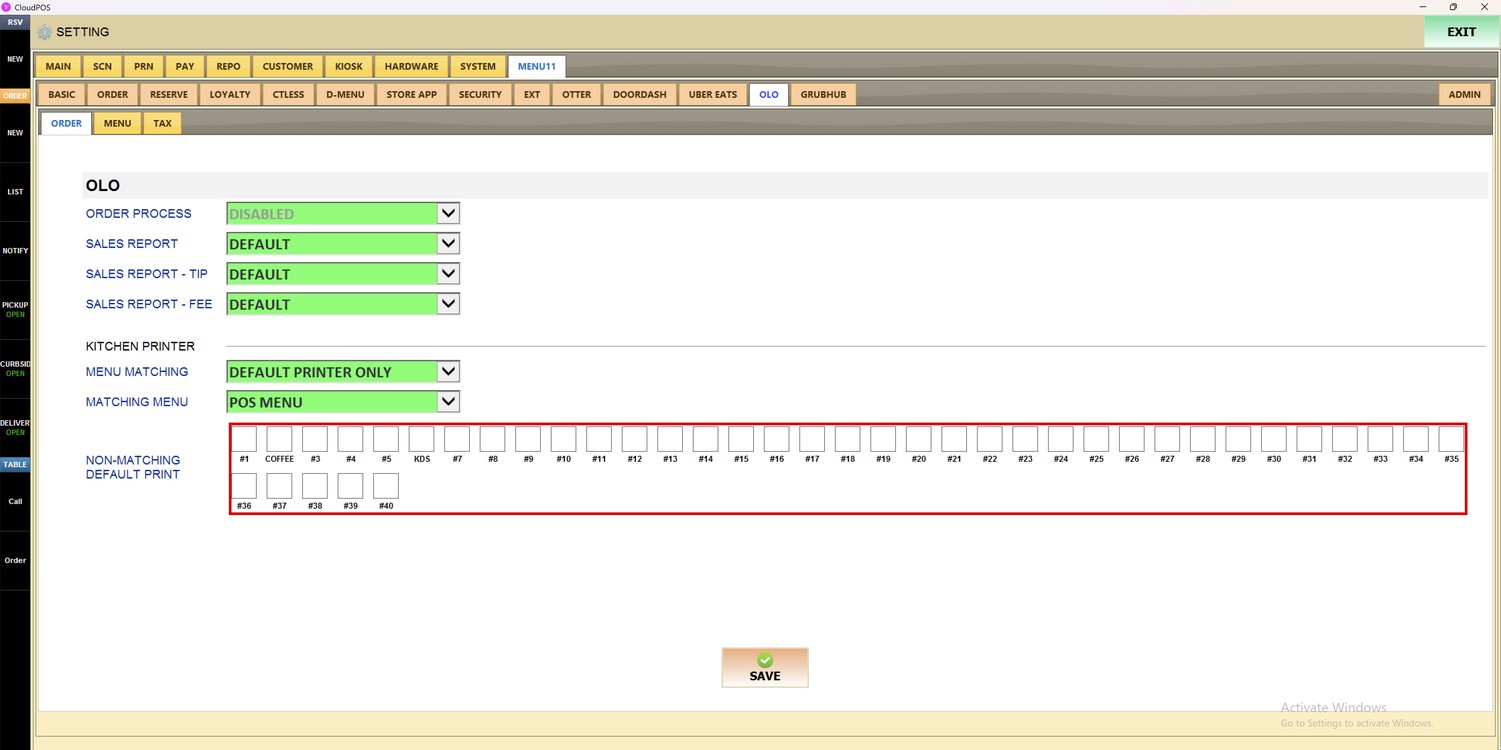
Hint: The boxes show the name of the printer when it has one, for example COFFEE or KDS.
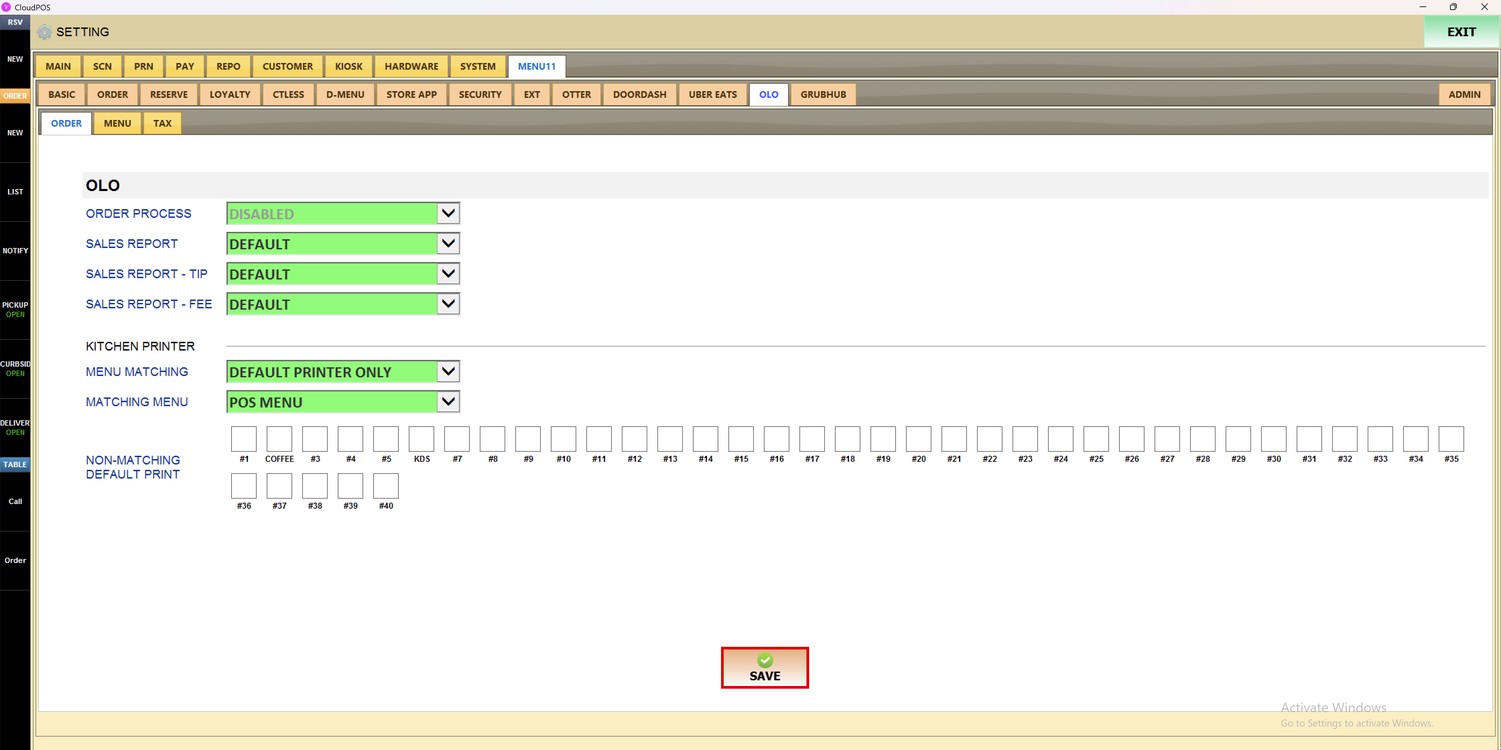
Press SAVE to save the changes.
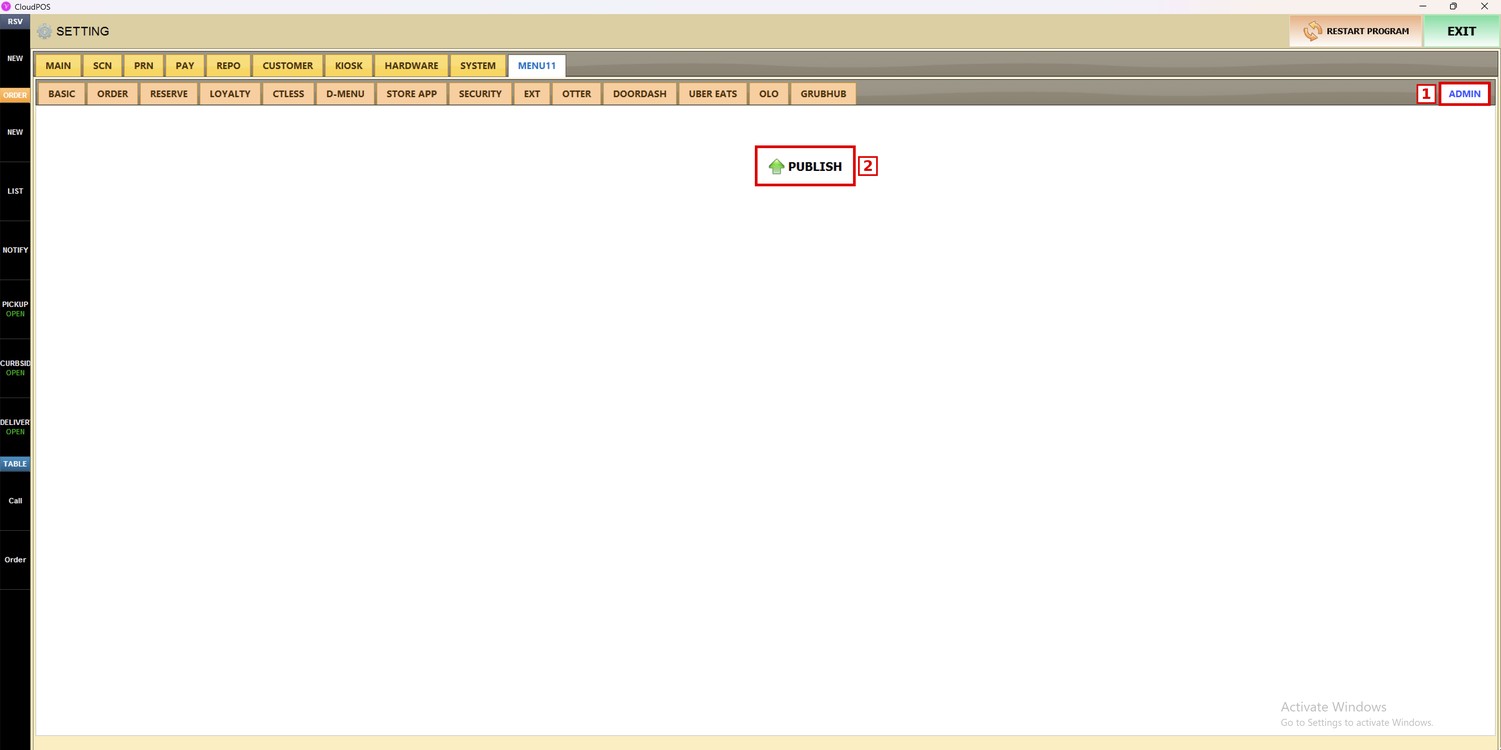
Press the ADMIN subtab and then PUBLISH to apply the changes.
To learn how to set up another online ordering service on the POS, please refer to the POS Setting for Otter Guide.