Giftcard Tools
The Giftcard tools are used to sell gift cards, add money to them, check their balance and convert them, directly from the ticket screen of a table.
Main Screen> TABLE> Select a Table> TOOLS> GIFTCARD
Open the ticket of the table and press TOOLS at the top right of the screen.
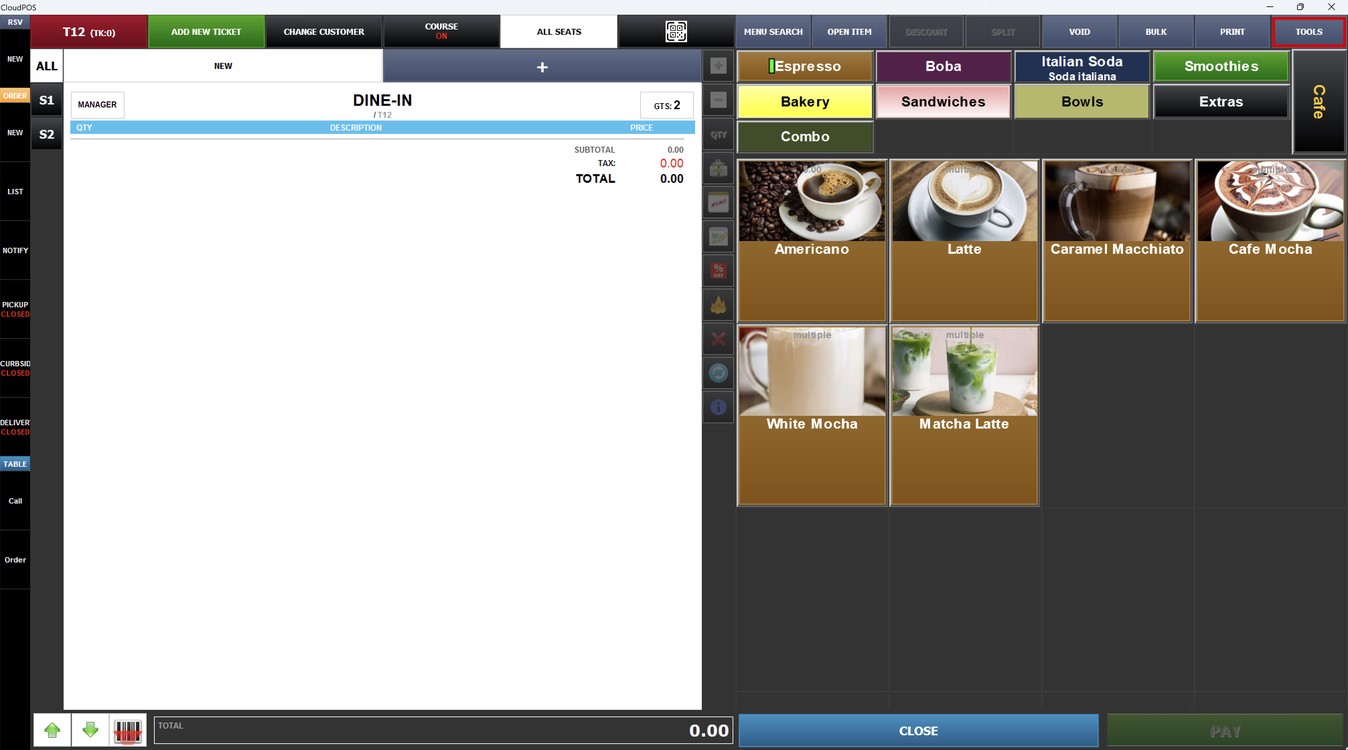
The GIFTCARD section has four tools:
1. PURCHASE: Sells a new gift card with the amount the customer wants to load.
2. RELOAD: Adds money to a gift card the customer already has.
3. CHECK BALANCE: Shows the balance left on a gift card.
4. CONVERT: Converts a gift card.
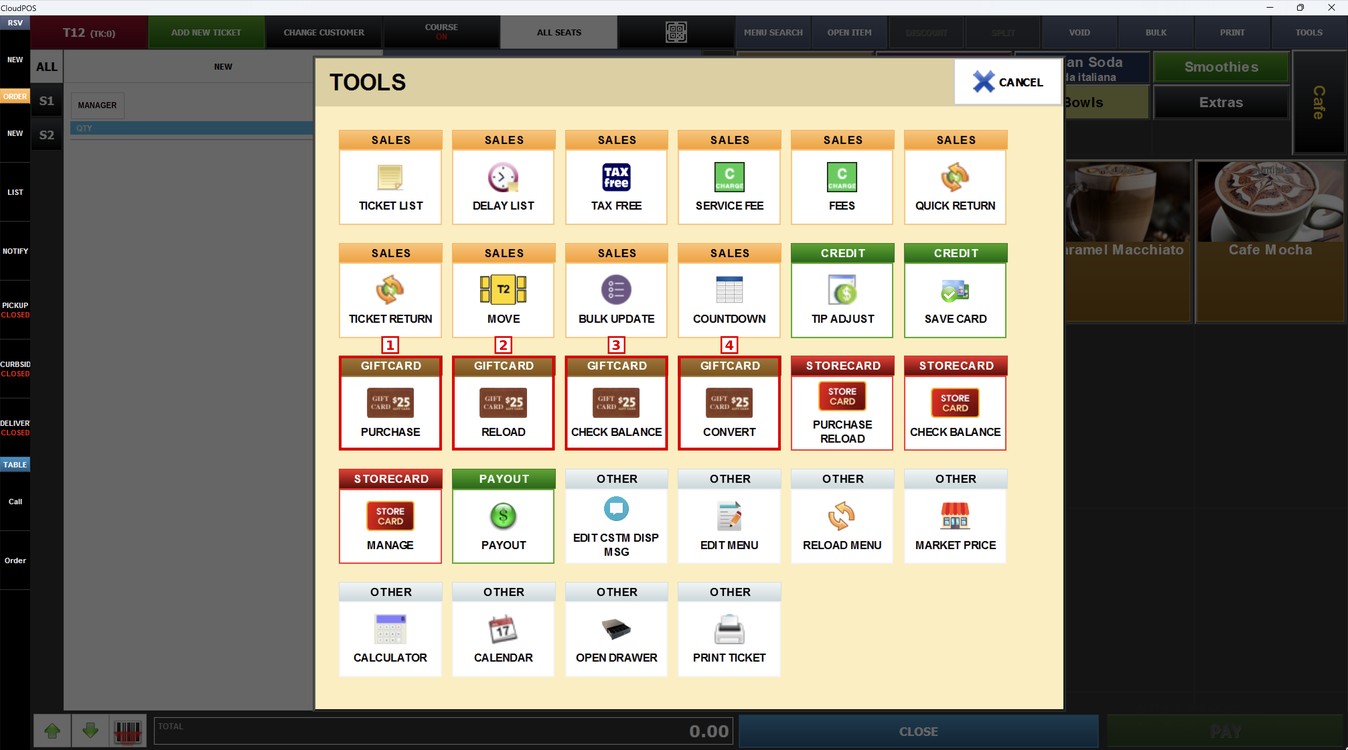
Purchase:
Press PURCHASE. The GIFT AMOUNT window opens. Enter the amount of the gift card and press DONE.
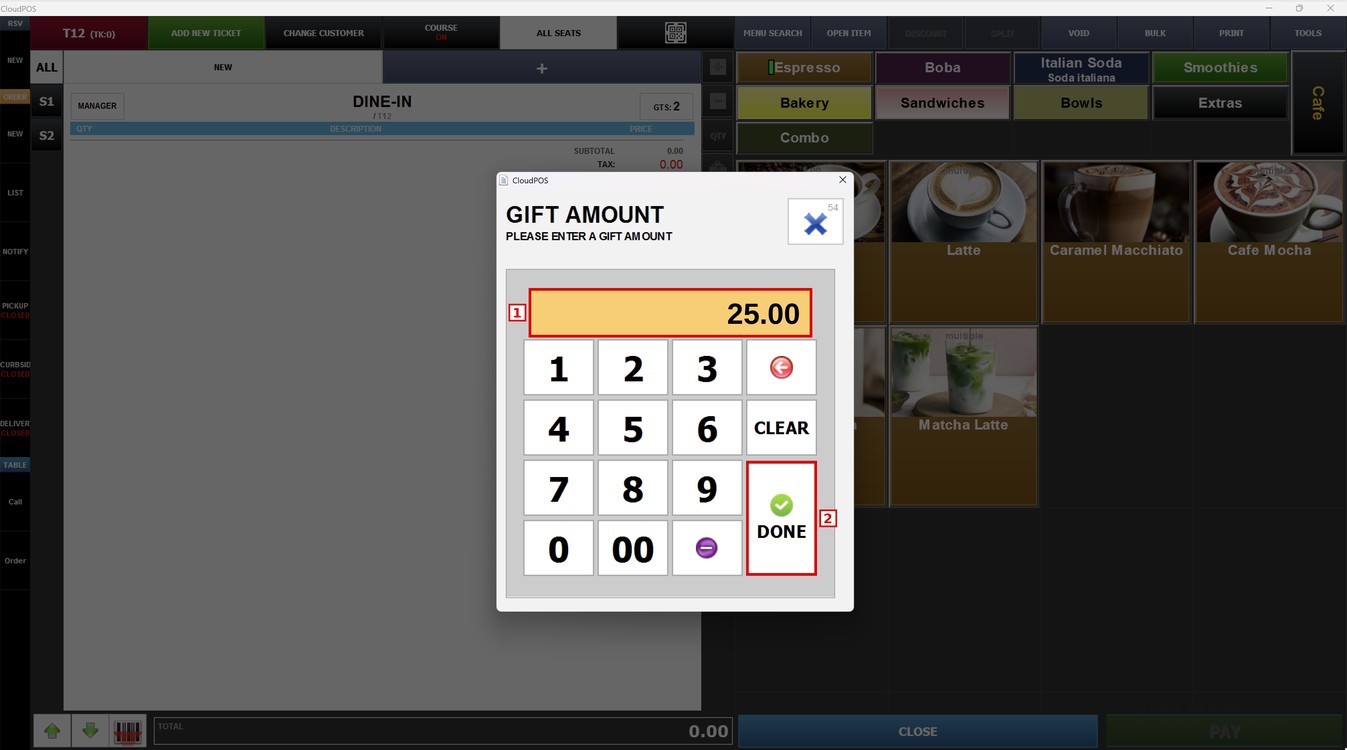
Reload:
Press RELOAD. Enter the amount to add to the gift card, and press DONE.
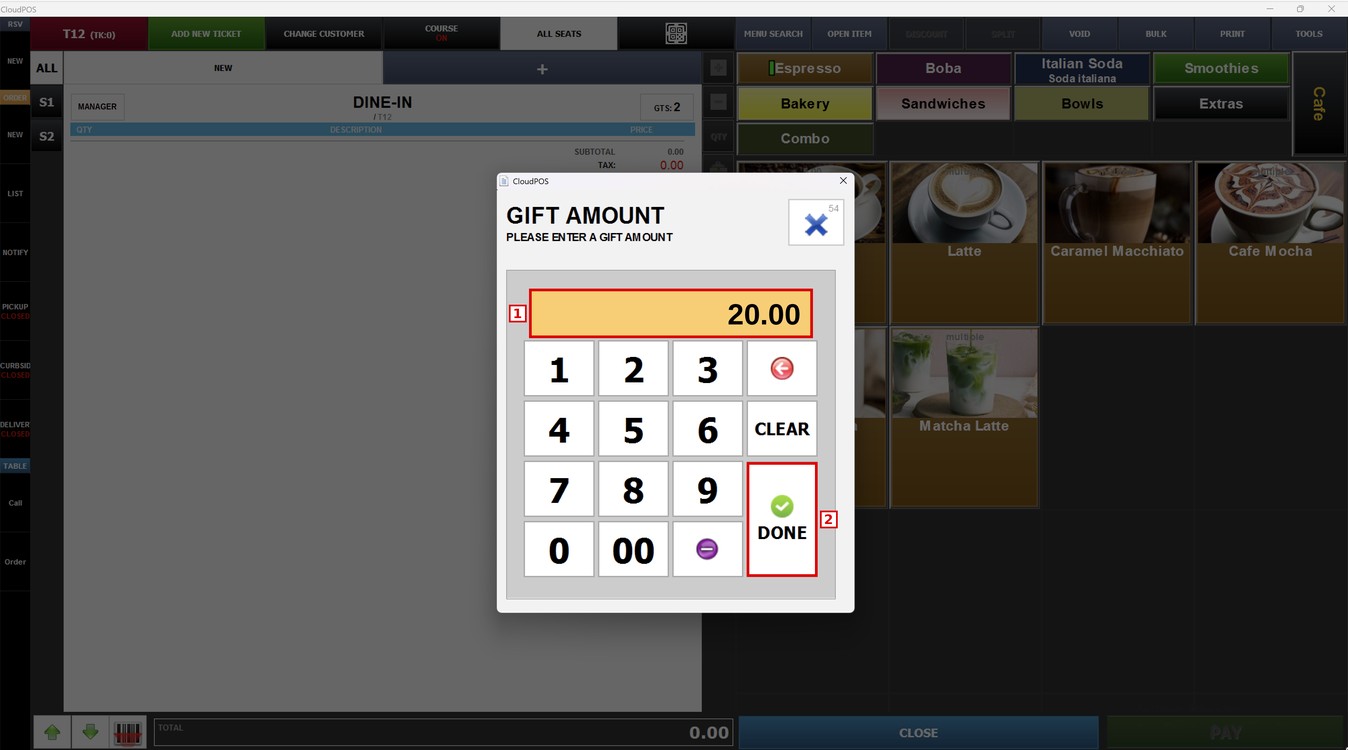
Check Balance:
Press CHECK BALANCE and swipe, scan or enter the gift card. The POS shows the balance of the card.
Convert:
Press CONVERT. Swipe, scan or enter the gift card number and press ENTER.
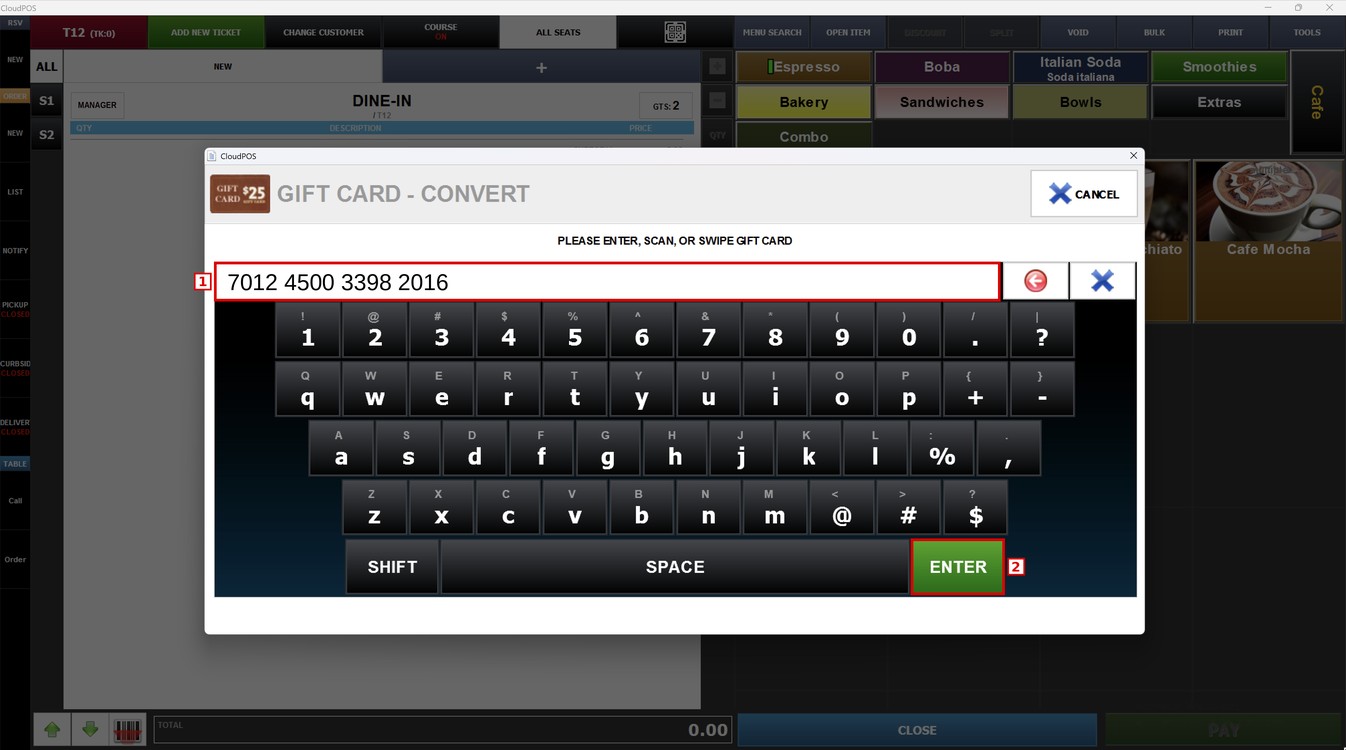
Hint: Press CANCEL to close any of these windows without changes.
To learn how to set up the gift card payments, please refer to the Gift Card Guide.