Pre-Order
The PRE ORDER section allows employees to create orders before a table becomes available. This is useful during busy periods, allowing staff to enter customer orders while guests are waiting, reducing service time once the table is ready.
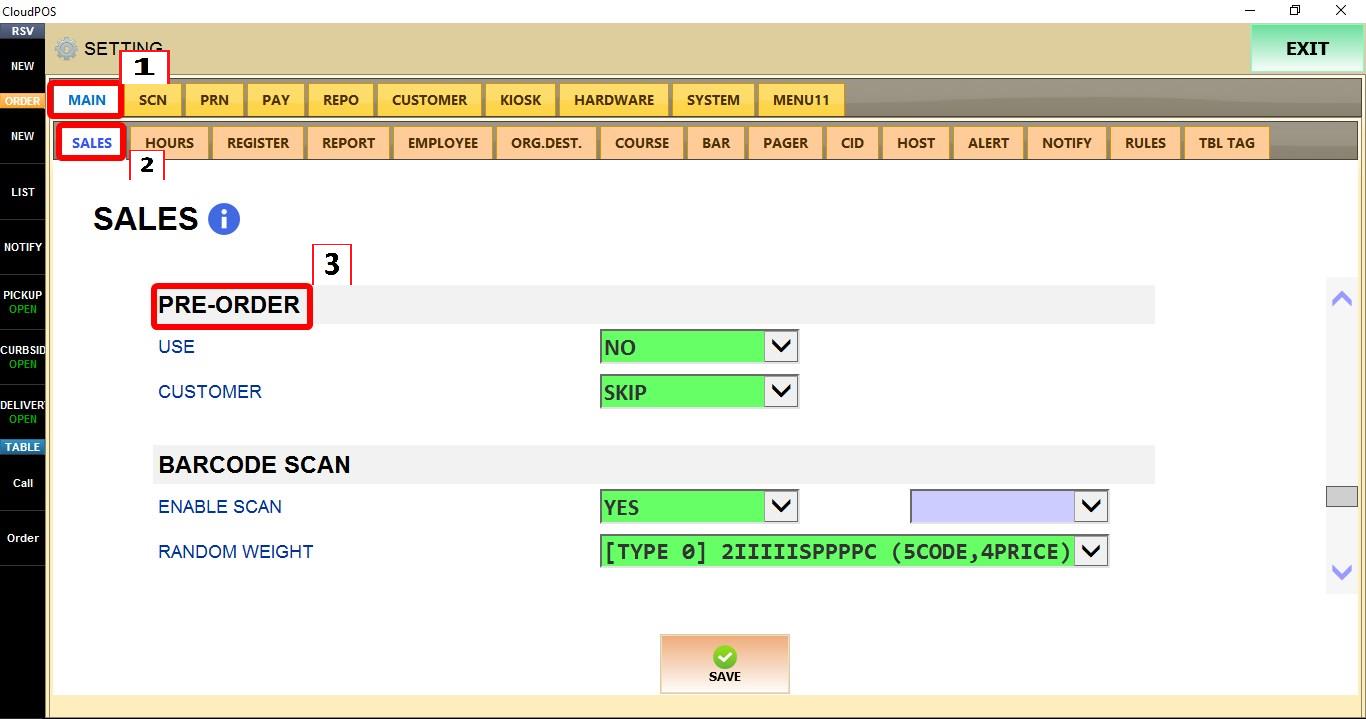
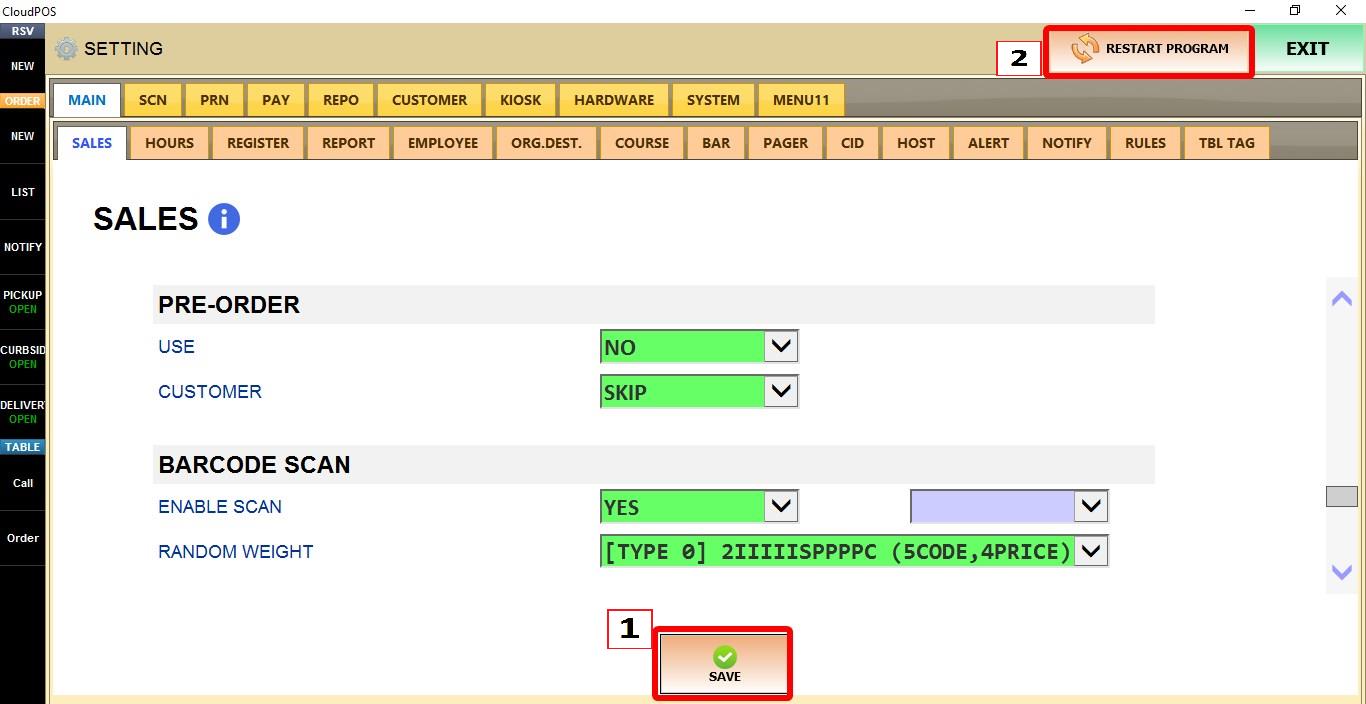
MENU > SETTINGS > MAIN > SALES > PRE ORDER
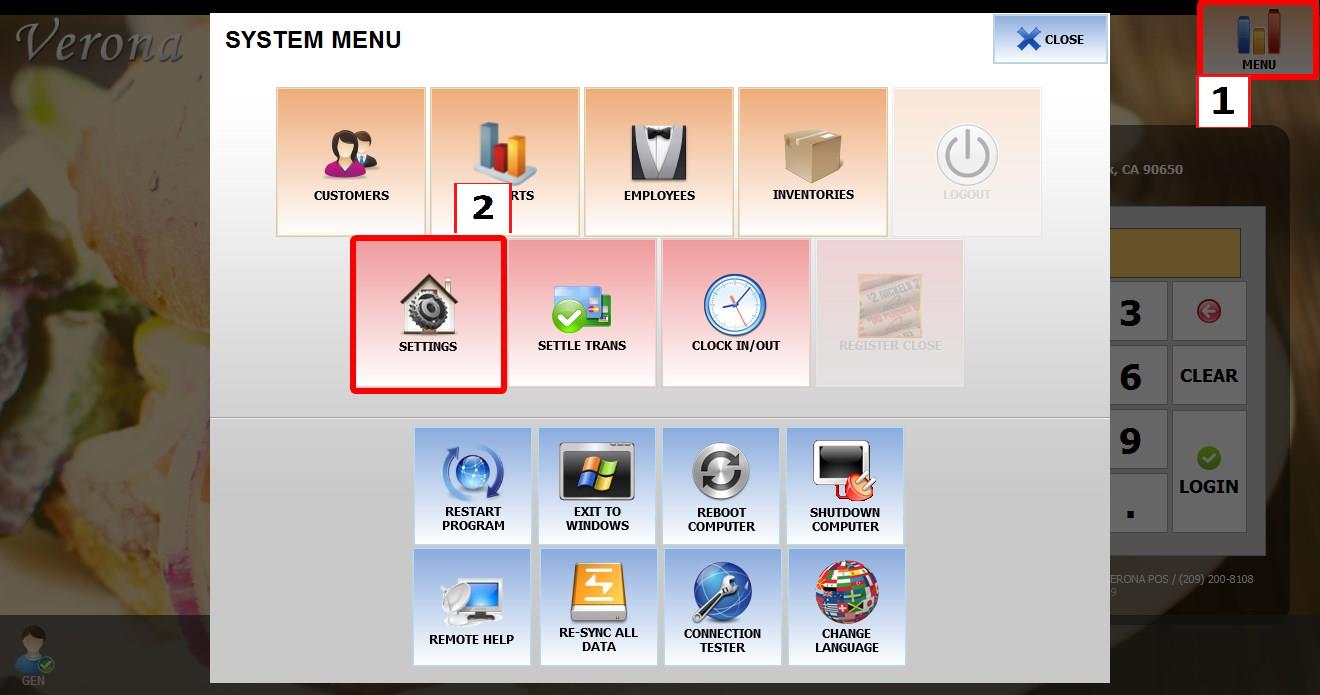
From the MAIN SCREEN, click MENU, then select SETTINGS.

Go to MAIN > SALES > PRE ORDER.
USE
Controls whether the Pre Order feature is available.
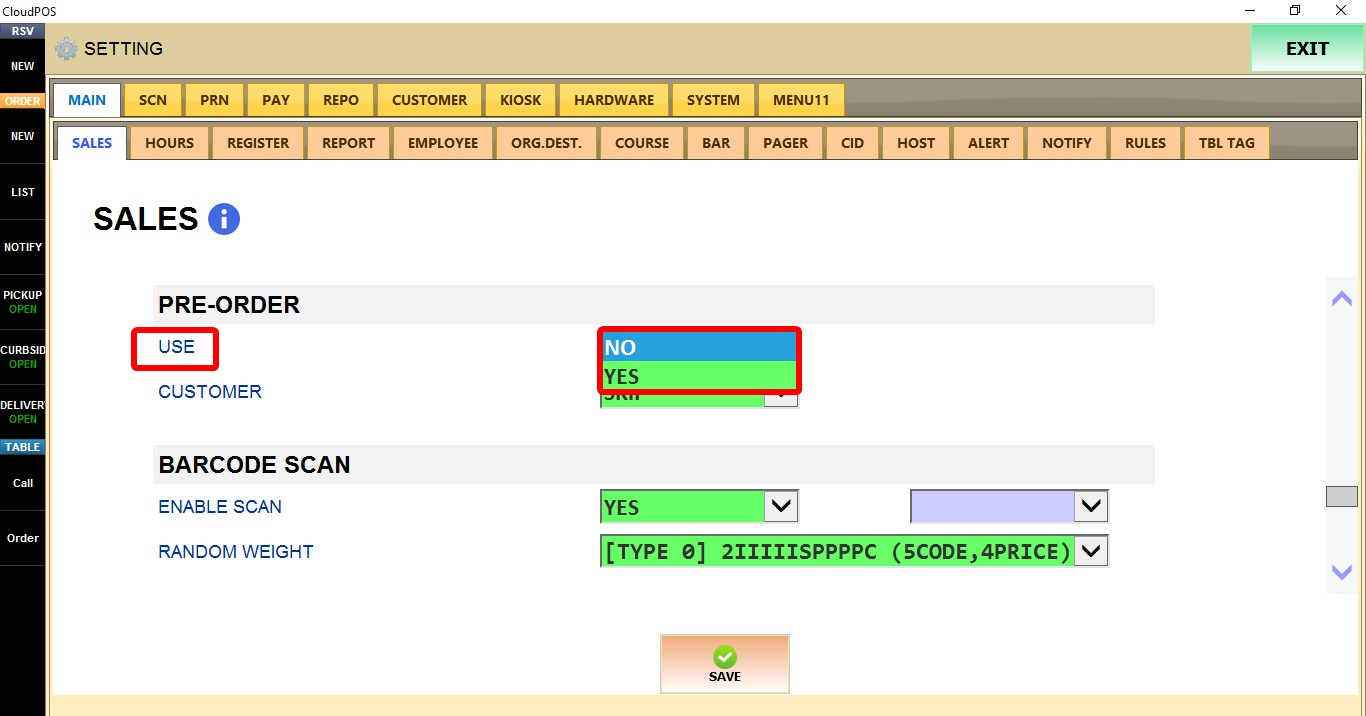
1. NO: Disables the Pre Order feature.
2. YES: Enables the Pre Order feature.
CUSTOMER
Controls how customer information is handled when creating a pre-order.
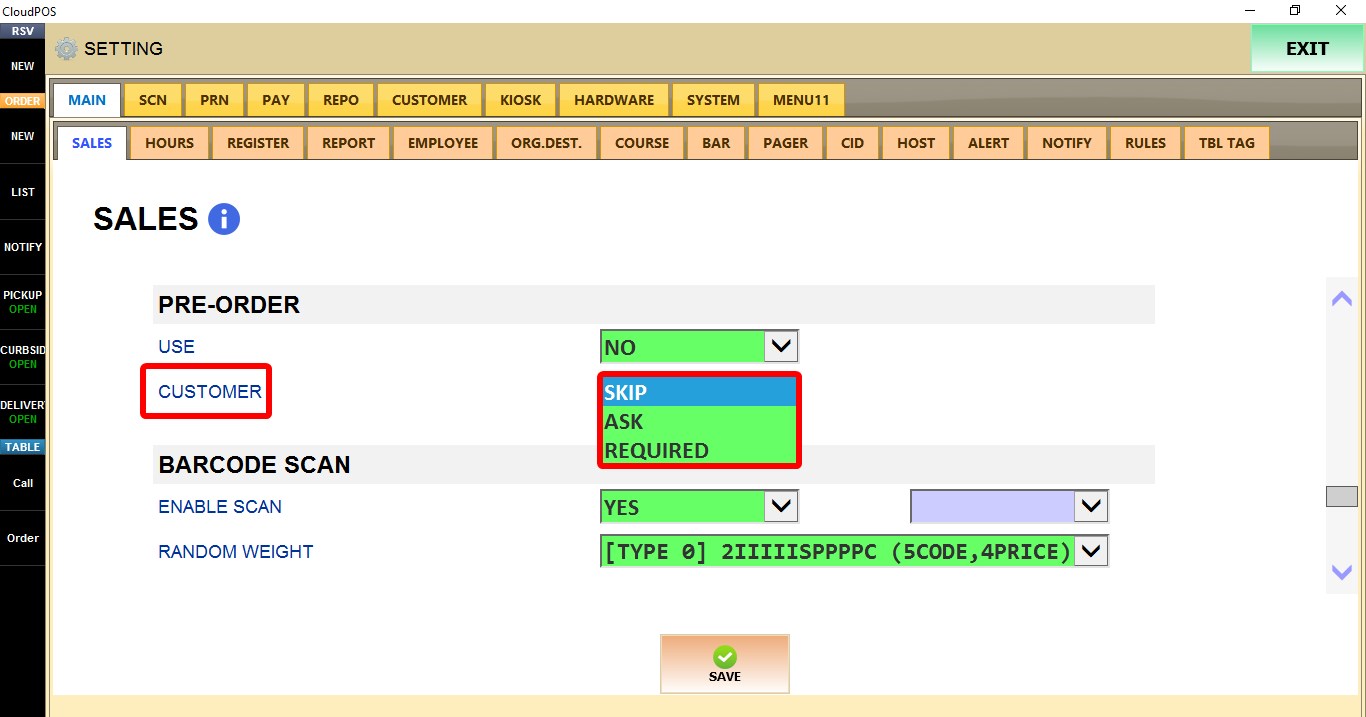
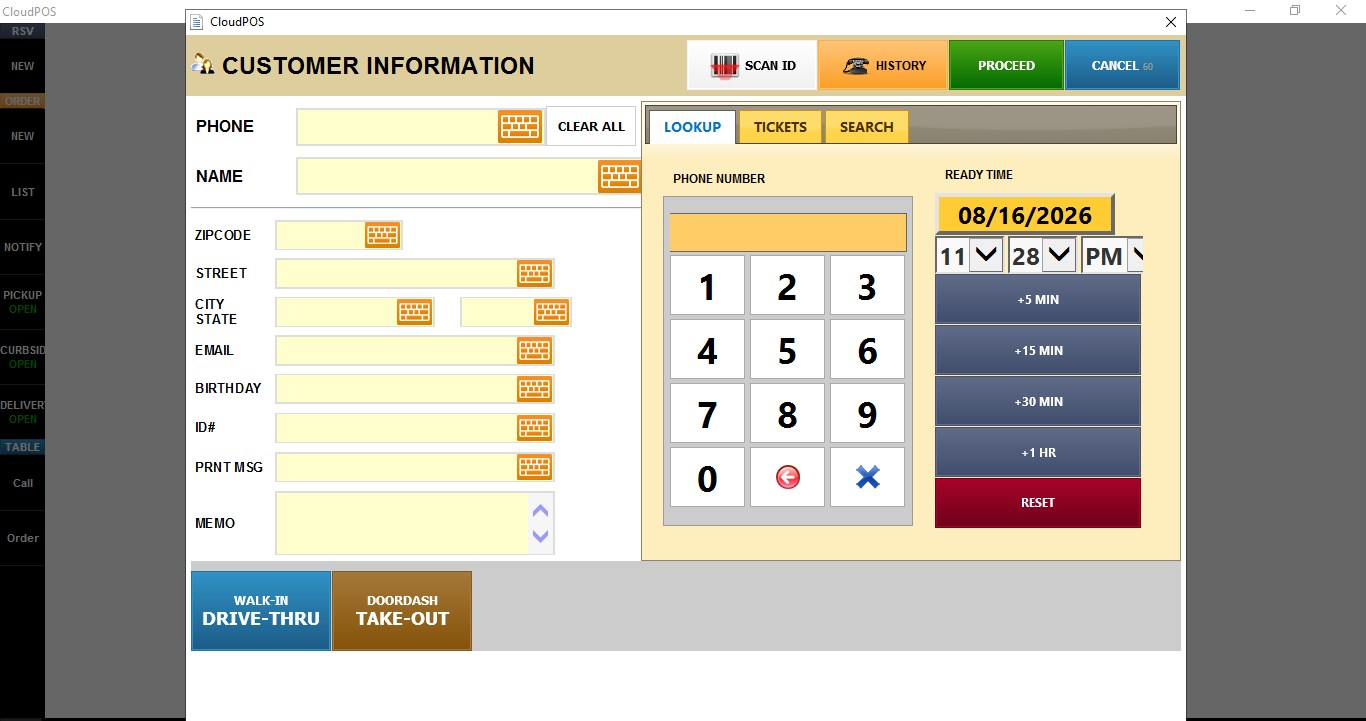
1. SKIP: Customer information is not requested.
2. ASK: Displays the customer information screen, but allows it to be skipped by clicking PROCEED.
3. REQUIRED: Customer information must be entered before continuing.
Click SAVE to apply the changes, then RESTART the program.

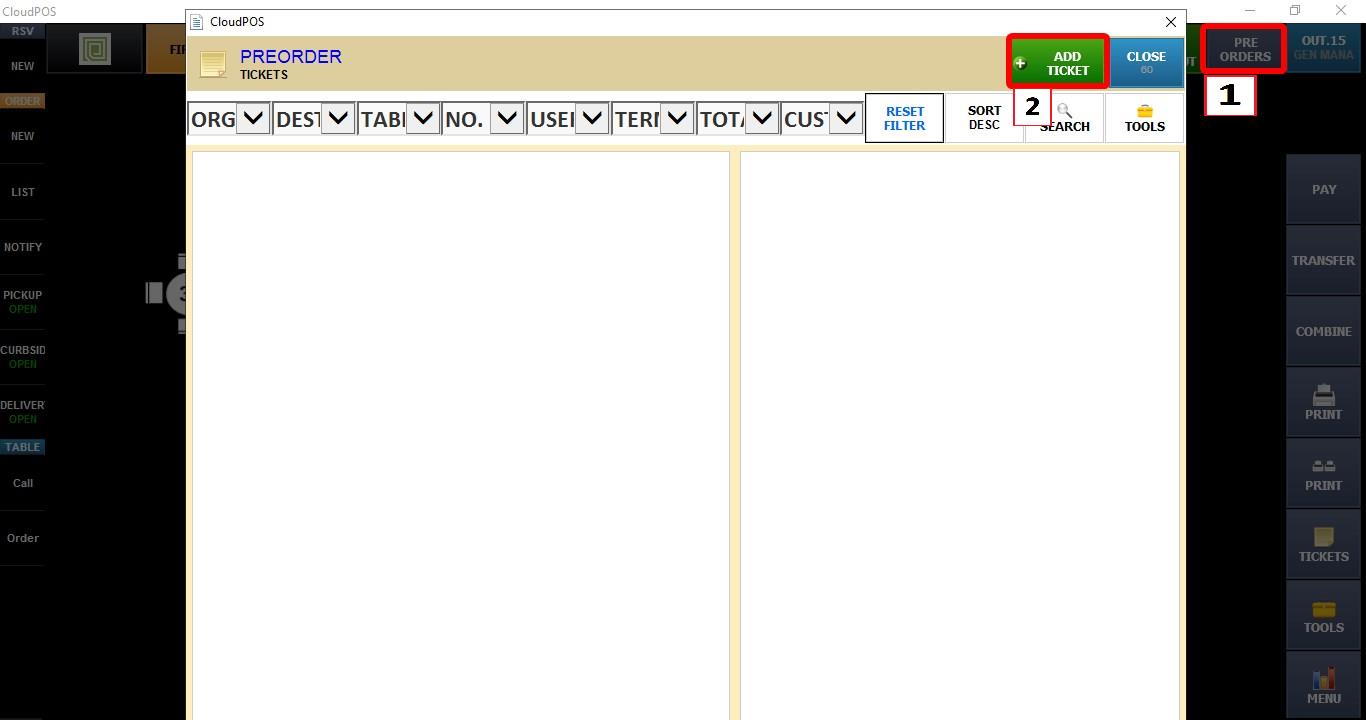
RESULT
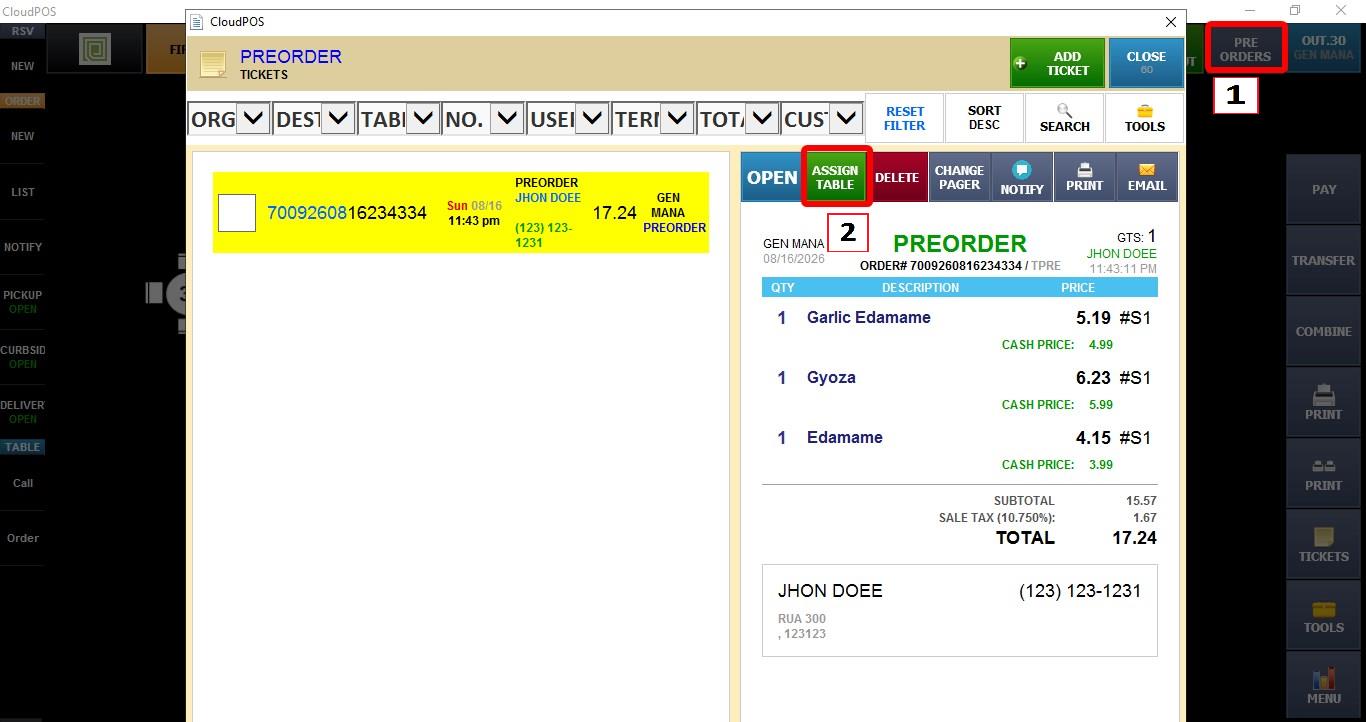
From the TABLE MAP, click PRE ORDER, then create a new ticket.

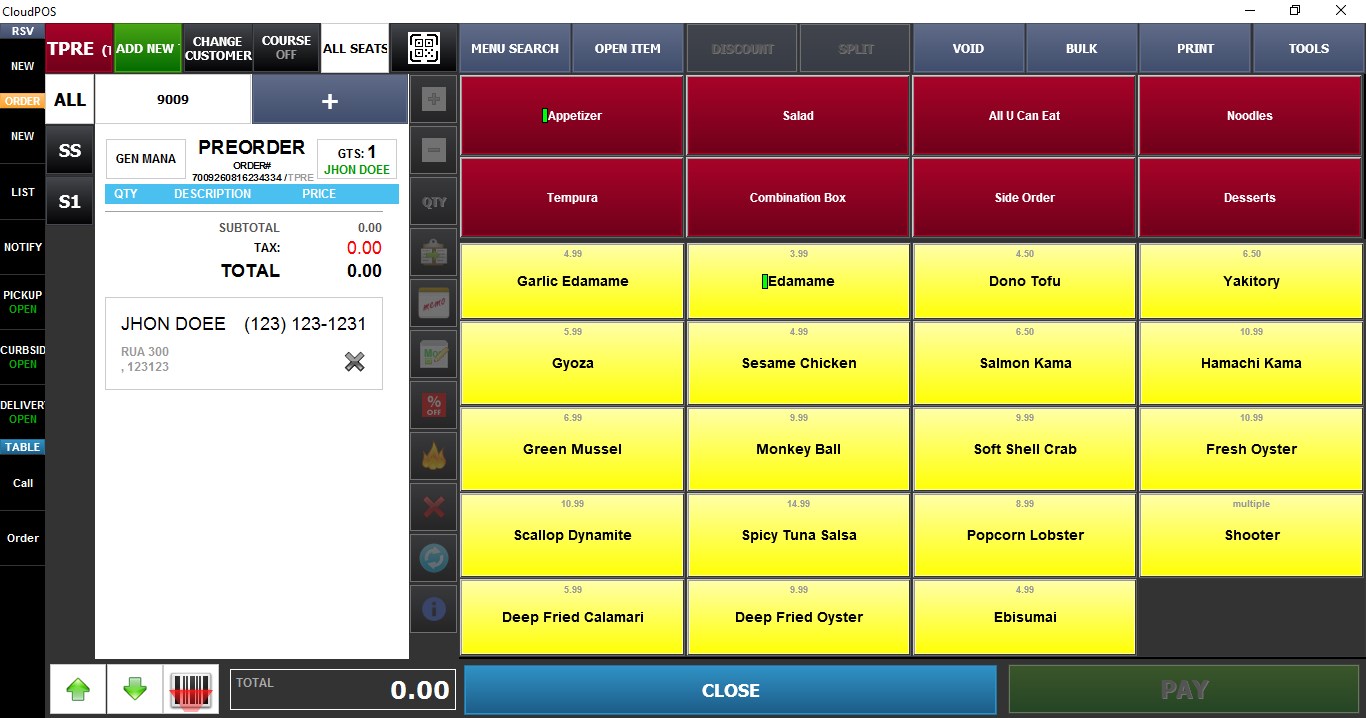
Enter the customer's order and click CLOSE.
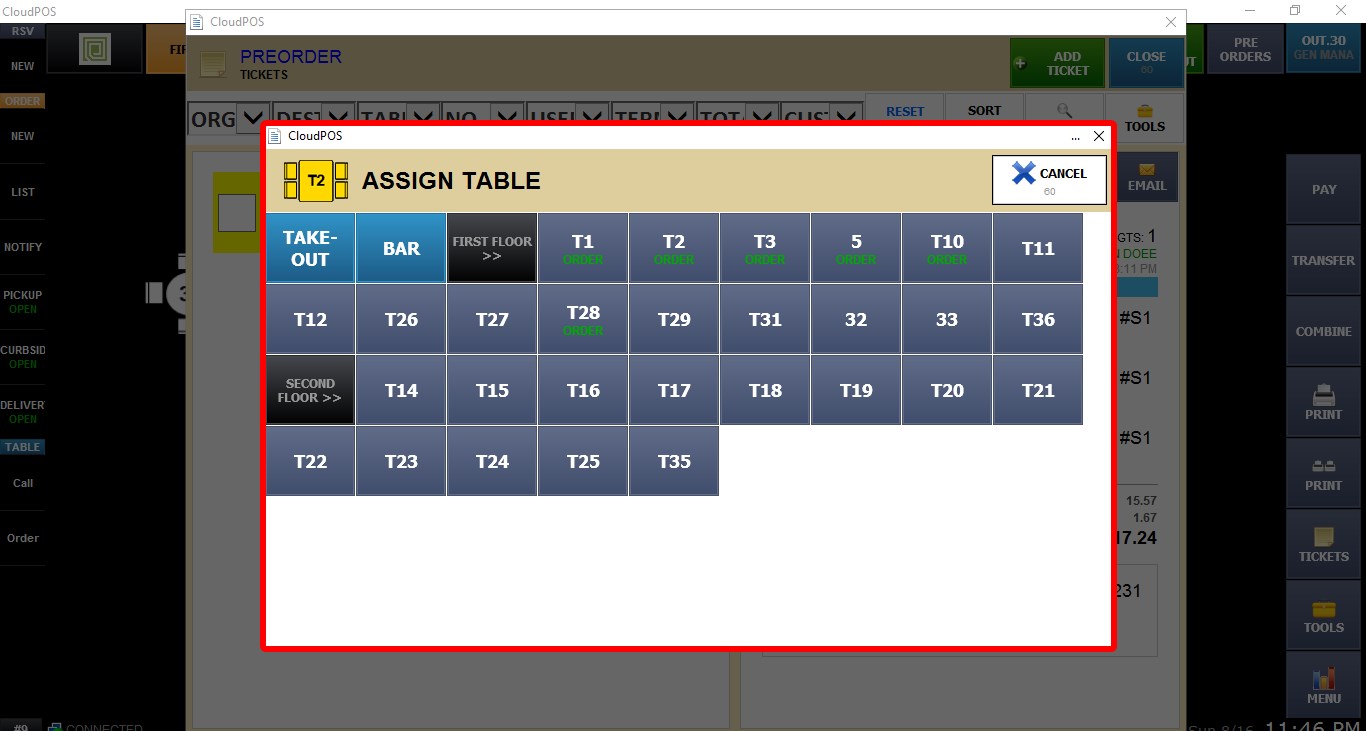
Once a table becomes available, click ASSIGN TABLE to assign the pre-order to that table.

Tables containing pre-orders are identified by the word ORDER on the table map.

You can also combine this feature with READY TIME to schedule when the table should become available and when the order should be ready.
Refer to the READY TIME guide for more information.