Order Control
Order Control settings configure how orders are handled on tablet ordering kiosks. These settings control where tables are started, ordering limits, time restrictions between orders, and plan or package selection.
MENU > SETTINGS > KIOSK > TABLE > ORDER CONTROL
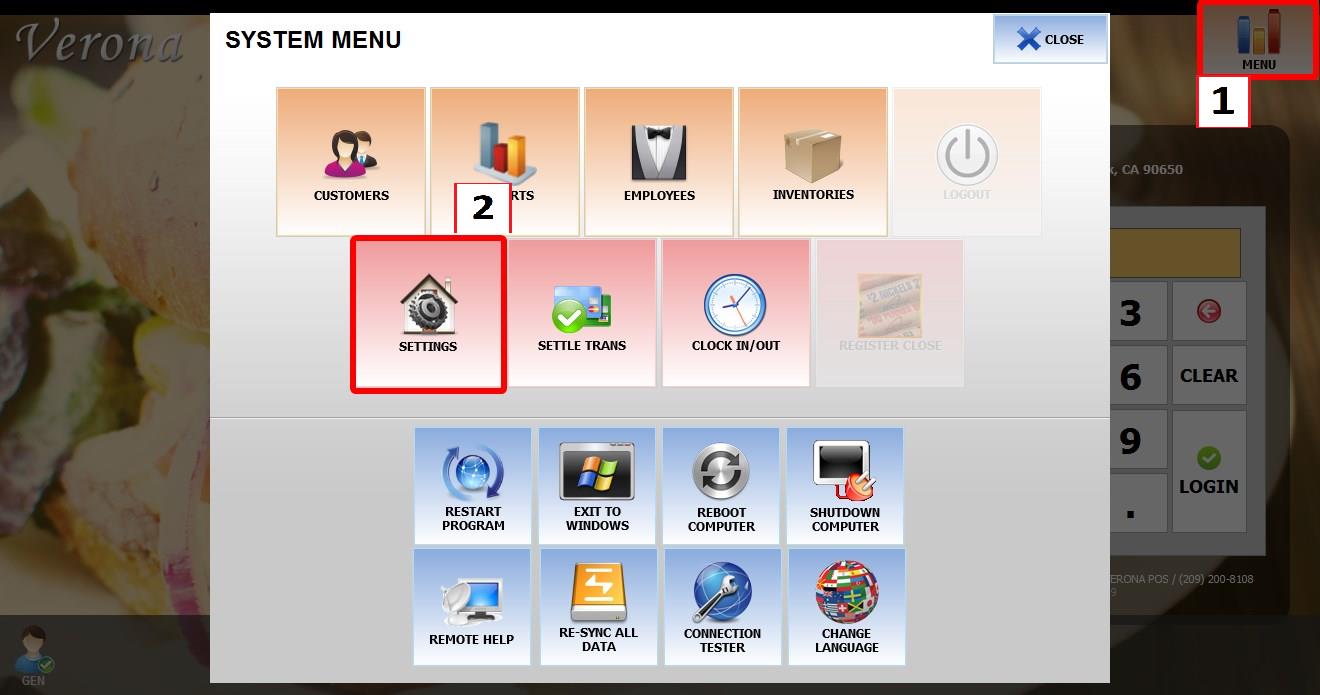
From the MAIN SCREEN, click MENU, then select SETTINGS.
Go to KIOSK > TABLE > ORDER CONTROL.
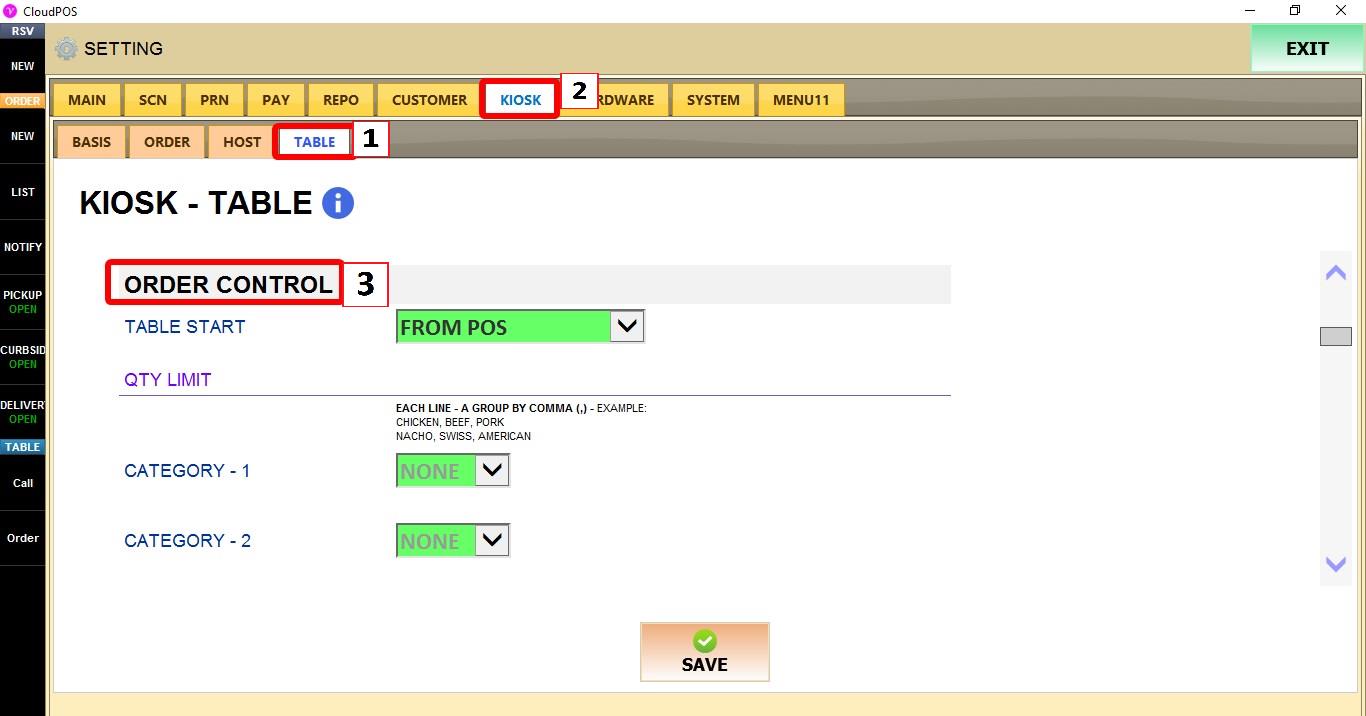
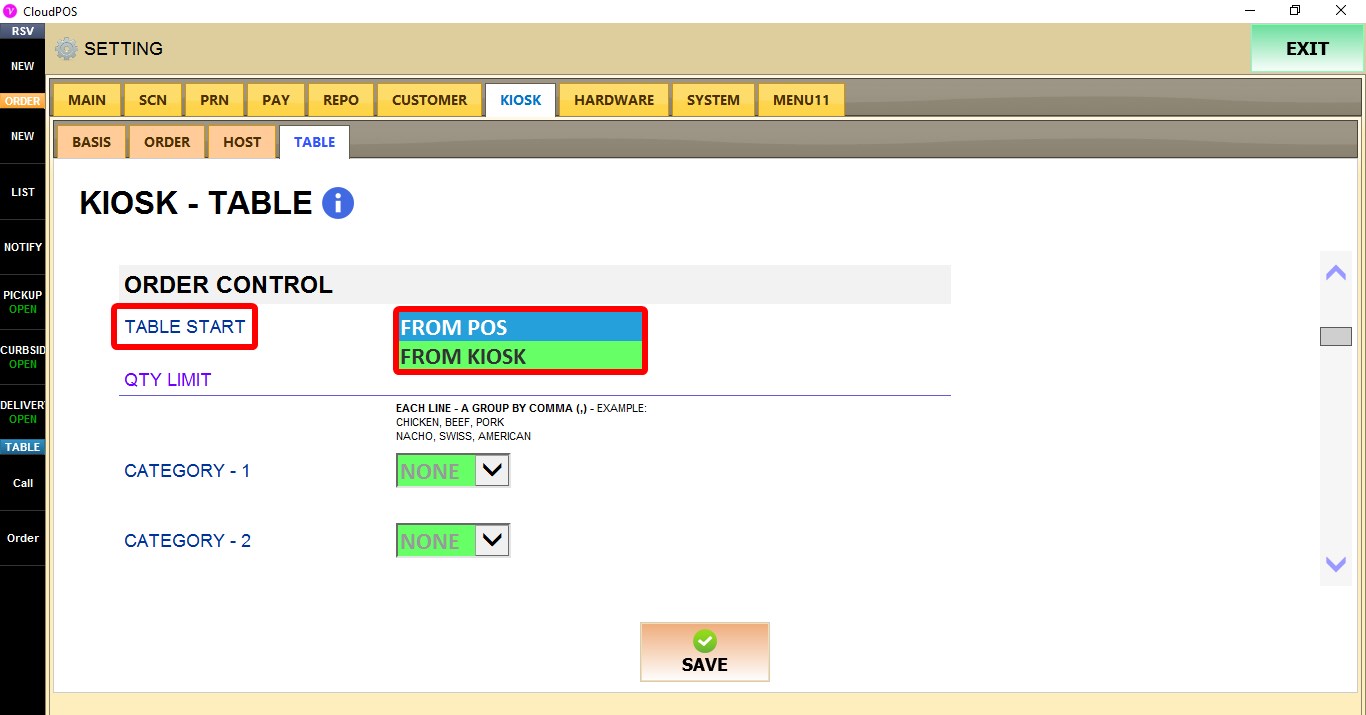
TABLE START
Determines where new tables can be started.
1. FROM POS: Tables can be started from a POS terminal.
2. FROM KIOSK: Tables can be started directly from the kiosk.
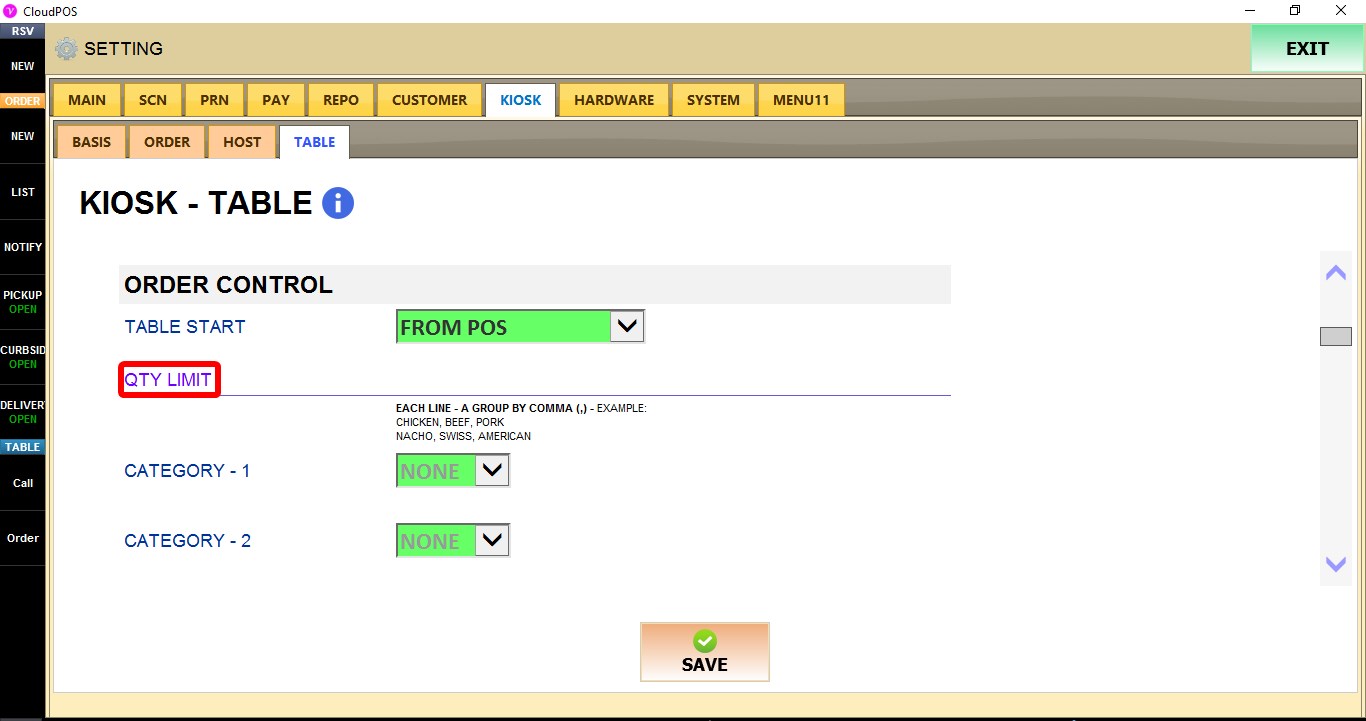
QTY LIMIT
These settings limit how many items from selected categories or item groups can be ordered.
Each line represents a group of items separated by commas.
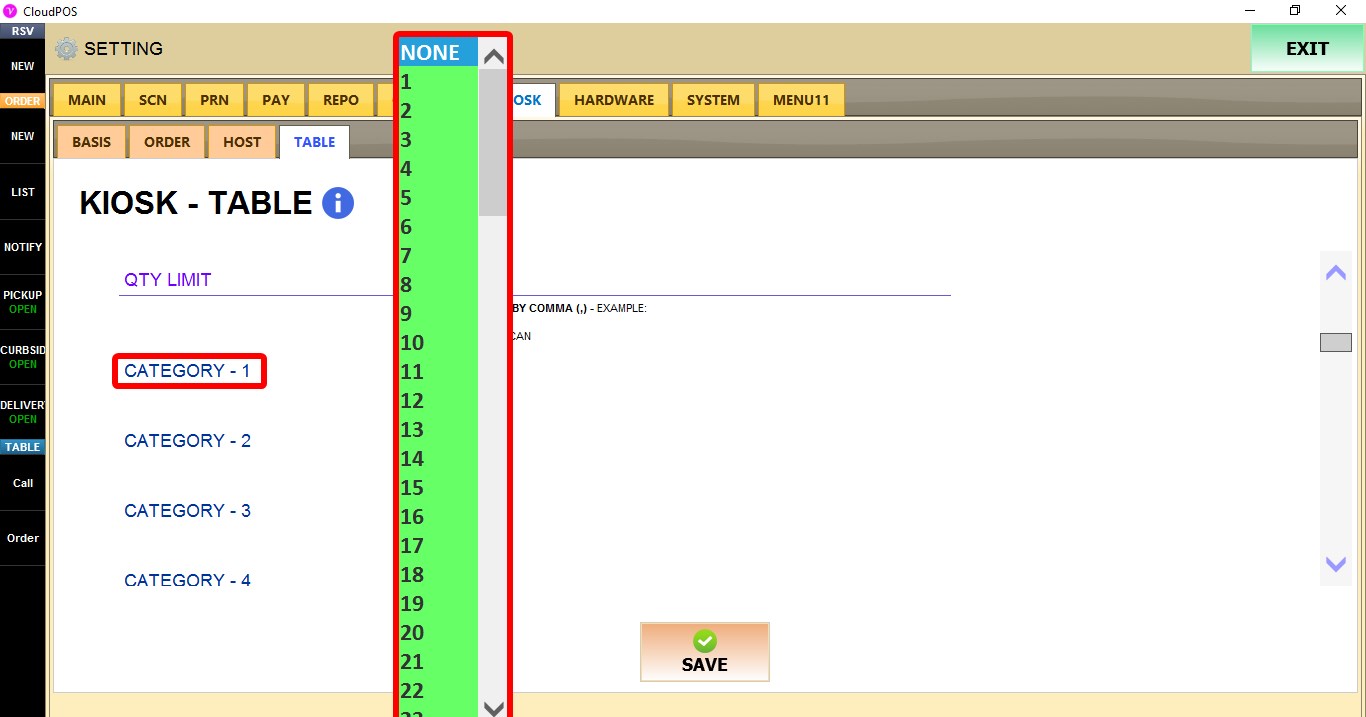
CATEGORY 1 - CATEGORY 9
Assigns the maximum quantity allowed for each configured category group.
NONE: No limit is applied.
1 - 100: Sets the maximum quantity allowed.

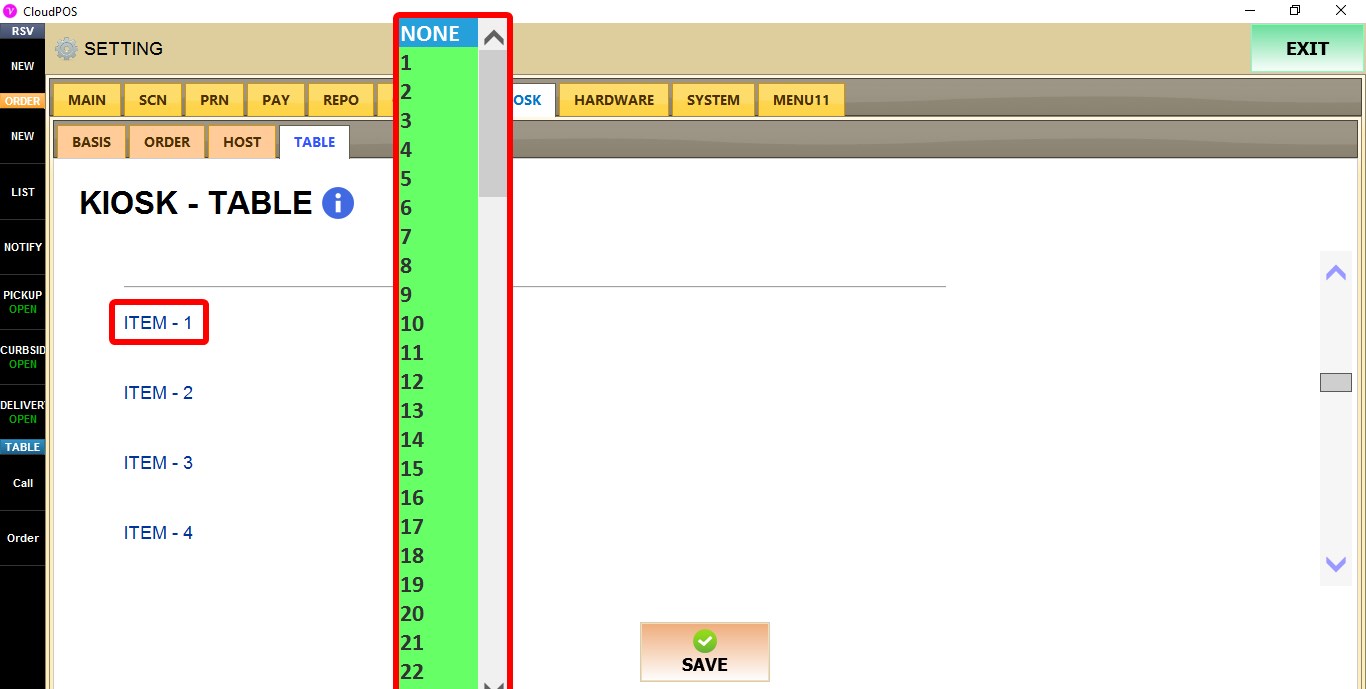
ITEM 1 - ITEM 9
Assigns the maximum quantity allowed for each configured item group.
NONE: No limit is applied.
1 - 100: Sets the maximum quantity allowed.

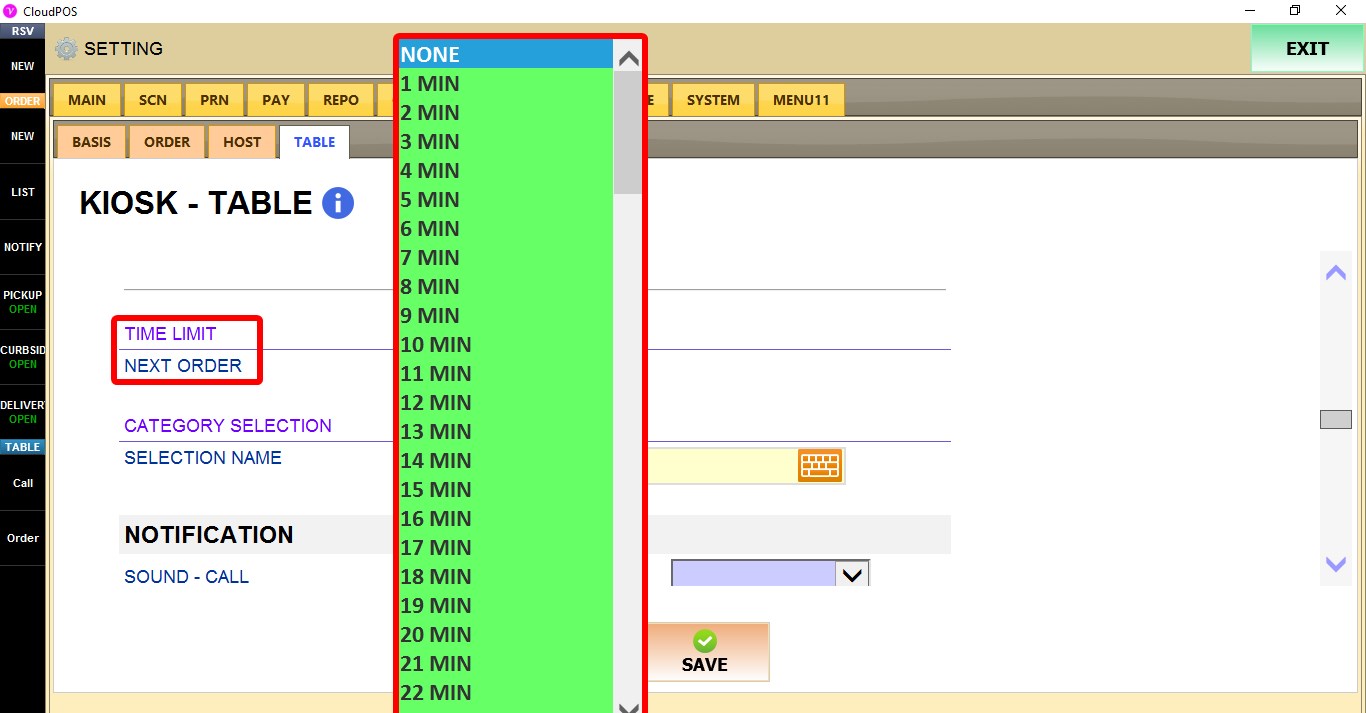
TIME LIMIT
Controls how long customers must wait before placing another order.
NEXT ORDER
1. NONE: No waiting period is applied.
2. 1-120 MINUTES: Sets the waiting time before another order can be placed.

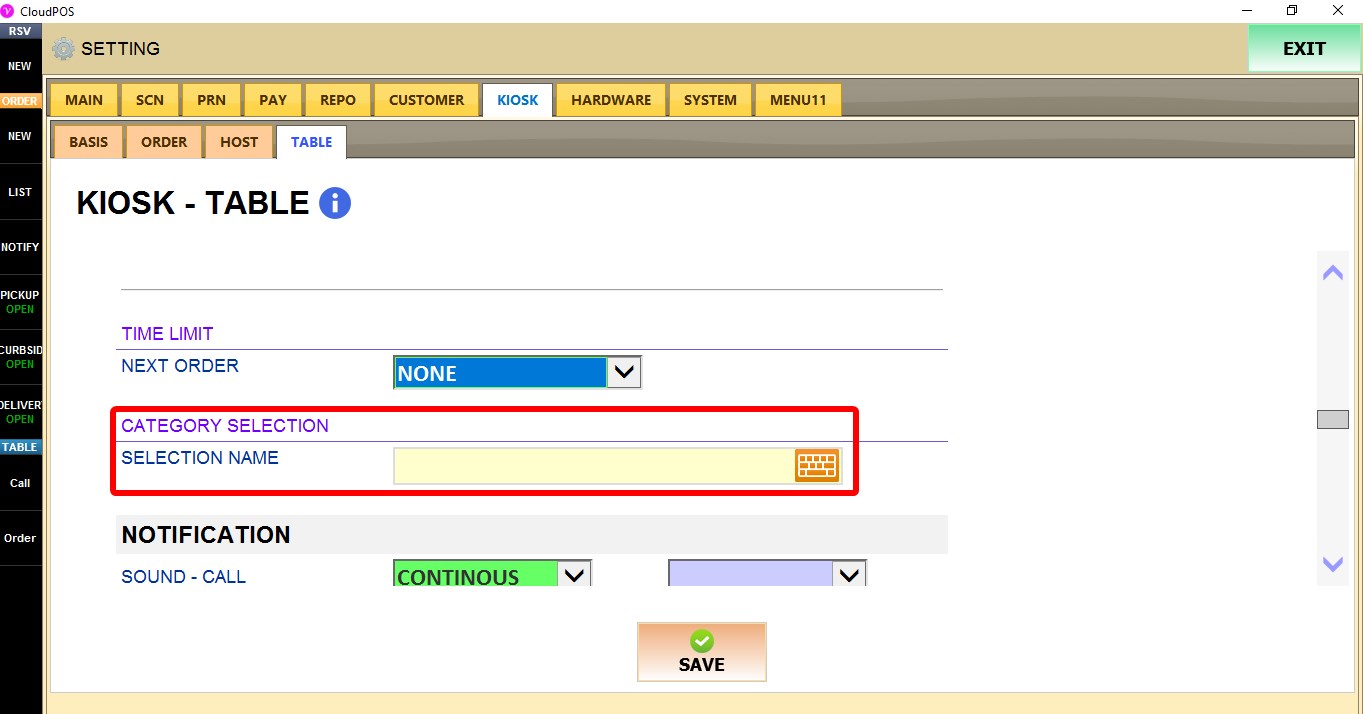
CATEGORY SELECTION
These setting configure the category used for plan or package selection before customers begin ordering. This is commonly used for buffet or All You Can Eat (AYCE) menus where customers first select a plan, such as Plan A, Plan B, or Plan C.
SELECTION NAME
Enter the category name that contains the available plans or package options. Separate multiple categories with a comma (,)

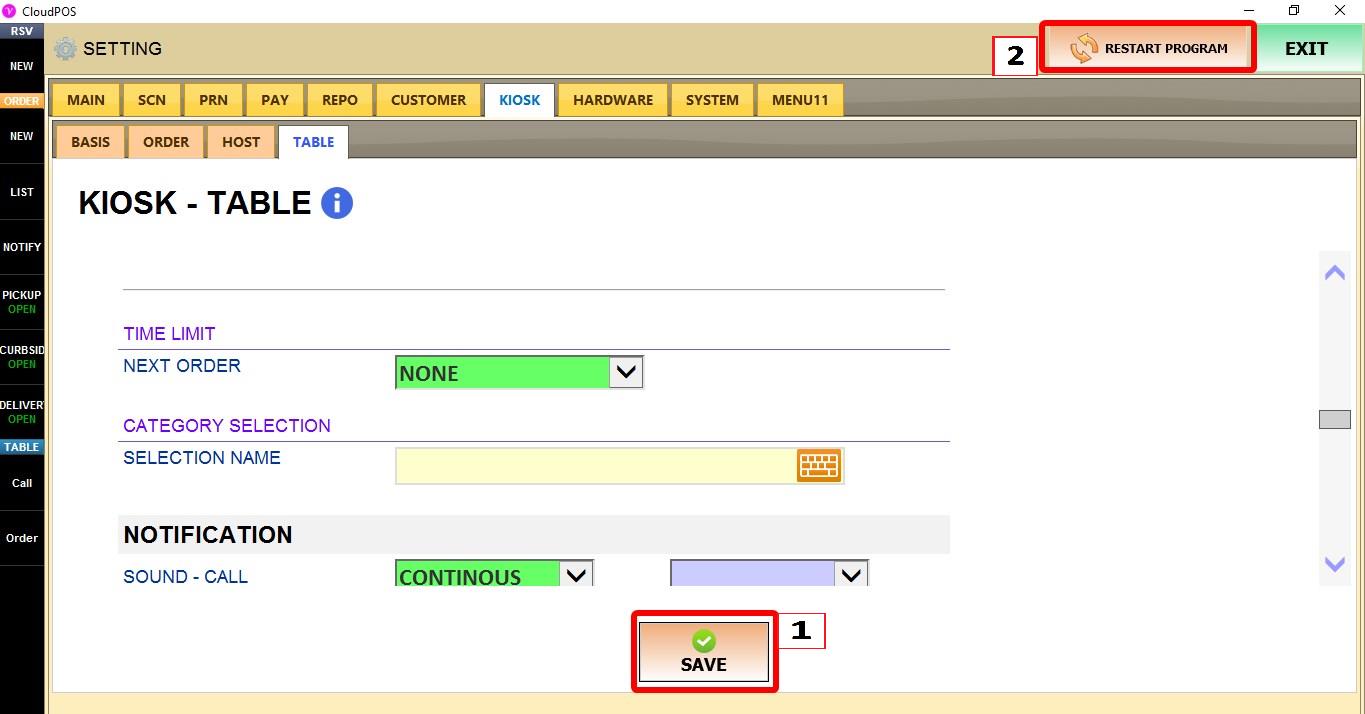
Click SAVE and restart the program to apply the changes.