Layout
The LAYOUT settings customize the background images displayed on the tablet ordering kiosk. Images can be selected from local storage or from the available remote image library.
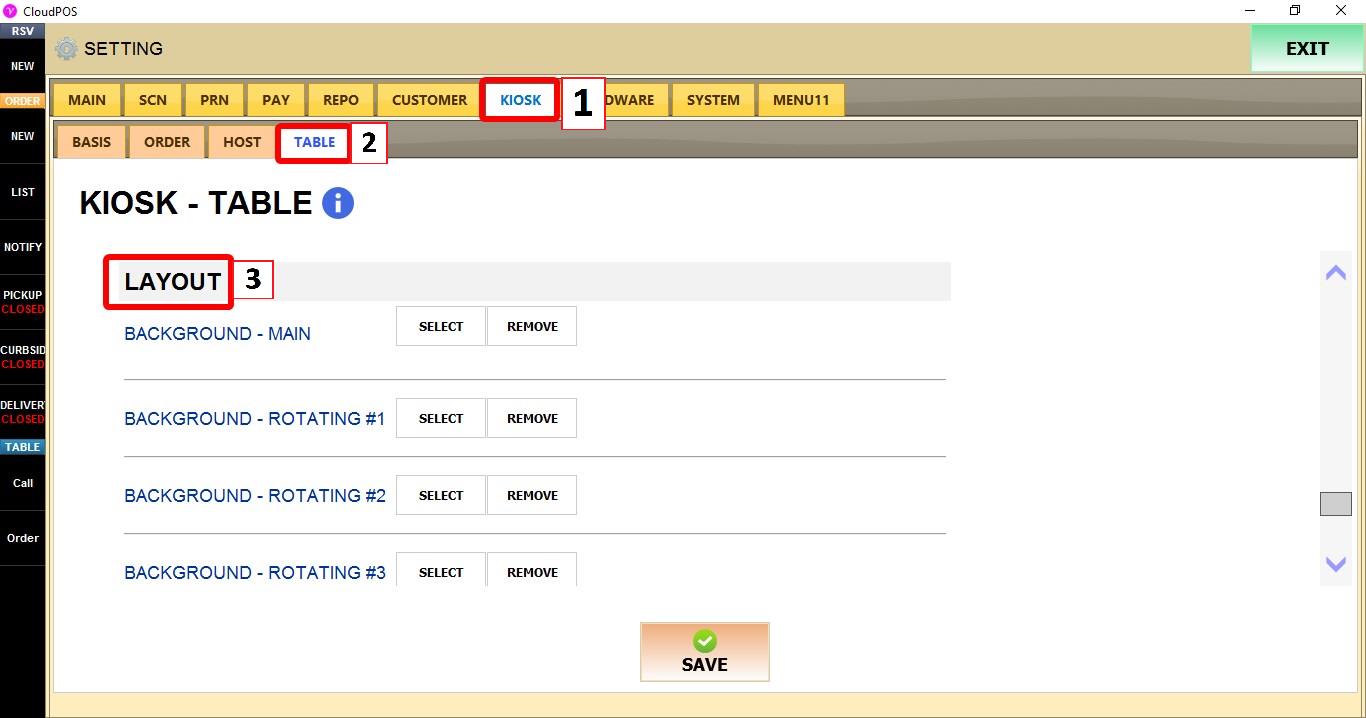
MENU > SETTINGS > KIOSK > TABLE > LAYOUT
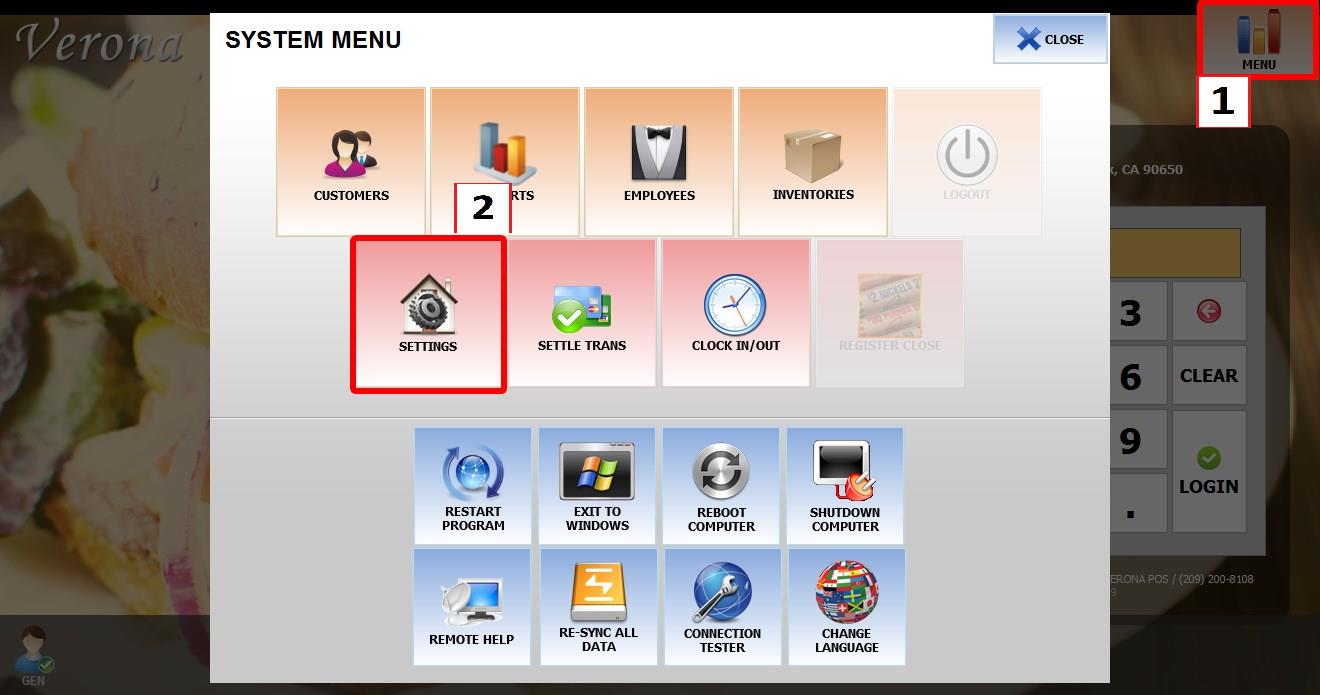
From the MAIN SCREEN, click MENU, then select SETTINGS.
Go to KIOSK > TABLE > LAYOUT.
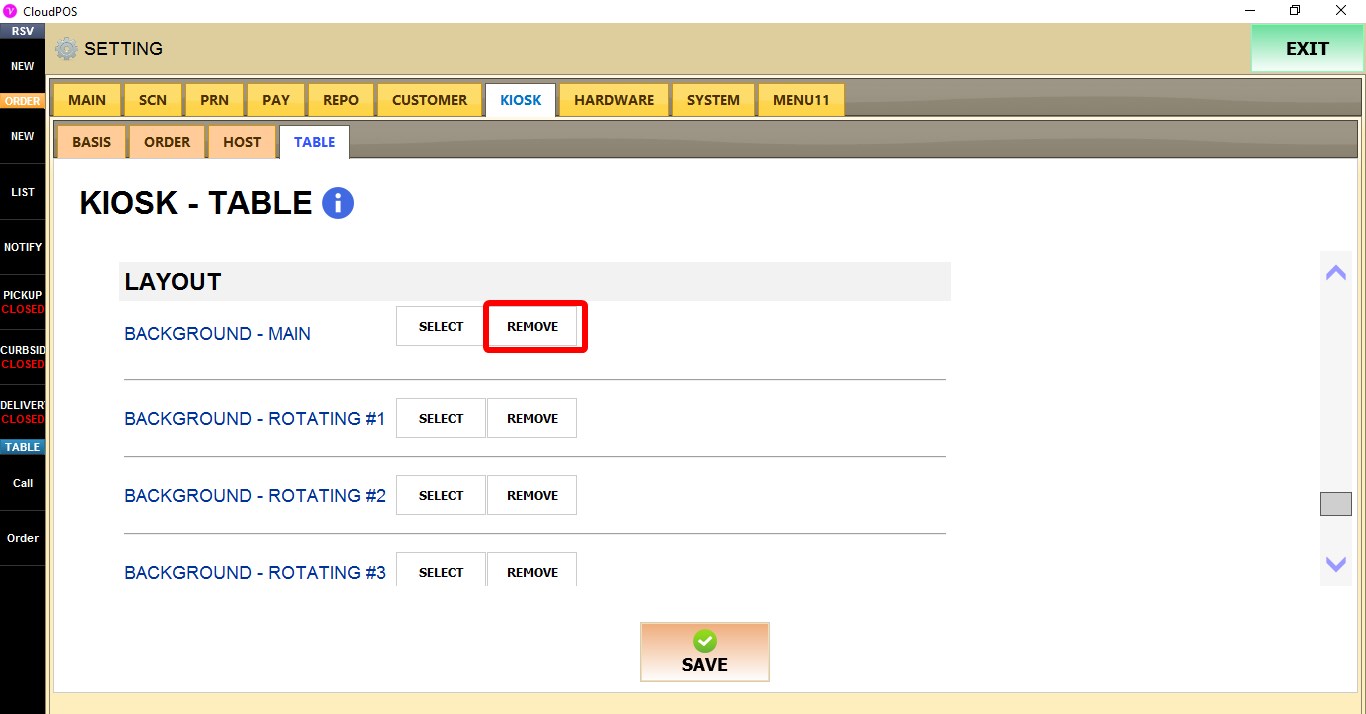
BACKGROUND - MAIN
Configures the primary background image displayed by the tablet ordering kiosk.
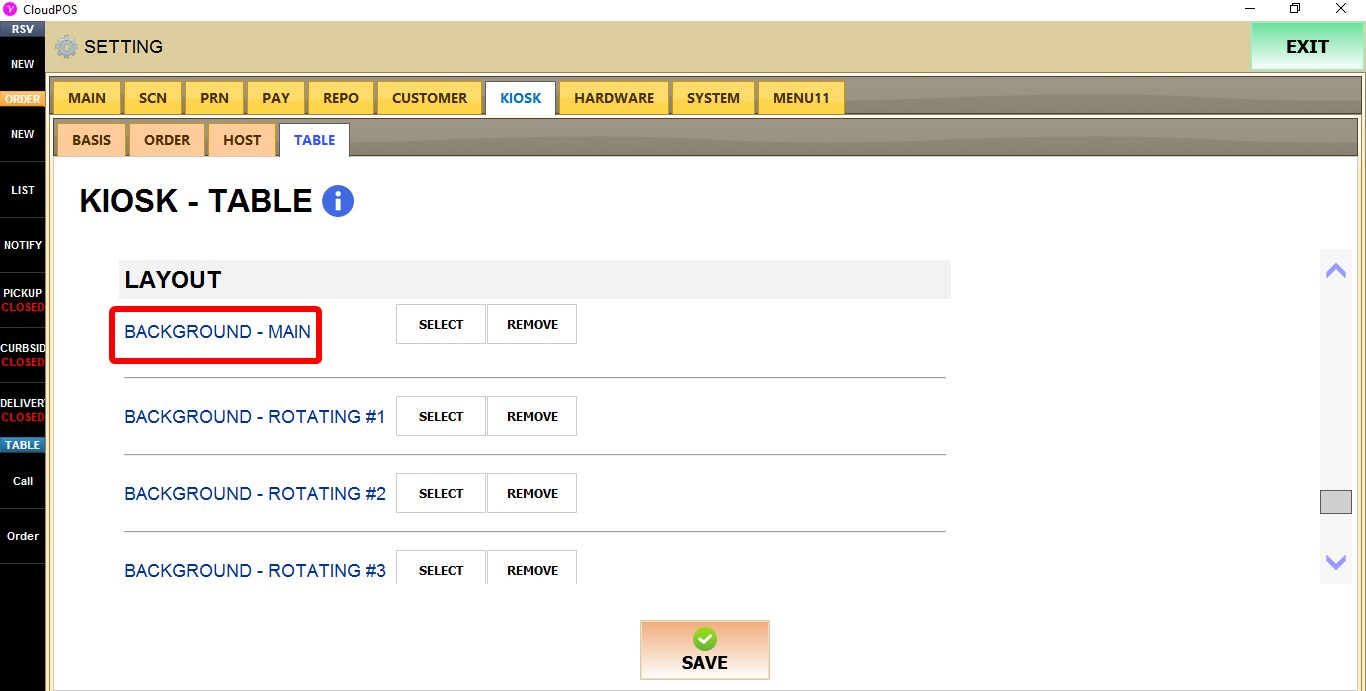
REMOVE removes the current background image.
 SELECT opens the image selection window.
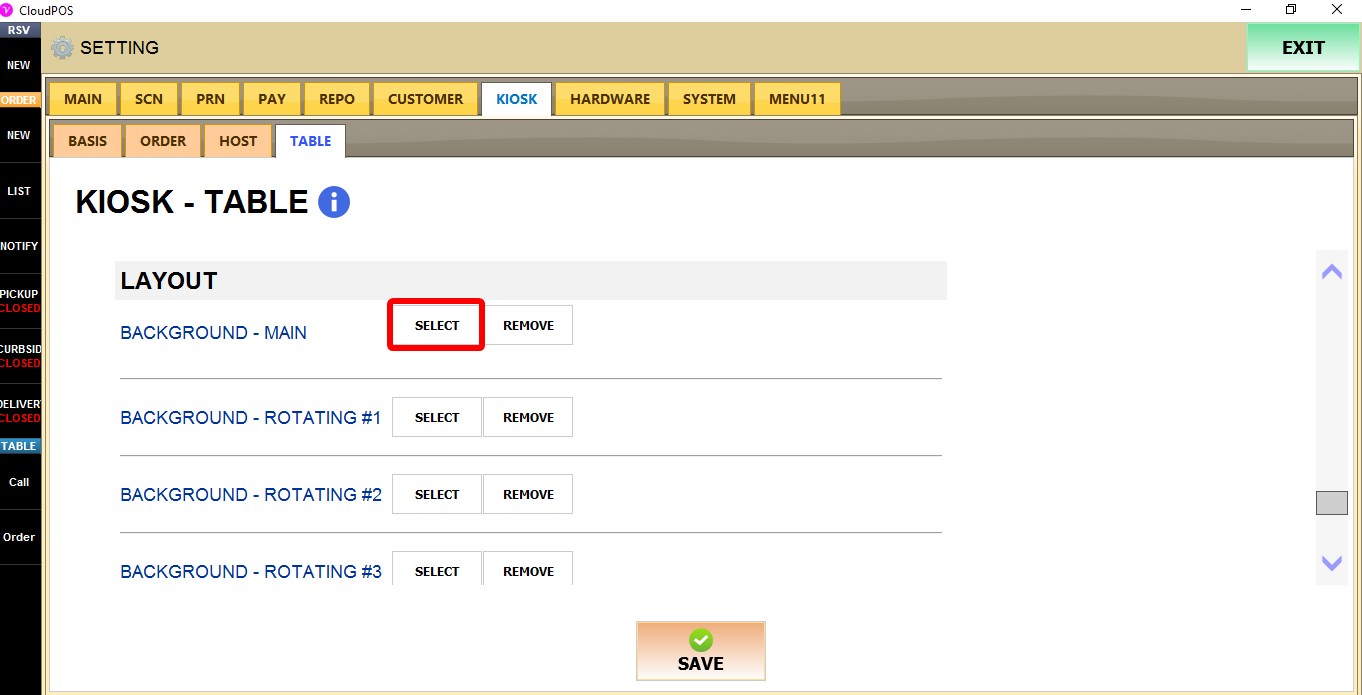
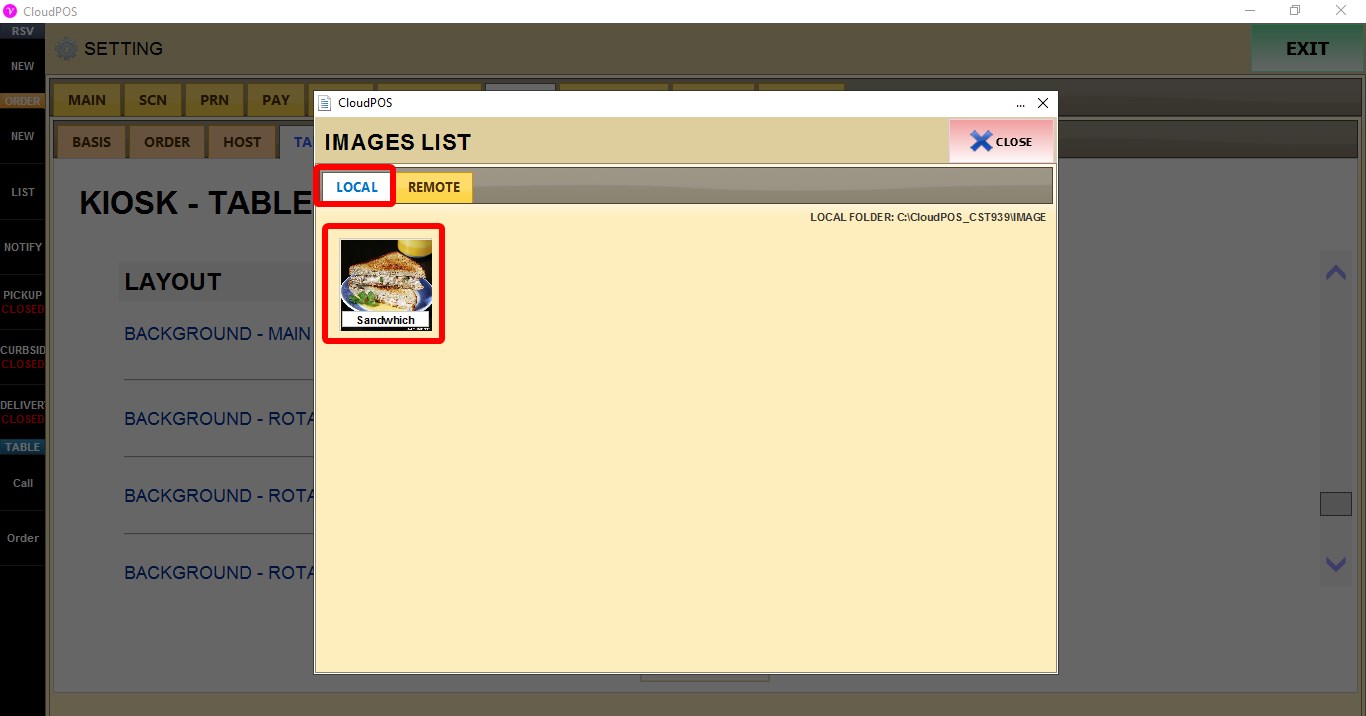
IMAGE SELECTION
The image selection window allows backgrounds to be selected from local or remote image libraries.
LOCAL
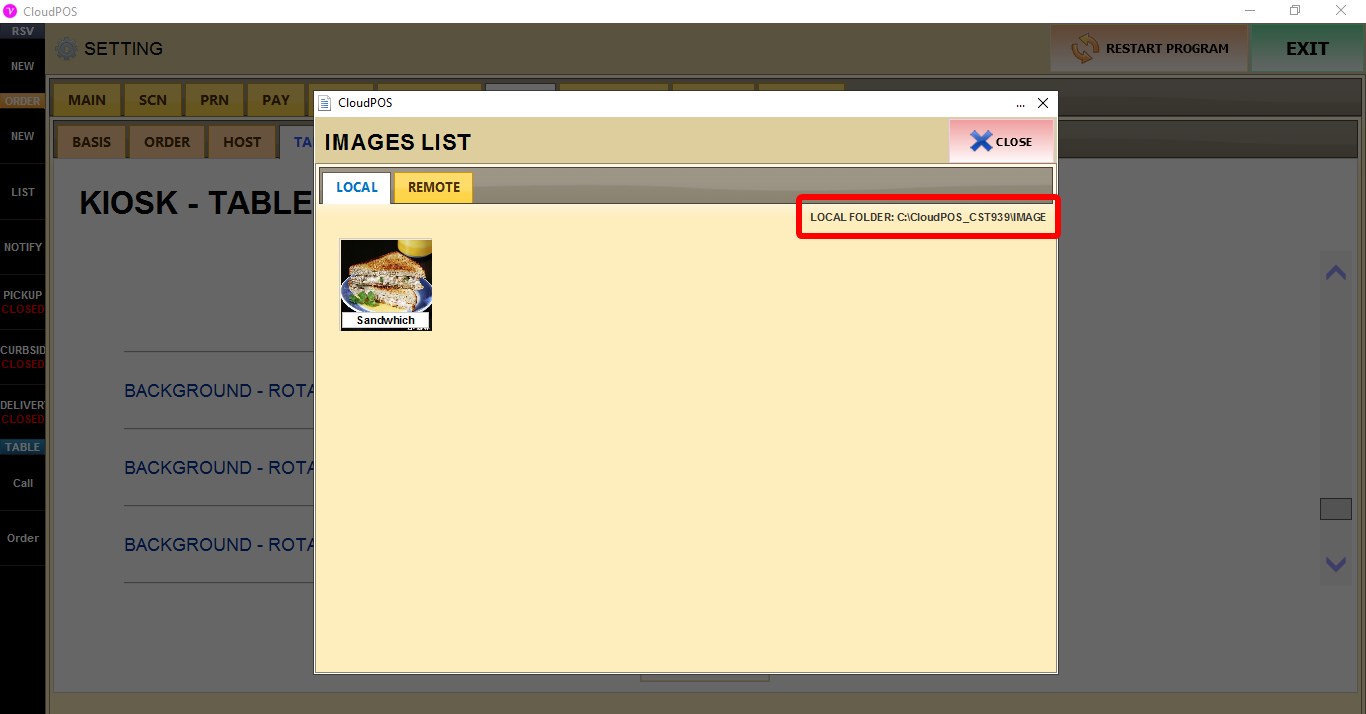
Displays images stored in the local folder shown on the screen.
The current local folder path is displayed above the image list.
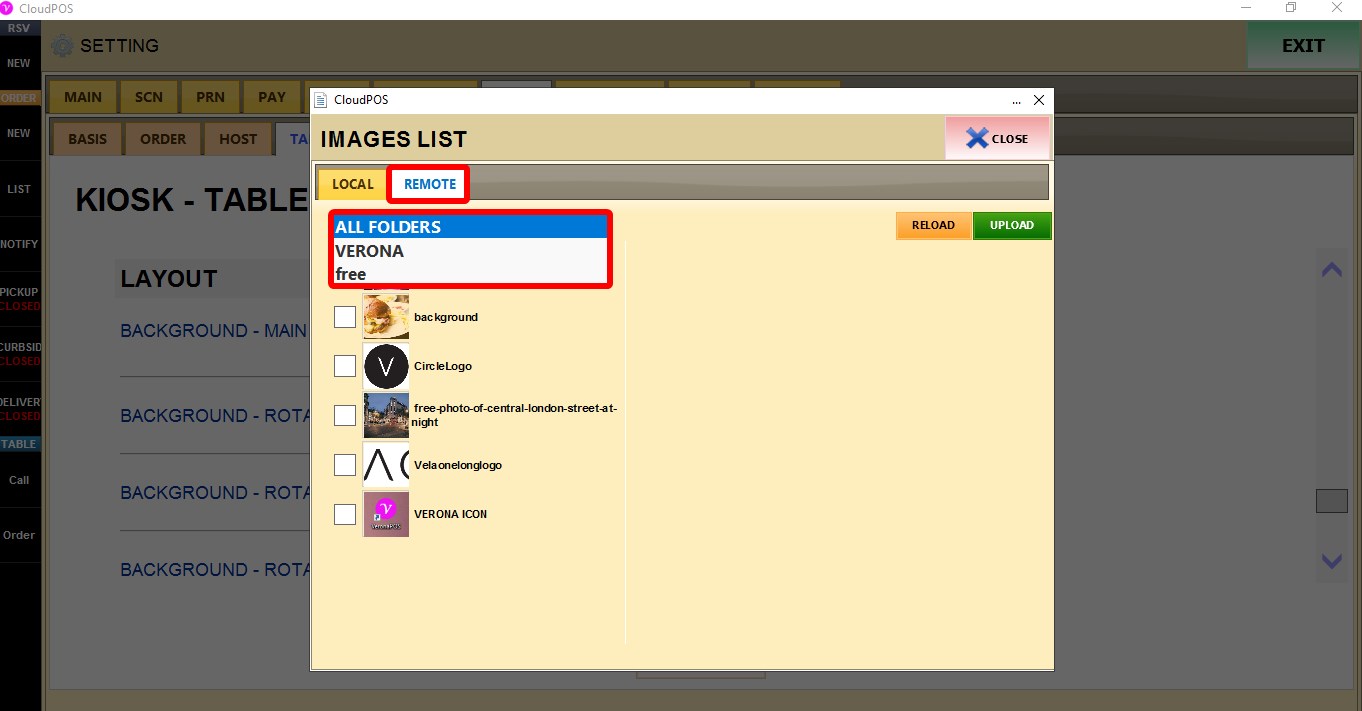
REMOTE
Displays all images available under the REMOTE tab.
Available folders:
ALL FOLDERS
Displays the images available in the VERONA category.
VERONA
Displays Verona image collection.
FREE
Displays the images available in the FREE category.
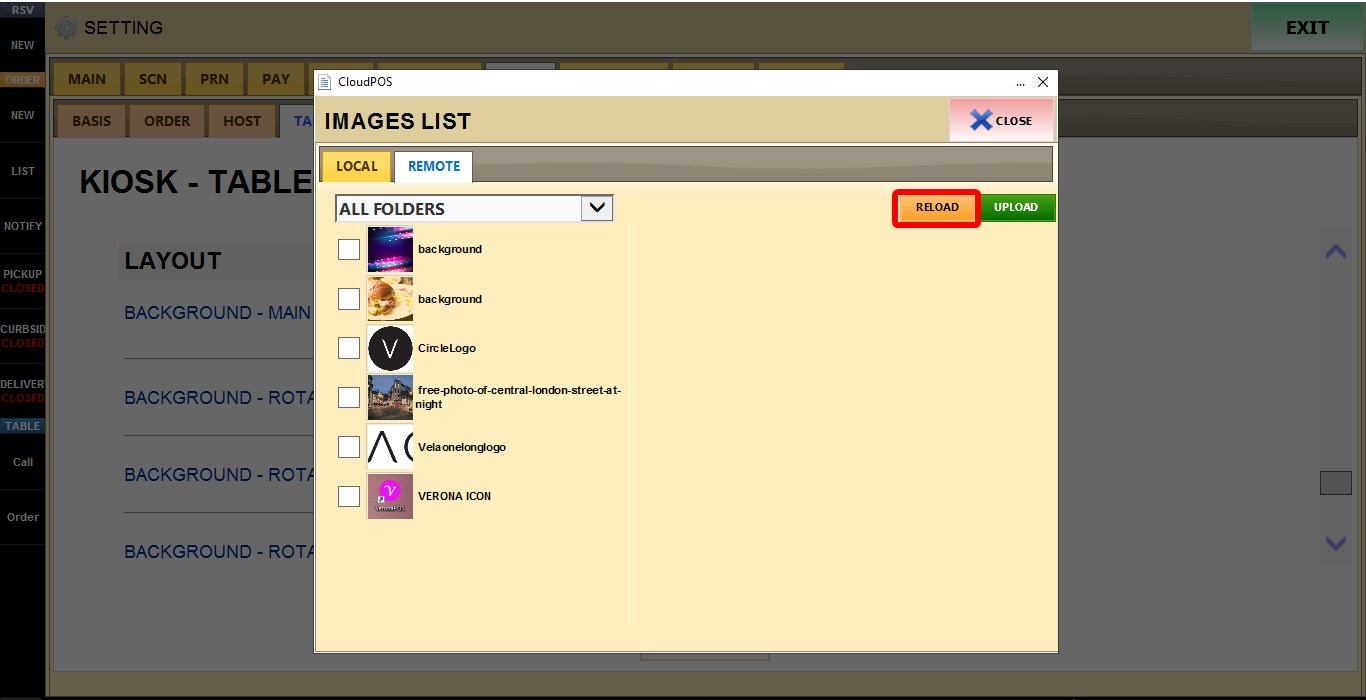
RELOAD refreshes the image list.
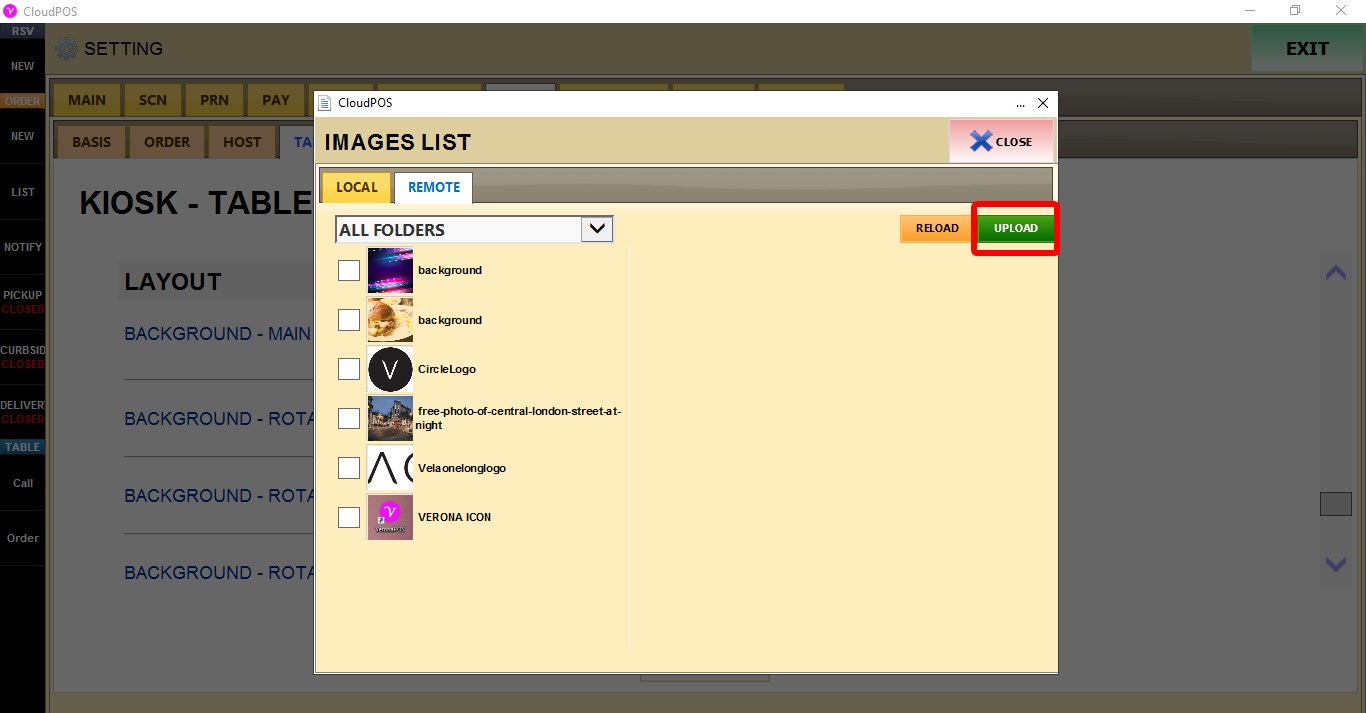
UPLOAD uploads a new image from anywhere on your computer.
PREVIEW
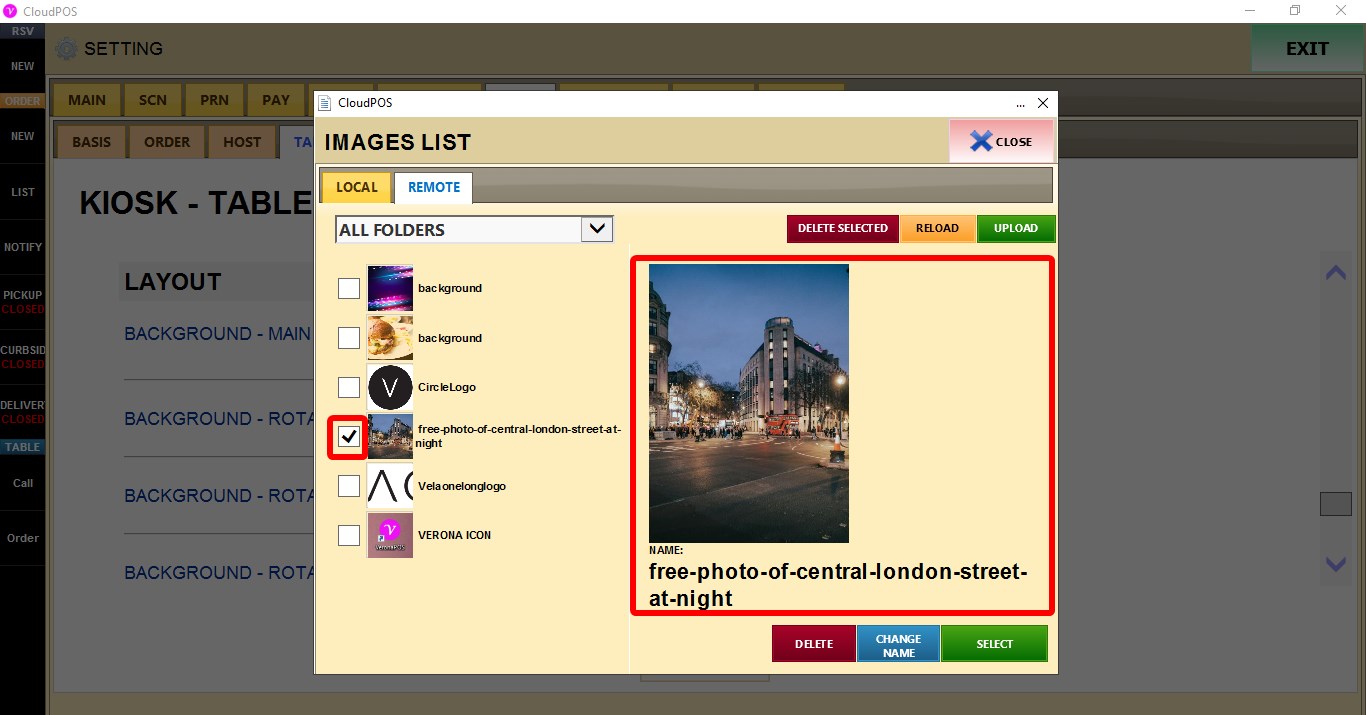
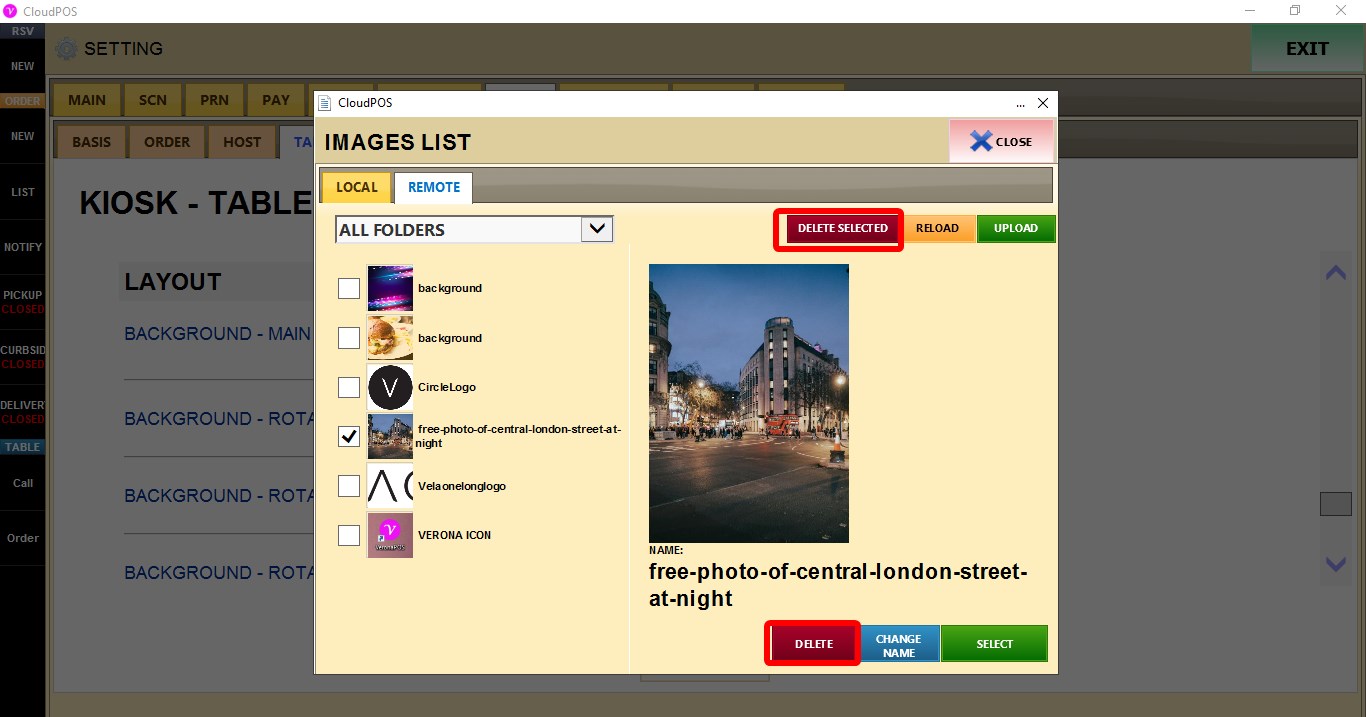
DELETE removes the selected image.
DELETE SELECTED removes the selected image.
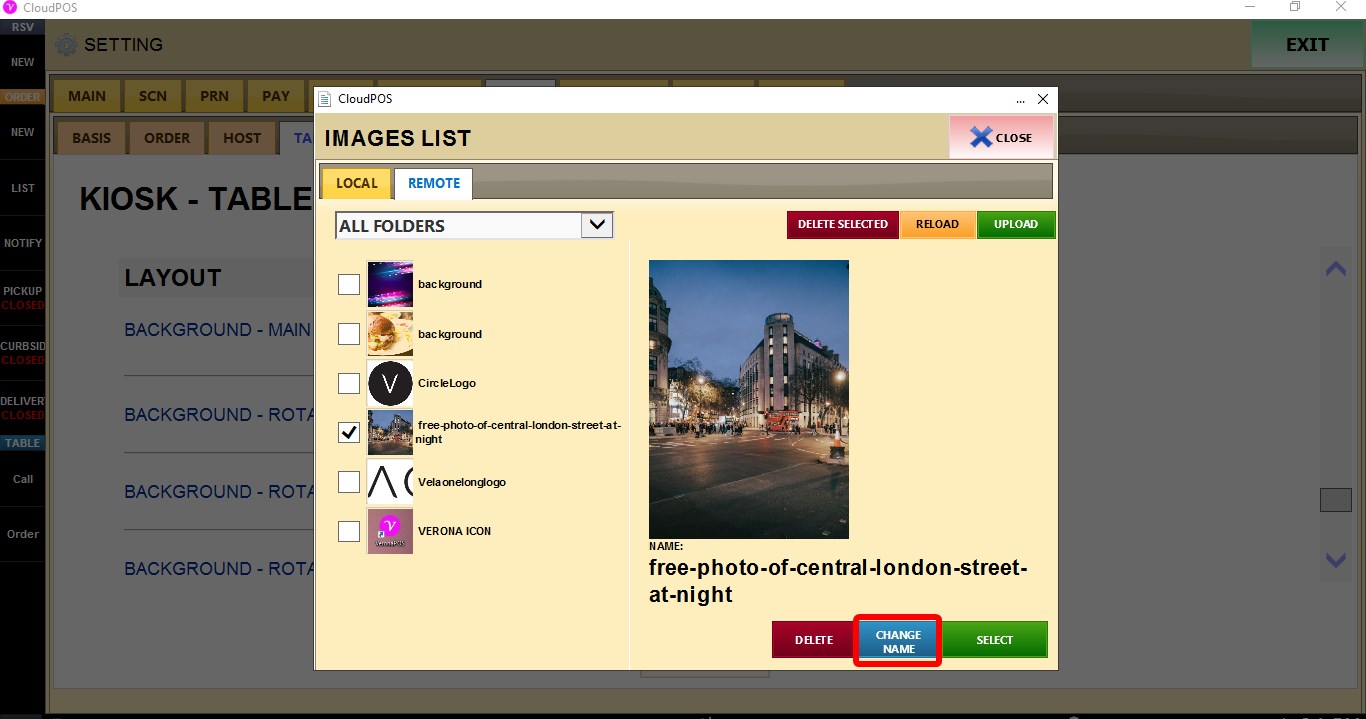
CHANGE NAME renames the selected image.
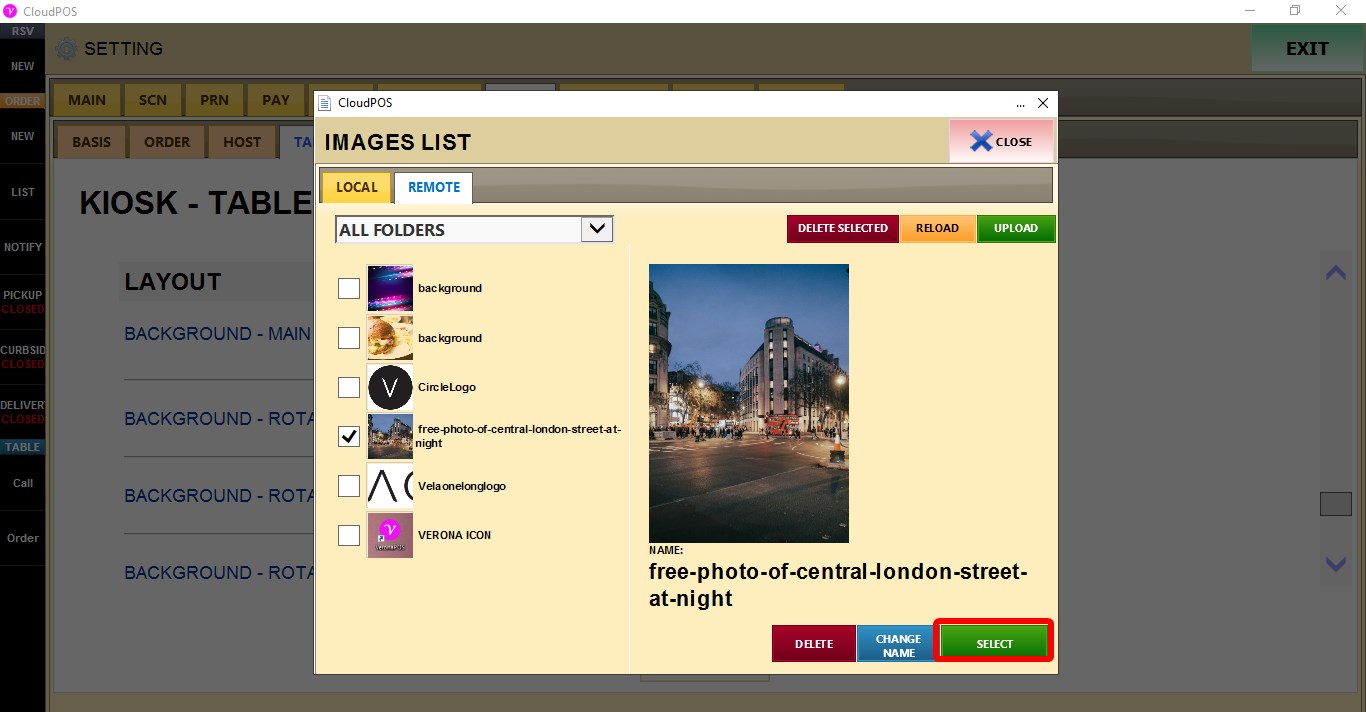
SELECT applies the selected image.
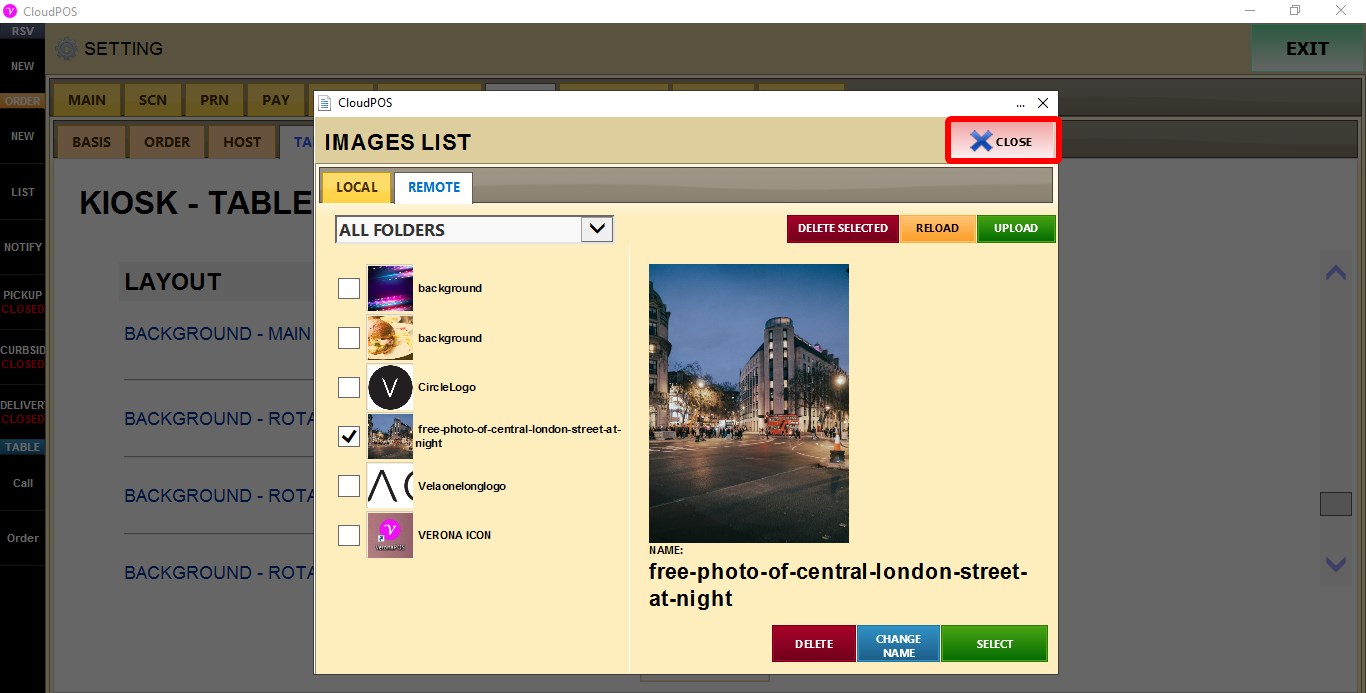
X closes the image selection window.

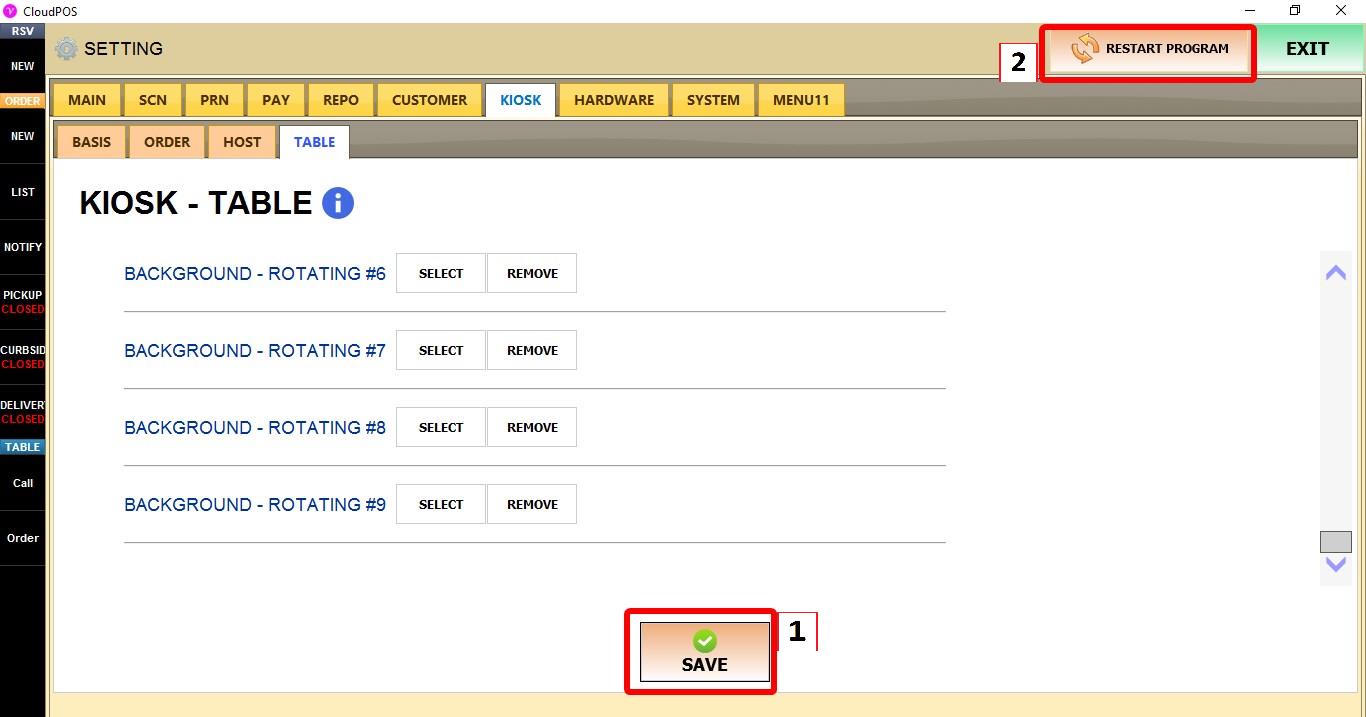
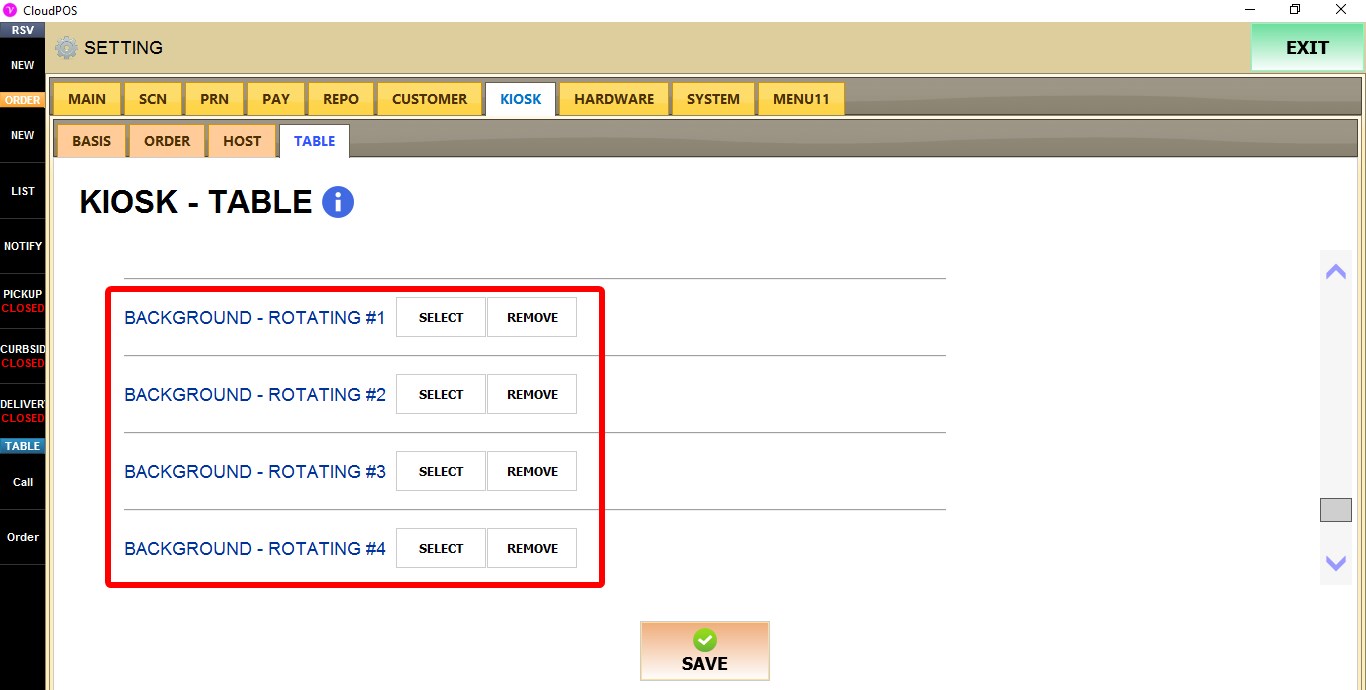
BACKGROUND - ROTATING #1 - #9
Configures additional background images for the tablet ordering kiosk. Each rotating background uses the same image selection options as BACKGROUND - MAIN.
SELECT opens the image selection window.
REMOVE removes the assigned image.

Click SAVE and restart the program to apply the changes.