Creating a To-Go Order
The CREATING A TO-GO ORDER module allows operators to place new takeout orders by entering customer contact details and assigning items to a dedicated to-go ticket. It also enables staff to access customer order history, quickly duplicate previous tickets with the COPY feature, and manage pending pickup orders directly from the Sales Screen.
Main Screen > Sales Screen > TAKE-OUT
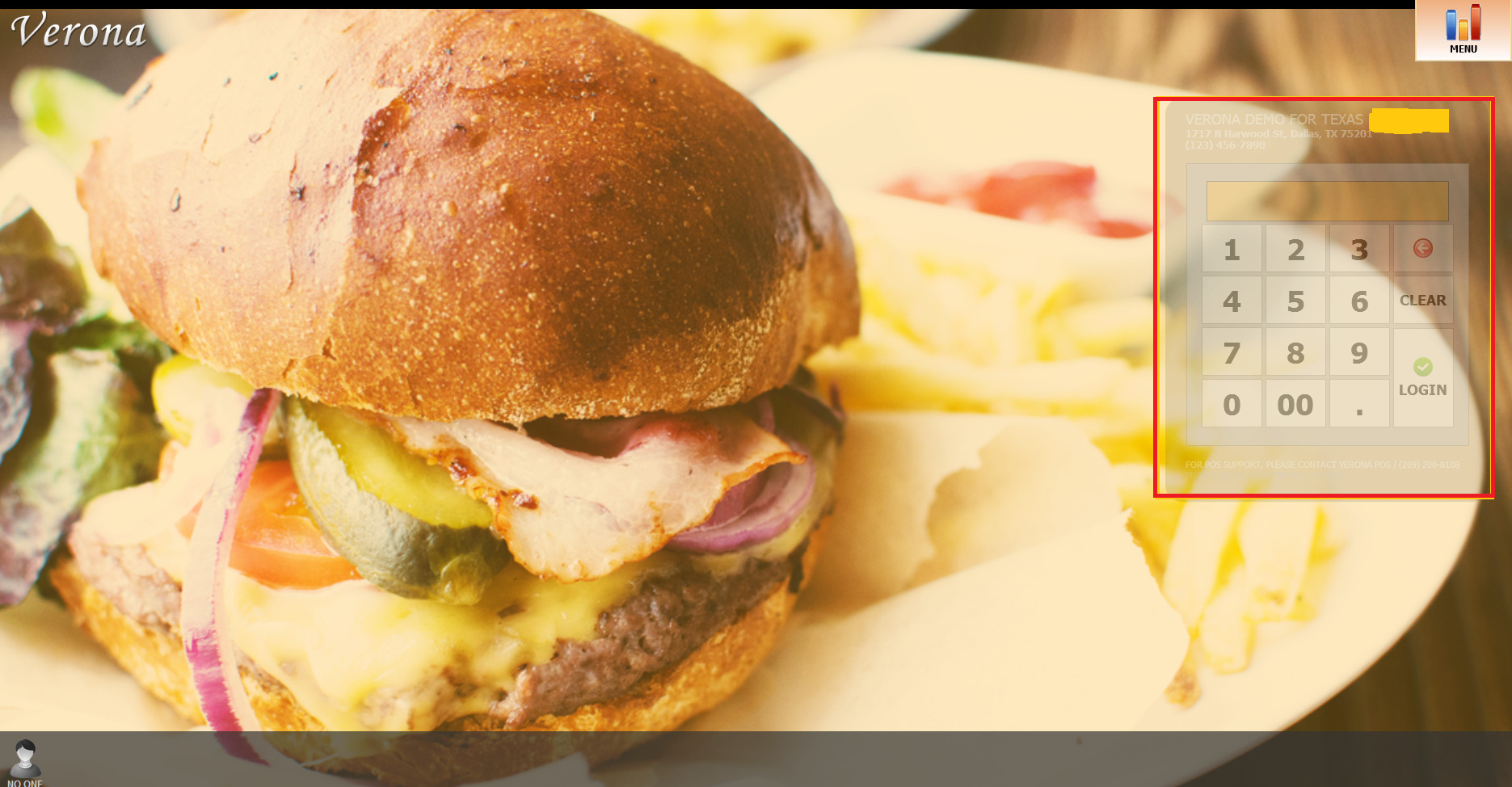
From the Main Screen, enter your password and Log in to access the Sales Screen.
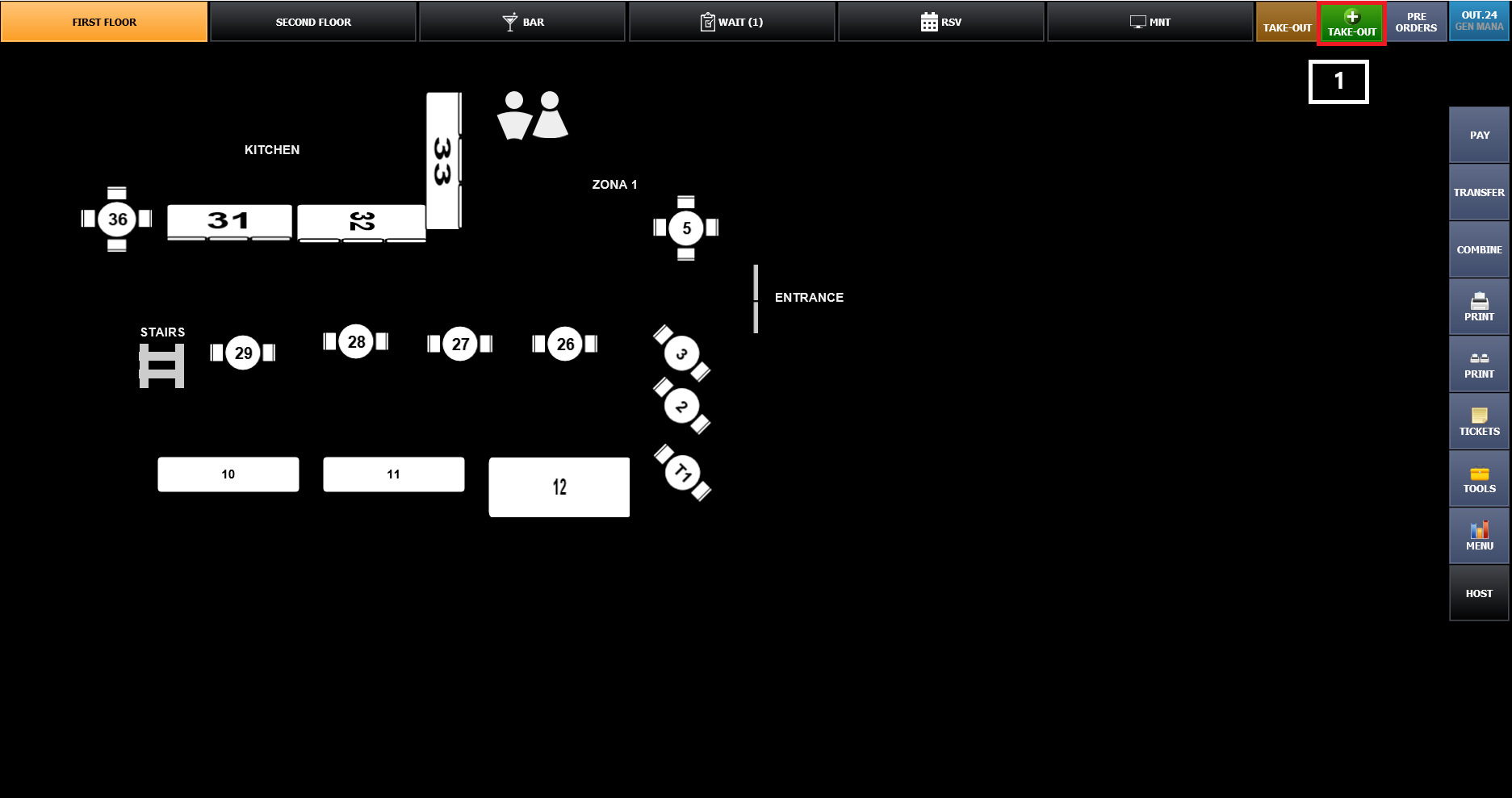
Click the green + TAKE-OUT button in the upper-right corner.
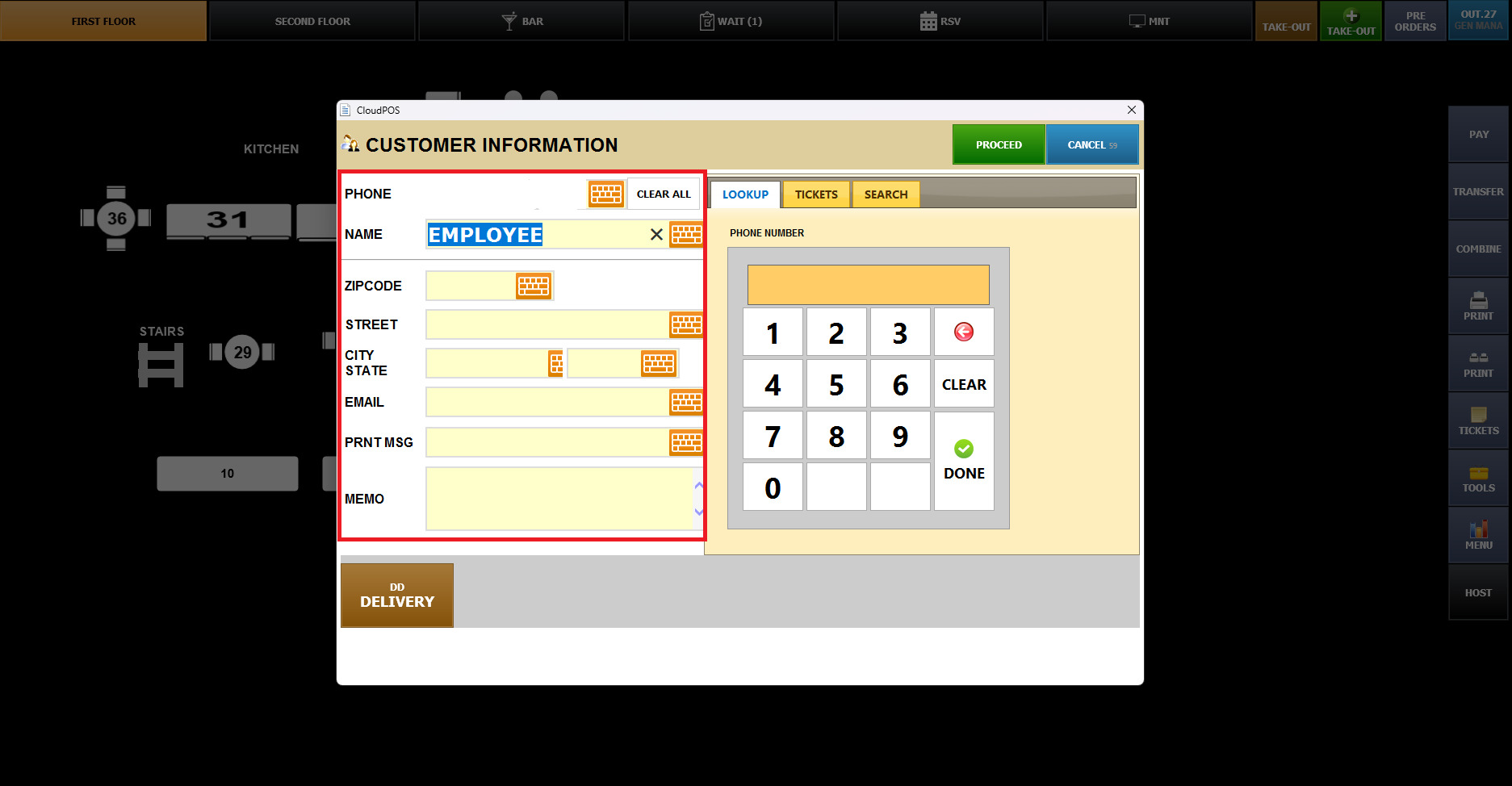
Enter Customer Information. Customer Information window will appear. After entering the customer's information, click PROCEED.
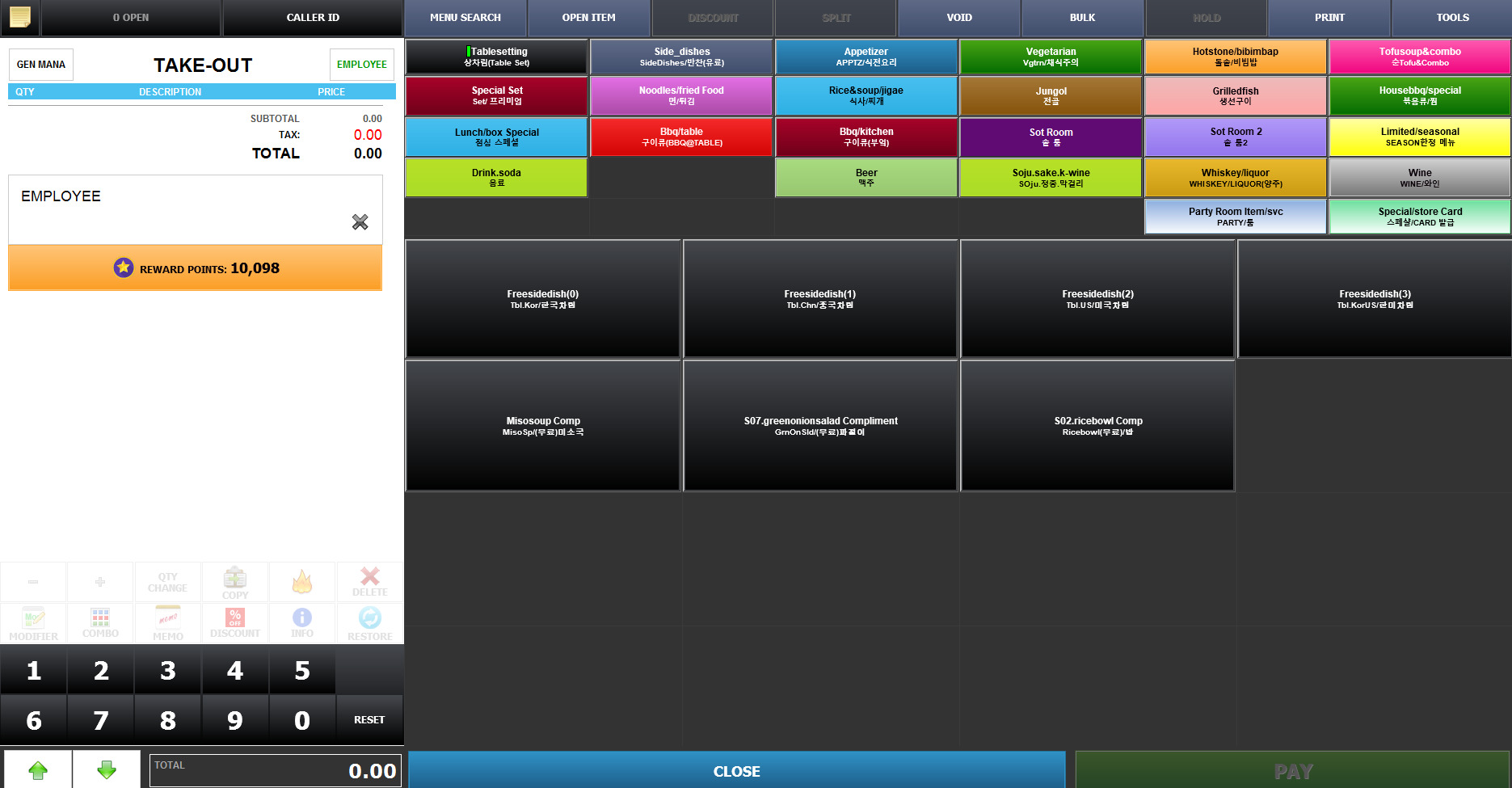
The Sales Screen will open, allowing you to select menu items and enter the customer's order.
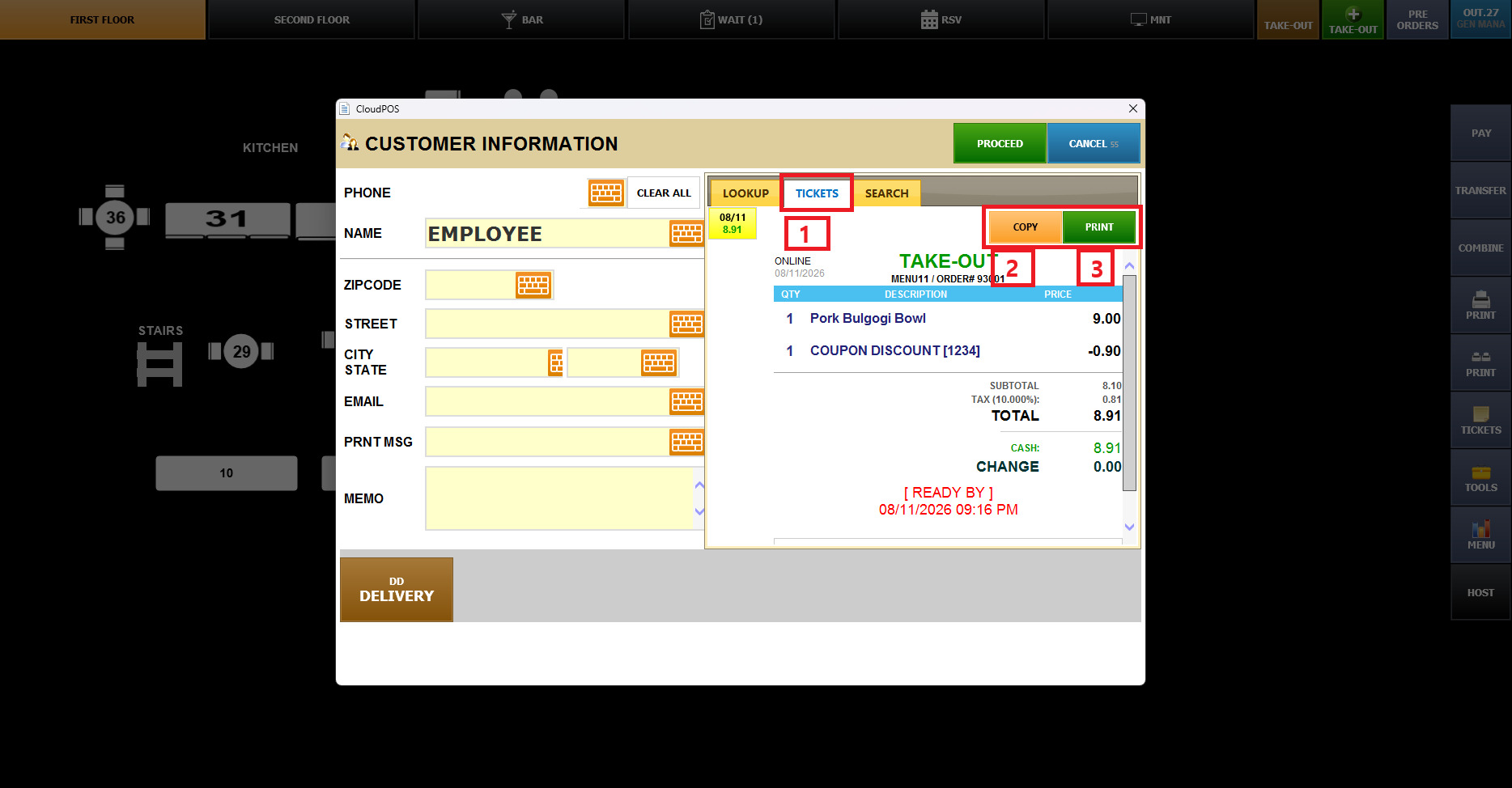
When the same customer visits again, you can check their previous orders.
1. Open Customer Information / Enter or look up the customer's information.
2. Select the TICKETS Tab / Click the TICKETS tab to view the customer's previous orders.
3. Review Previous Orders - Select a previous ticket from the list.
4. Copy a Previous Order / Click COPY to reuse the selected order.
This allows you to create a new order using the previous ticket's items without having to enter each item again.
Finding a To-Go Order for Customer Pickup
Go to the Sales Screen. Click the TAKE-OUT button in the upper-right corner.
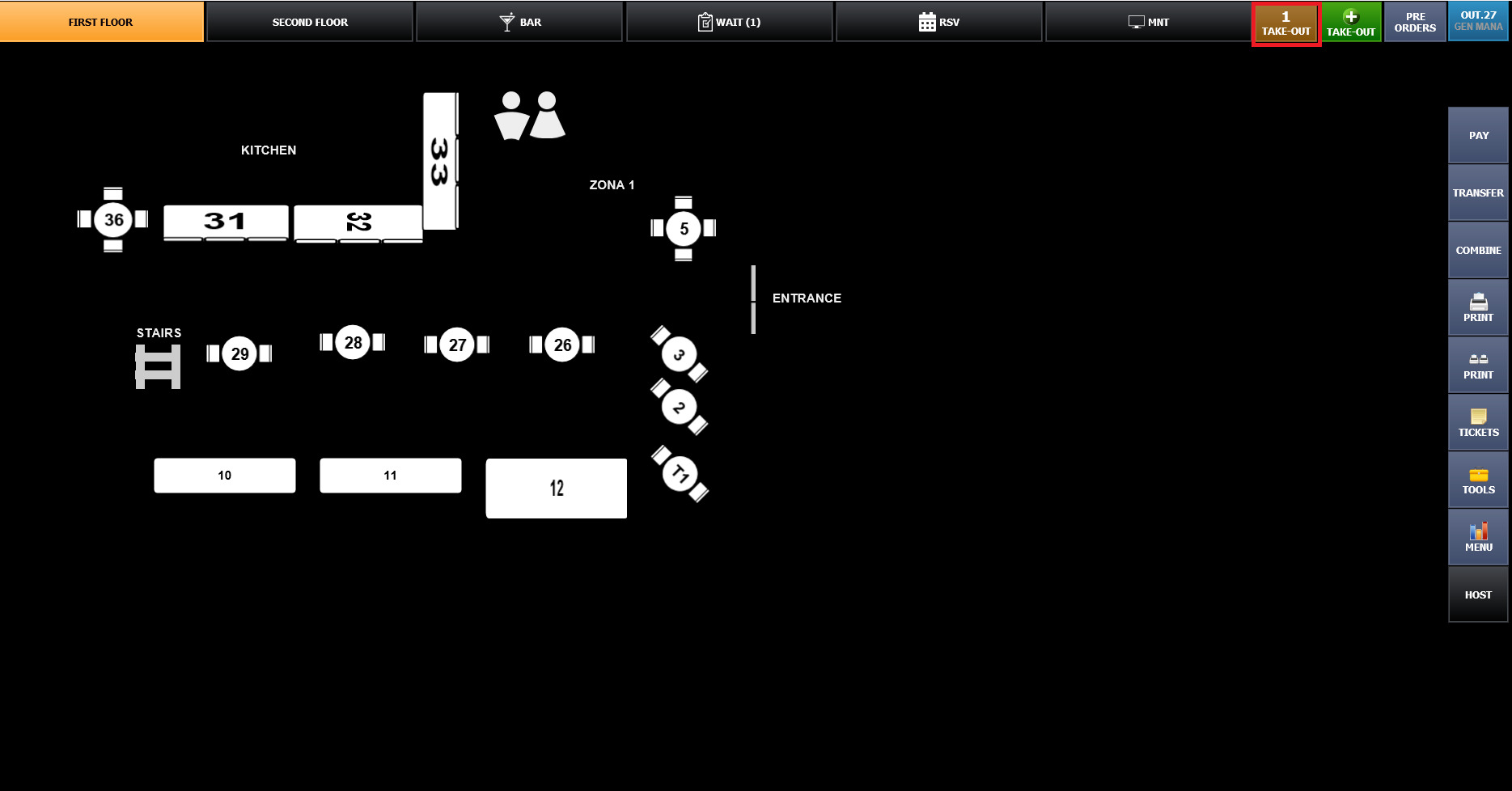
All To-Go order list will appear. Locate the correct ticket using the available order information.
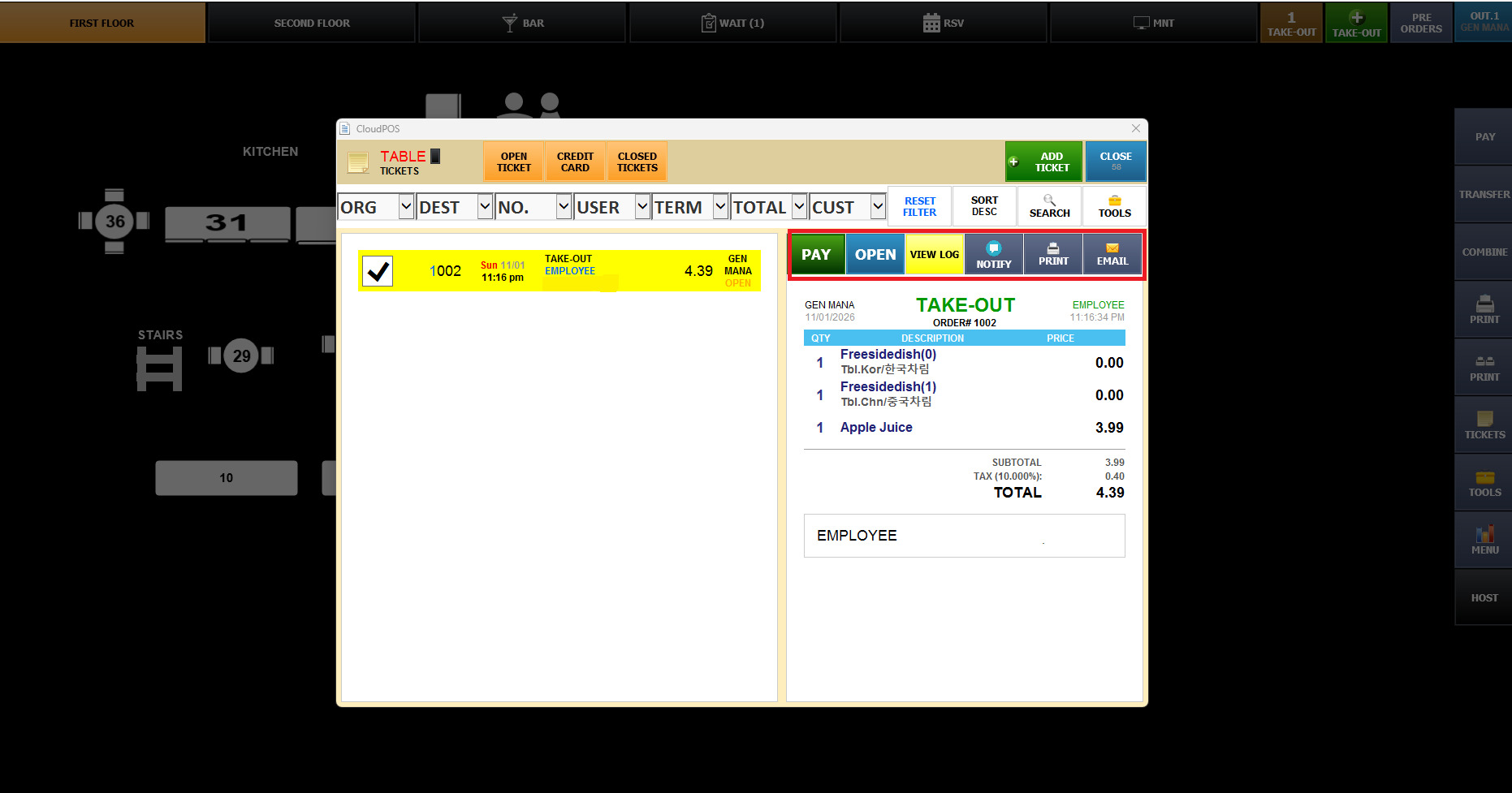
After selecting a To-Go ticket, several options are available.
PAY / Proceed to payment.
OPEN / Open the selected ticket to review or modify the order.
VIEW LOG / View the ticket's activity history.
NOTIFY / Send an order notification, if configured.
PRINT / Print the selected ticket.
EMAIL /Email the ticket, if configured.