Store Mode
Store Mode lets a manager leave the kiosk ordering screen and open the standard ticketing screen of the POS on the same device. From there, the staff can use the general POS functions, such as taking orders, applying discounts and receiving payments. A password is required to enter Store Mode.
Kiosk Screen> *> STORE MODE
On the kiosk screen, press the * (star) button at the top right corner.
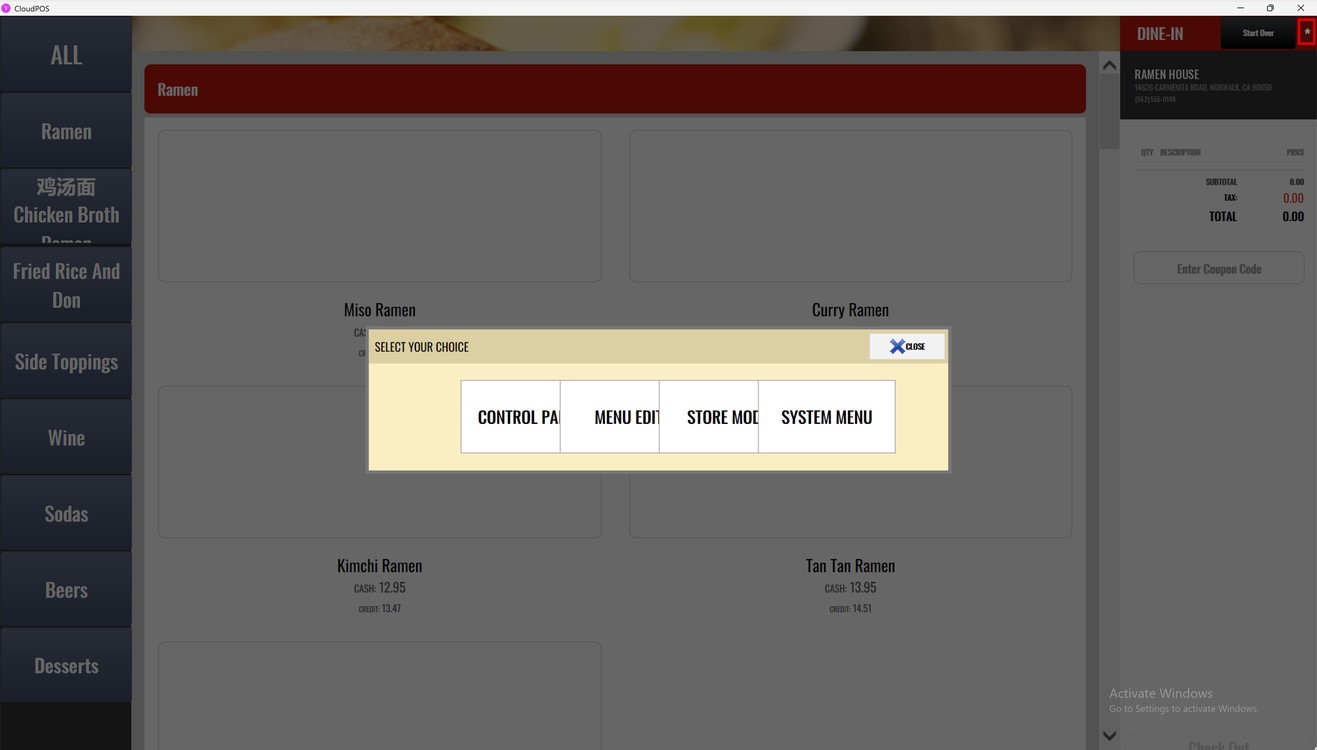
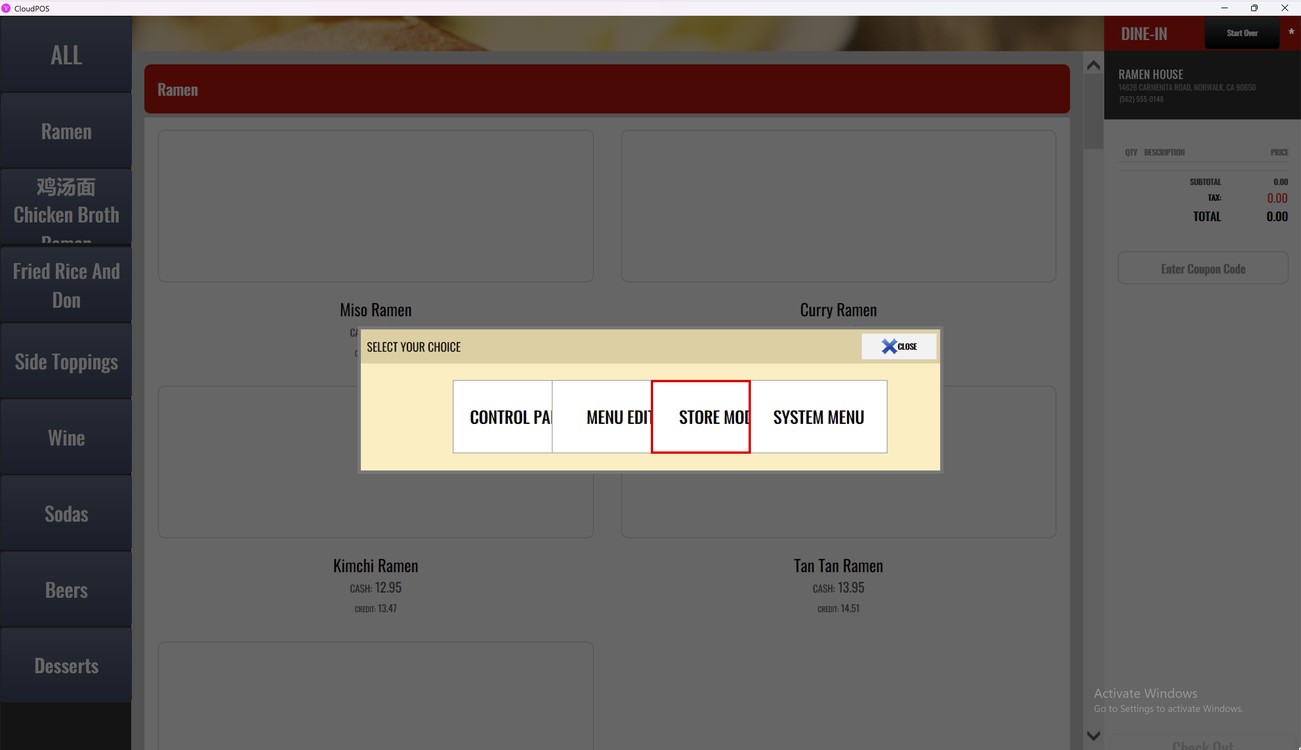
The SELECT YOUR CHOICE window opens. Press STORE MODE.
The ACCESS REQUIRED window opens. Enter the password with the number pad and press DONE.
1. NUMBER PAD: Enter the password. Press the red arrow to delete the last number or CLEAR to delete all.
2. DONE: Confirms the password and opens Store Mode.
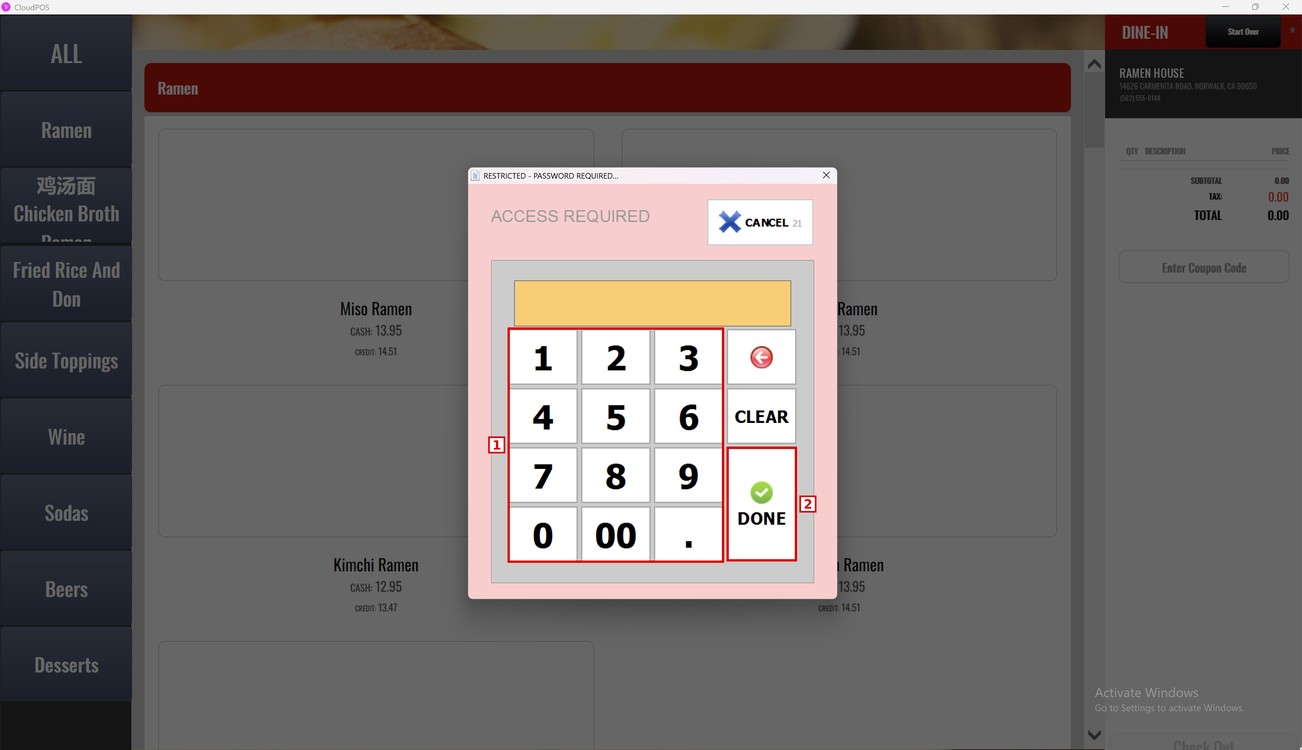
Hint: Press CANCEL to go back to the kiosk screen. The window closes by itself when the countdown next to CANCEL reaches zero.
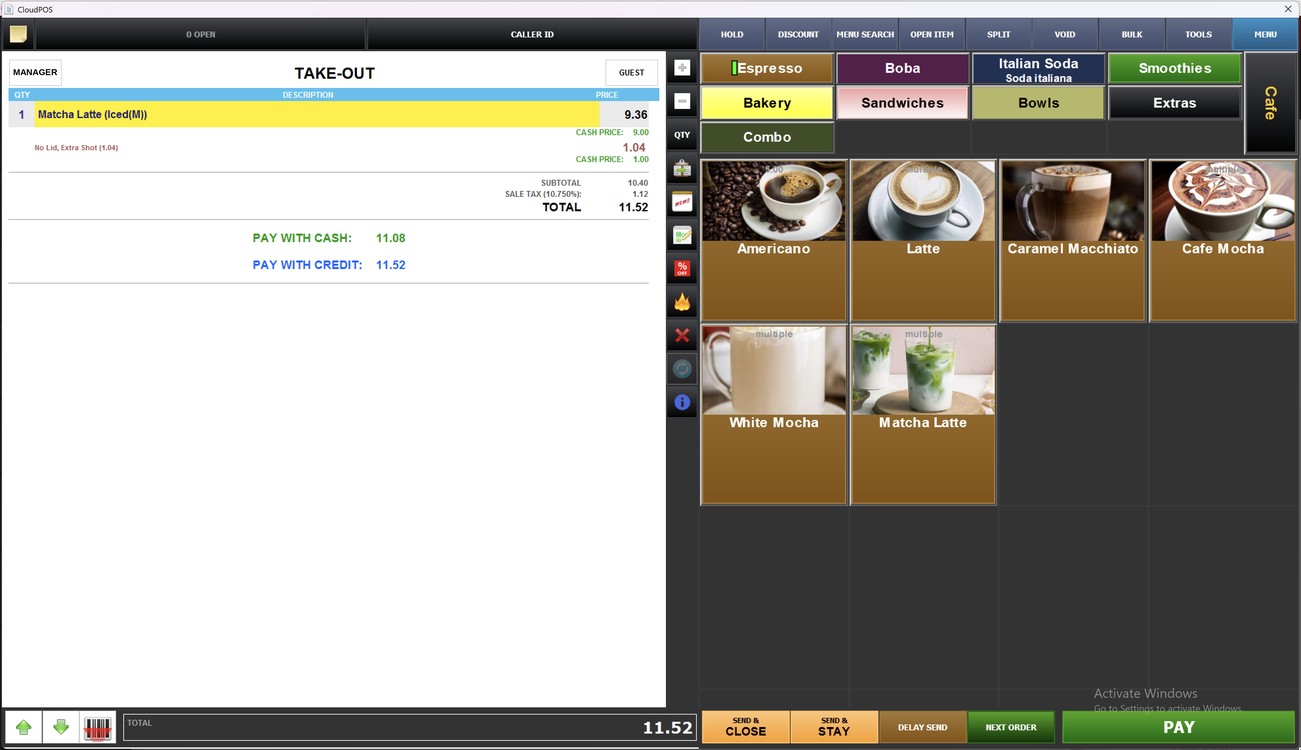
Result:
The kiosk opens the standard ticketing screen of the POS, where the staff can place and manage orders as on any POS station.
To learn how customers place an order on the kiosk, please refer to the How to Place an Order Guide.