Exclude Price Adjustable, tip and Exclude from Print
These settings allow you to override category-level defaults to protect specific items from price changes, to define whether it will be counted in the tips, or to hide internal tracking items from the customer's printed receipt.
Main Screen>MENU>SETTING>REPO>MENU>EDIT>DEPARTMENTS>CATEGORY>ITEM
Access MENU and then SETTINGS.
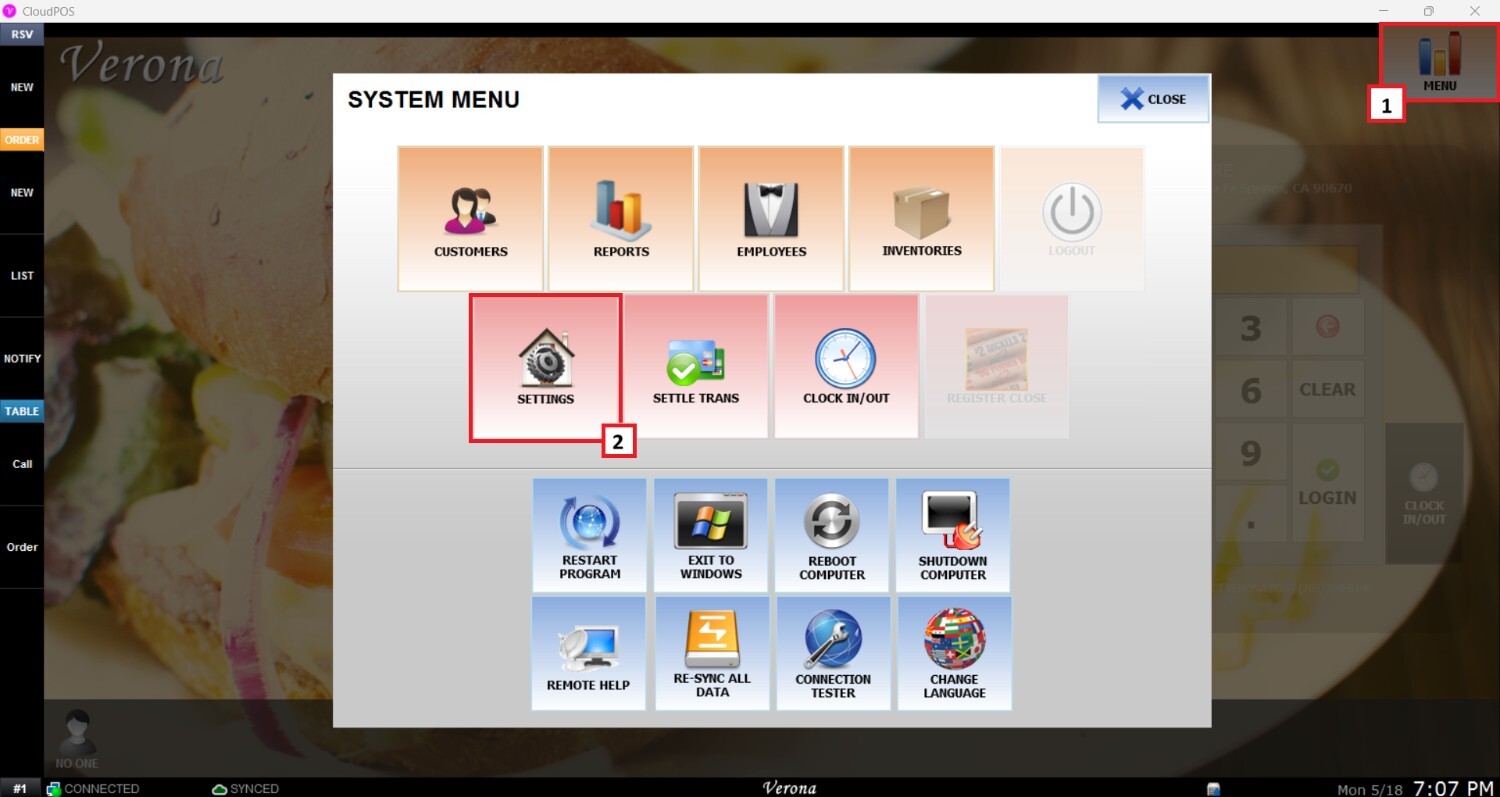
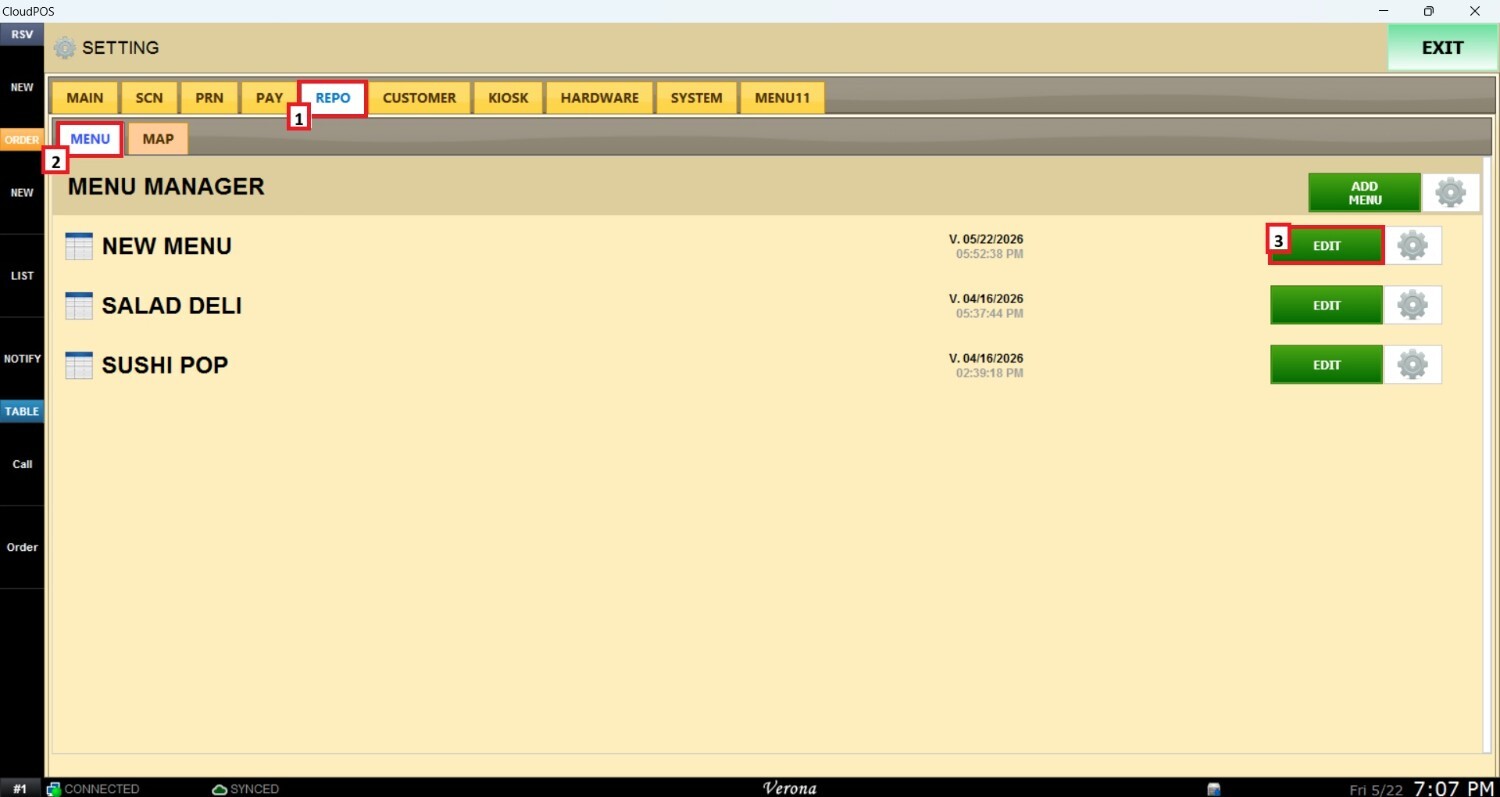
On the SETTINGS panel, navigate to REPO (REPOSITORY), go to MENU, and click the EDIT button on the right side of the menu to be changed.
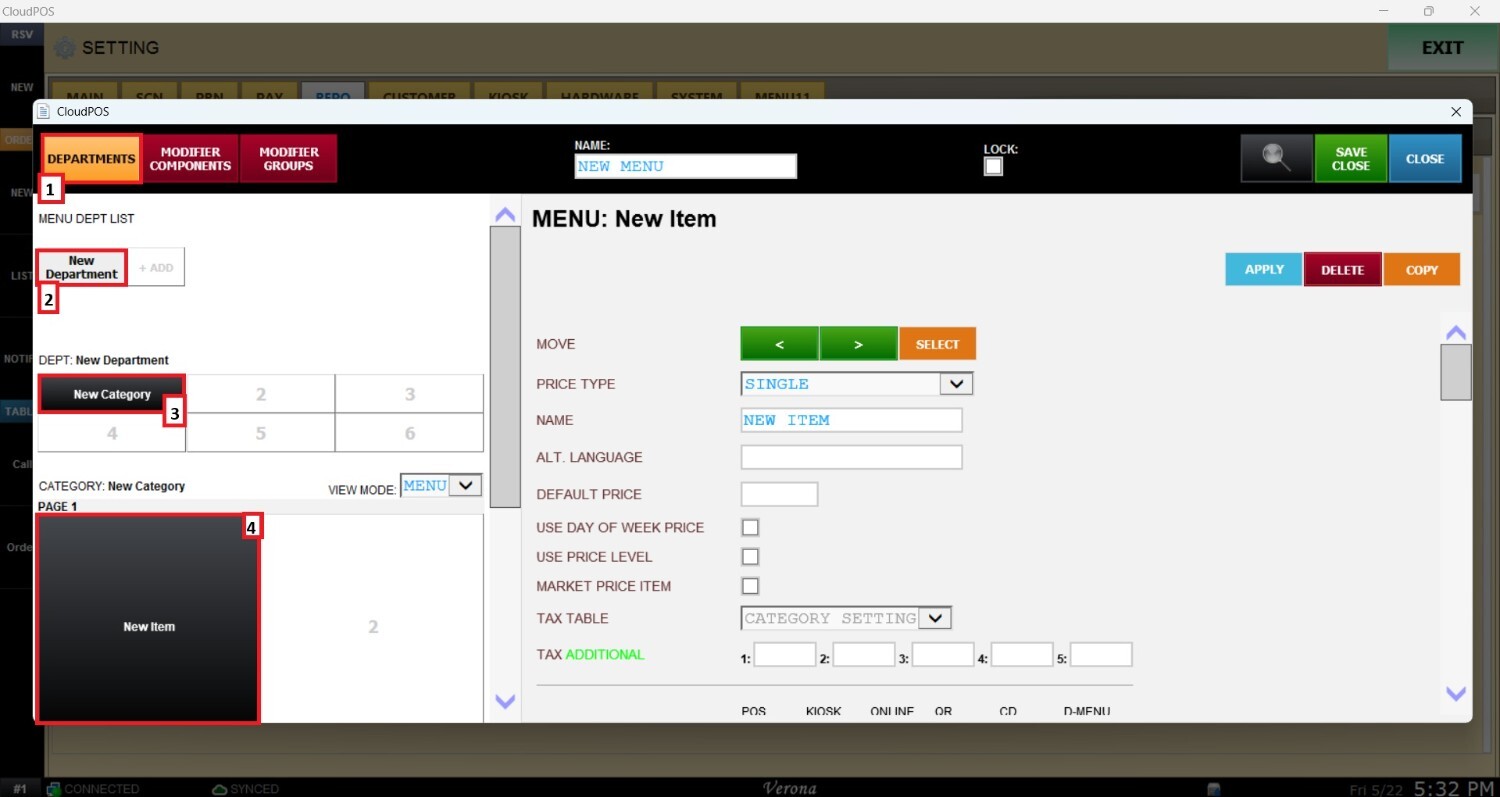
In the Menu Configuration window, navigate to DEPARTMENT, select the specific department, choose the target CATEGORY, and select the ITEM to be modified.
Exclude Price Adjustable
This option determines whether the selected item is exempt from the system's Dual Pricing feature.
For more information, review Dual Price (Credit Card Adjustment Fee)
On the ITEM panel, scroll down until EXCLUDE PRICE ADJUSTABLE
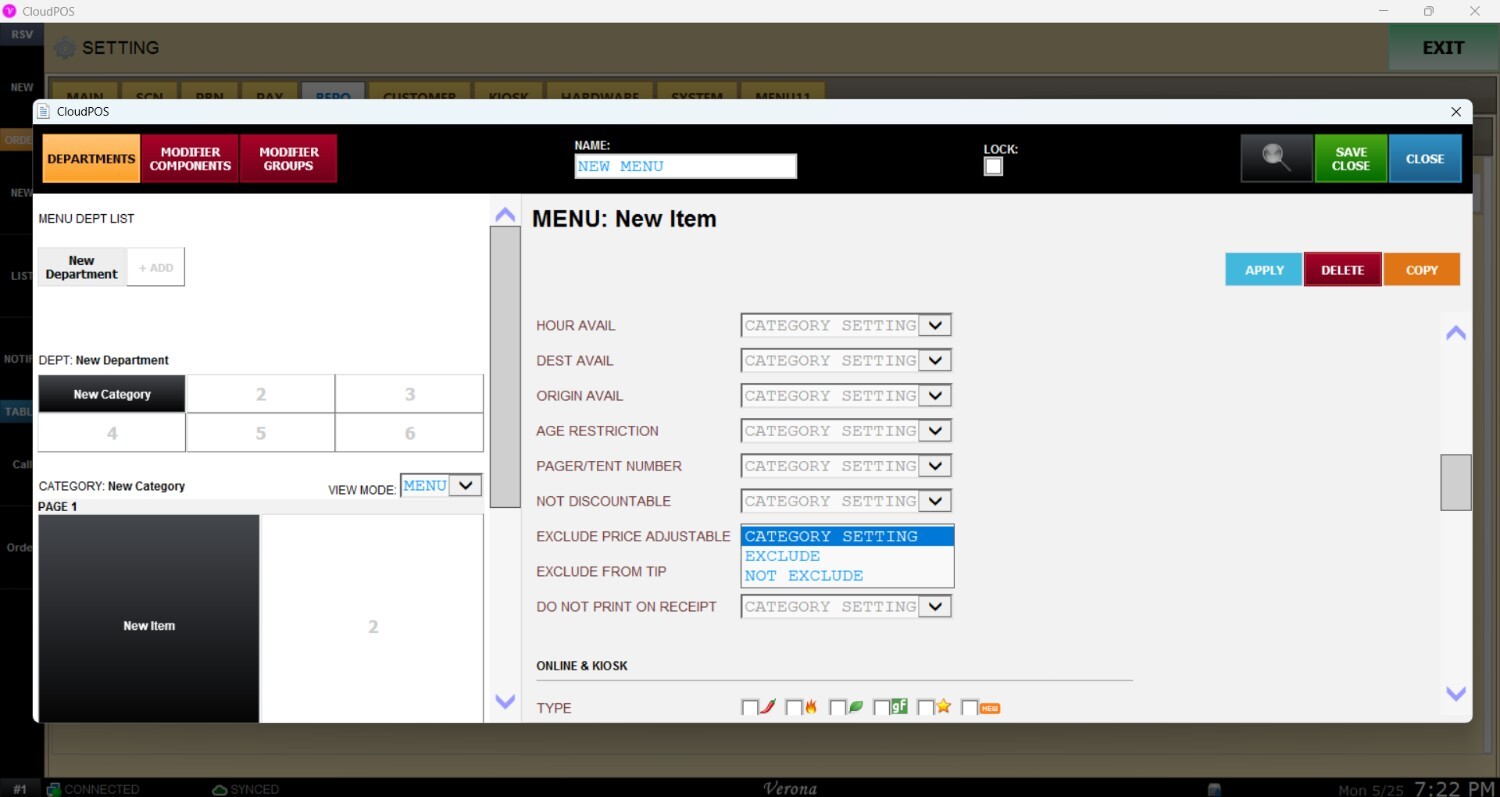
Open the drop-down menu and select one of the available options:
1. CATEGORY SETTING: Inherits whatever behavior is defined in the parent category configuration.
2. EXCLUDE: This option exempts the item from the system's Dual Pricing feature.
3. NOT EXCLUDE: Enables Dual Price calculations for the item, allowing applicable pricing adjustments to be applied.
Refer to Category Check List to learn how to set it for Categories.
Exclude From Tip
Items with this setting won't be counted toward the total amount used to calculate the tip percentage suggestions on the receipt.
On the ITEM panel, scroll down until EXCLUDE FROM TIP.
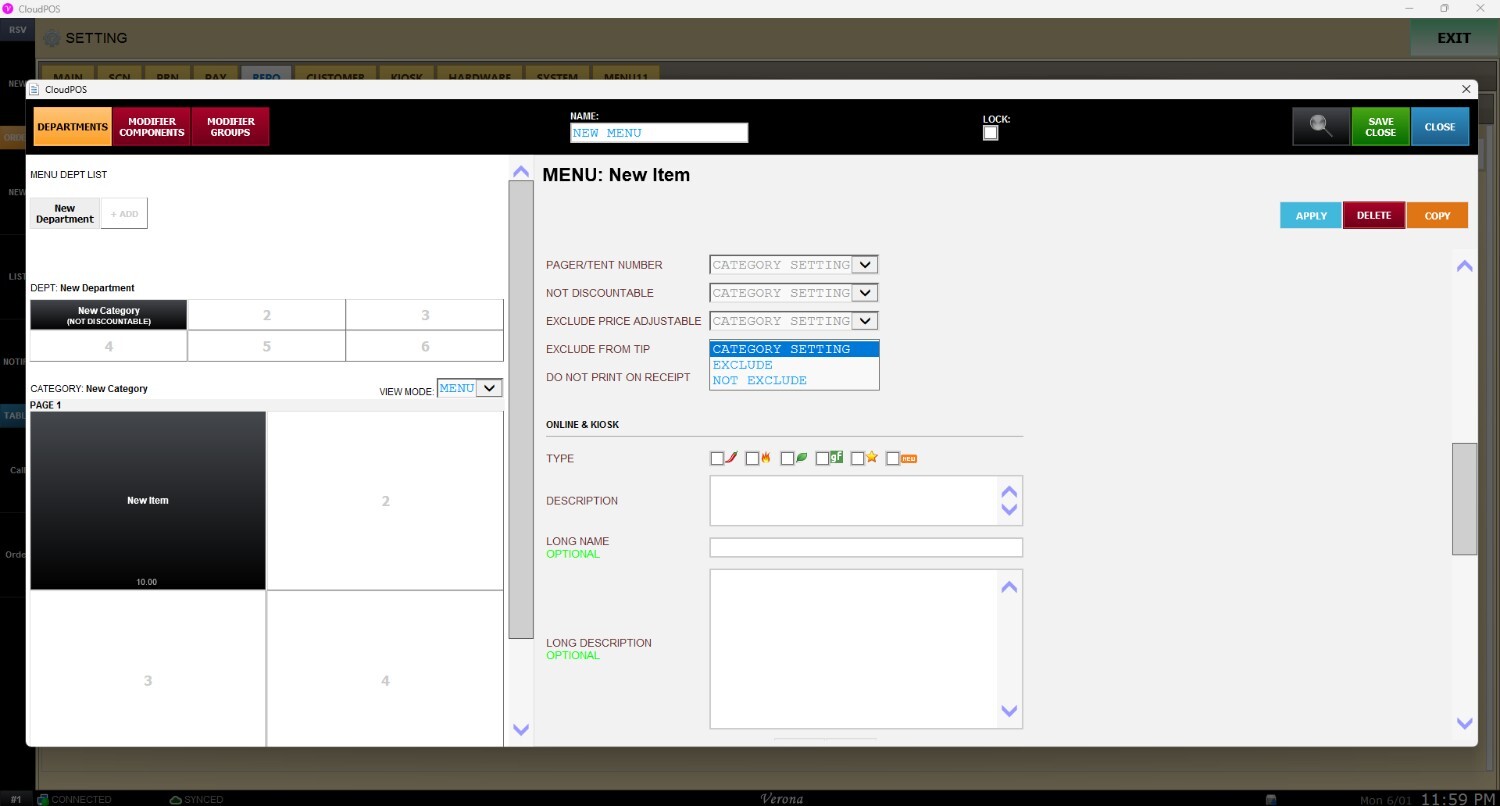
Open the drop-down menu and select one of the available options:
1. CATEGORY SETTING: Inherits whatever behavior is defined in the parent category configuration.
2. EXCLUDE: Items with this setting won't be counted toward the total amount used to calculate the tip percentage suggestions on the receipt.
3. NOT EXCLUDE: Items with this setting will be counted toward the total amount used to calculate the tip percentage suggestions on the receipt.
Refer to Exclude From Tips on Category to learn how to set it for Categories.
Do Not Print on Receipt
This setting controls the visibility of the item on the customer's final printed receipt. It is commonly used for internal kitchen modifiers, zero-cost tracking items, or automatic service charges that do not need to clutter the client-facing bill.
On the ITEM panel, scroll down until DO NOT PRINT ON RECEIPT
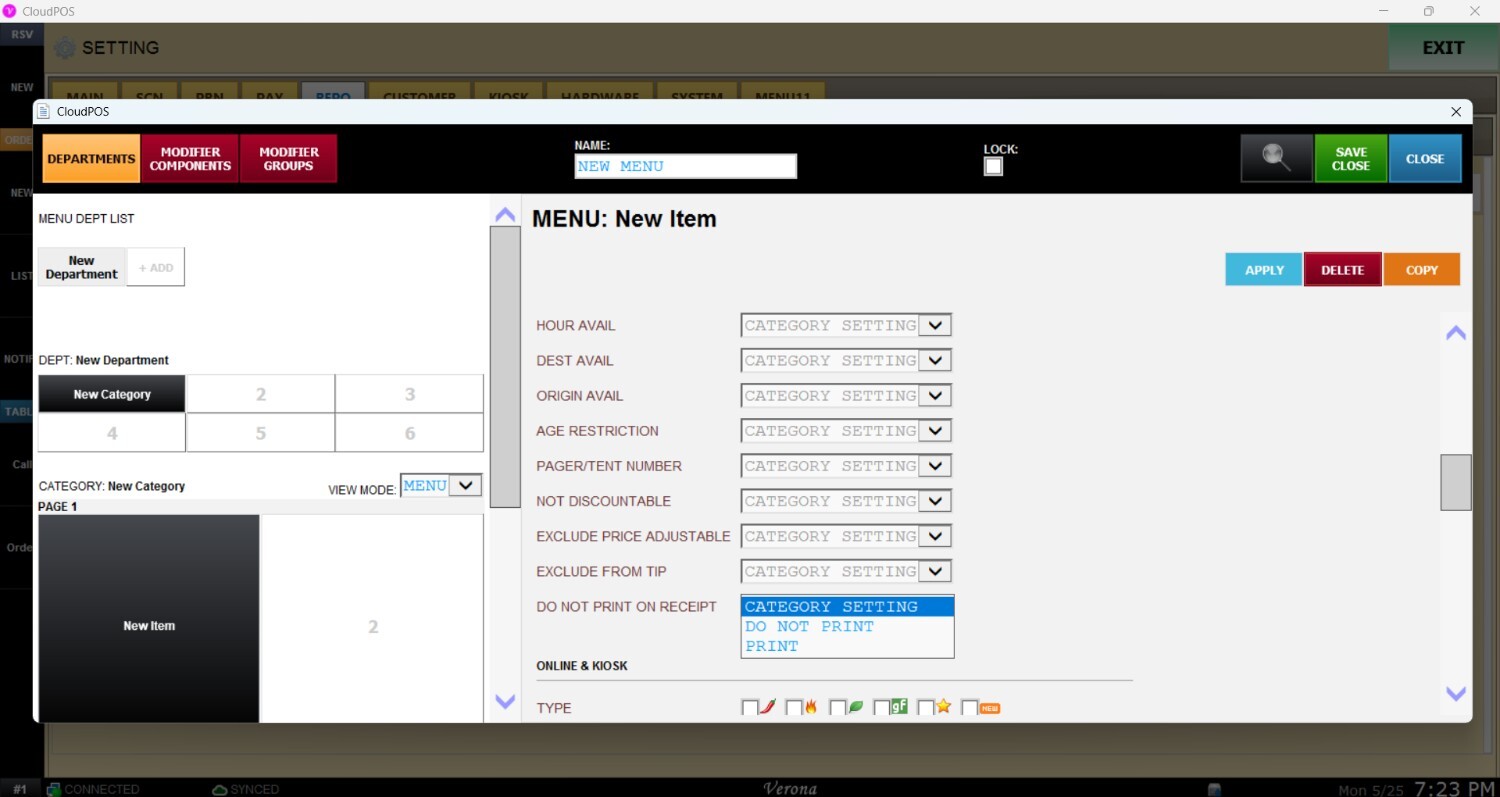
Open the drop-down menu and select one of the available options:
1. CATEGORY SETTING: Inherits the print behavior defined in the category configuration.
2. DO NOT PRINT: Hides the item from the customer's printed receipt.
Note: This item will still be printed to the kitchen if it is configured for kitchen printing.
3. PRINT: Forces the item to be displayed on the customer's printed receipt.
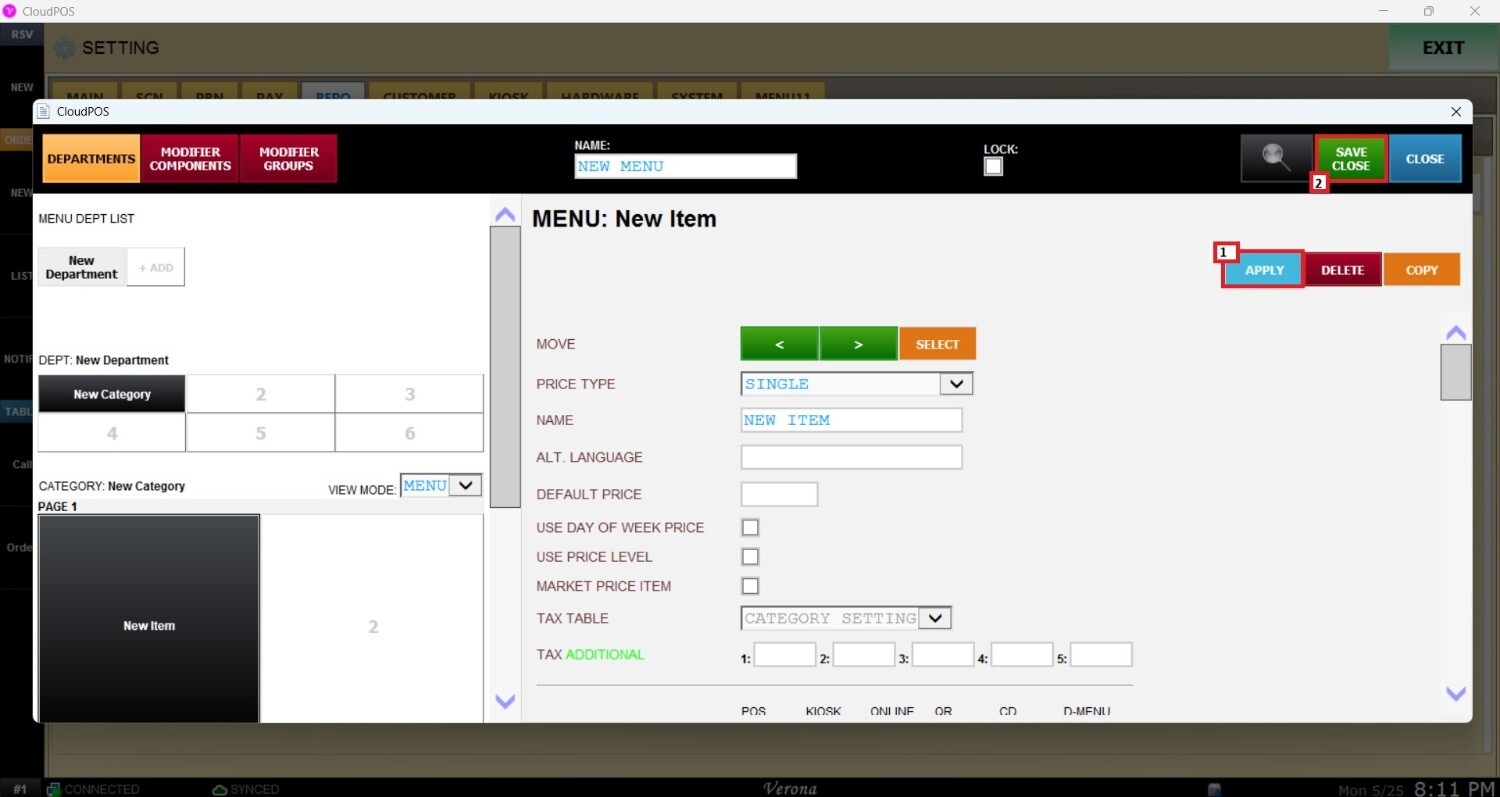
Once configured, click on APPLY and SAVE CLOSE.