Credit Card
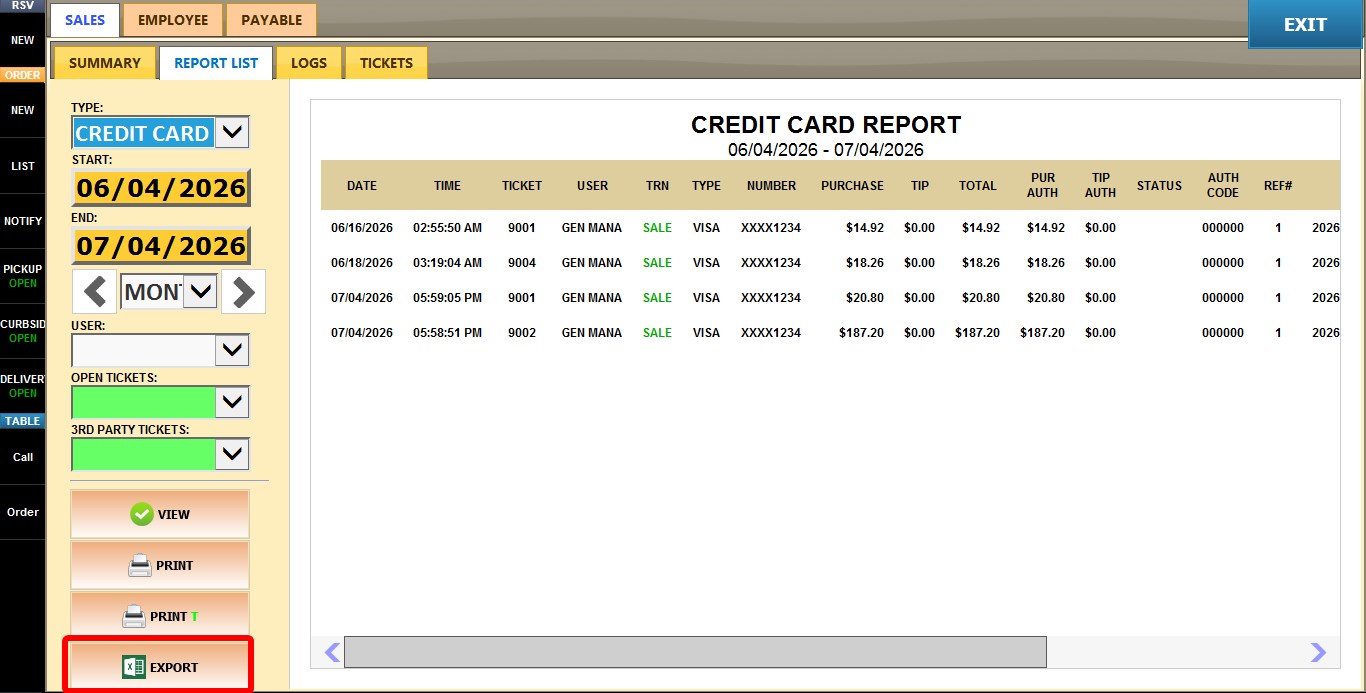
The Credit Card Sales Report displays all credit card transactions processed during the selected period. Use this report to review credit card sales, verify transactions, and analyze payment activity.
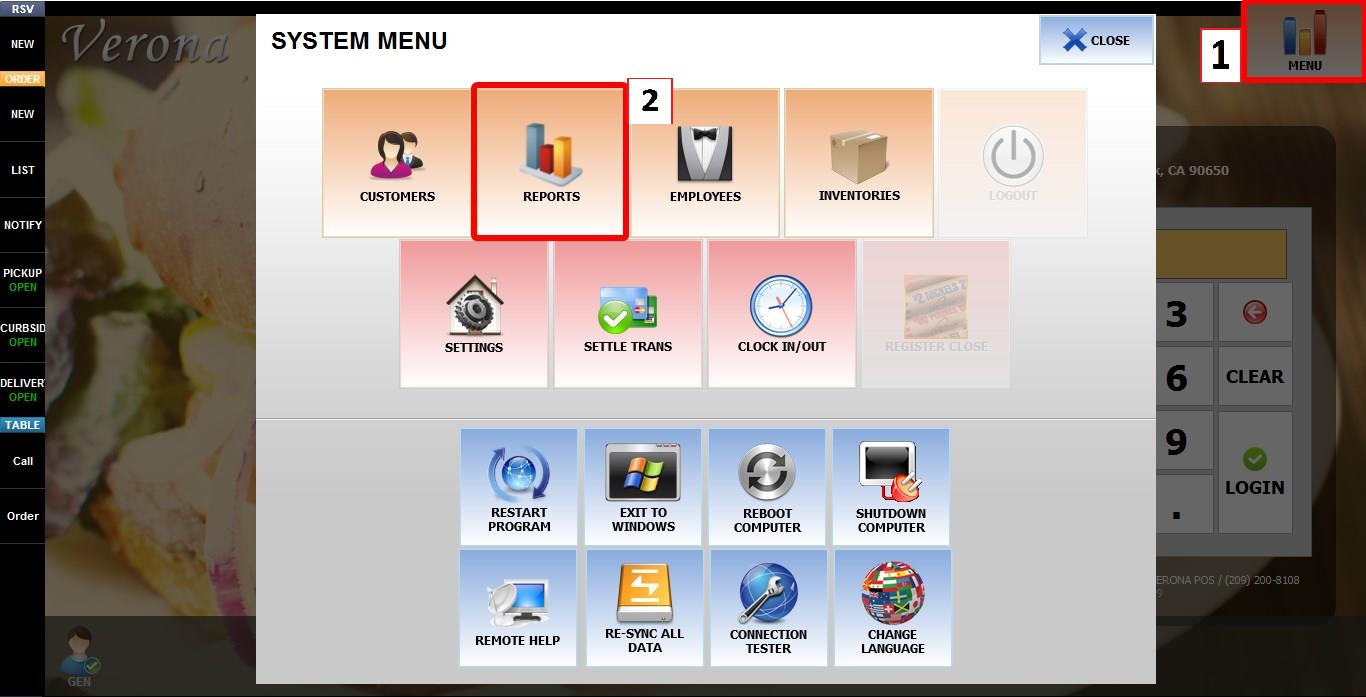
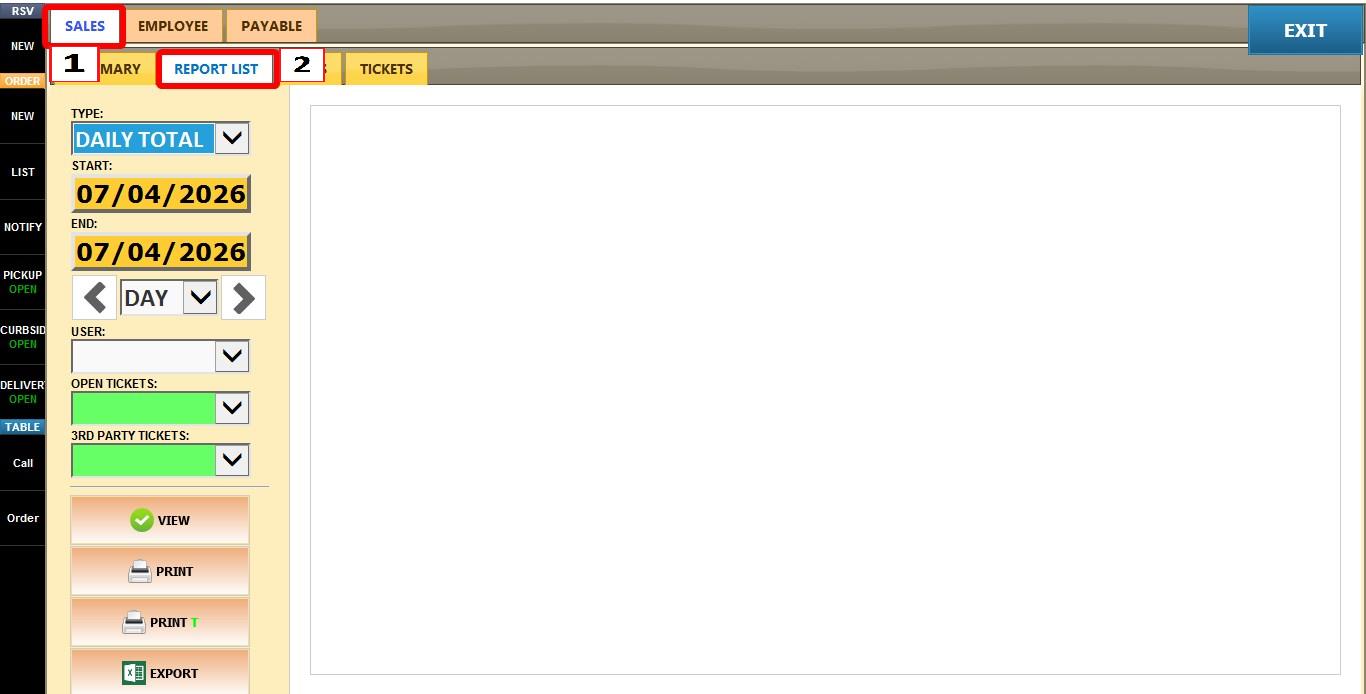
MAIN SCREEN > MENU > REPORTS > SALES > REPORT LIST
From the MAIN SCREEN, click MENU, then select REPORTS.

Open the SALES tab, then click REPORT LIST.
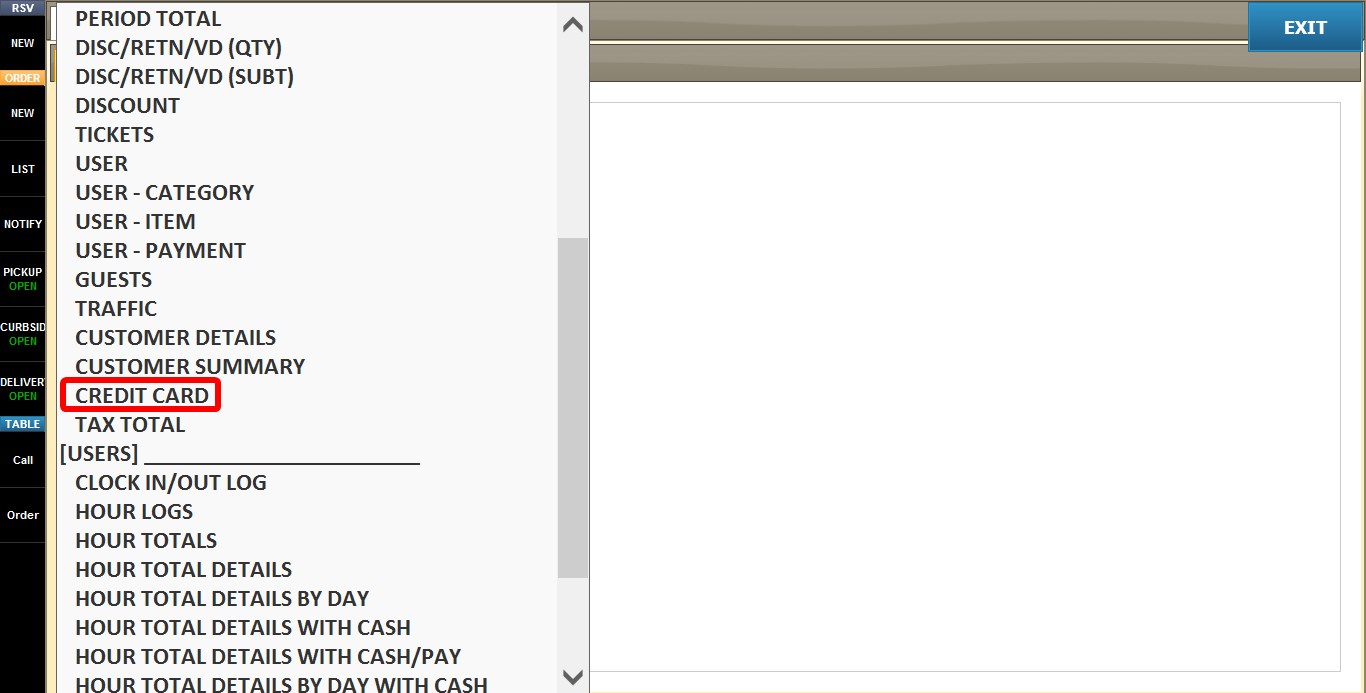
Click the TYPE dropdown.

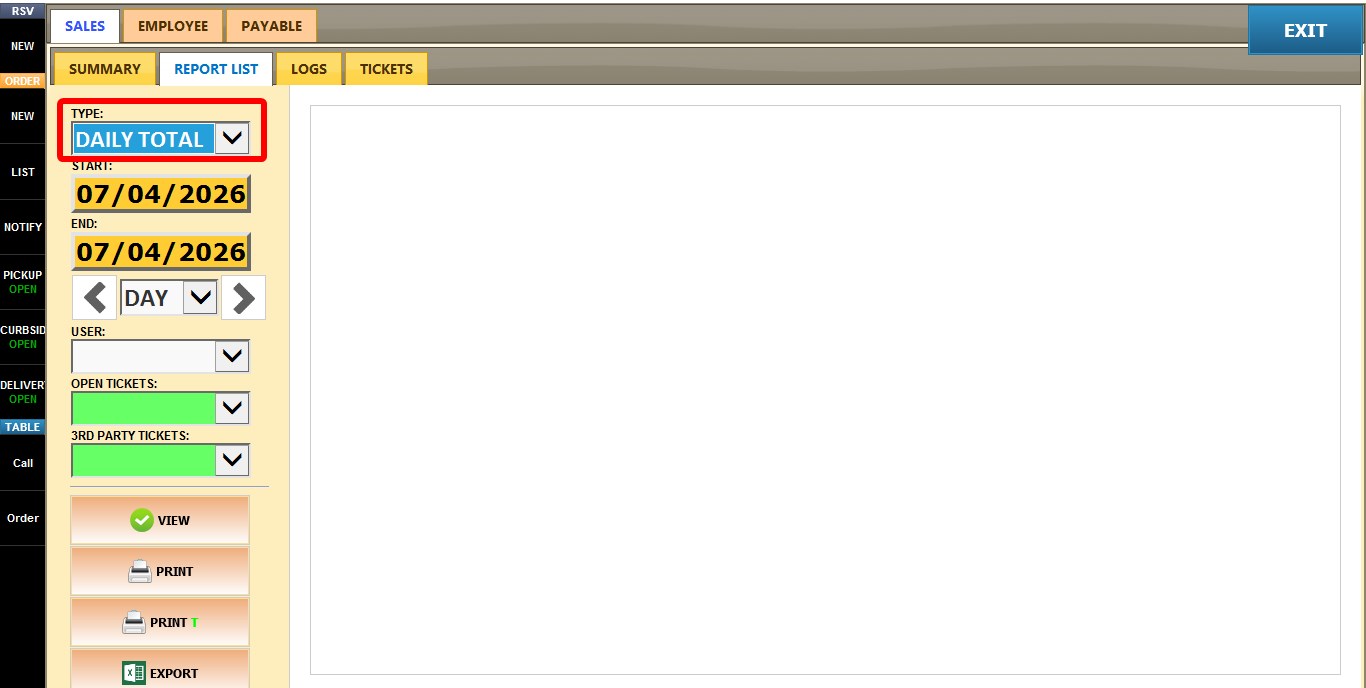
Select CREDIT CARD
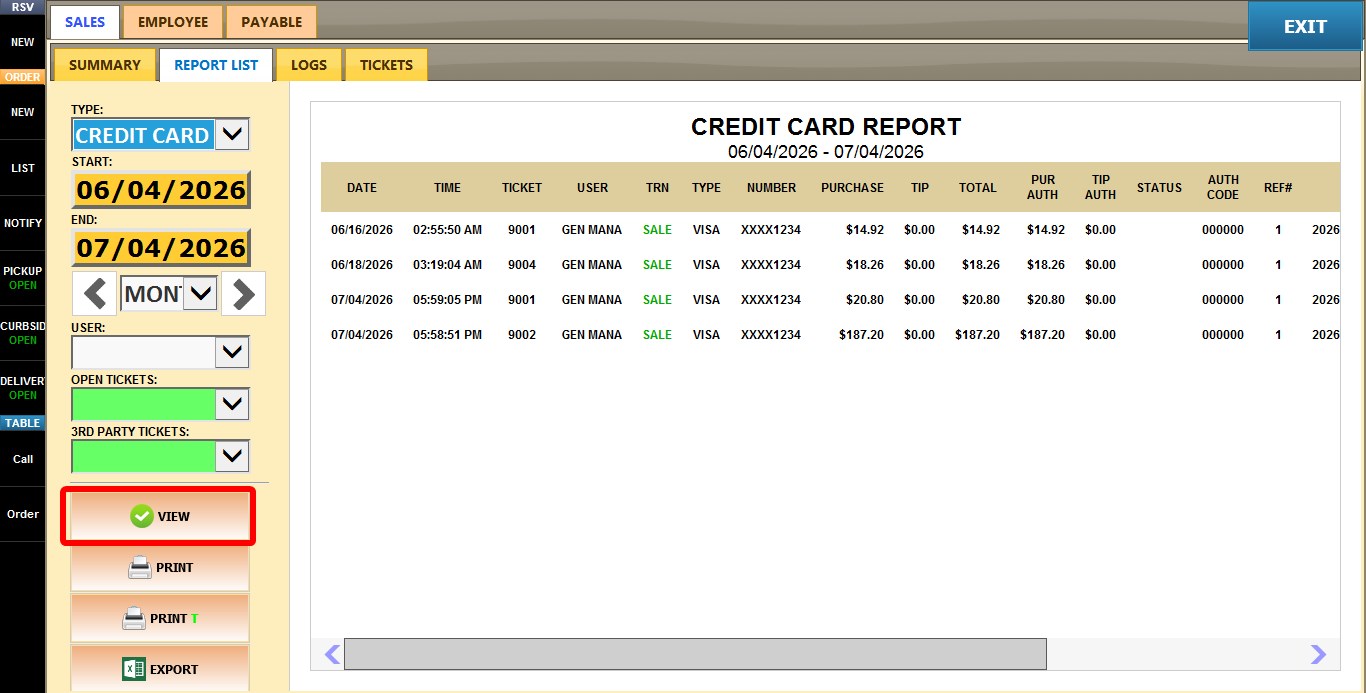
The report will display all credit card transactions for the selected period.
Click VIEW to see the report or after changing any filters to refresh the report
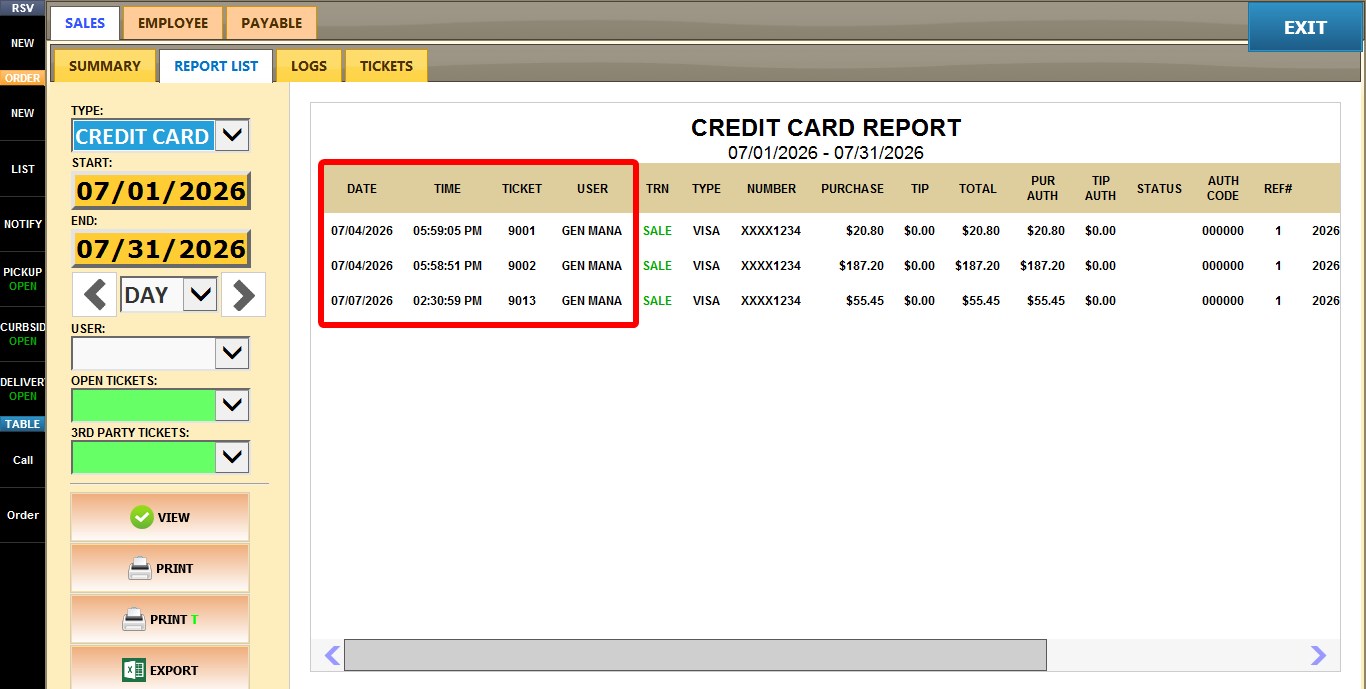
DATE
Displays the date the credit card transaction was processed.
TIME
Displays the exact time the credit card transaction was processed.
TICKET
Displays the ticket number associated with the transaction.
USER
Displays the employee who processed the transaction.
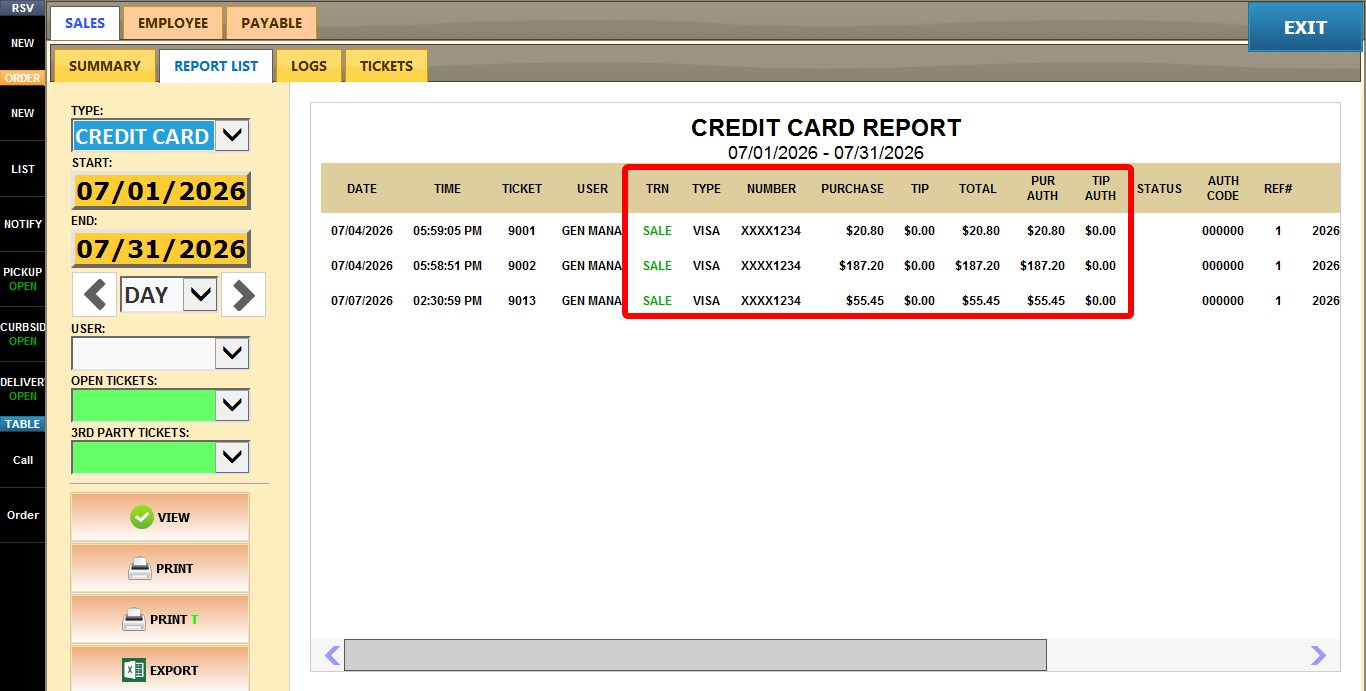
TRN
Displays the transaction number assigned to the credit card transaction.
TYPE
Displays the payment card or transaction type used for the payment.
NUMBER
Displays the masked credit card number used for the transaction.
PURCHASE
Displays the original purchase amount charged to the card, excluding tip.
TIP
Displays the tip amount included with the transaction.
TOTAL
Displays the total amount charged to the card, including the purchase amount and tip.
PUR AUTH
Displays the authorization result or authorization code for the purchase amount.
TIP AUTH
Displays the authorization result or authorization code for the tip amount, when applicable.
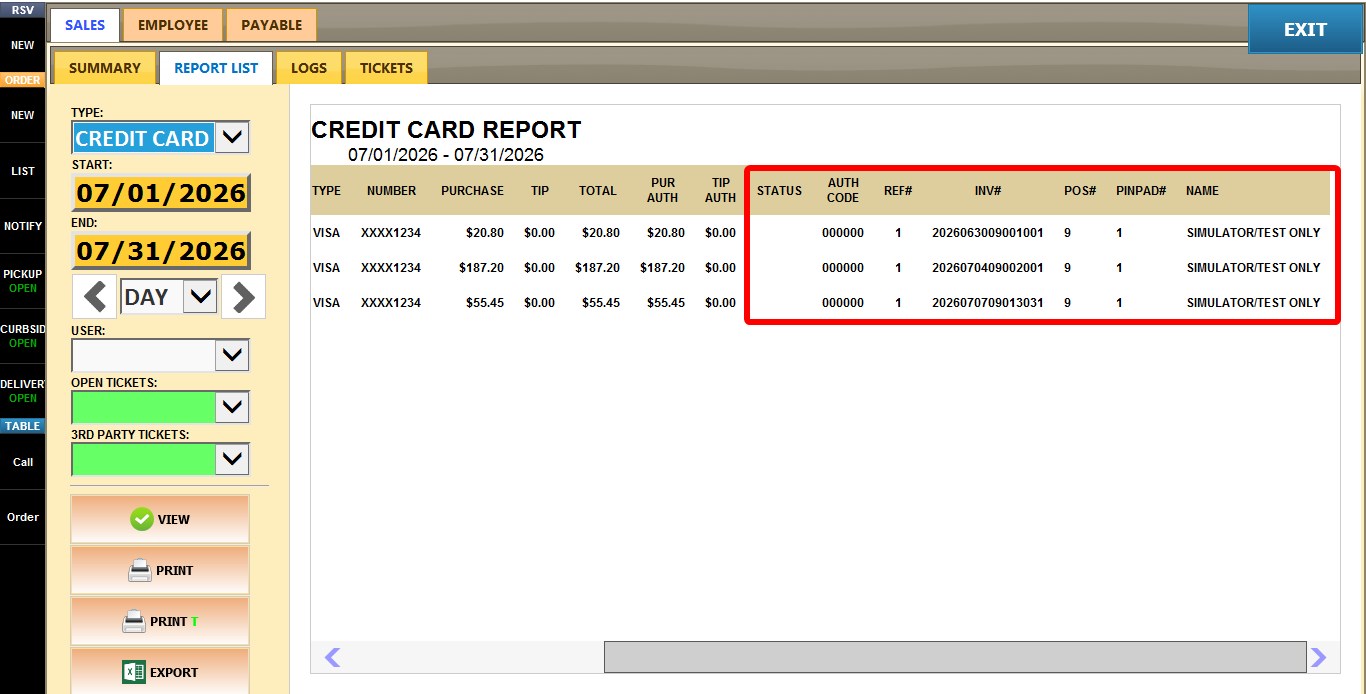
STATUS
Displays the current processing status of the credit card transaction, such as declined or refunded.
AUTH CODE
Displays the authorization code returned by the payment processor after approving the transaction.
REF#
Displays the reference number assigned by the payment processor to identify and track the transaction.
INV#
Displays the invoice number associated with the transaction.
POS#
Displays the POS terminal number where the transaction was processed.
PINPAD#
Displays the PIN pad or payment device used to process the credit card transaction.
NAME
Displays the cardholder's name associated with the payment card, when available.
FILTERS
START / END
Allows you to select a custom date range for the report.
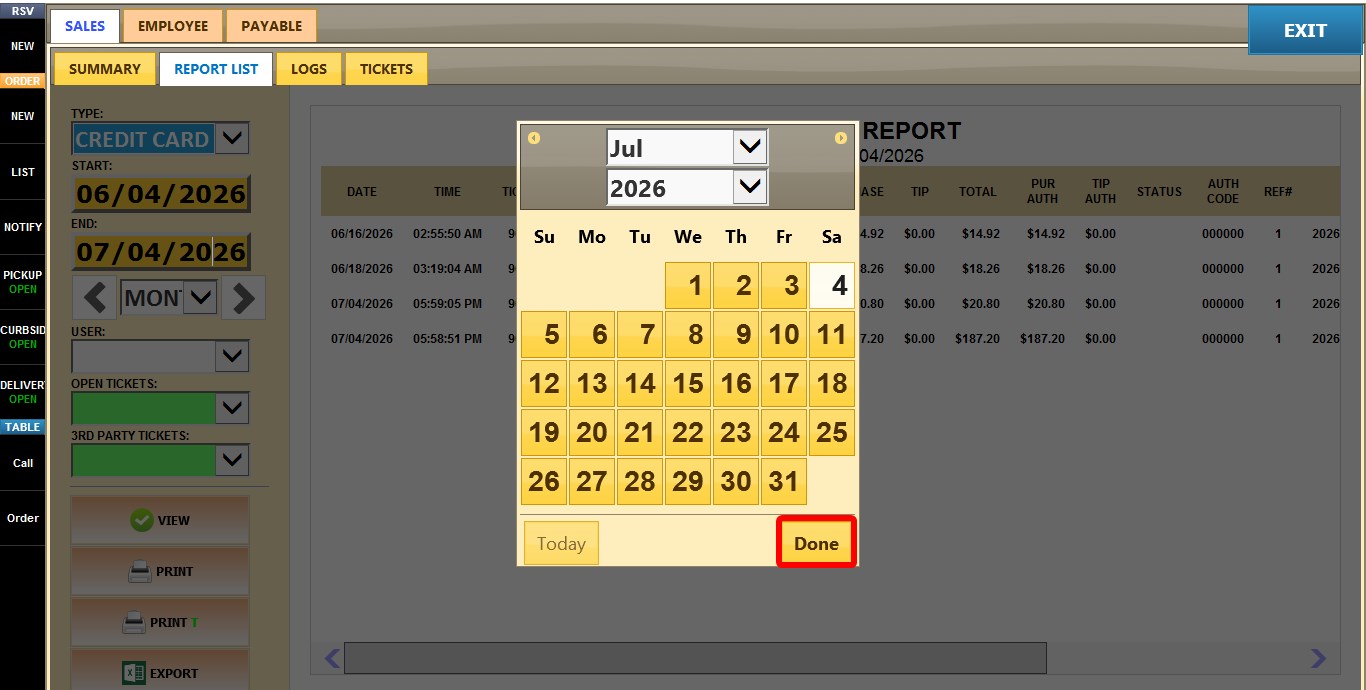
Click either START or END to open the calendar and
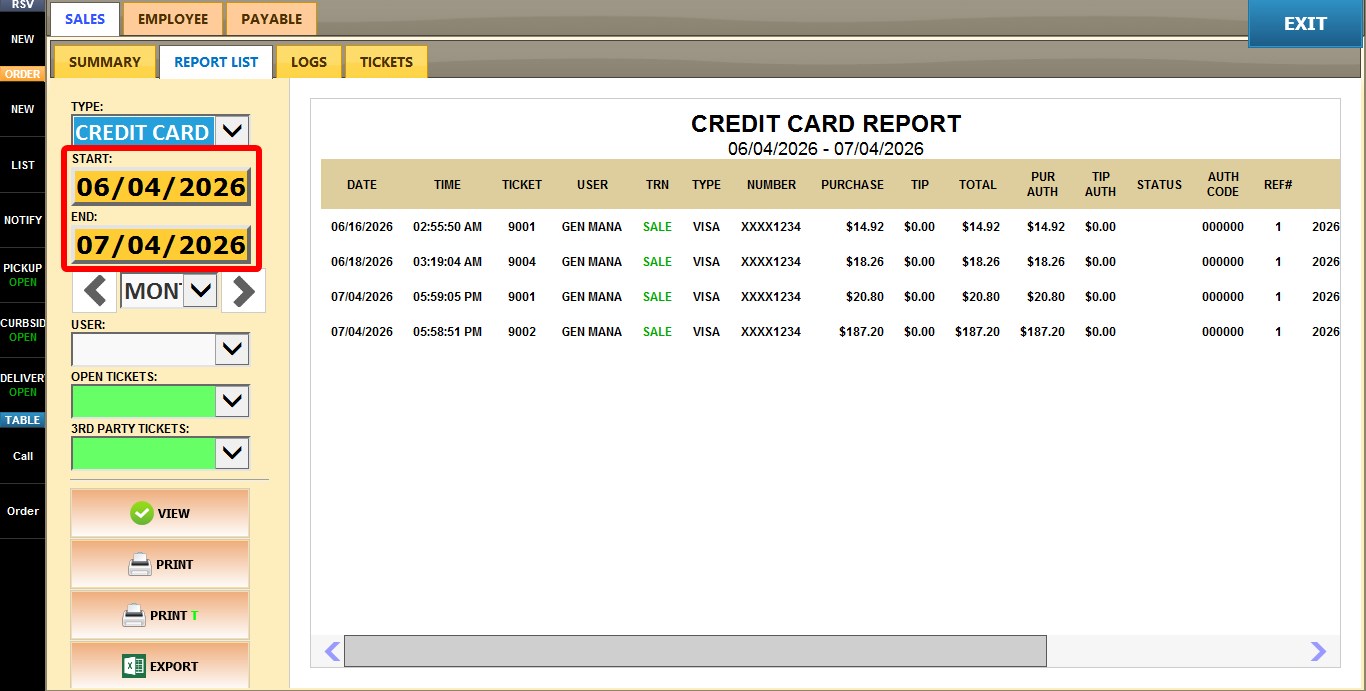
Select the desired date and click DONE
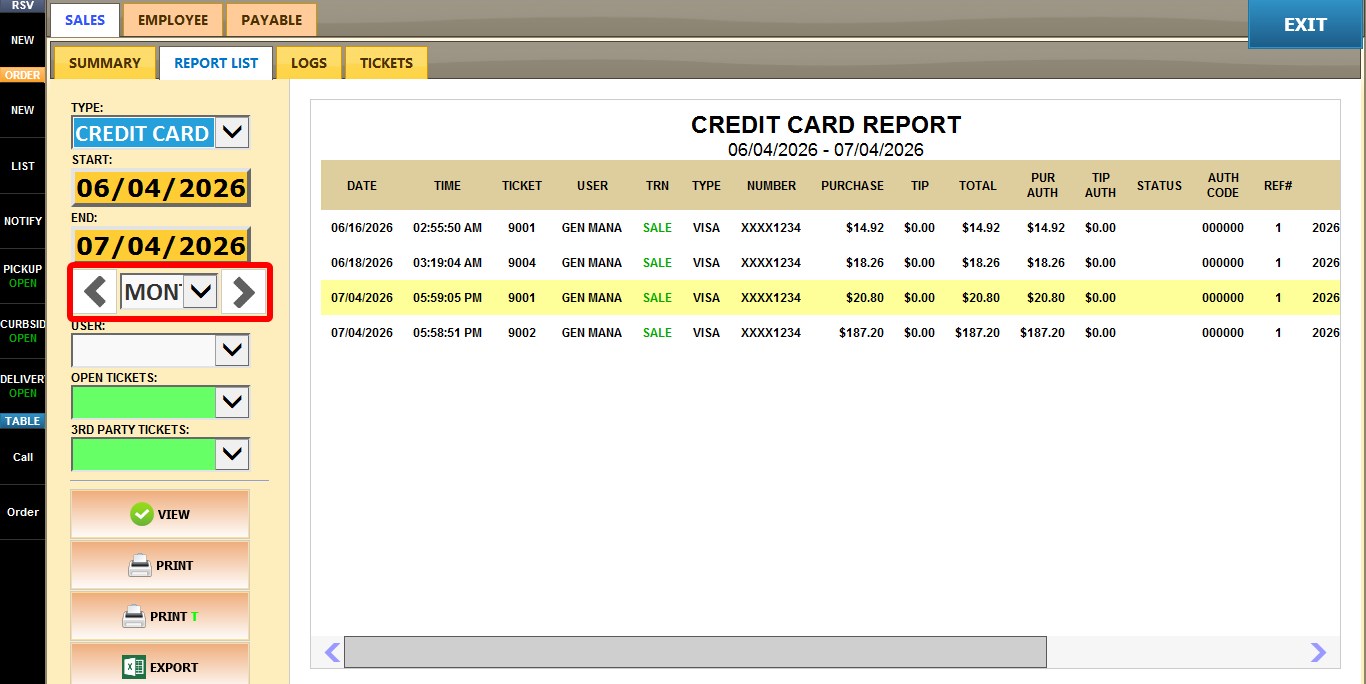
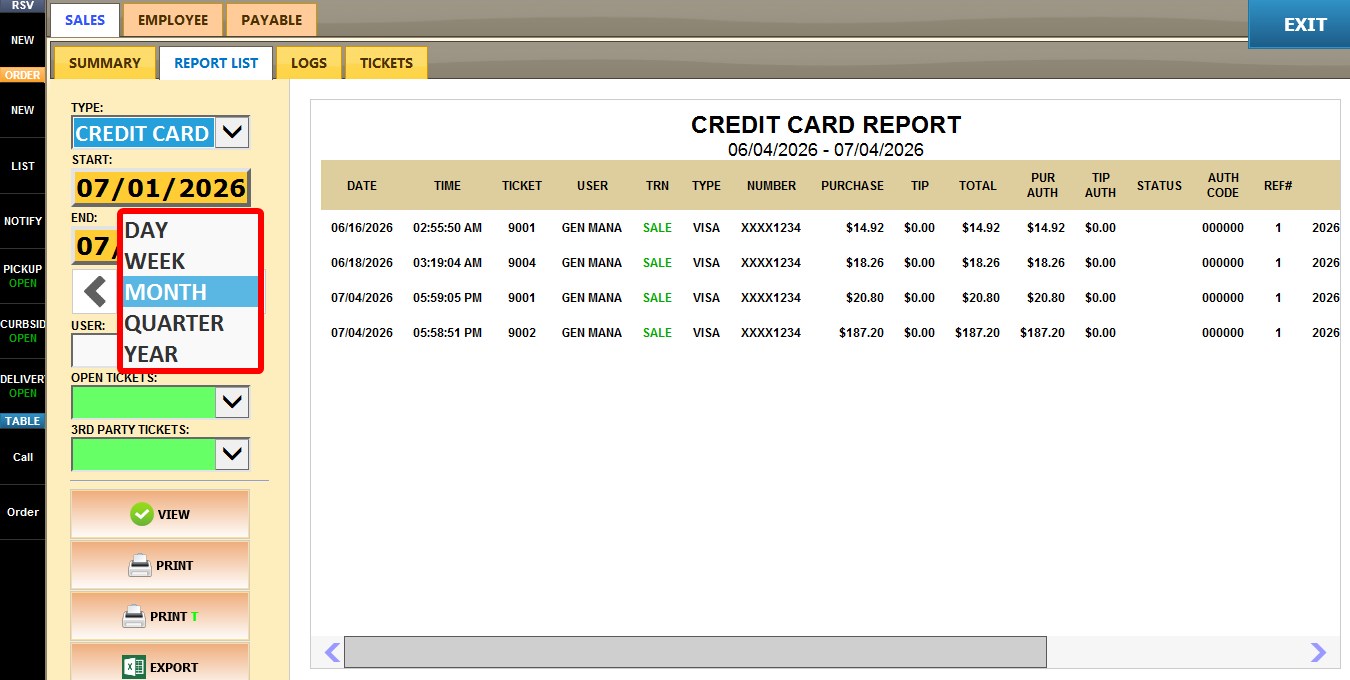
TIME FRAME
Allows you to quickly filter the report using predefined time periods.
1. DAY: Displays transactions for a single day.
2. WEEK: Displays transactions for one week.
3. MONTH: Displays transactions for one month.
4. QUARTER: Displays transactions for one quarter.
5. YEAR: Displays transactions for one year.
Or use the LEFT and RIGHT arrows to move backward or forward through the selected time period.
USER
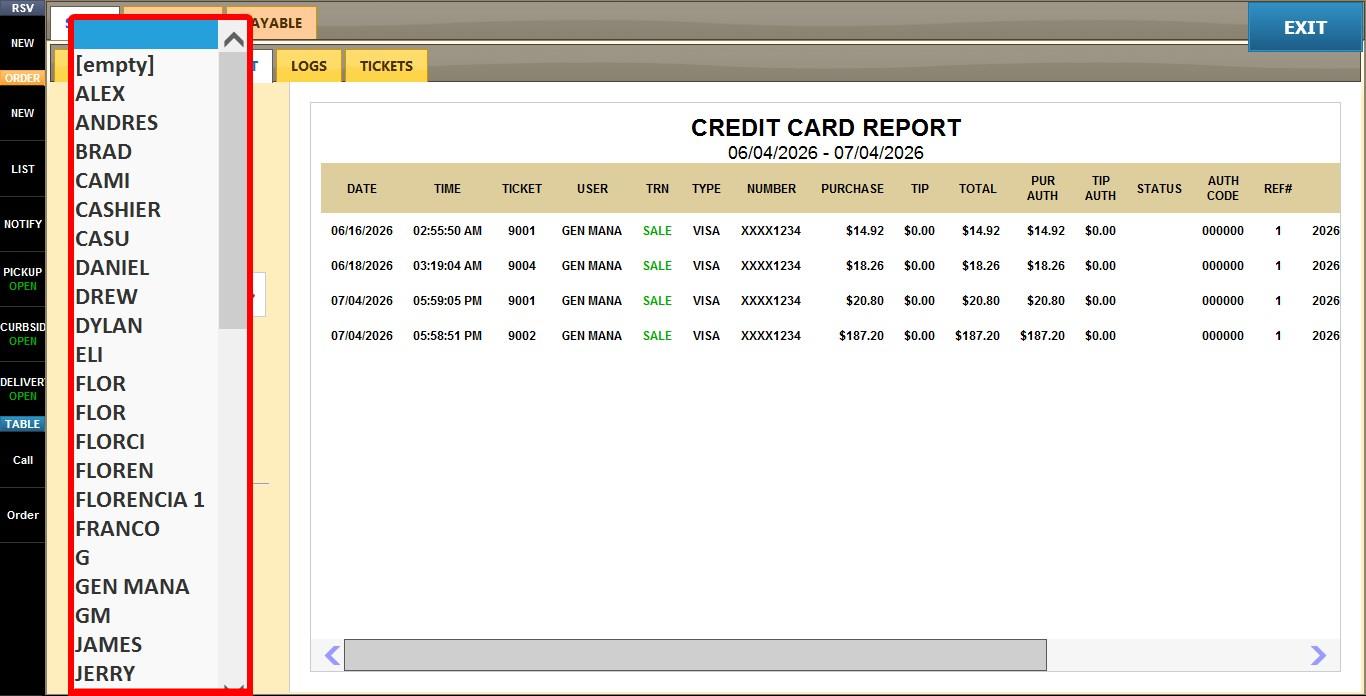
Displays transactions for a specific employee.
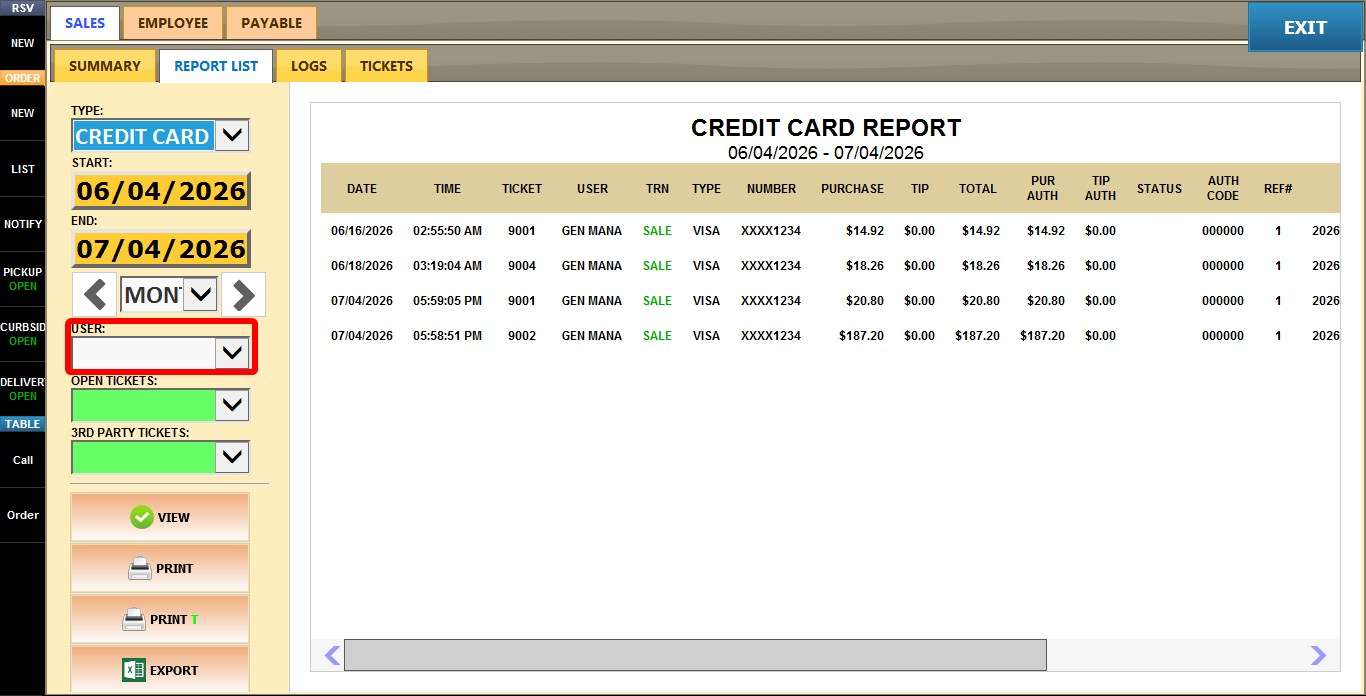
Leave the field blank to include all employees, or select an employee from the dropdown to show only their transactions.
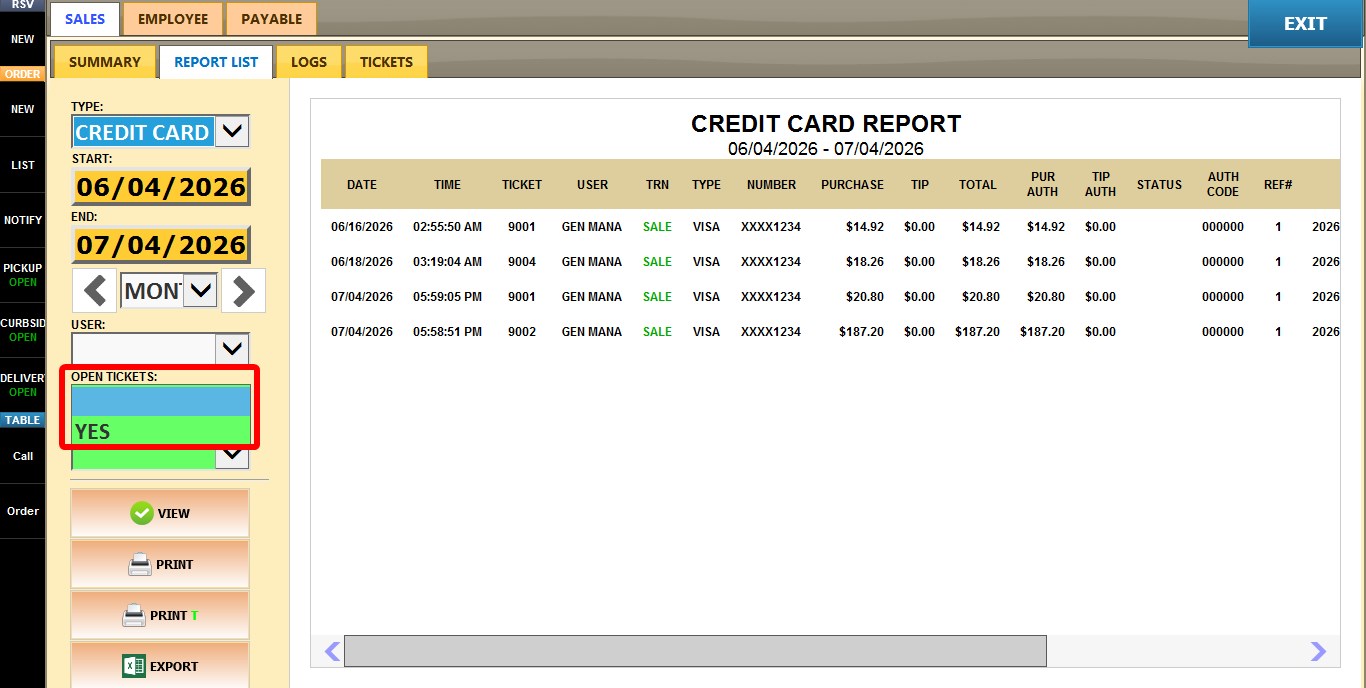
OPEN TICKETS
Filters the report by ticket status.
1. ALL: Displays both open and closed tickets.
2. YES: Displays only open tickets.
3RD PARTY TICKETS
Filters the report to include orders from third-party delivery services.
1. ALL: Displays all tickets.
2. YES: Displays only tickets received from supported third-party delivery integrations, such as Uber Eats, Grubhub, and similar services.
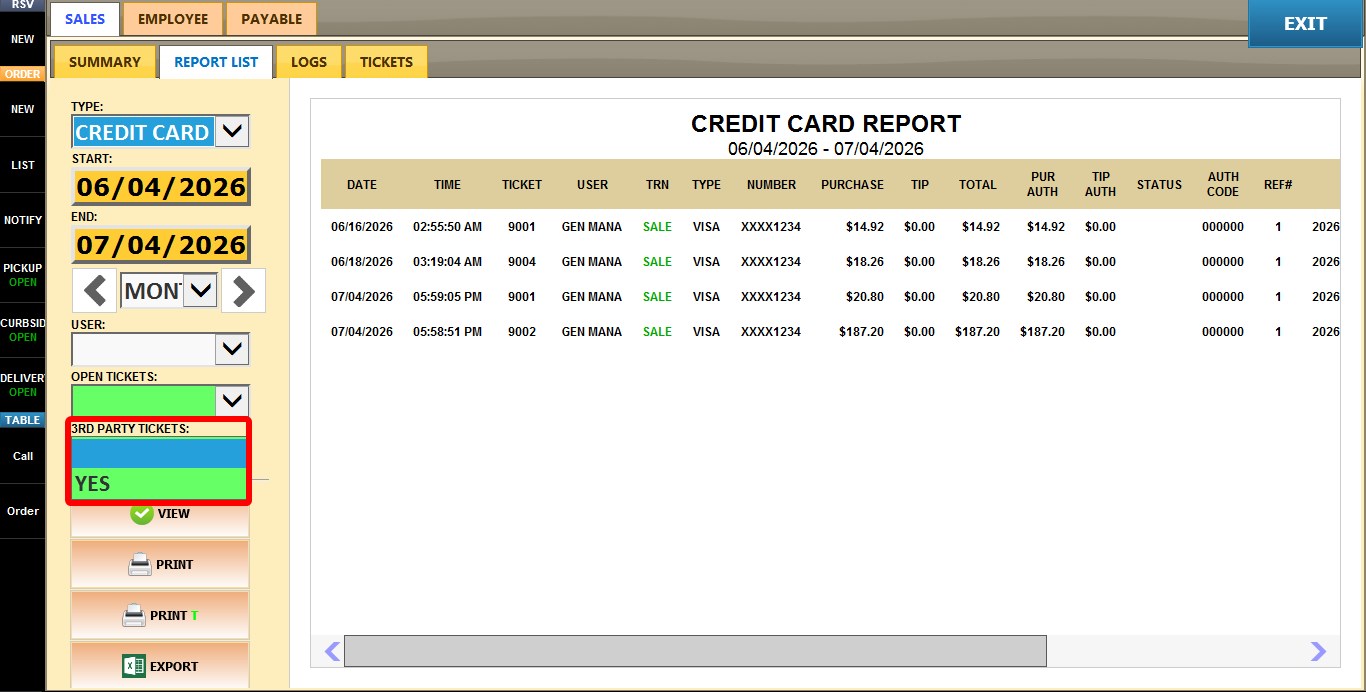
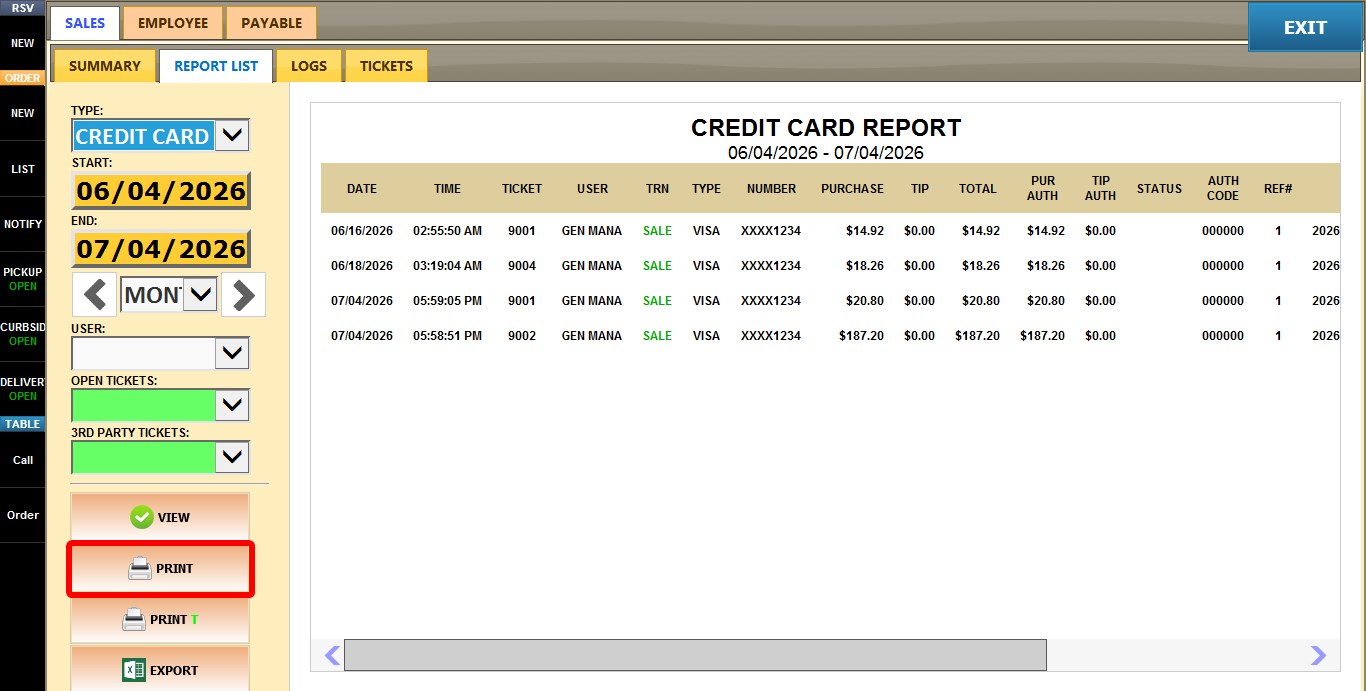
Prints the report currently displayed on the screen.
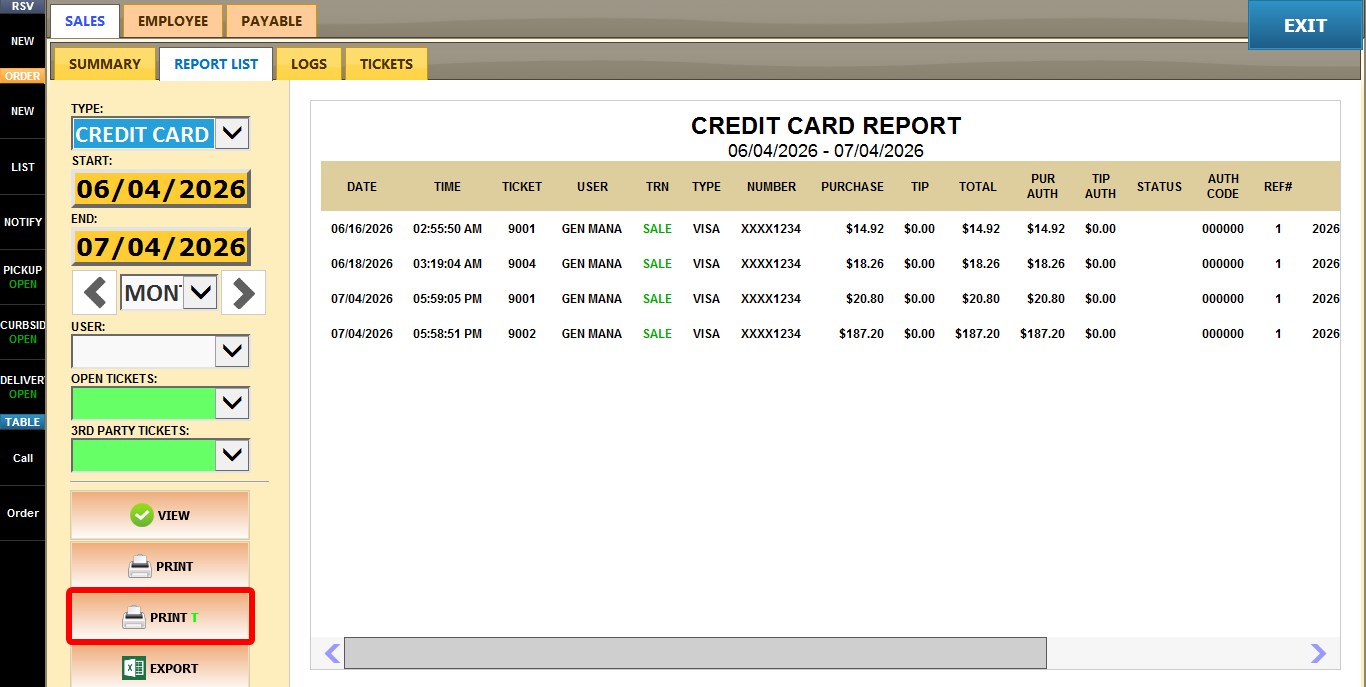
PRINT T
Prints the report in a ticket-style format, showing each transaction individually with additional details such as authorization information, reference numbers, card type, and other processing data.
Use this format when you need to review or audit individual credit card transactions rather than view a summarized report.
EXPORT
Exports the current report to a Microsoft Excel file for further analysis, filtering, or record keeping.