Other (1-9)
The Other 1 to Other 9 tenders are custom payment methods. Each one can have its own name, amount buttons, printing and adjustment settings, for example for a house account or a payment type the store accepts.
MENU> SETTINGS> PAY> TENDER> 1 - 9
Go to MENU and press SETTINGS.
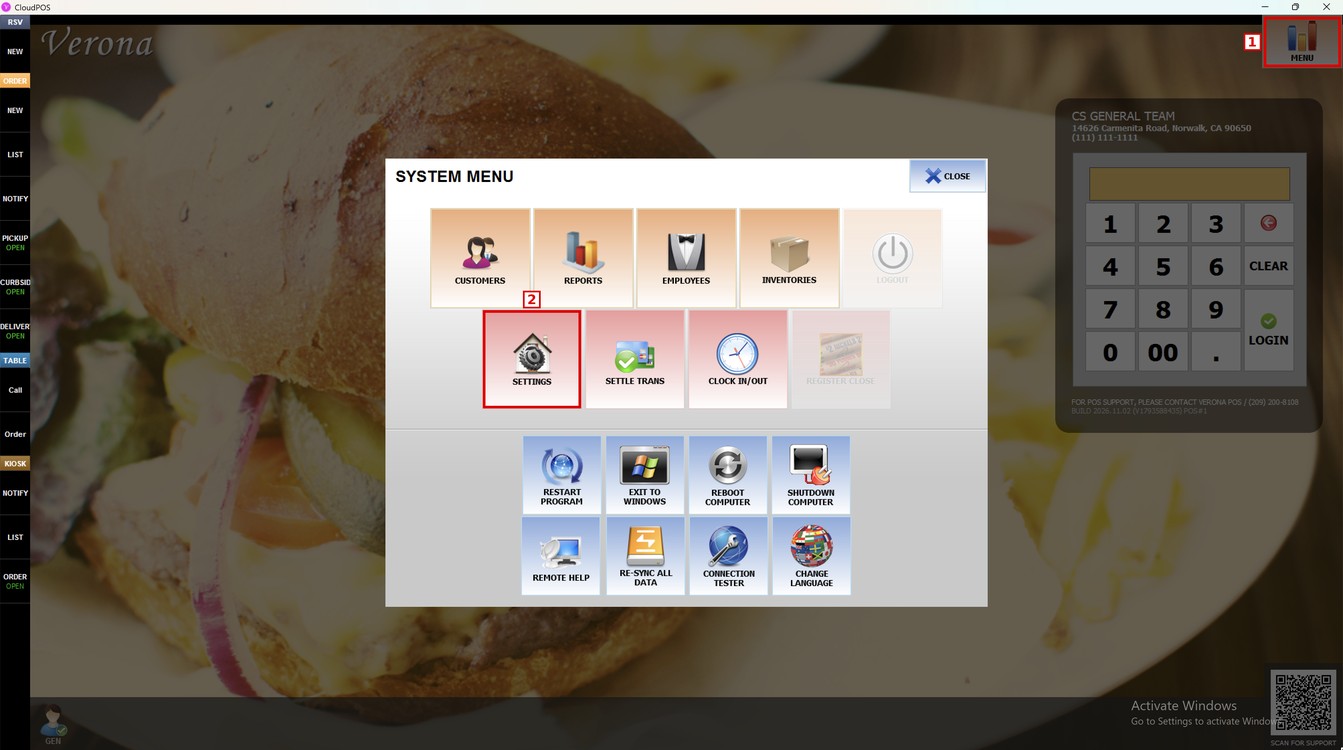
Press the PAY tab, then the TENDER subtab, and then one of the numbered tabs from 1 to 9. In this example, 1 opens OTHER 1.
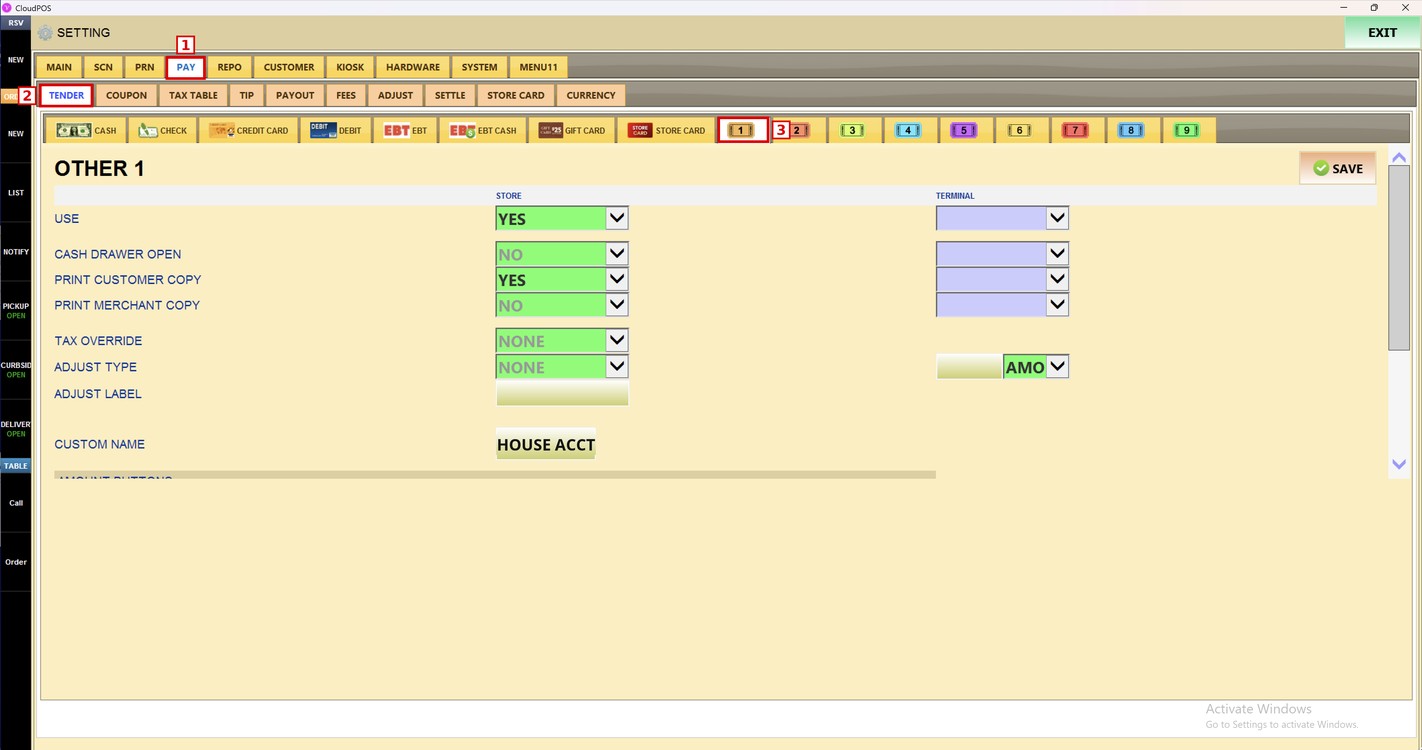
Hint: All the tenders from 1 to 9 have the same settings. The STORE column sets the option for all the terminals of the store. The TERMINAL column sets a different option only for the terminal in use.
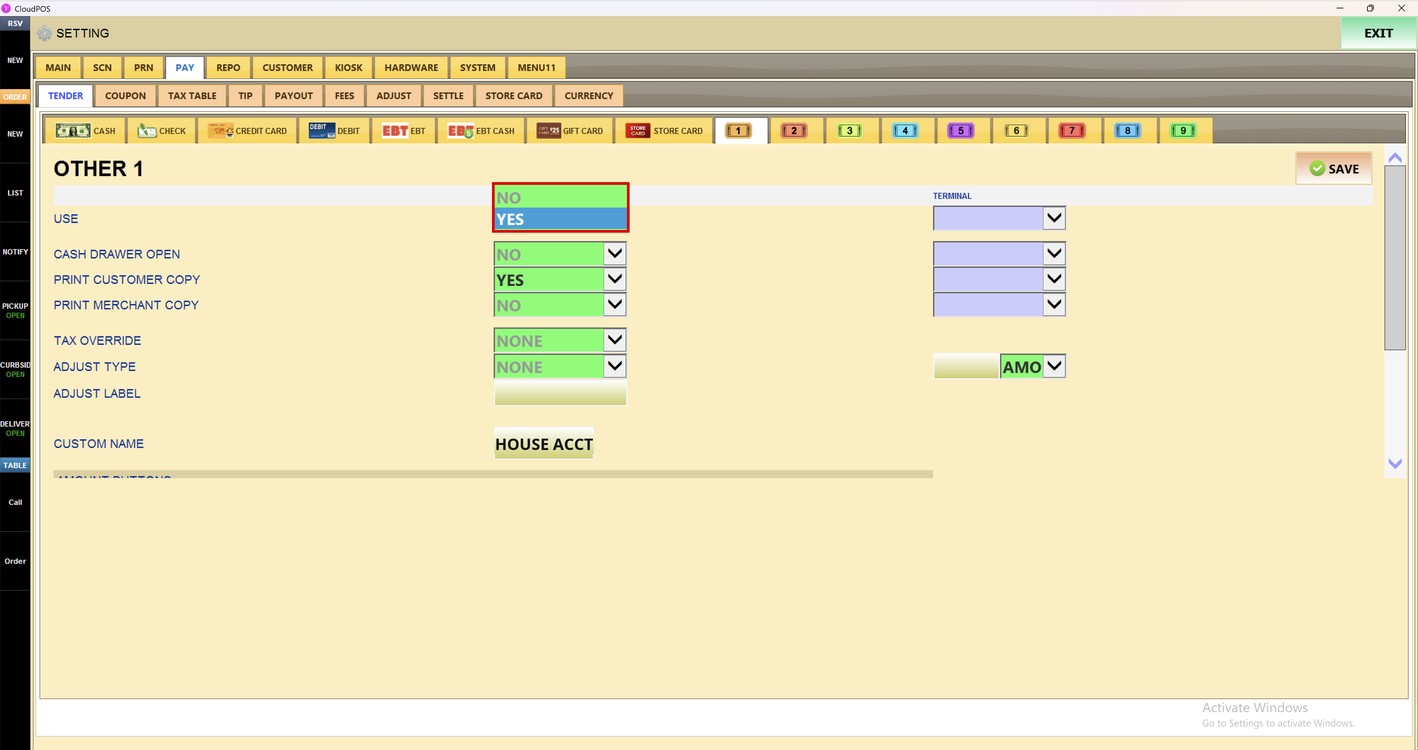
Use:
Sets whether this tender can be used as a payment method.
1. NO: The tender is not available as a payment method.
2. YES: The tender can be selected as a payment method.
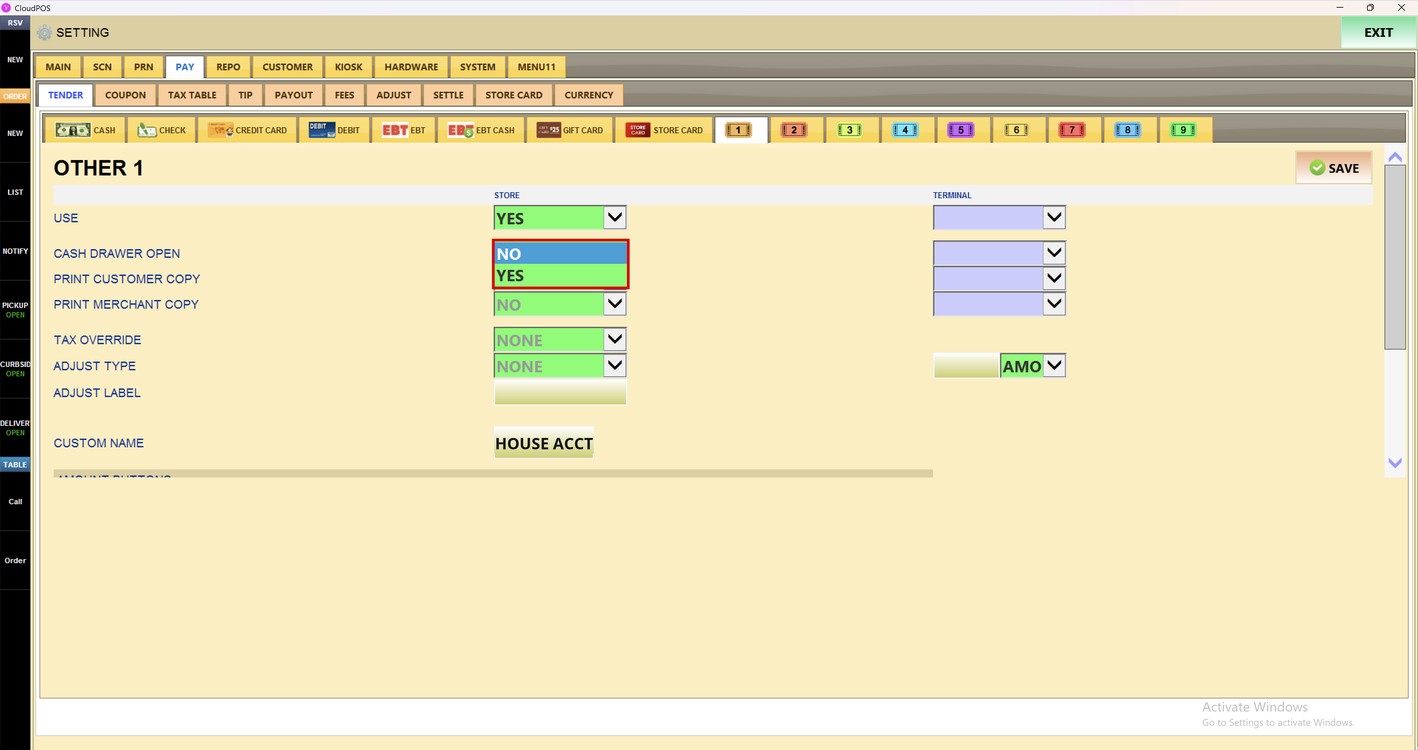
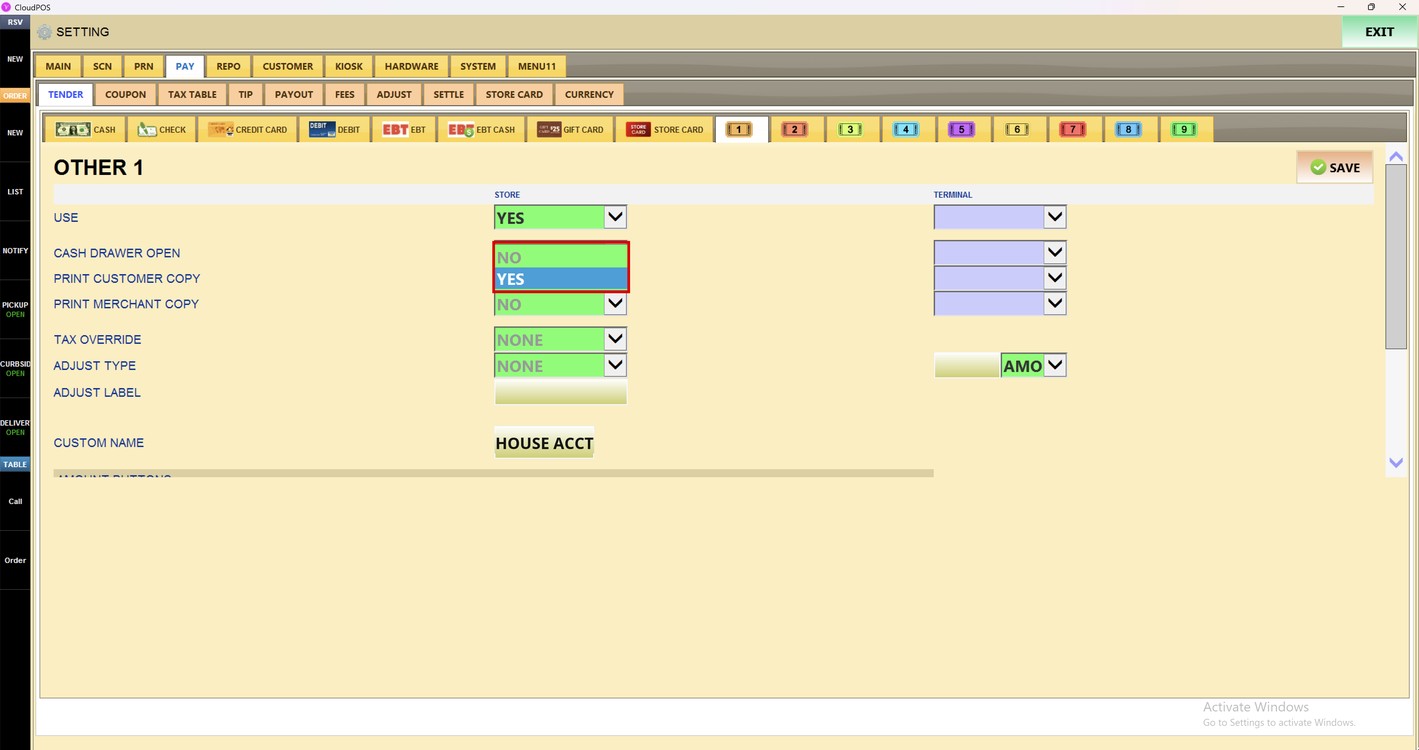
Cash Drawer Open:
Sets whether the cash drawer opens when a payment with this tender is processed.
1. NO: The cash drawer stays closed.
2. YES: The cash drawer opens after the payment.
Print Customer Copy:
Sets whether a customer copy is printed for the payments with this tender.
1. NO: Does not print a customer copy.
2. YES: Prints a customer copy.
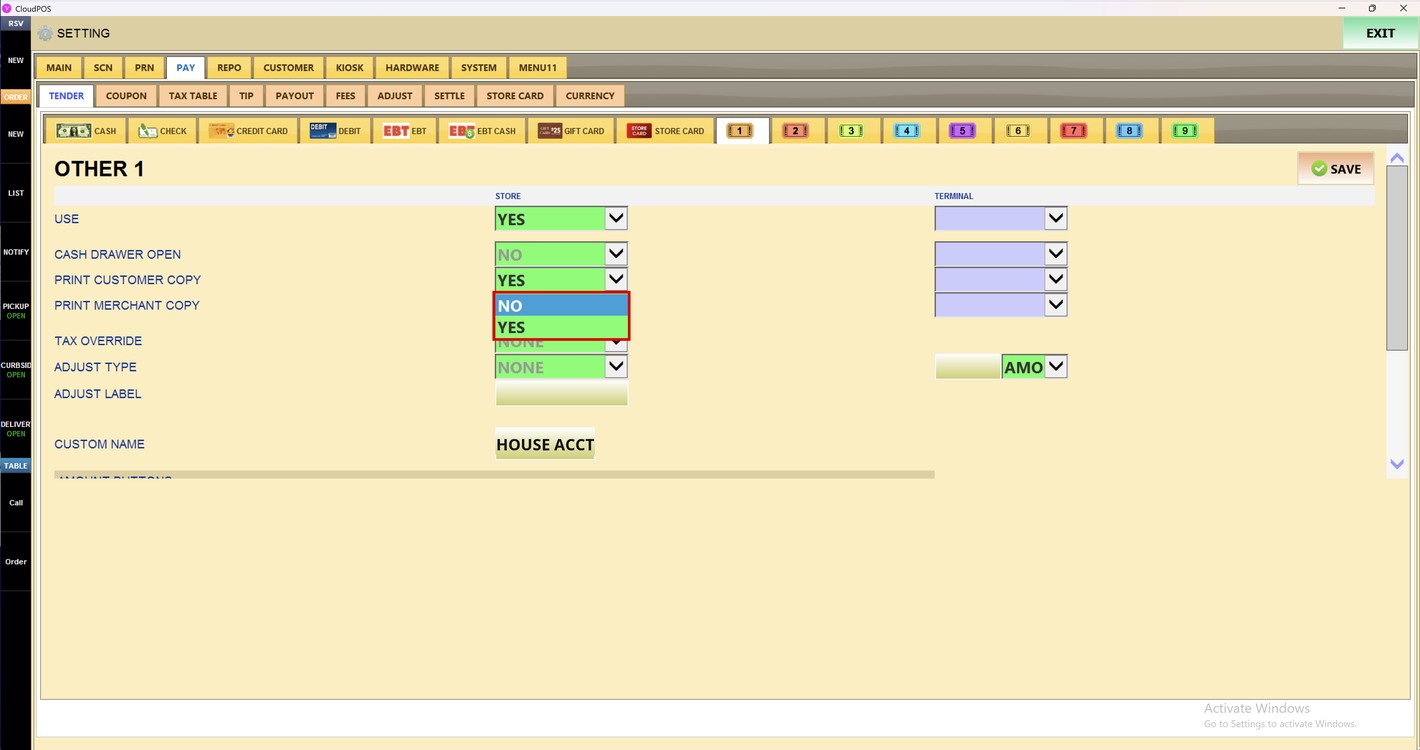
Print Merchant Copy:
Sets whether a merchant copy is printed for the payments with this tender.
1. NO: Does not print a merchant copy.
2. YES: Prints a merchant copy.
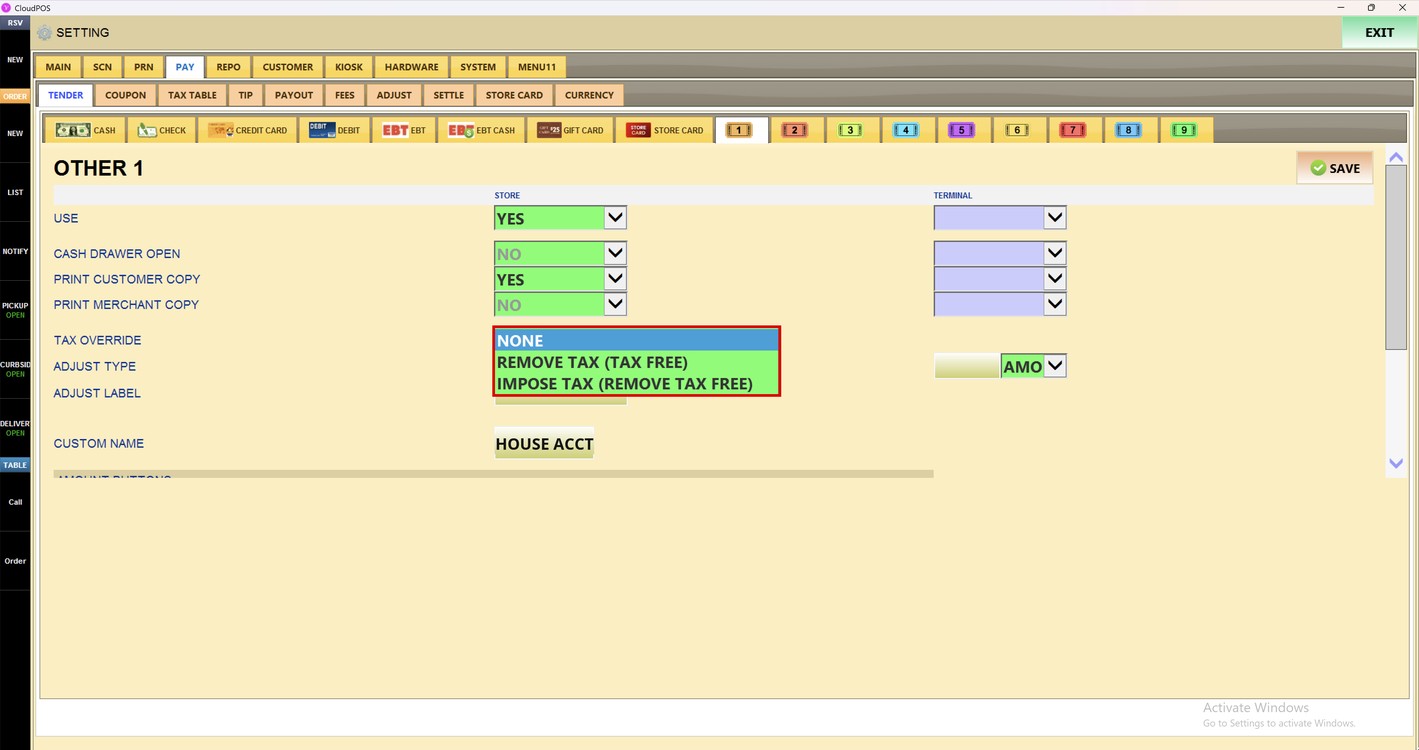
Tax Override:
Sets whether the normal tax calculation changes when the ticket is paid with this tender.
1. NONE: Uses the normal tax settings.
2. REMOVE TAX (TAX FREE): Removes the tax from the ticket.
3. IMPOSE TAX (REMOVE TAX FREE): Applies the tax even when the ticket is tax free.
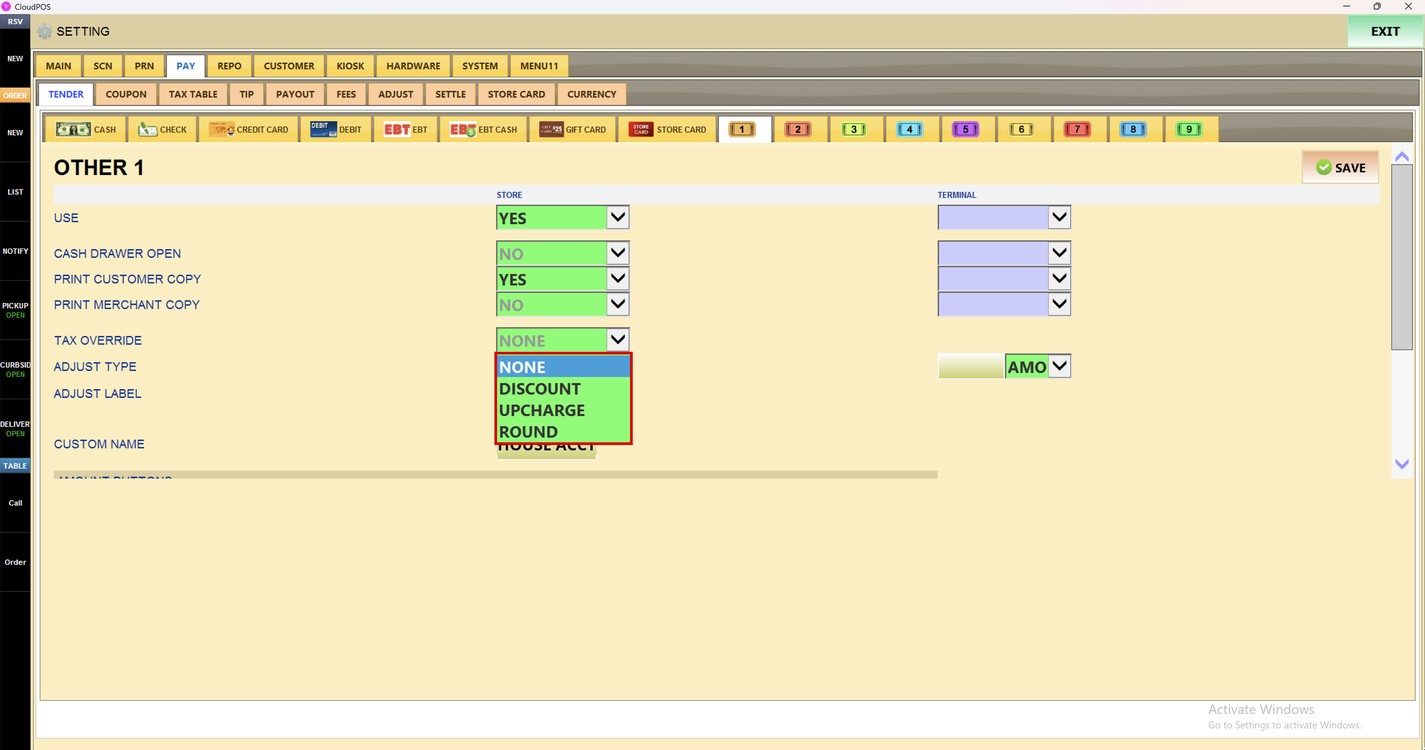
Adjust Type:
Applies an adjustment automatically to the tickets paid with this tender.
1. NONE: No adjustment is applied.
2. DISCOUNT: Applies the adjustment as a discount.
3. UPCHARGE: Adds the adjustment to the ticket.
4. ROUND: Applies the adjustment as a rounding.
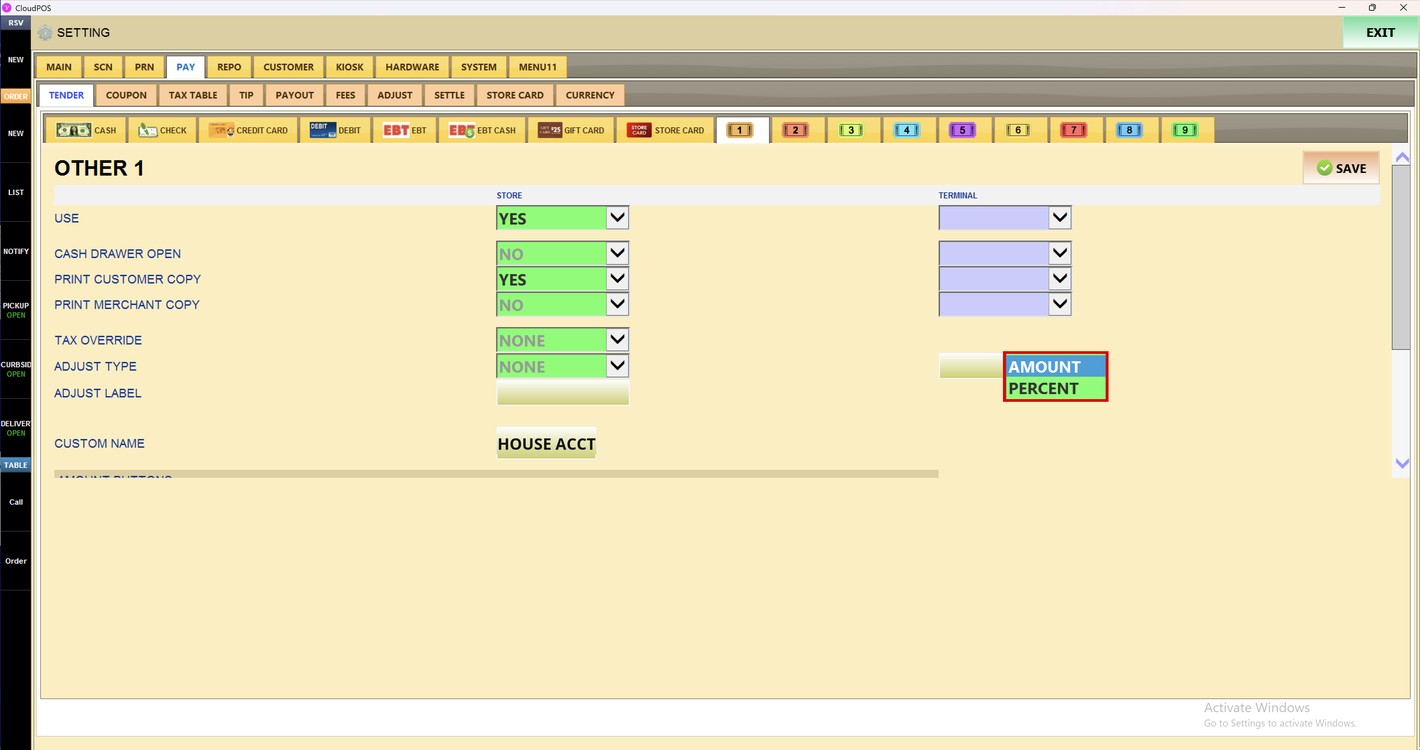
When an adjustment type is selected, enter the value in the field on the right and select the type of the value in the dropdown next to it.
1. AMOUNT: The value is a fixed amount.
2. PERCENT: The value is a percent of the ticket.
In ADJUST LABEL, enter the name of the adjustment that is shown on the ticket.
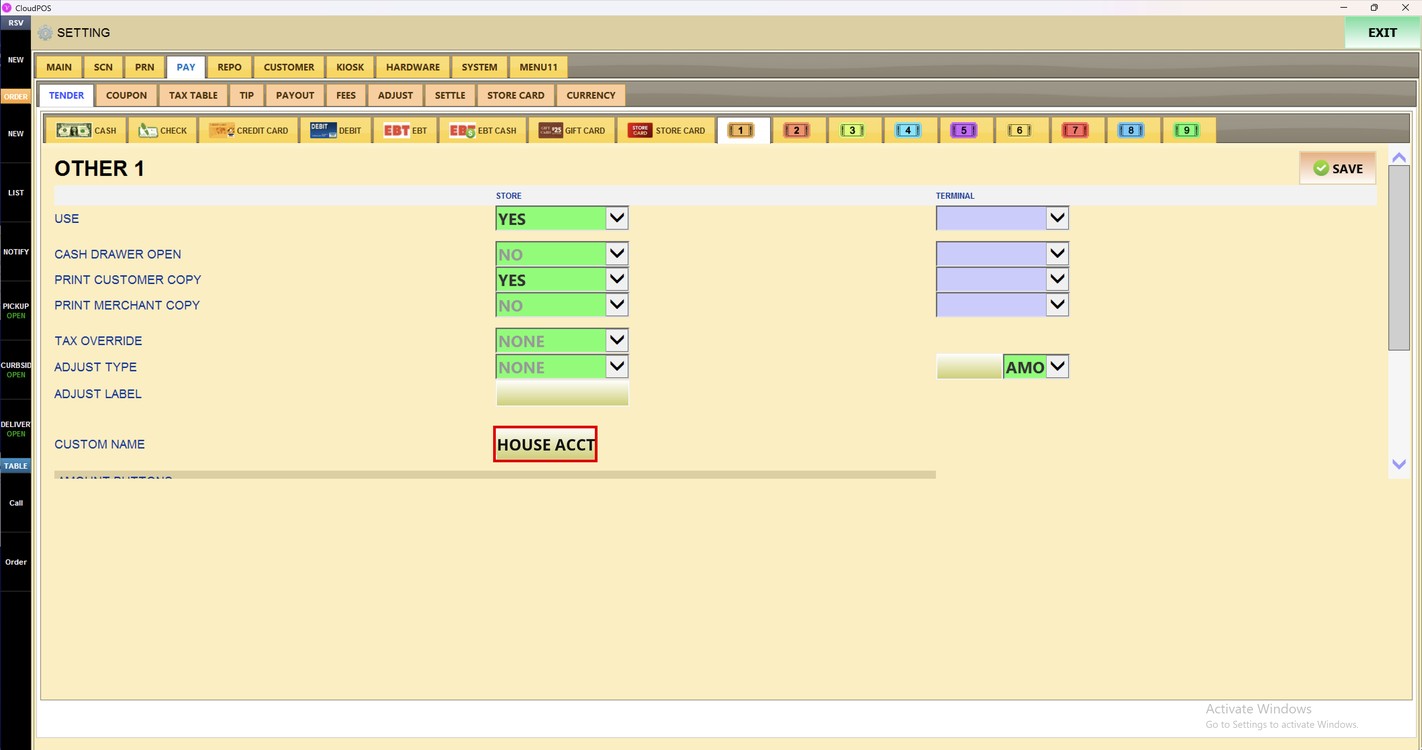
Custom Name:
Enter the name of the tender that is shown on the payment screen and on the receipts, for example HOUSE ACCT.
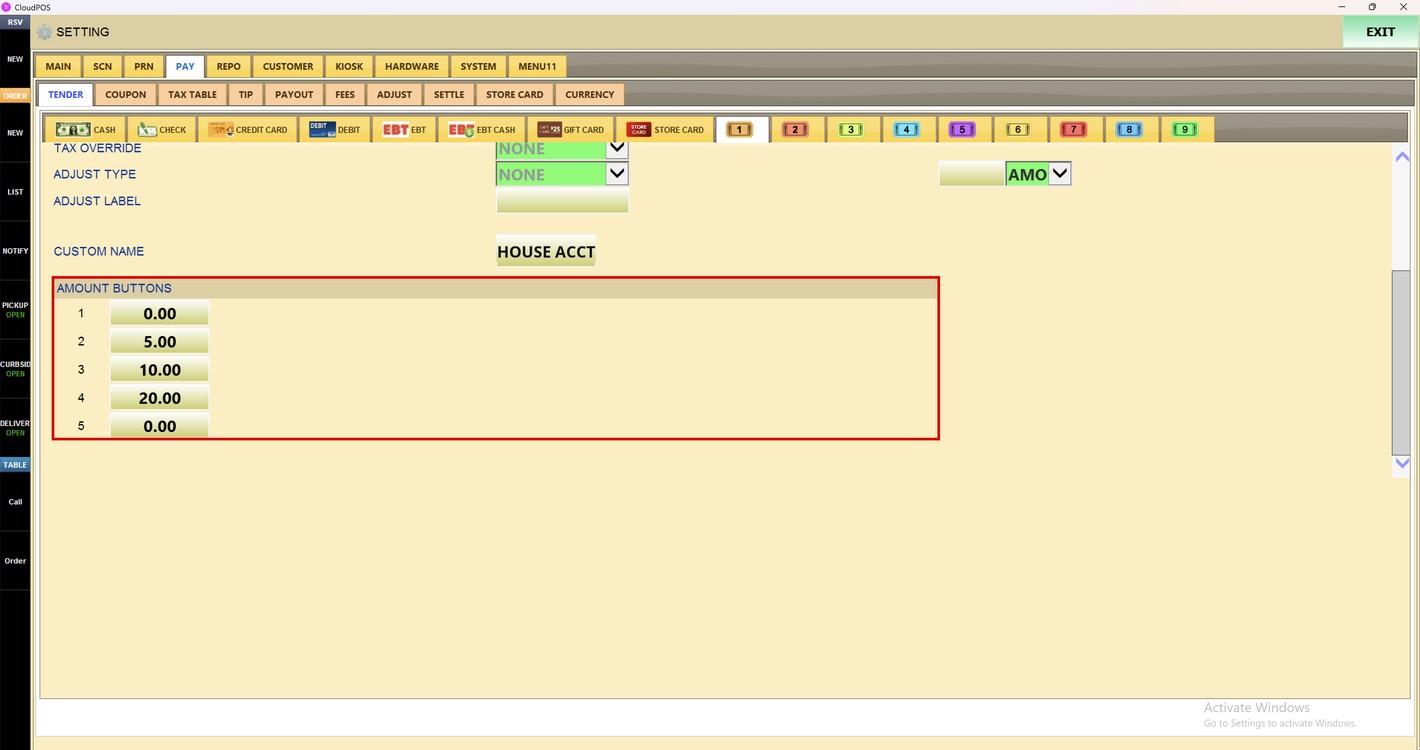
Amount Buttons:
Enter up to 5 amounts. Each amount is shown as a quick button on the payment screen when this tender is selected.
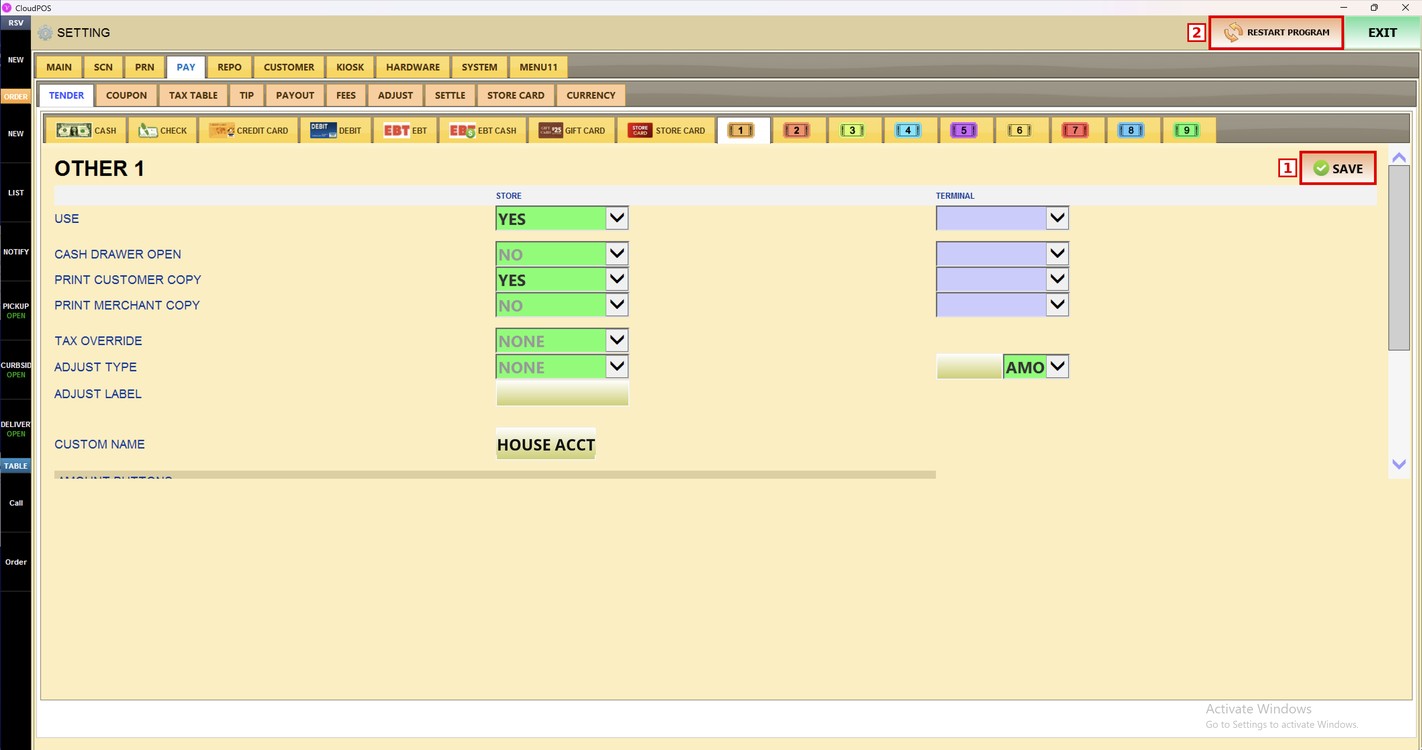
Press SAVE and then RESTART PROGRAM to apply the changes.
To learn how to set up the cash payments, please refer to the Cash Guide.