Online Reservation
The Online Reservation settings control how customers make reservations through Menu11: how requests are confirmed, how far in advance customers can reserve, deposits and charges, cancellations, and the information customers must enter.
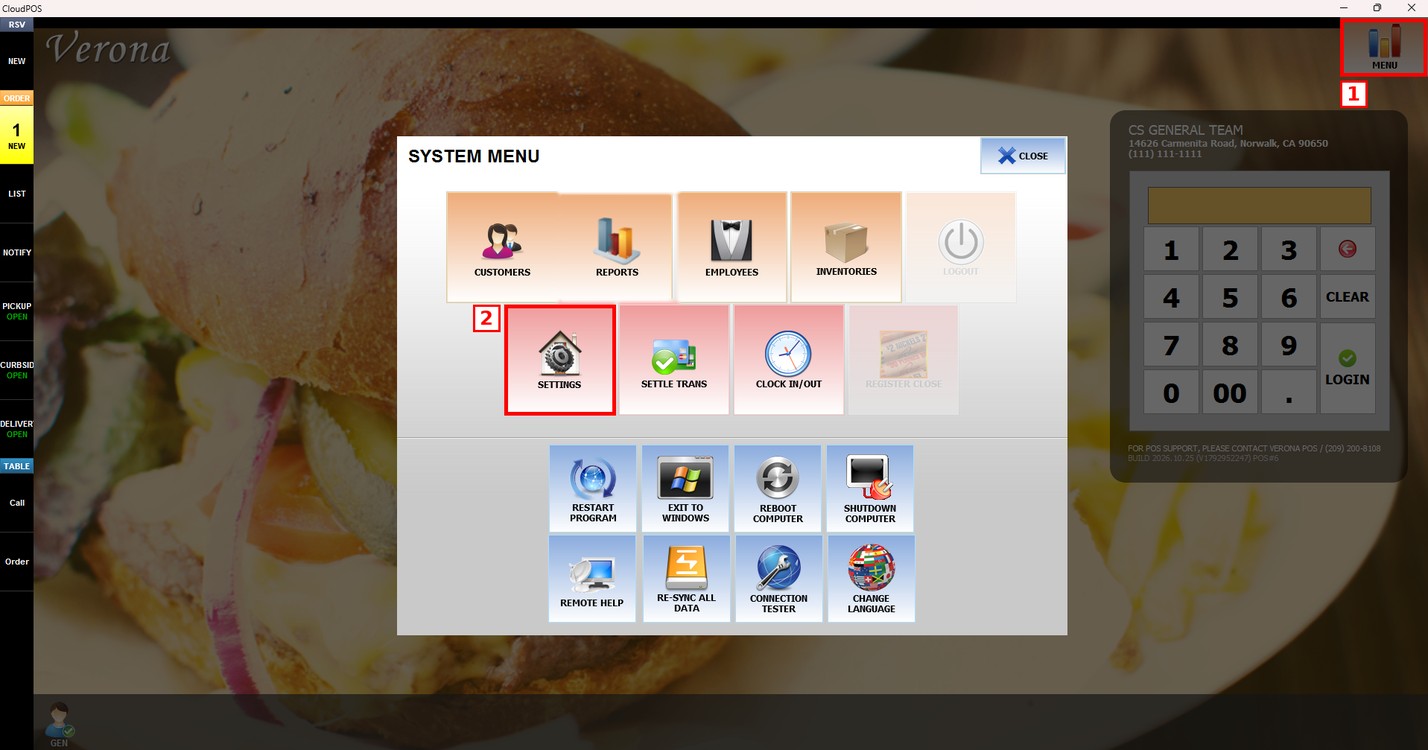
MENU > SETTINGS > MENU11 > RESERVE > ONLINE RESERVATION
Go to MENU and press SETTINGS.
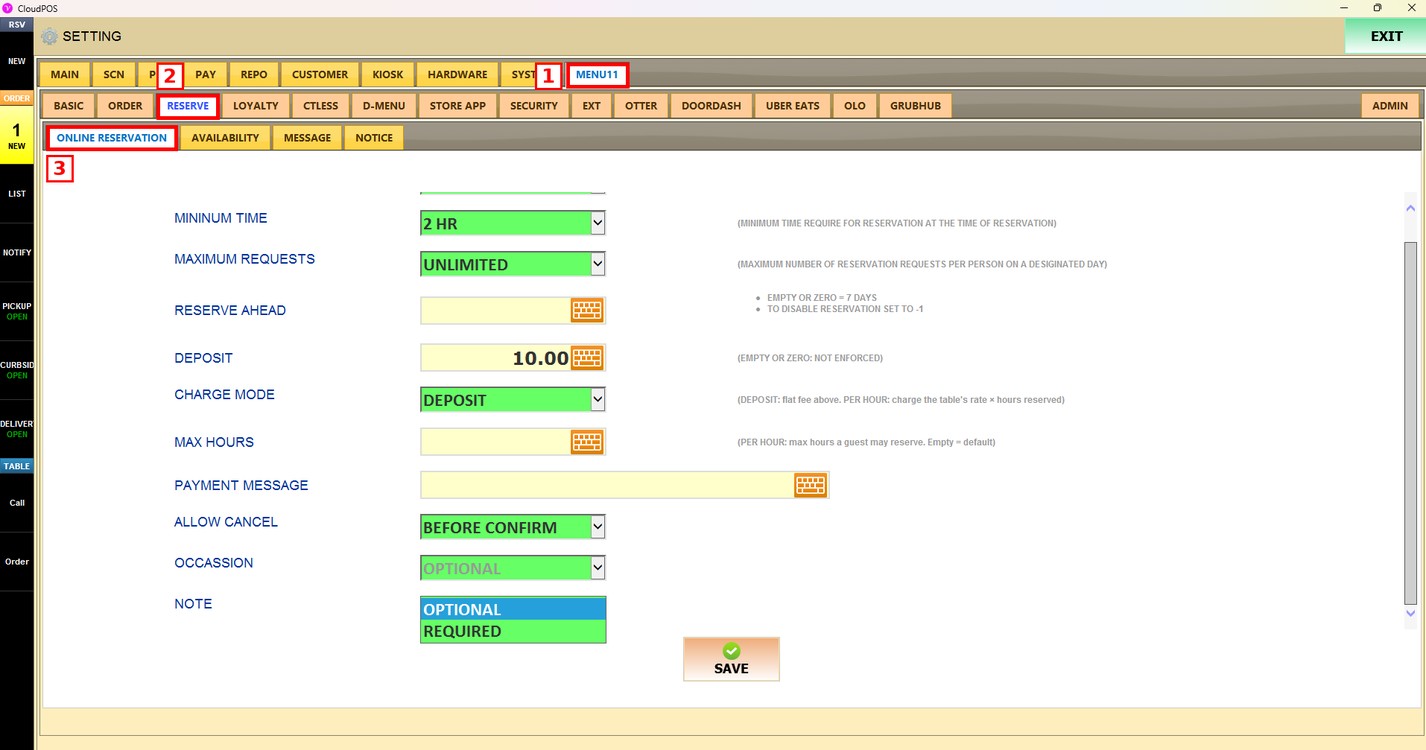
Press the MENU11 tab, then the RESERVE subtab, and then ONLINE RESERVATION.
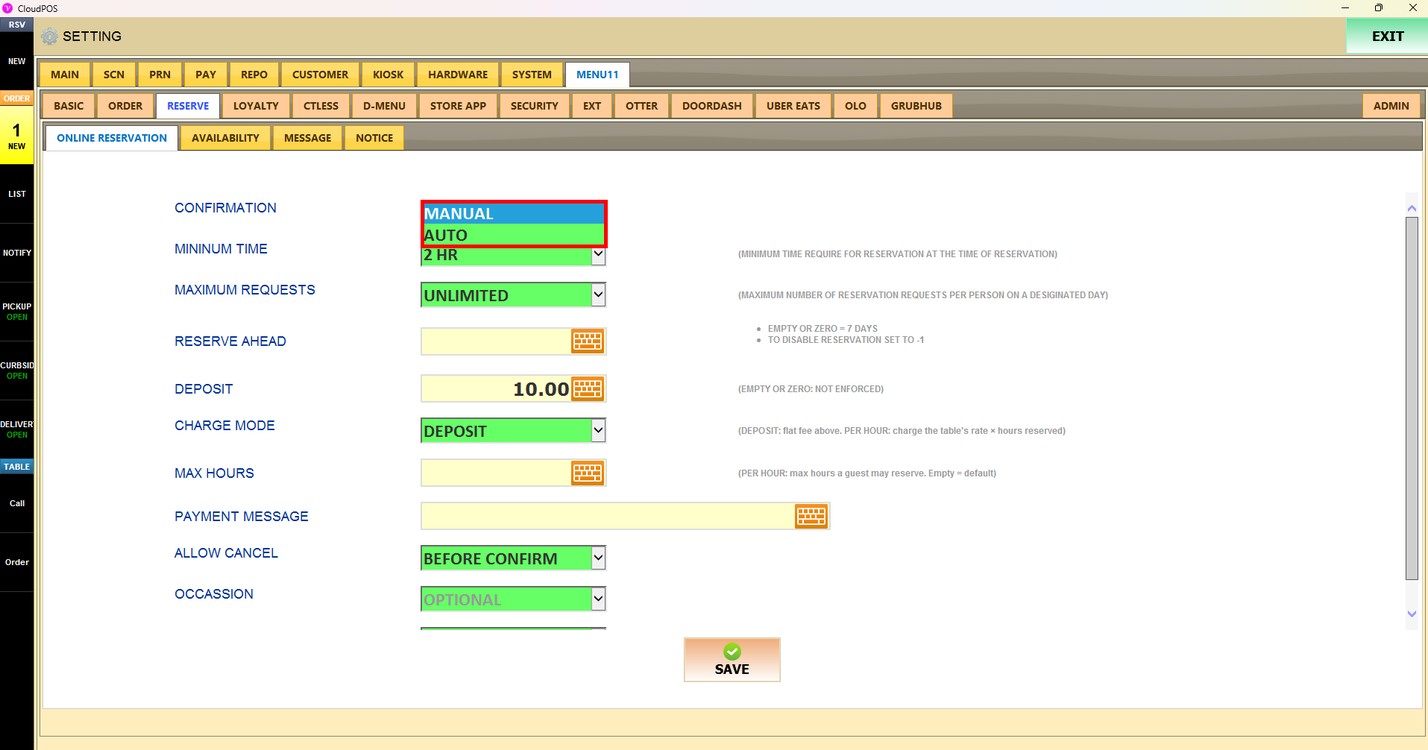
Confirmation:
Sets how reservation requests from customers are confirmed.
1. MANUAL: Each reservation request must be confirmed by the store.
2. AUTO: Reservation requests are confirmed automatically.
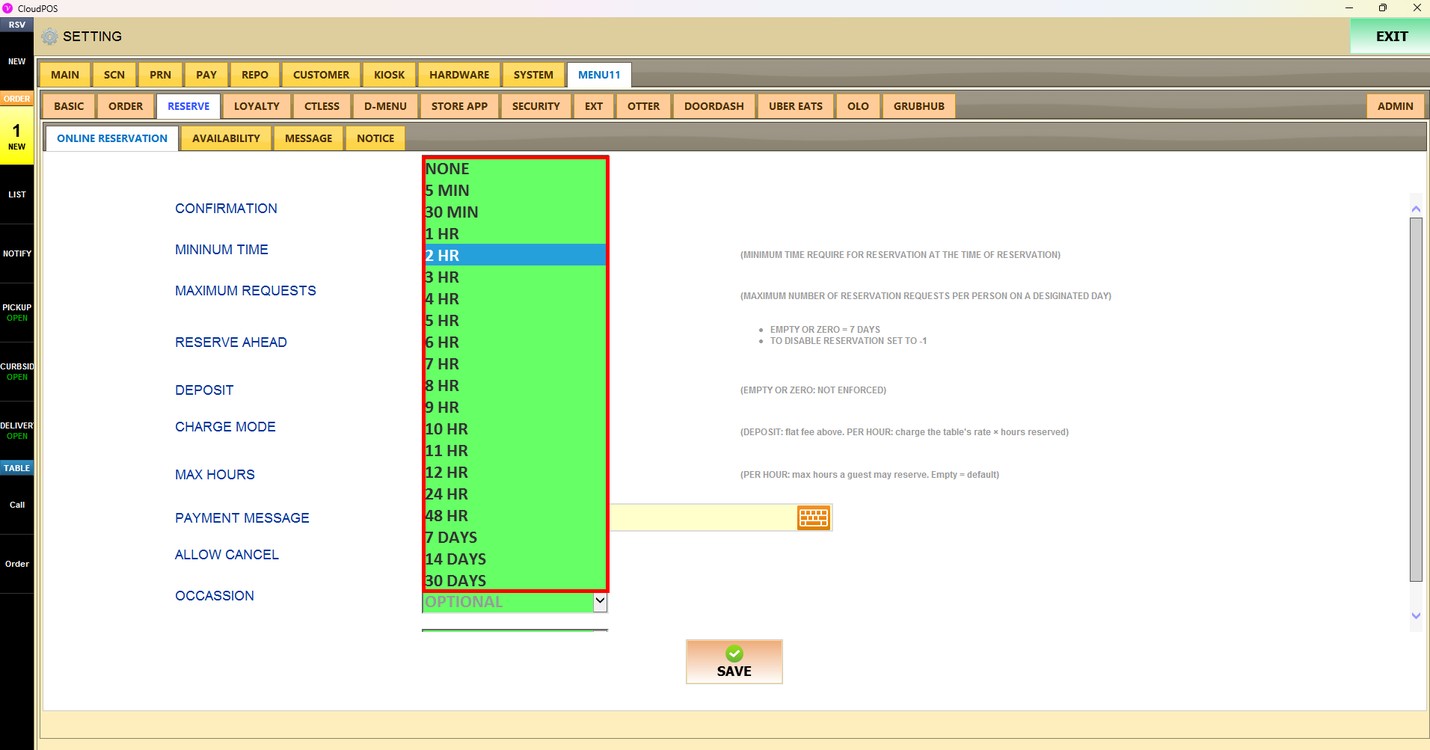
Minimum Time:
Sets the minimum time required between the moment the customer makes the reservation and the reservation time. Choose NONE or a time from 5 MIN to 30 DAYS.
For example, if it is 11:00 AM and the minimum time is set to 2 HR, the first reservation time available to the customer is 1:00 PM.
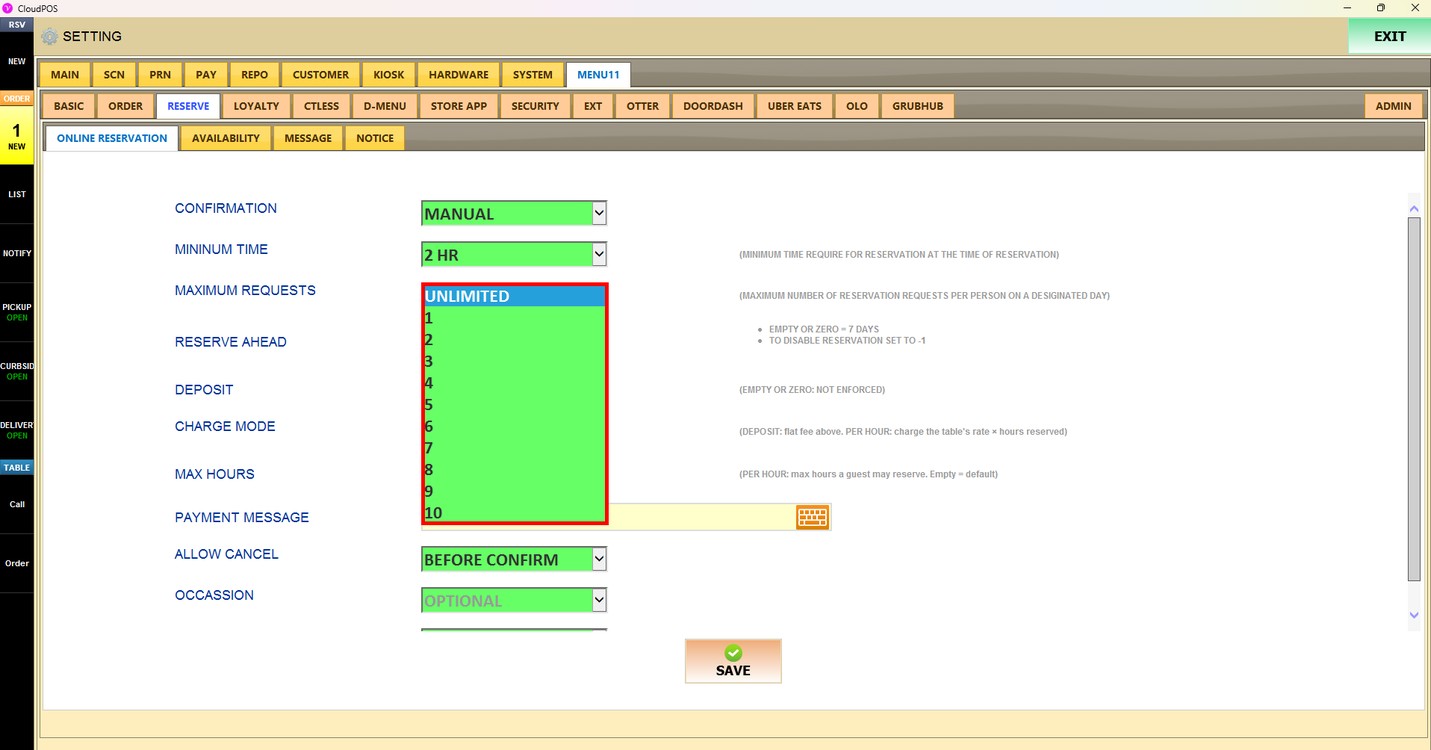
Maximum Requests:
Sets the maximum number of reservation requests one person can make on the same day. Each person is identified by their name, email, and phone number. Choose UNLIMITED or a number from 1 to 10. When the limit is reached, the customer cannot make another reservation with the same email or phone number.
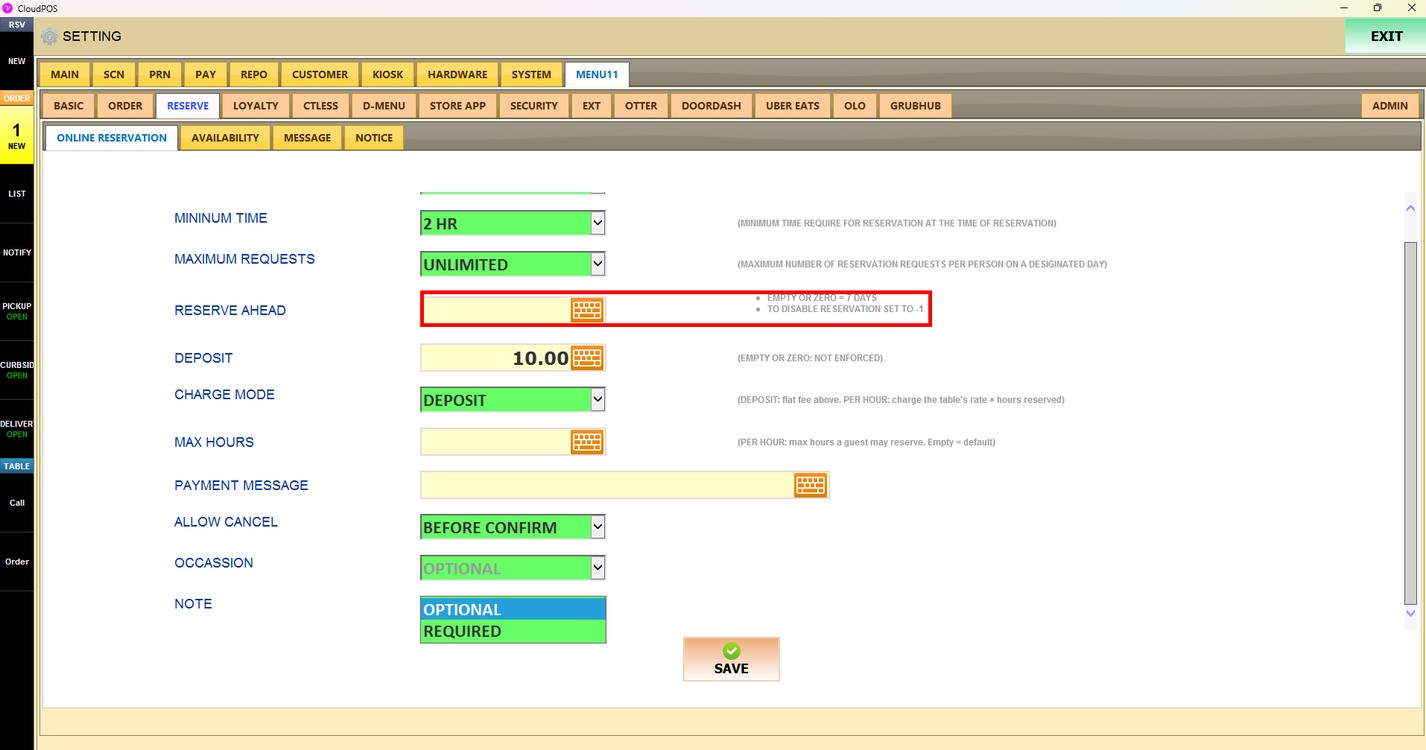
Reserve Ahead:
Sets how many days in advance customers can make a reservation. Press the keyboard icon to enter the number of days. Leave it empty or enter 0 to allow reservations up to 7 days ahead. Enter -1 to disable online reservations.
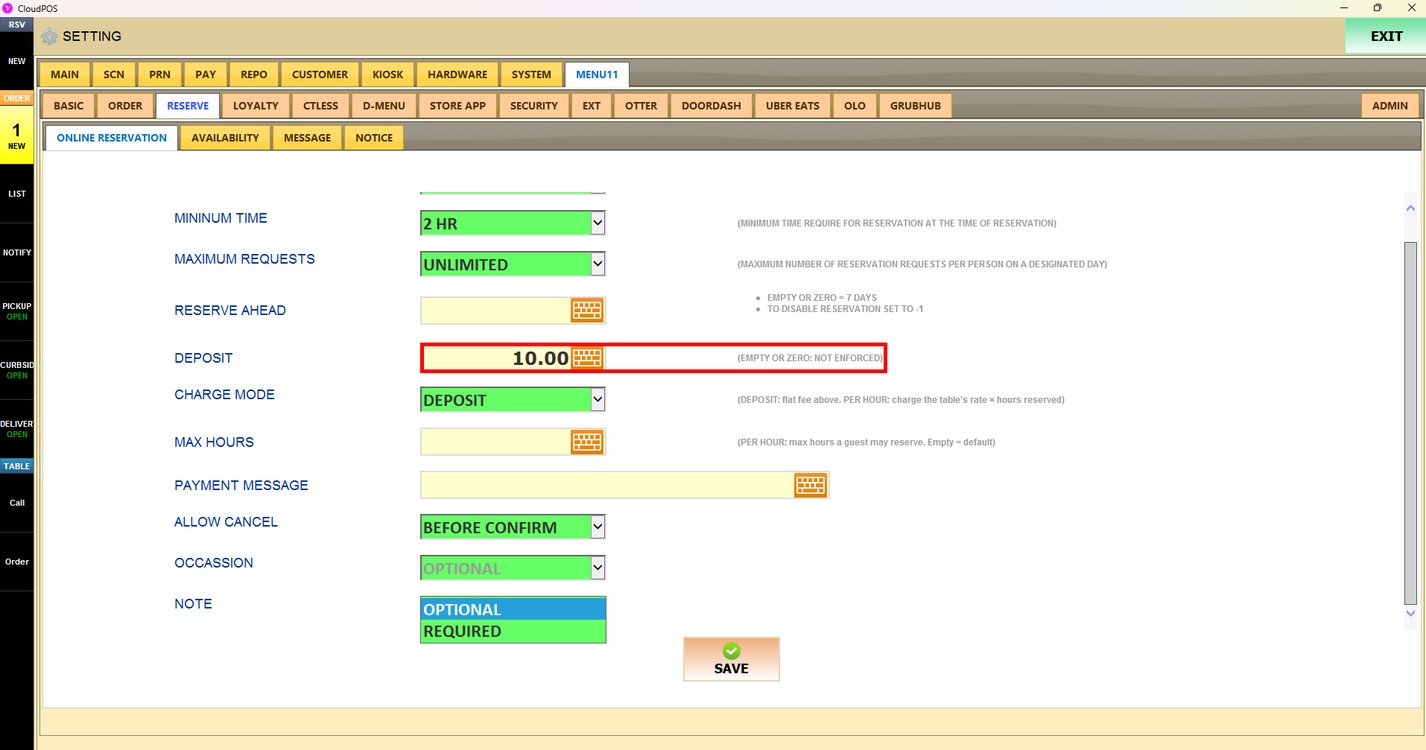
Deposit:
Sets the amount the customer pays when making a reservation. Press the keyboard icon to enter the amount. Leave it empty or enter 0 so that no deposit is charged.
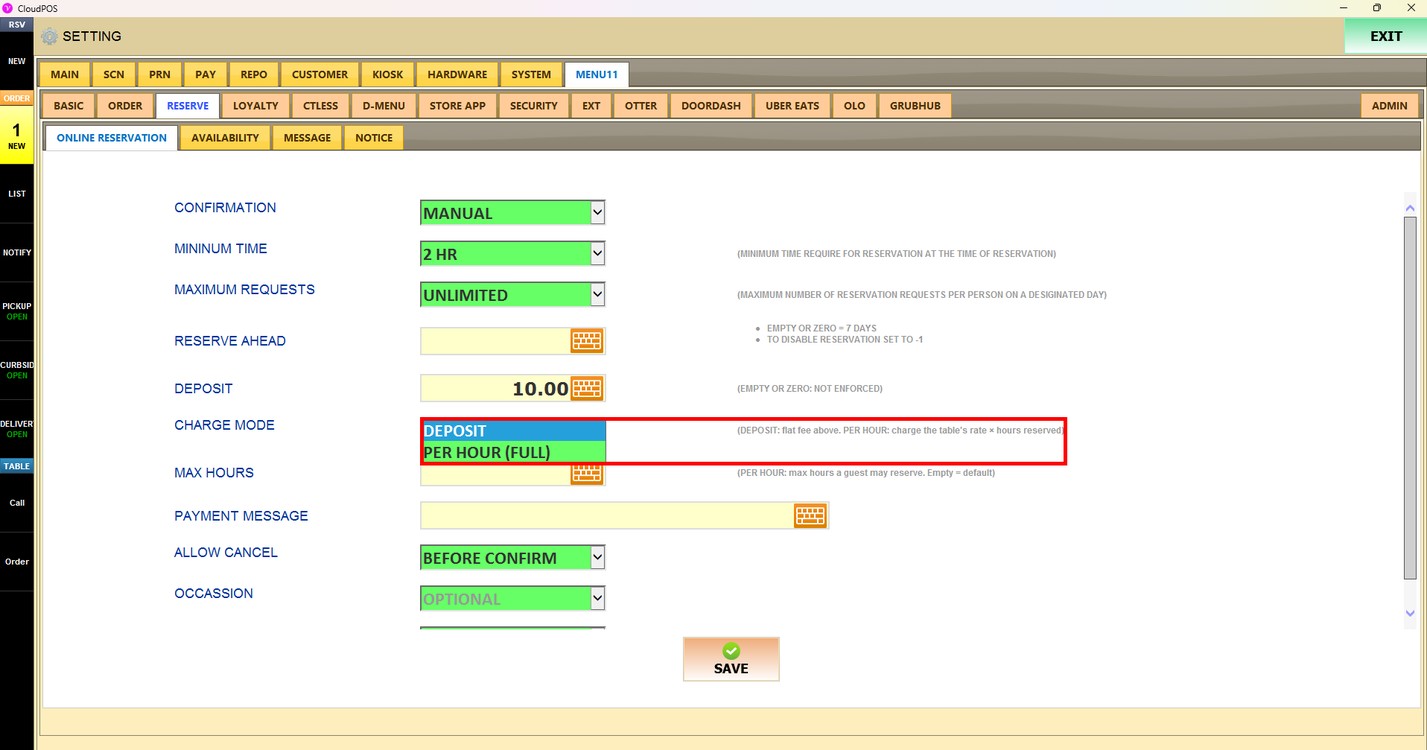
Charge Mode:
Sets how the reservation is charged.
1. DEPOSIT: The customer pays the amount set in DEPOSIT.
2. PER HOUR (FULL): The customer pays the rate of the table multiplied by the number of hours reserved.
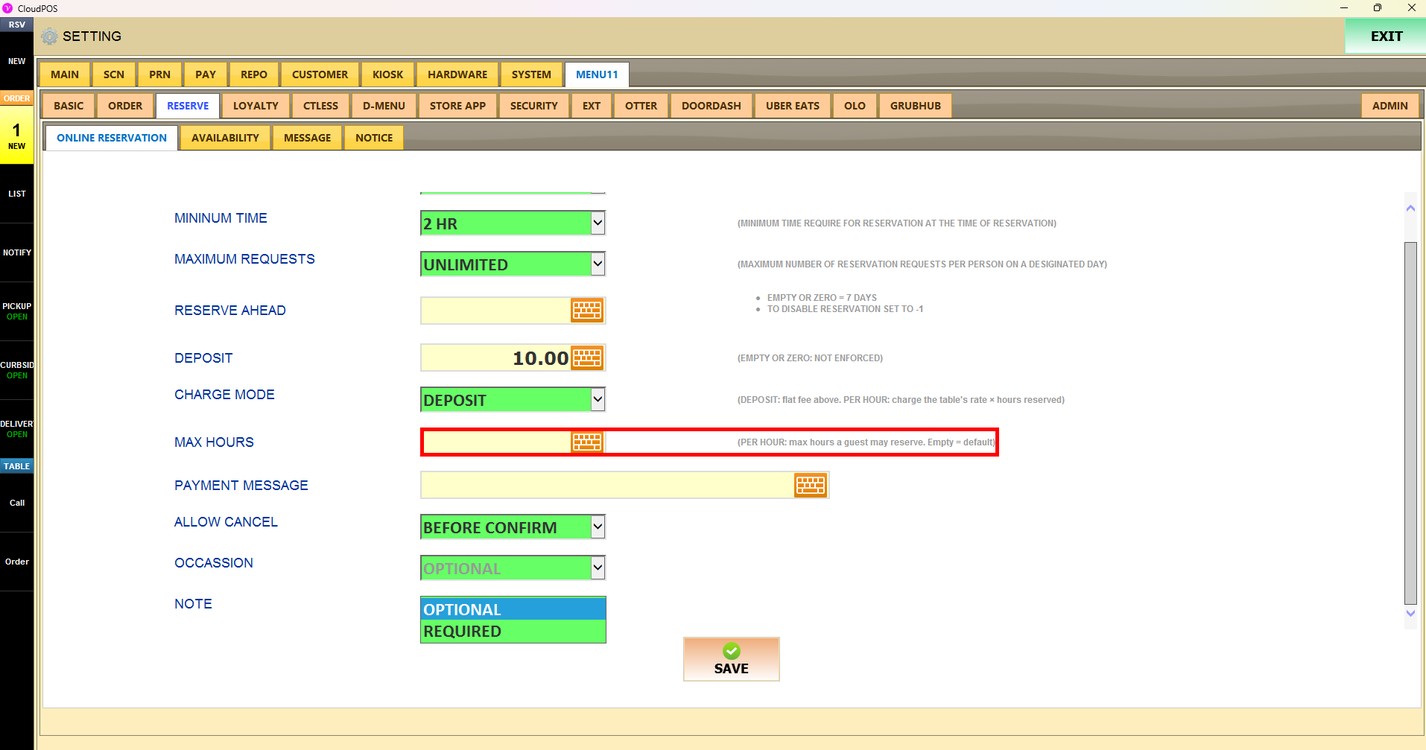
Max Hours:
Sets the maximum number of hours a customer can reserve when CHARGE MODE is set to PER HOUR (FULL). Press the keyboard icon to enter the number of hours. Leave it empty to use the default.
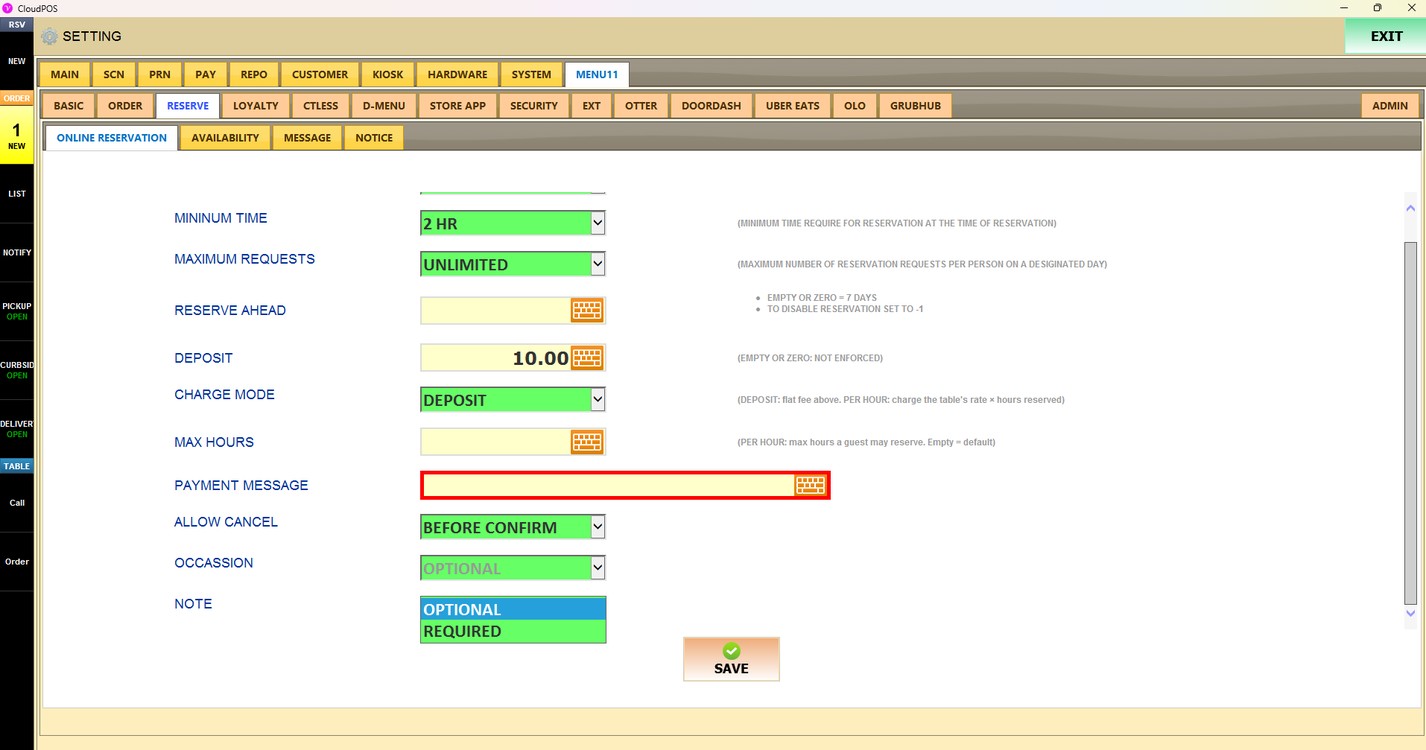
Payment Message:
Sets a message shown to the customer when paying for the reservation. Press the keyboard icon to enter the message.
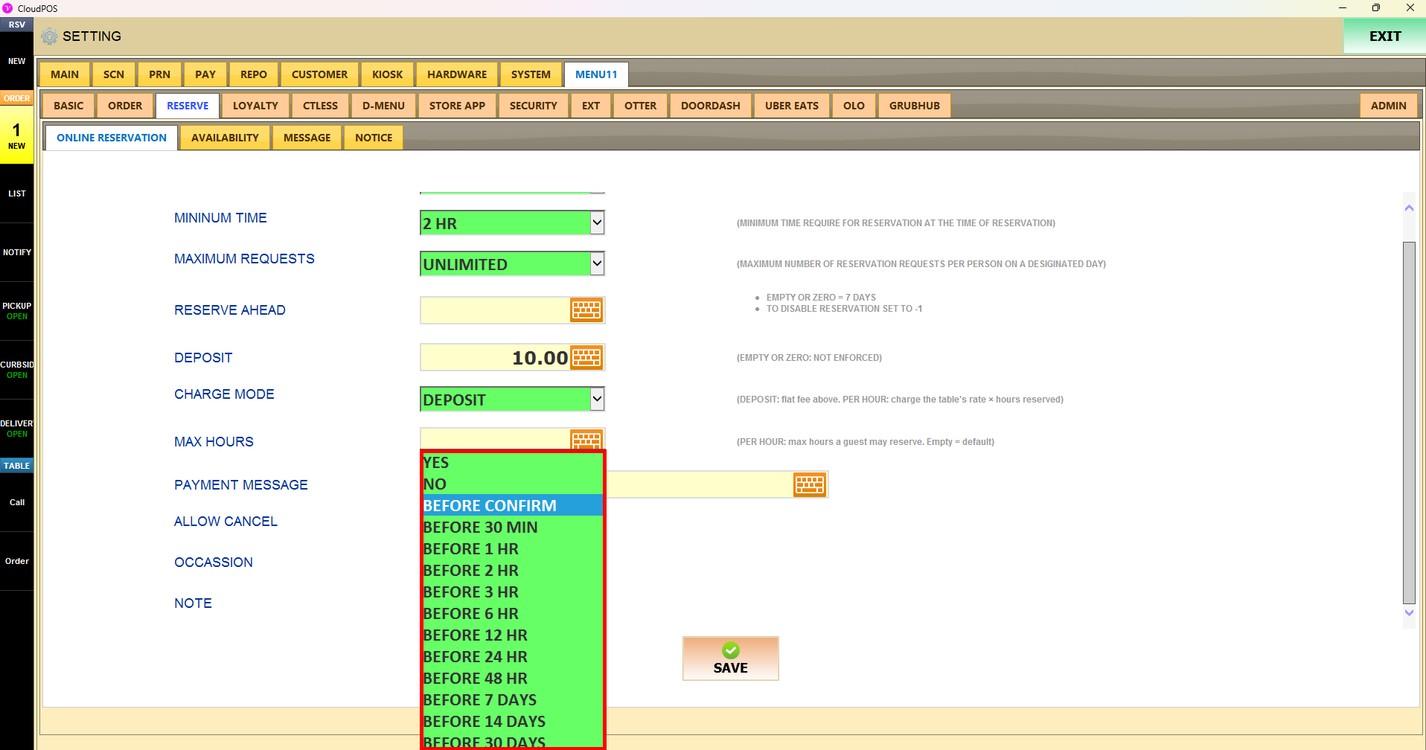
Allow Cancel:
Sets whether customers can cancel their reservation from the reservation site.
1. YES: Customers can cancel their reservation at any time.
2. NO: Customers cannot cancel their reservation.
3. BEFORE CONFIRM: Customers can cancel their reservation until it is confirmed.
4. BEFORE 30 MIN to BEFORE 30 DAYS: Customers can cancel their reservation until the selected time before the reservation time.
When cancellation is allowed, a cancel button is shown at the bottom of the reservation confirmation page.
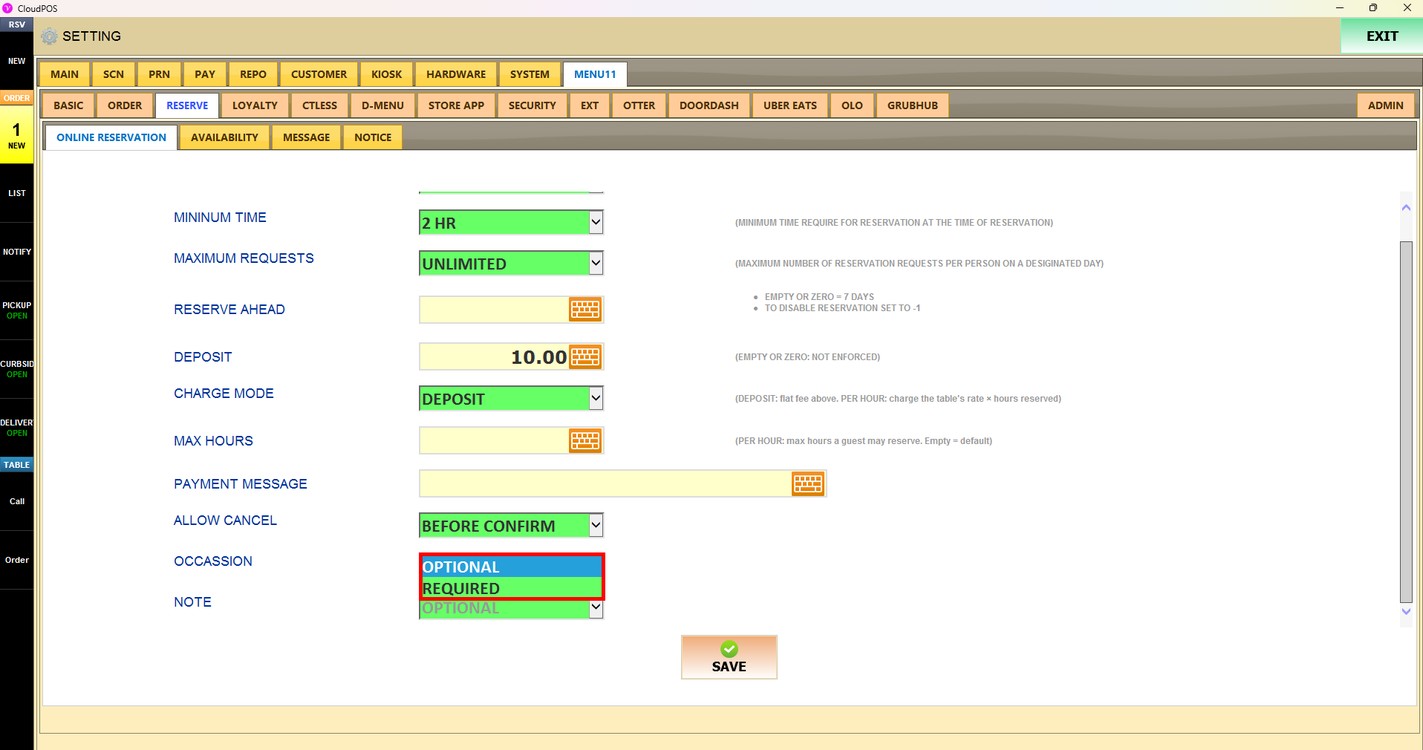
Occassion:
Sets whether the customer must enter the occasion of the reservation. Choose OPTIONAL or REQUIRED.
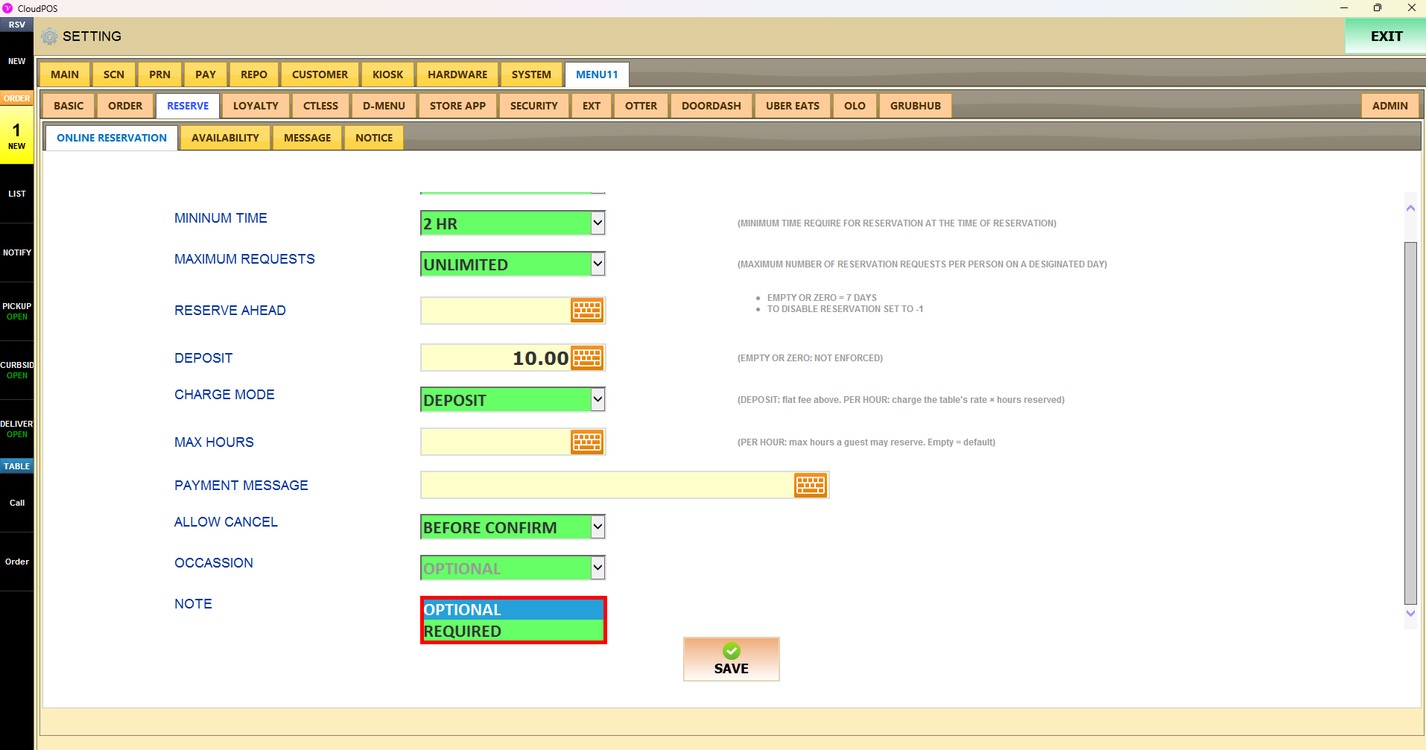
Note:
Sets whether the customer must enter a note for the reservation. Choose OPTIONAL or REQUIRED.
Press SAVE to apply the changes.
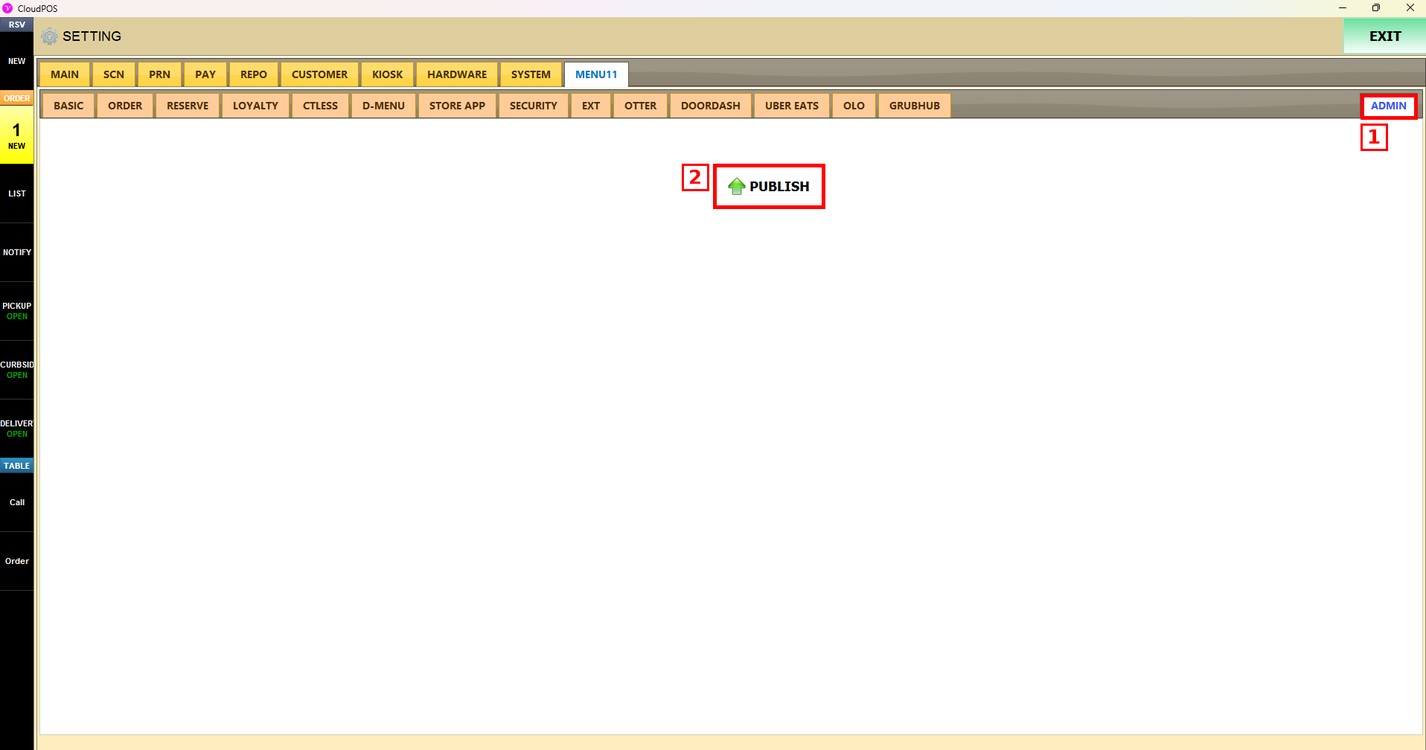
Publish the changes:
After saving, press the ADMIN tab and press PUBLISH. The changes are updated on the reservation site only after they are published.