Batch Close (settlement)
This section explains how to settle (batch close) credit card transactions during the Register Close process. Unsettled credit card transactions will prevent the register from being closed until they have been settled or addressed.
Main Screen> Number Pad> Sales Screen> MENU> REGISTER CLOSE
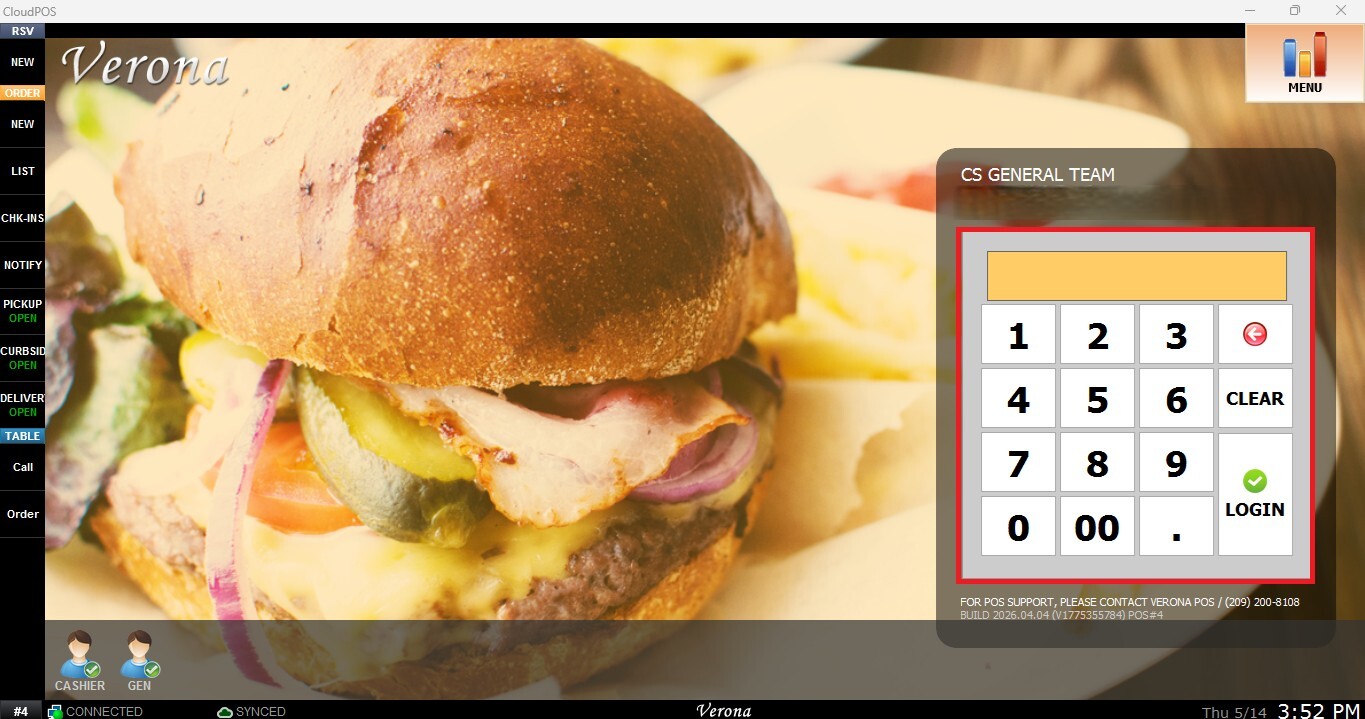
From the Main Screen, use the number pad and enter the assigned employee's password to log in.
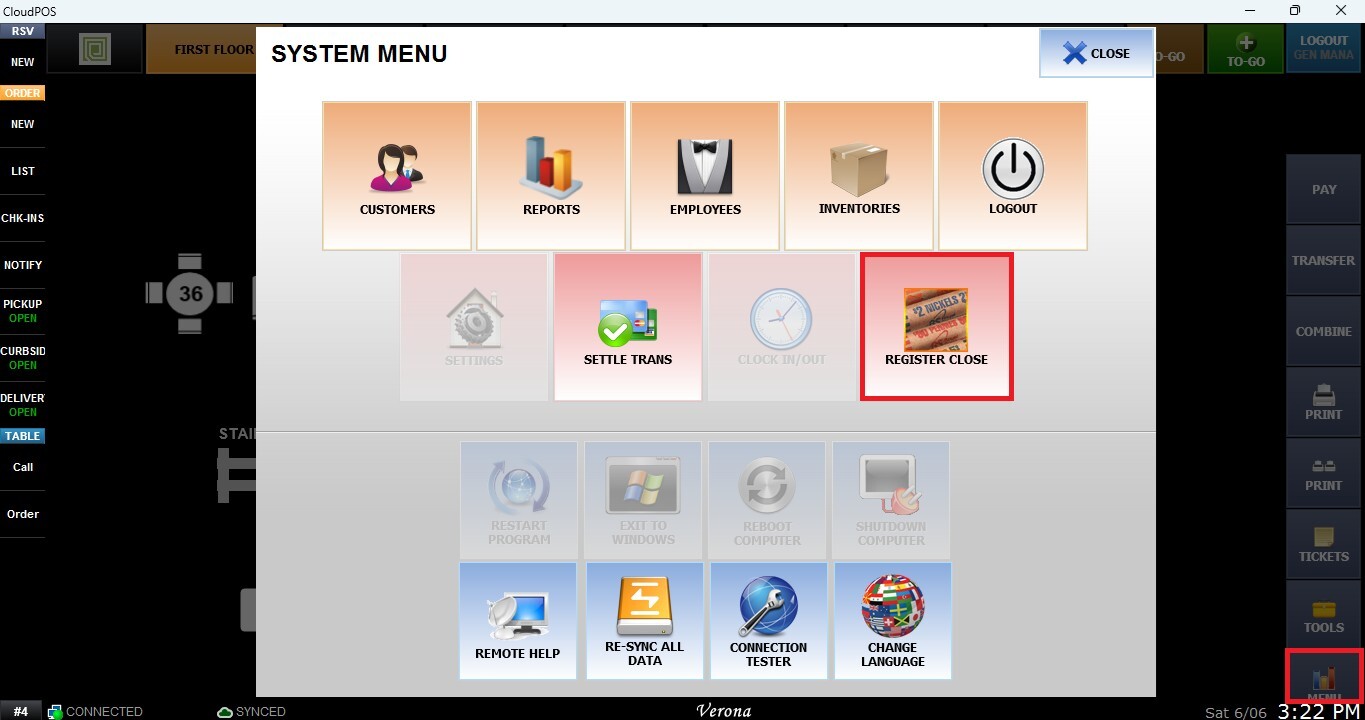
Navigate to MENU from the Table Screen and select REGISTER CLOSE.
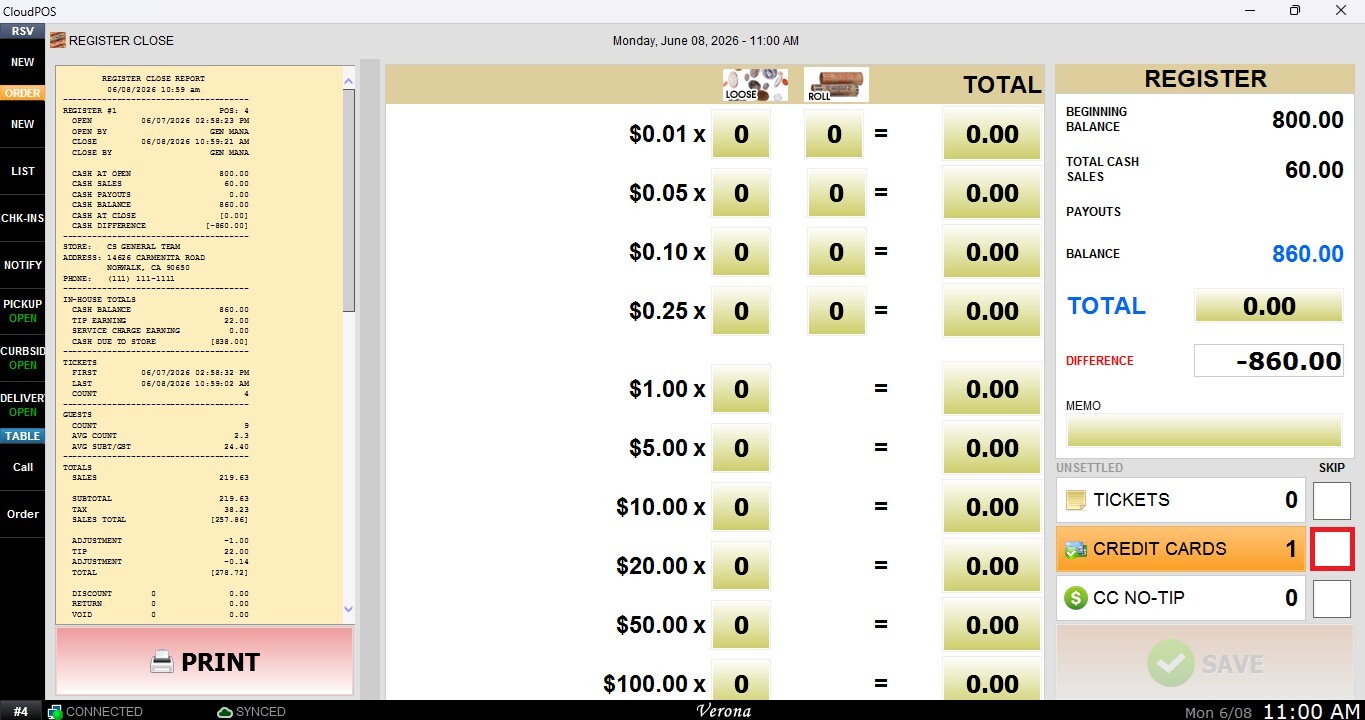
While performing a Register Close, you may notice that the Credit card section is highlighted in orange and the SAVE button is disabled.
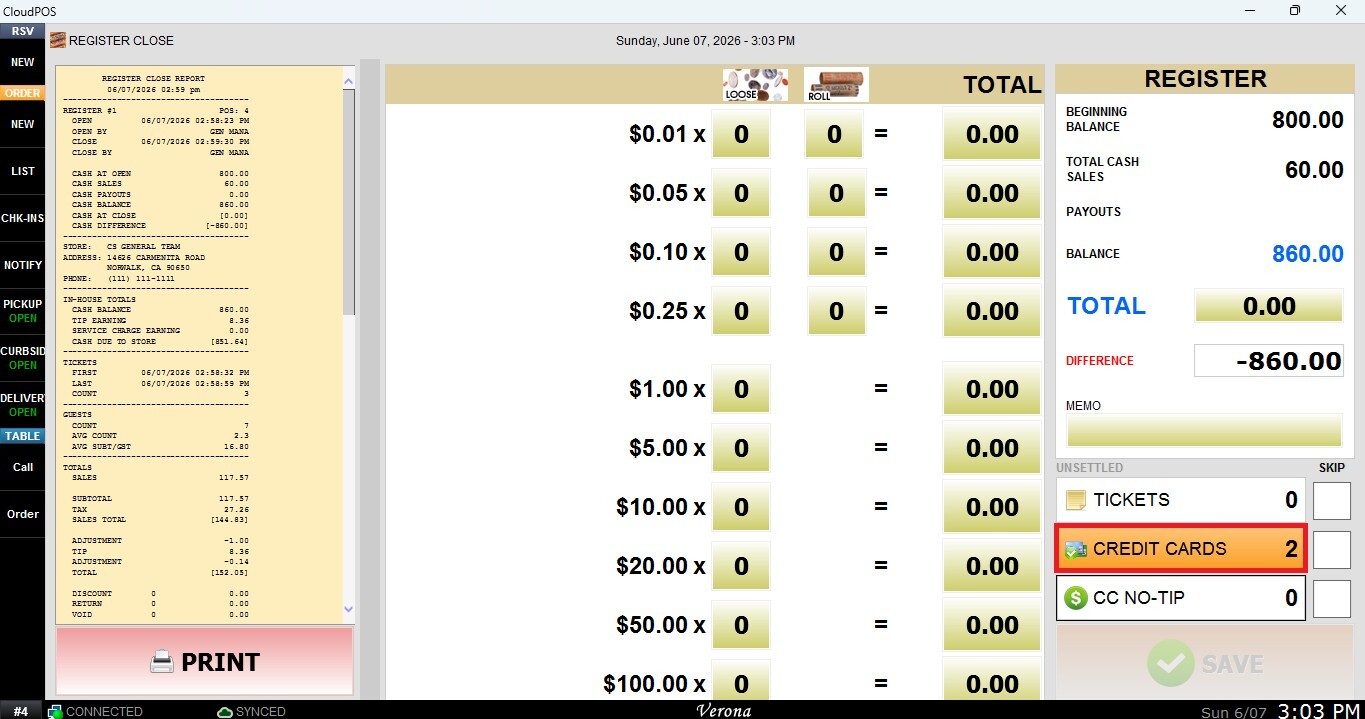
NOTE: This indicates that one or more credit card transactions have not yet been settled.
Accessing the Settlement Screen
From the Register Close screen, press CREDIT CARD. This will open the Credit Card Transaction screen, where you can review the transactions.
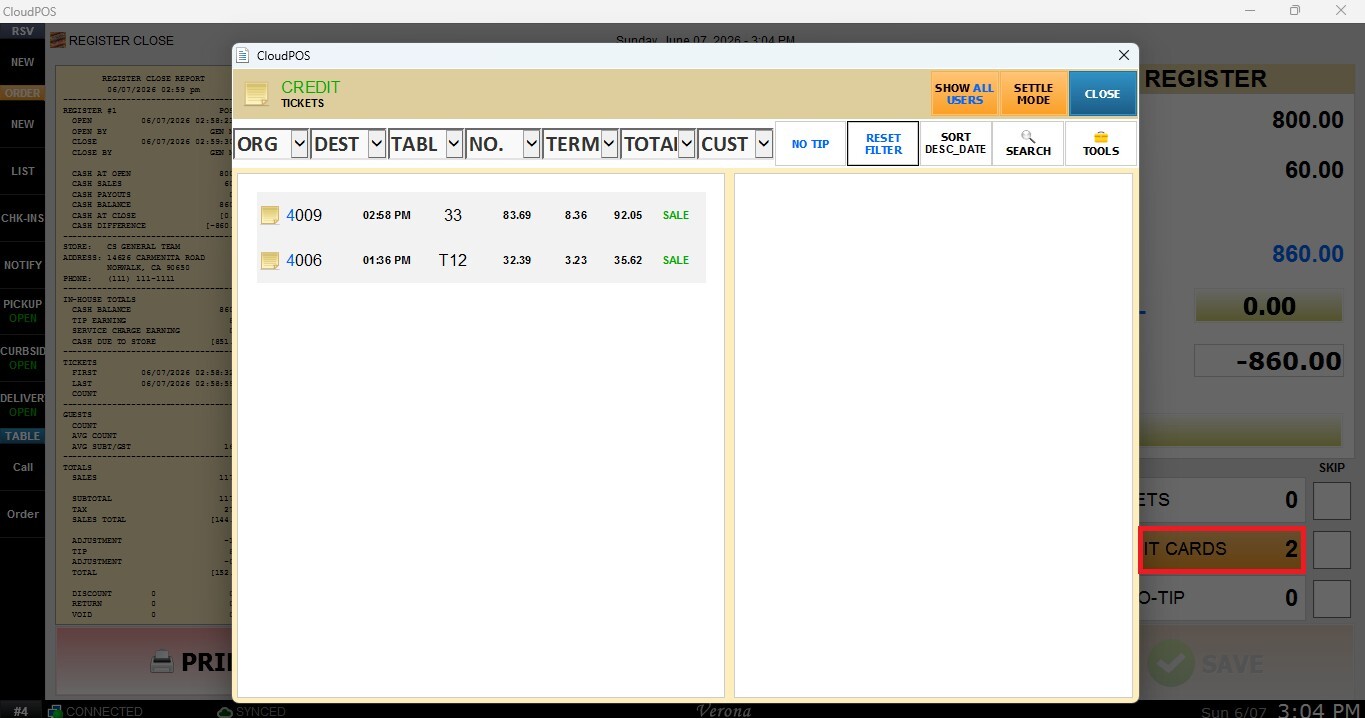
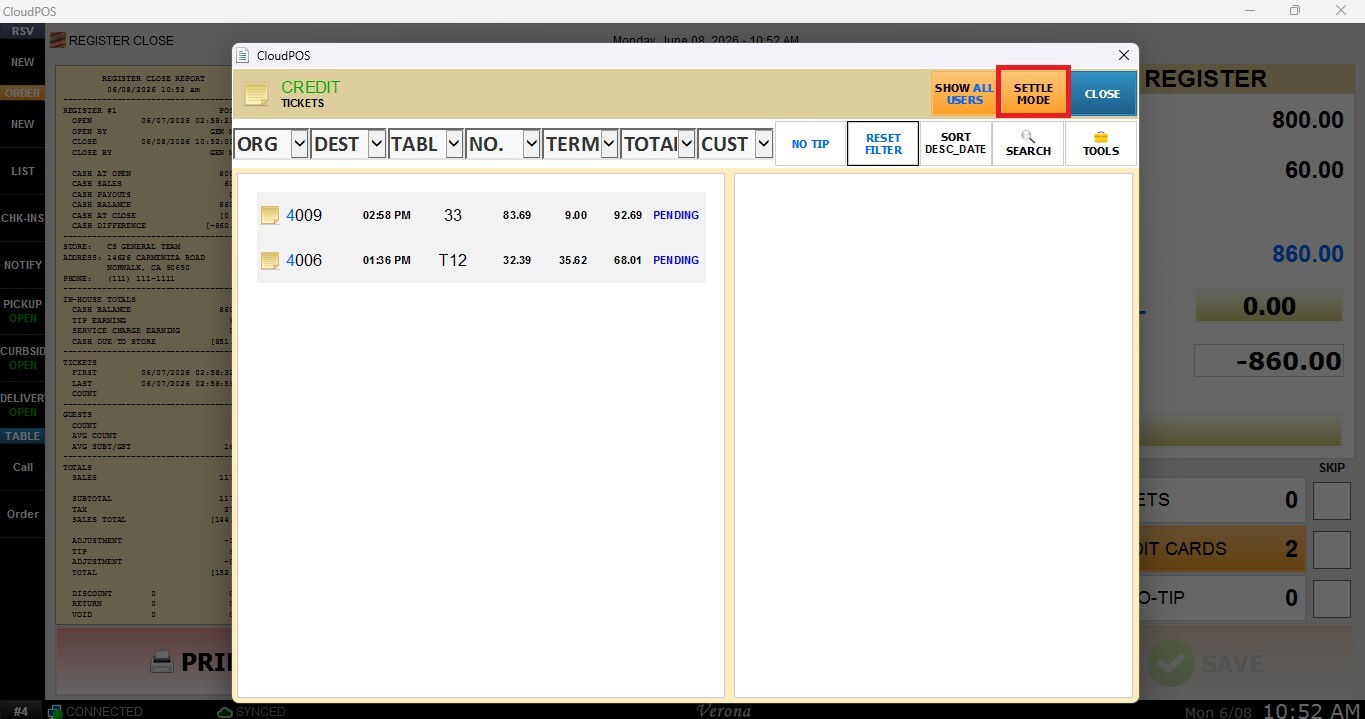
Press SETTLE MODE to switch to settlement mode.
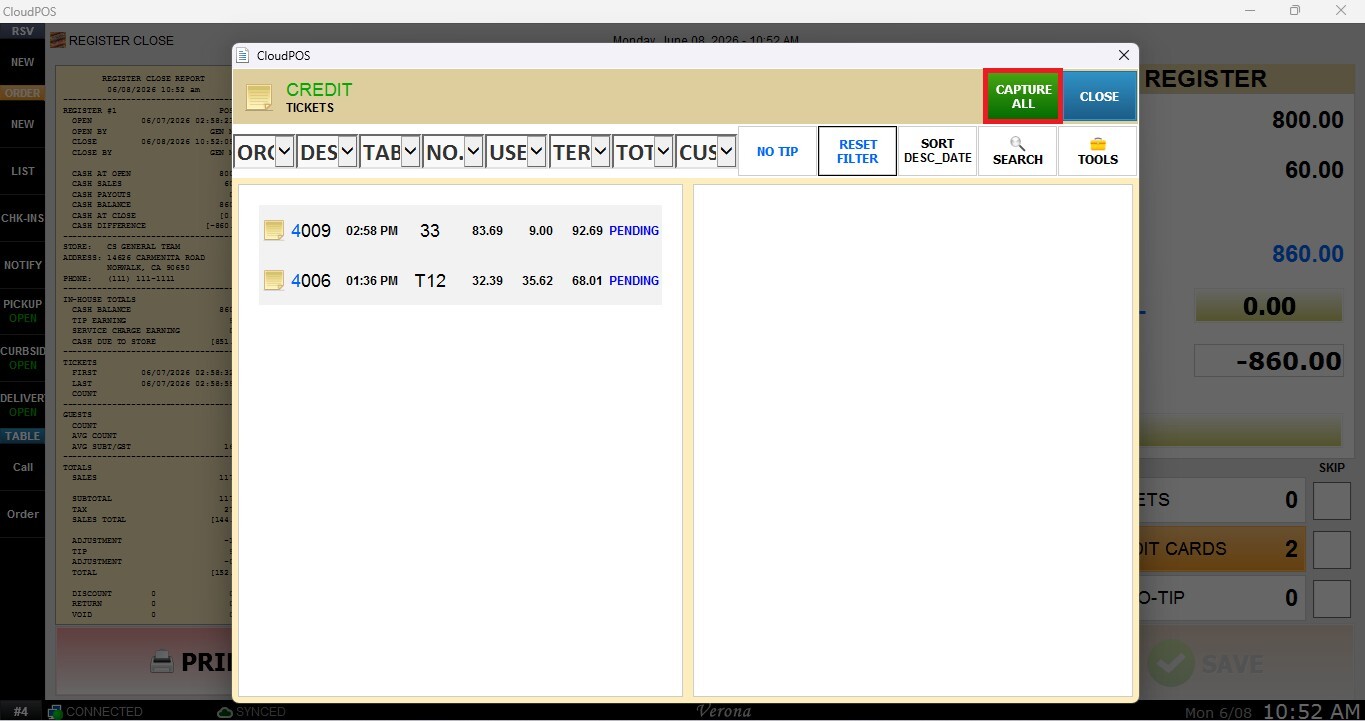
If tips have recently been entered or adjusted, you may need to press CAPTURE ALL before proceeding. You may need to select which pinpad to send the tips to.
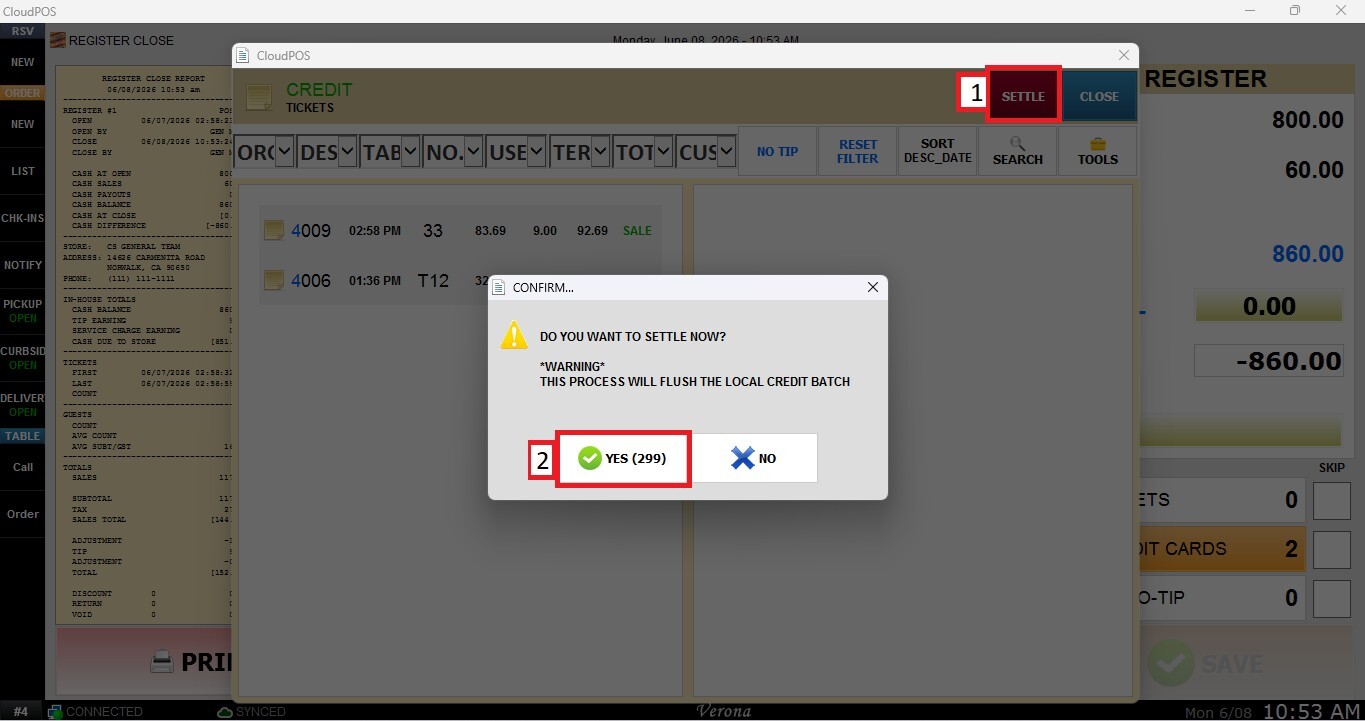
Once ready, press SETTLE to begin the batch settlement process. When the confirmation prompt appears, press YES to complete the settlement.
Result:
After all credit card transactions have been successfully settled, a confirmation window will appear displaying the settlement information. You may choose to PRINT the settlement report or simply CLOSE the window.
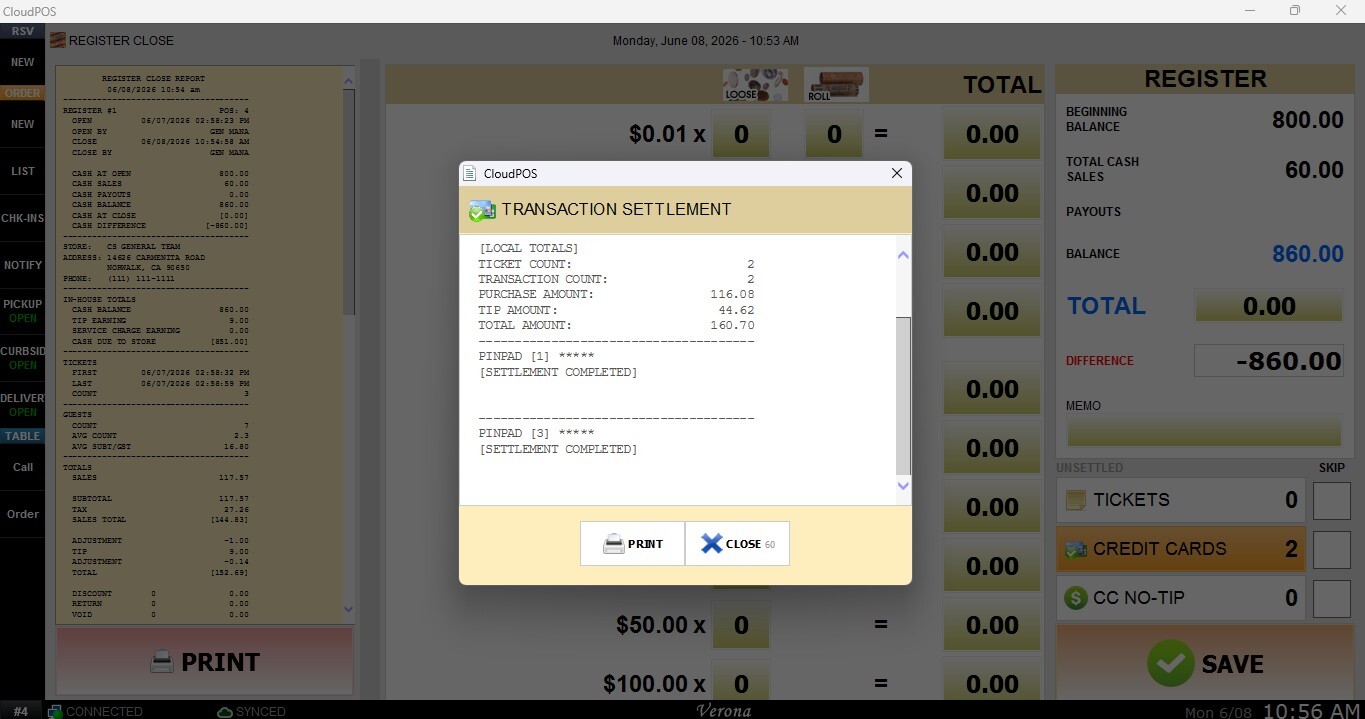
Once the settlement has been completed, the Credit Card highlight will disappear from the Register Close screen, and the Register Close process can continue normally.
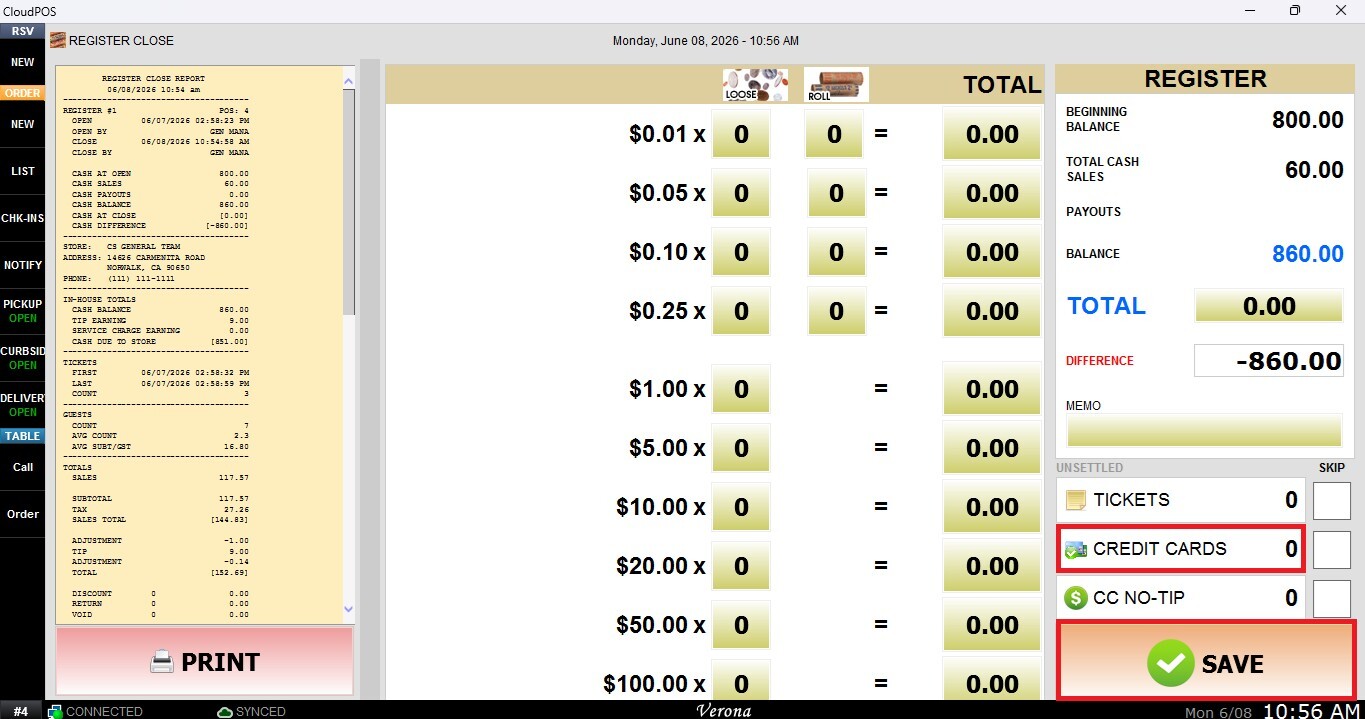
Note: Once a transaction has been settled, tips can no longer be entered or adjusted. If tips still need to be added, refer to Credit Card before proceeding with the settlement.
Skip
If you do not wish to settle the transactions but still need to complete the Register Close process, refer to: Register Close - Skipping Unsettled Tickets / Credit Cards / No Tip