Register Close-Open Tickets
This section explains how to manage open tickets during the Register Close process. Open tickets will prevent the register from being closed until they have been completed or otherwise addressed.
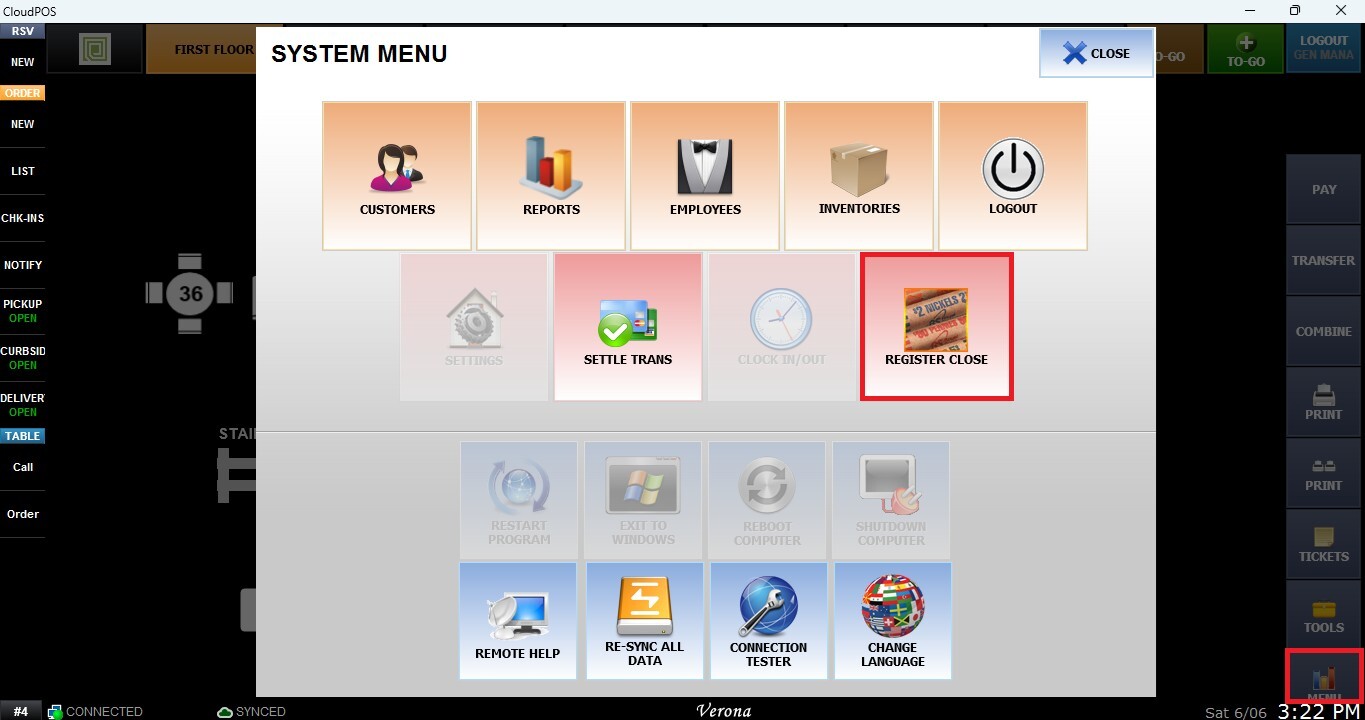
Main Screen> Number Pad> Sales Screen> MENU> REGISTER CLOSE
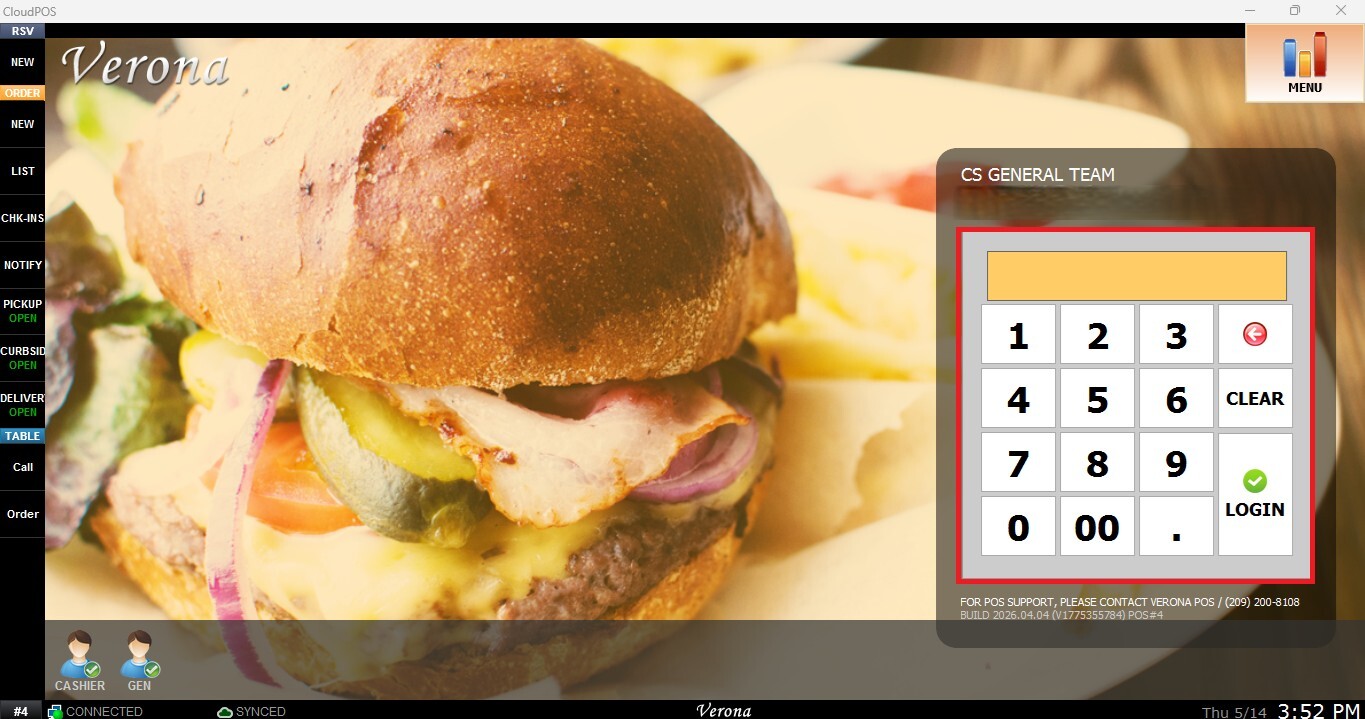
From the Main Screen, use the number pad and enter the assigned employee's password to log in.
Navigate to MENU from the Table Screen and select REGISTER CLOSE.
While performing a Register Close, you may notice that the TICKETS section is highlighted in orange and the SAVE button is disabled.
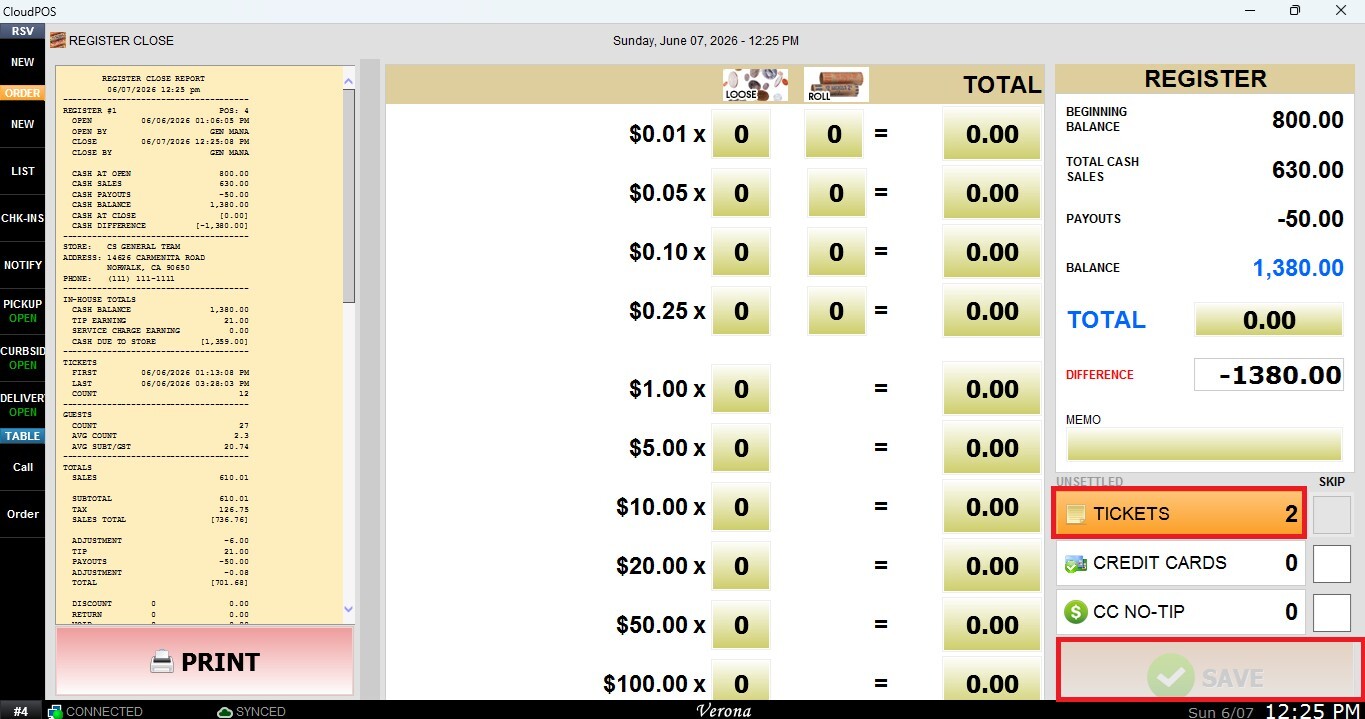
NOTE: This indicates that one or more tickets are still open and must be addressed before the register can be closed.
Viewing Open Tickets
From the Sales Screen or Table Map, select TICKETS to display all tickets that are currently open and have not yet been closed. Review the list and identify the tickets that remain active.
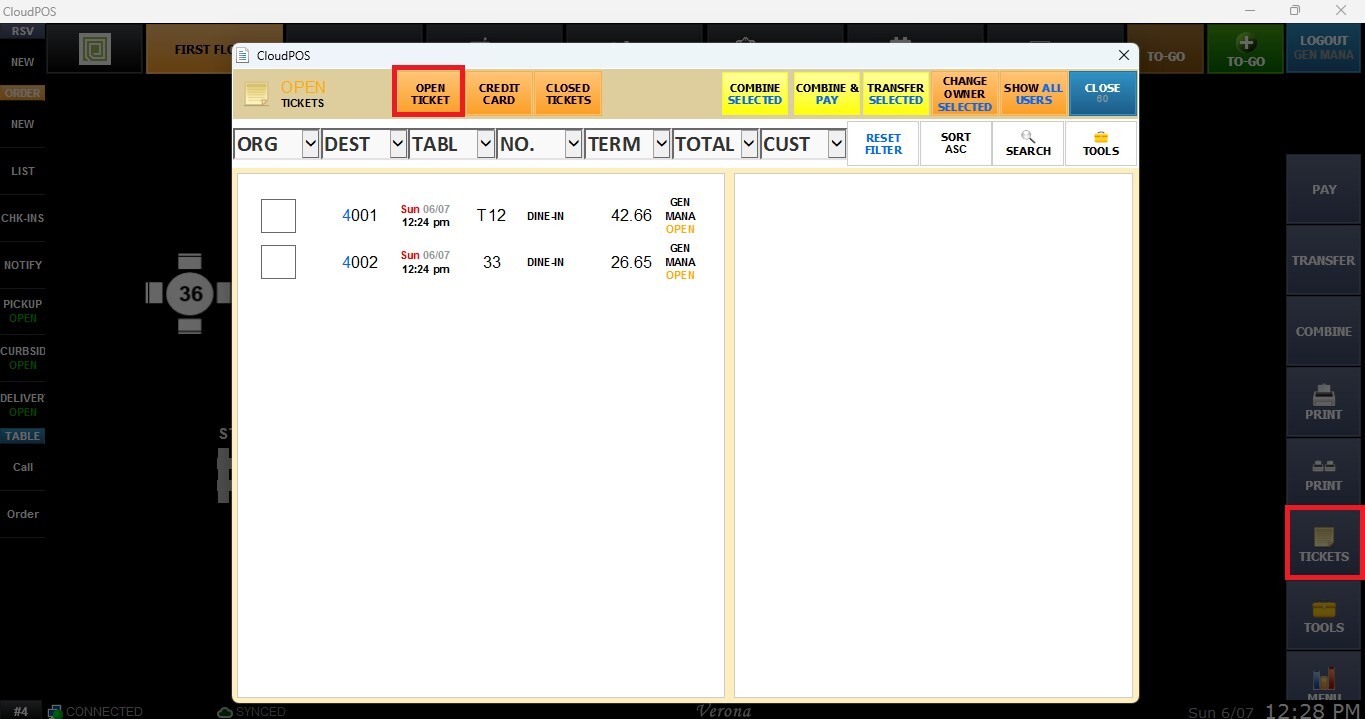
You can also click OPEN TICKETS from the Register Close screen to directly access the list of currently open tickets.
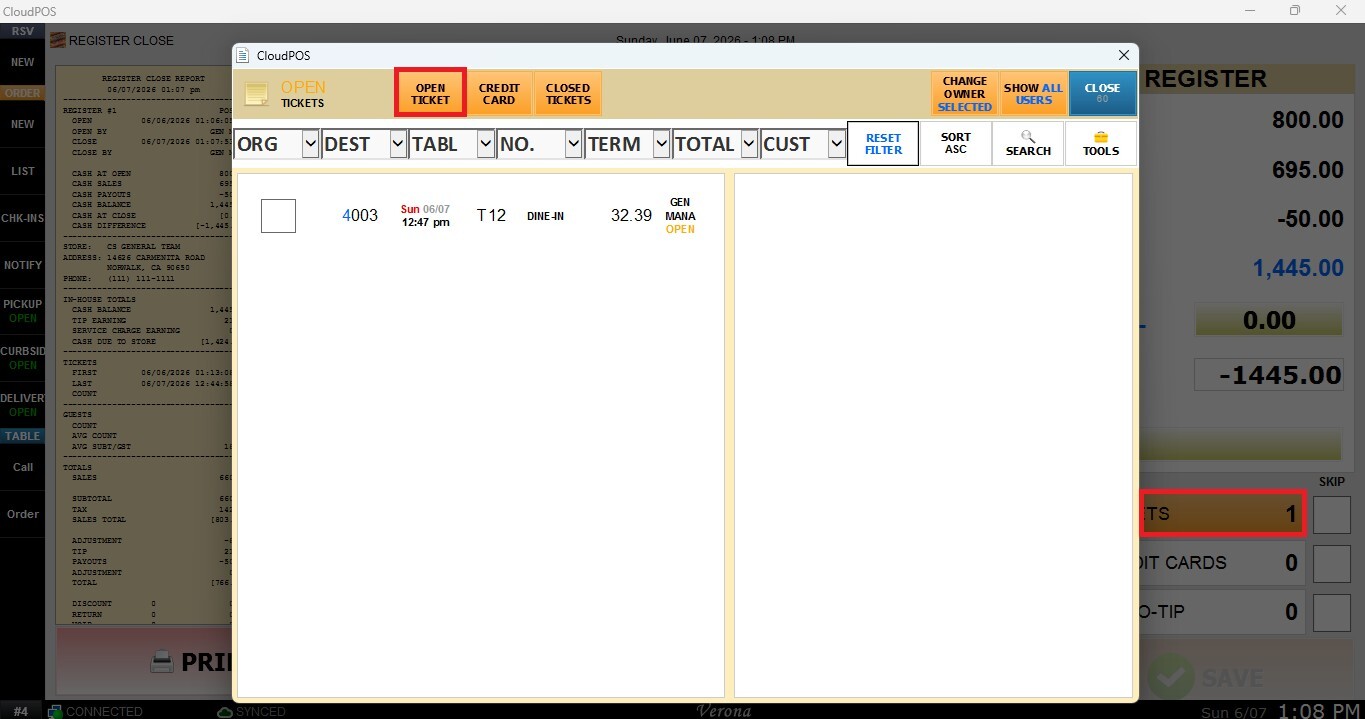
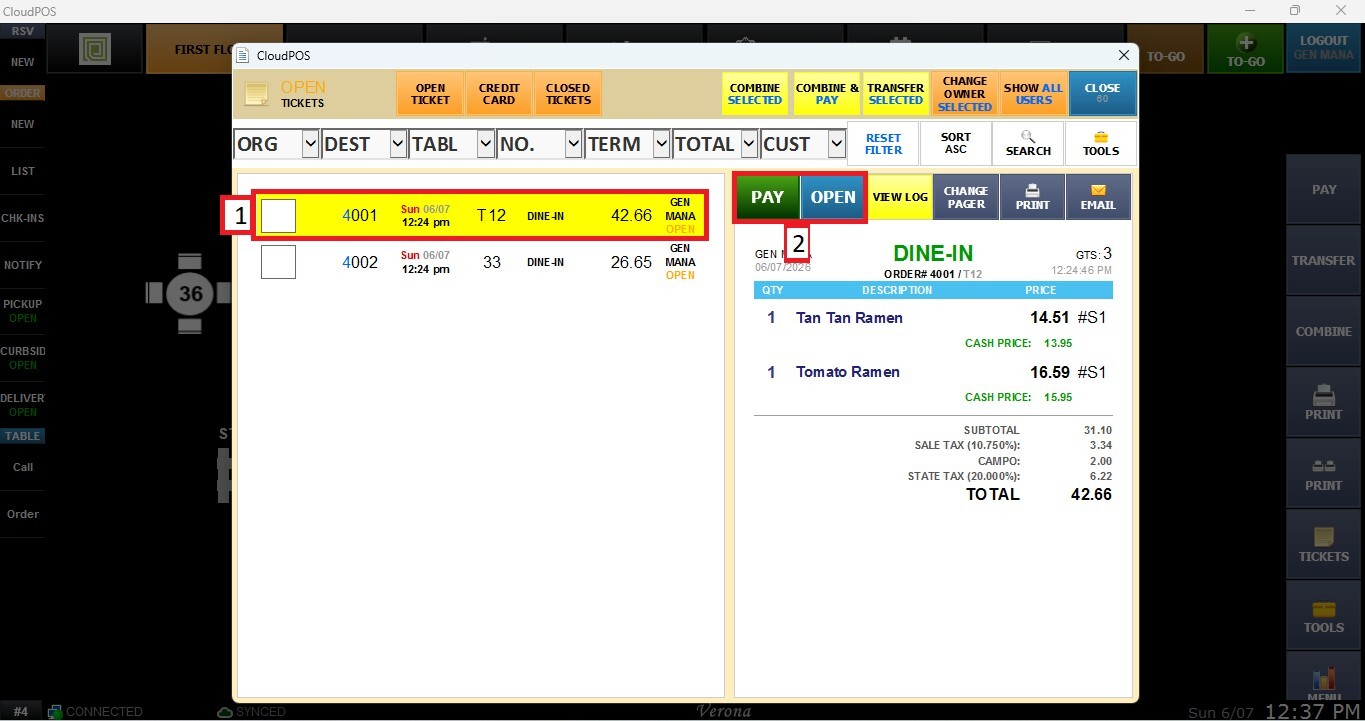
Closing the Tickets
You can OPEN the desired ticket and complete it by processing payment or otherwise closing the ticket according to your store's workflow. The PAY button can be used to immediately process payment and close the selected ticket.
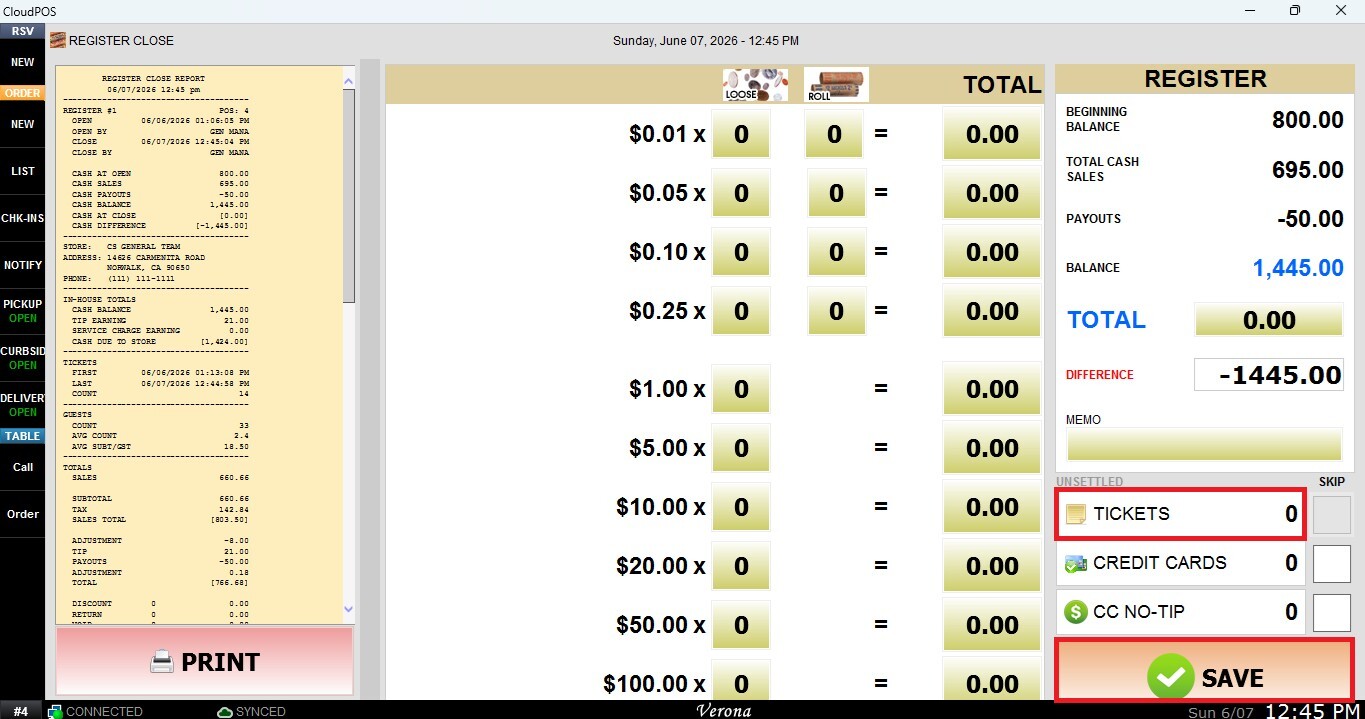
Result:
Once all open tickets have been closed, return to the Register Close screen. The TICKETS section will no longer be highlighted, and the SAVE button will become available, allowing the Register Close process to be completed.
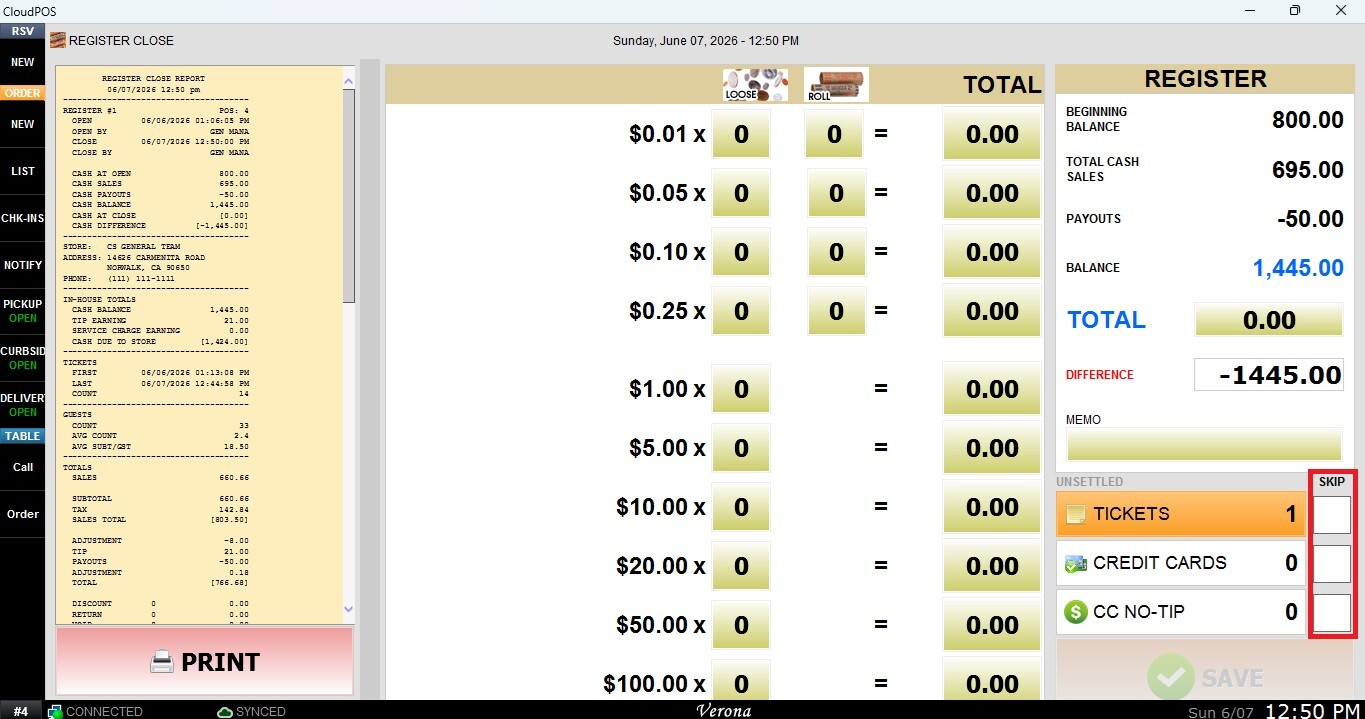
SKIP
If you do not wish to close the open tickets but still need to complete the Register Close process, refer to Register Close - Skipping Unsettled Tickets / Credit Cards / No Tip