Delay List
The Delay List displays the orders that were saved to be sent to the kitchen at a later time. From this list, you can review the items of each delayed order, change the scheduled time, or send the items to the kitchen immediately.
Main Screen > Log in > TOOLS > DELAY LIST
After logging in, press TOOLS on the right side of the screen. Under the SALES section, select DELAY LIST.
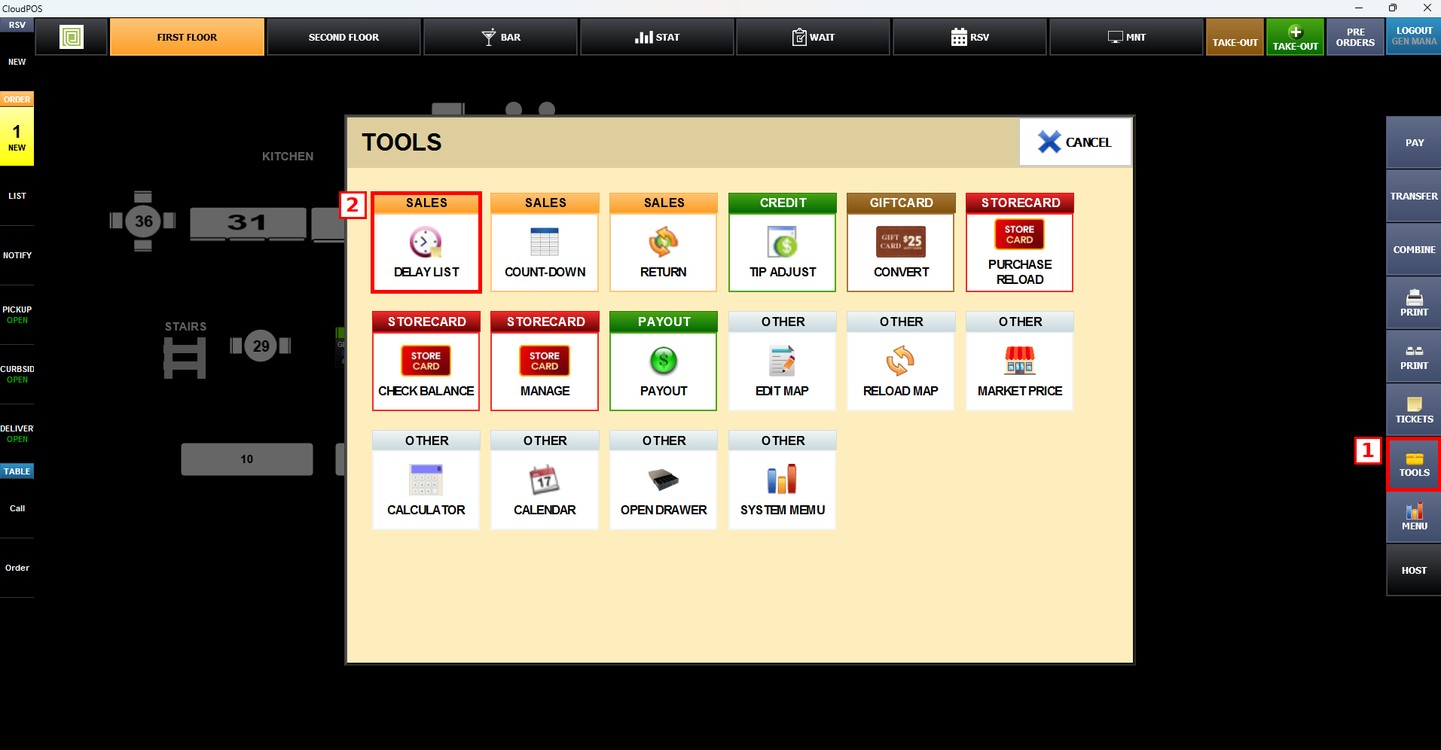
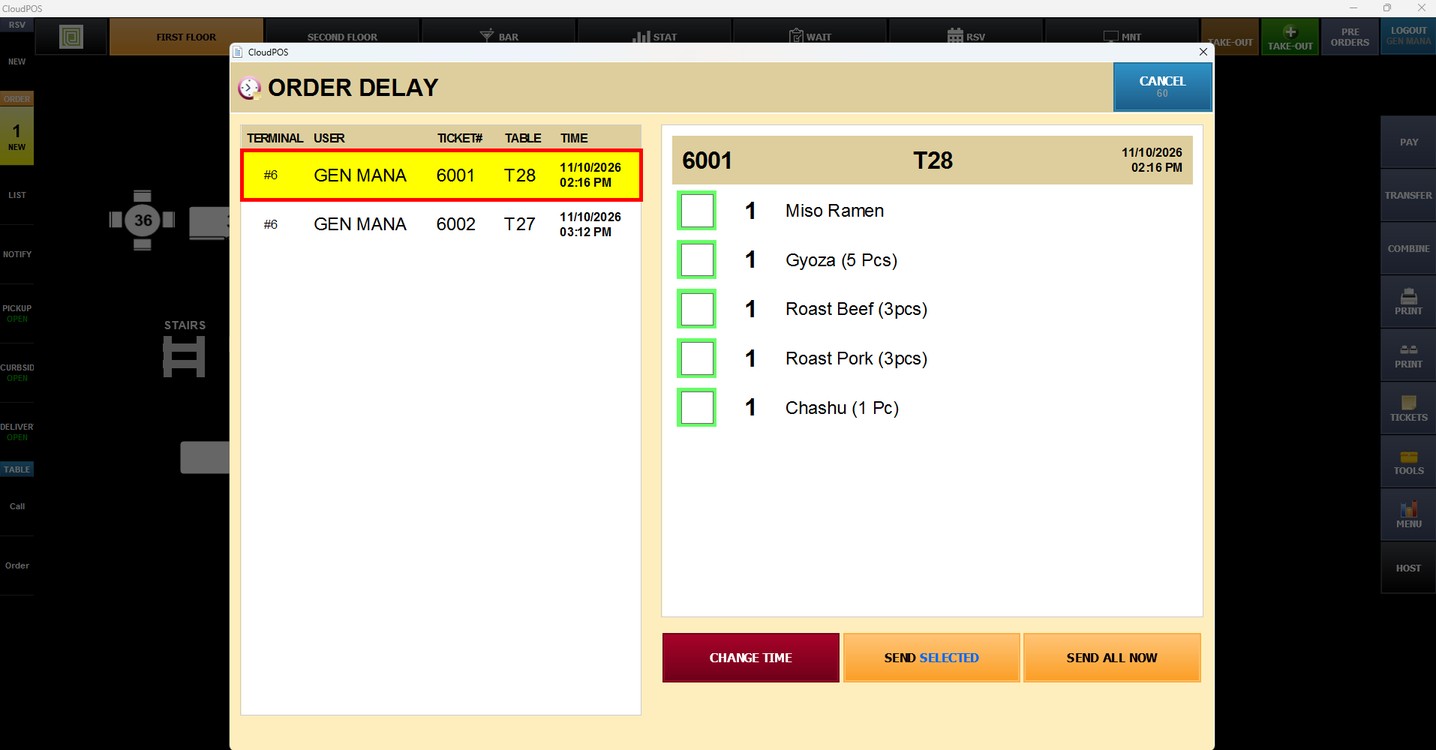
The ORDER DELAY window lists all delayed orders, showing the TERMINAL, USER, TICKET#, TABLE, and the scheduled TIME. Select an order to display its items on the right side of the window.
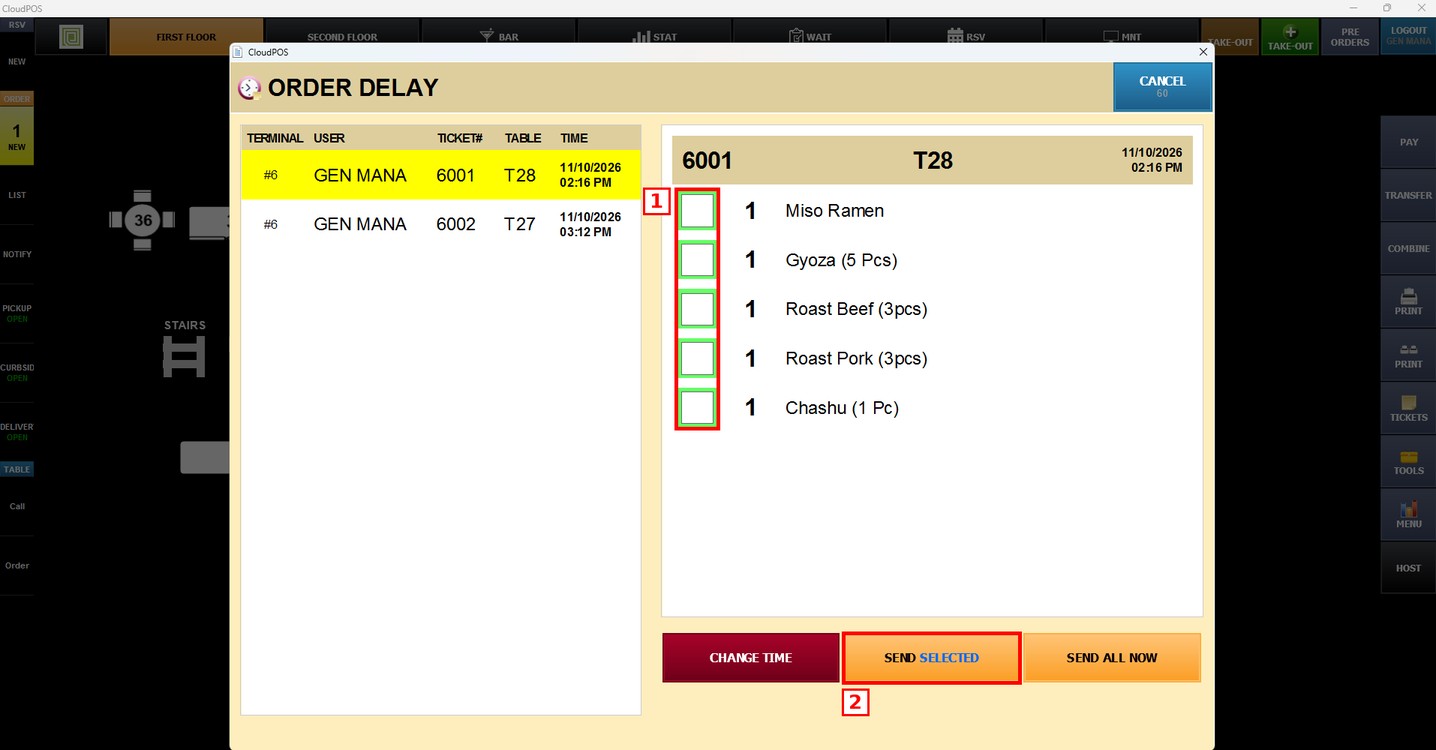
To send specific items now:
Select the checkbox of each item to send and press SEND SELECTED. The selected items are sent to the kitchen immediately, and the remaining items stay in the Delay List.
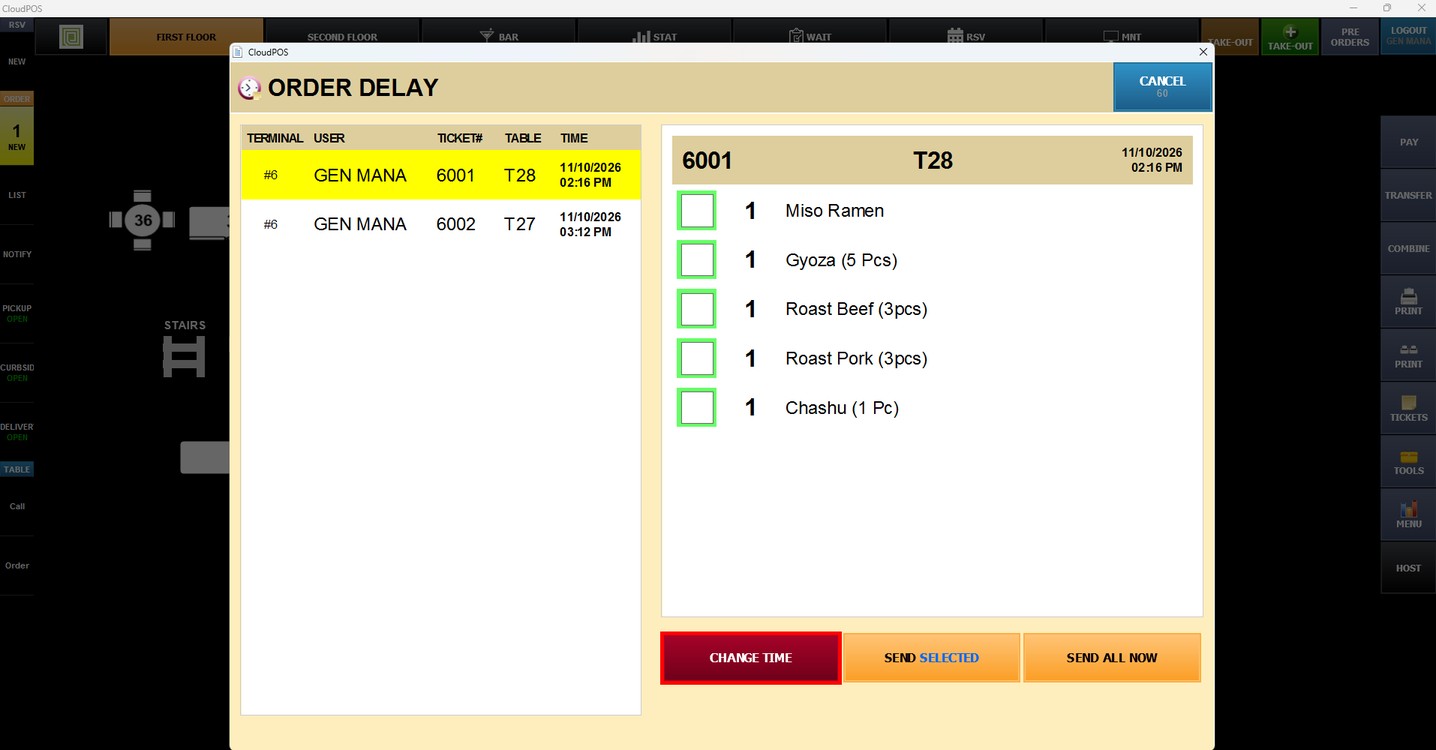
To change the scheduled time:
Press CHANGE TIME and select the new time at which the order should be sent to the kitchen.
To send the entire order now:
Press SEND ALL NOW to send all items of the selected order to the kitchen immediately.
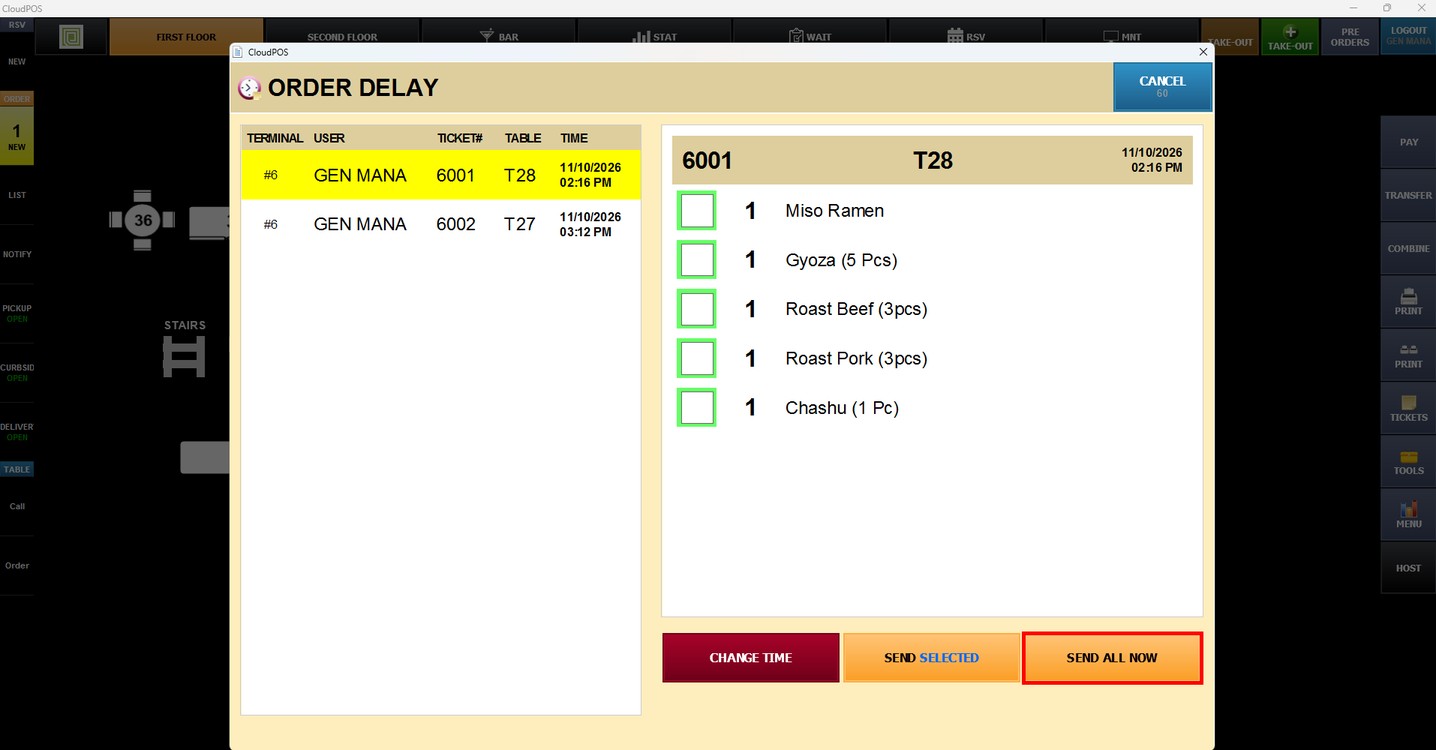
Press CANCEL to close the Delay List.
Note: Orders are added to the Delay List when they are sent with DELAY SEND on the Sales Screen. The Delay List can also be opened from TOOLS on the Sales Screen.