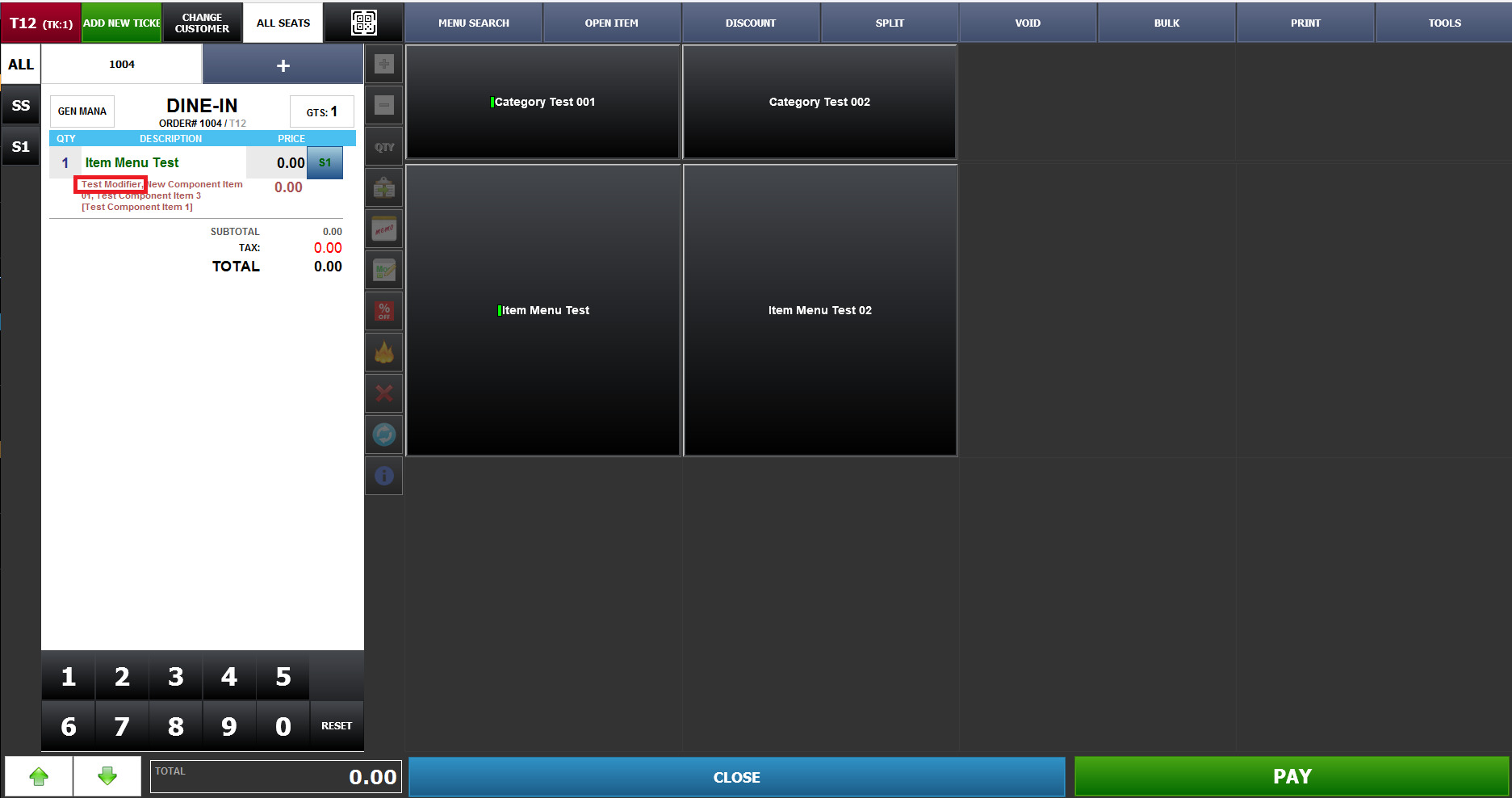
Modifier Edit Screen
CREATING AND APPLYING A TEMPORARY MODIFIER
Modifier-Edit allows employees to create a Temporary Modifier directly from the Sales screen while placing an order.
This feature can be used when a modifier is needed for a specific order but is not already registered as a standard modifier.
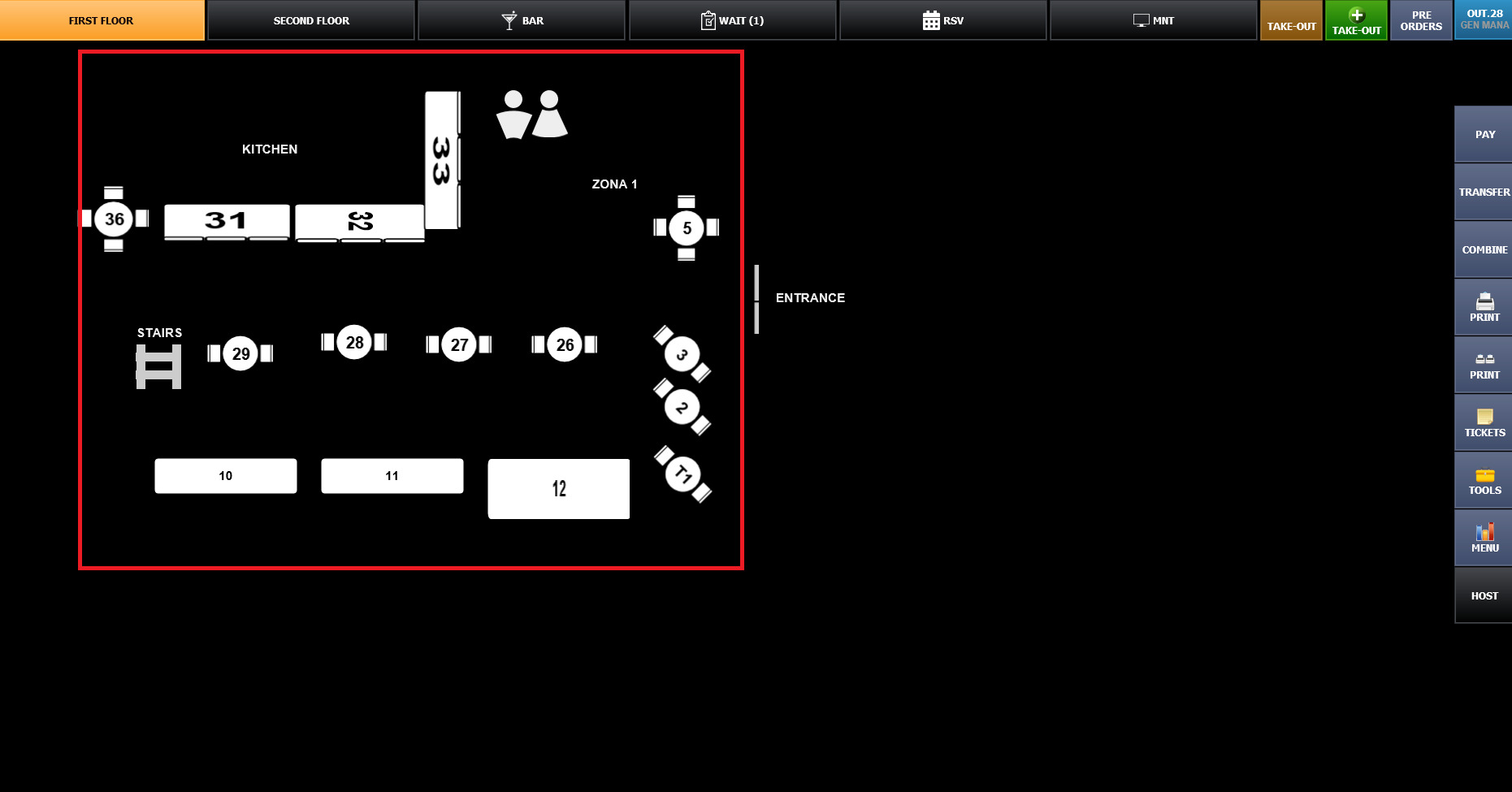
Log in to the Sales Screen

Select a Table
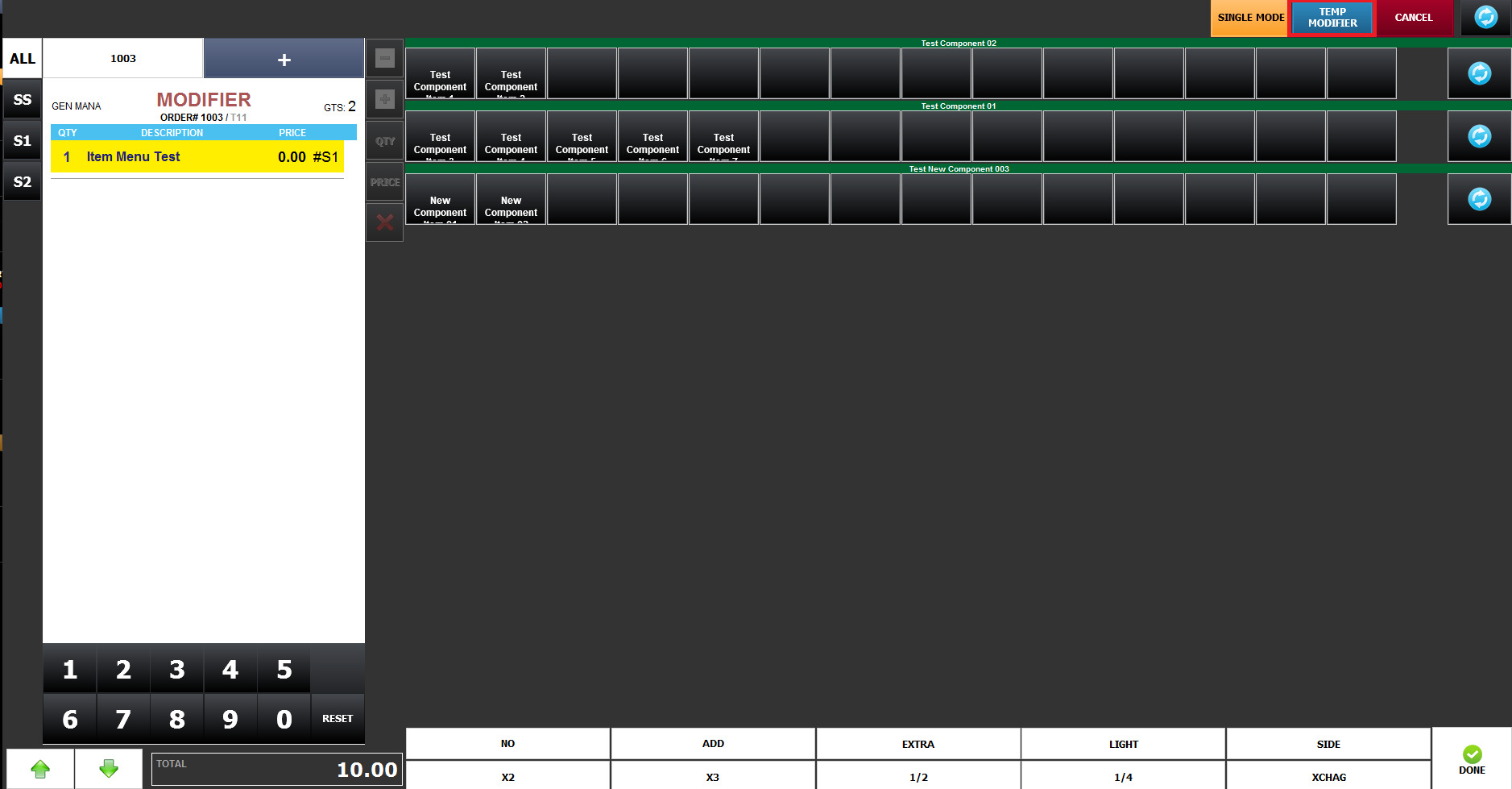
Select the Menu Item > Select TEMP MODIFIER
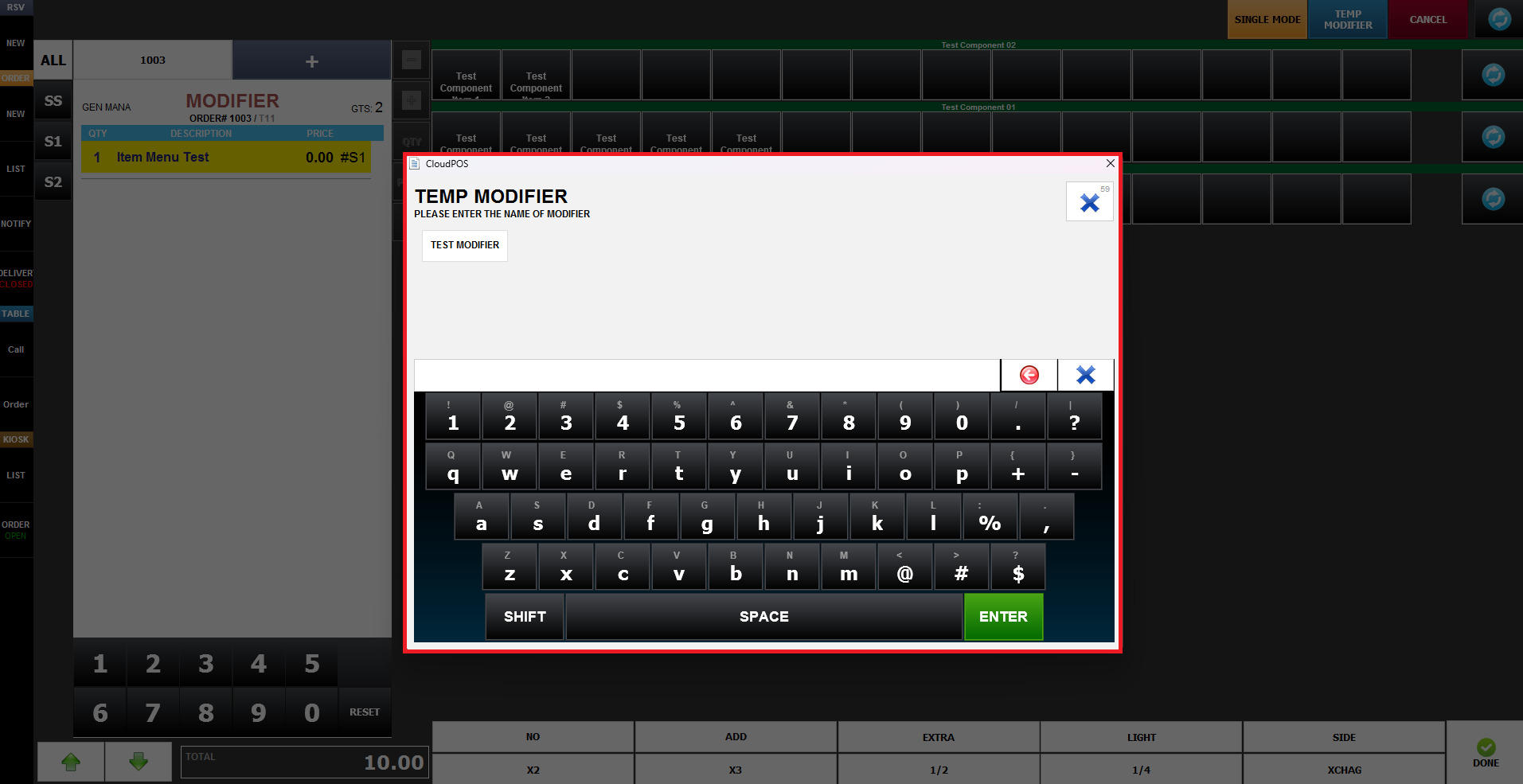
Enter the Modifier Name
Enter the Price
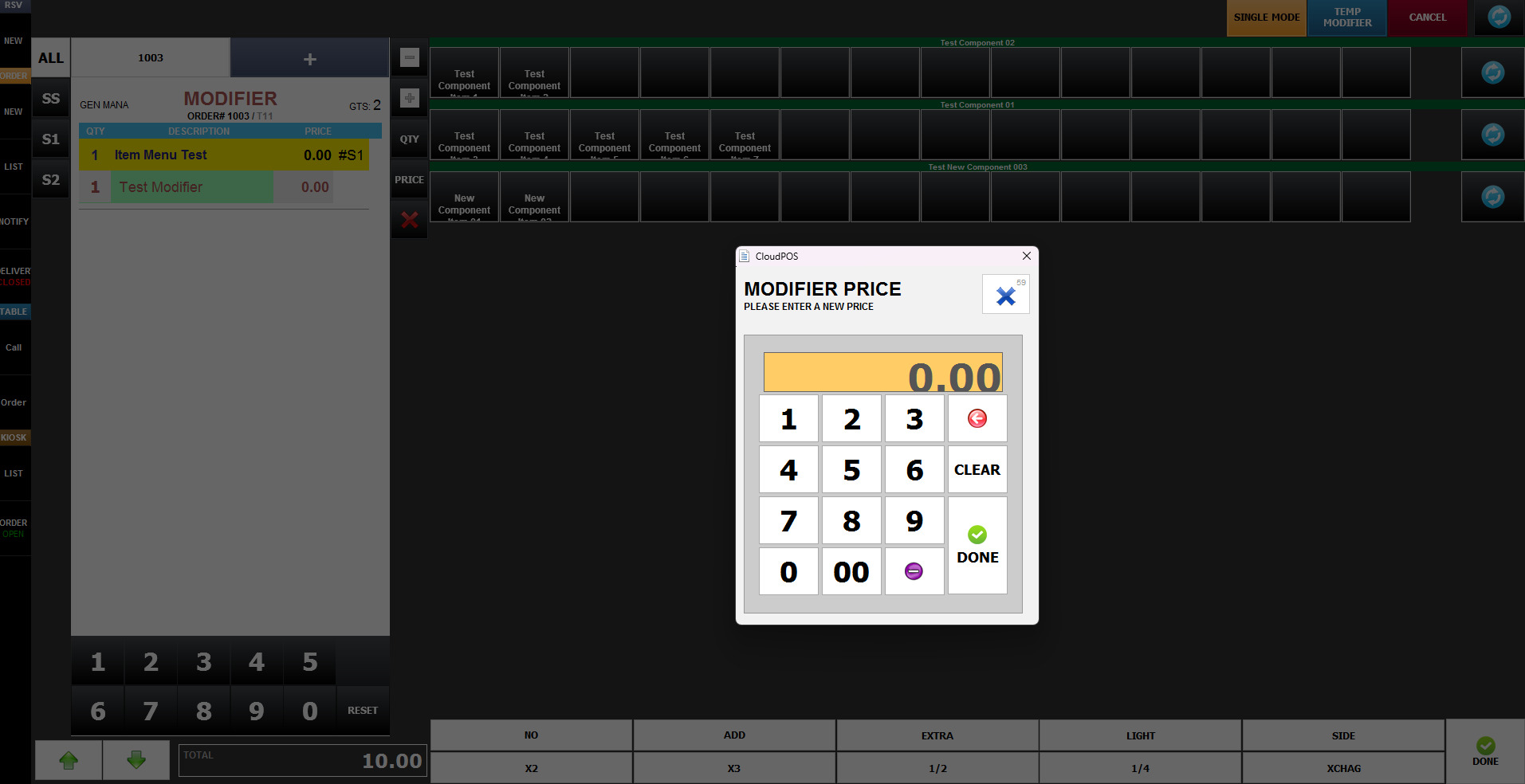
The employee can enter the Modifier name and price during the ordering process and apply it to the selected menu item.
Additional modifier settings, such as quantity, price, and modifier order, can also be adjusted from the Modifier screen.
The function bar on the left side of the Modifier screen provides several controls.
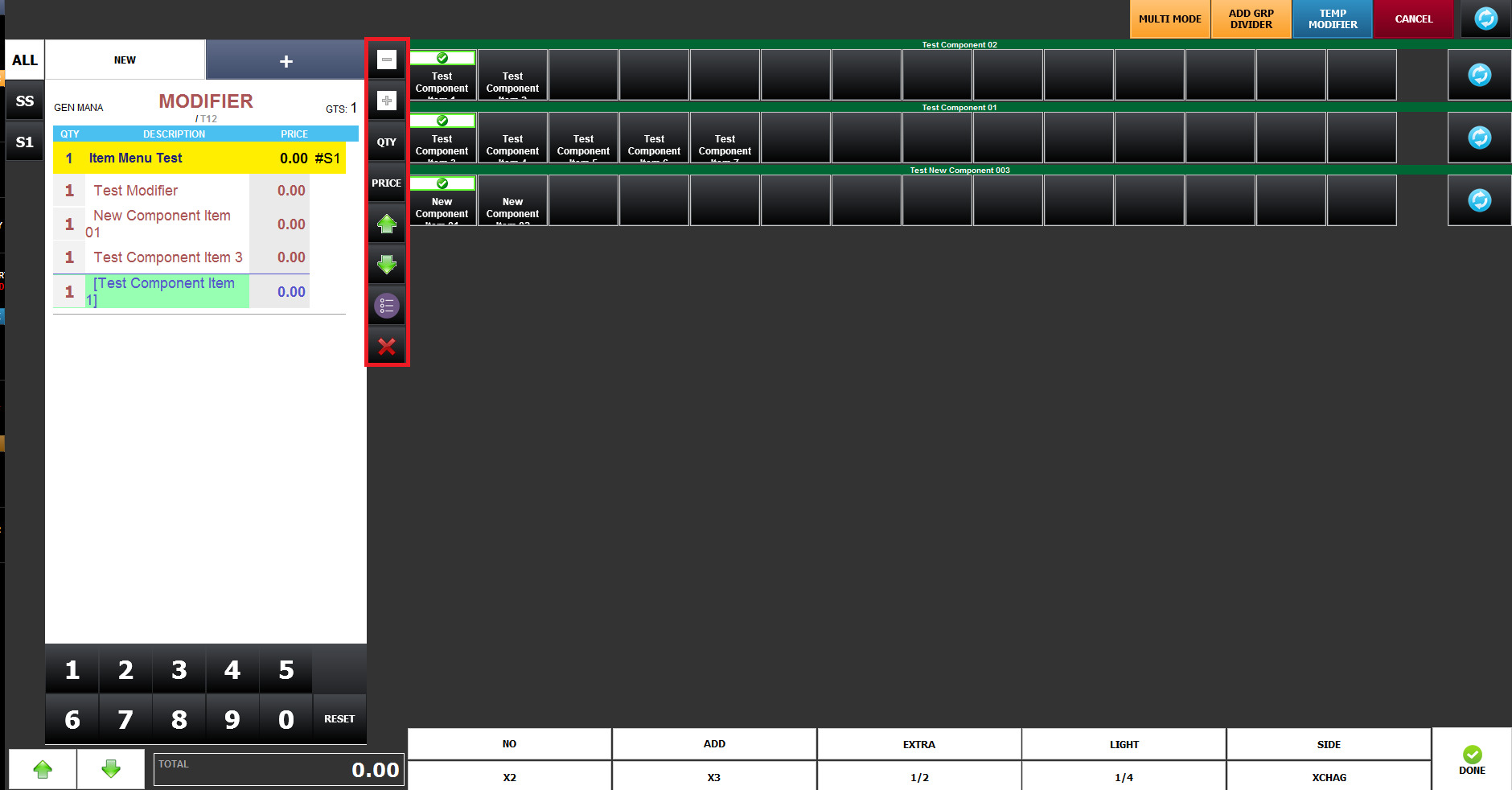
The function bar on the left side of the Modifier screen provides several controls.
Increase / Decrease
Used to increase or decrease the quantity of the selected Modifier.
QTY
Used to enter or adjust the Modifier quantity.
PRICE
Used to enter or adjust the Modifier price.
Move Up / Move Down
Used to change the order or position of the Modifier.