Template Item visibility and style
You can control the appearance and layout of modifier items on the modifier selection screen during ordering. These settings can be used to organize modifier buttons, adjust spacing, change button sizes, and customize the visual layout for improved usability and readability.
MENU> SETTINGS> REPO> EDIT> MODIFIER GROUPS.
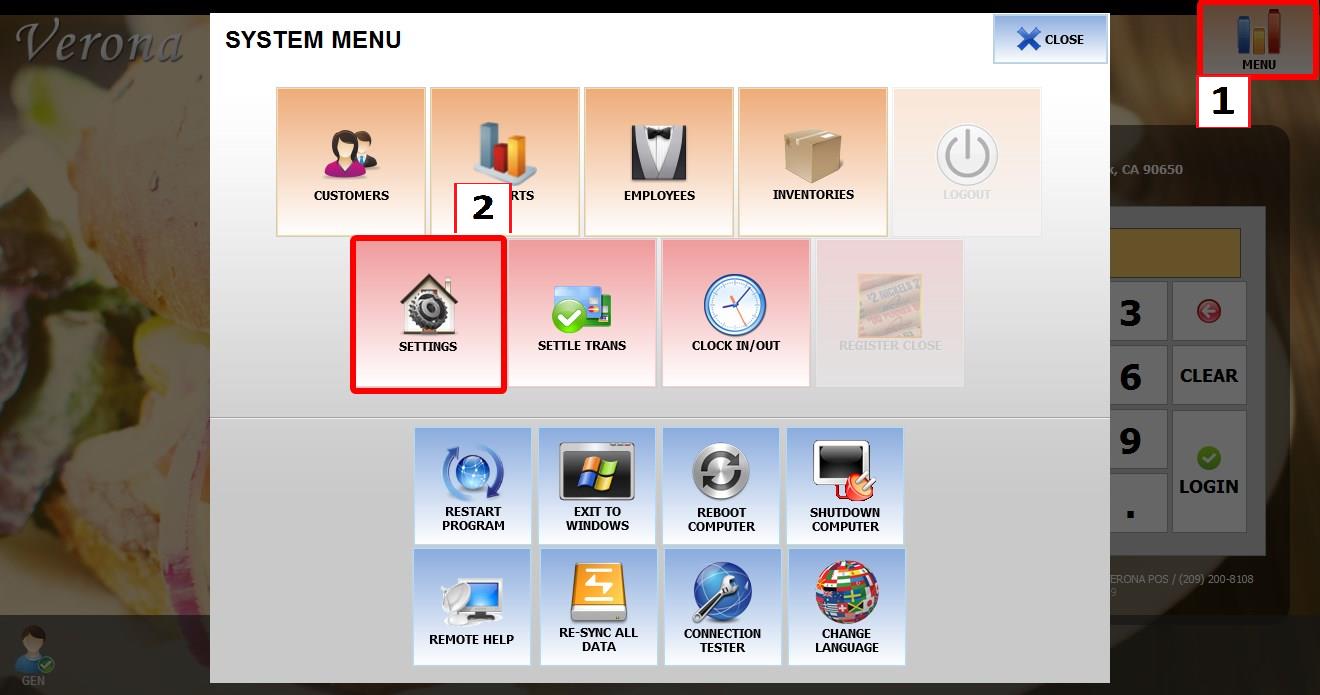
Go to MENU, then select SETTINGS.
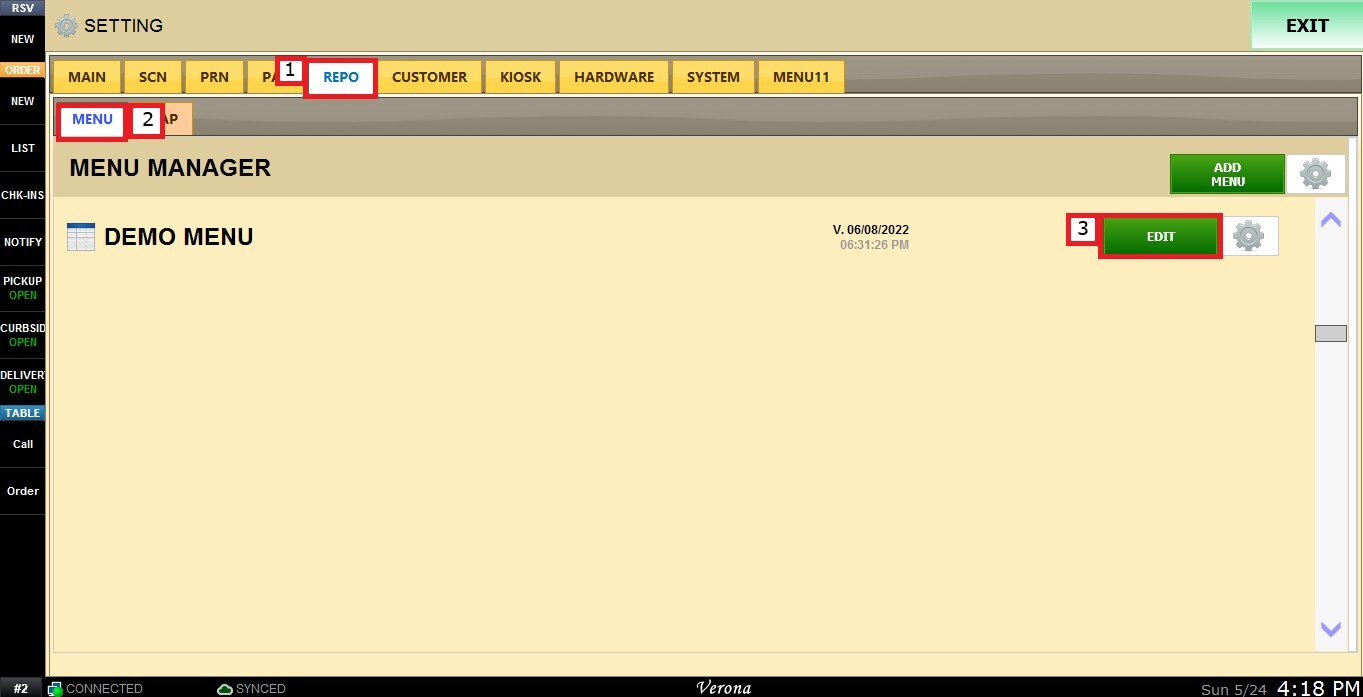
Go to REPO, locate your menu, then click EDIT.
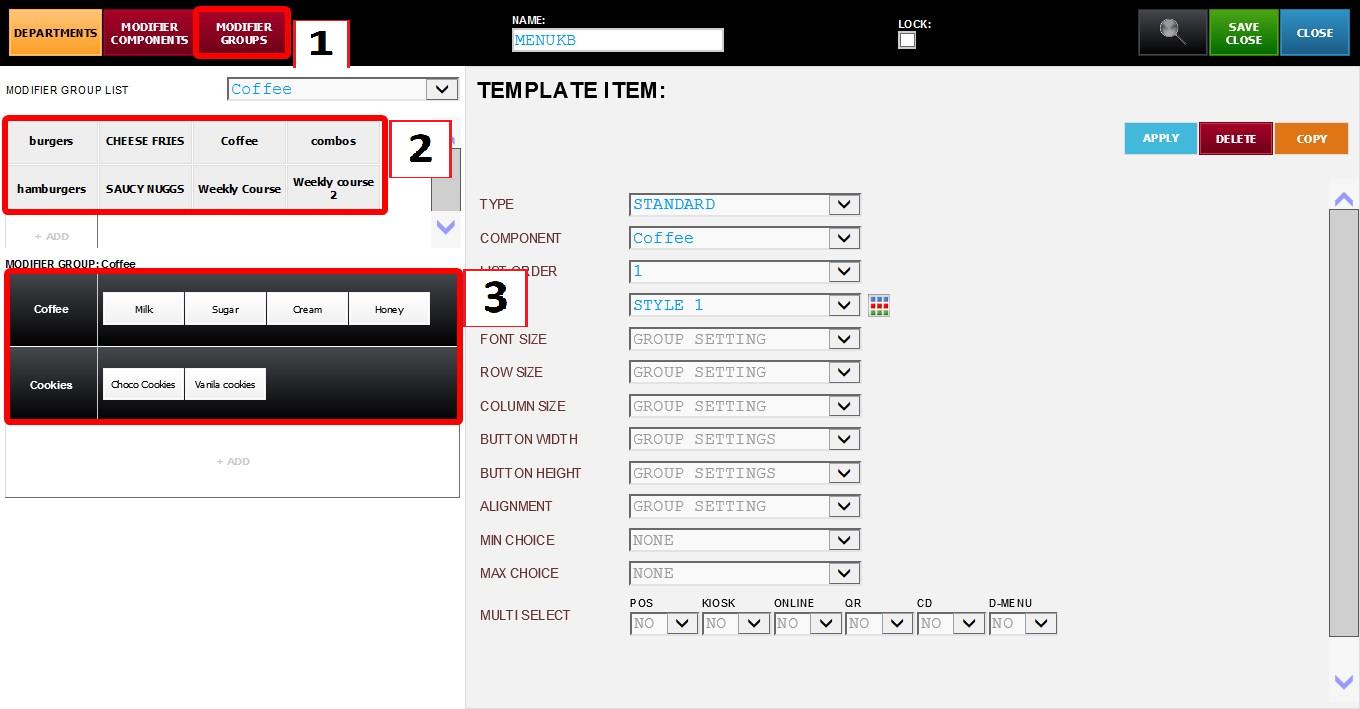
Go to MODIFIER GROUPS. select any GROUP TEMPLATE. Select any TEMPLATE ITEM.
NOTE: To learn how to create and configure template items, see Adding Components to a group.
You will now see several display and layout settings on the right side of the screen for the selected template item.
1. LIST ORDER: Controls the display order of the template item within the modifier selection screen.
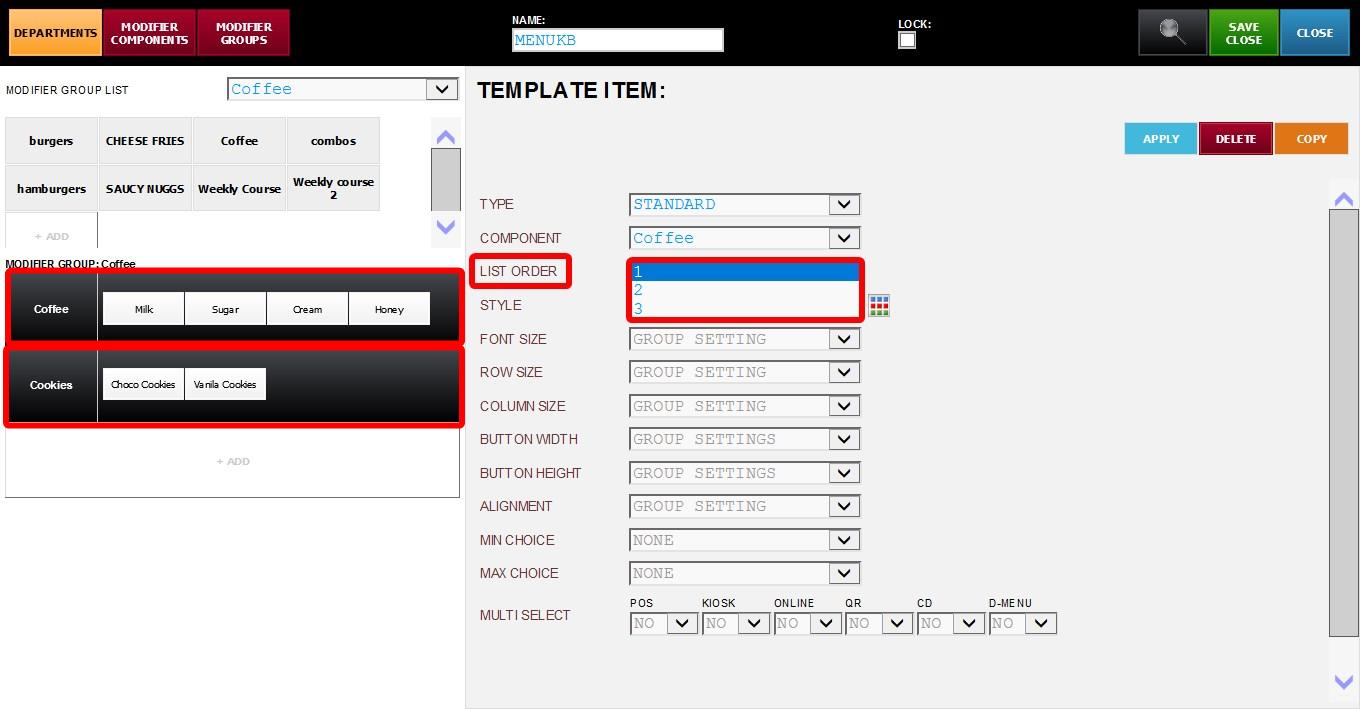
The available values determine the position of the template item within the modifier list. Lower numbers appear higher on the modifier screen.
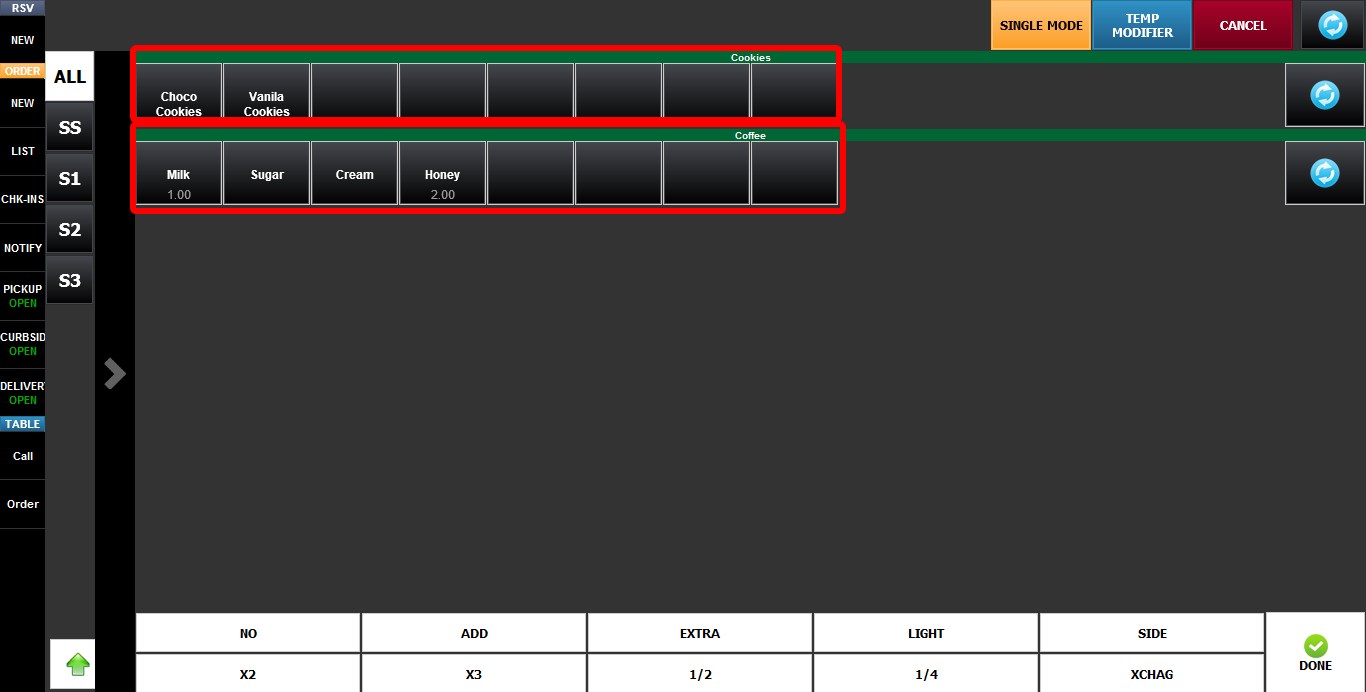
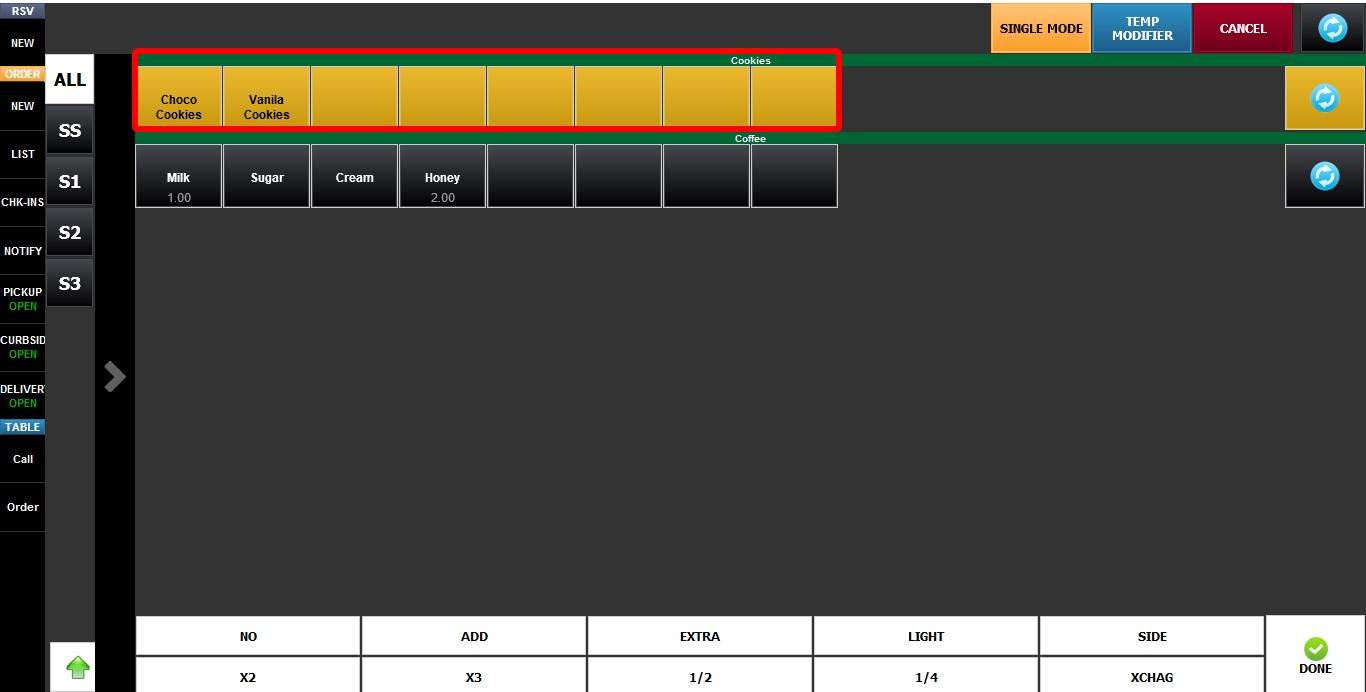
2. STYLE: Controls the color and visual style of the template item button.
The dropdown menu contains multiple preset styles labeled STYLE 1 through STYLE 48, with each option corresponding to a different button background color.
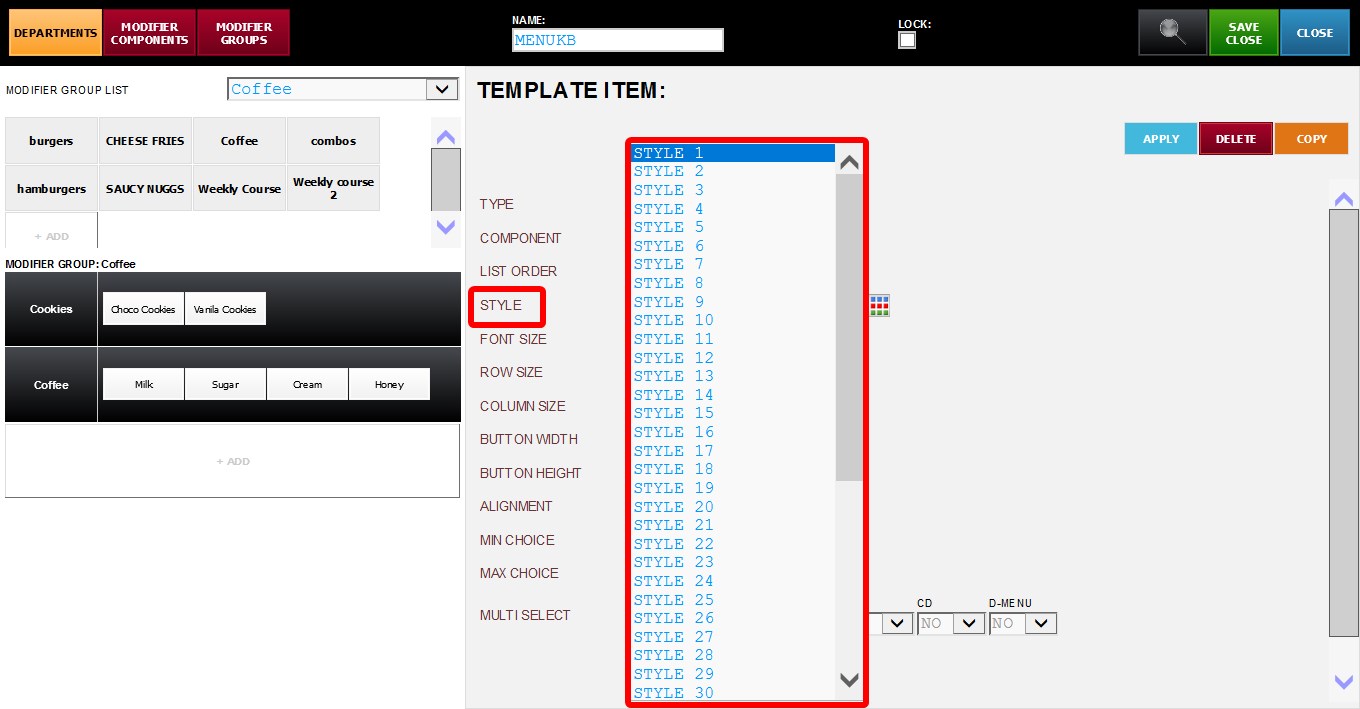
Next to the dropdown menu is a color preview icon.
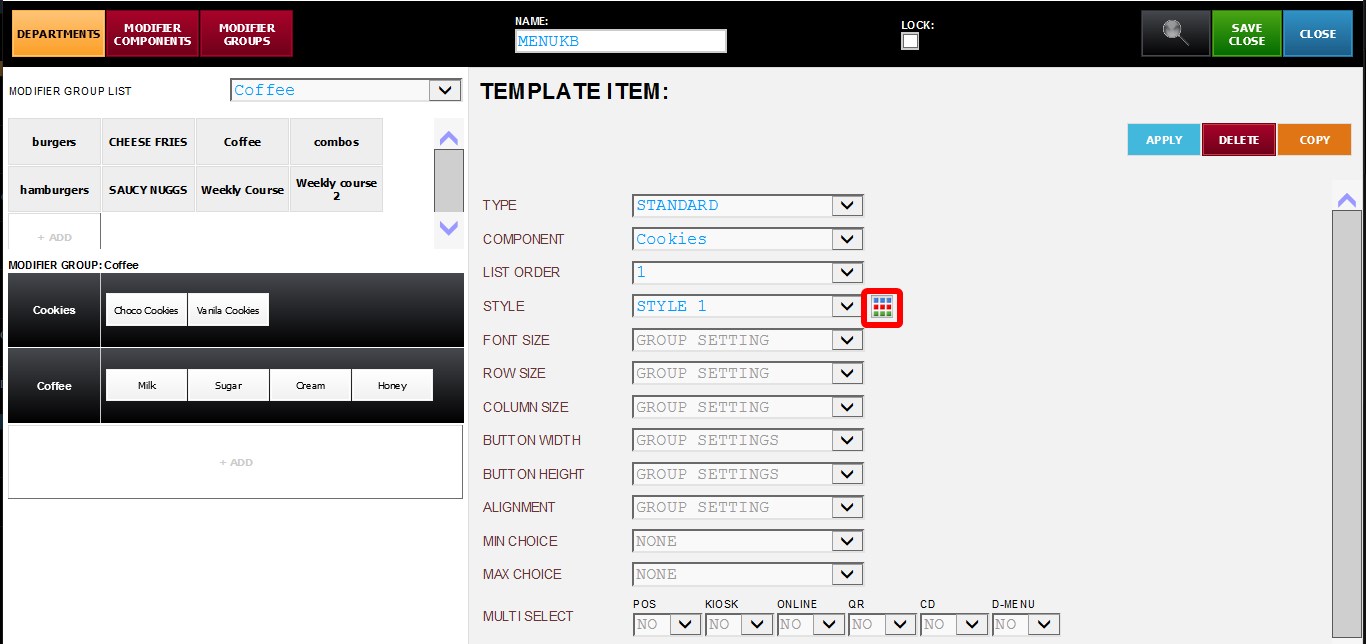
Selecting this icon opens a style preview window displaying all available styles and their corresponding colors.
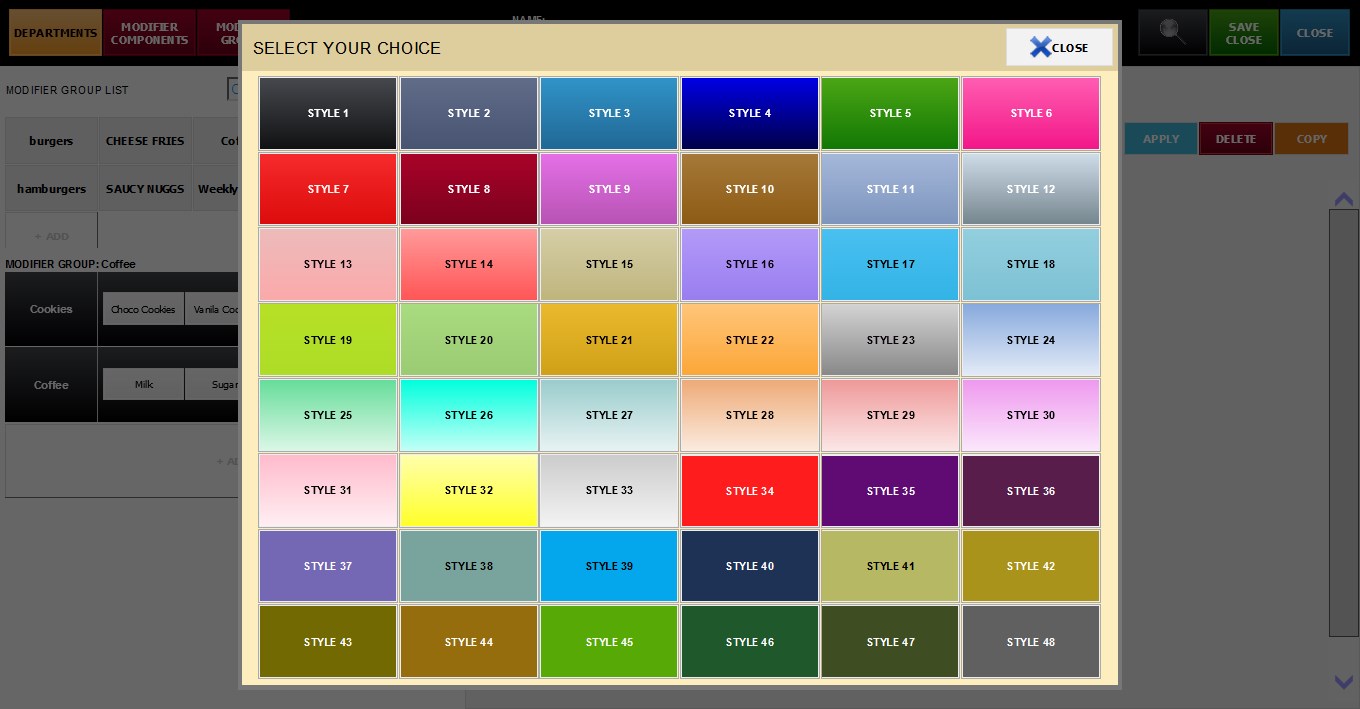
The selected style changes the appearance and background color of the modifier button.
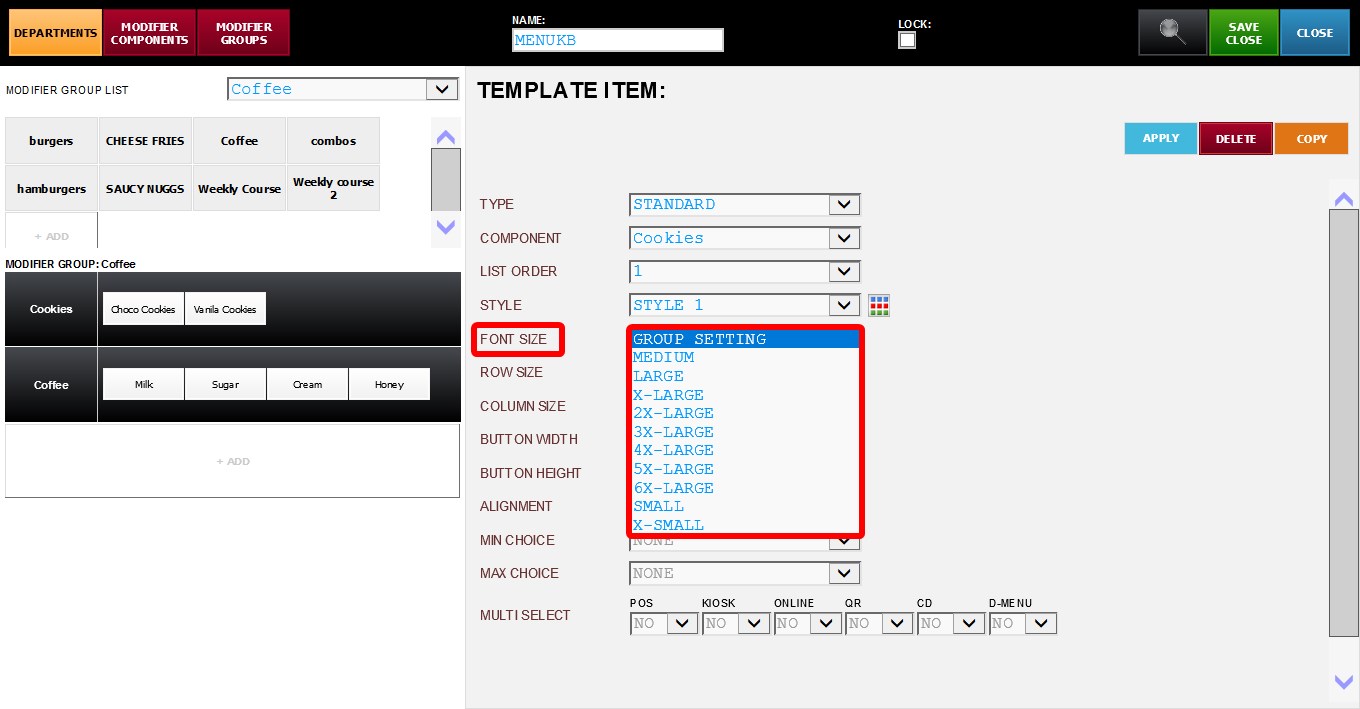
3. FONT SIZE: Controls the text size displayed on the modifier button.
Larger font sizes can improve readability on larger screens or touch displays.
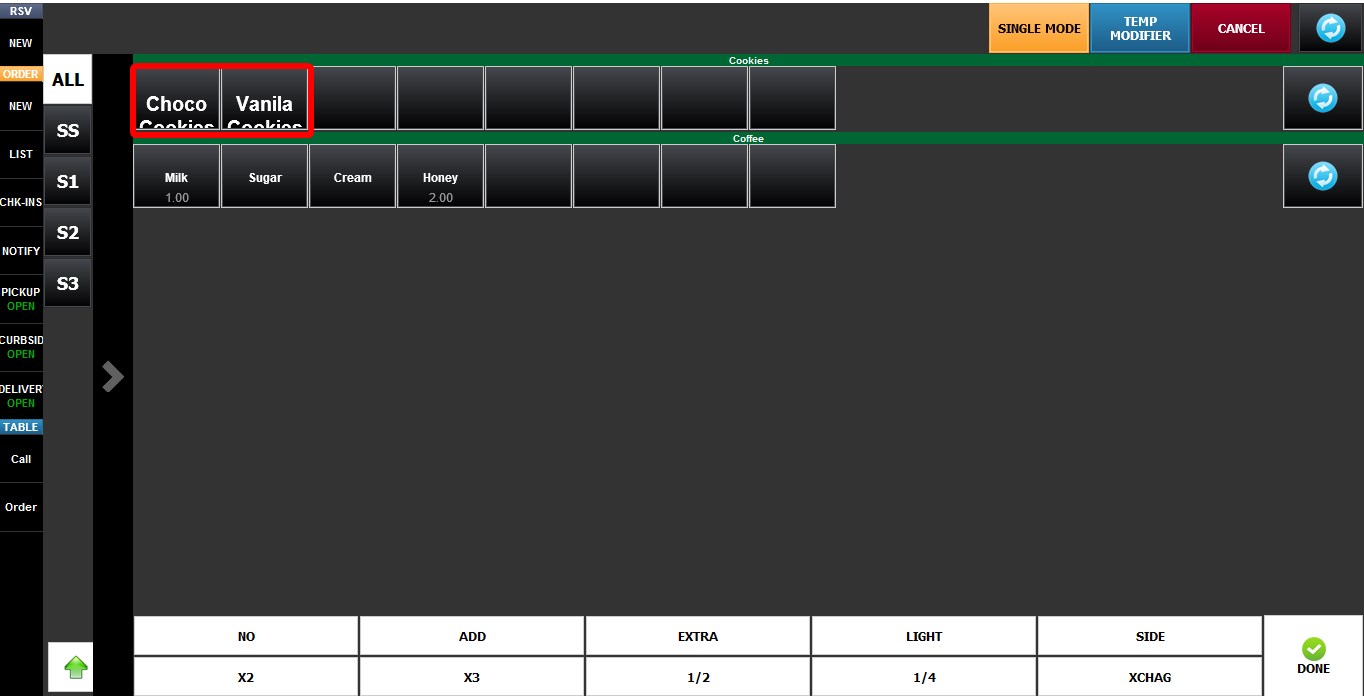
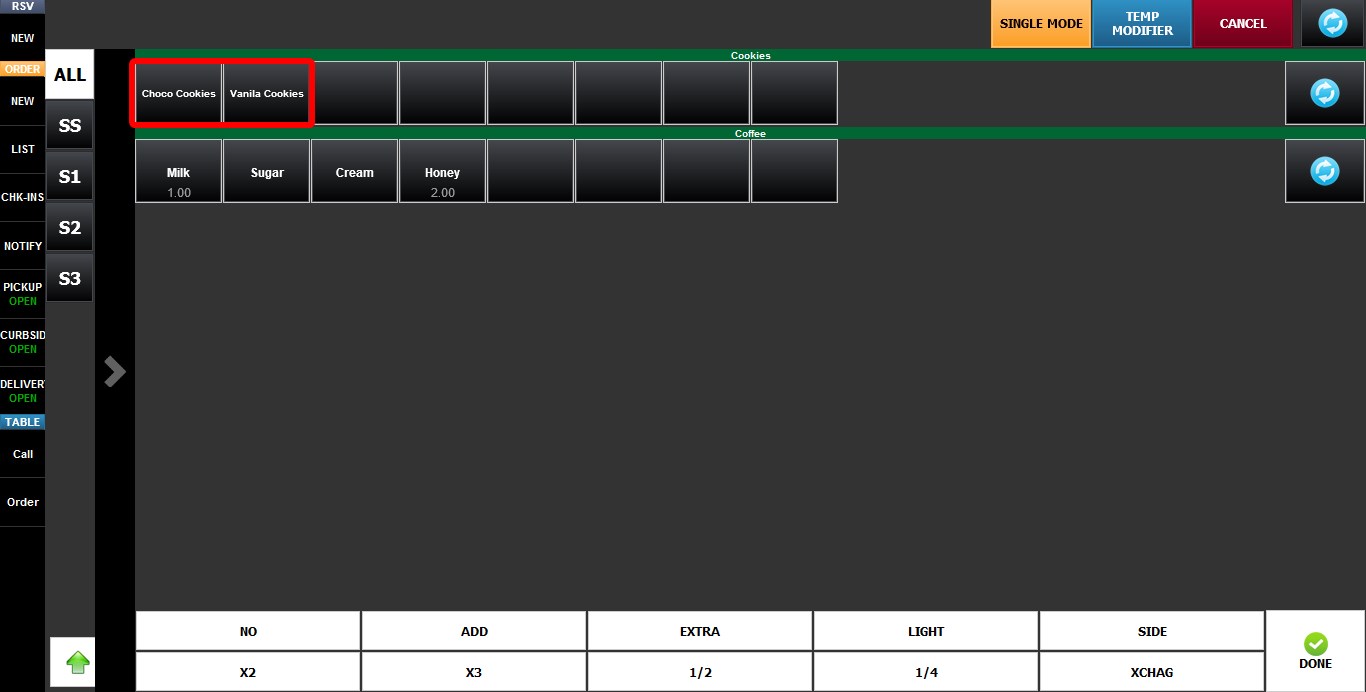
The selected font size changes how text appears on the modifier button.
3X-Large
X-Small
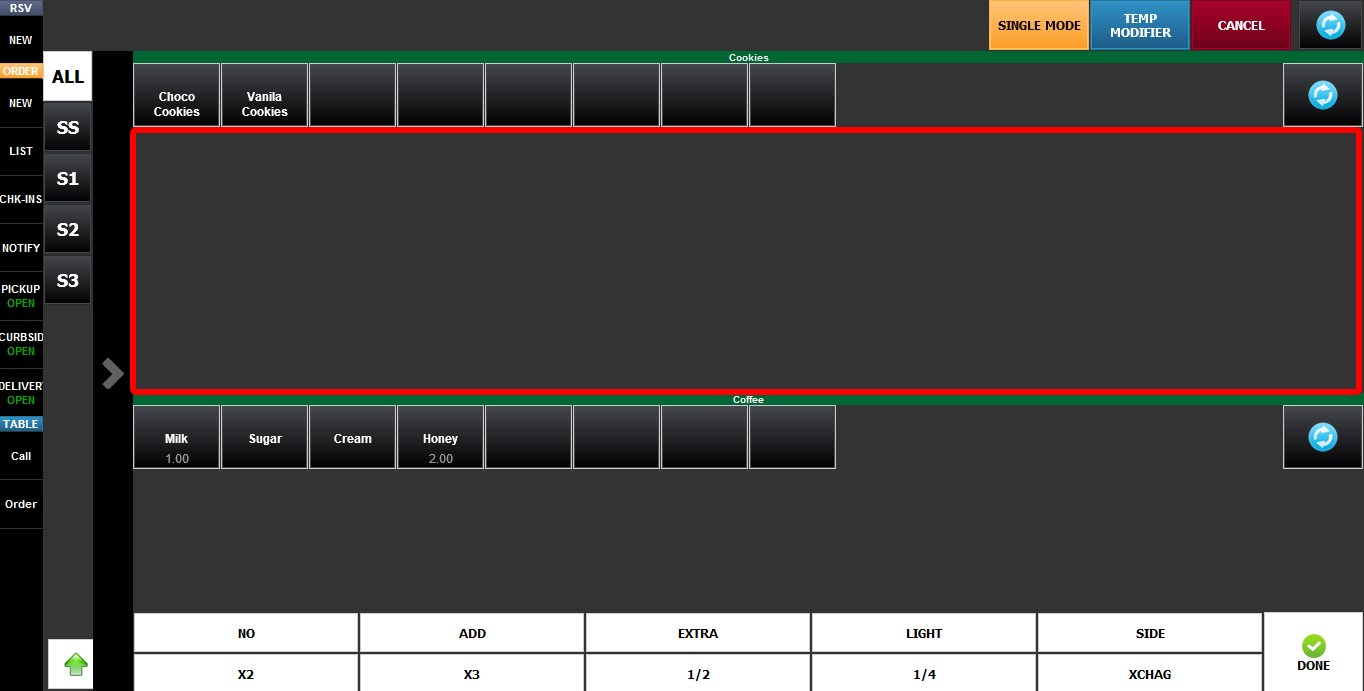
4. ROW SIZE: Adds vertical spacing below the template item row on the modifier selection screen.
Higher values create larger spaces between rows of modifier buttons.
This setting can help visually separate groups of modifiers for improved organization and readability.
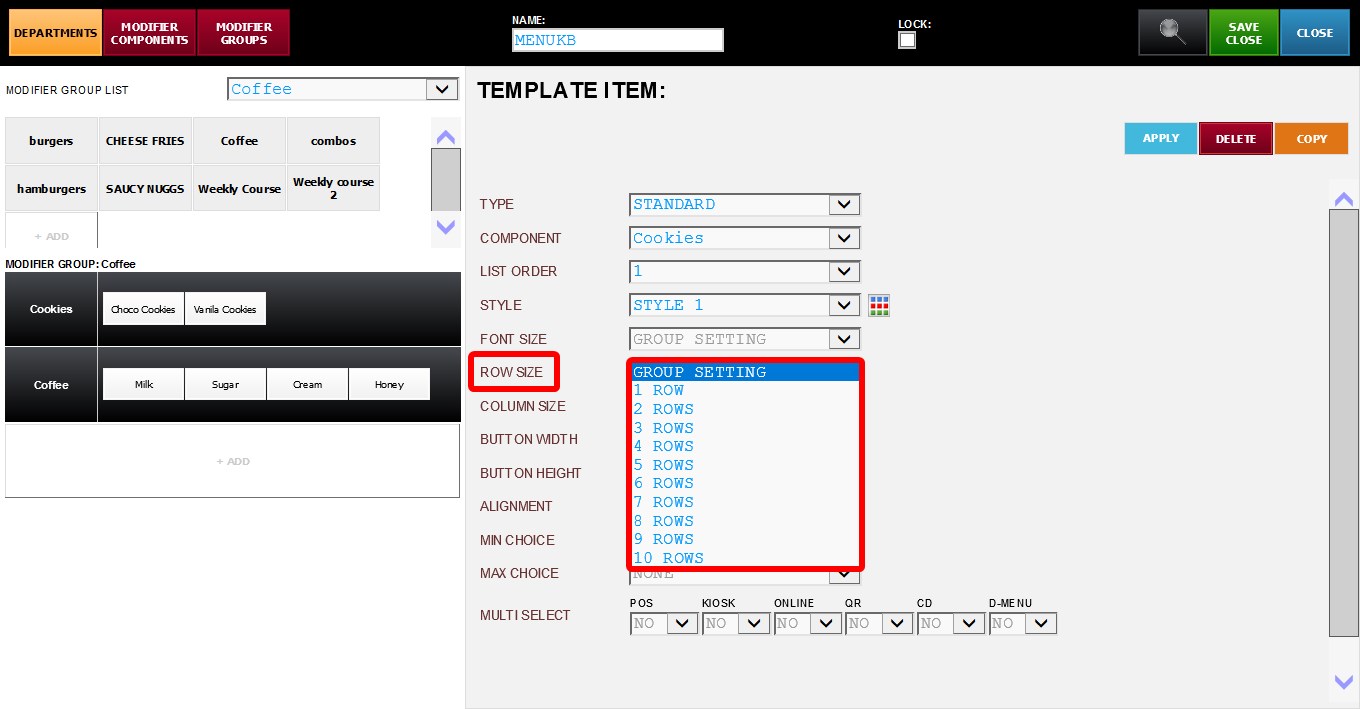
Additional spacing will appear between rows of modifier items.
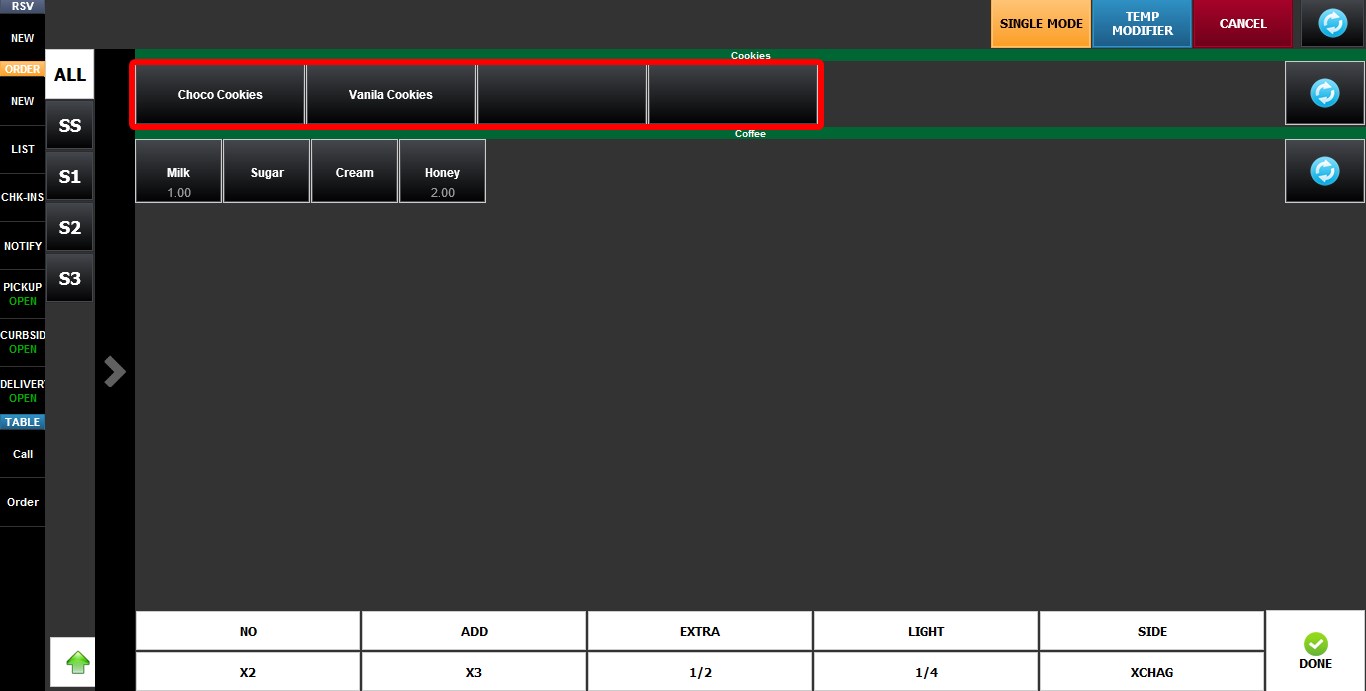
5. BUTTON WIDTH: Controls the width of modifier buttons displayed on the modifier selection screen.
Higher values create wider buttons.
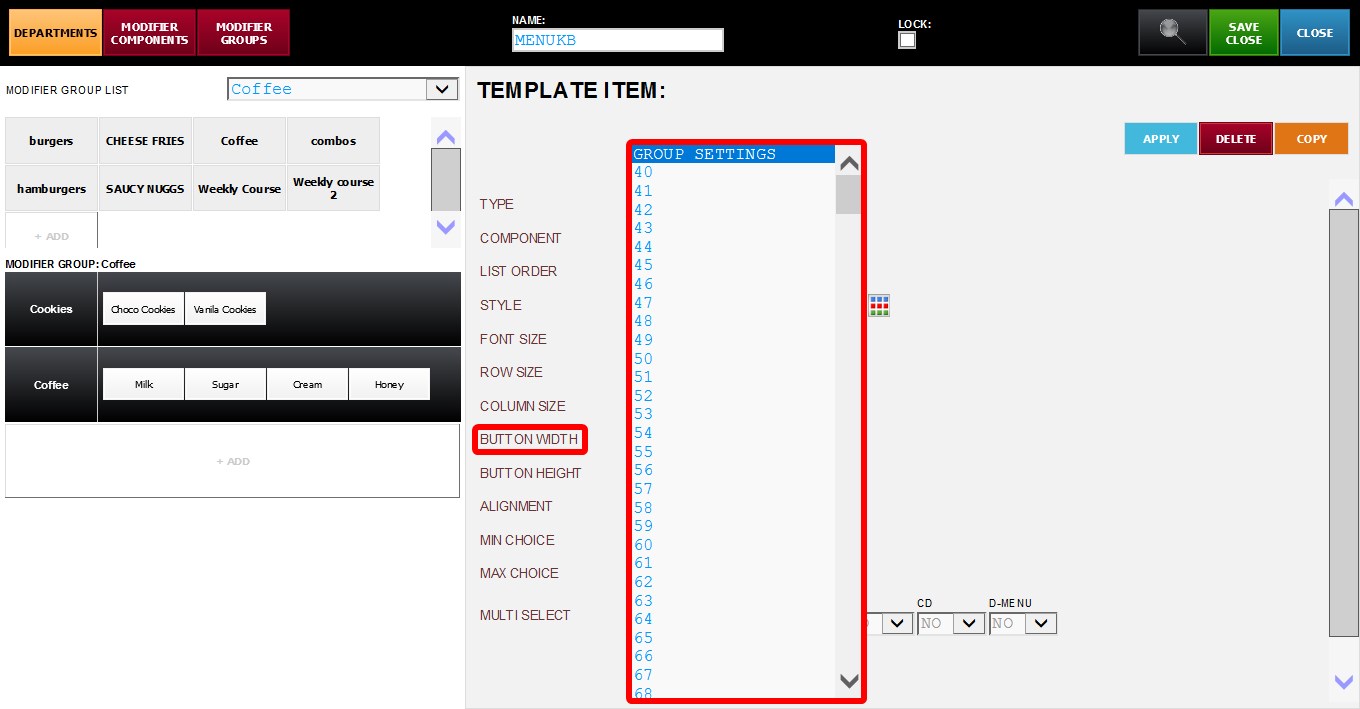
The selected value changes the horizontal size of modifier buttons.
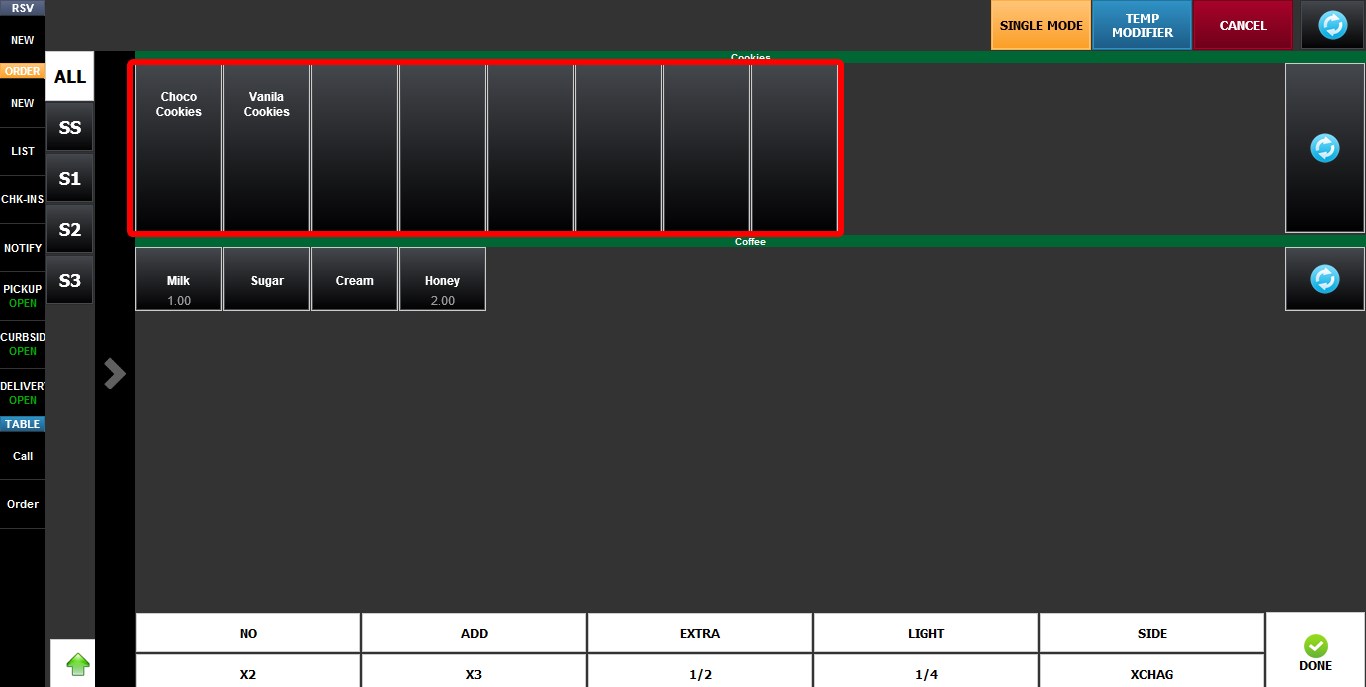
6. BUTTON HEIGHT: Controls the height of modifier buttons displayed on the modifier selection screen.
Higher values create taller buttons.
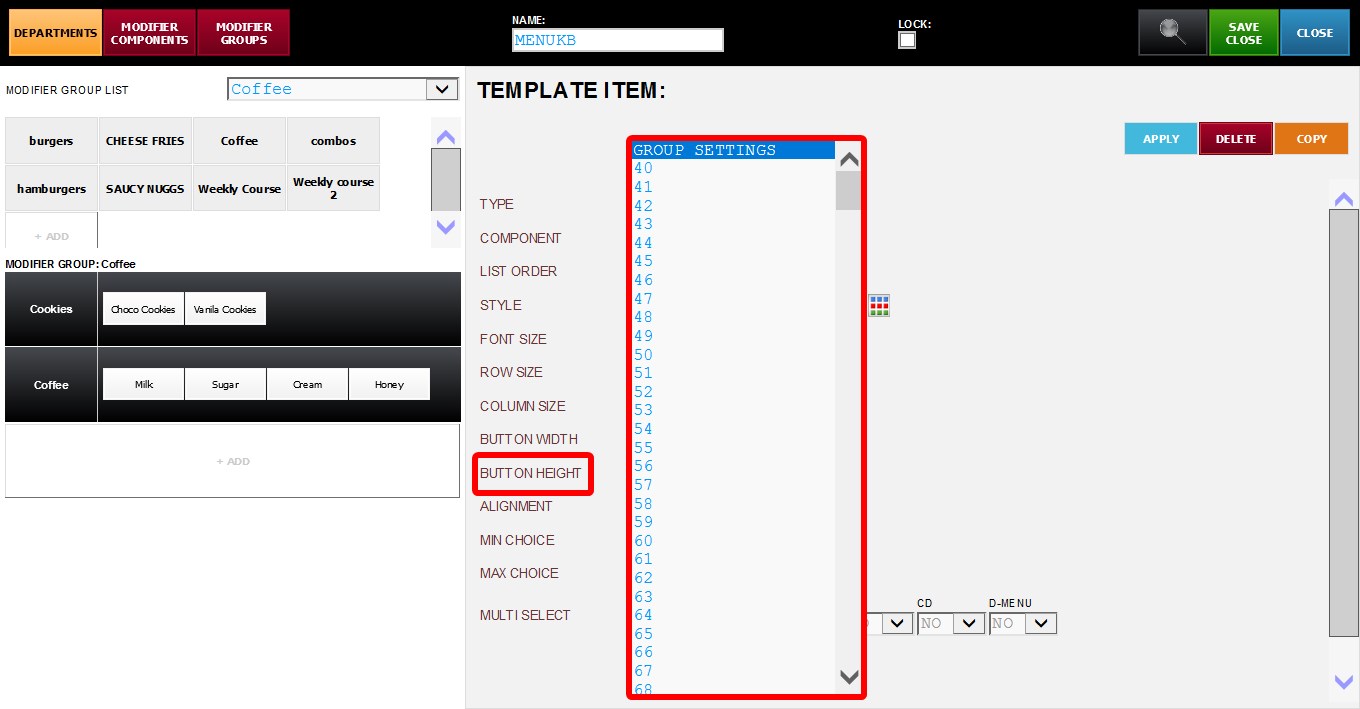
The selected value changes the vertical size of modifier buttons.
For information regarding the remaining settings available below these options, refer to Temp Item Limits Min, Max Choice Multi Select KB.