Control Panel
The Control Panel section allows you to manage kiosk availability, display messages to customers, temporarily or permanently disable menu items and modifiers, and control item availability through countdown inventory limits.
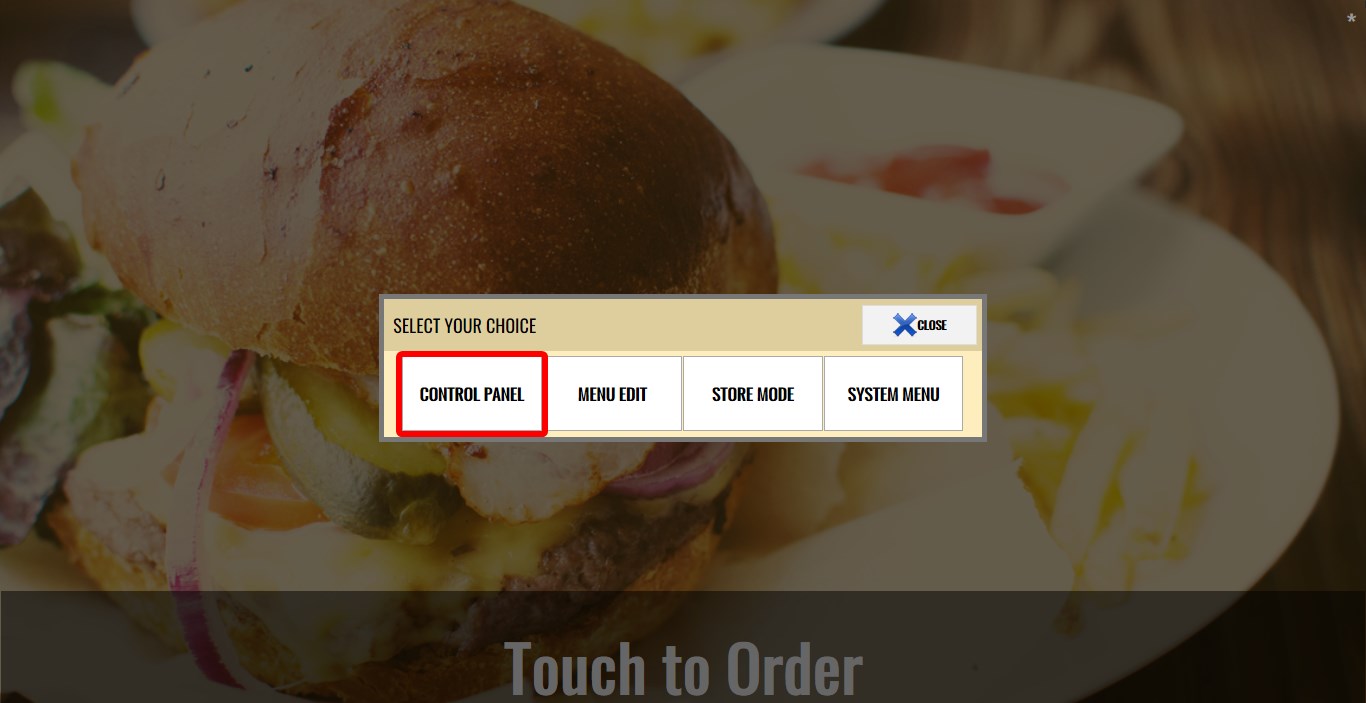
MAIN SCREEN> ASTERISK> CONTROL PANEL.
Refer to the Kiosk Mode KB for instructions on entering Kiosk Mode.
Click the ASTERISK icon in the top-right corner.

Click CONTROL PANEL.
The Control Panel contains several tabs with different management options.
CLOSES
The CLOSES tab controls kiosk availability and customer-facing messages.
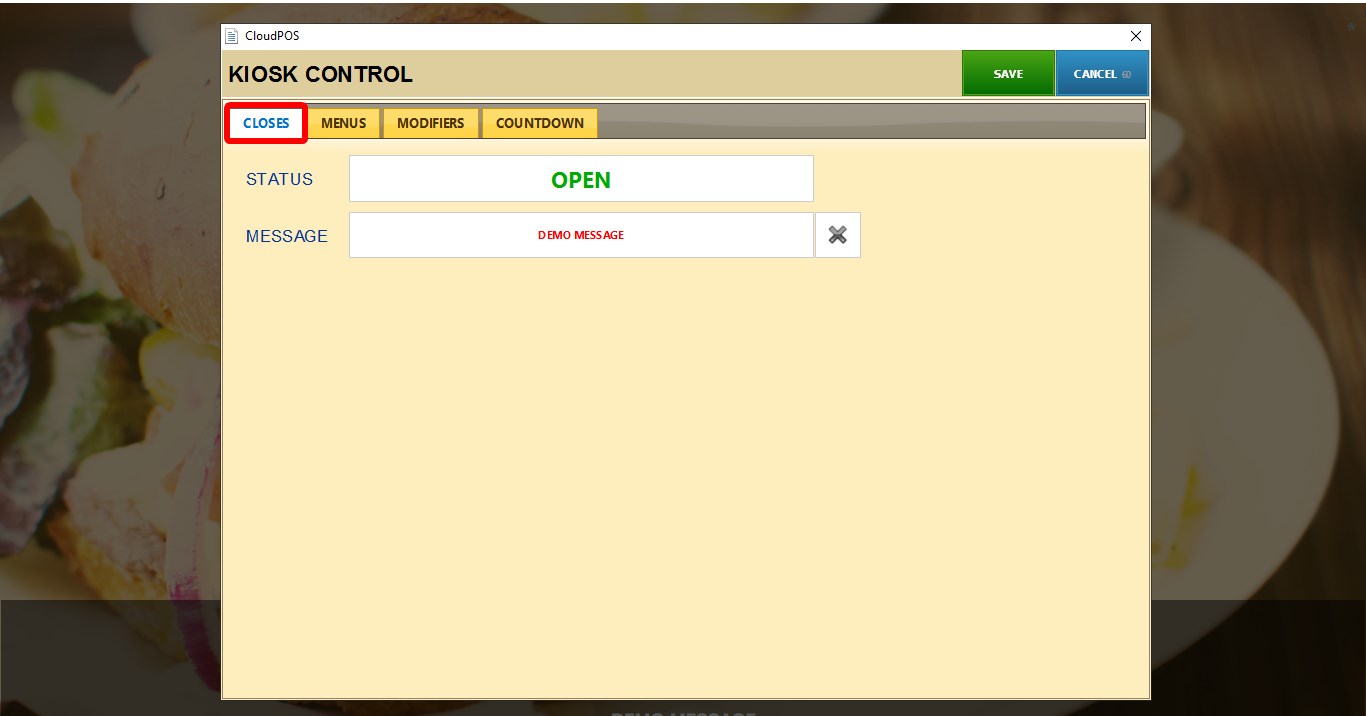
1. STATUS: Controls whether the kiosk is available for ordering.
If OPEN Customers can place orders normally
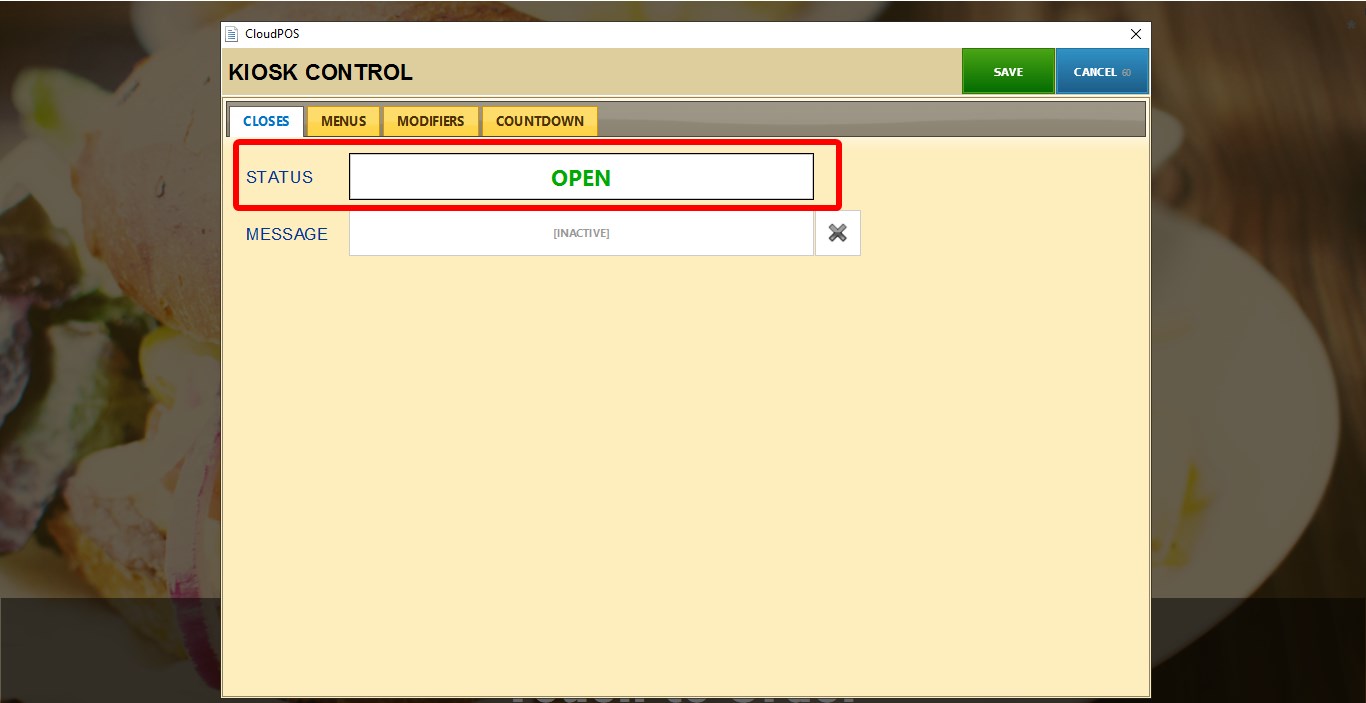
If CLOSED The kiosk will display a "Kiosk Closed" message on the main screen and customers will not be able to place orders.
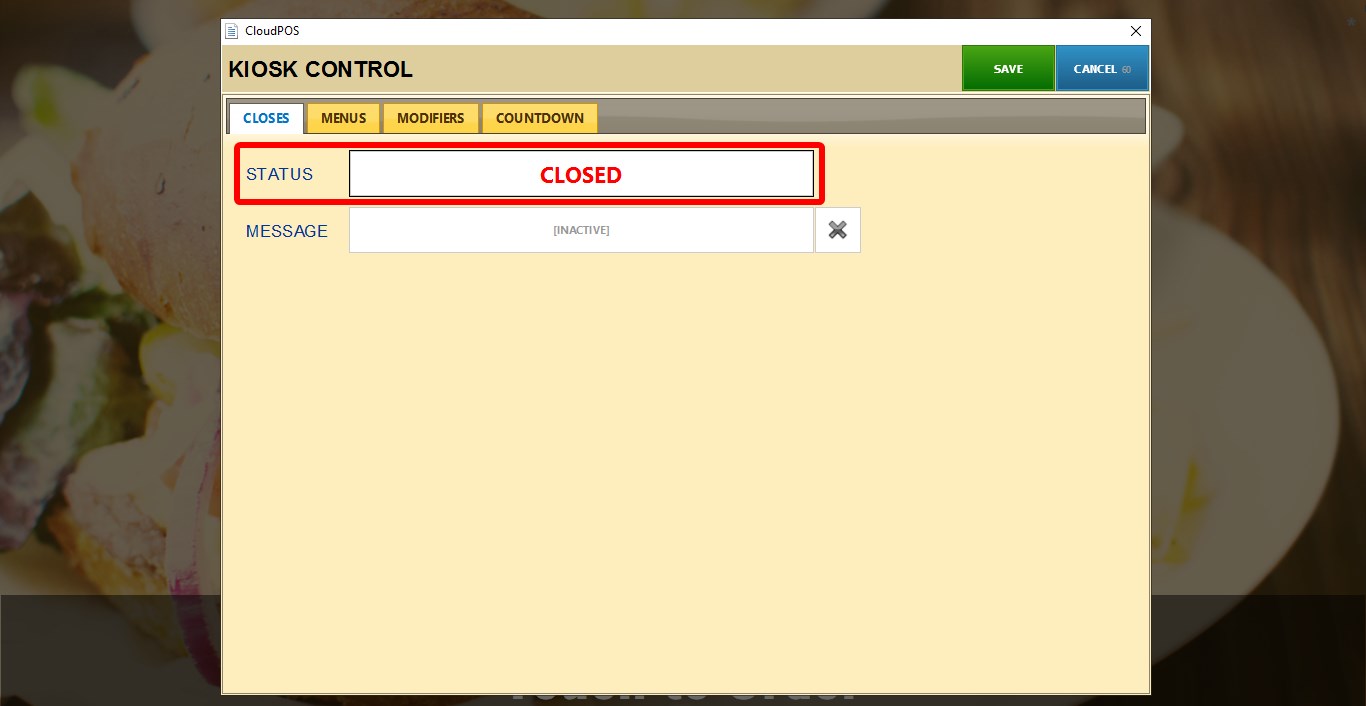

2. MESSAGE: Allows a custom message to be displayed on the kiosk main screen.
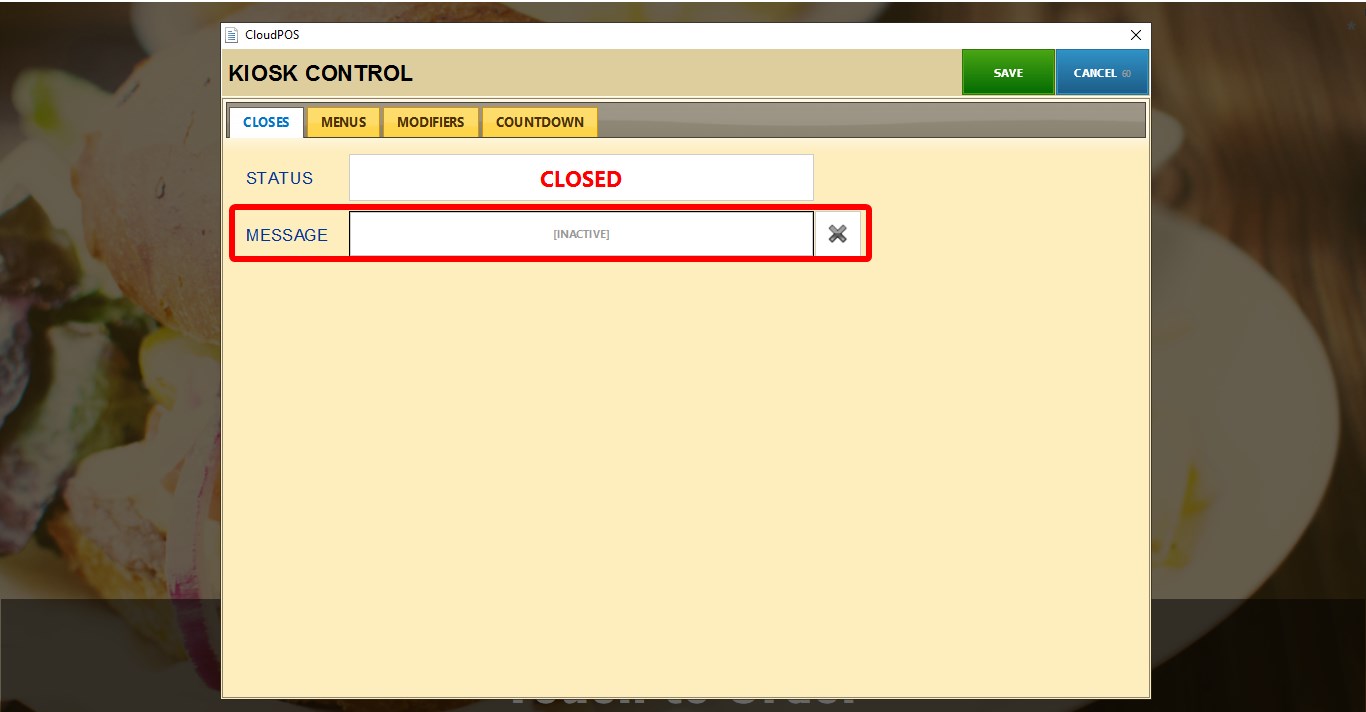
Click the field to open the keyboard, enter the desired message, then click ENTER to save your message.
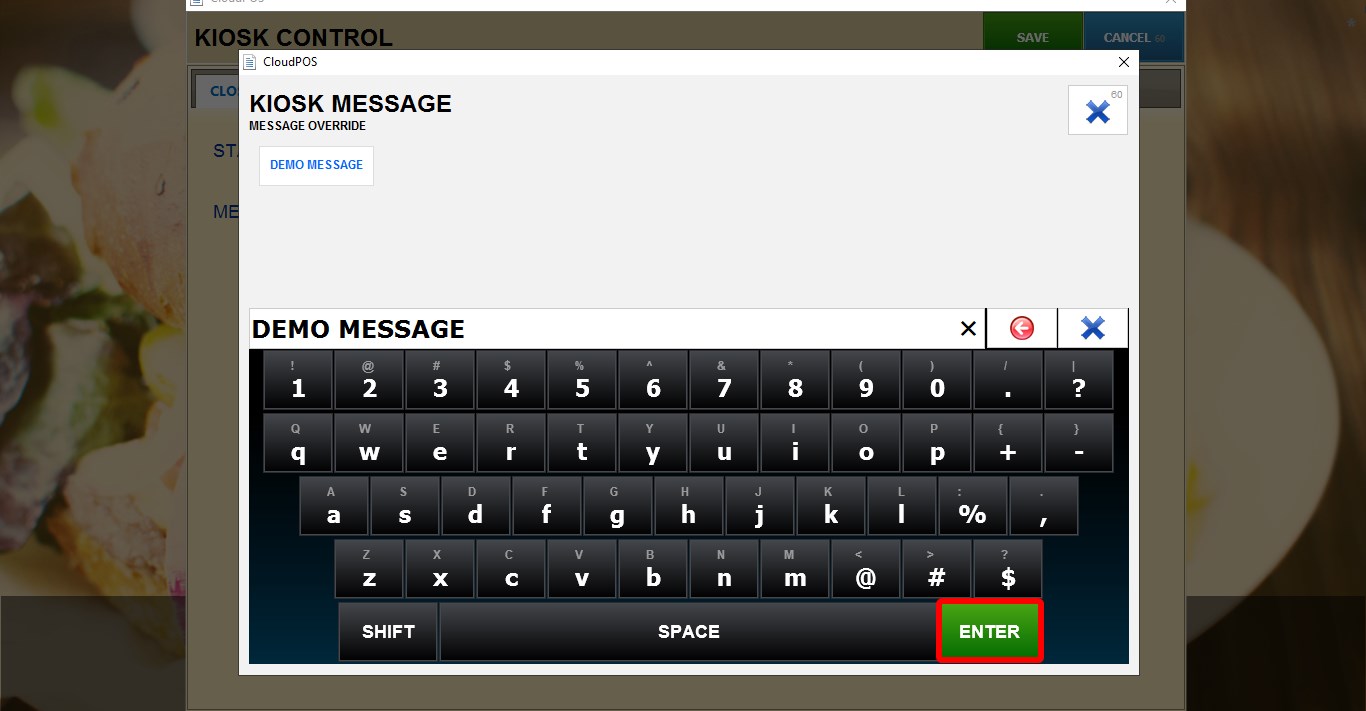
The custom message will appear on the kiosk main screen.

MENU
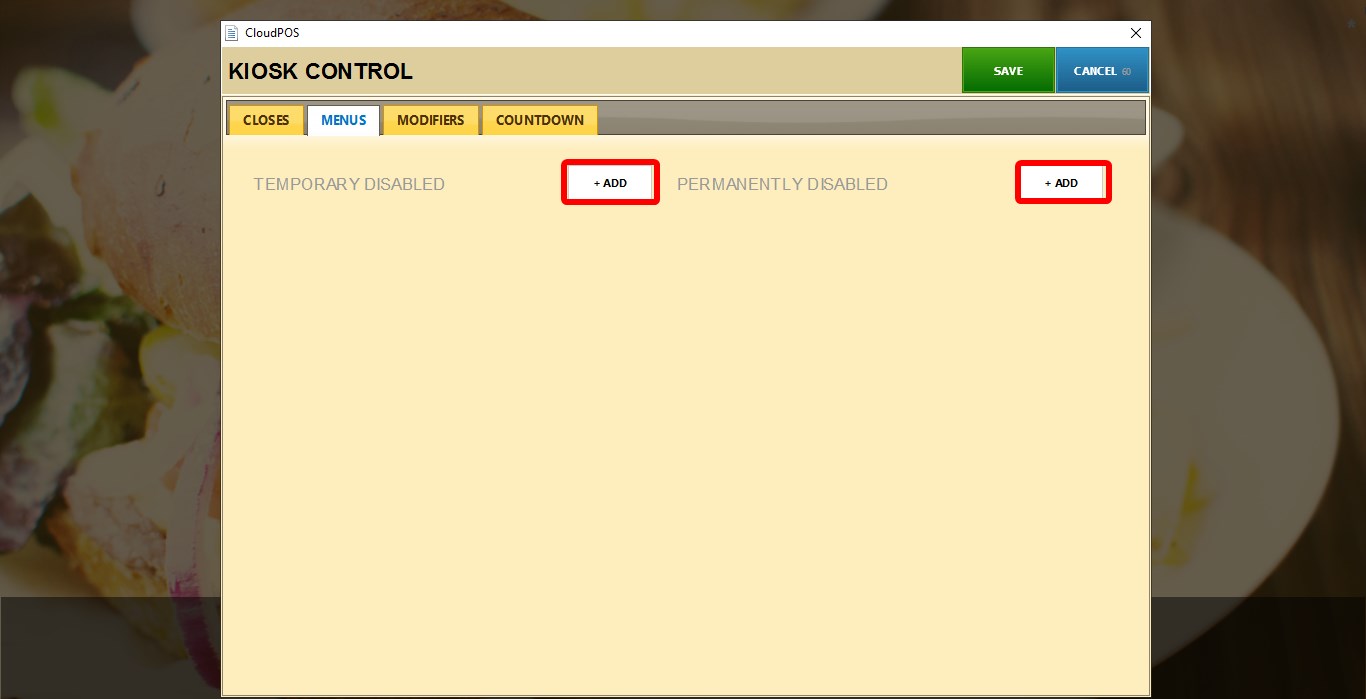
The MENU tab allows individual menu categories and menu items to be disabled.
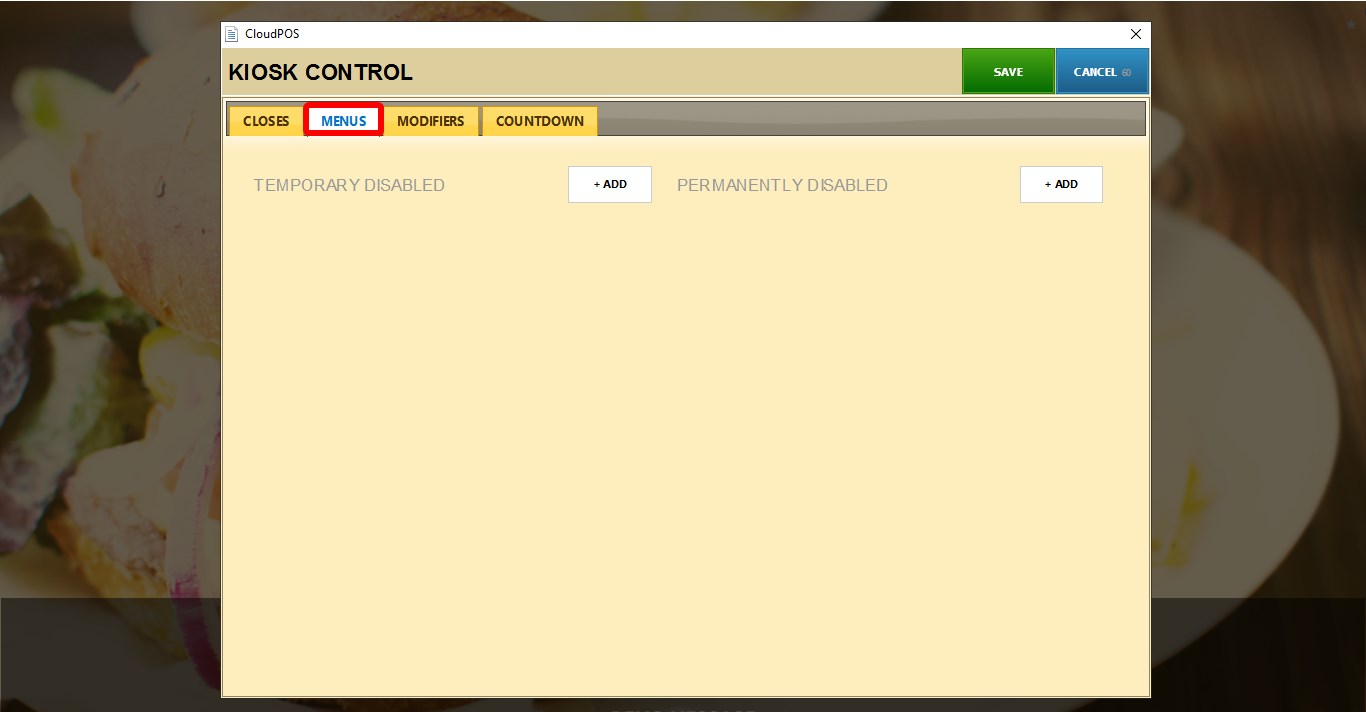
Two lists are available:
1. TEMPORARILY DISABLED: Used for items that will become available again later.
2. PERMANENTLY DISABLED: Used for items that should remain unavailable until manually restored.
To disable menu items, Click +ADD.
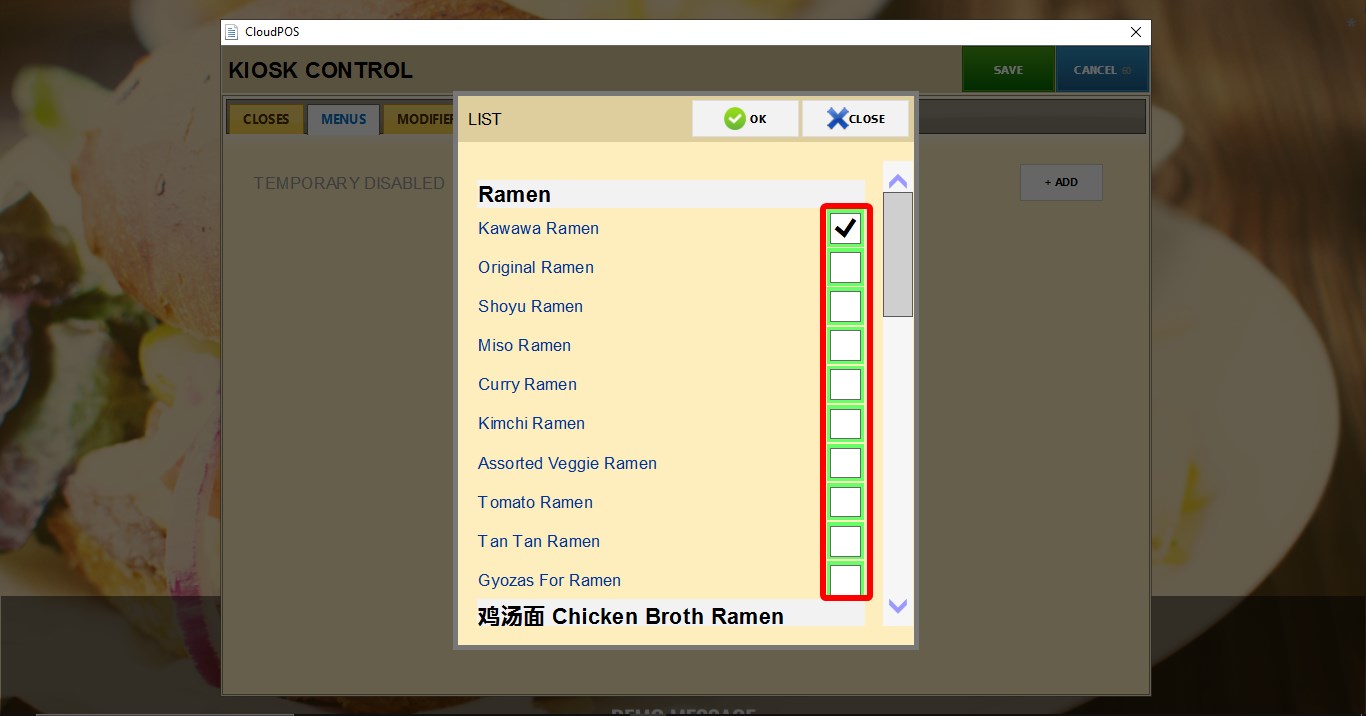
A list of all your menu categories and menu items will appear.
Select the checkbox next to the items you want to disable.
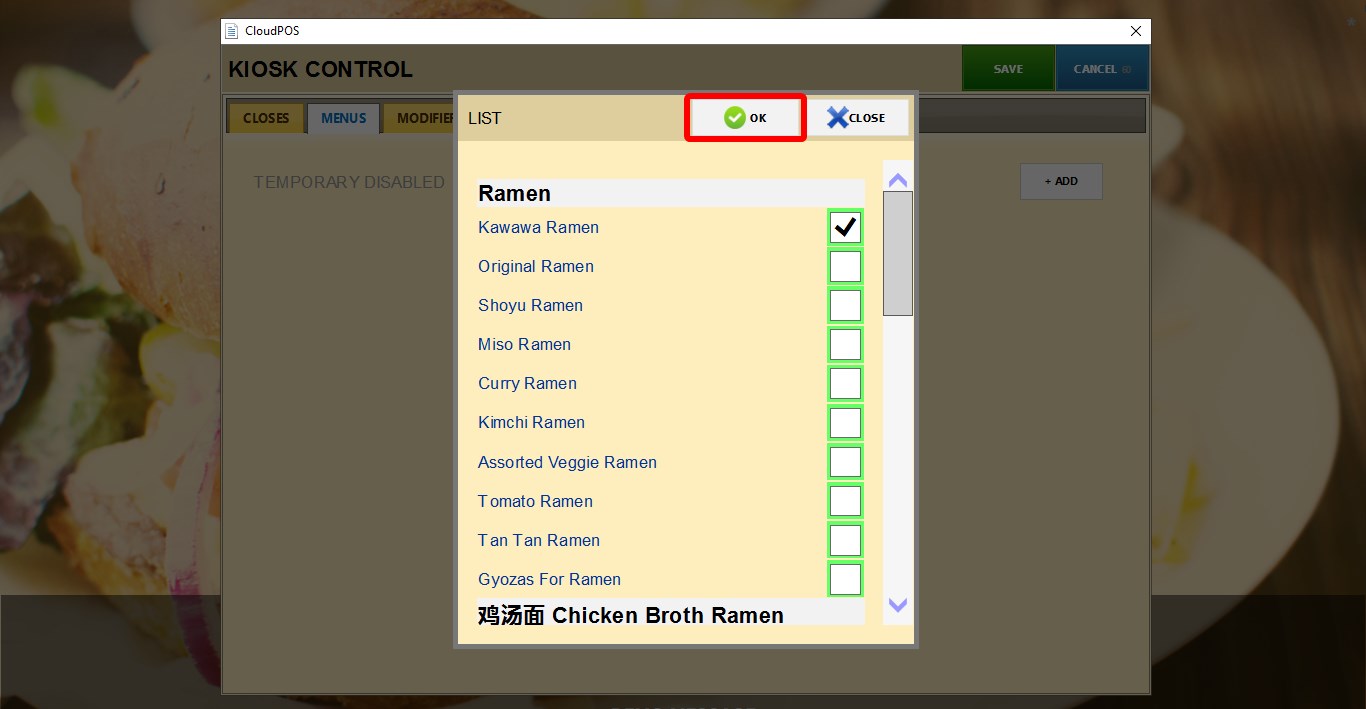
Click OK.
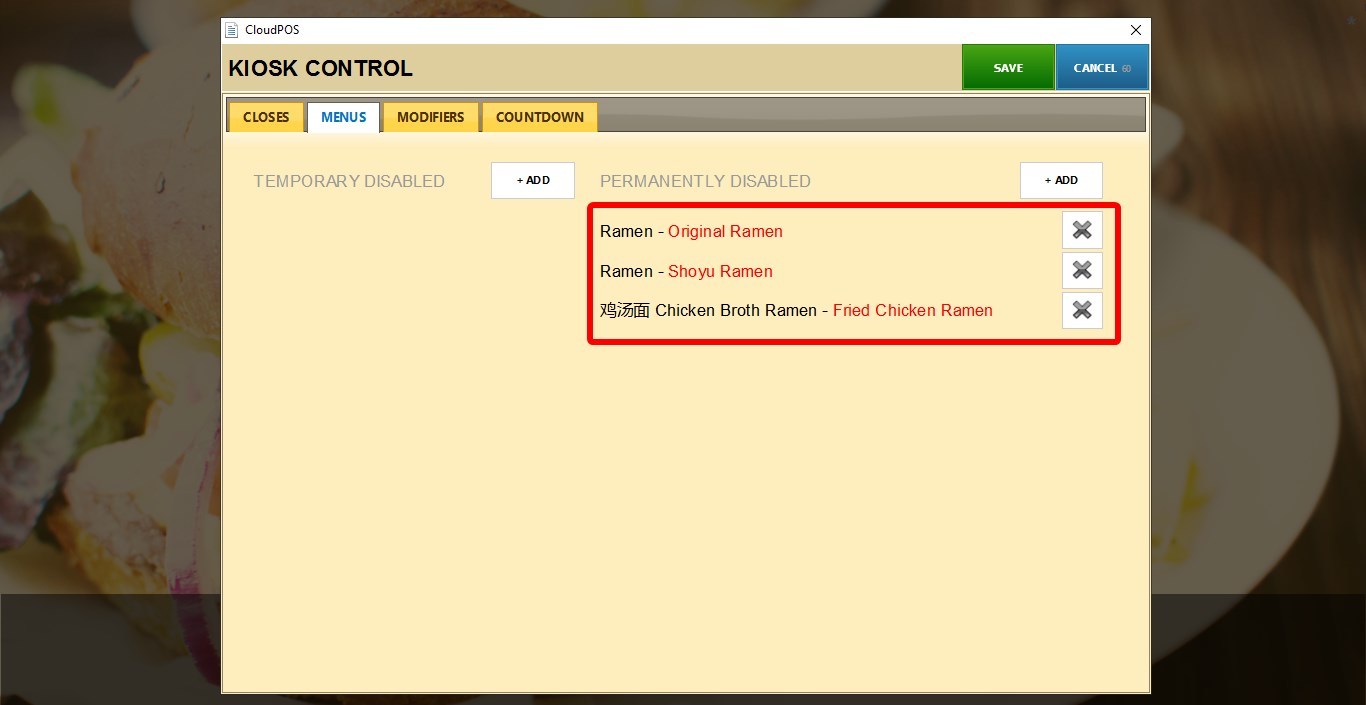
Disabled items will appear below the option. To restore an item, click the X icon next to it.
MODIFIERS
The MODIFIERS tab functions the same way as the MENU tab but applies to modifier items.
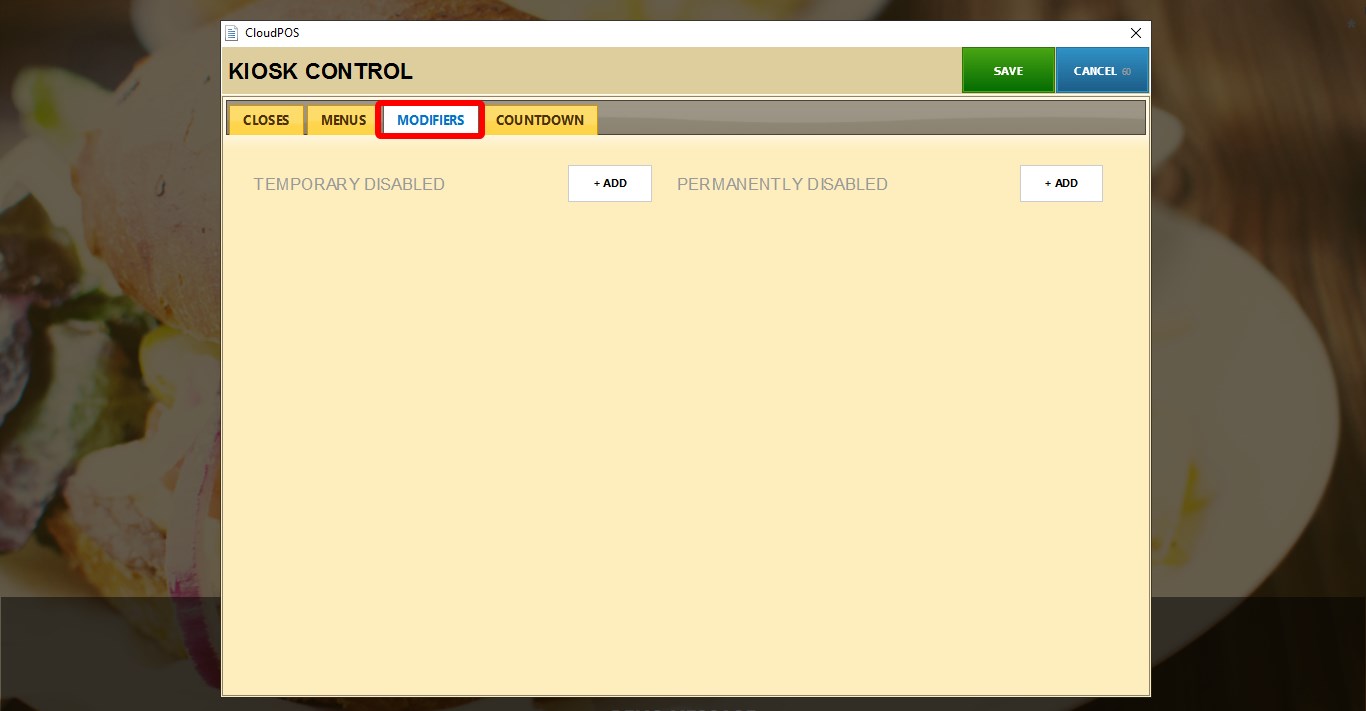
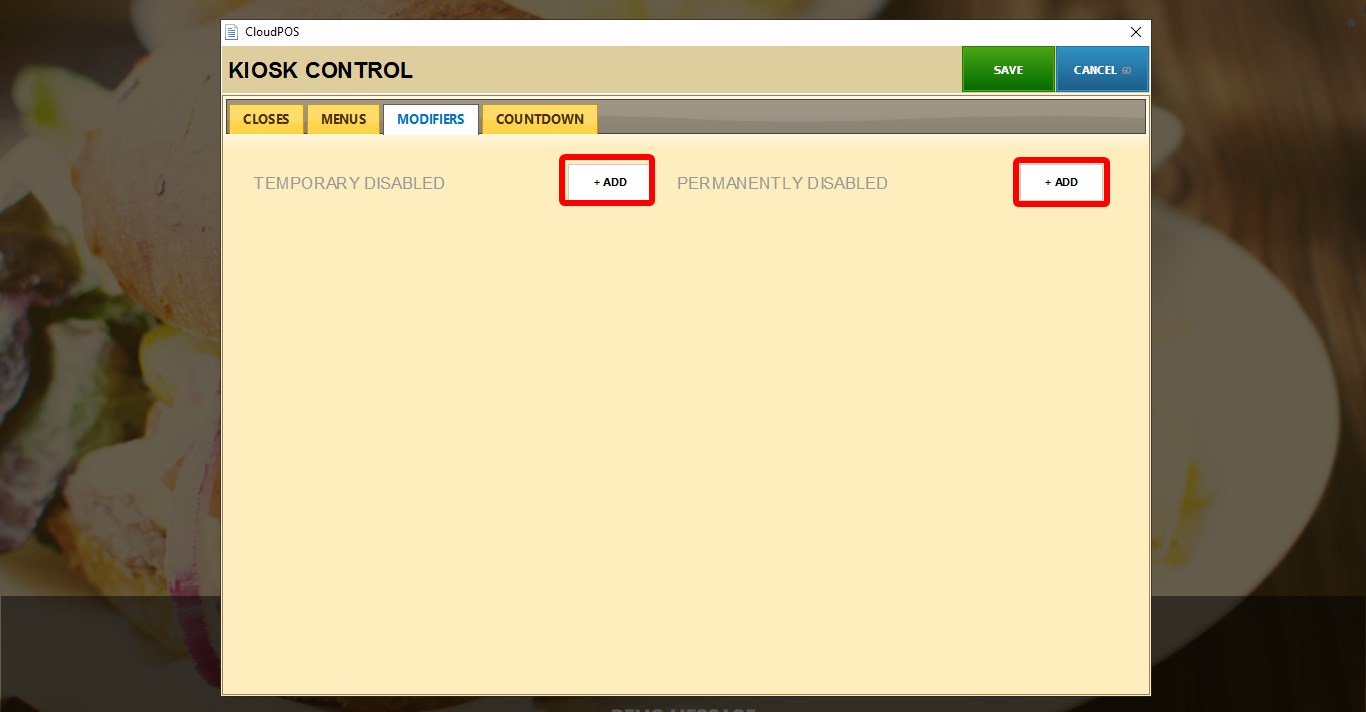
To disable Modifiers, Select either TEMPORARILY DISABLED or PERMANENTLY DISABLED.
Click + ADD.
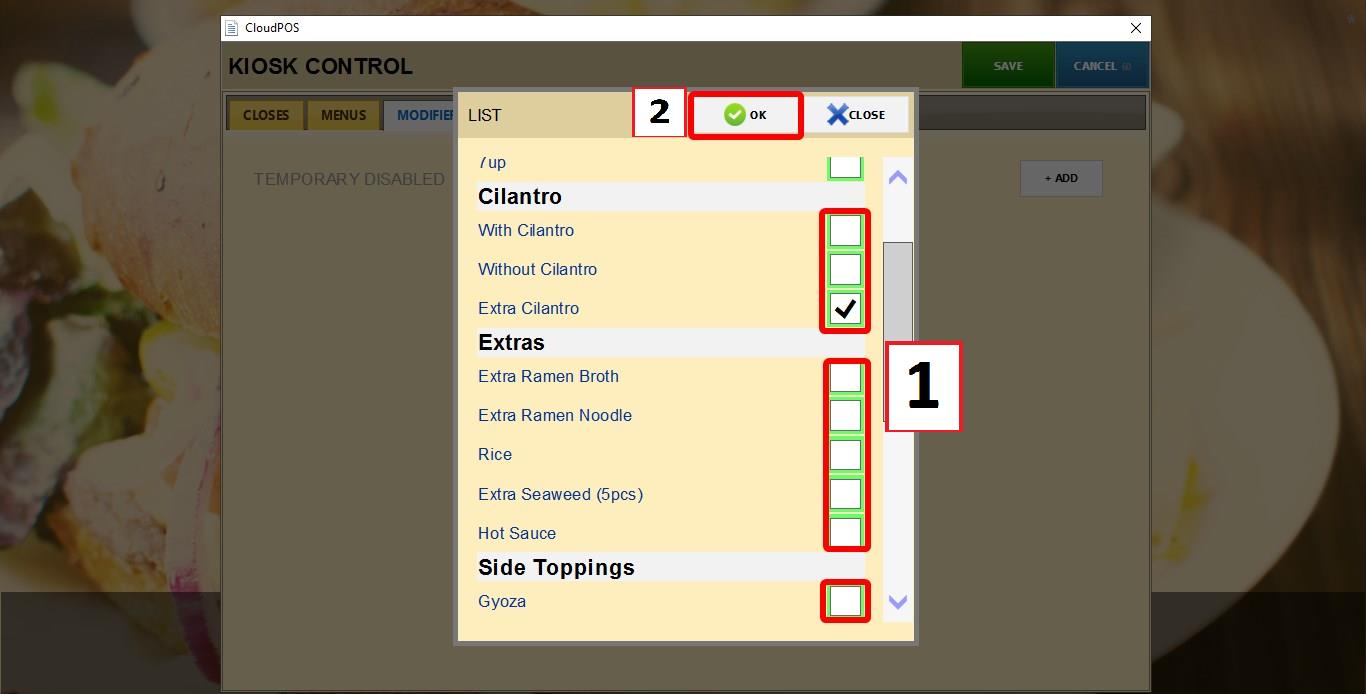
Select the modifiers you want to disable.
Click OK.
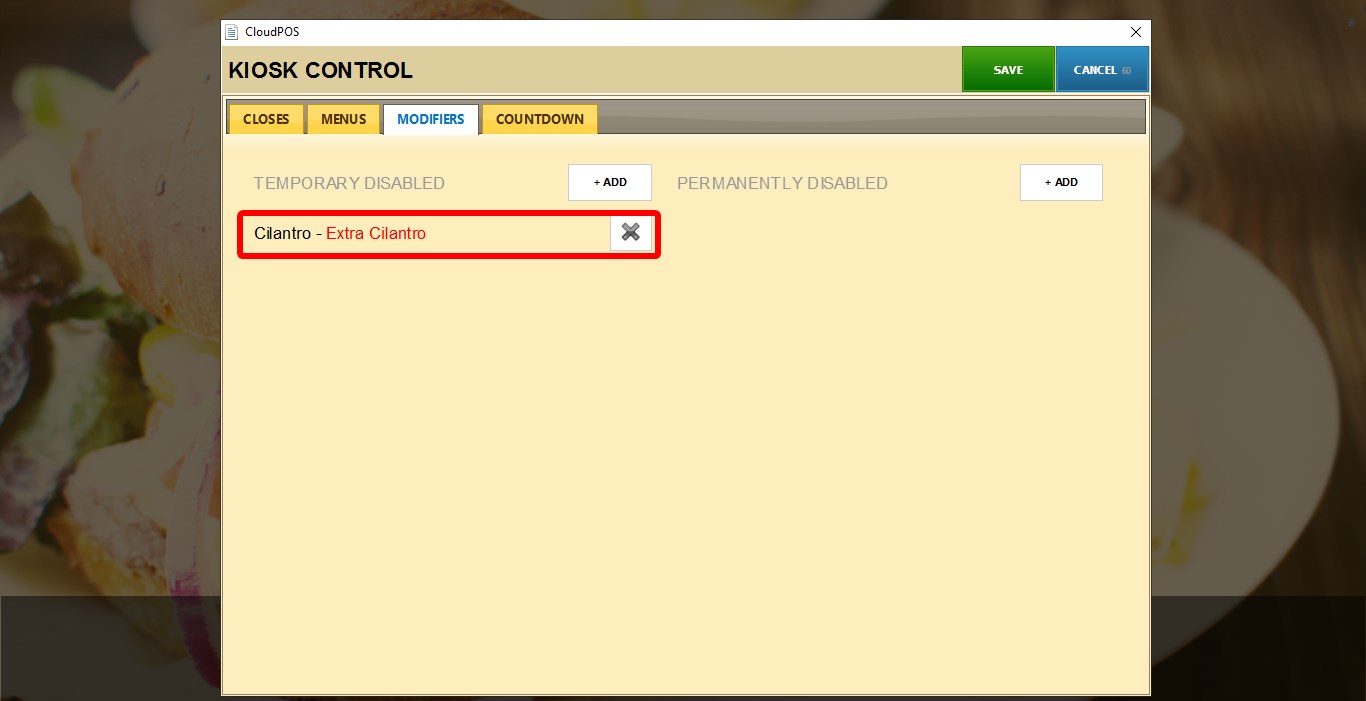
Disabled modifiers will appear in the selected list. To restore a modifier, click the X icon next to it.
COUNTDOWN
The COUNTDOWN tab allows inventory limits to be assigned to individual menu items.
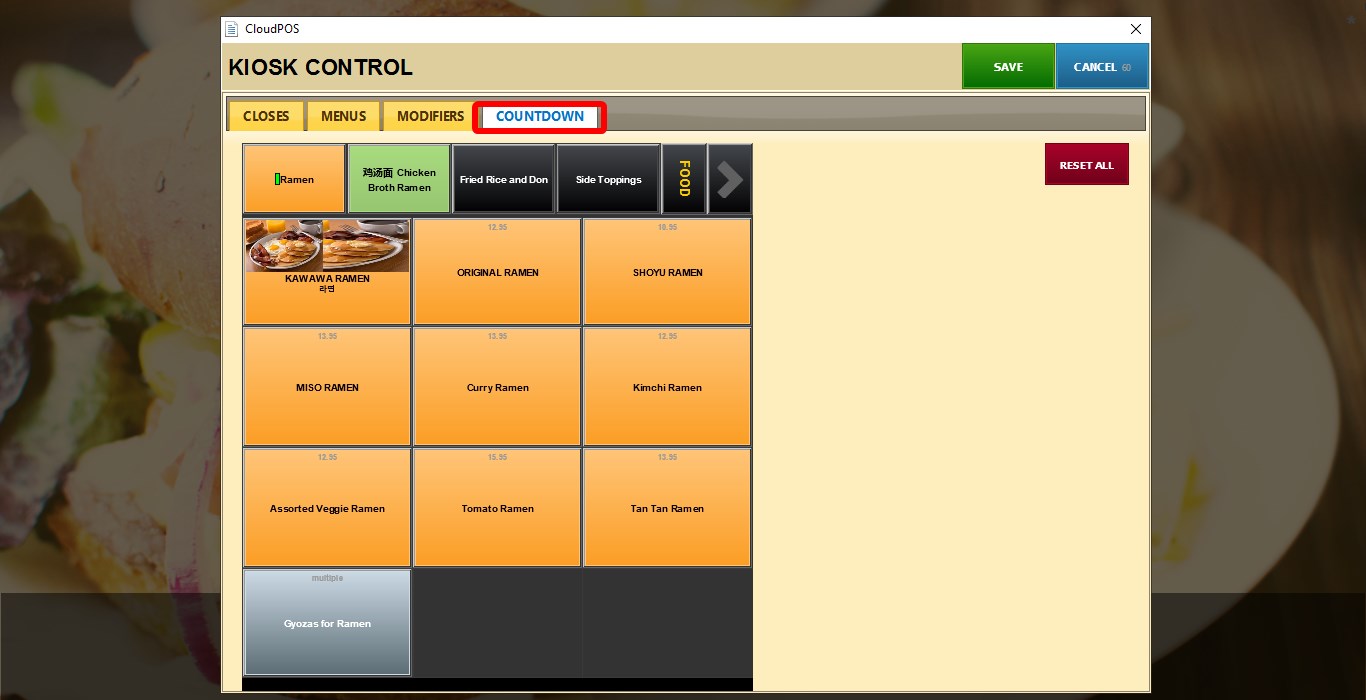
Refer to the Countdown KB for additional information.
Select an item from the menu list. The following options are available:
1. ENABLED: The item can be ordered without restrictions.
2. DISABLED: The item cannot be ordered.
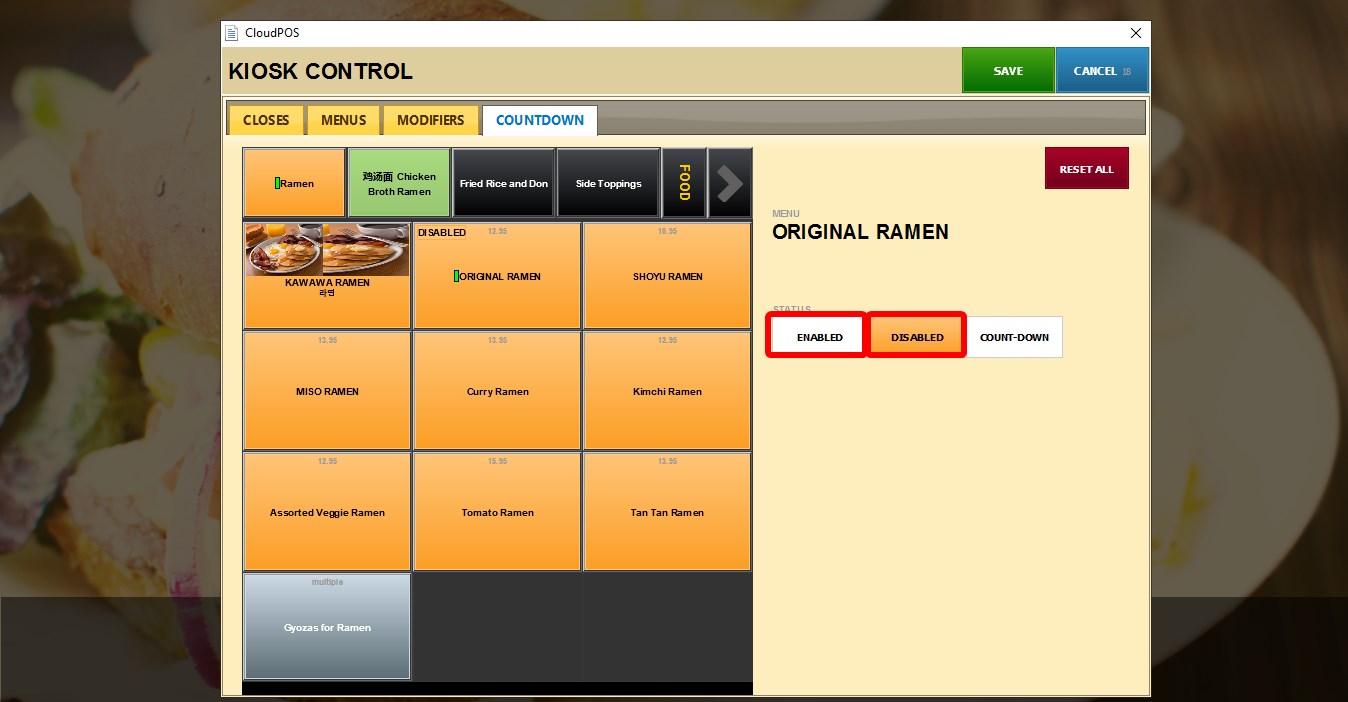
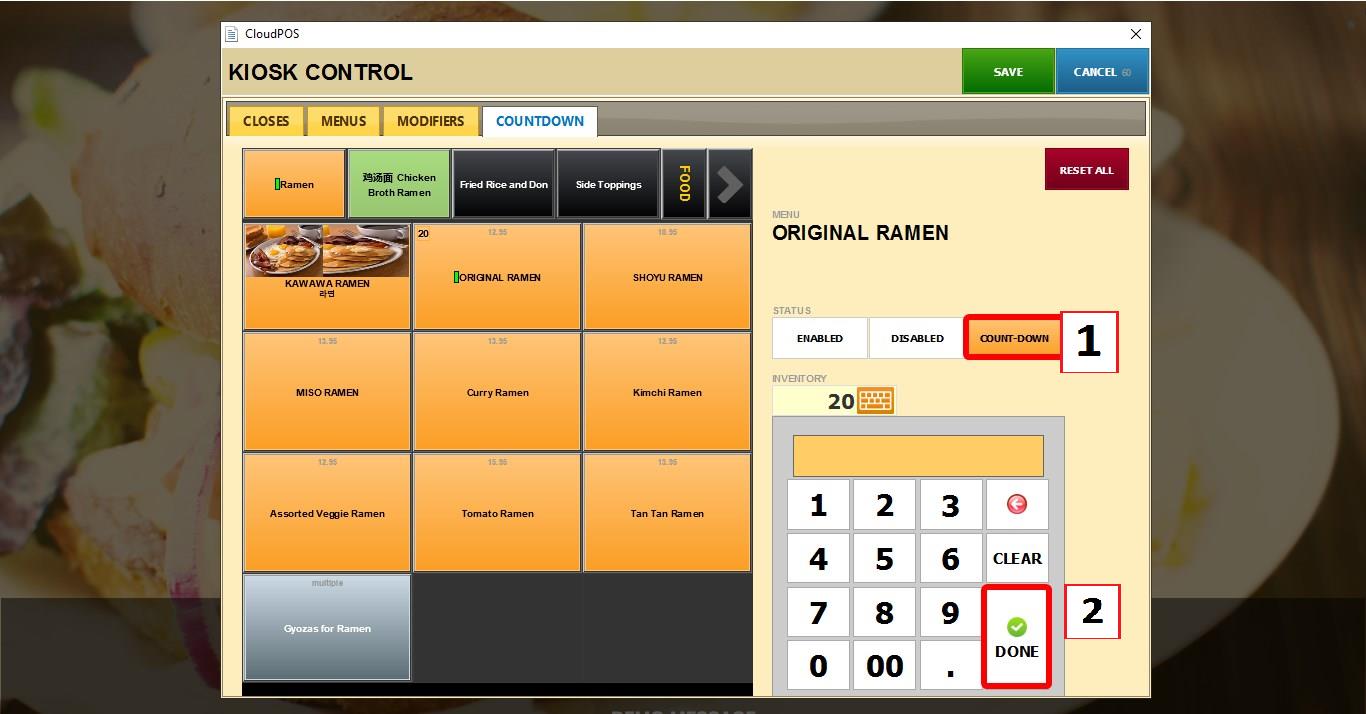
3. COUNTDOWN: Enables inventory tracking for the selected item.
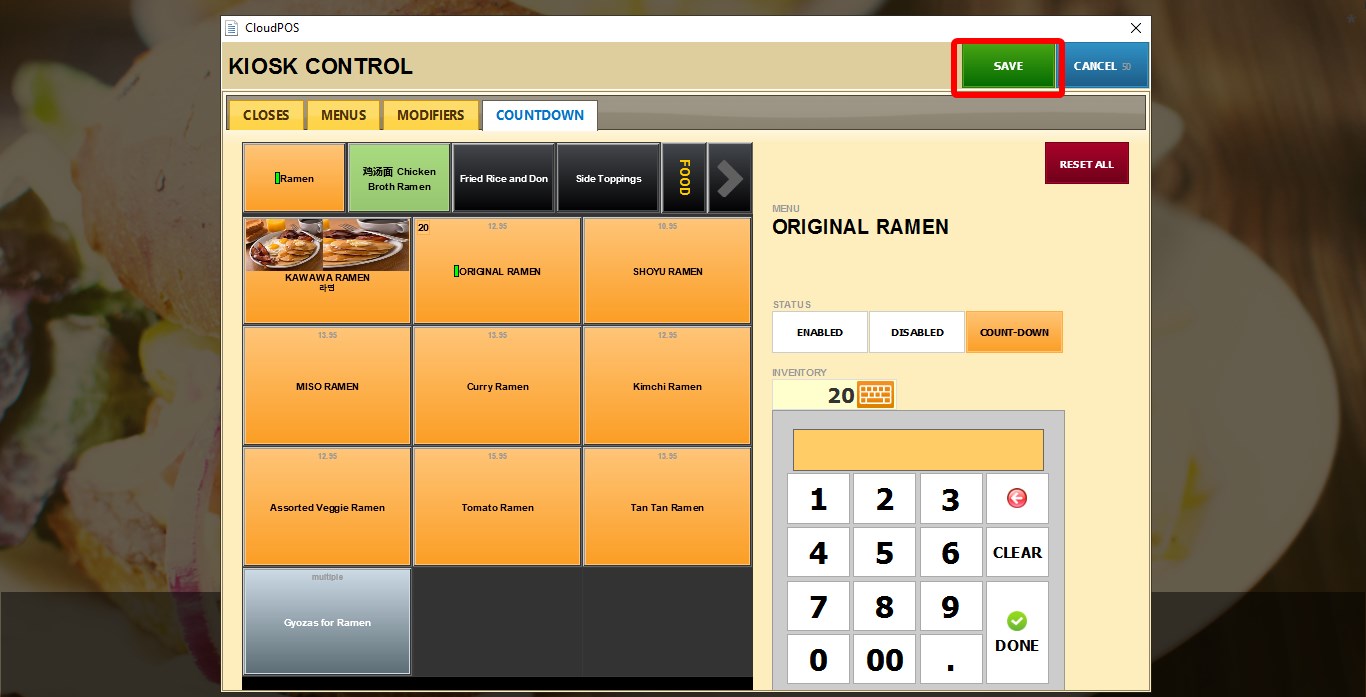
When COUNTDOWN is selected, the INVENTORY field becomes available. Enter the quantity remaining for that item on the INVENTORY field or use the Keypad and click DONE
The kiosk will display the remaining quantity while ordering. Once the inventory reaches 0, the item can no longer be ordered.
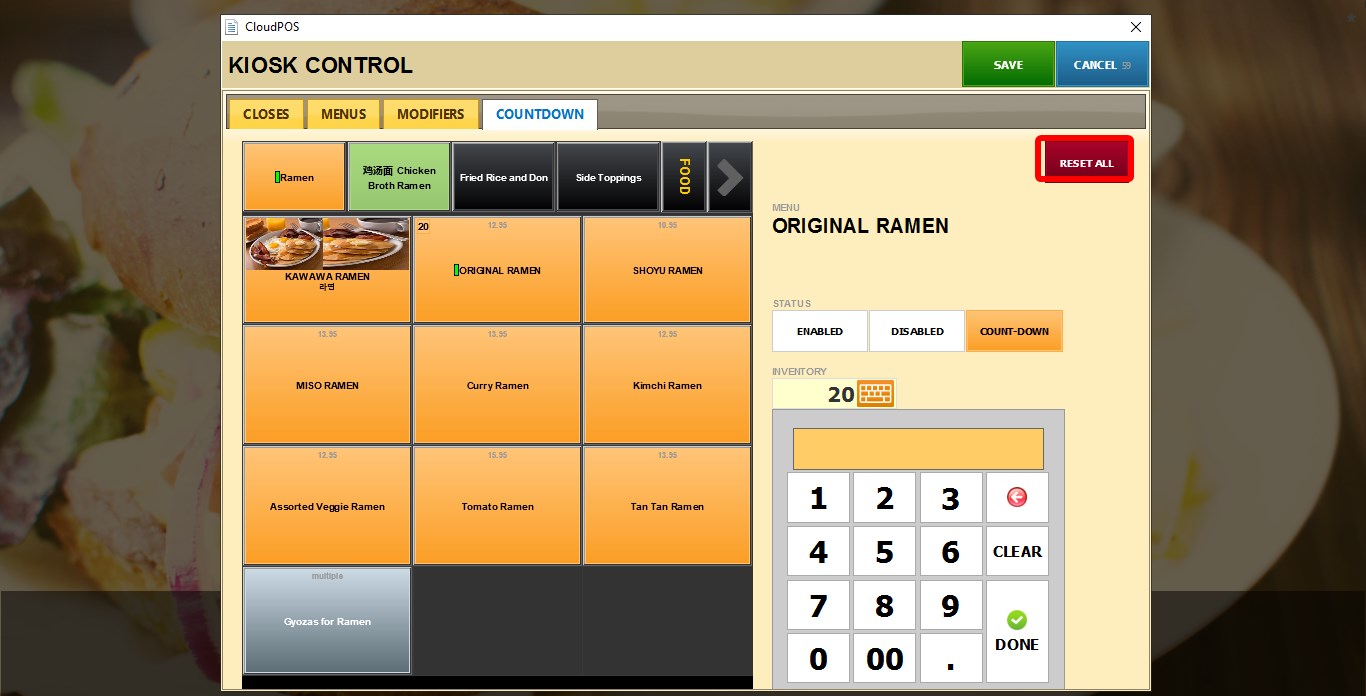
4. RESET ALL: Restores all items to their default state. Any disabled items will become enabled. Any countdown inventory settings will be removed.
After configuring any settings in the Control Panel, click SAVE.