Bulk
This function allows you to apply multiple actions to several rung-up items at the same time. This tool helps speed up order management by allowing staff to quickly update item settings, apply changes, and manage kitchen or receipt behavior for multiple items simultaneously. Bulk actions can be used to add memos, apply discounts or price changes, manage kitchen and receipt printing, rush items, delete items, or transfer items to another ticket.
Main Screen> Number Pad> Sales Screen> Rung Up Items> BULK
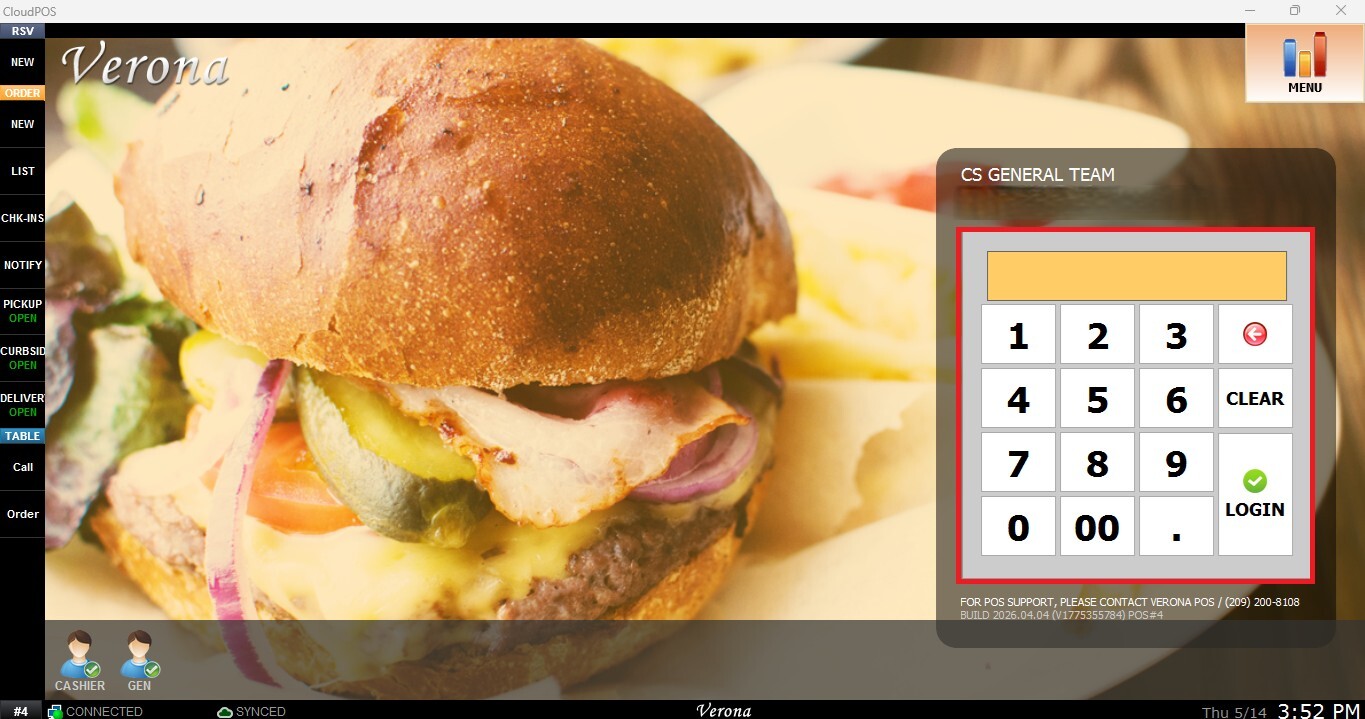
From the Main Screen, use the number pad and enter the assigned employee password to log in.
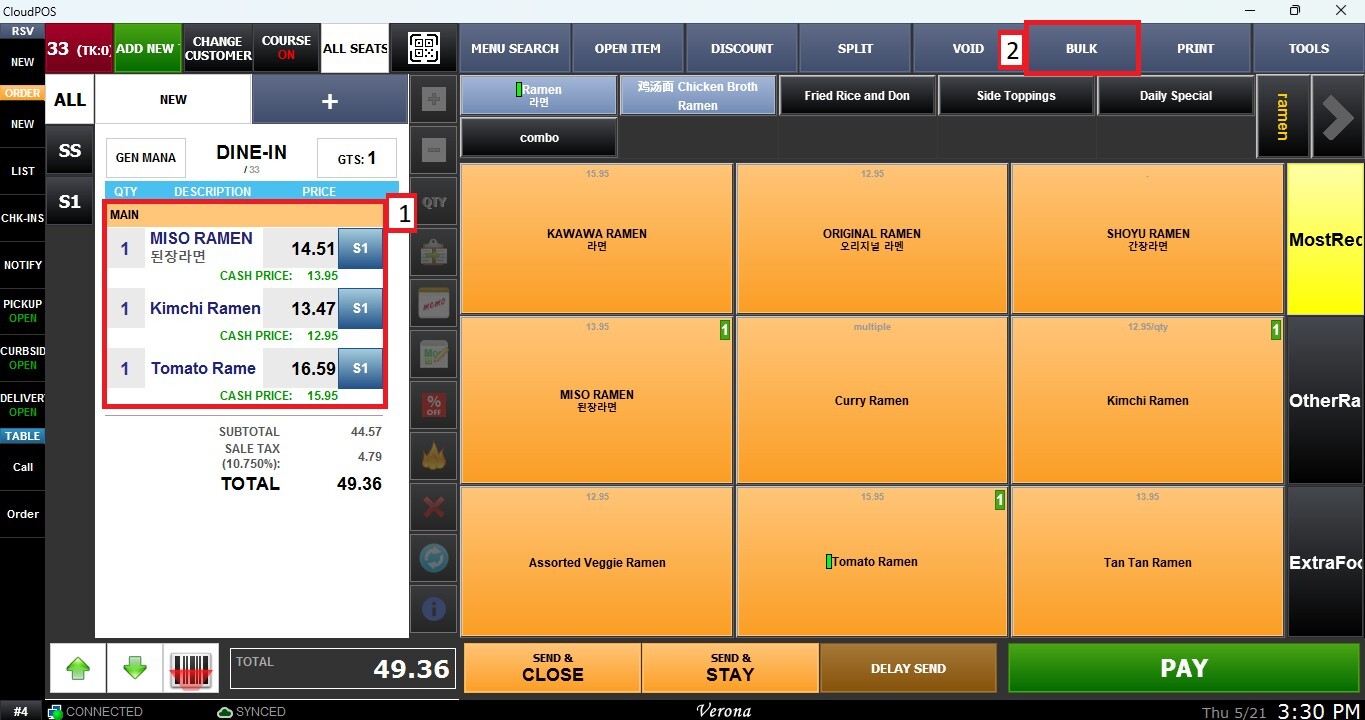
Ring up items on the Sales Screen, press the BULK button located on the top bar.
AVAILABLE BULK ACTIONS
The Bulk options window will appear. Select the items you want to modify and press the desired action to apply it to the selected items.
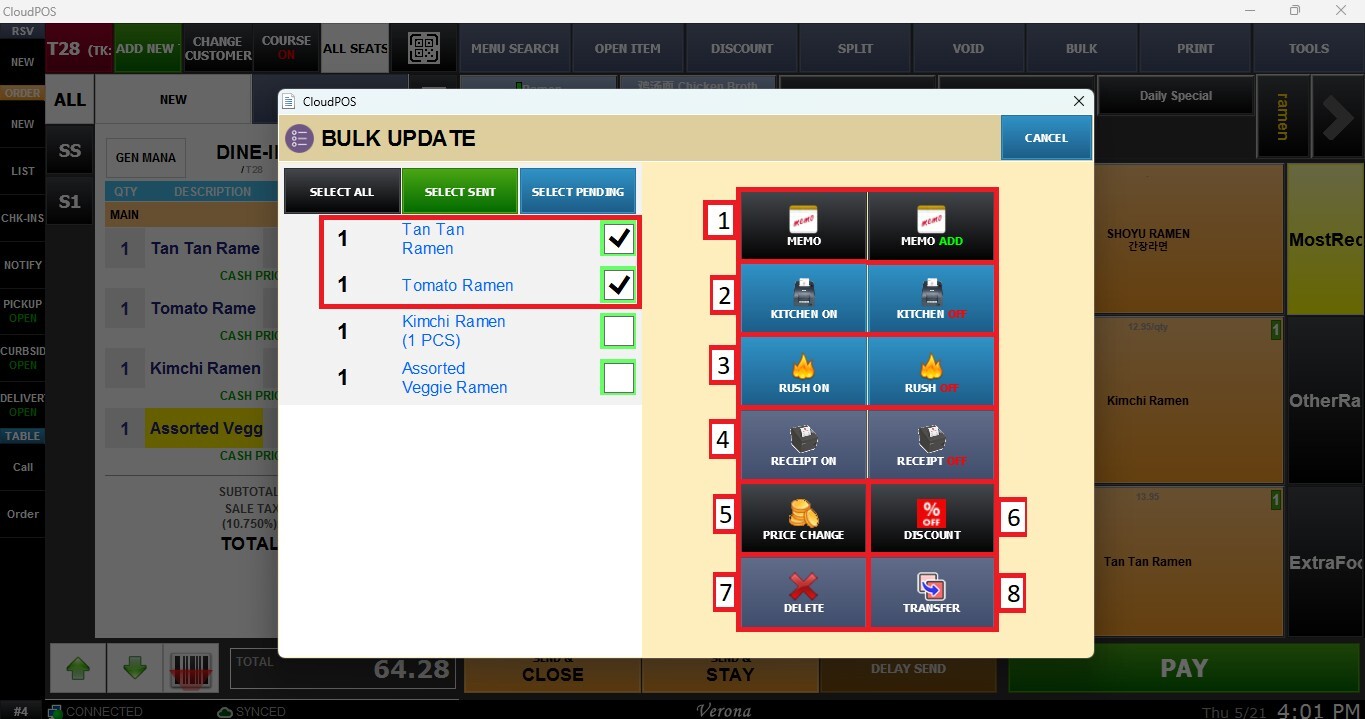
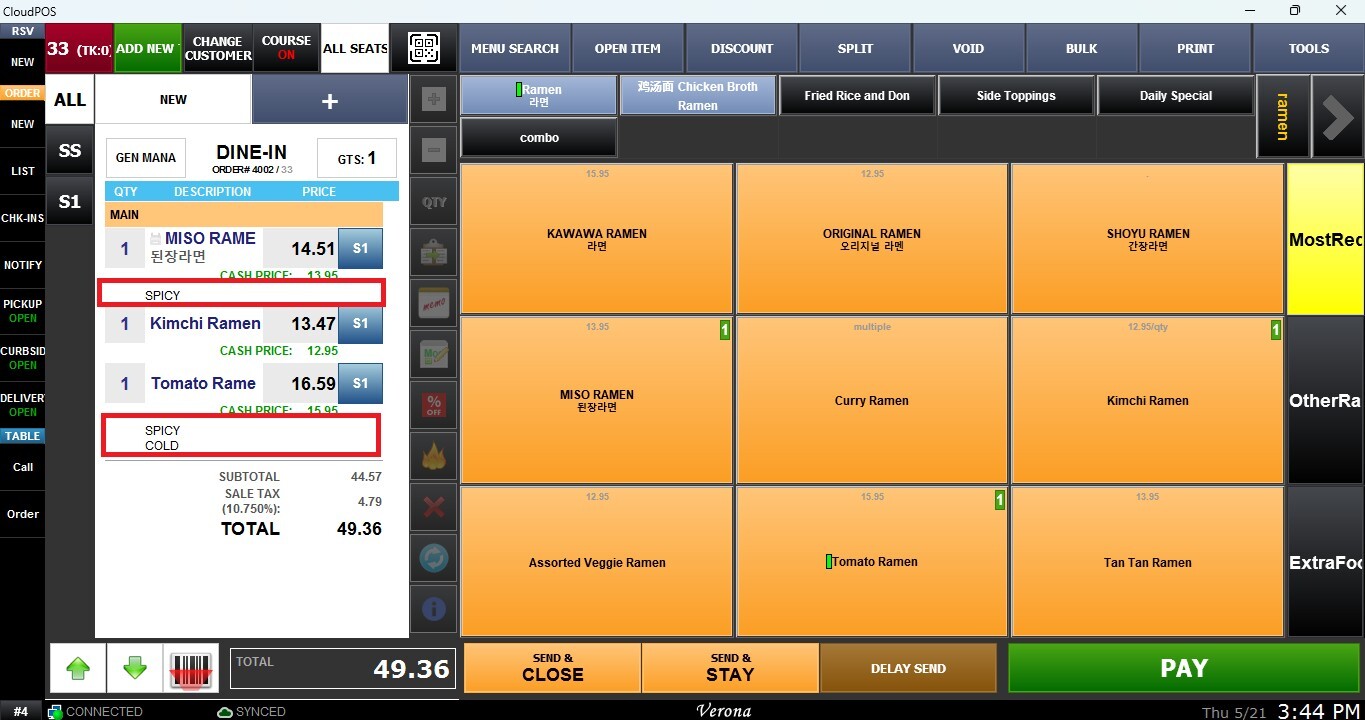
1. Add or modify memo: Add a new memo to the selected items, replace an existing memo, or append additional notes to an existing memo.
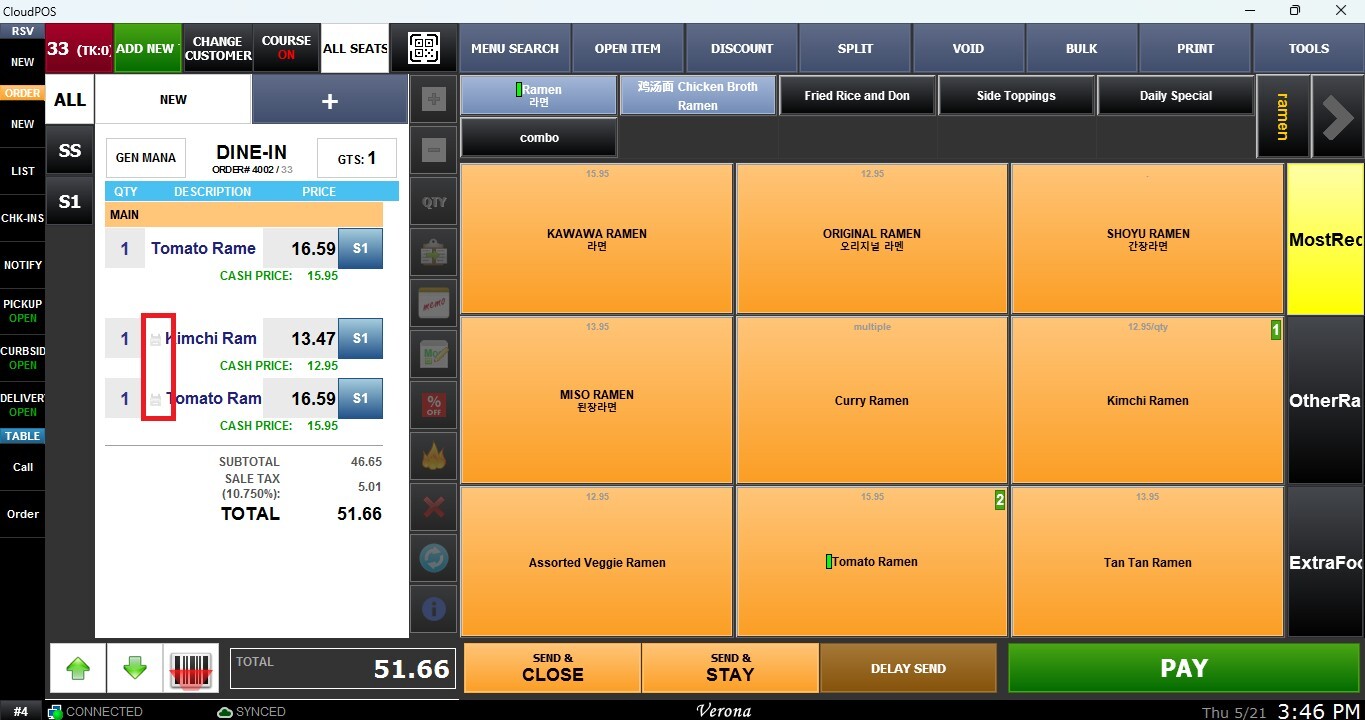
2. Enable or disable kitchen printing: Controls whether the selected items will print on the kitchen printer during order processing. When enabled, a printer icon will appear next to the item.
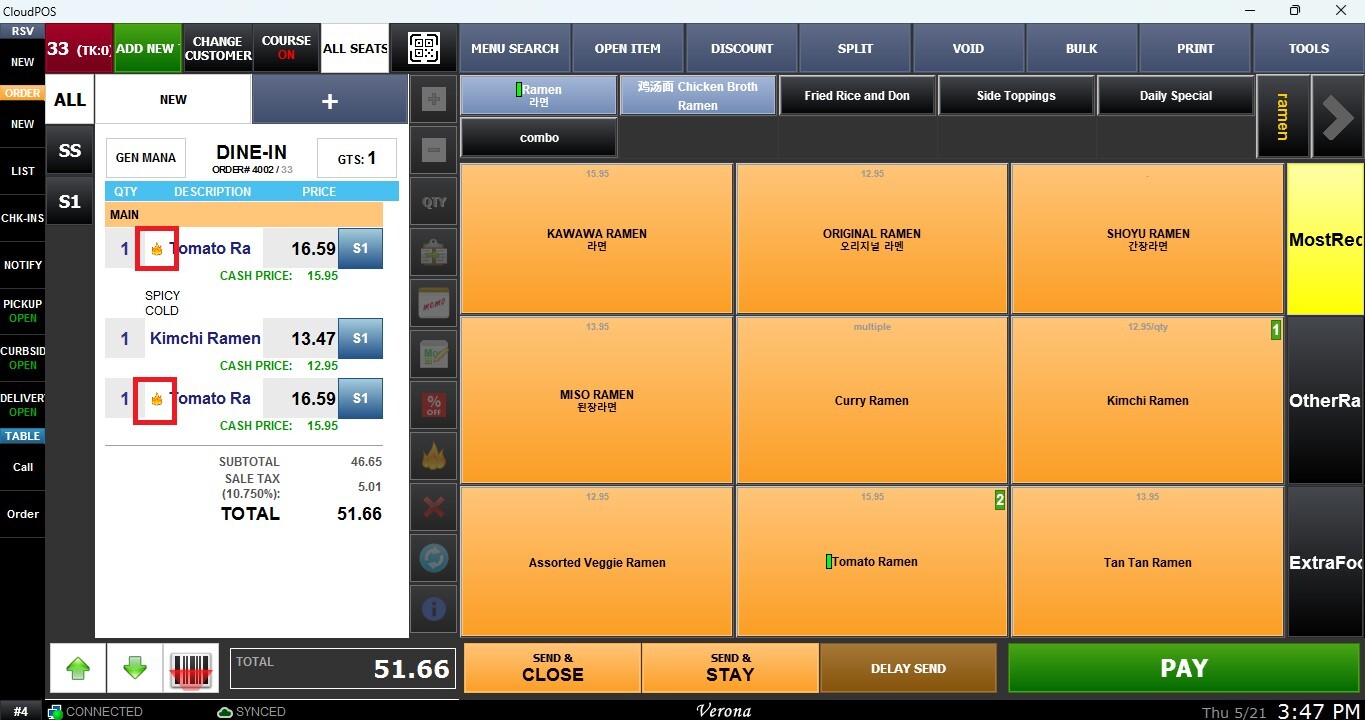
3. Rush/Un-rush items: Enables or removes the Rush status for the selected items to prioritize preparation. When enabled, a Rush icon will appear beside the item.
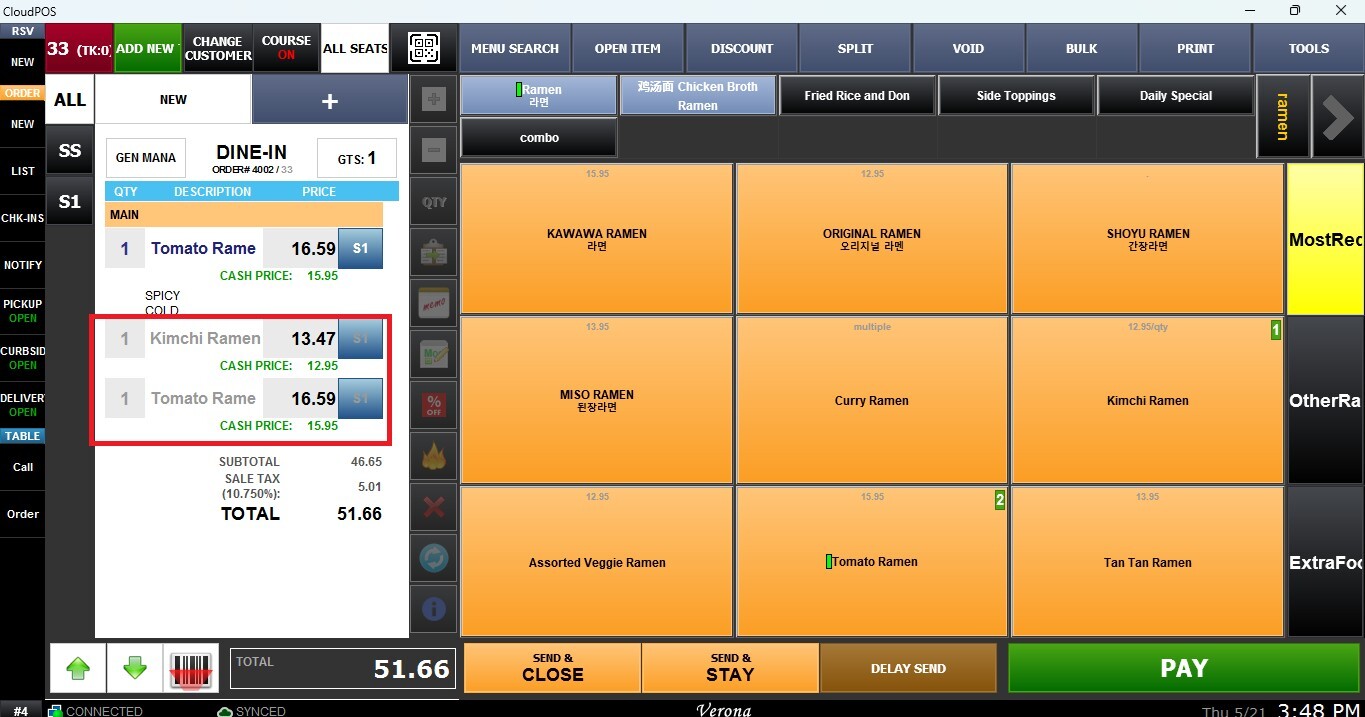
4. Enable or disable receipt printing: Controls whether the selected items will appear on the customer receipt. Items excluded from receipt printing will appear grayed out on the ticket.
5. Apply price changes: Changes the price of all selected items. All selected items will be updated to the same entered price.
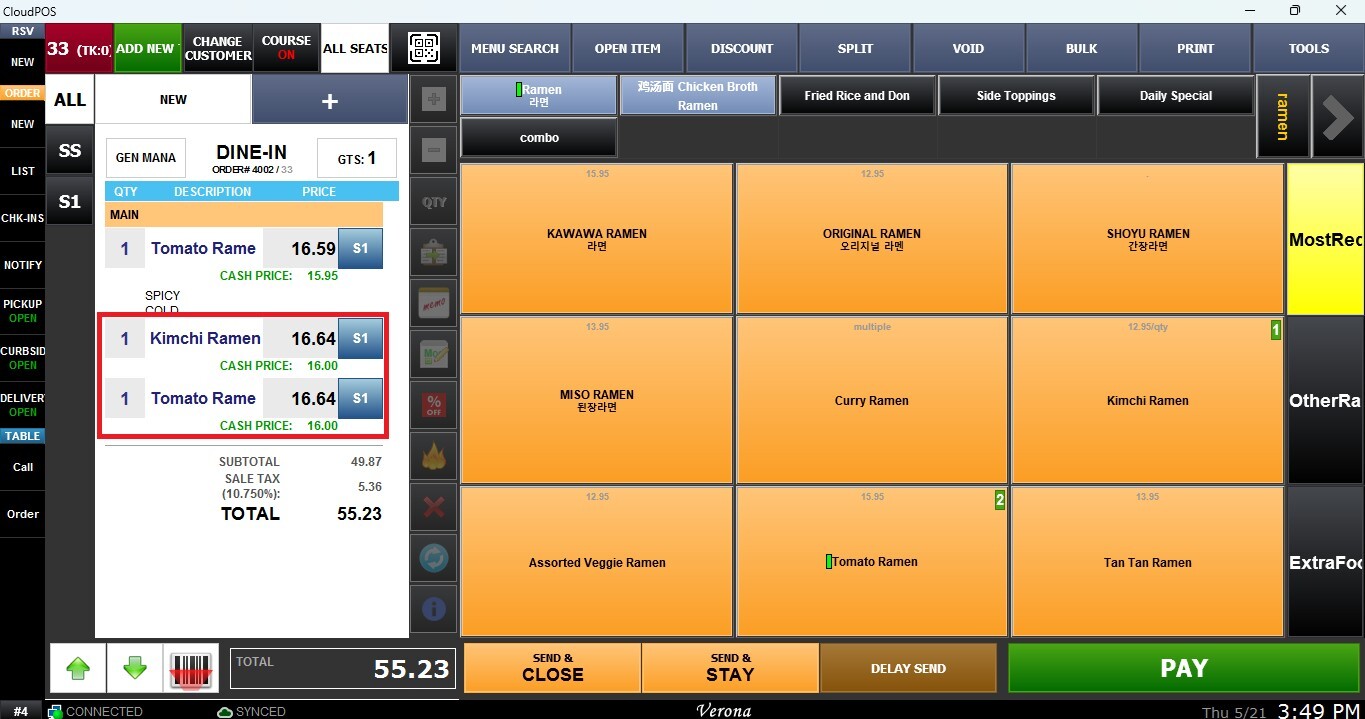
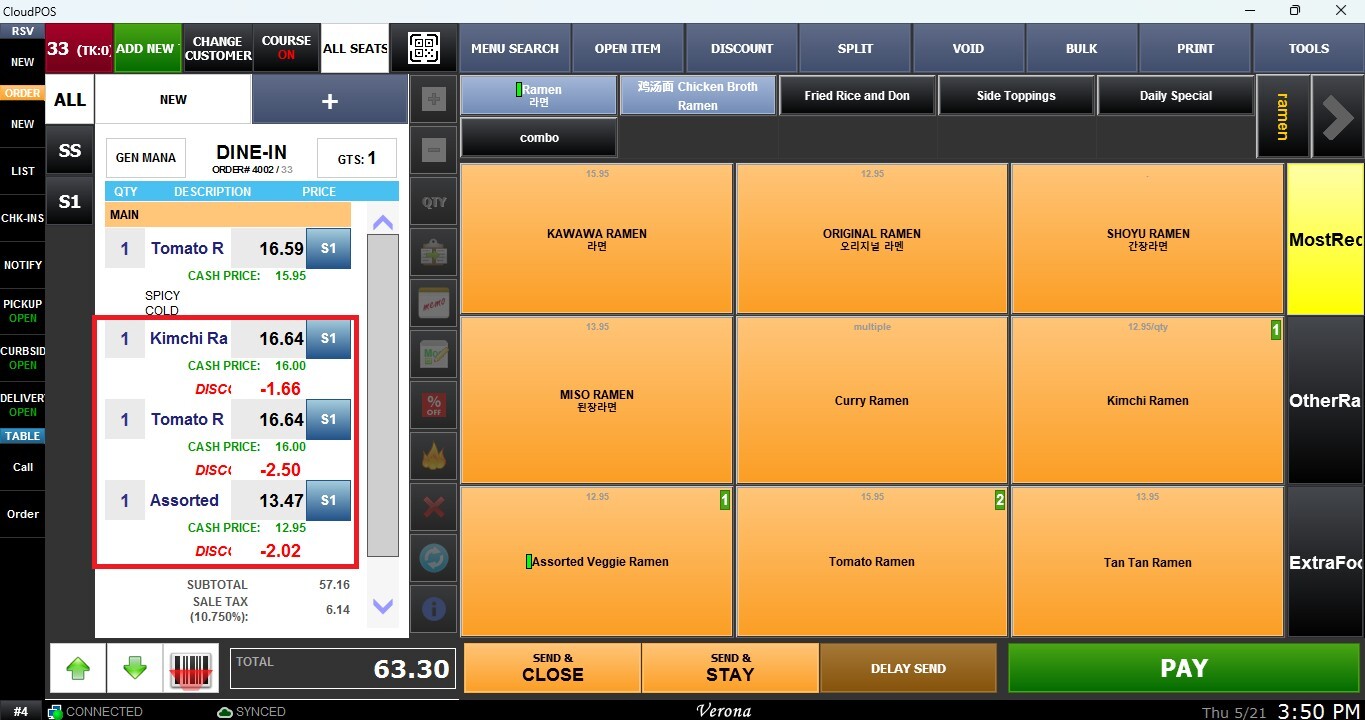
6. Apply discounts: Applies discounts individually to each selected item on the order.
7. Delete selected items: Removes the selected items from the current order.
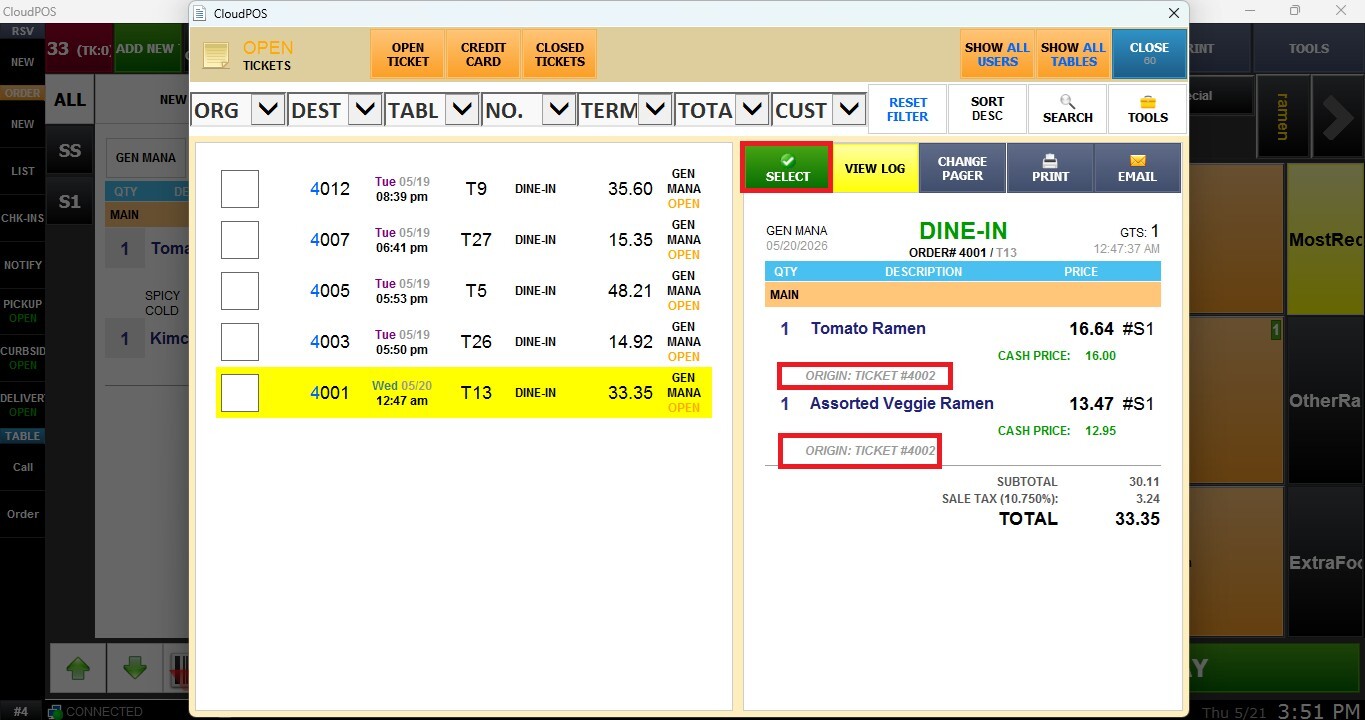
8. Transfer items to another ticket: Transfers the selected items to another open or closed ticket. When selected, the Transaction List window will appear, allowing you to choose the destination ticket.
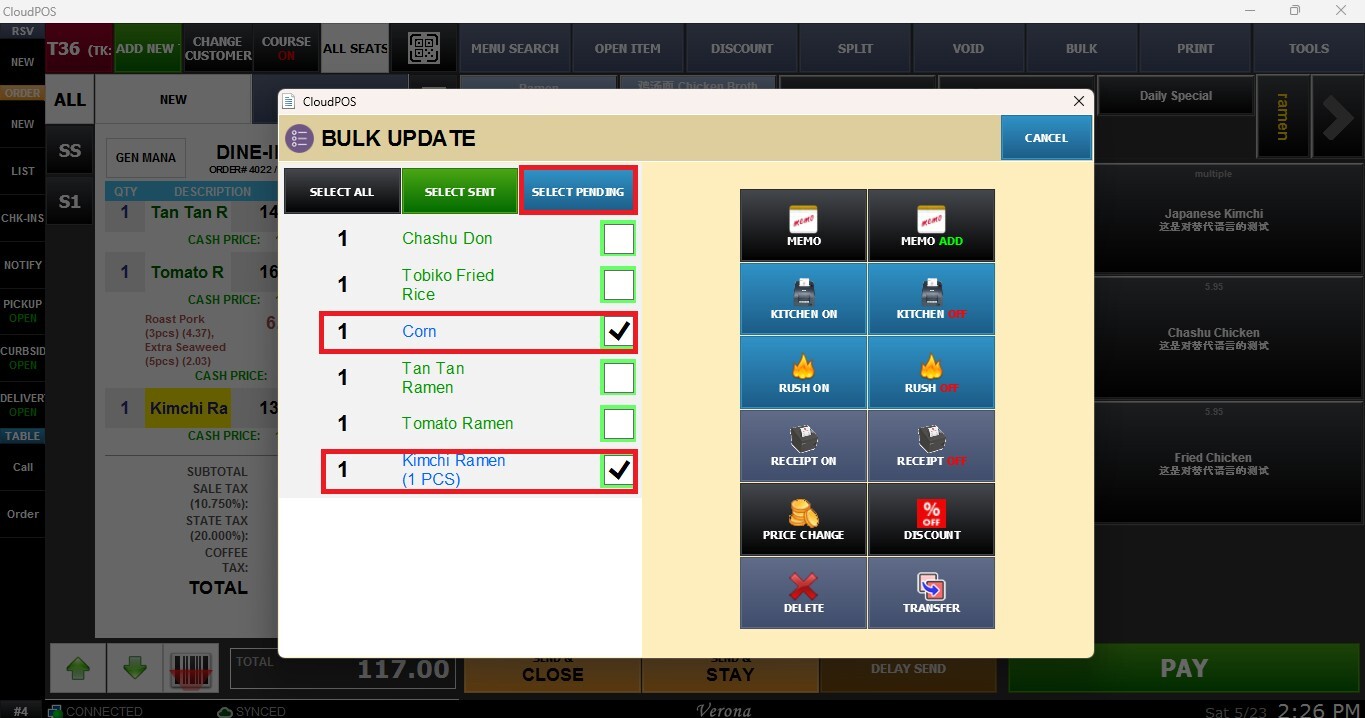
SELECTION OPTIONS
Additional selection tools are available to simplify the Bulk process.
1. Select All: Selects all items currently on the order.
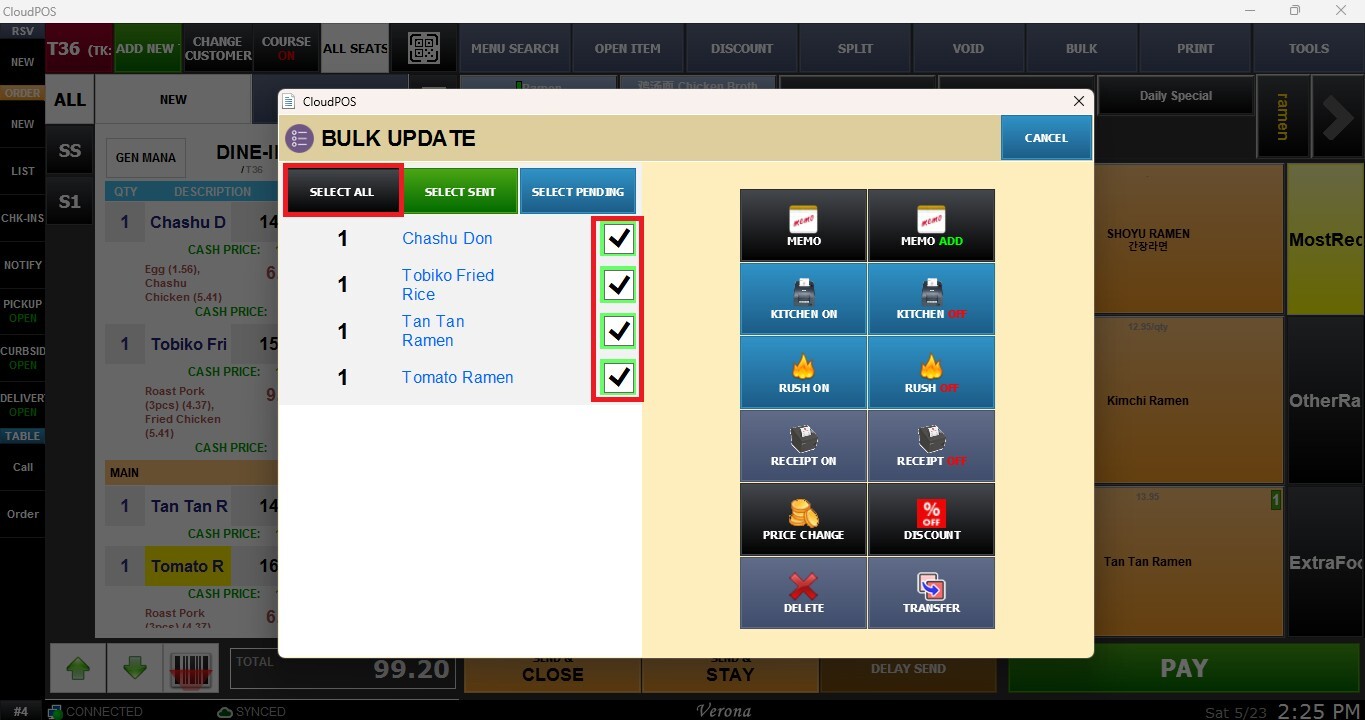
2. Select Sent: Selects only items that have already been sent to the kitchen.
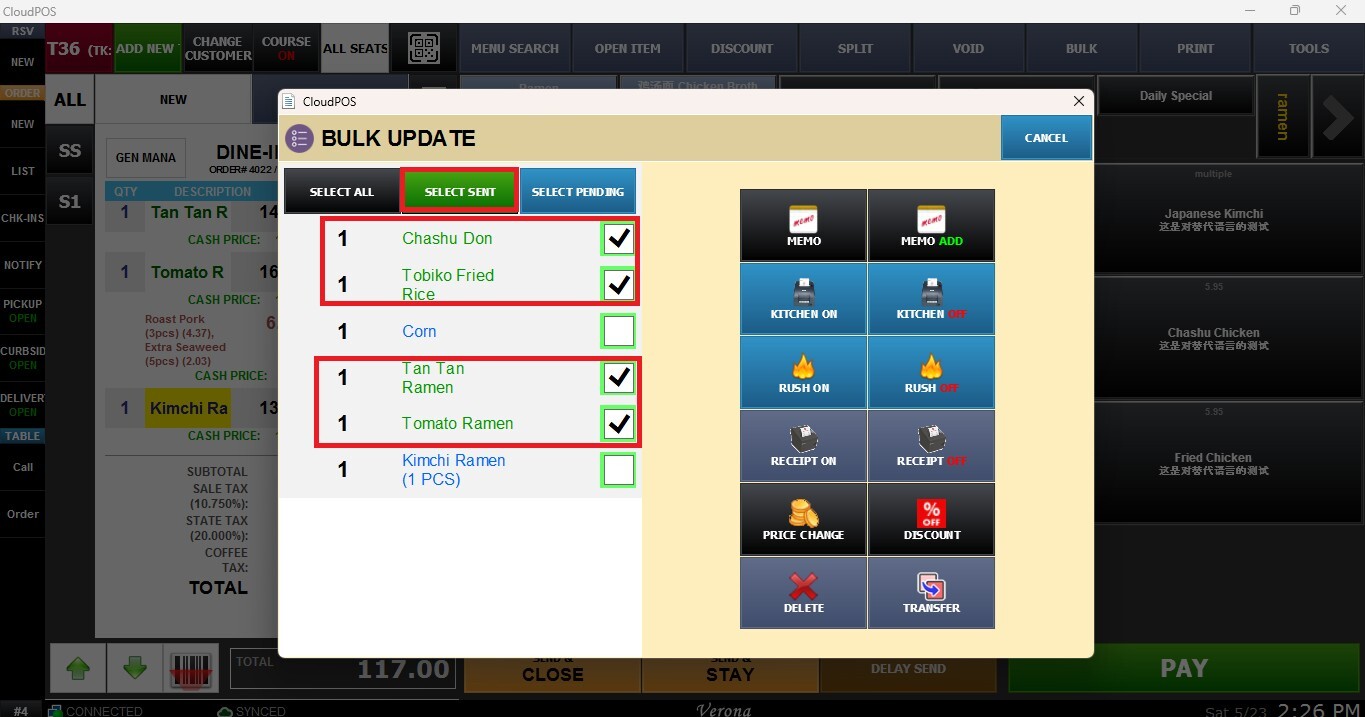
3. Sent Pending: Selects only items that are still pending to be sent to the kitchen.