DayPart Mix
This report shows how the store's sales are distributed across the different parts of the day.
Main Screen> MENU> REPORTS> SALES> REPORT LIST> DAYPART MIX
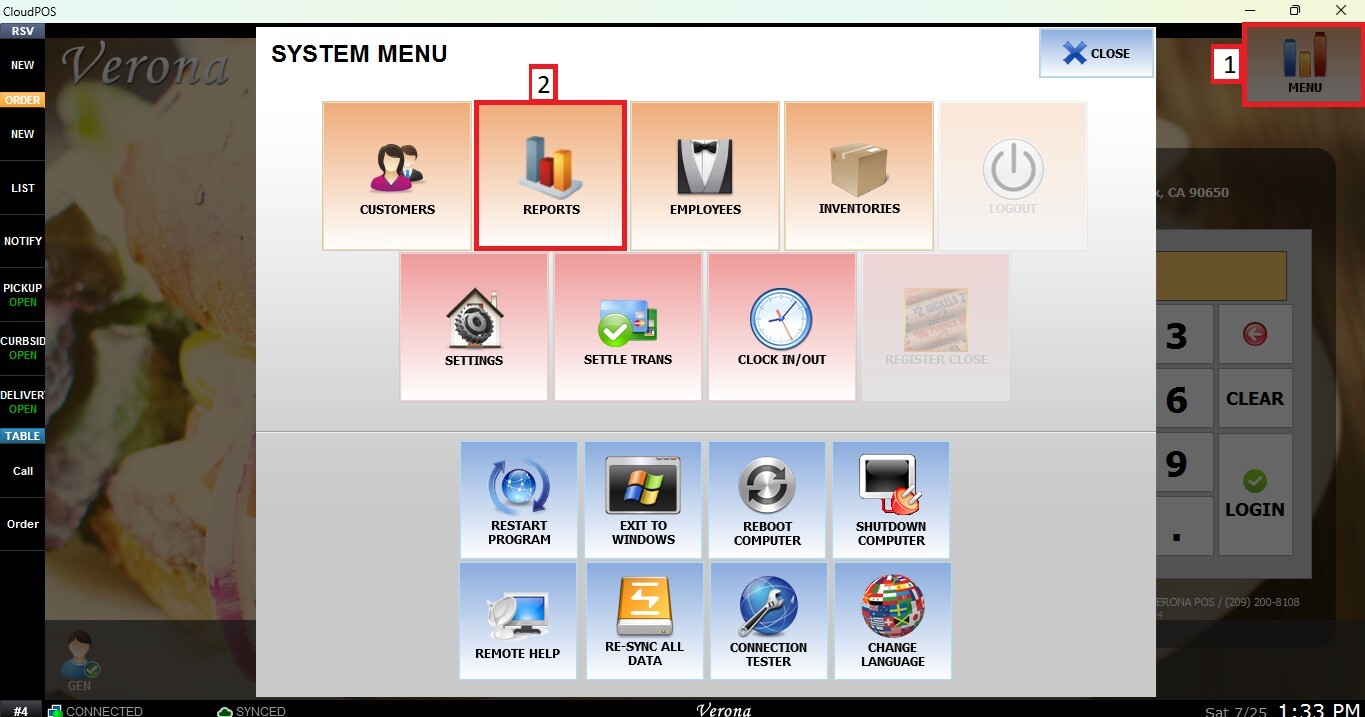
From the Main Screen, click MENU, then select REPORTS.
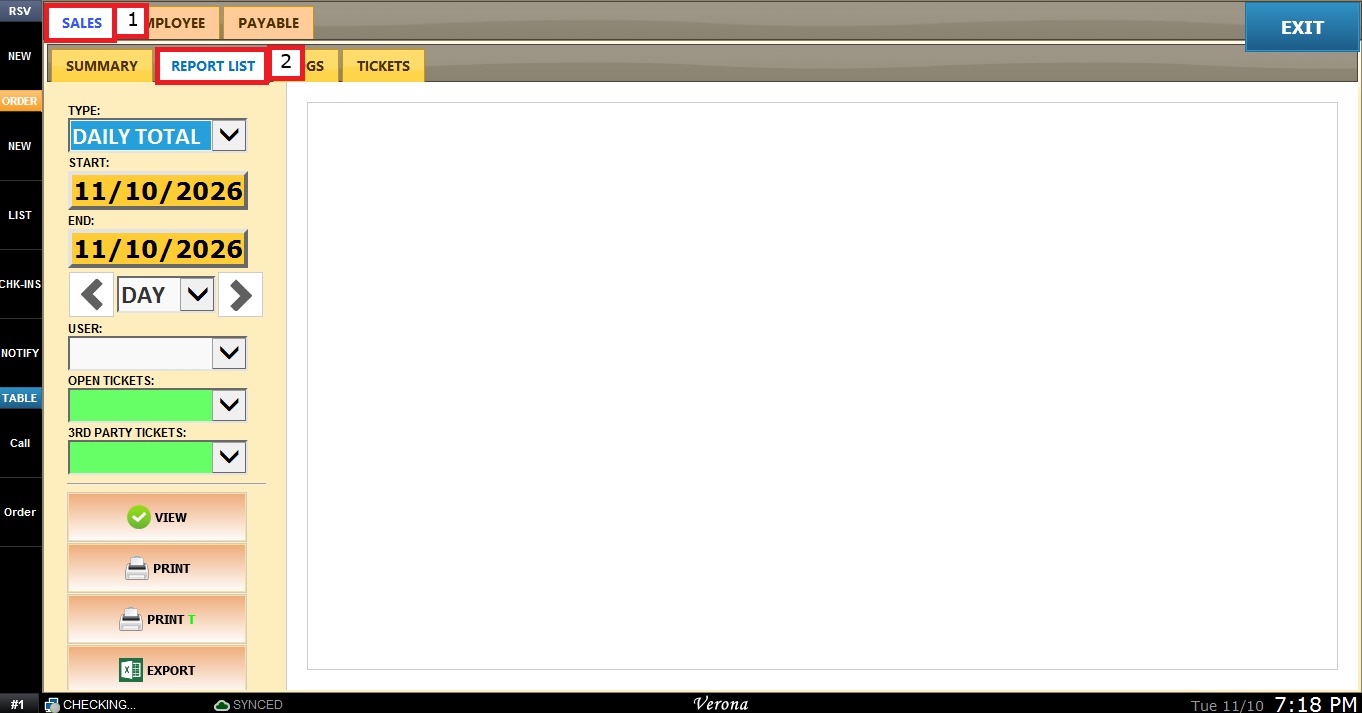
Open the SALES tab and click REPORT LIST.
In the TYPE dropdown, select DAYPART MIX.
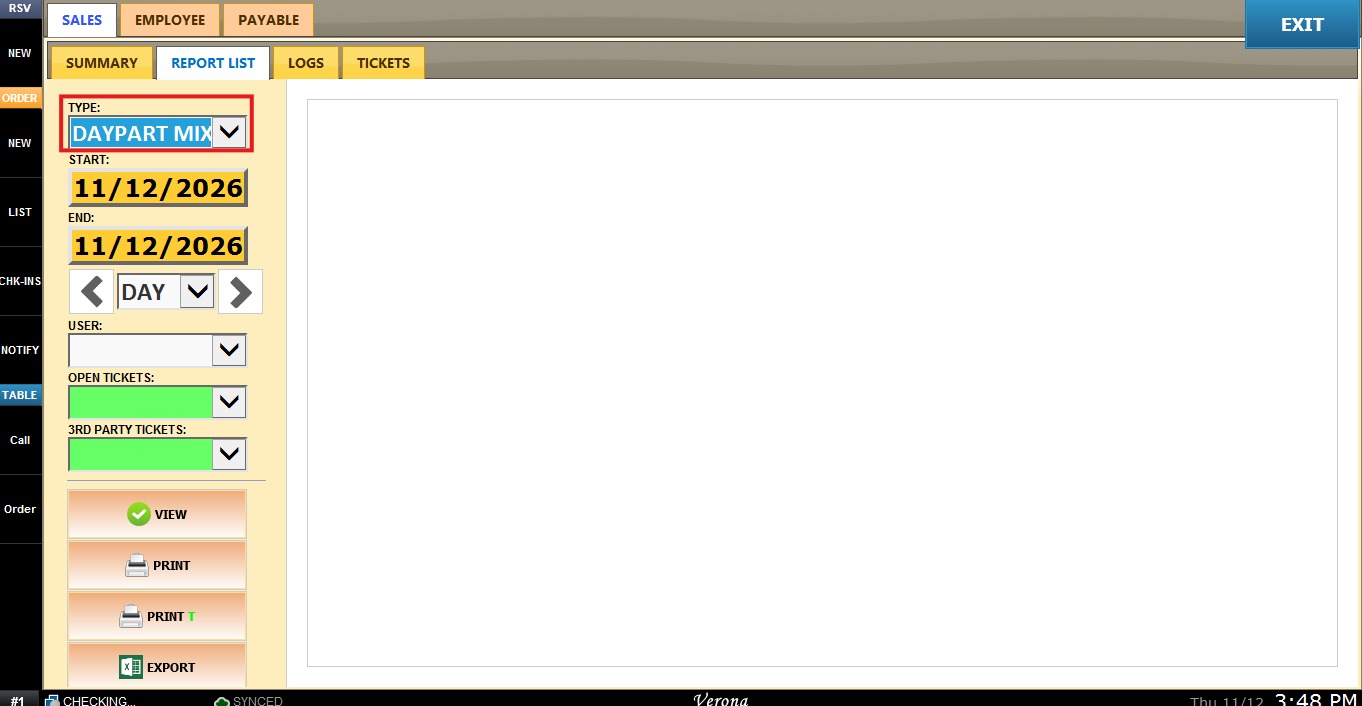
The report area stays blank until the report is generated with VIEW.
FILTERS
The filters are in the panel on the left side of the screen, below the TYPE dropdown.
1. START: sets the first date included in the report.
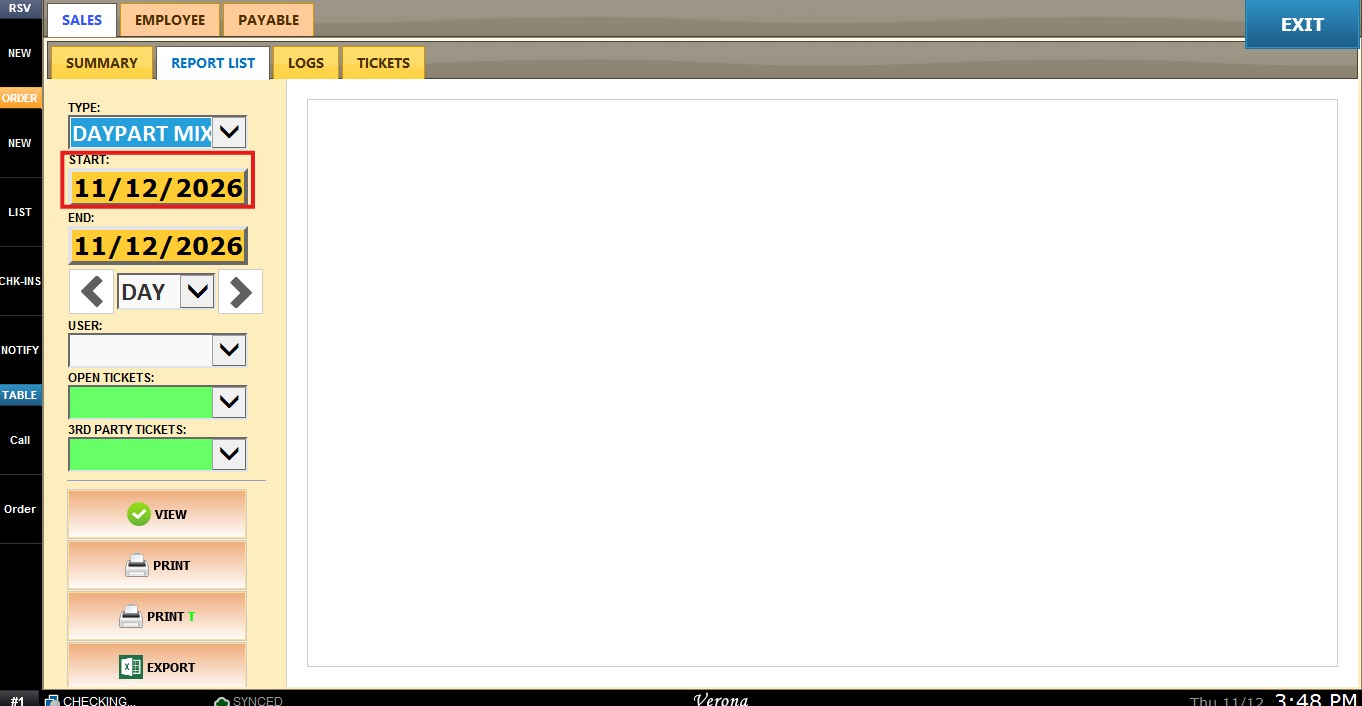
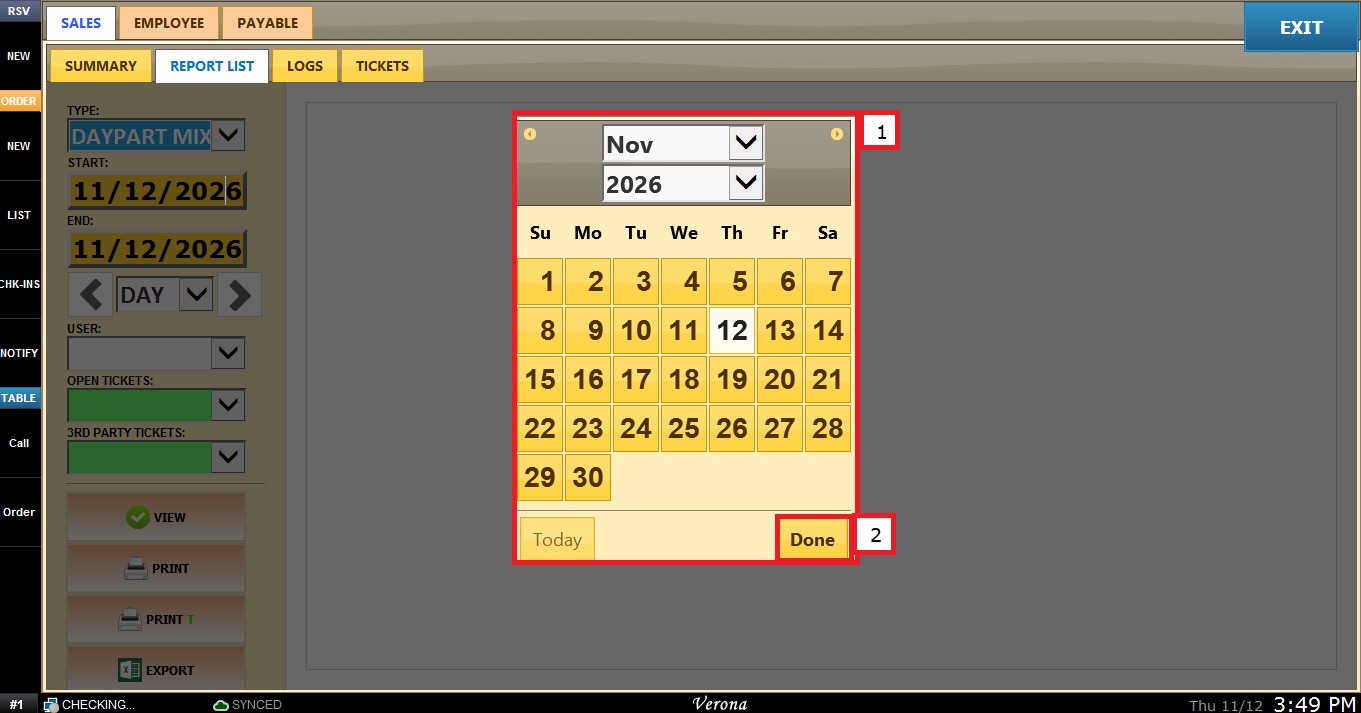
Click the START field to open the calendar.
Select the day. Use the month and year dropdowns or the arrows at the top of the calendar to change the month, or click TODAY to select the current date.
Click DONE to apply the date.
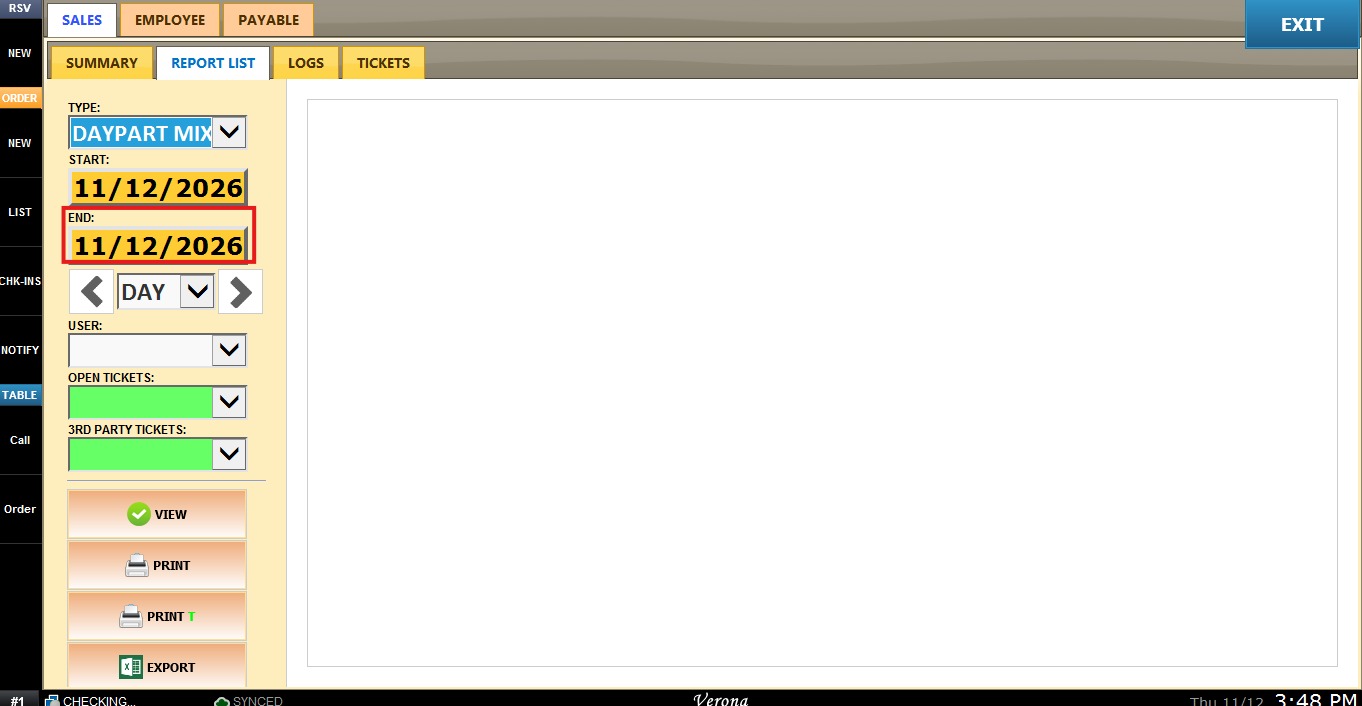
2. END: sets the last date included in the report. Click the END field and select the date in the calendar the same way as for START.
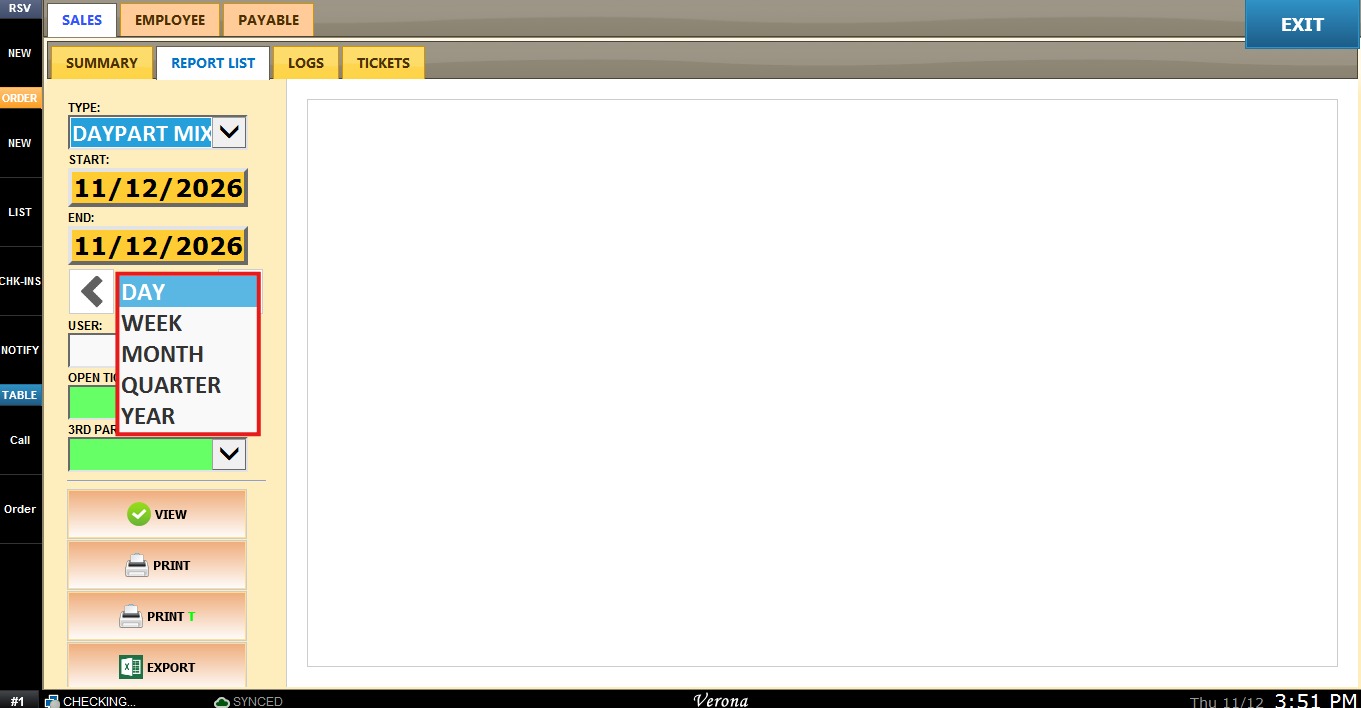
3. Period Dropdown: sets the length of the date range. The options are DAY, WEEK, MONTH, QUARTER and YEAR. For example, selecting MONTH sets START and END to the first and last day of the month.
Click the dropdown and select the period.
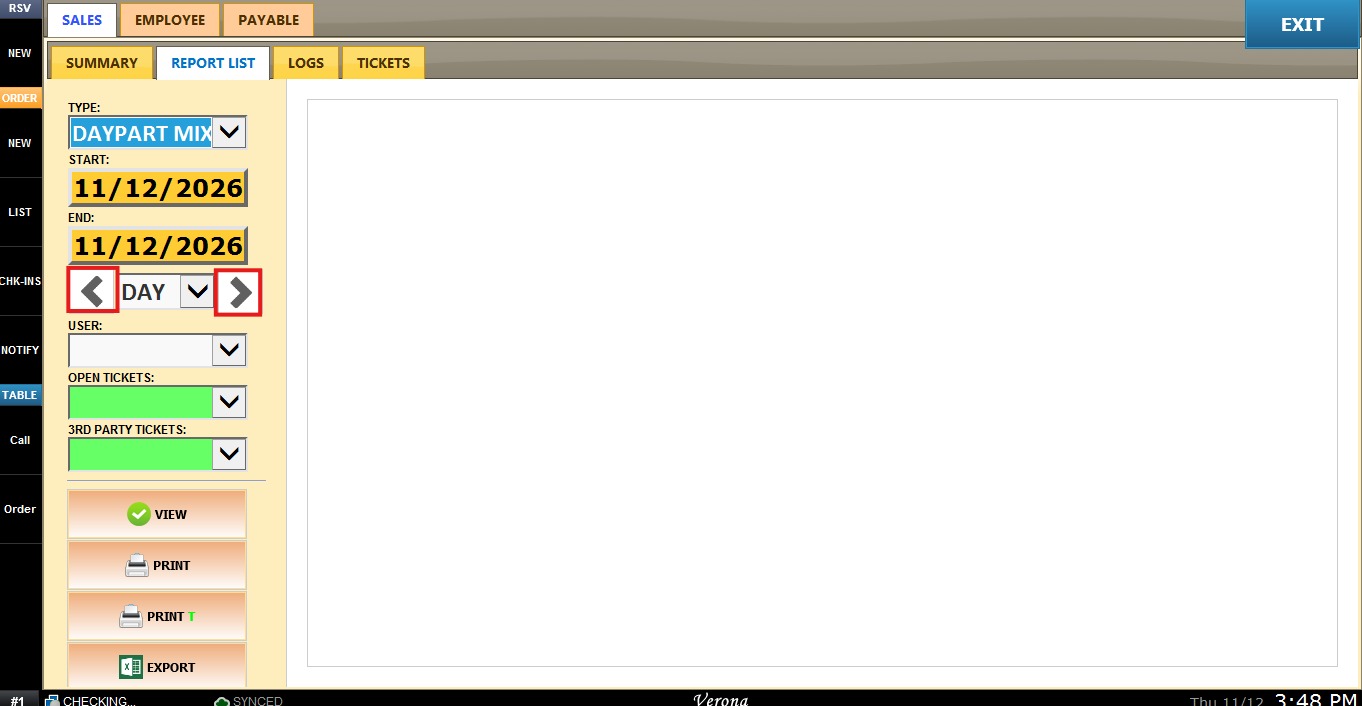
4. Previous and Next Arrows: move the date range back or forward by one period, based on the option selected in the period dropdown.
Click the left arrow to go to the previous period or the right arrow to go to the next one.
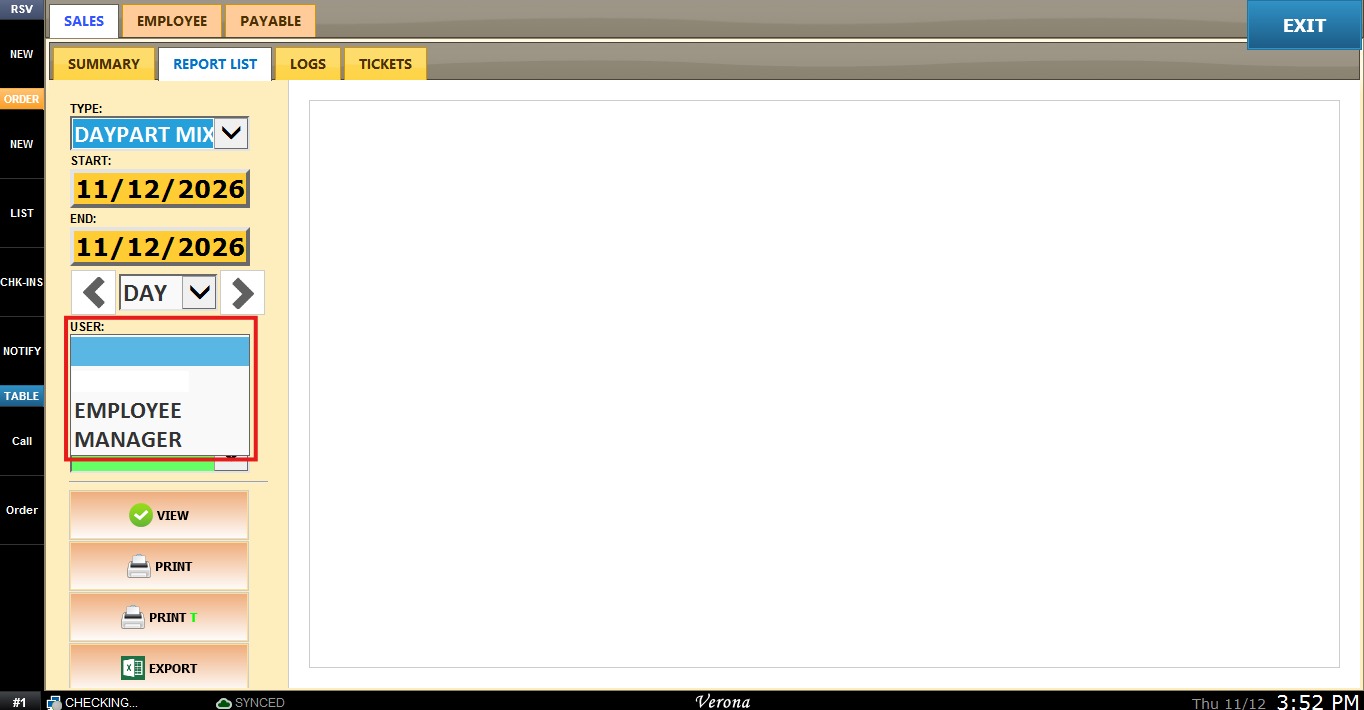
5. USER: limits the report to the sales of the selected user. When left blank, the report includes all users.
Click the USER dropdown and select the user.
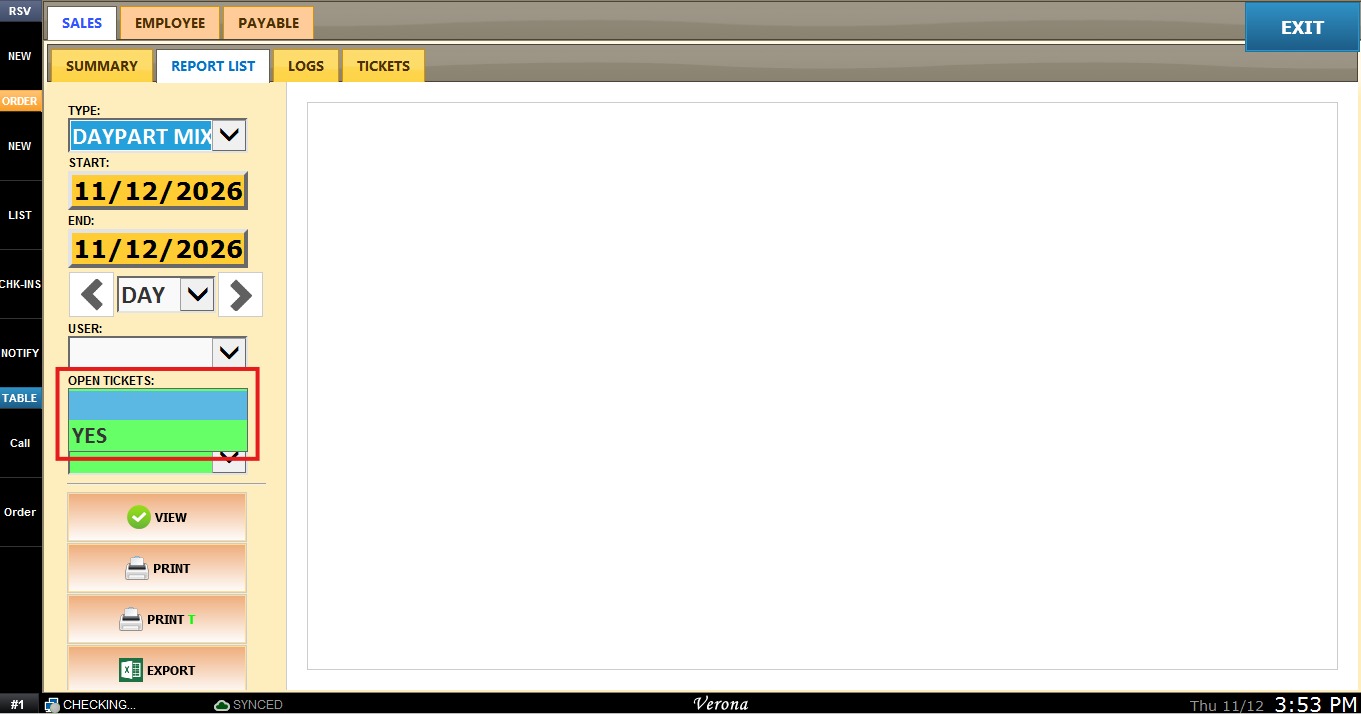
6. OPEN TICKETS: sets whether tickets that are still open are included in the report. Select YES to include them, or leave the field blank to exclude them.
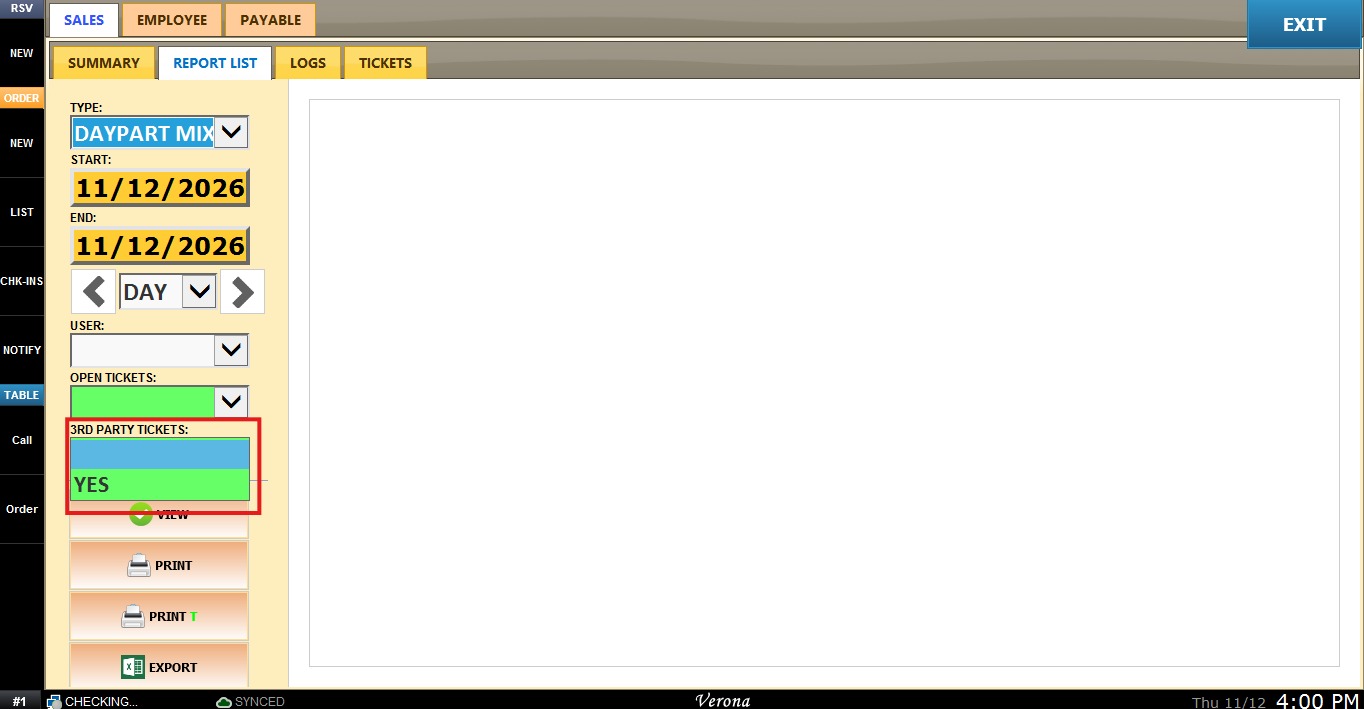
7. 3RD PARTY TICKETS: sets whether tickets from third-party services are included in the report. Select YES to include them, or leave the field blank to exclude them.
View
Click VIEW to display the report with the applied filters. Click it again after changing any filter to refresh the report.
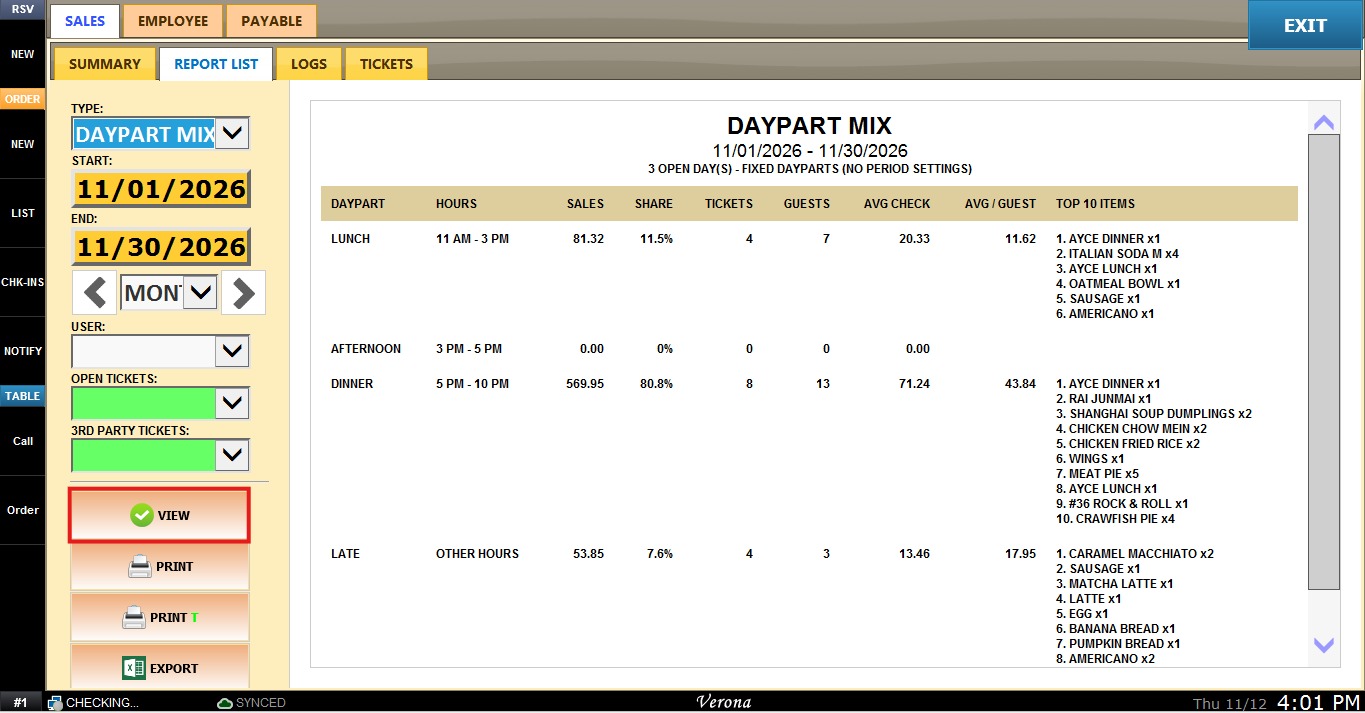
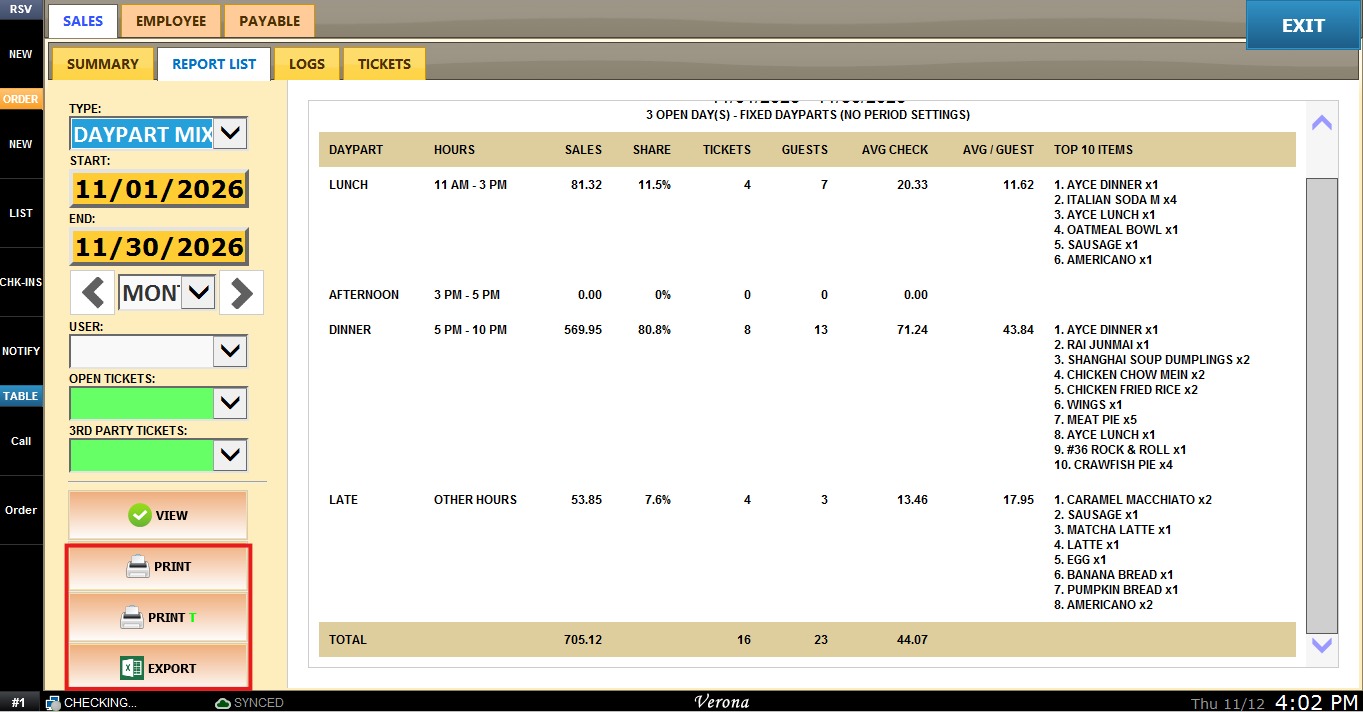
The report header shows the report name and the selected date range. The line below shows the number of open days in the range and whether the dayparts are fixed or based on period settings.
Each row is one daypart, with its hours in the HOURS column. With fixed dayparts, the rows are LUNCH (11 AM - 3 PM), AFTERNOON (3 PM - 5 PM), DINNER (5 PM - 10 PM) and LATE, which covers all other hours.
1. SALES shows the sales total for the daypart, and SHARE shows that total as a percentage of the sales for the whole range.
2. TICKETS and GUESTS show the number of tickets and guests in the daypart.
3. AVG CHECK is the daypart's sales divided by its tickets, and AVG / GUEST is the daypart's sales divided by its guests.
4. TOP 10 ITEMS lists up to ten items sold in the daypart, each with the quantity sold.
The TOTAL row at the bottom shows the sales, tickets, guests and average check for the whole range.
Click PRINT to print the report, PRINT T to print it in the receipt printer format, or EXPORT to export it to an Excel file.