Hour Availabilities
This feature allows individual menu items to automatically become available or unavailable based on configured time ranges and days of the week. This helps control which items can be ordered during specific service periods, such as breakfast, lunch, dinner, seasonal promotions, or happy hour.
Main Screen > MENU > SETTINGS > REPO > EDIT> ITEM> HOUR AVAILABILITY.
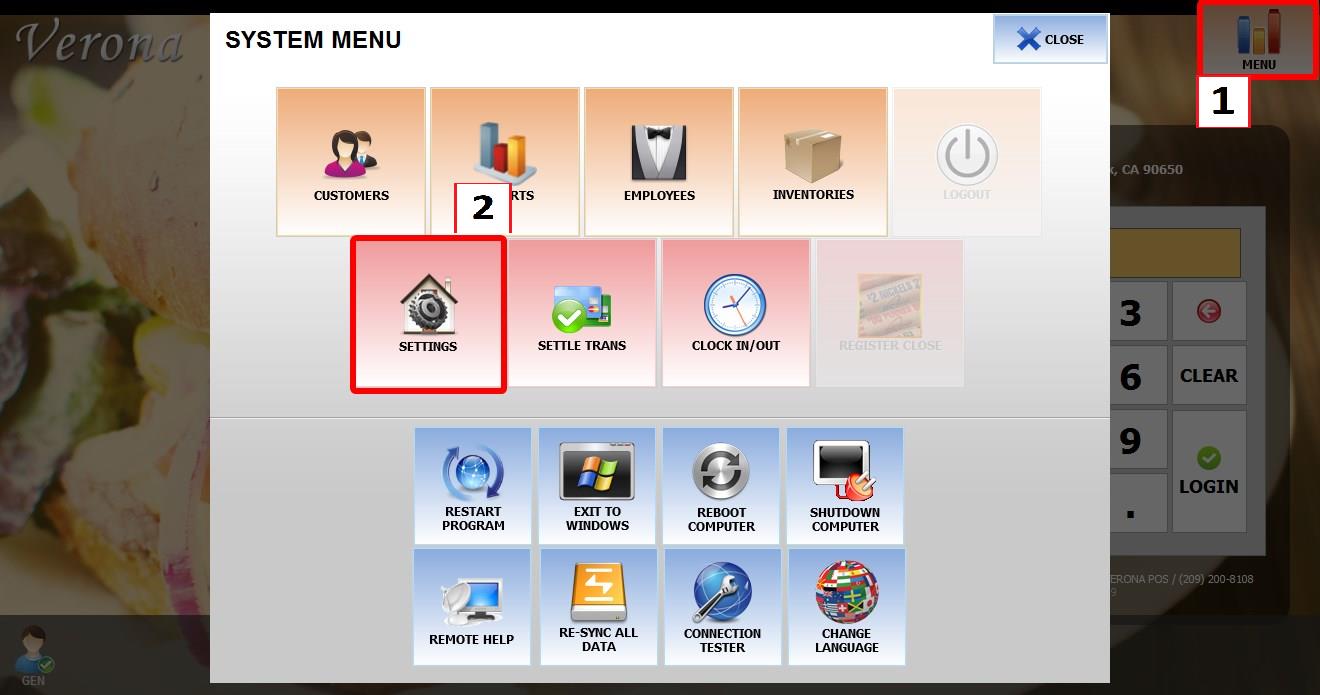
Go to MENU, then SETTINGS.
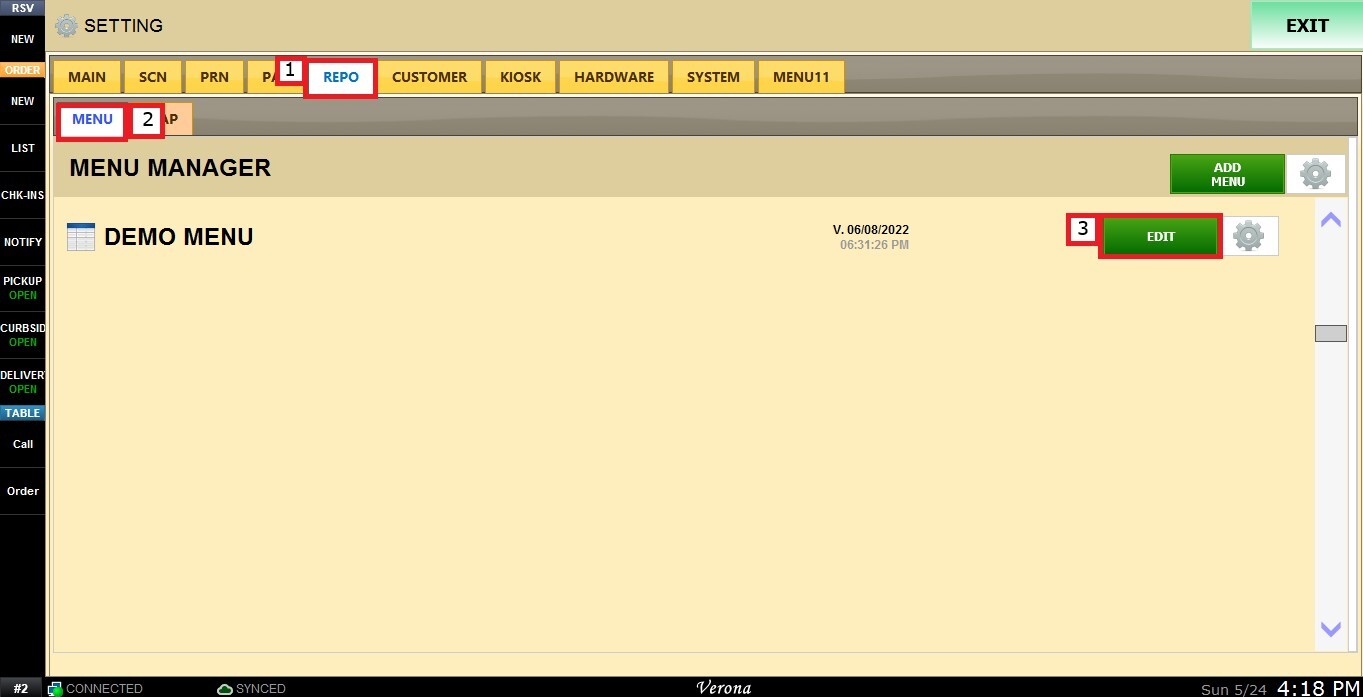
Open the REPO tab, select MENU to locate your menu, and click EDIT.

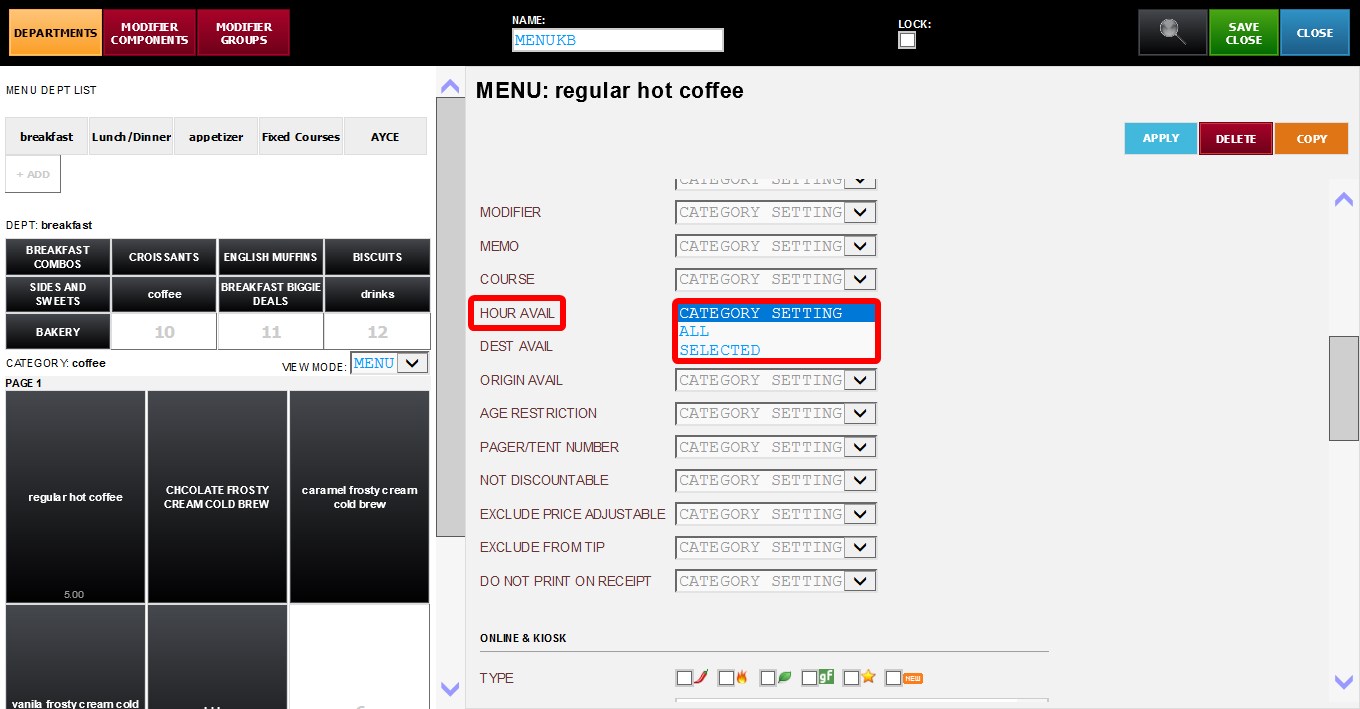
Select the item you want to configure. Scroll down through the item settings until you find the HOUR AVAILABILITIES dropdown menu.
By default, the item will use Category Settings, meaning the item follows the Hour availability configuration assigned to the entire category.
To learn how the category-level Hour availability assignment works, refer to the Category Hour Availability guide
CUSTOM ITEM HOUR AVAILABILITY OPTIONS
1. ALL: The item will remain available during all configured operating hours.
2. SELECTED: Allows you to assign specific Hour Availability schedules to the item.
USING SELECTED HOUR AVAILABILITIES
If set to SELECTED, a list of configured Hour Availability labels will appear for selection.
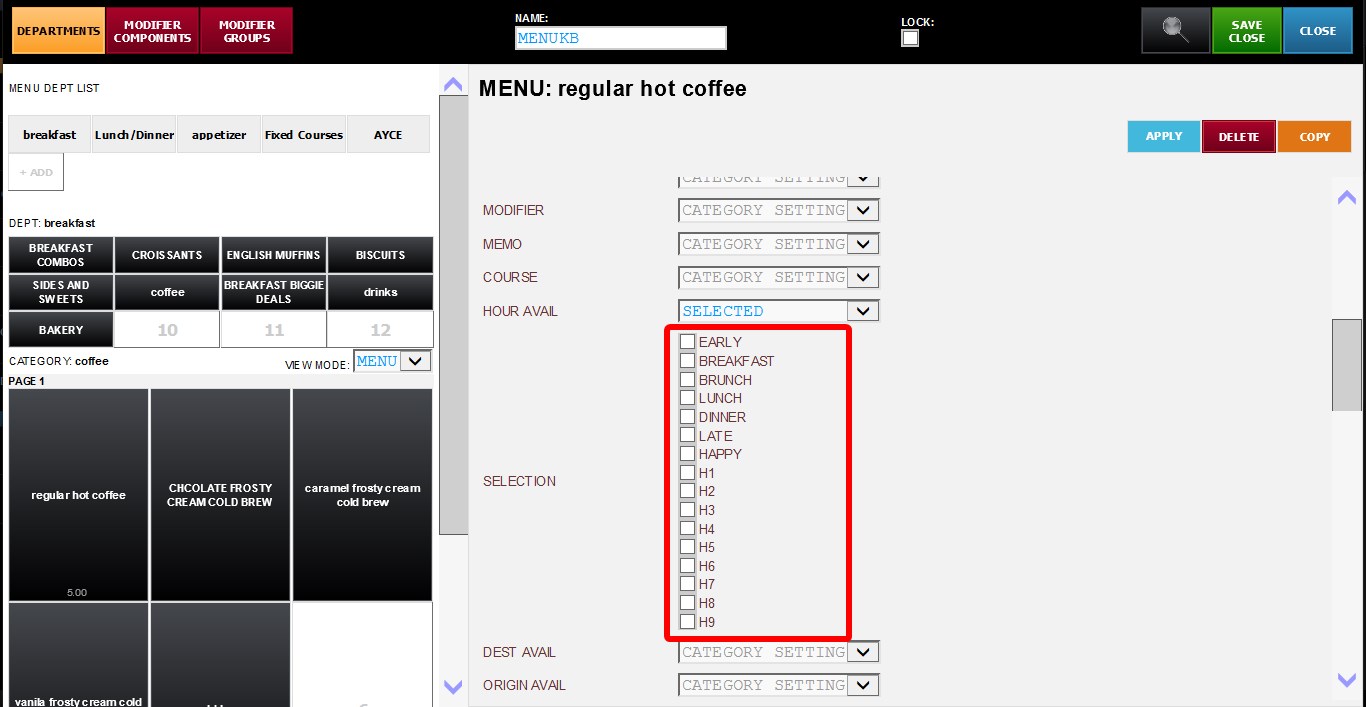
Before using this option, make sure the schedules and time ranges have already been configured. Refer to the Serving Hours Settings guide for setup instructions.
After configuring the desired settings, click APPLY, then SAVE & CLOSE to apply the changes. 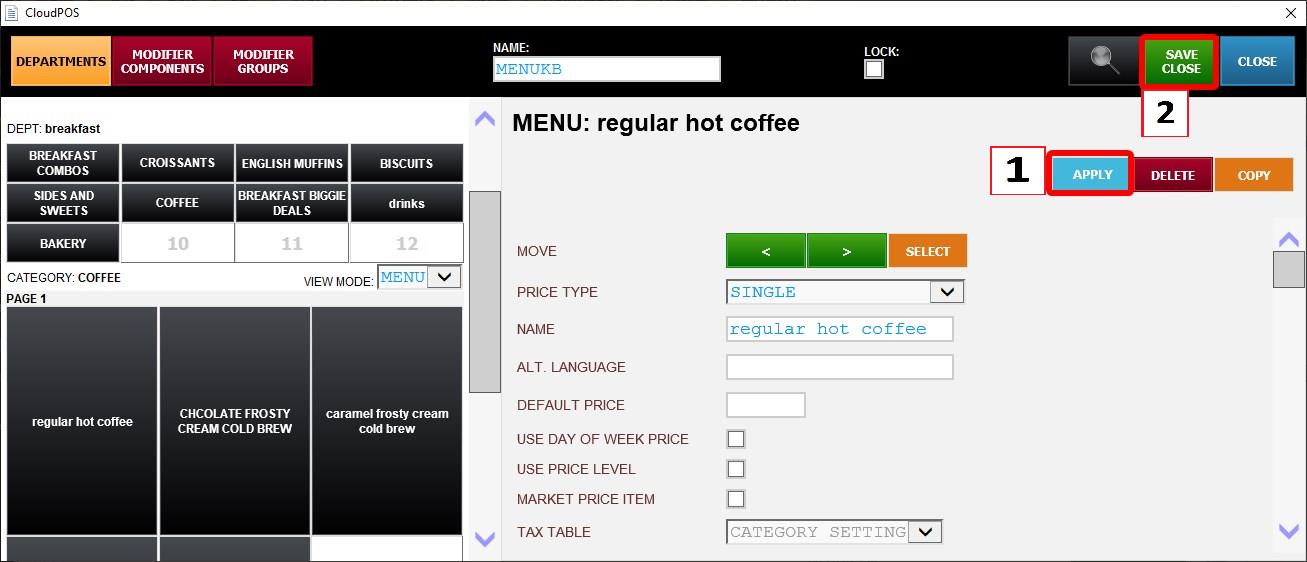
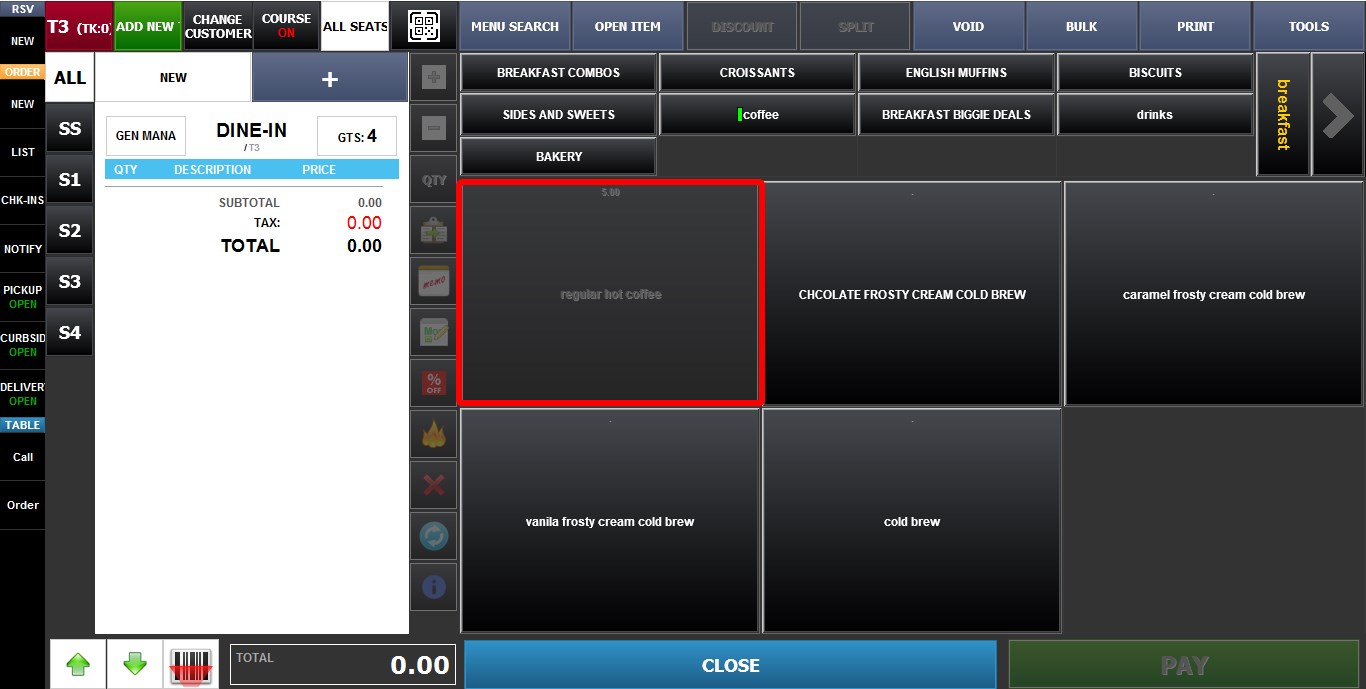
If an item is outside of its configured available hours, the item will appear dimmed and will not be available for ordering.