Tickets
The Tickets report displays all tickets processed within a selected date range. From here, a ticket can be selected to view its full details, filtered to locate a specific ticket, and reprinted or reviewed through its logs if needed.
MAIN SCREEN> MENU> REPORTS> SALES> TICKETS
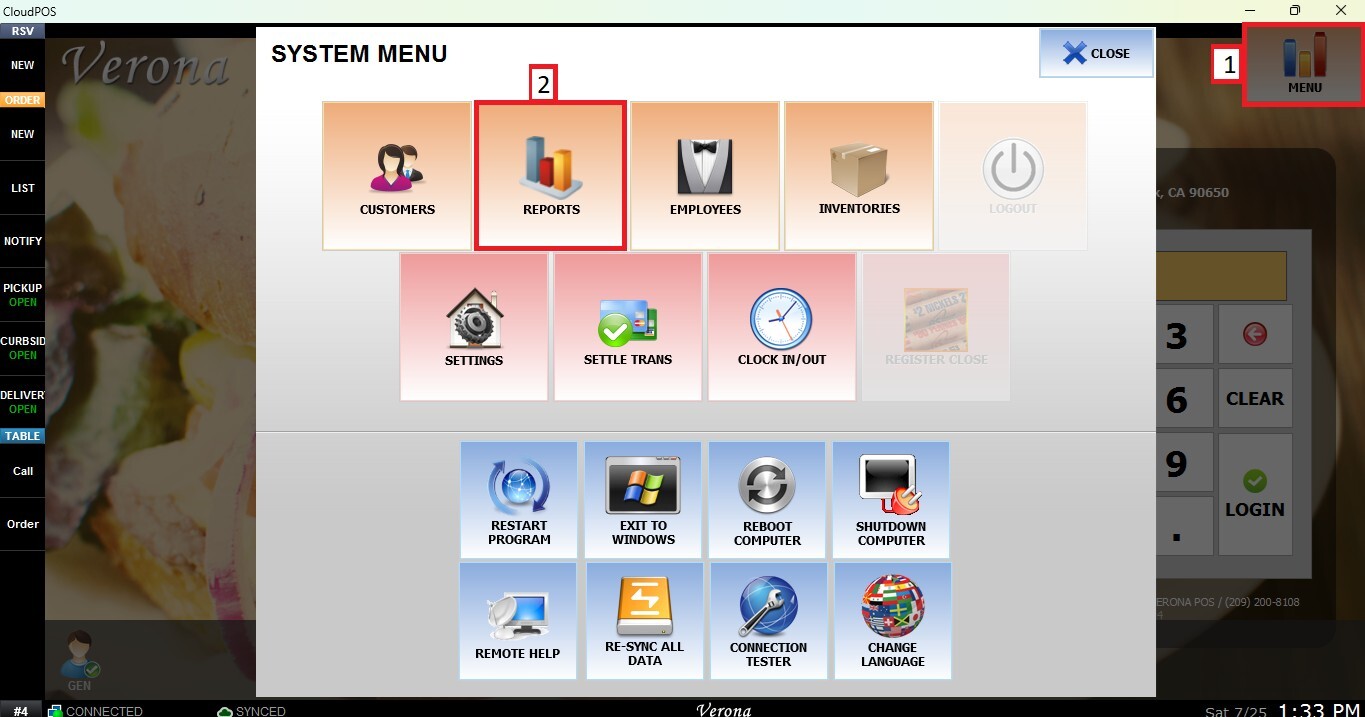
From the Main Screen, go to MENU, then select REPORTS.
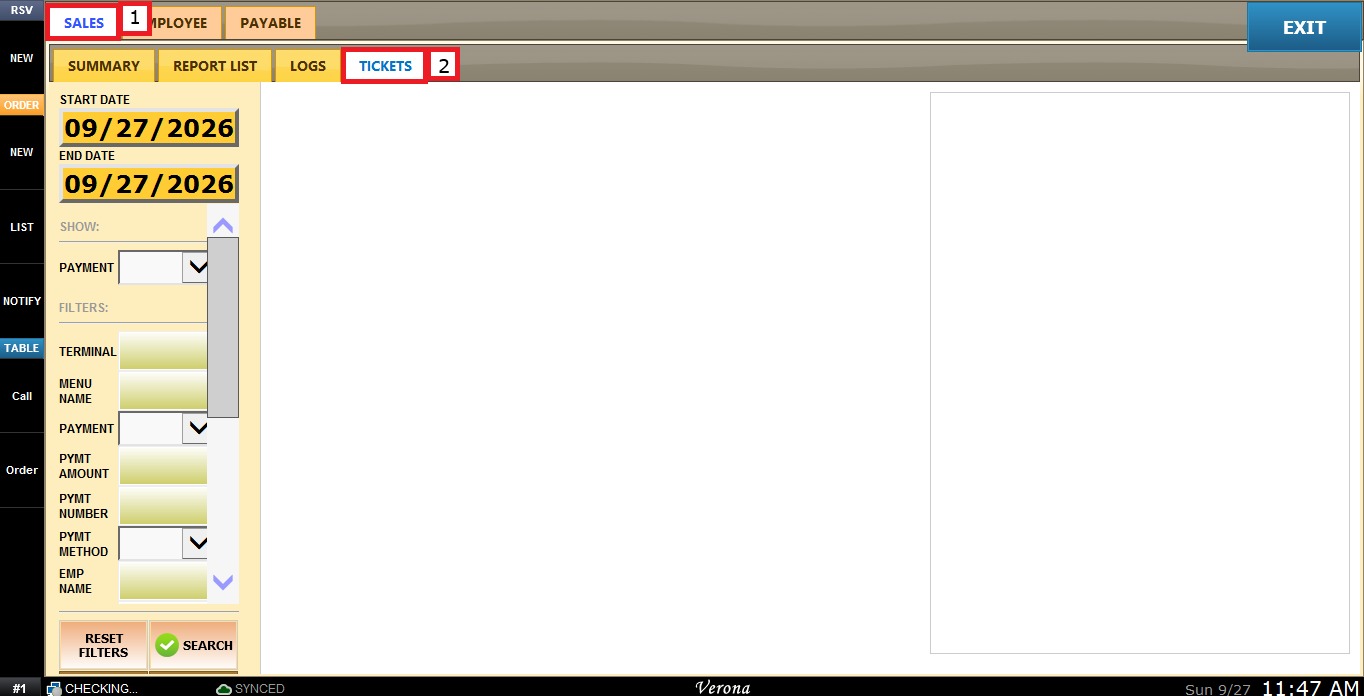
Under the SALES tab, select TICKETS.
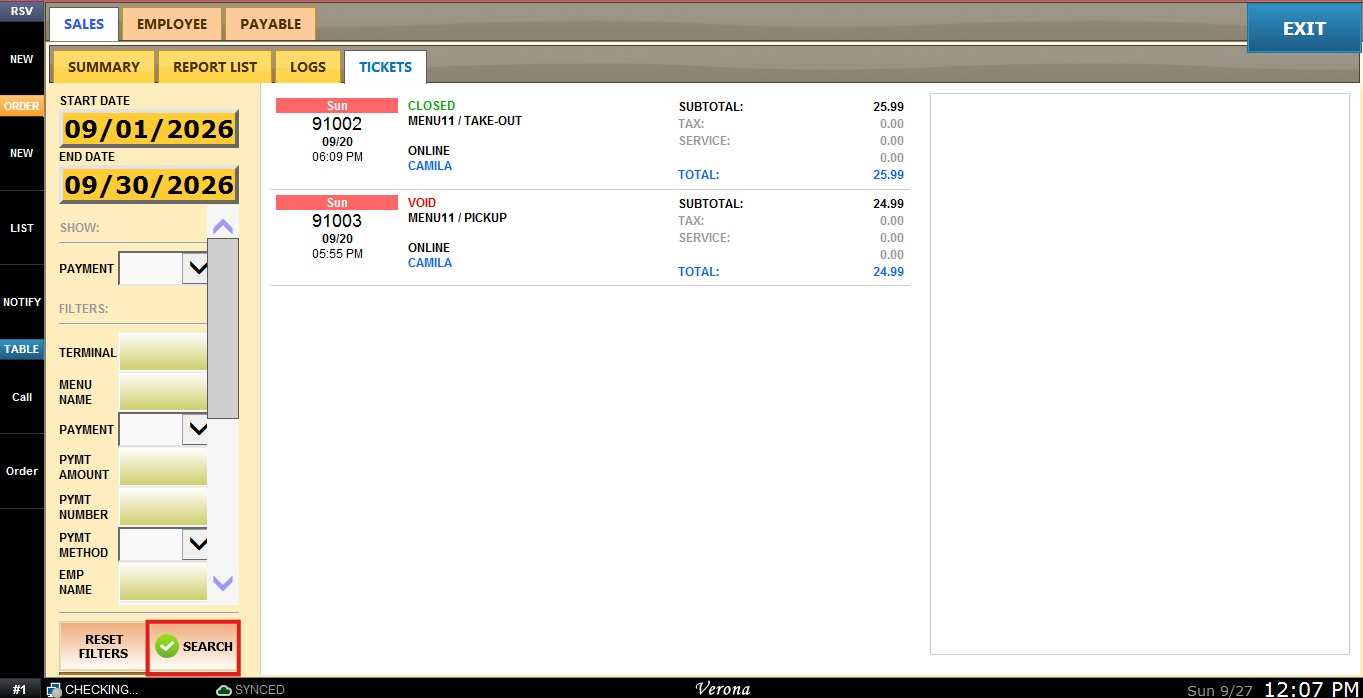
Click on SEARCH to display the ticket list.
The ticket list displays each ticket with its status, date, ticket number, order type, source, customer name, and a subtotal/tax/service/total breakdown.
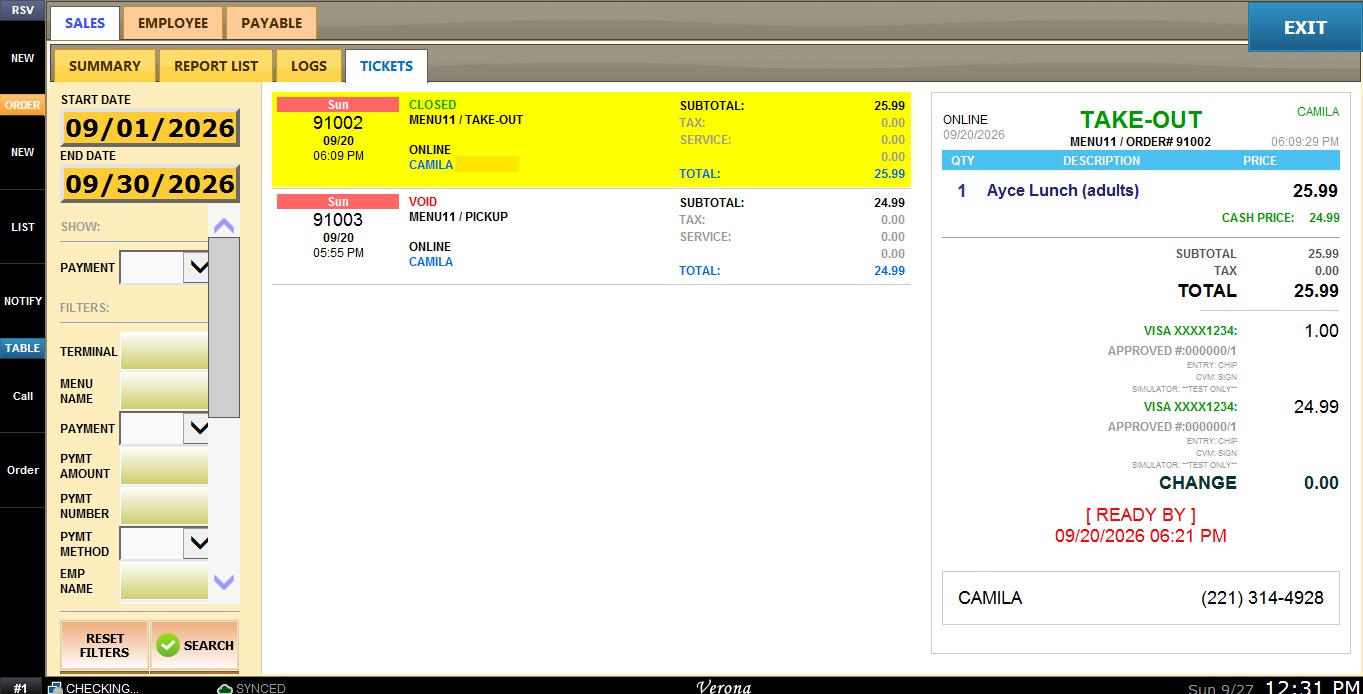
Selecting a ticket highlights it and opens its full details in the panel on the right, including items ordered, pricing, payment method used, ready-by time (if applicable), and customer contact information.
Filters and Buttons
Use the panel on the left side to customize how the report is displayed.
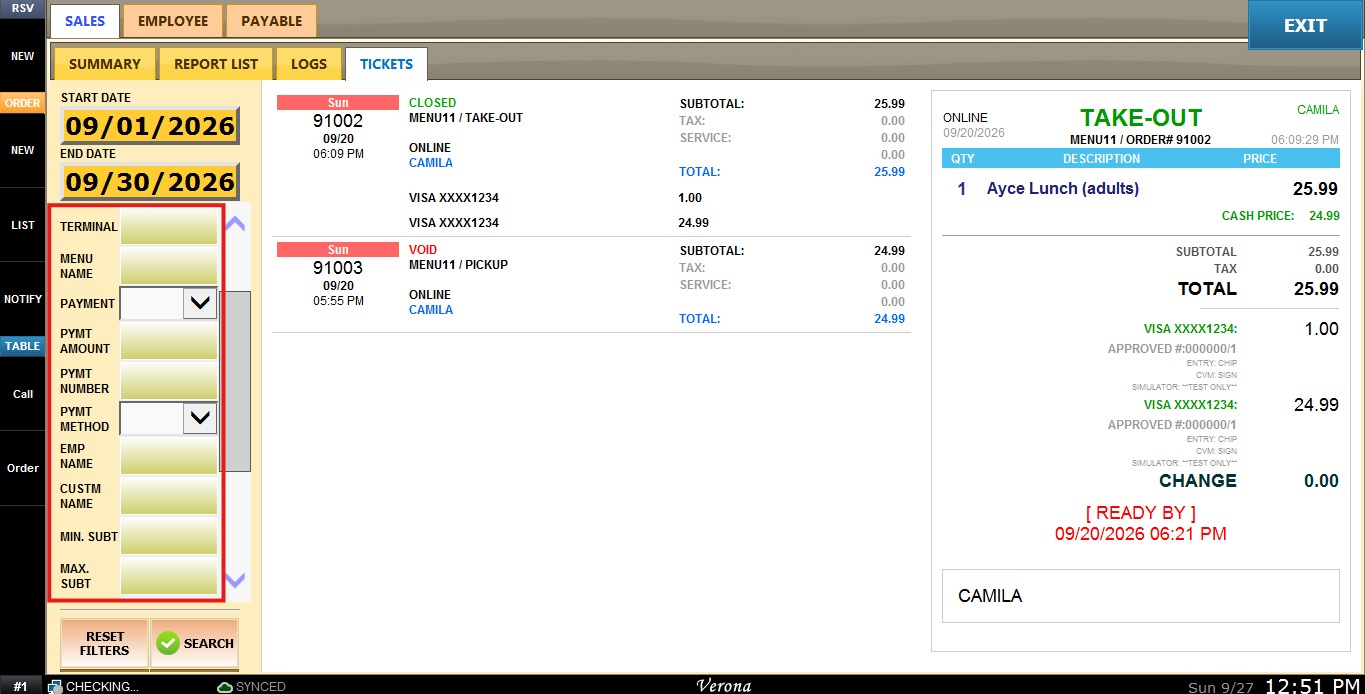
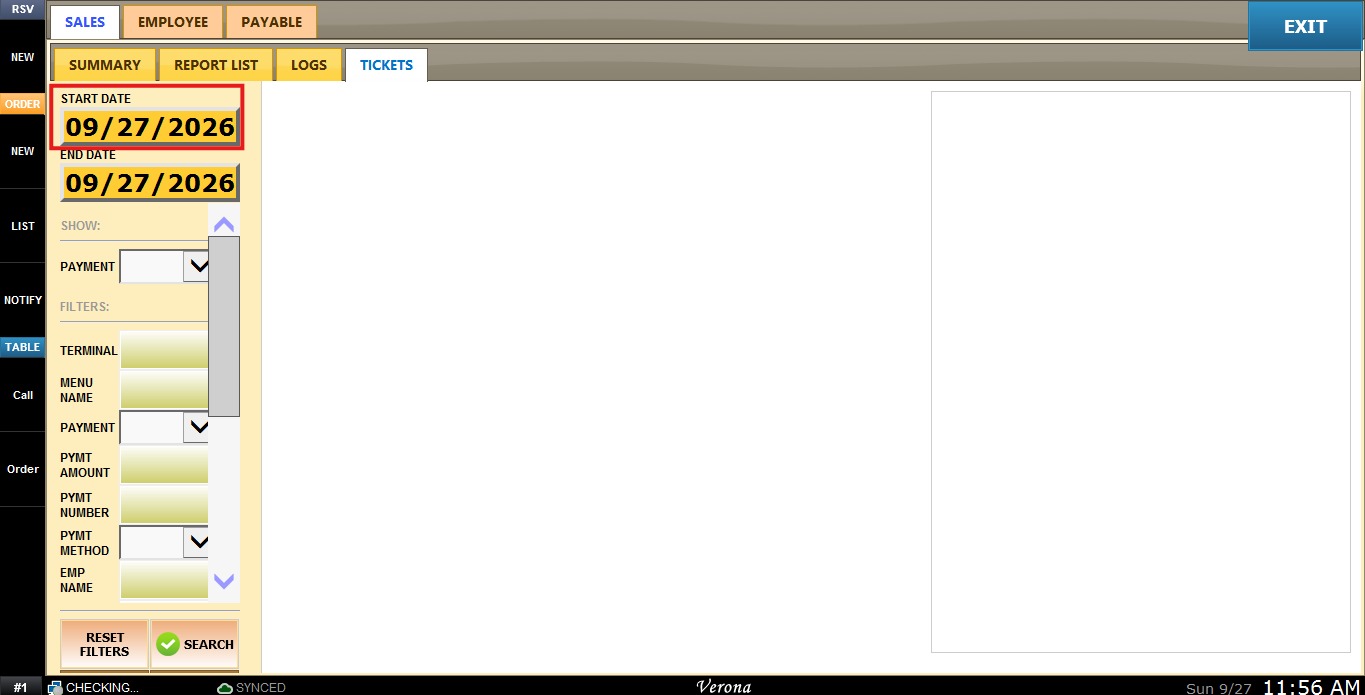
1. Custom Date Range: Allows the user to review tickets within a specific date range. Click the START field to open a calendar window.
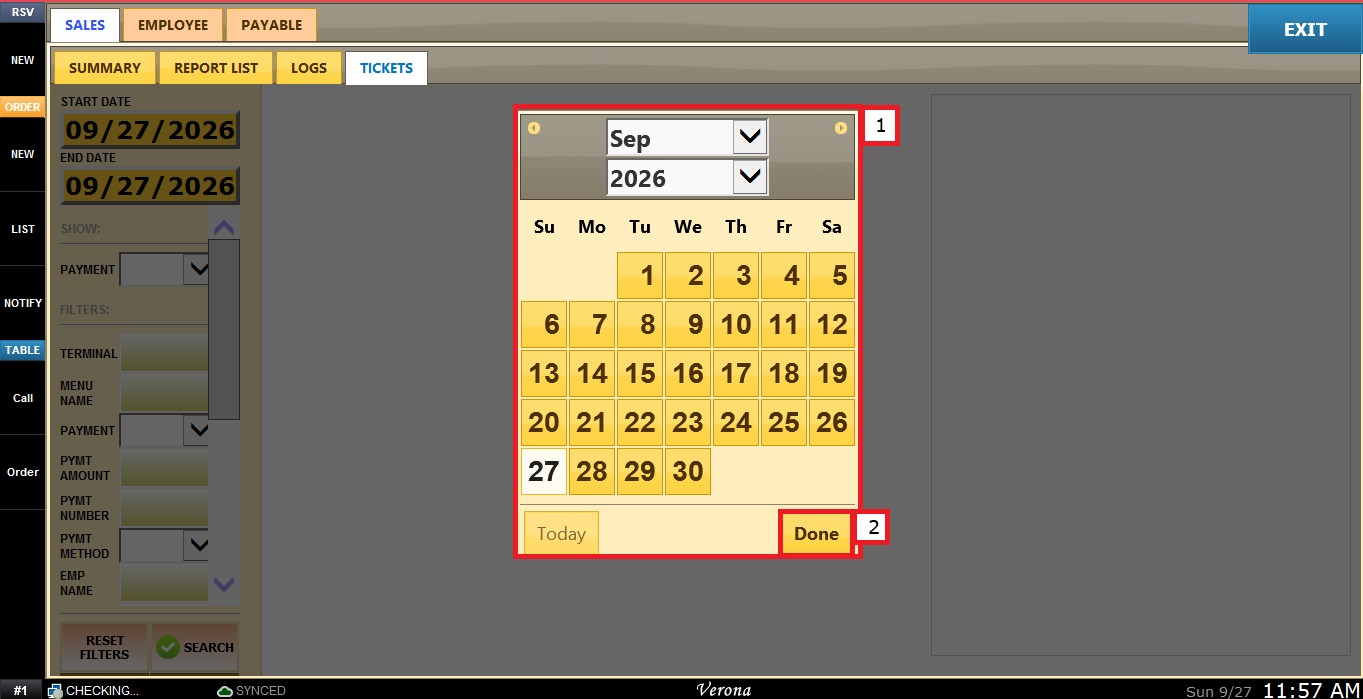
Select the desired day, month, and year, then click DONE.
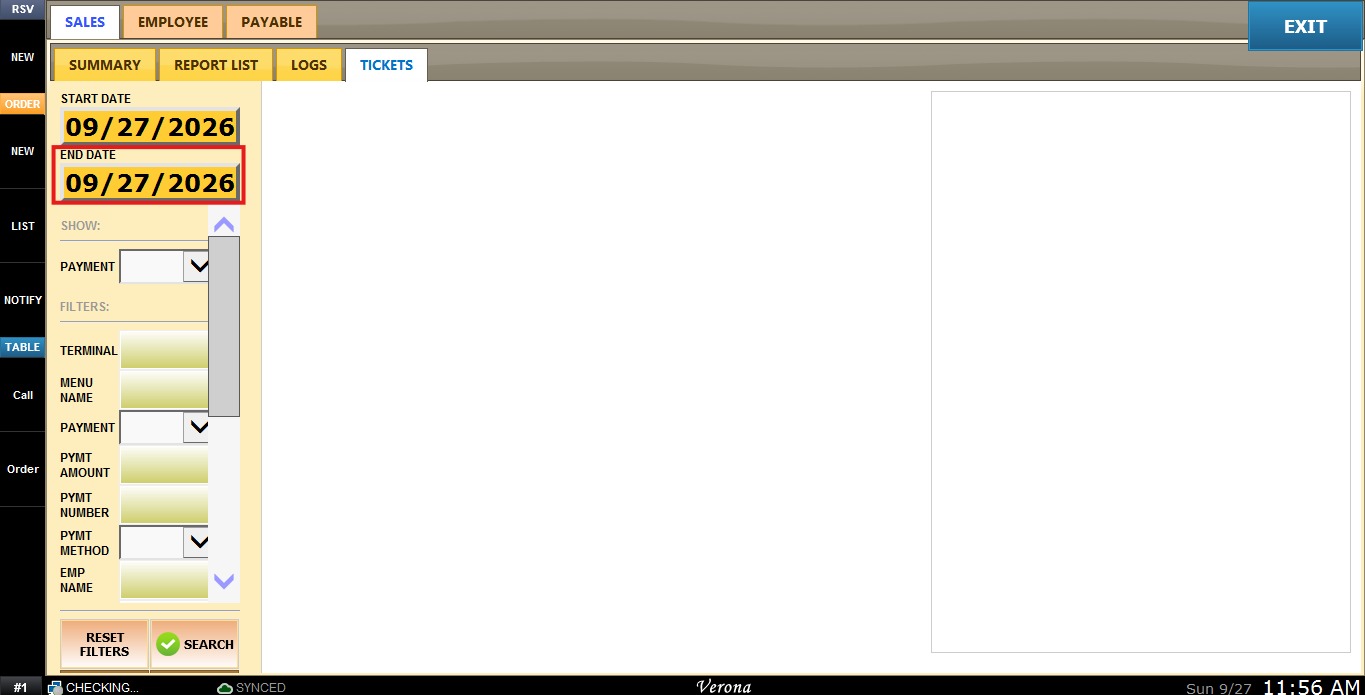
Repeat the same process using the END field to select the ending date.
2. Show Payment: When set to SHOW, each ticket in the list displays its individual payment method line (e.g., VISA, amount charged) beneath the ticket total, without needing to click into the ticket.
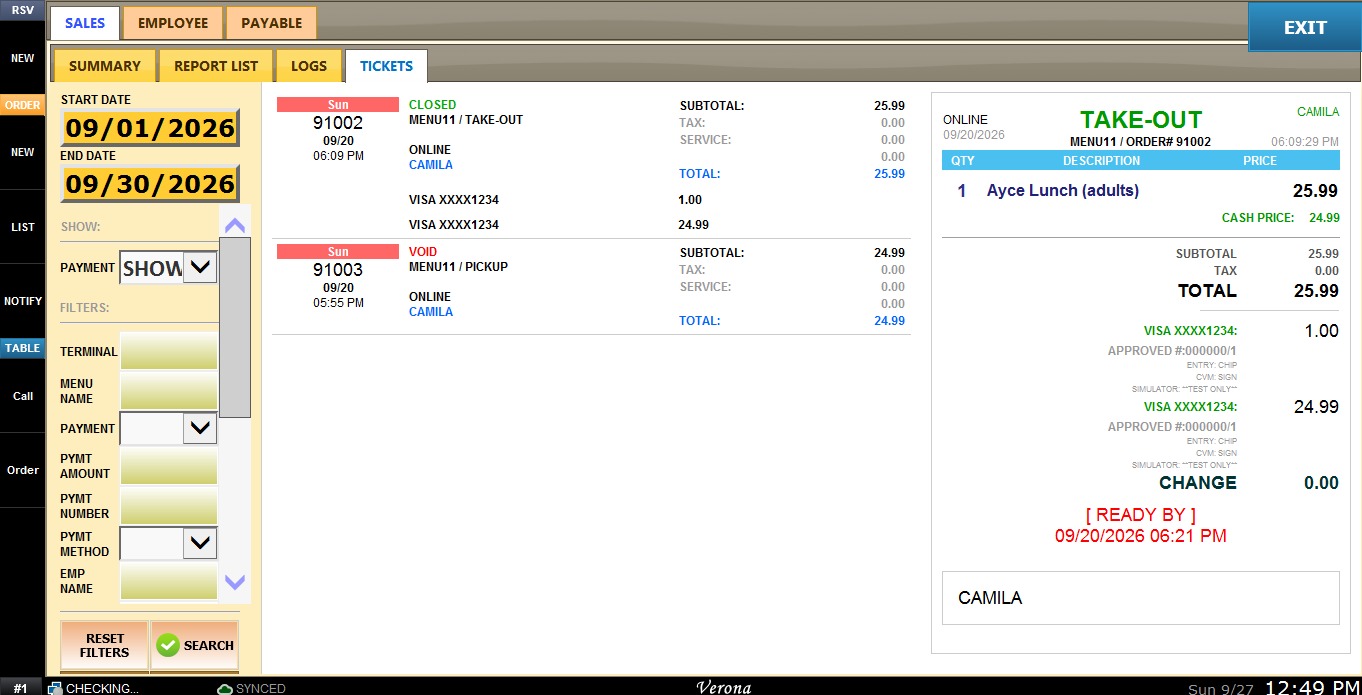
3. TERMINAL: Filters tickets by the terminal number they were processed on.
4. MENU NAME: Filters tickets that contain a specific item, by entering the item's menu name.
5. PAYMENT: Filters tickets by payment method.
6. PYMT AMOUNT: Filters tickets by a specific payment amount entered.
7. PYMT NUMBER: Filters tickets by the approval code of the payment.
8. PYMT METHOD: Filters tickets by whether the payment was made online or offline.
9. EMP NAME: Filters tickets by the employee who processed the sale.
10. CUSTM NAME: Filters tickets by customer name.
11. MIN. SUBT / MAX. SUBT: Filters tickets by setting a minimum and maximum subtotal threshold. Tickets that fall within that range will be displayed.
12. MIN. TIP / MAX. TIP: Filters tickets by setting a minimum and maximum tip threshold, following the same logic as MIN./MAX. SUBT.
13. DISCOUNT: Filters tickets that had a discount applied, when set to YES.
14. TAX: Filters tickets by whether tax was applied or not.
15. RETURN: Filters tickets that were returned.
16. STATUS: Filters tickets by status, such as Closed or Voided.
View
After configuring the desired filters, click SEARCH to refresh the ticket list based on the filters currently applied or RESET FILTER to clear all applied filters.
Ticket Actions
With a ticket selected, click TICKET ACTIONS to open the Select Your Choice window.
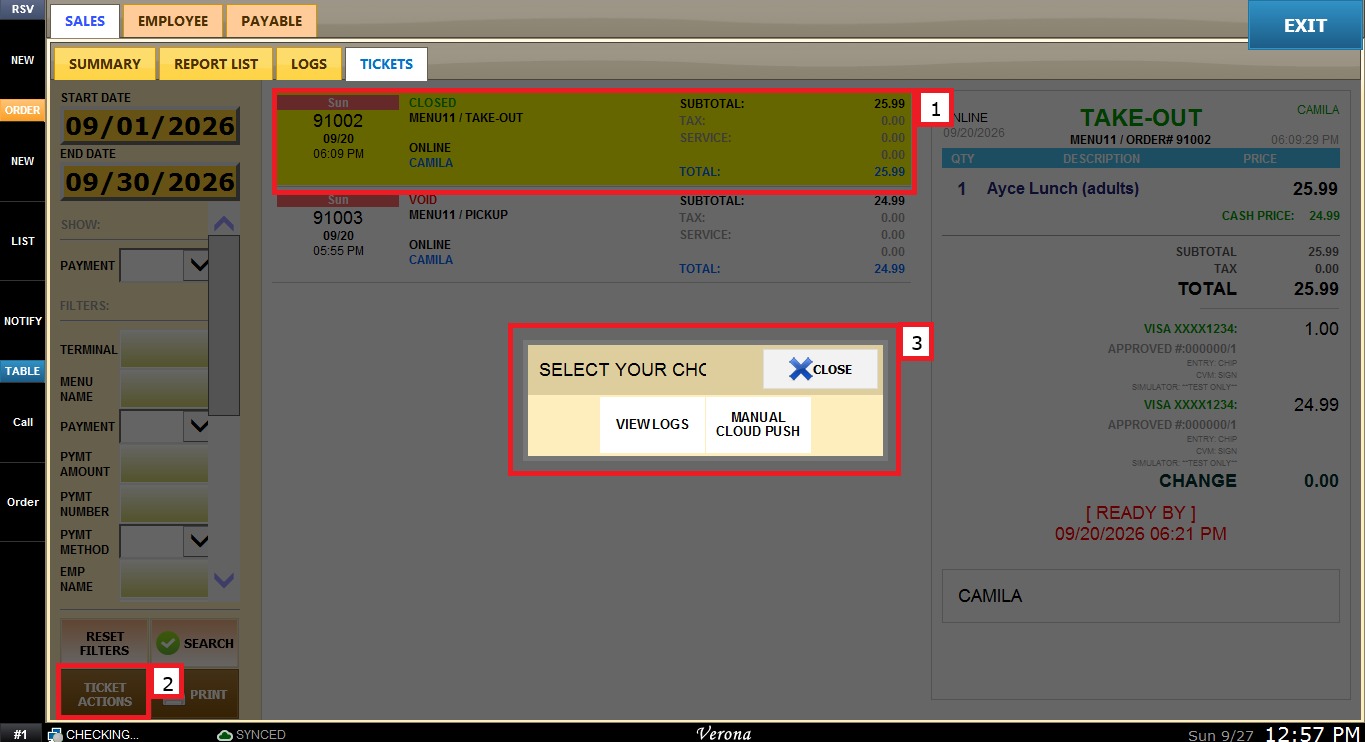
1. VIEW LOGS: Displays the activity log for that ticket, showing which user performed each action and at what time.
2. MANUAL CLOUD PUSH: Forces a resync of that specific ticket with the cloud.
With a ticket selected, click PRINT to open the Select Your Choice window.
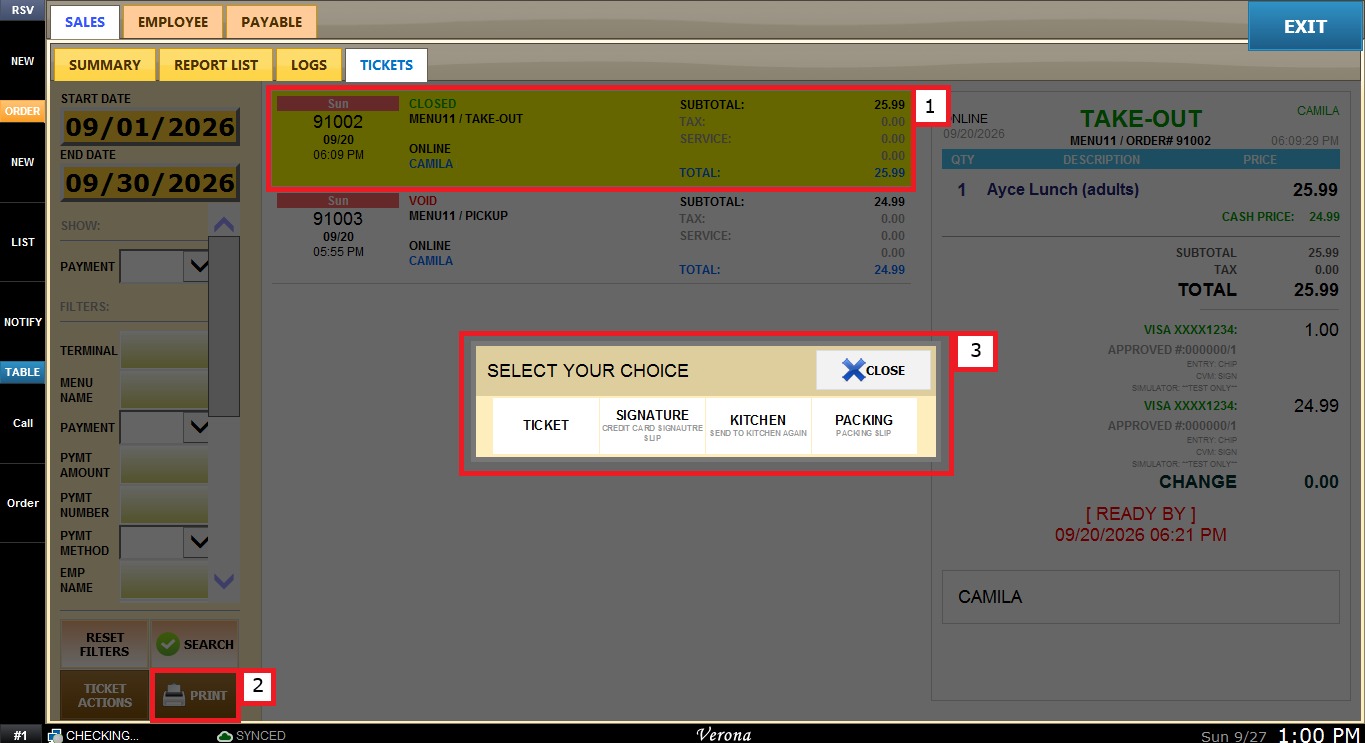
1. TICKET: Prints the selected ticket.
2. SIGNATURE: Prints the credit card signature slip.
3. KITCHEN: Sends the ticket to the kitchen again.
4. PACKING: Prints the packing slip.