Body
The Receipt Body Configuration allows you to customize the receipt printout. These settings determine the final appearance and content of receipts issued to customers.
MENU> SETTINGS> PRINT> RECEIPT> BODY
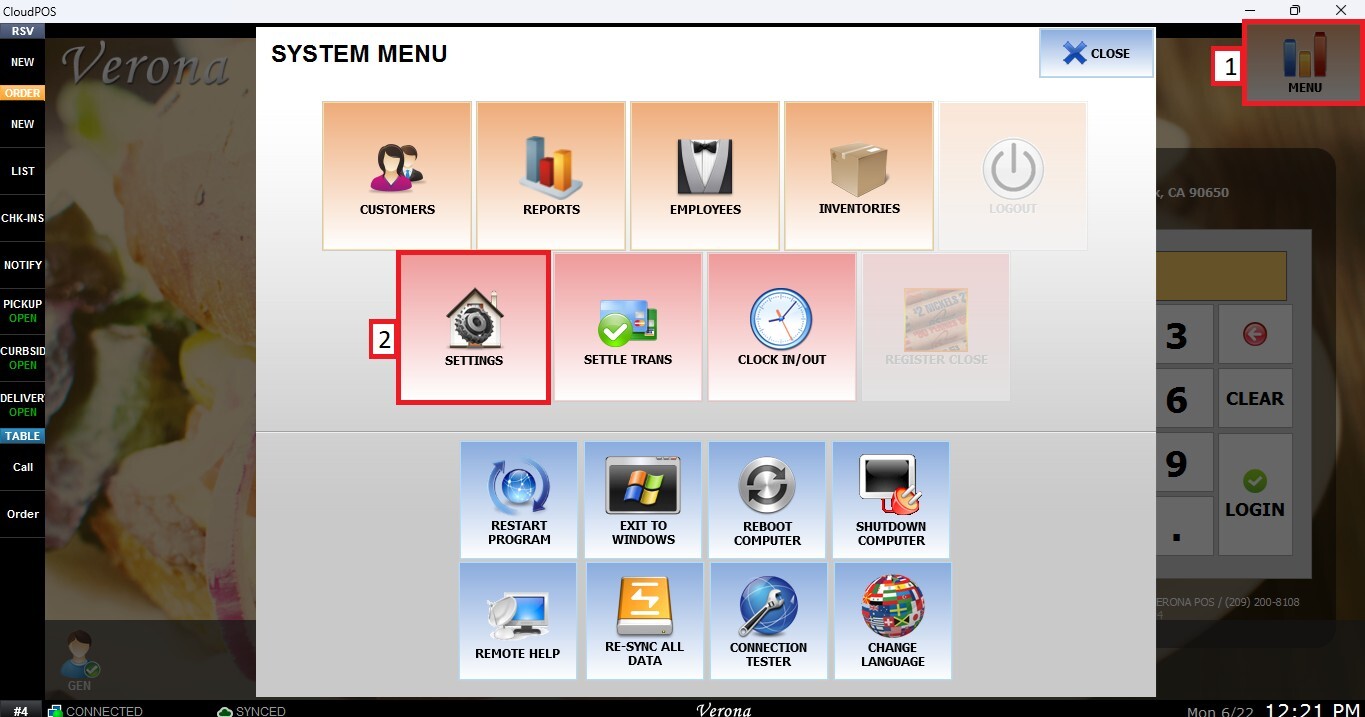
From the MAIN SCREEN, click MENU, then select SETTINGS.
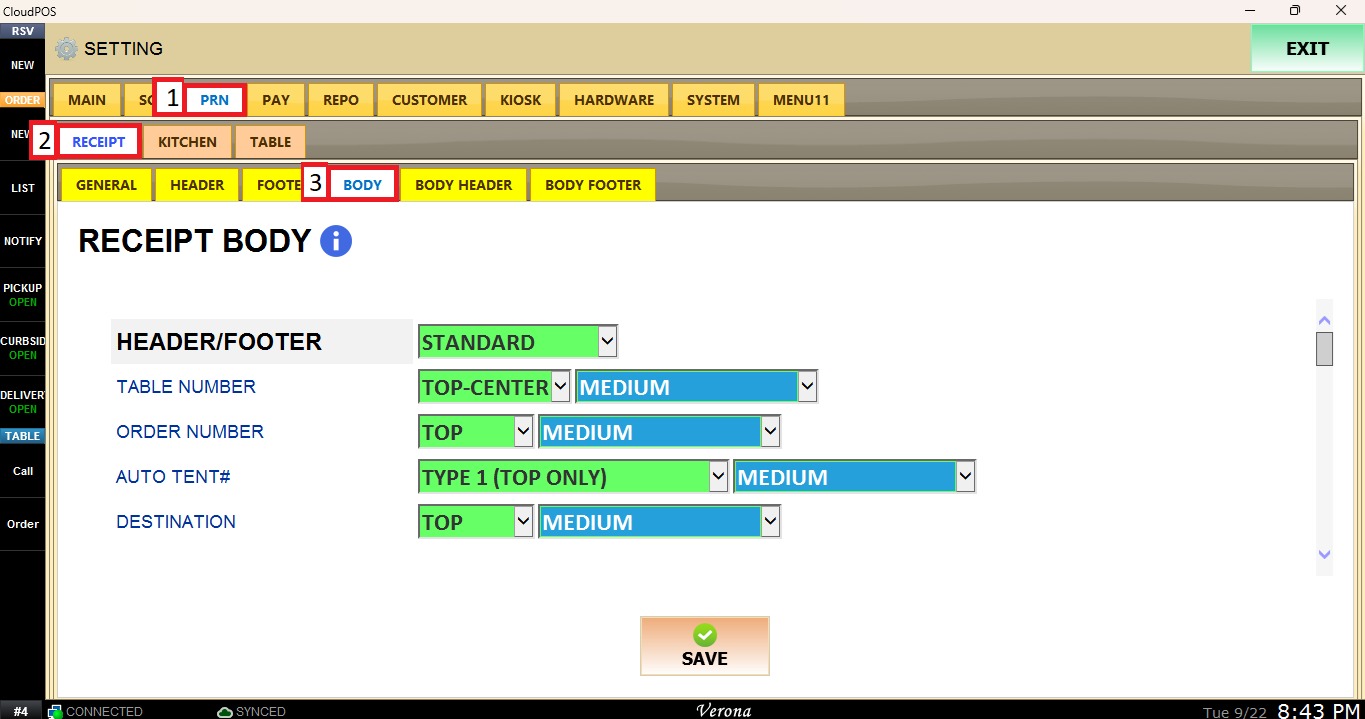
Navigate to the PRINT tab, then select RECEIPT and click BODY.
HEADER / FOOTER
Controls the header and footer layout style on the receipt.
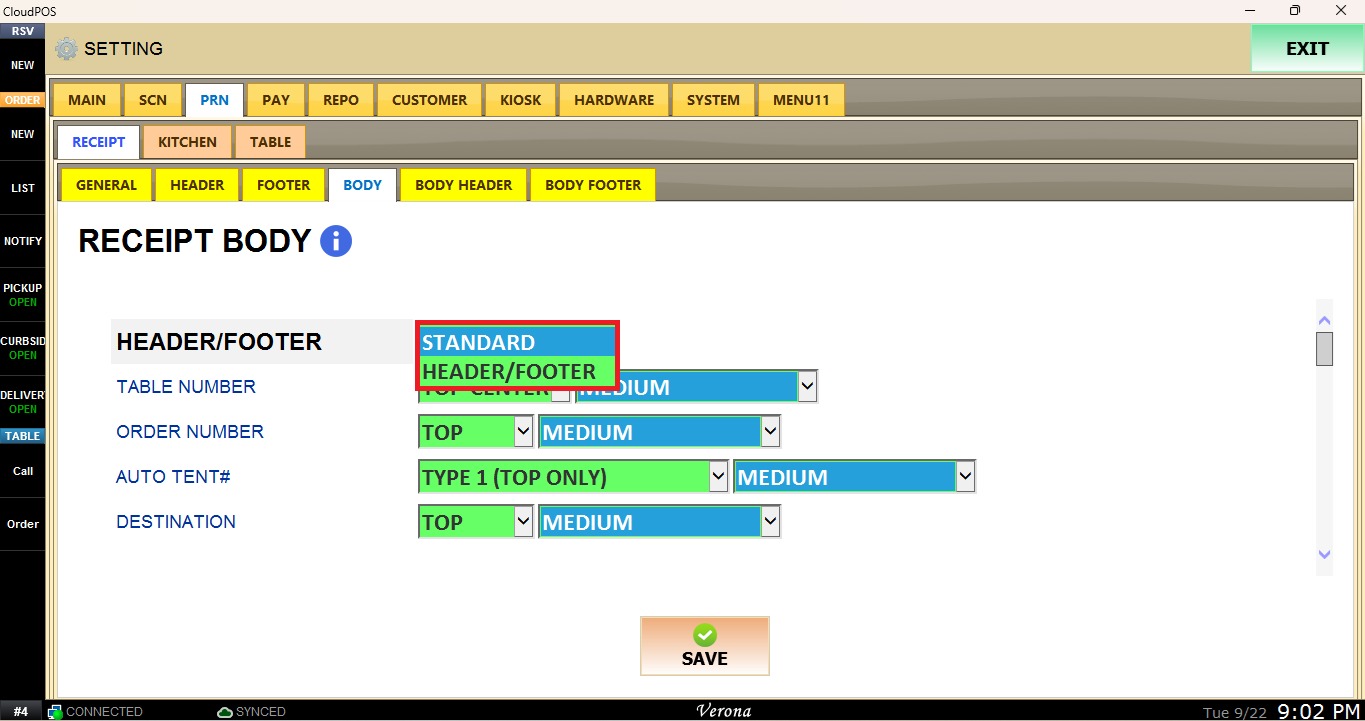
On the dropdown Menu:
STANDARD: Uses the standard header and footer format.
HEADER / FOOTER: Uses the customize layout.
TABLE NUMBER
Controls the display and position of the table number on the receipt.
On the first dropdown Menu:
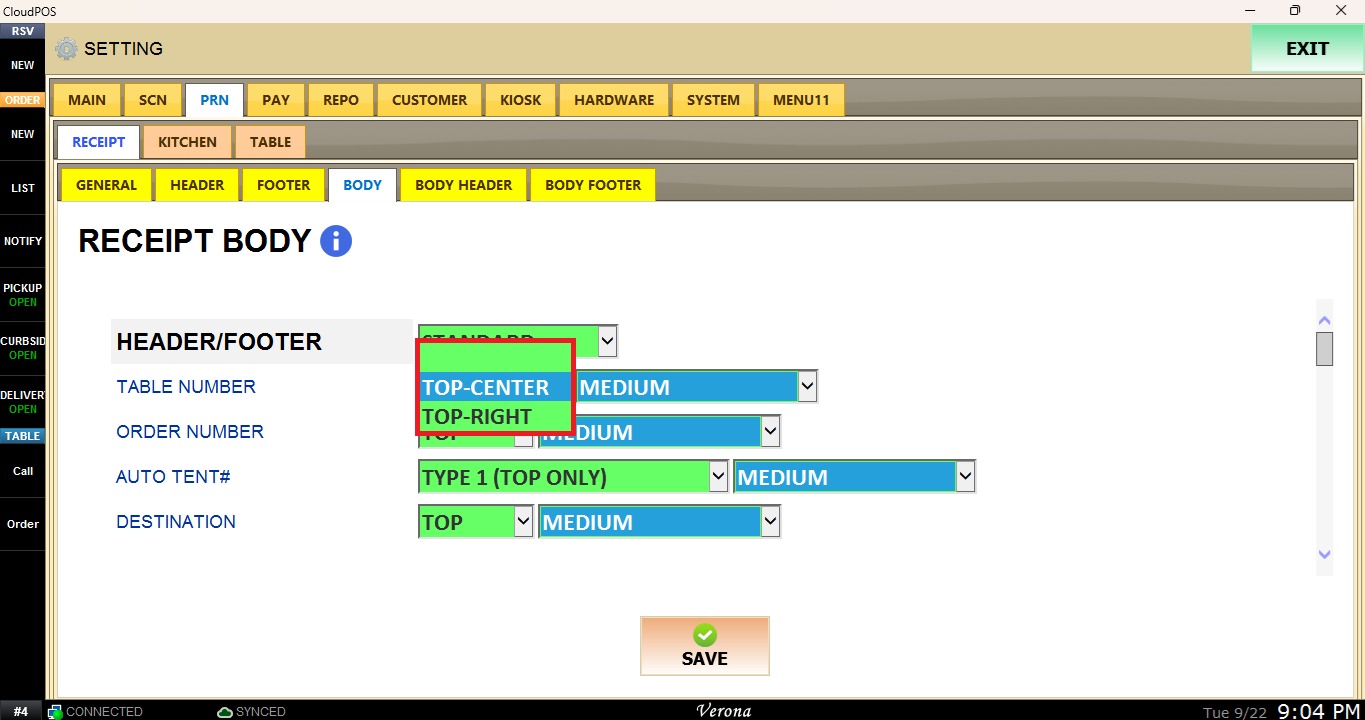
NOTHING: Does not display the table number.
TOP-CENTER: Displays the table number at the top-center of the receipt.
TOP-RIGHT: Displays the table number in the top-right corner.
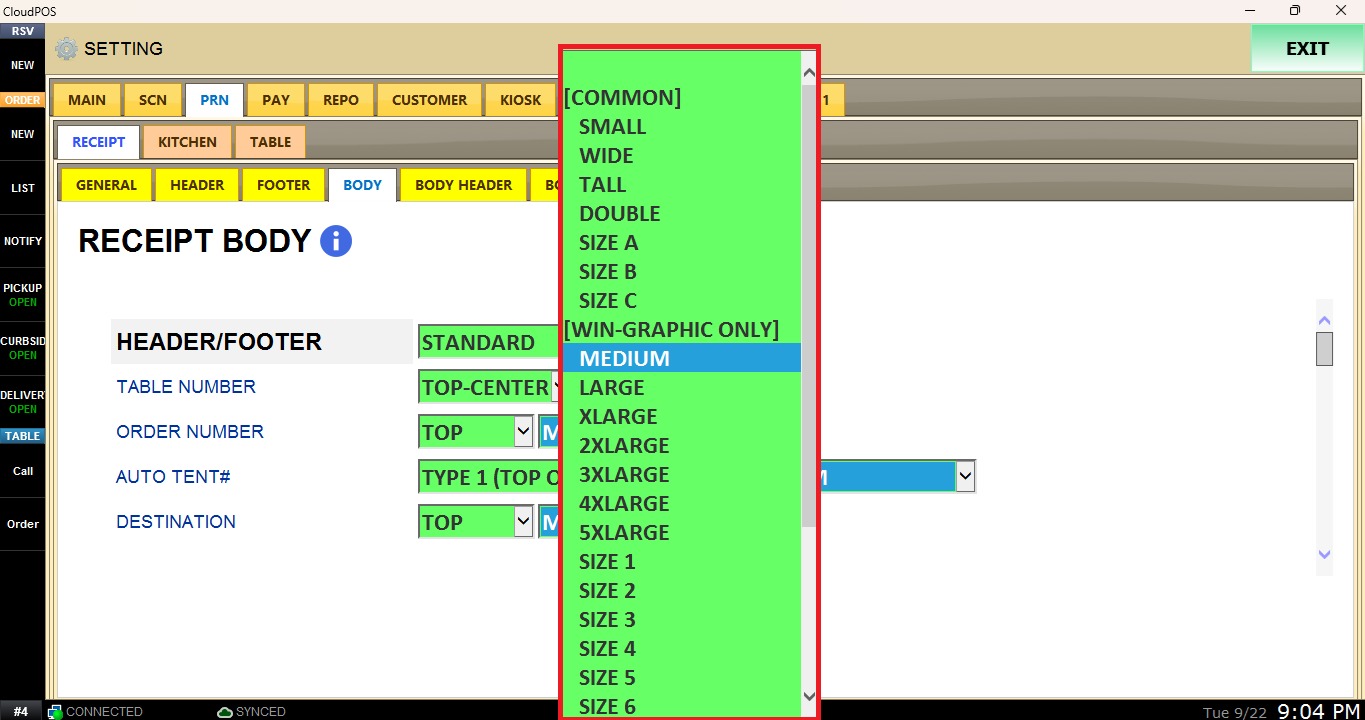
On the second dropdown menu, select the font size for the table number text.
ORDER NUMBER
Controls the display and position of the order number on the receipt.
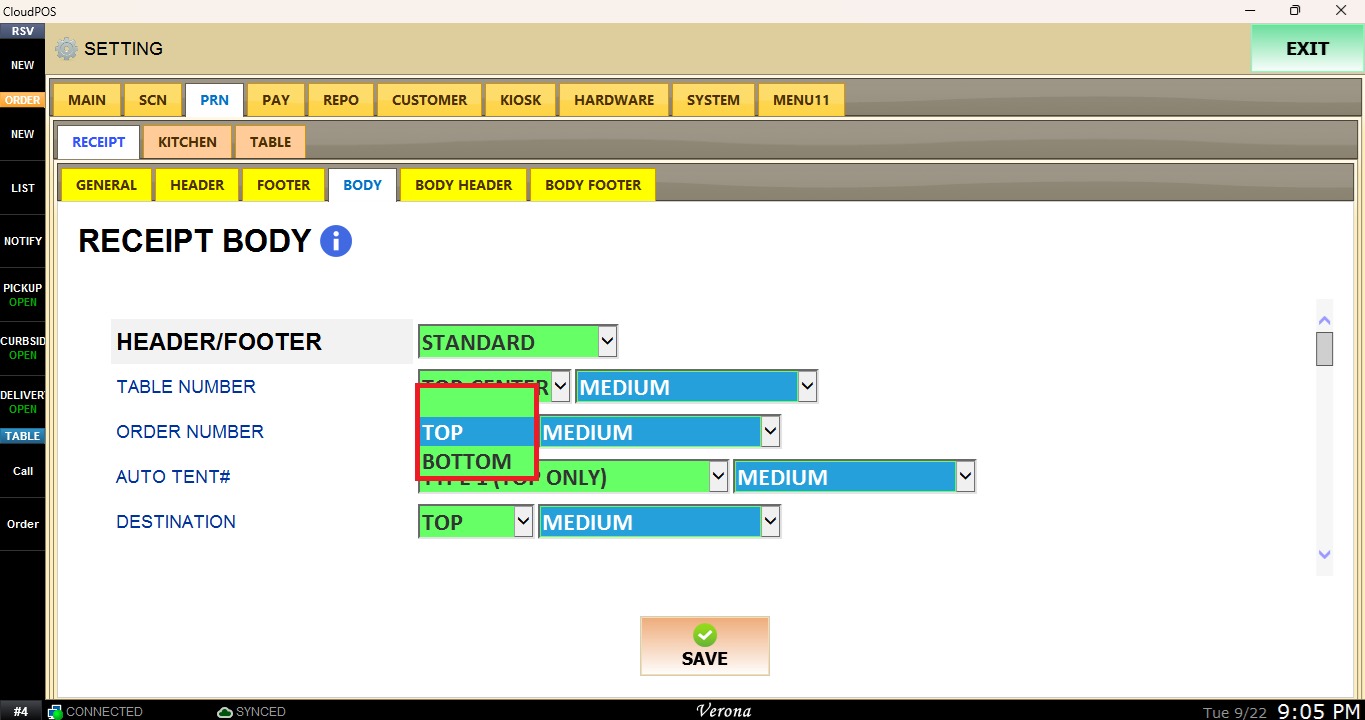
On the first dropdown Menu:
NOTHING: Does not display the order number.
TOP: Displays the order number at the top of the receipt.
BOTTOM: Displays the order number at the bottom of the receipt.
On the second dropdown menu, select the font size for the table number text.
AUTO TENT#
Controls the automatic table tent number display and placement on the receipt.
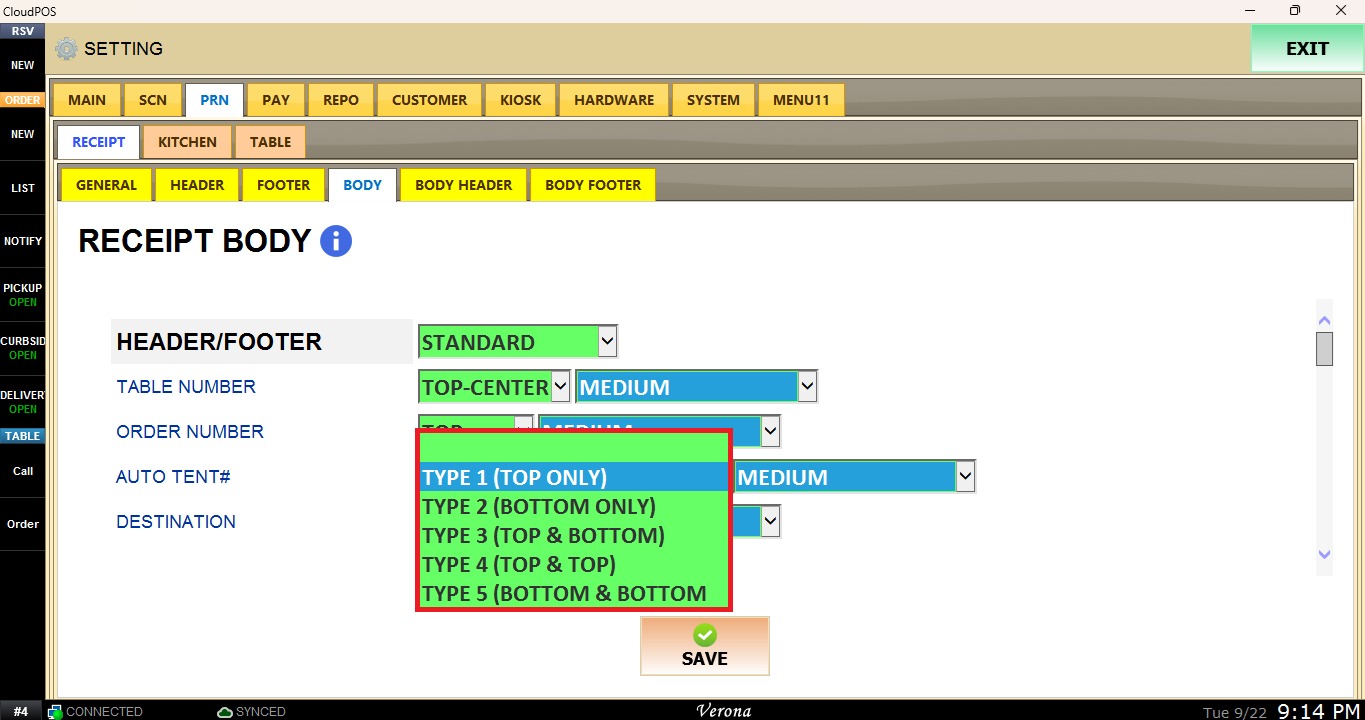
On the first dropdown Menu:
NOTHING: Does not display the table tent number.
TYPE 1 (TOP ONLY): Displays the table tent number at the top of the receipt.
TYPE 2 (BOTTOM ONLY): Displays the table tent number at the bottom of the receipt.
TYPE 3 (TOP AND BOTTOM): Displays the table tent number at both the top and bottom.
TYPE 4 (TOP AND TOP): Displays the table tent number twice at the top.
TYPE 5 (BOTTOM AND BOTTOM): Displays the table tent number twice at the bottom.
On the second dropdown menu, select the font size for the table number text.
DESTINATION
Controls the display and position of destination information on the receipt.
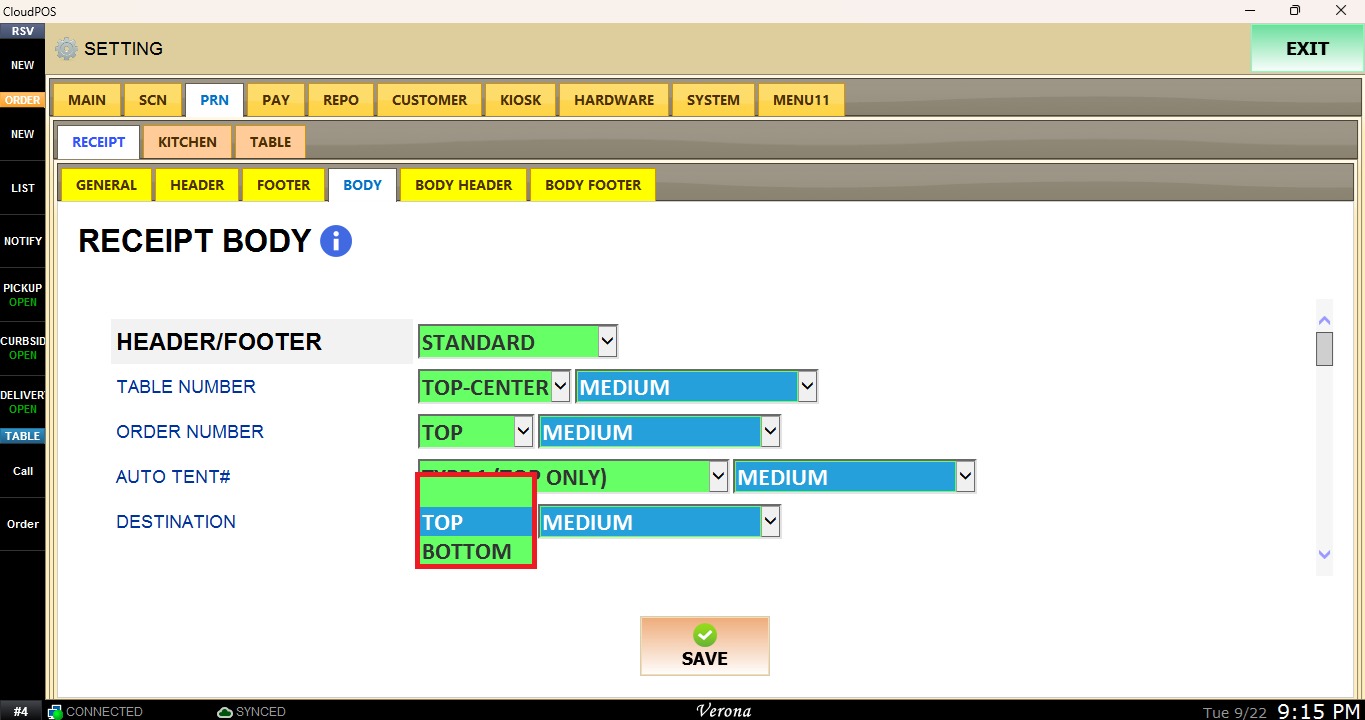
On the first dropdown Menu:
NOTHING: Does not display the destination.
TOP: Displays the destination at the top of the receipt.
BOTTOM: Displays the destination at the bottom of the receipt.
On the second dropdown menu, select the font size for the table number text.
TABLE TENT
Controls the table tent format and folding style.
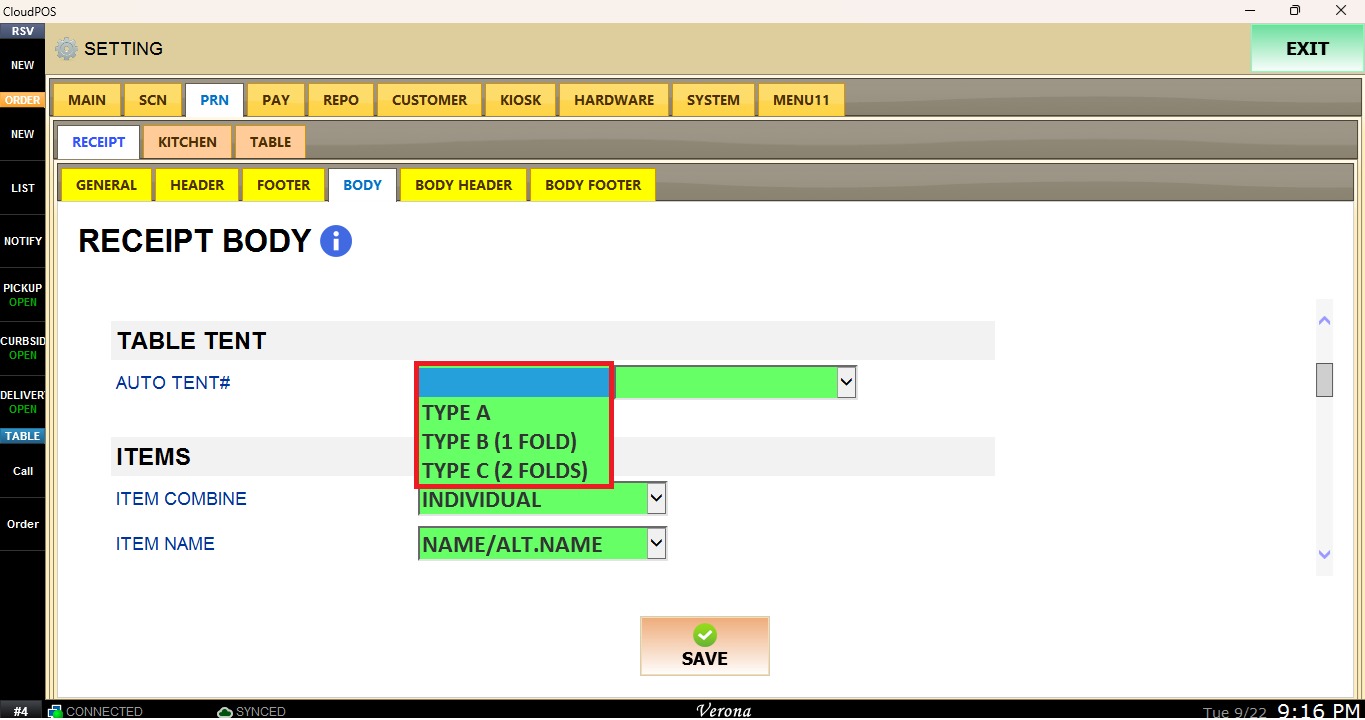
On the first dropdown Menu:
NOTHING: No table tent is generated.
TYPE A: Single-fold table tent.
TYPE B: Single-fold table tent.
TYPE C: Double-fold table tent.
On the second dropdown menu, select the font size for the table number text.
ITEMS
Item Combine
Controls how items are grouped and displayed on the receipt.
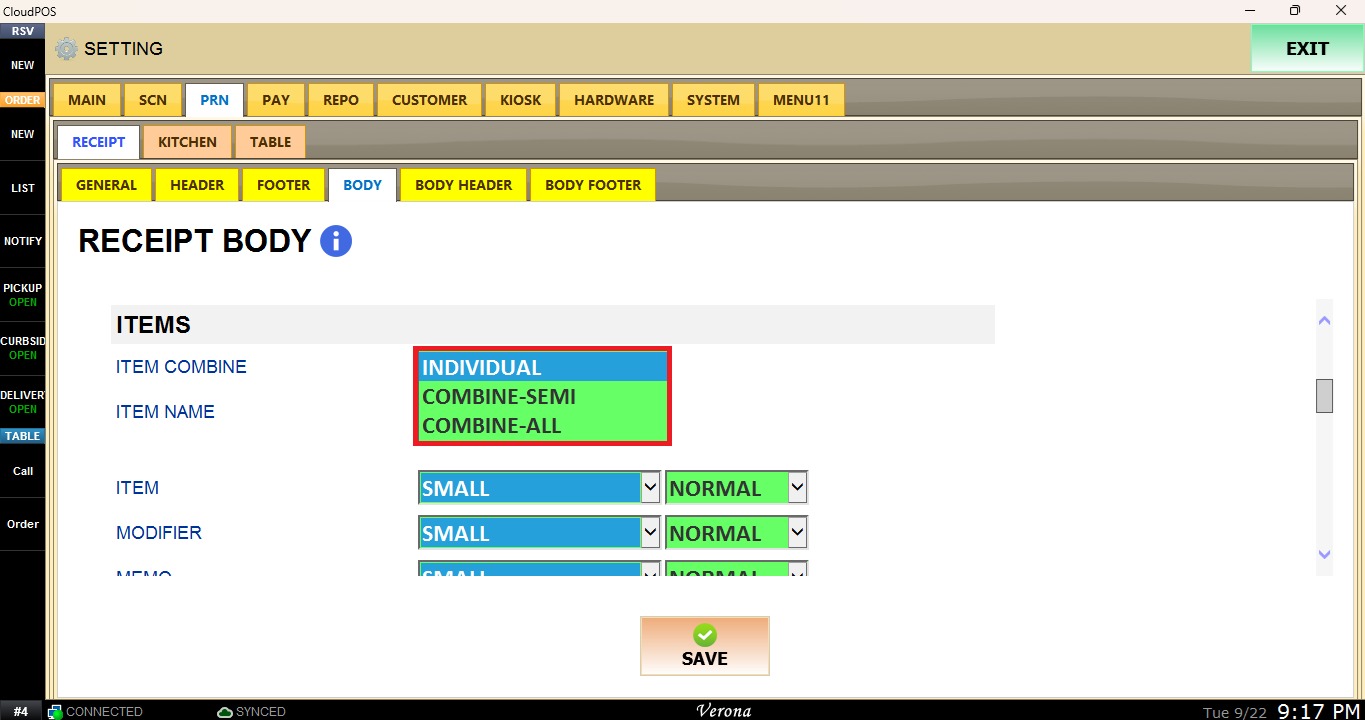
INDIVIDUAL: Lists each item separately.
COMBINE-SEMI: Partially combines similar items.
COMBINE-ALL: Combines items of the same type into a single line.
Item Name
Controls which item name is displayed on the receipt.
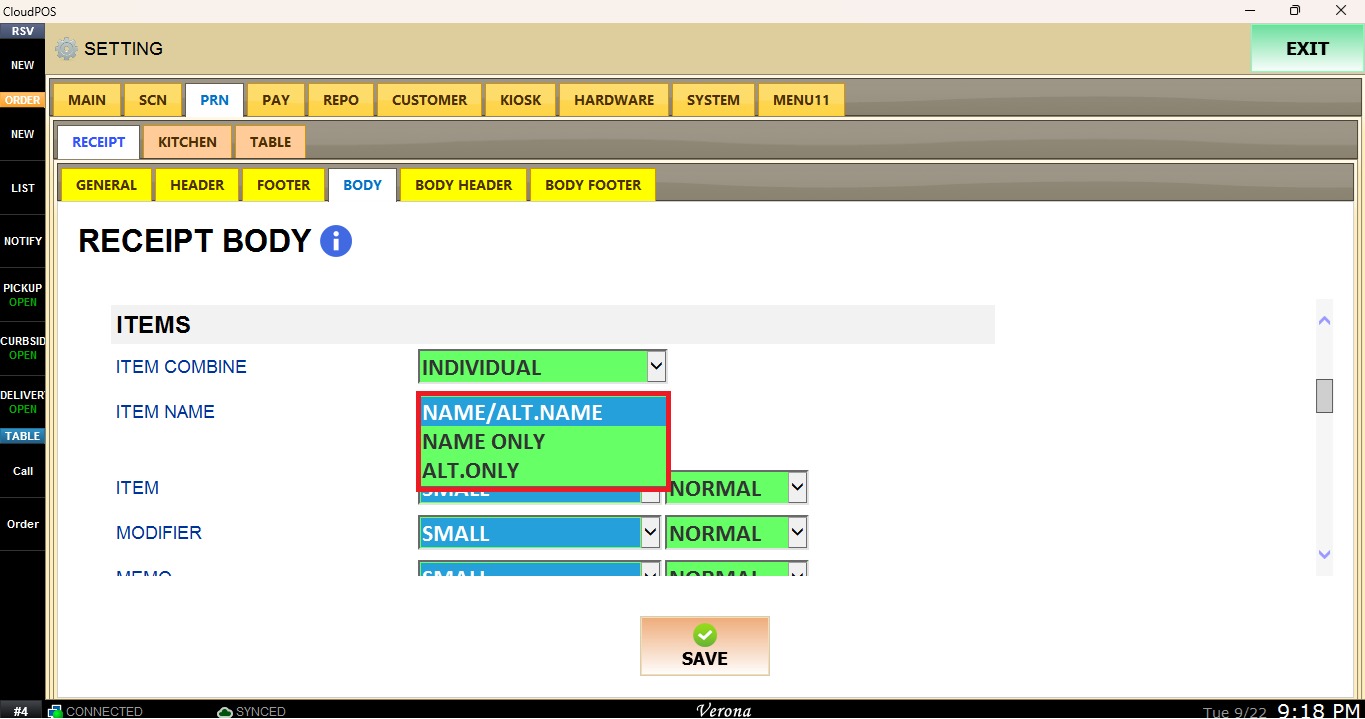
NAME / ALT NAME: Displays the item's primary name and alternative name when available.
NAME ONLY: Displays only the primary item name.
ALT ONLY: Displays only the alternative item name.
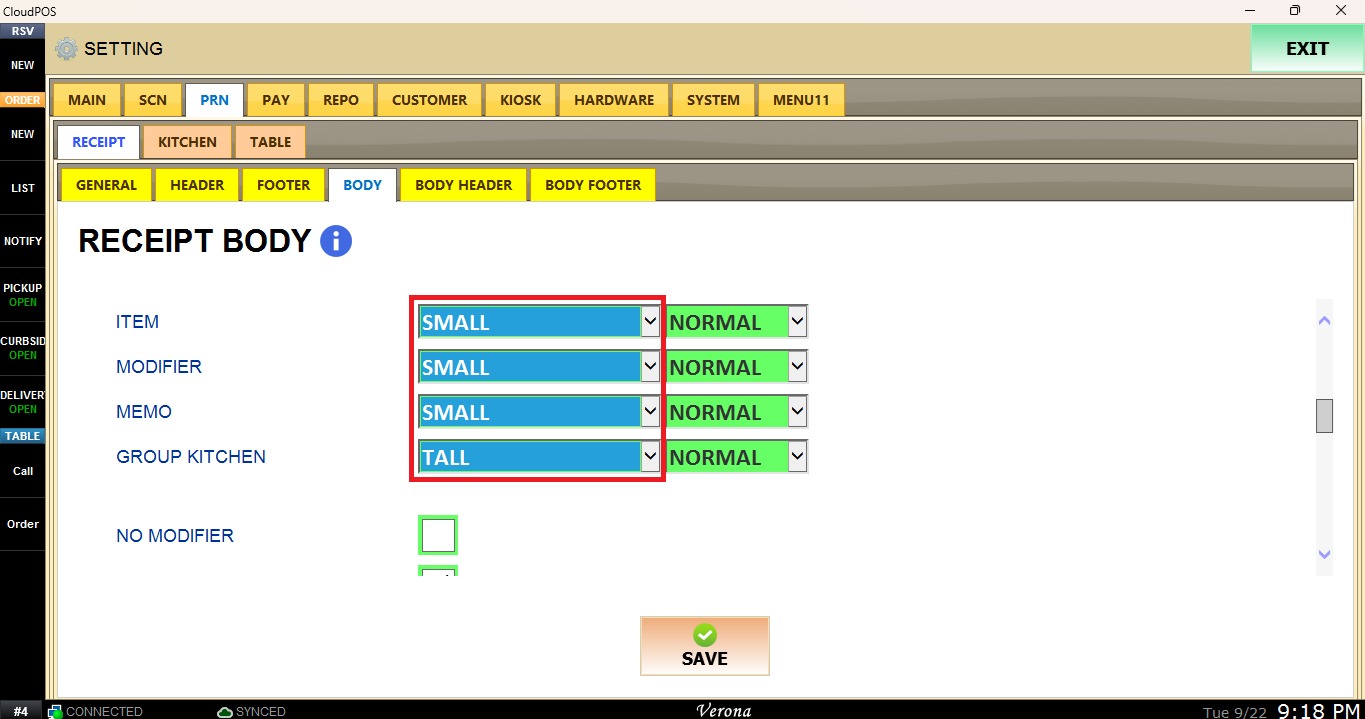
For Item, Modifier, Memo, and Group Kitchen, each option has two dropdown menus. In the first dropdown menu, select the Font Size.
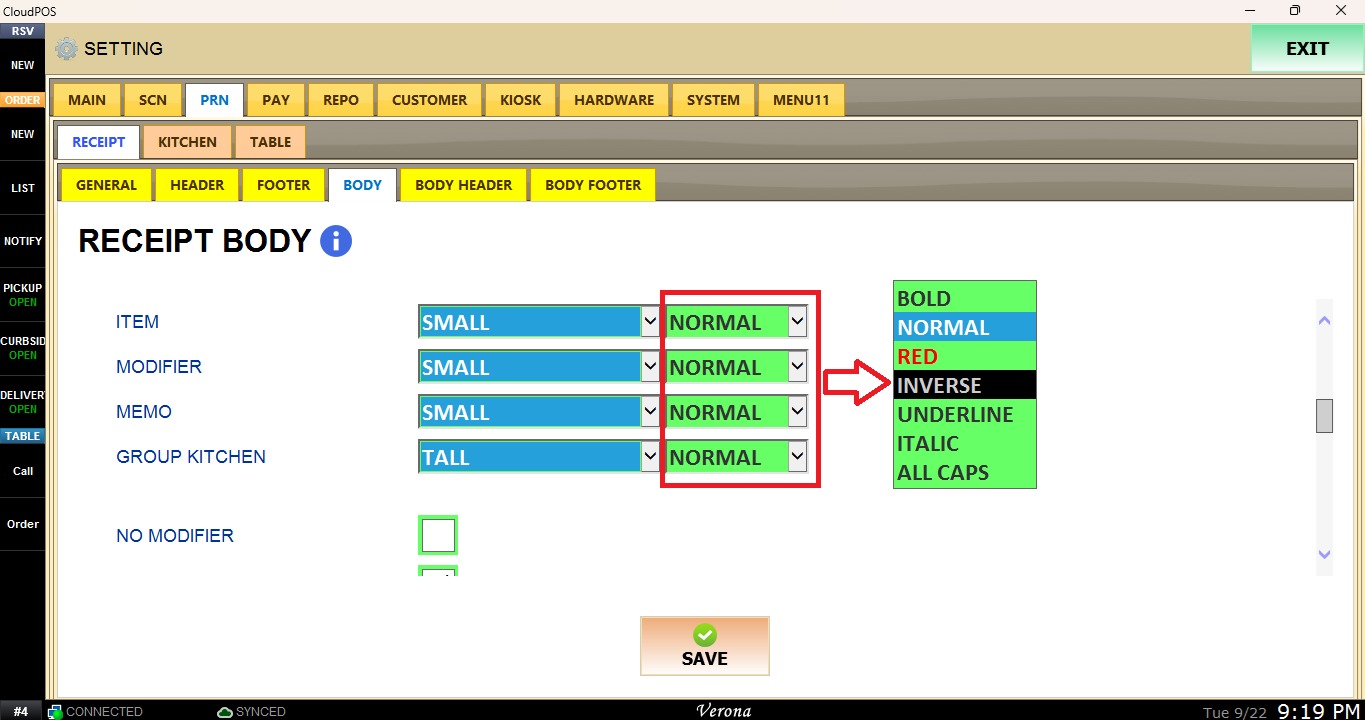
In the second dropdown menu, select the Font Style.
The checkboxes control which information is excluded from the Items section of the receipt:
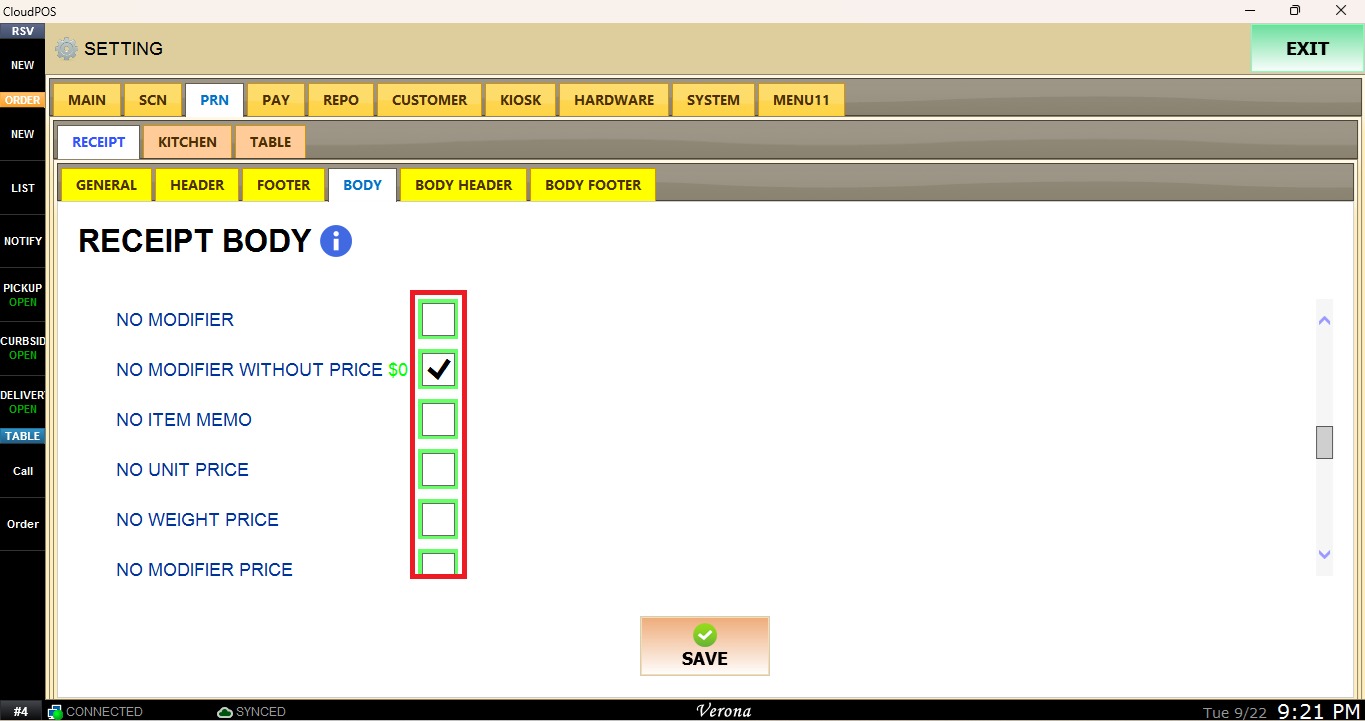
NO MODIFIER: Does not print modifiers.
NO MODIFIER WITHOUT PRICE: Does not print modifiers without an associated price.
NO ITEM MEMO: Does not print item memos or special instructions.
NO WEIGHT PRICE: Does not print weight-based pricing information.
NO MODIFIER PRICE: Does not print modifier prices.
CUSTOMER
Address
Controls the format in which the customer address is displayed on the receipt.
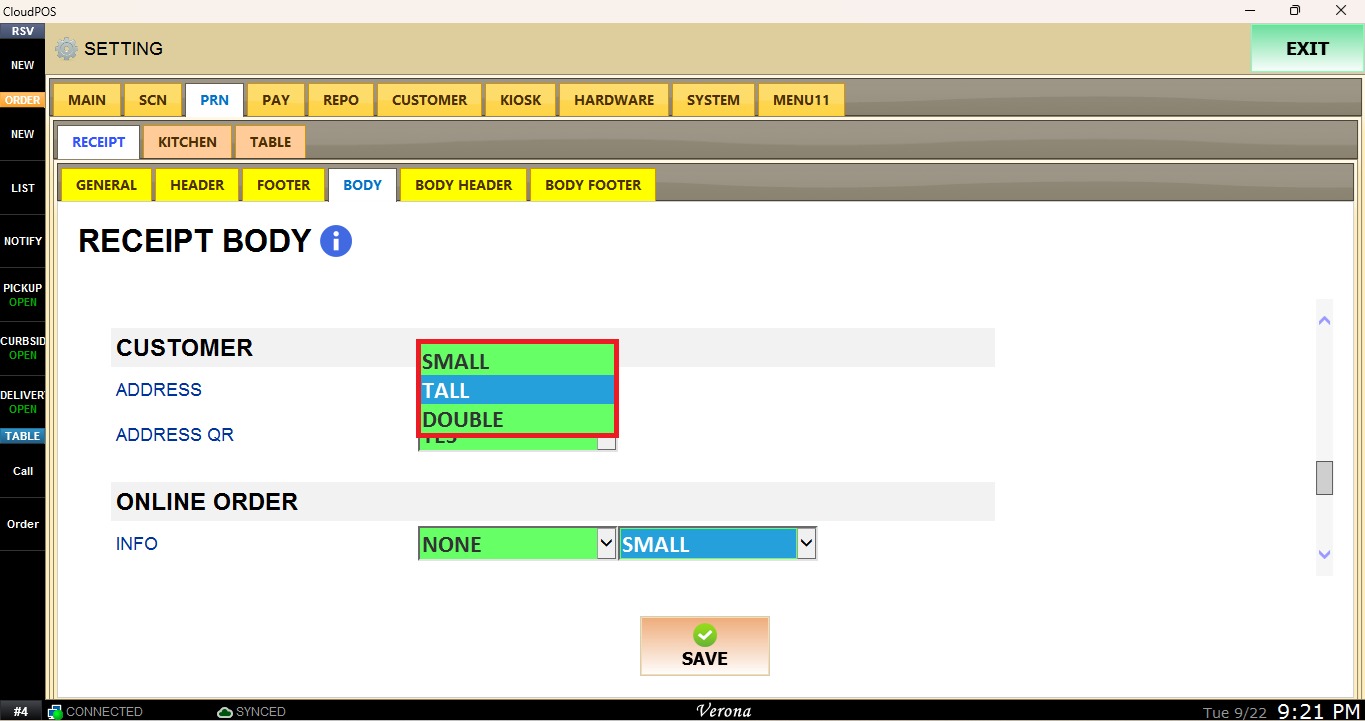
SMALL: Displays the address in a small format.
TALL: Displays the address in a tall format.
DOUBLE: Displays the address in a double-line format.
Address QR
Controls whether a QR code is displayed with the customer address.
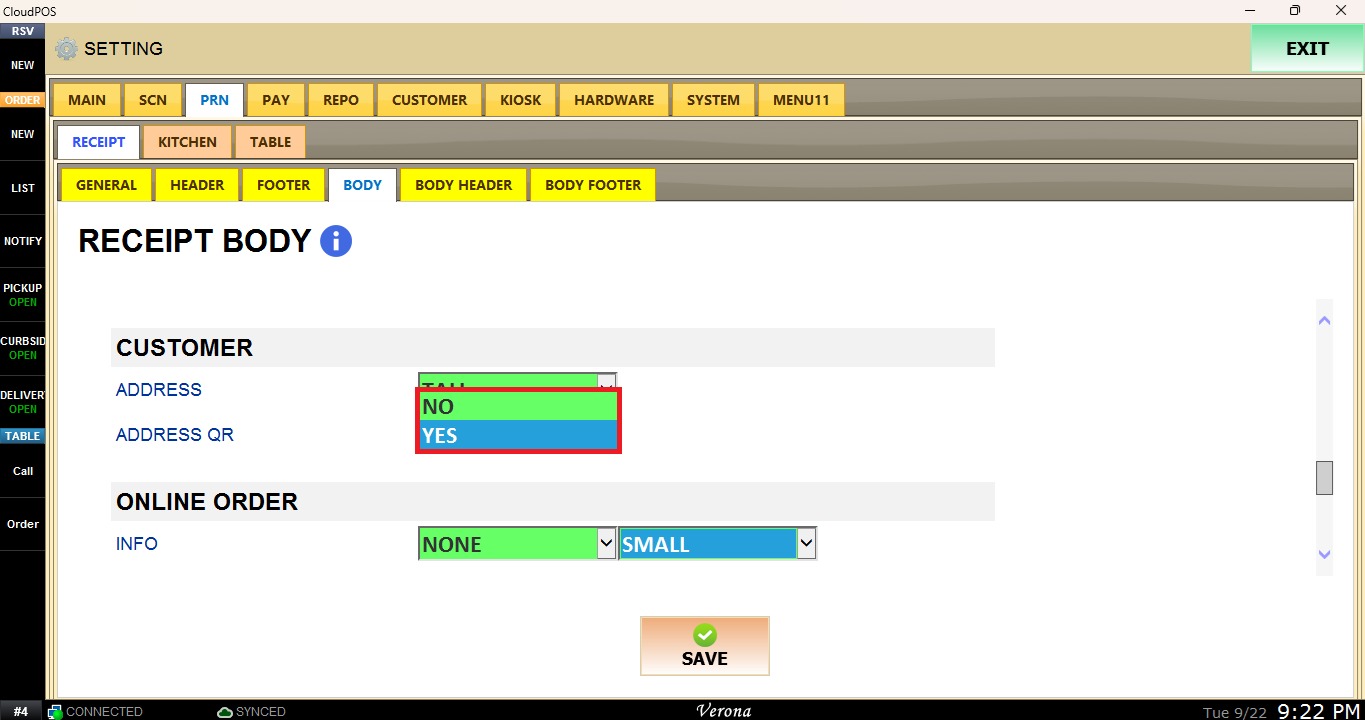
YES: Displays a QR code with the address information.
NO: Does not display a QR code.
ONLINE ORDER
Controls how online order information is displayed on the receipt.
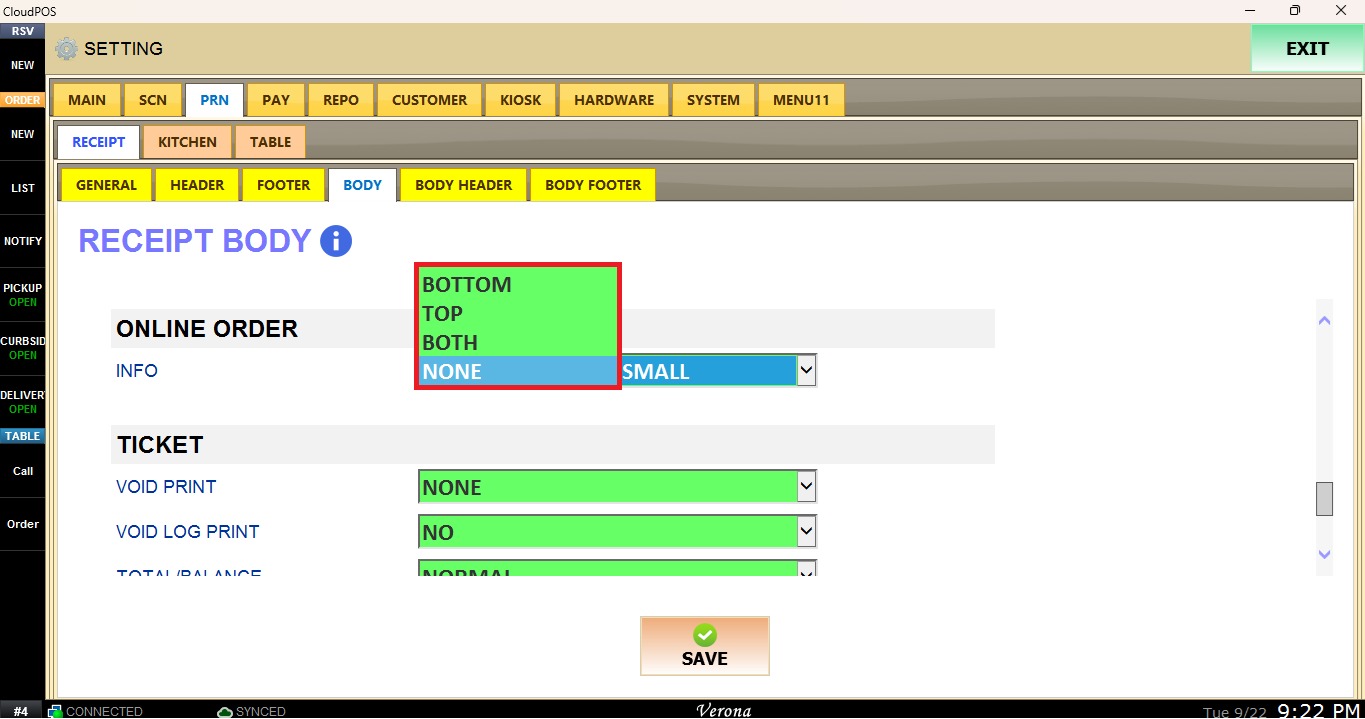
On the first dropdown Menu:
NONE: Does not display online order information.
BOTTOM: Displays the information at the bottom.
TOP: Displays the information at the top.
BOTH: Displays the information at both the top and bottom.
On the second dropdown menu, select the font size for the table number text.
TICKET
Void Print
Controls what void information is printed on the receipt.
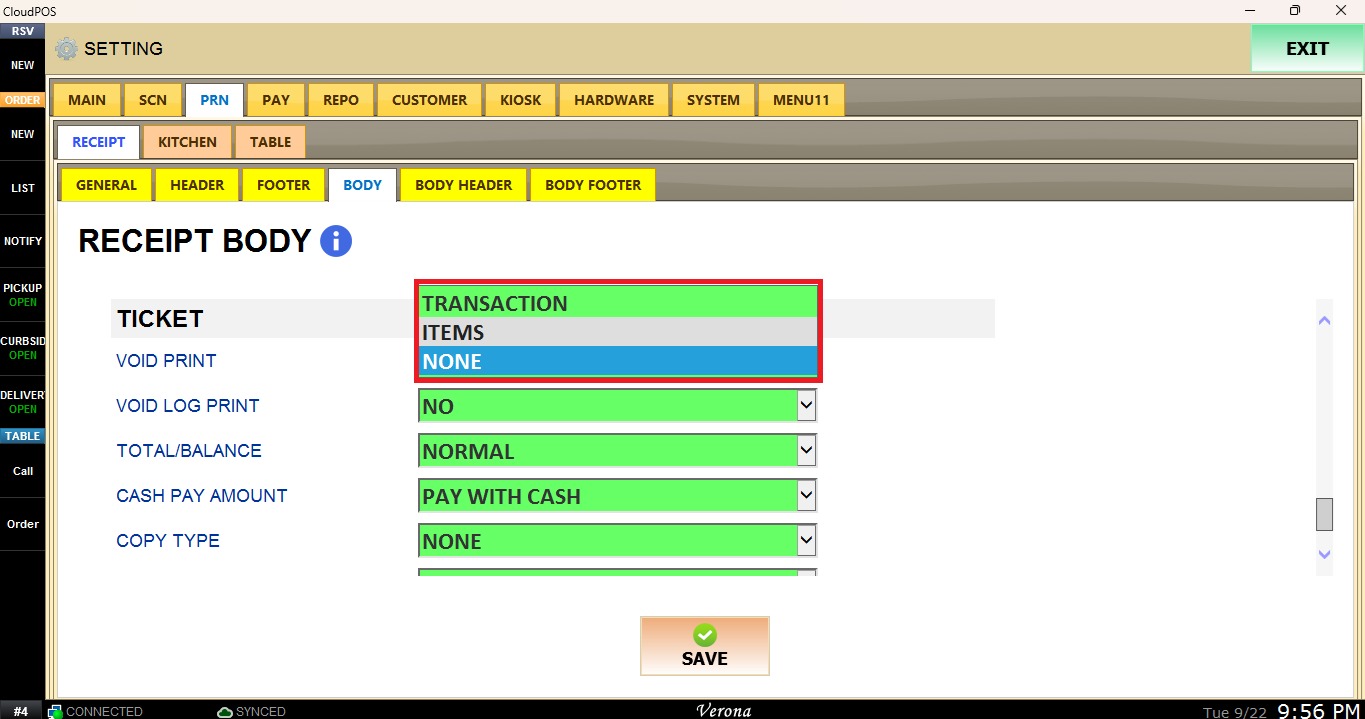
TRANSACTION: Prints the voided transaction information.
ITEMS: Prints only the voided items.
NONE: Does not print void information.
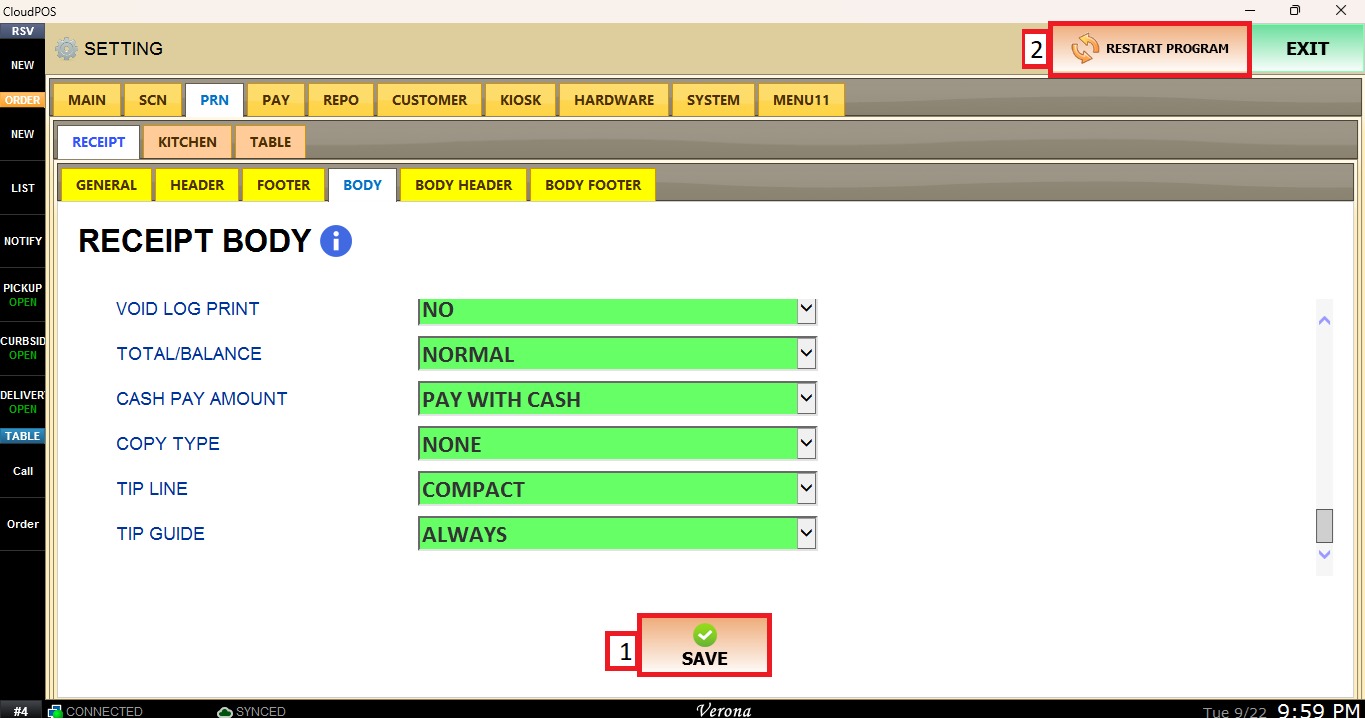
Void Log Print
Controls when the void log is printed.
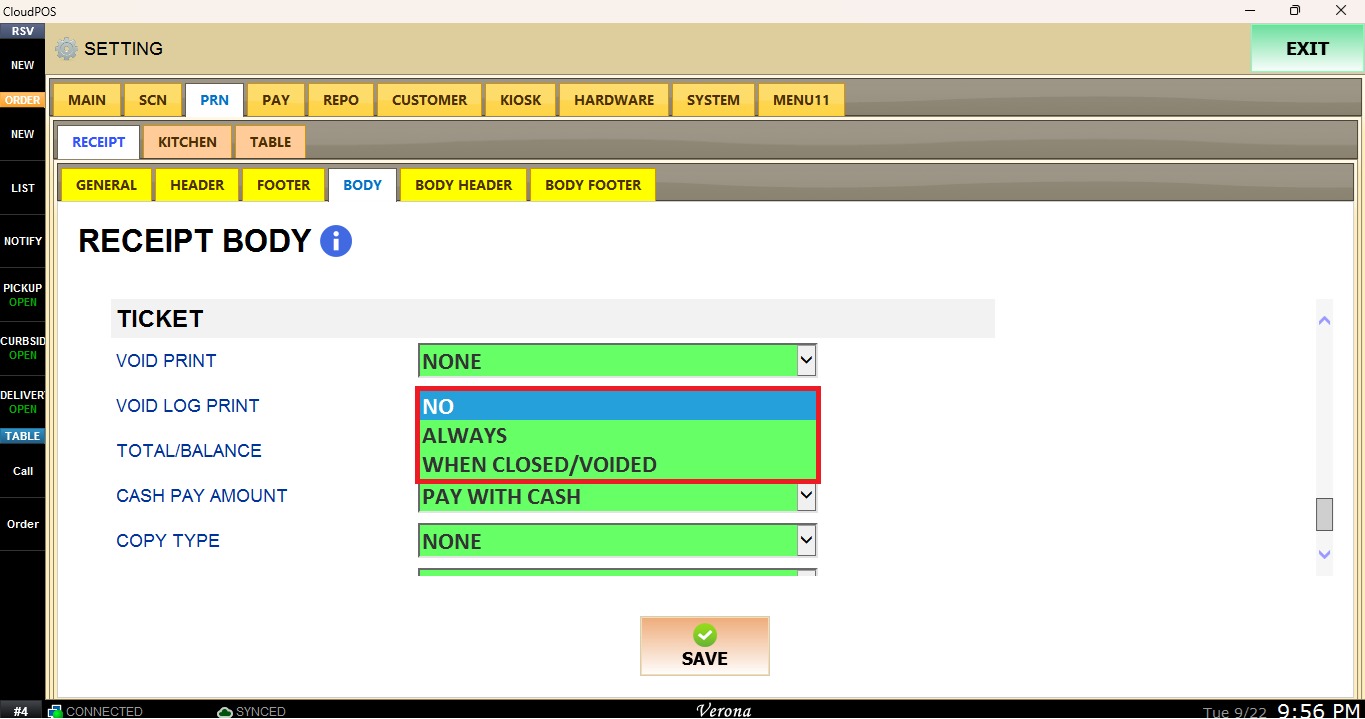
NO: Does not print the void log.
ALWAYS: Prints the void log whenever a void occurs.
WHEN CLOSED / VOIDED: Prints the void log when the transaction is closed or voided.
Total / Balance
Controls the display format of the total and balance amounts.
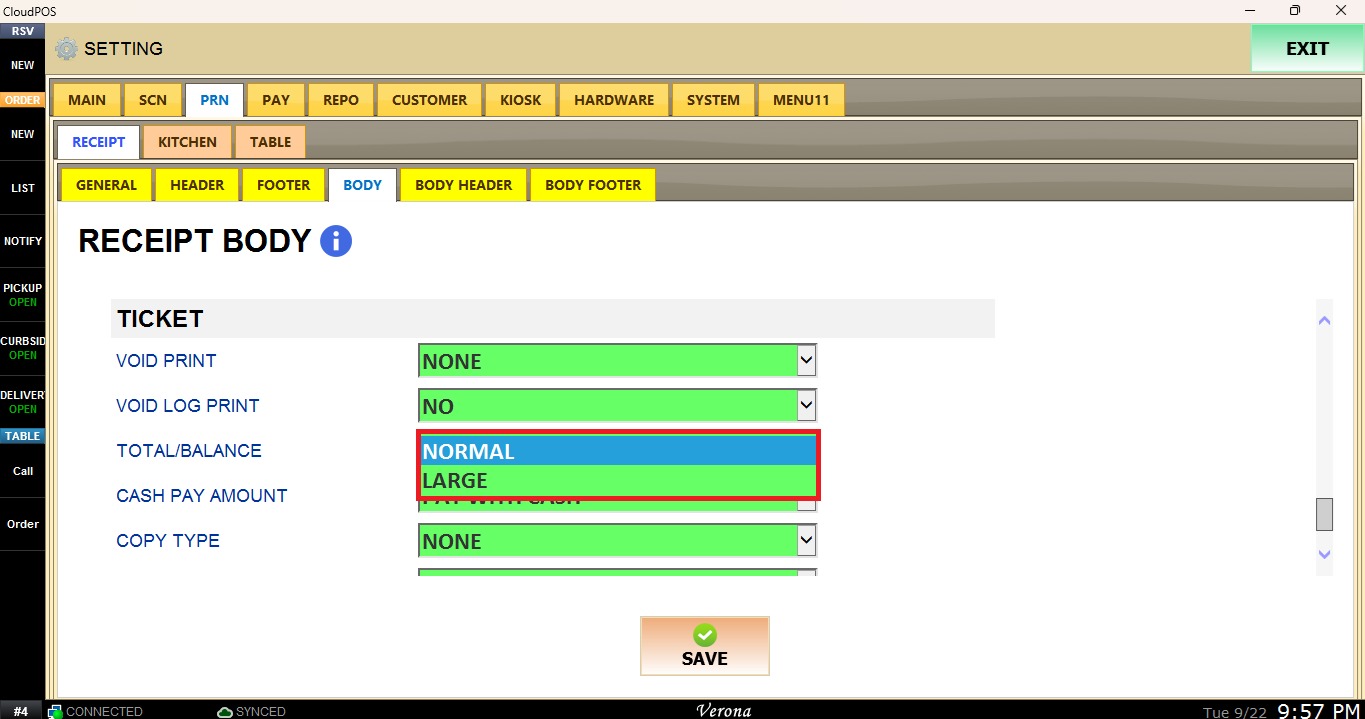
NORMAL: Displays the total and balance in the standard format.
LARGE: Displays the total and balance in a larger format.
Cash Pay Amount
Controls whether the cash payment amount is displayed.
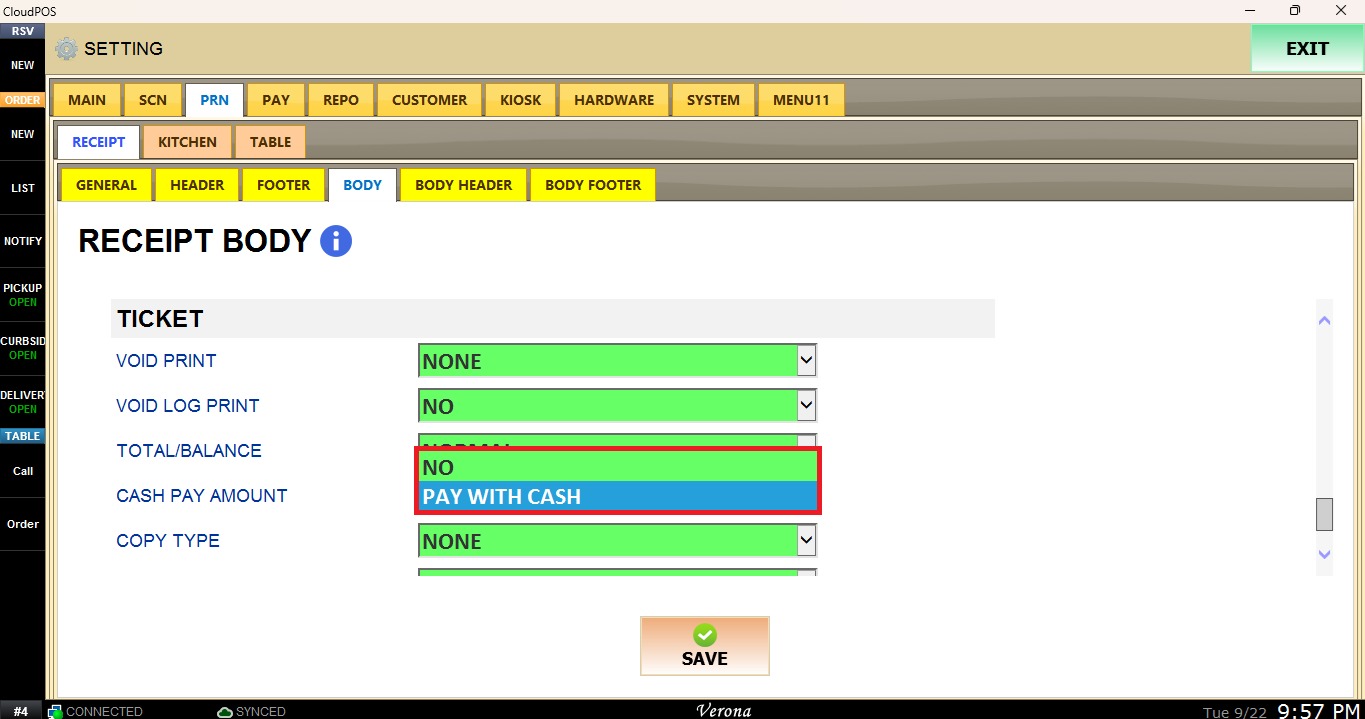
NO: Does not display the cash payment amount.
PAY WITH CASH: Displays the cash payment amount when the payment method is cash.
Copy Type
Controls the copy type and where the copy designation appears on the receipt.
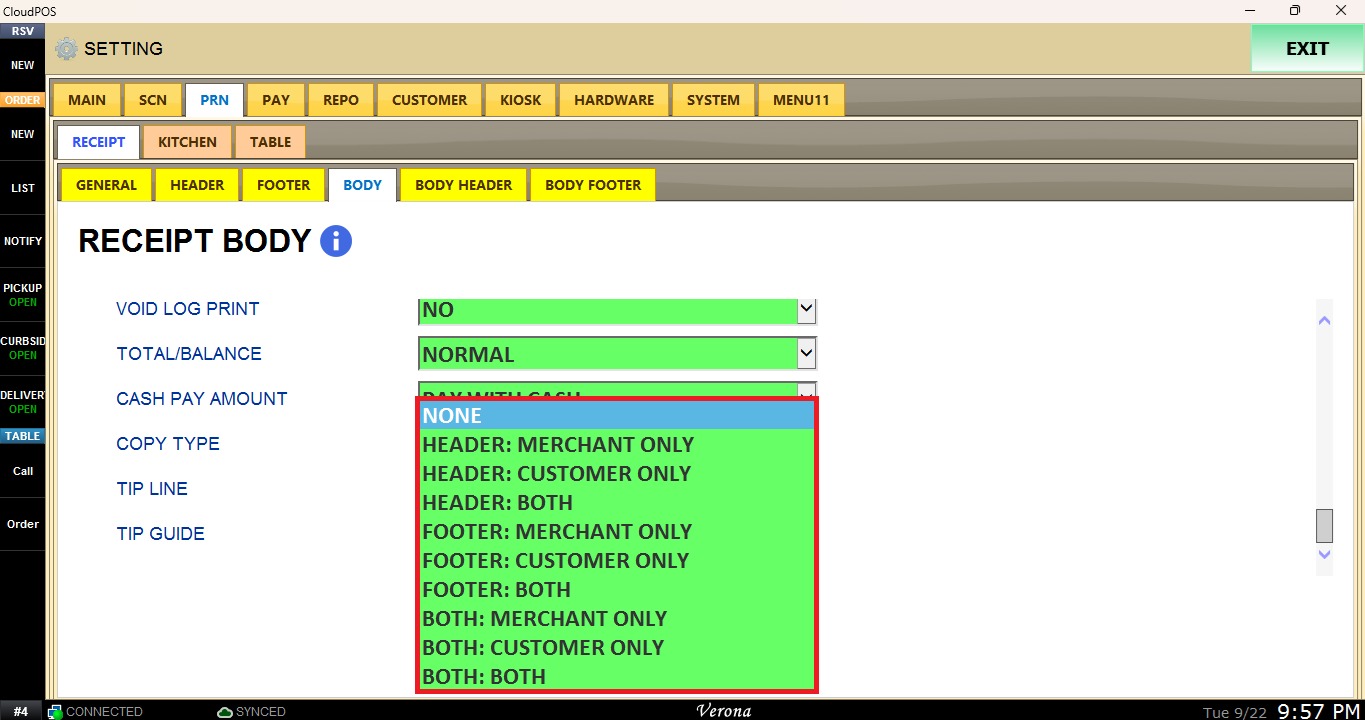
NONE: No copy designation is applied.
HEADER – MERCHANT ONLY: Displays the merchant copy designation in the header.
HEADER – CUSTOMER ONLY: Displays the customer copy designation in the header.
HEADER – BOTH: Displays the copy designation for both merchant and customer in the header.
FOOTER – MERCHANT ONLY: Displays the merchant copy designation in the footer.
FOOTER – CUSTOMER ONLY: Displays the customer copy designation in the footer.
FOOTER – BOTH: Displays the copy designation for both merchant and customer in the footer.
BOTH – MERCHANT ONLY: Displays the merchant copy designation in both the header and footer.
BOTH – CUSTOMER ONLY: Displays the customer copy designation in both the header and footer.
Tip Line
Controls the format of the tip line on the receipt.
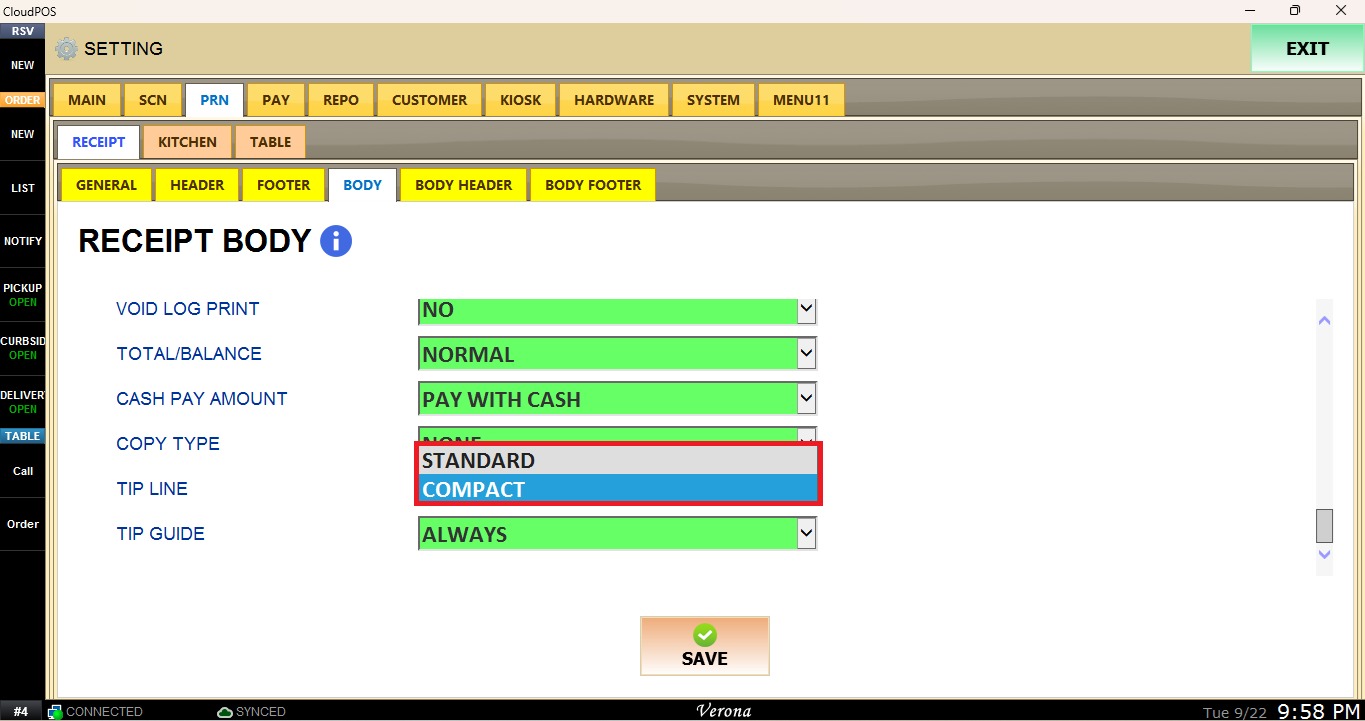
STANDARD: Displays the tip line in the standard format.
COMPACT: Displays the tip line in a compact format.
Tip Guide
Controls when suggested tip amounts are displayed on the receipt.
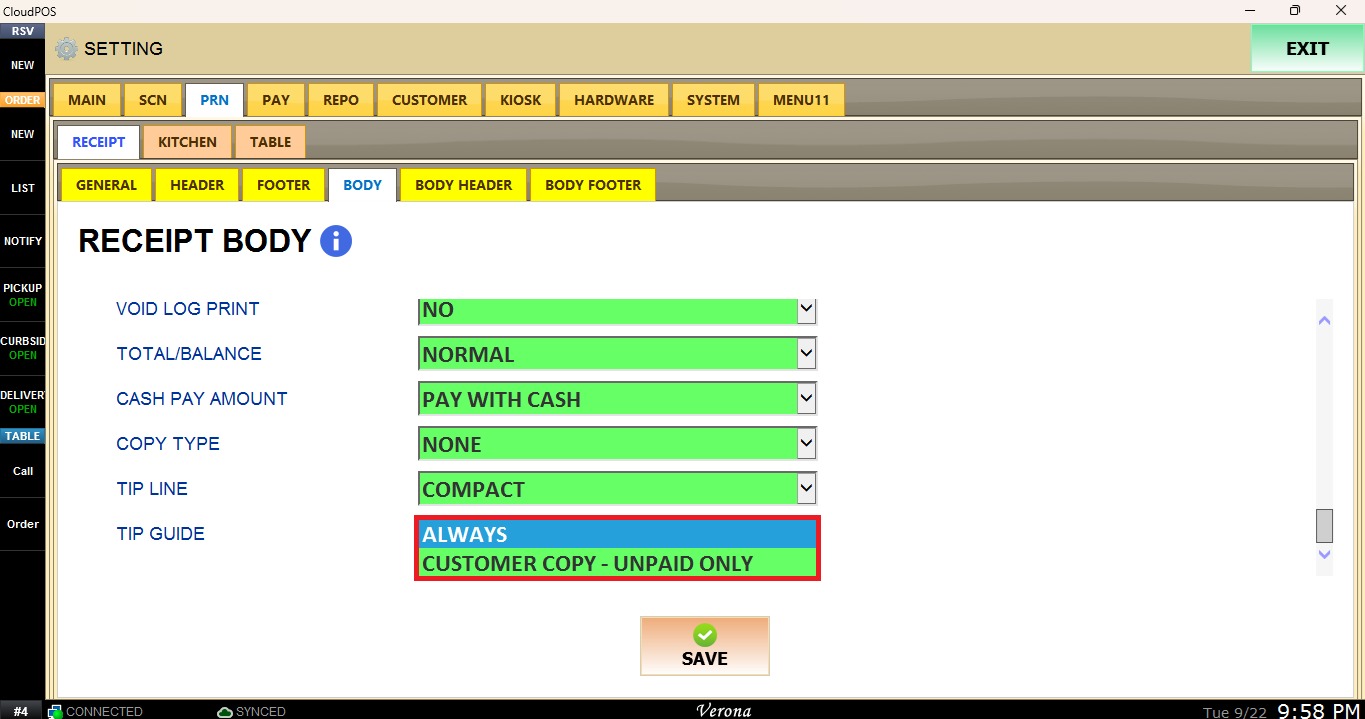
ALWAYS: Always displays the tip guide.
CUSTOMER ONLY – UNPAID ONLY: Displays the tip guide only on customer copies of unpaid transactions.
After configuring the settings, click SAVE and RESTART PROGRAM to apply the changes.