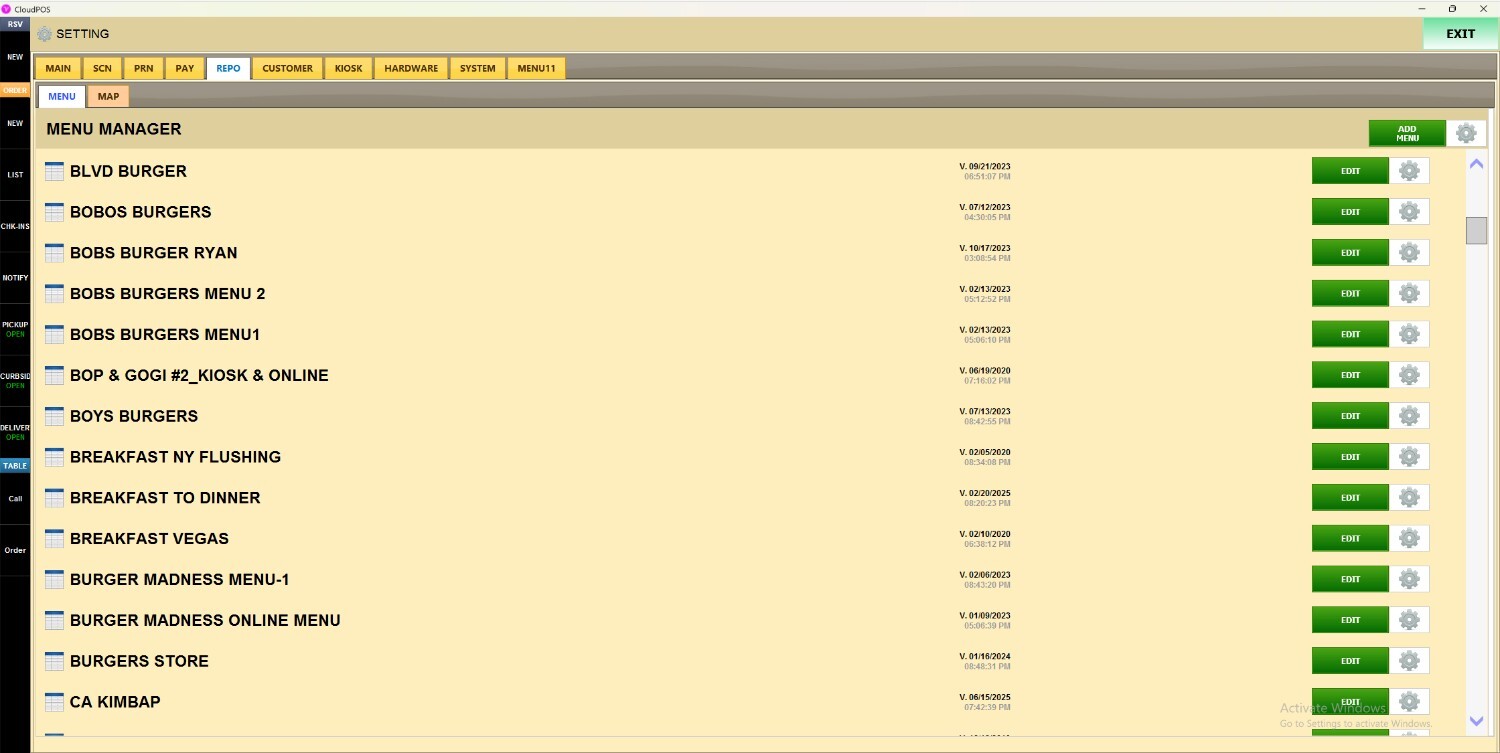
How to copy and delete a menu
This article explains how to copy an existing menu to create a new version or permanently delete a menu that is no longer needed. Copying a menu is useful when creating seasonal menus, testing pricing changes, or building a new menu structure without affecting the original configuration.
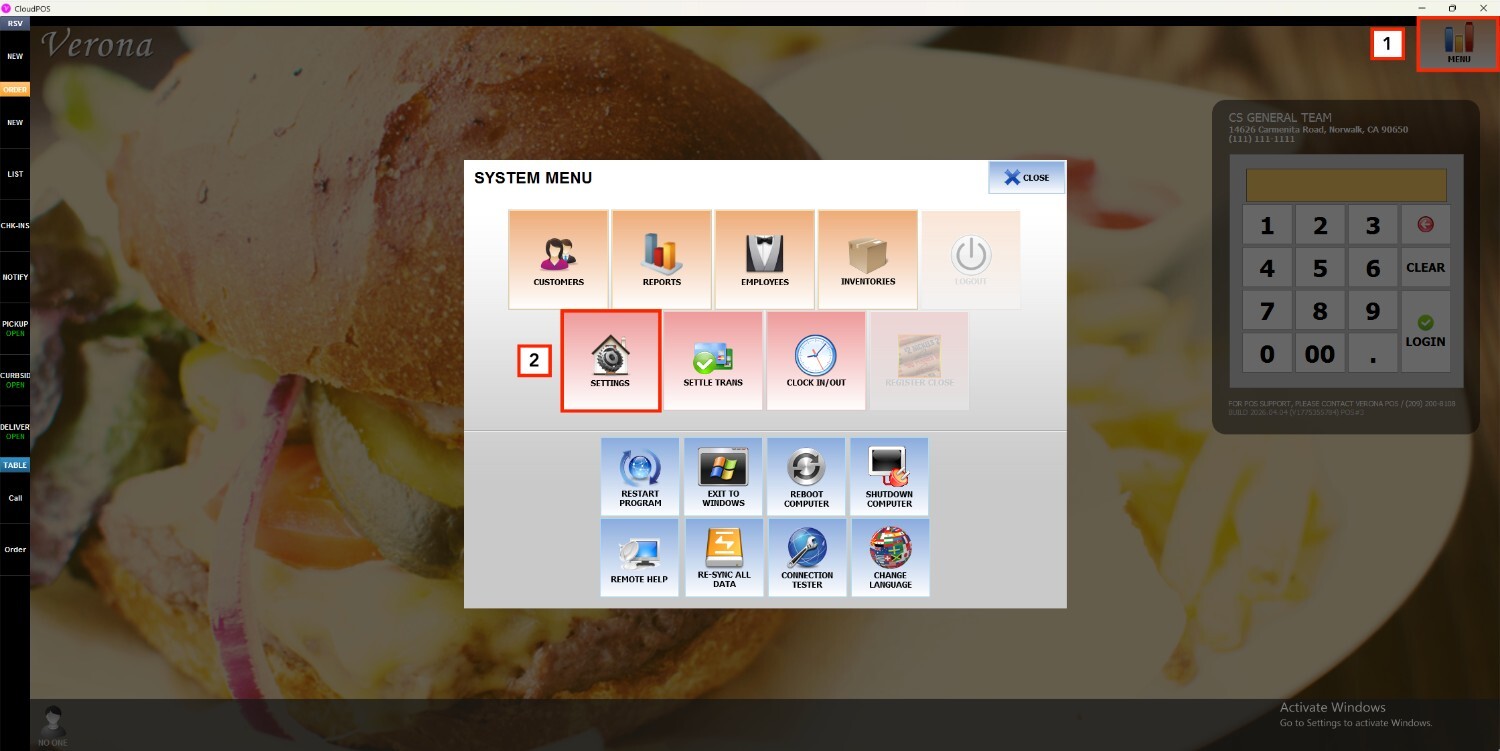
Main Screen> MENU> SETTINGS> REPO> MENU
Go to MENU and press SETTINGS

Open the REPO tab and press MENU.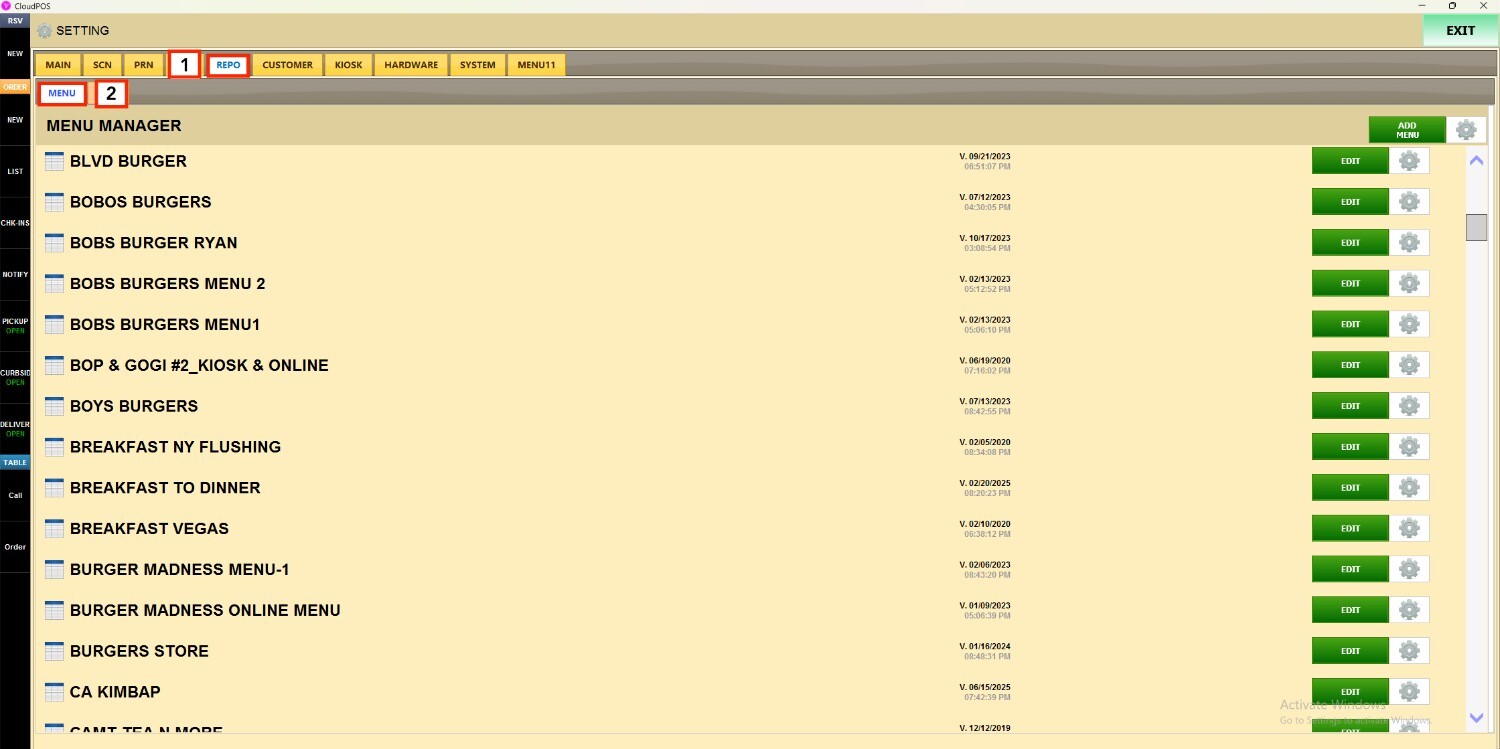
Locate the menu you want to manage and tap the GEAR icon, where you will find the options to COPY and DELETE a menu.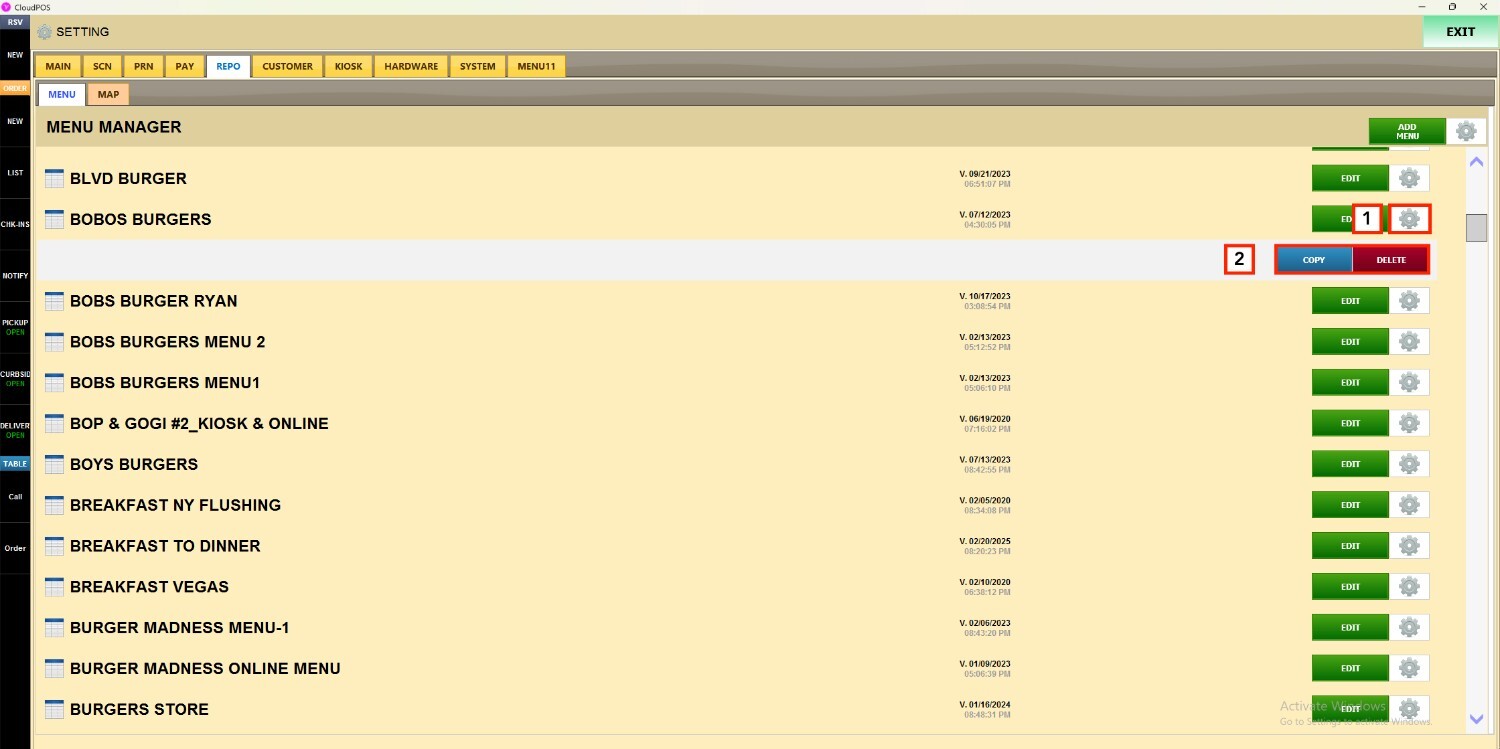
COPY A MENU
Press the COPY button
A confirmation pop‑up will appear. Press YES to continue.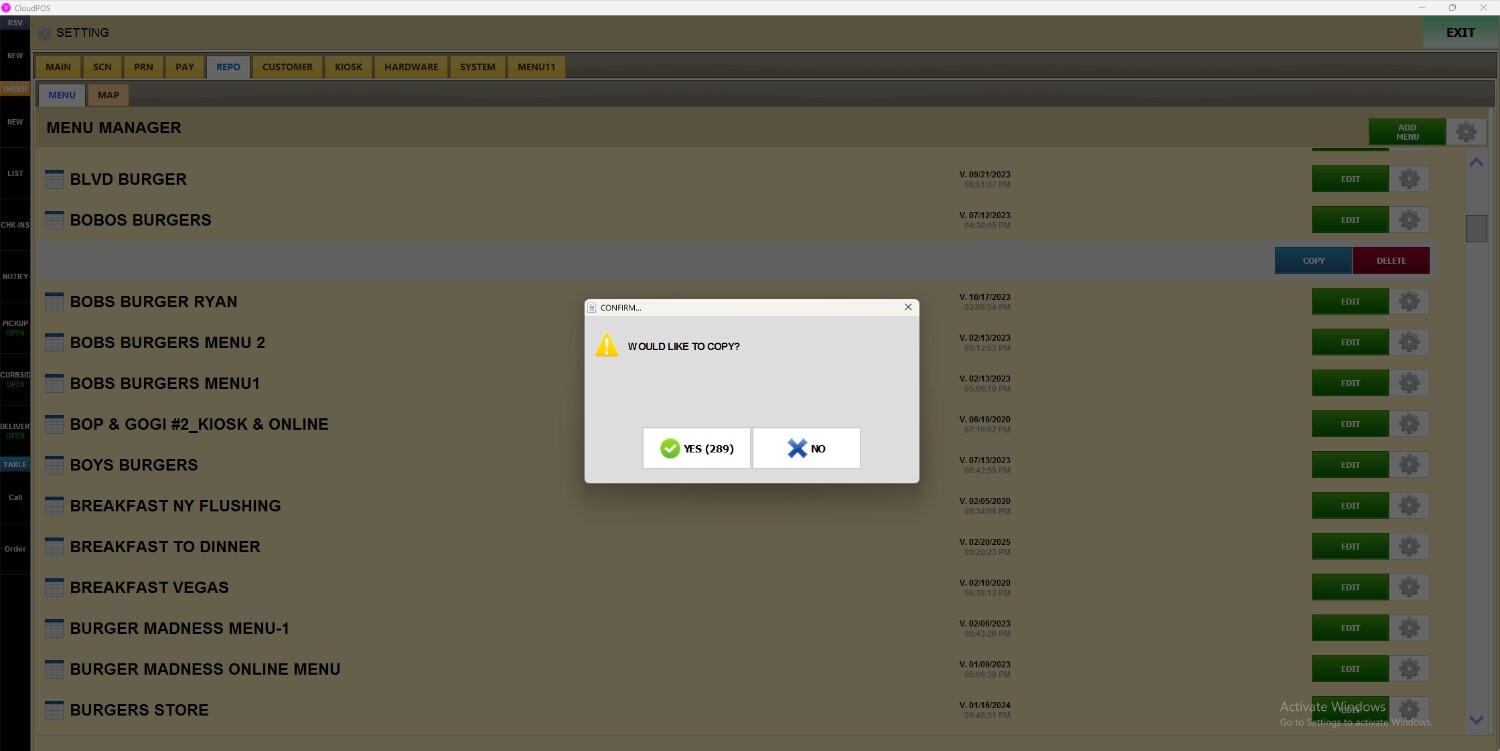
An on-screen keyboard will appear, there enter a name for the copied menu. 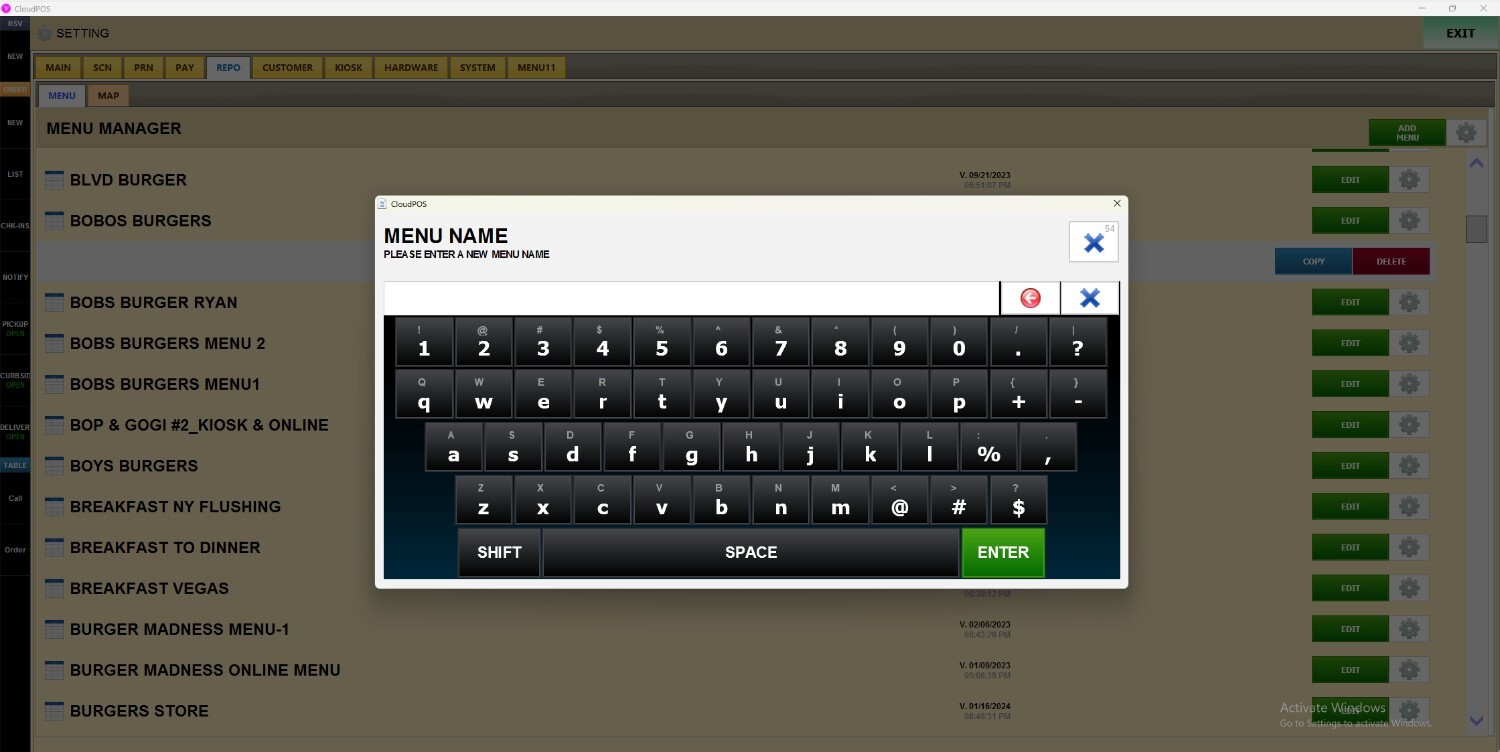
A duplicate of the selected menu will be created with the new name you entered. The copied menu will retain the original menu’s categories, items, and configuration settings.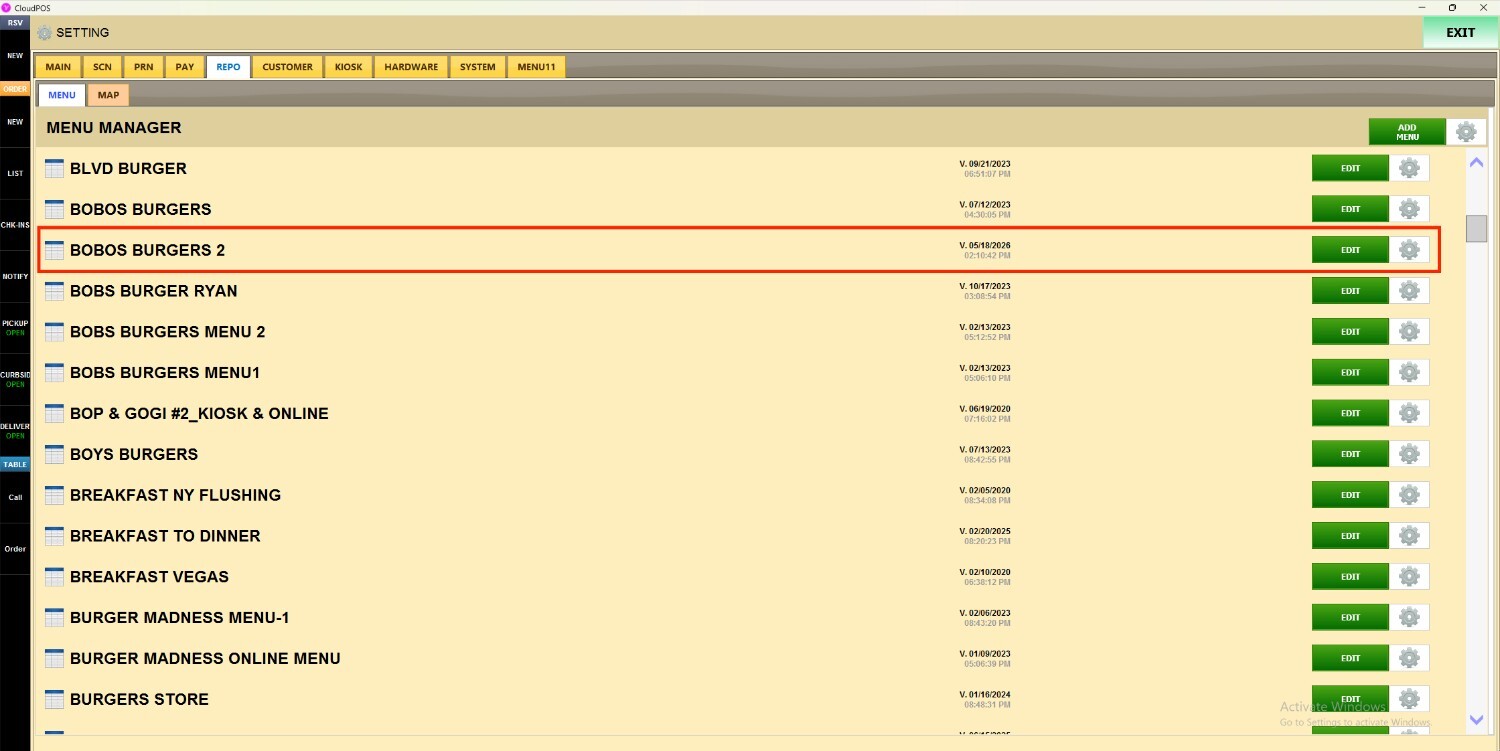
DELETE A MENU
Press the DELETE button.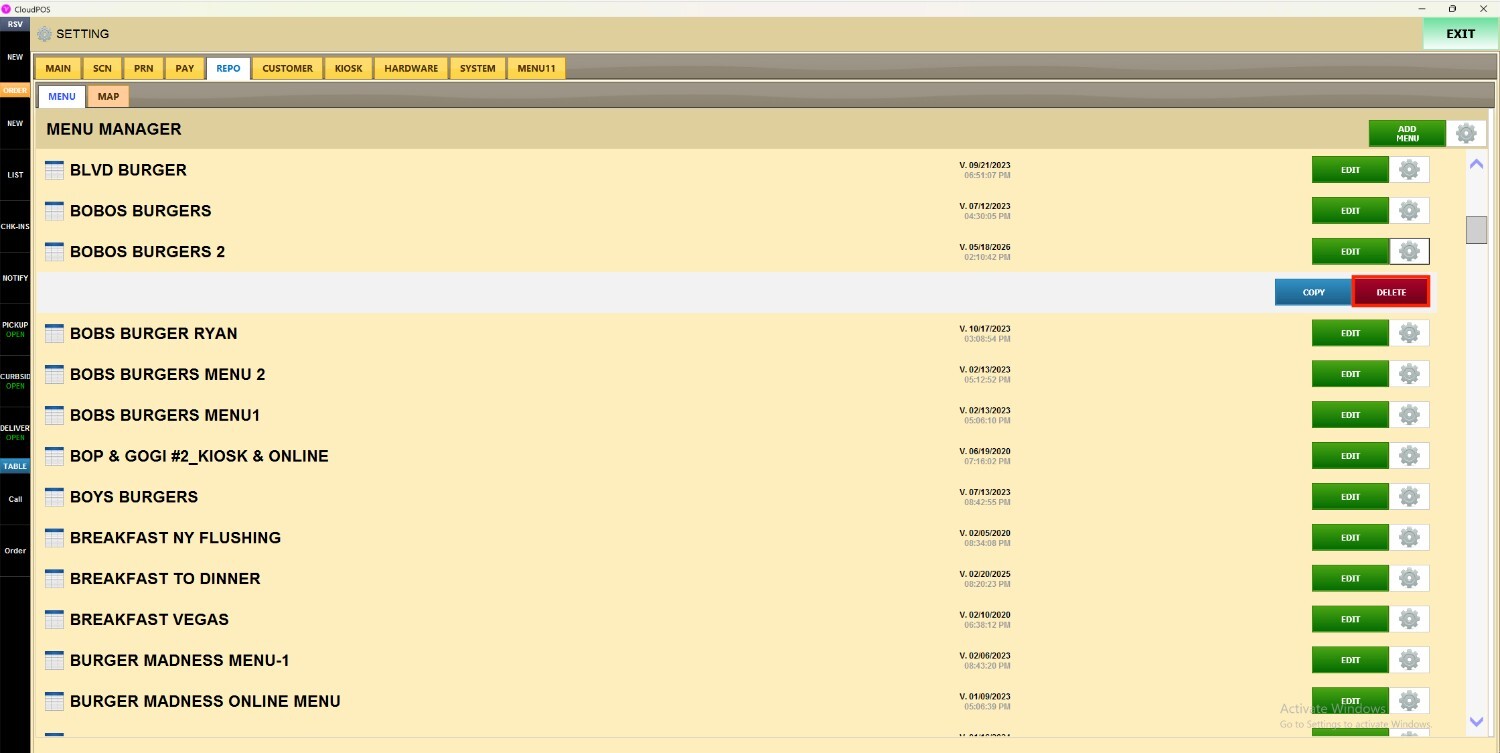
A confirmation pop-up will appear; press YES to permanently delete the menu.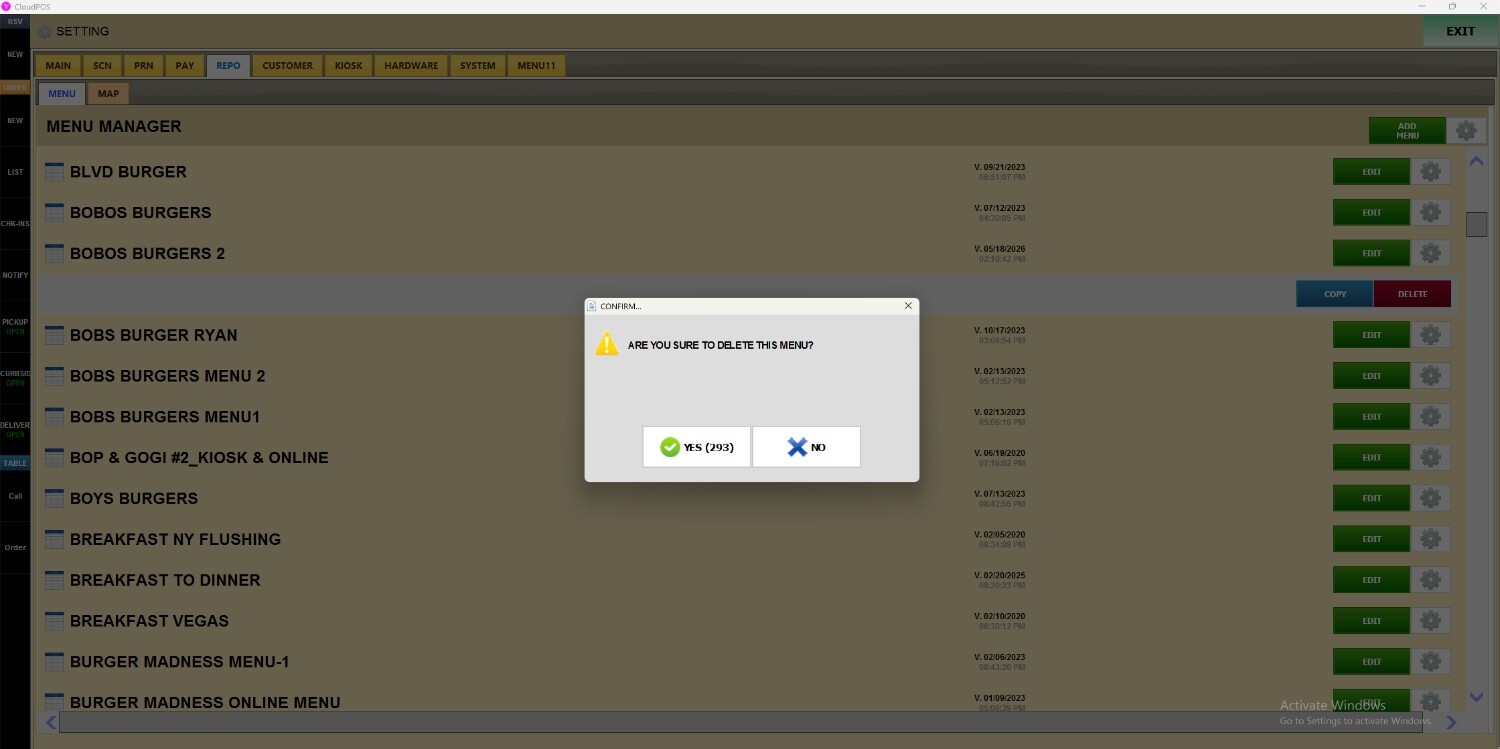
The selected menu will be permanently removed from the system.