Store Closes
This feature allows you to schedule specific dates when the store will appear as closed for online ordering. This is commonly used for holidays, special events, maintenance periods, or any date when the business will not be accepting online orders.
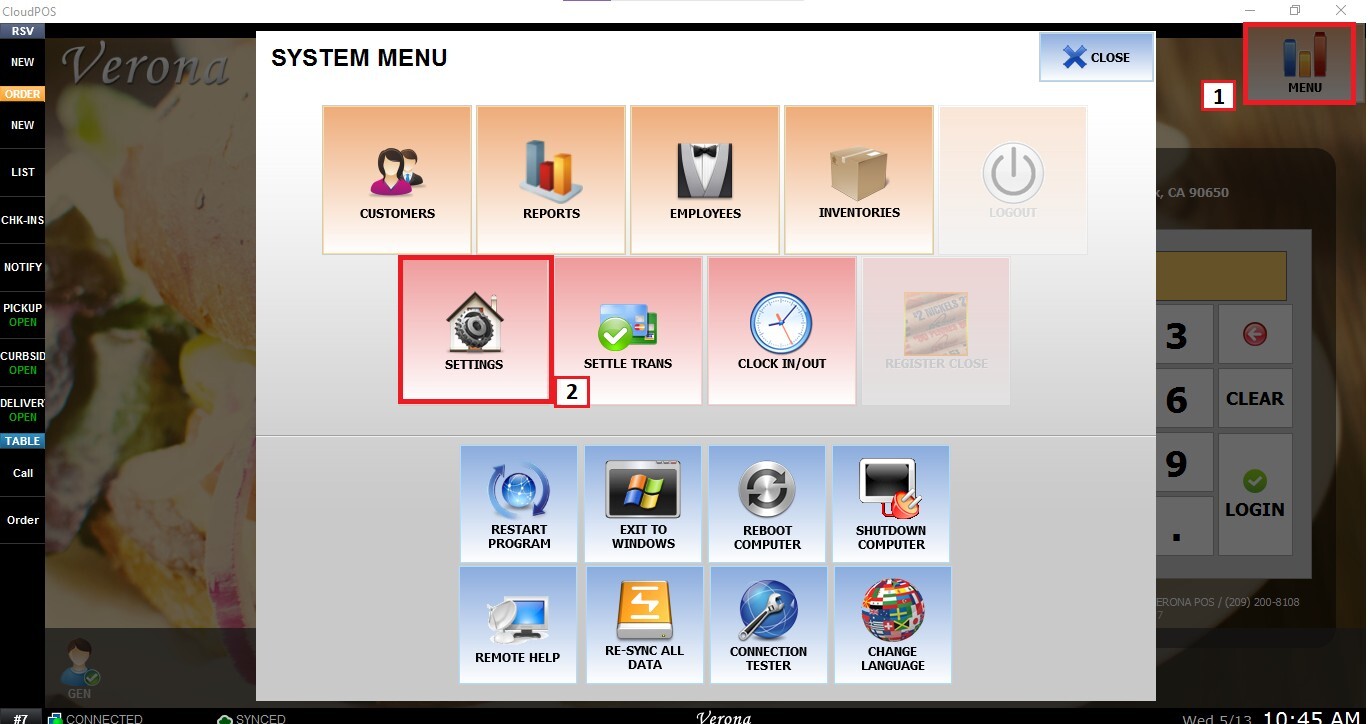
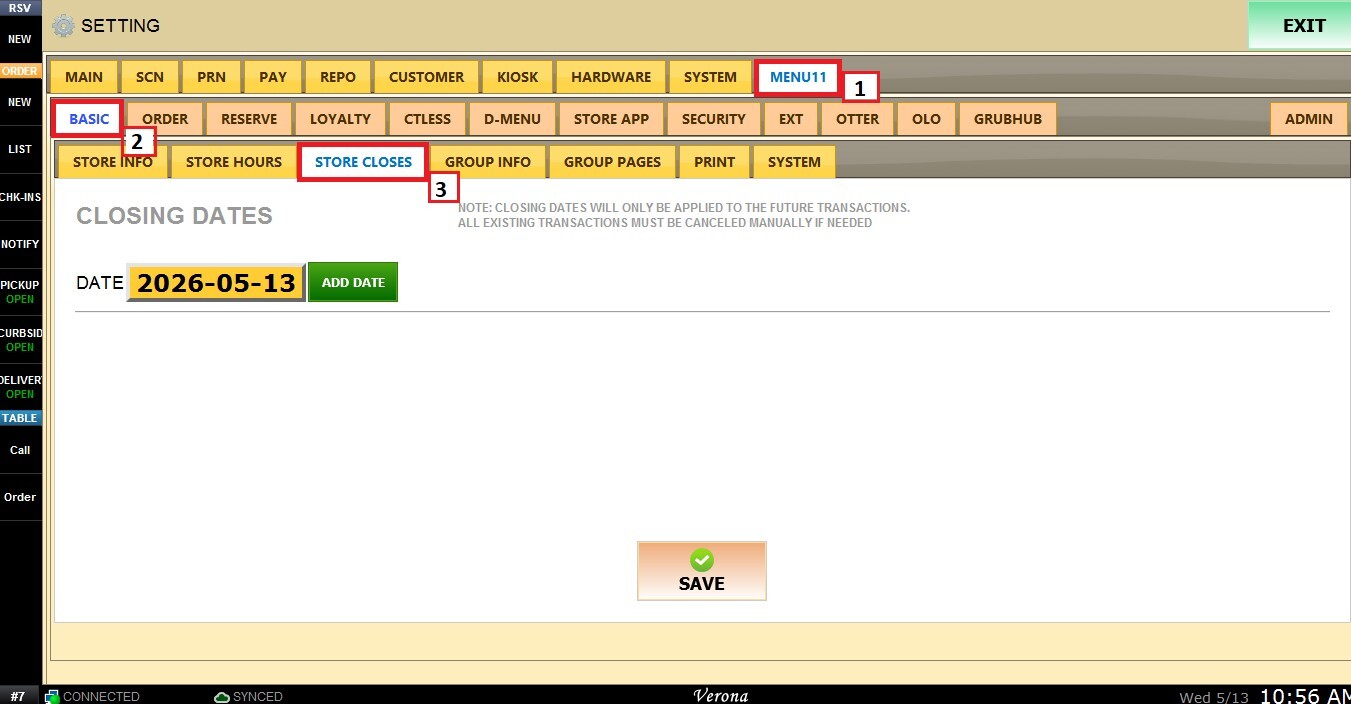
Main Screen> MENU> SETTINGS> MENU11> BASIC> STORE CLOSES
On the Main Screen, click on Menu and then Settings.
Navigate to MENU11, press BASIC and select STORE CLOSES
Adding Closing Dates
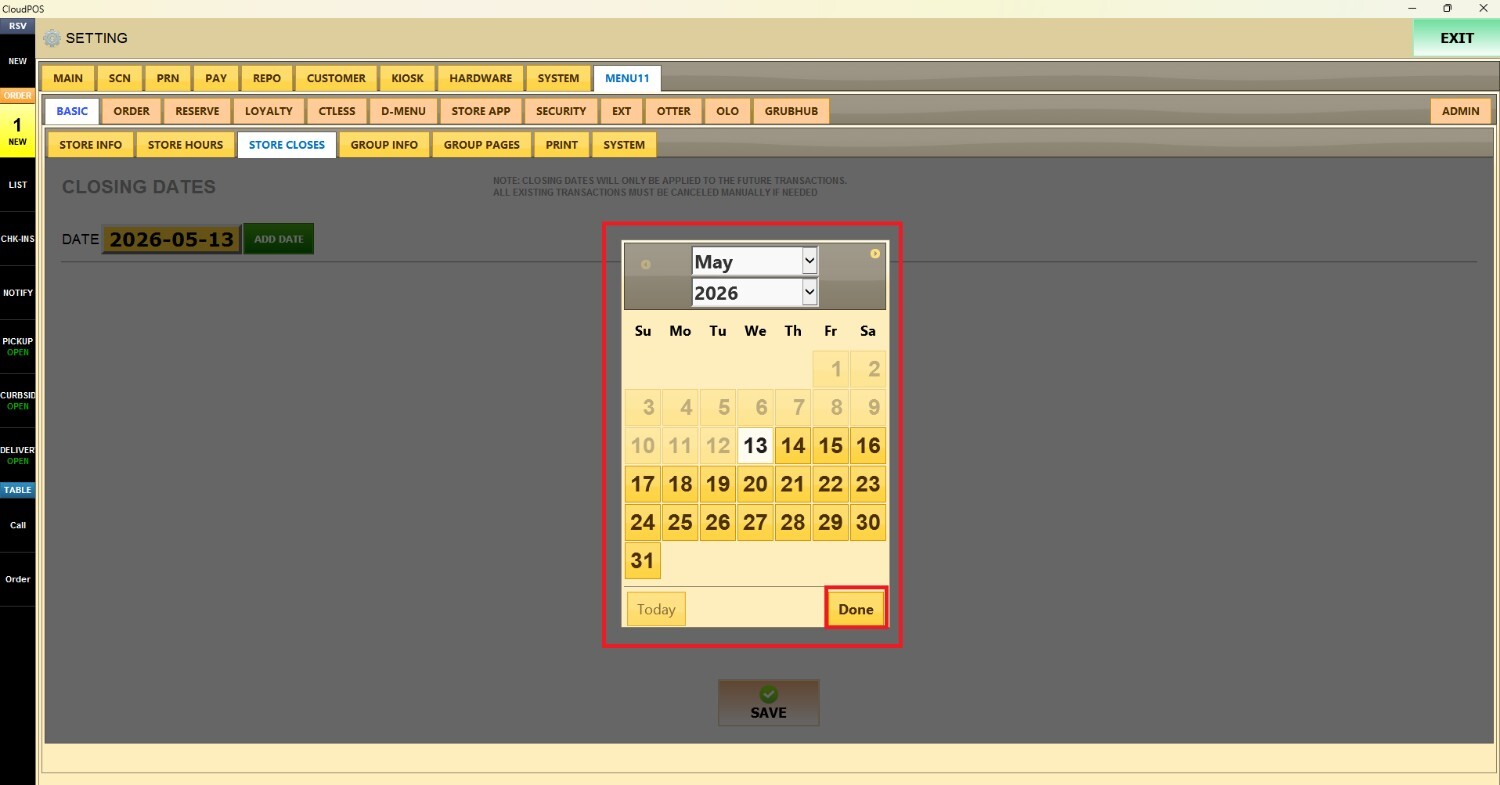
Click on the yellow button to display a calendar screen to select the date (day, month and year).
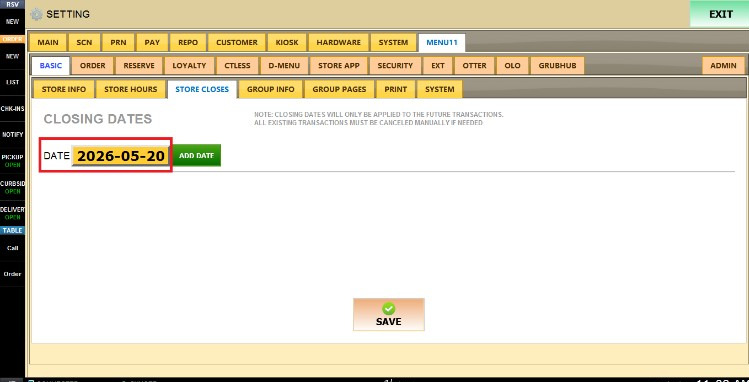
Press on DONE to confirm.
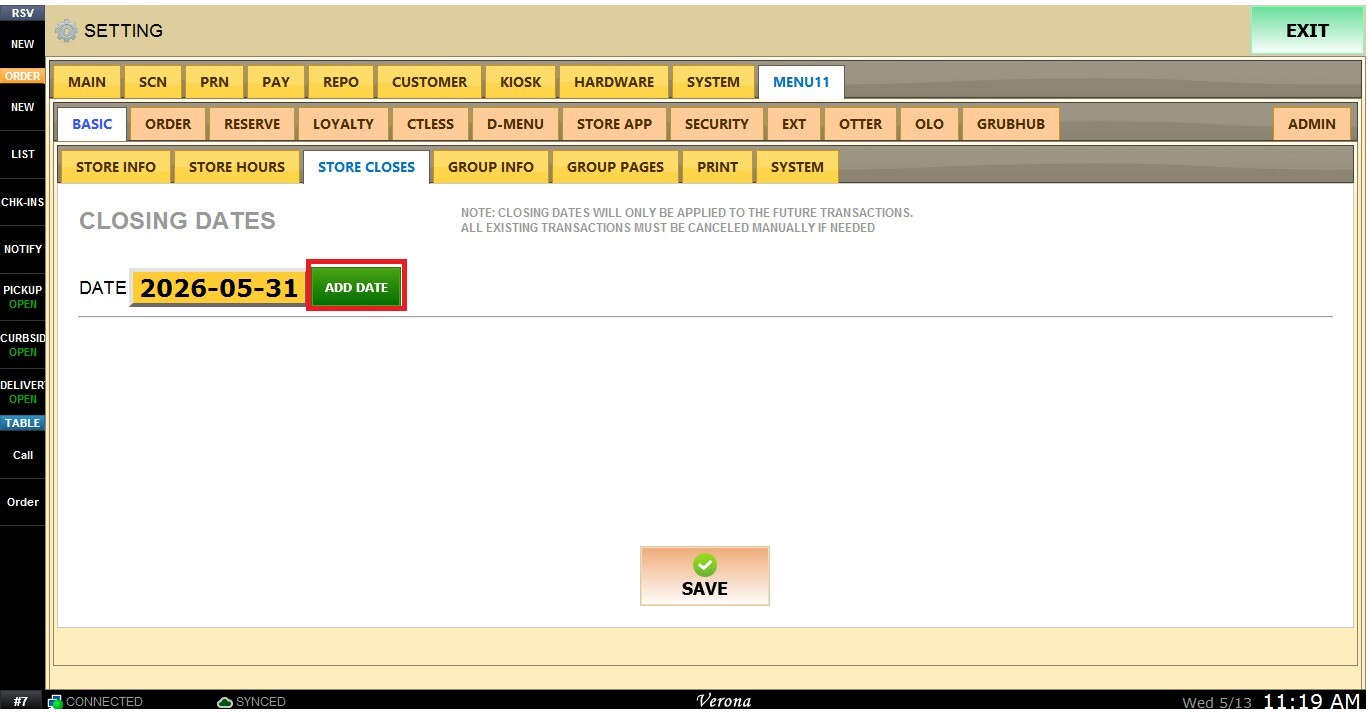
Click on ADD DATE
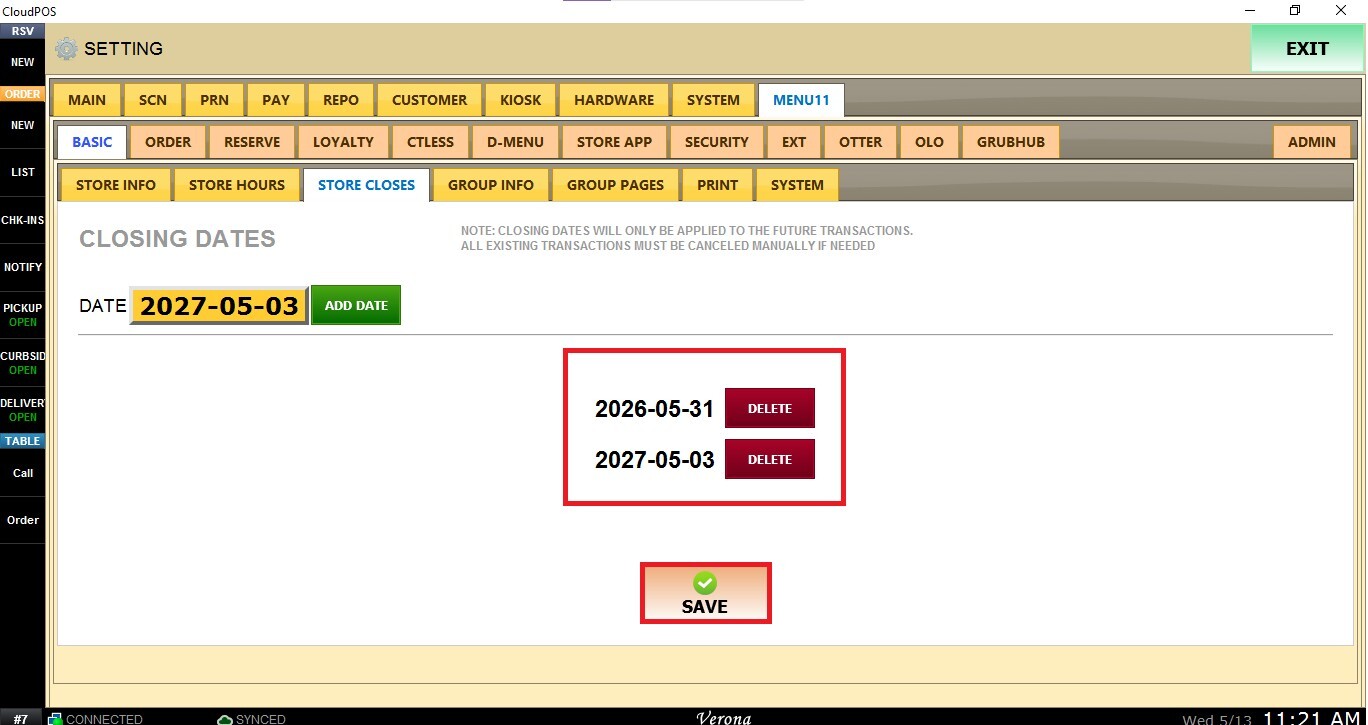
The selected close date will now appear in the Store Closes list. Press on SAVE.
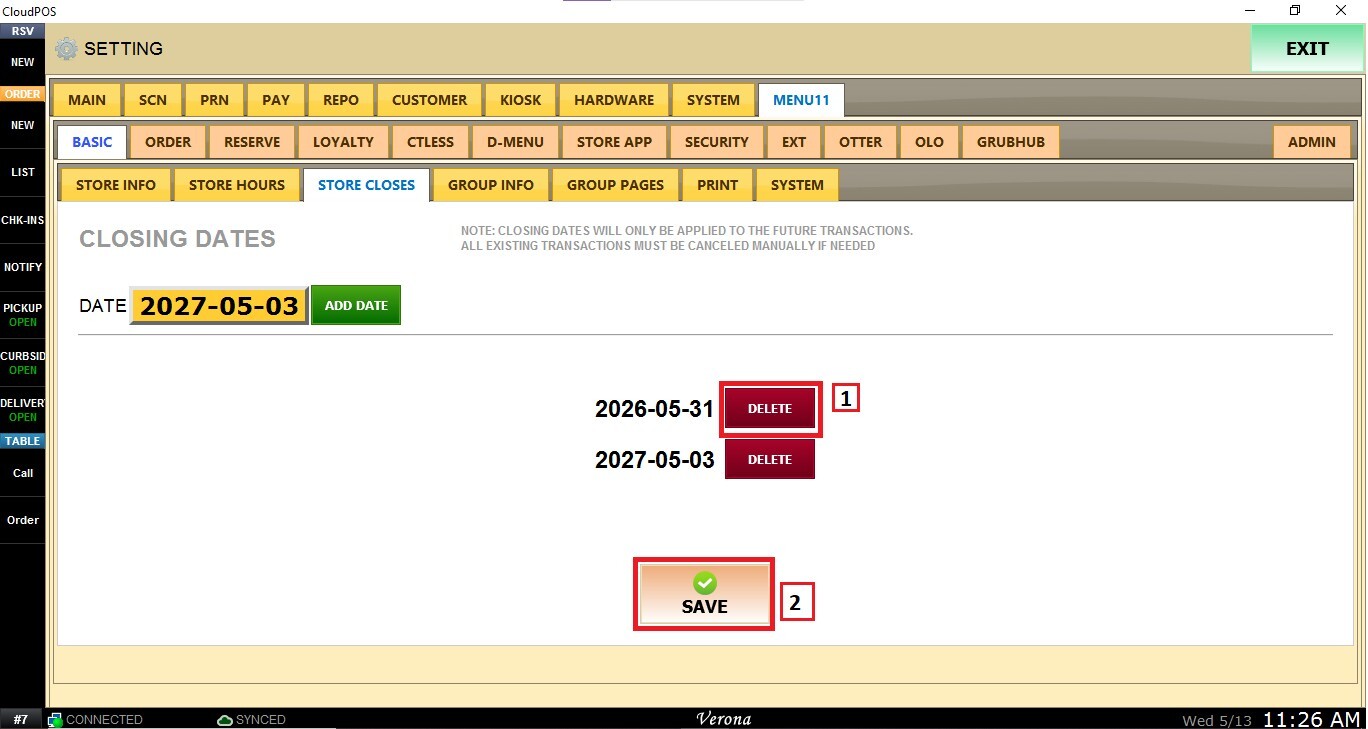
Delete Dates
Click DELETE to remove dates from the schedule and SAVE.
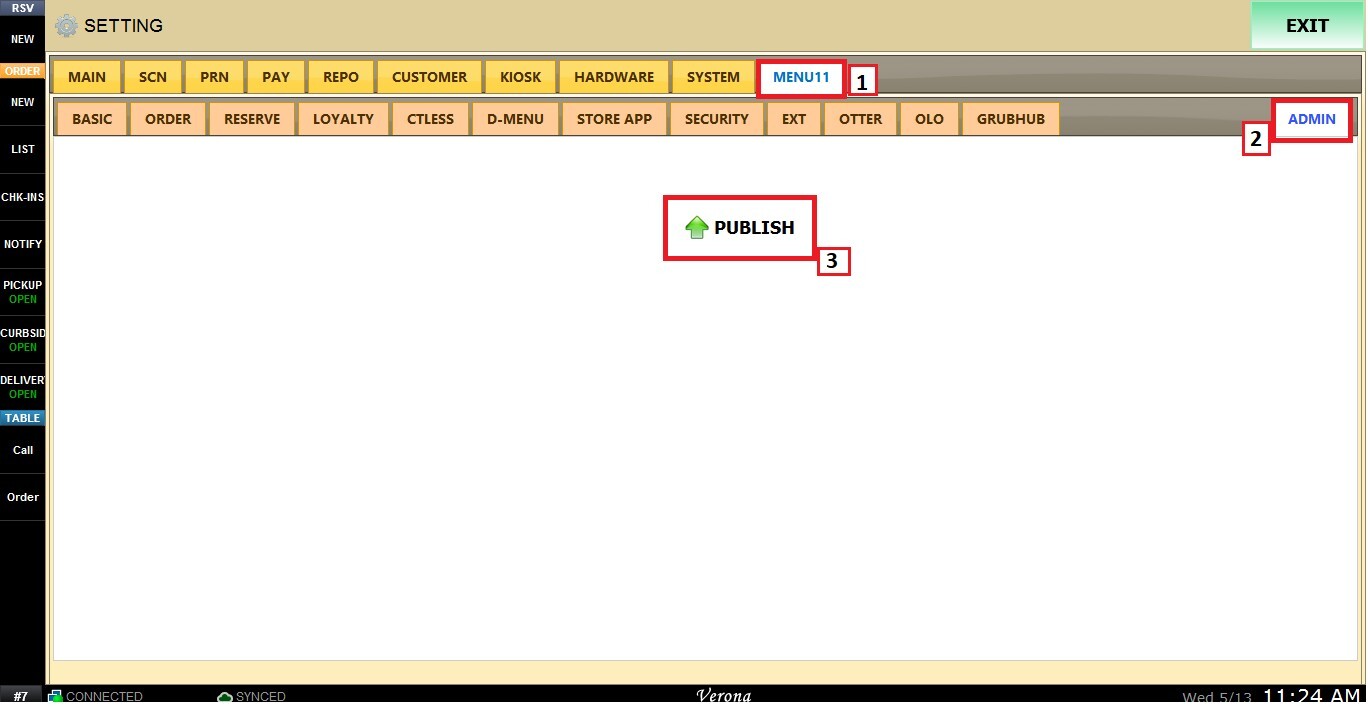
Once all dates are added, go to MENU11, select ADMIN and PUBLISH to apply the changes.